

Video Creatives allow the embedding of video advertisements into a player. A Video Creative template defines the properties uploaded videos must conform to, and the player will select the most appropriate video to play.
Editing template details
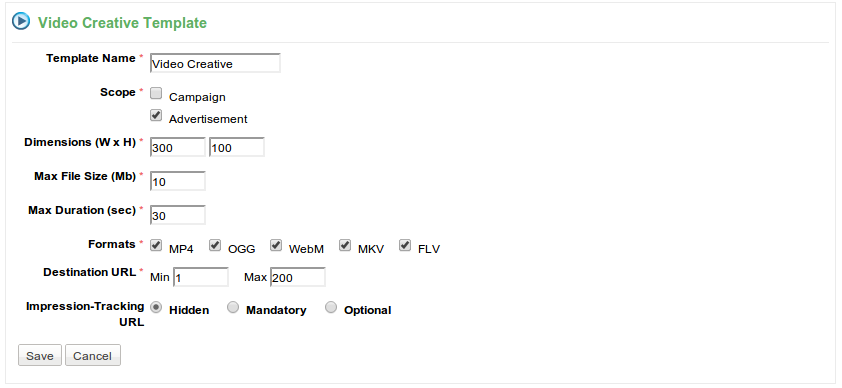
When adding a new template for a Video Creative a form similar to that on the left will be displayed.
The table below describes the individual fields in the form.
For fields that show options for Hidden, Mandatory, Optional the effect of selection is the same and is described below
-
Hidden: This will not present the field for collection.
-
Mandatory: The field will be presented and must be filled in for the creative to be saved.
-
Optional: The field will be presented, but does not have to be entered.
|
Template Name |
When multiple templates are added against the one product this name will be displayed in the tab shown to the person adding a Video Creative feature. |
|---|---|
|
Scope |
Check whether to allow collection at a Campaign and/or Advertisement level. |
|
Formats |
The types of video file that can be uploaded. |
|
Dimensions (W x H) |
It will be used by the AdServer to determine suitability for presentation against an AdSpace. This will be the overall size that will be taken up in the publishing site. |
|
Max File Size (MB) |
The maximum file size in megabytes for the video file. |
|
Max Duration (sec) |
The maximum time in seconds that the video can play for. |
|
Impression-Tracking URL |
For more details please see the impression-tracking URL page. |
Viewing Template Details
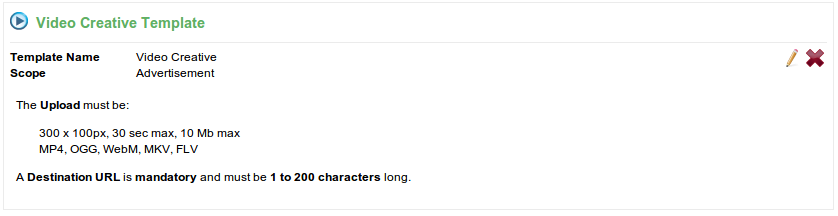
The above screen shot shows the current configuration for a Video Creative template that has been added. Careful consideration has been taken into account to display the configuration in a way that is easy to read.
In this example we have just clicked save from the previous screen shot showing the editor. You can see the settings that were saved and what will be displayed in this case.
-
Clicking the pencil icon will allow editing of the template details. Depending on the changes that are required saving the template may not be possible. See above for more details.
-
Clicking the cross icon will delete the template. In some cases this icon will be disabled. Hovering over the icon should tell you why it has been disabled. If this icon is enabled it means that there are no existing features that have been created against the template. In this case all updates to template configuration will succeed as there is no possibility of making existing features invalid.
Adding Multiple Templates
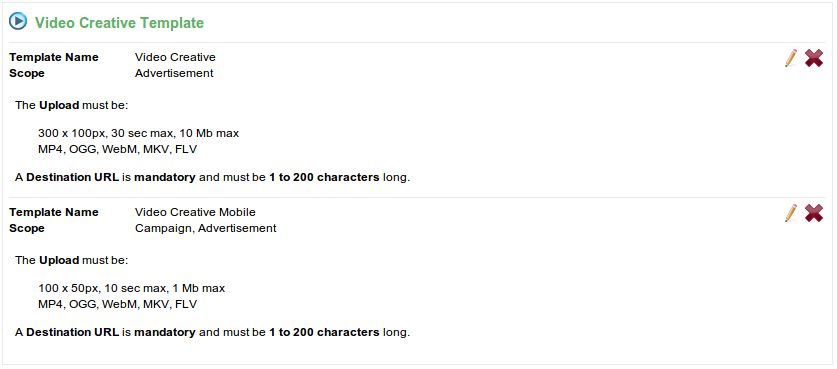
The above screen shot shows configuration where two Video Creative templates have been added against one Product.
Only templates that have no creative features assigned are able to be deleted, the delete icon will become disable if creative features are assigned.
You can also see the difference in configuration for each of the templates:
-
Different file properties exist for each template.
-
The second template has an optional Impression-Tracking URL field
-
The scope of the bottom template has been extended to include Campaigns