
Flash Templates specify the valid configuration of Flash advertisements for a specific product.
General configuration for this type of creative allows for a flash object and a backup image to be supplied for presentation.
The backup image is used in place of the flash file when flash is not supported by the device rendering the Advertisement.
Editing template details
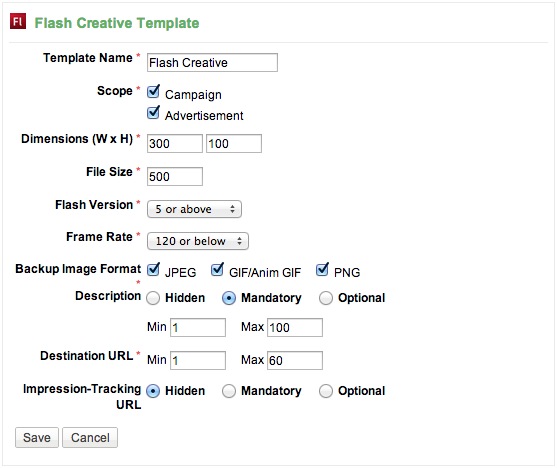
When adding a new template for a Flash Creative a form similar to the above one will be displayed. Each field available is described in the table below. Depending on how the template is configured this will alter the fields presented when adding a Flash Creative to either a Campaign or Advertisement.
For fields that show options for Hidden, Mandatory, Optional the effect of selection is the same and is described below:
-
Hidden: This will not present the field for collection.
-
Mandatory: The field will be presented and must be filled in for the creative to be saved.
-
Optional: The field will be presented, but does not have to be entered.
|
Template Name |
When multiple templates are added against the one product this name will be displayed in the tab shown to the person adding a Flash Creative feature. |
|---|---|
|
Scope |
Check whether to allow collection at a Campaign and/or Advertisement level. |
|
Dimensions (W x H) |
It will be used by the AdServer to determine suitability for presentation against an AdSpace. For the flash file and backup image to be uploaded they must be this dimension. |
|
File Size
|
The maximum size in kilobytes that is able to be uploaded. You may wish to follow industry guidelines, such as those published by the Interactive Advertising Bureau (review the IAB guidelines). Please note that larger creative files will increase the overall page load time for the site where the ad is being presented. |
|
Flash Version |
This is the minimum version of flash file that can be uploaded. |
|
Frame Rate |
All uploaded files must have a frame rate lower than this value. |
|
Format |
This is the allowed formats for the uploaded backup image. Simply remove those image types that you want to restrict upload for. |
|
Description |
This allows the advertiser to add a description to be used as title text. |
|
Destination URL |
The URL that the user clicking on the creative will be eventually taken to. This may have additional query-string parameters allowing deep linking into your target site. |
|
Impression-Tracking URL |
For more details please see the impression-tracking URL page. |
Updating existing templates
At any time you are able to update existing templates. When saving we check existing Flash Creative features that are saved against this template. If the changes cause any existing Flash Creative features to become invalid the action is prevented.
Types of changes that generally succeed
-
Increasing length limits
-
Making a mandatory field optional
-
Changing the template name
-
Adding additional backup image formats
-
Increasing the allowed maximum file size
-
Lowering the minimum flash version
-
Increasing the maximum frame rate
Types of changes that usually fail
In some cases the following changes will save correctly depending on what is already in the system.
-
Altering the dimension allowed. In most cases there will be features attached to the template. As their dimension is restricted, any changes would make cause them to become invalid
-
Decreasing the length maximum or increasing the minimum
-
Making a mandatory field hidden. There will be features in the system that have the detail populated so we can not ignore this data.
Viewing Template Details
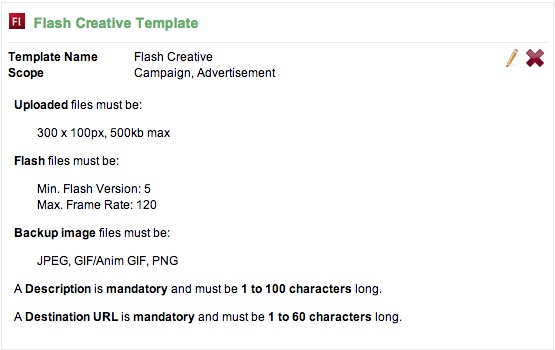
The screen shot to the left shows the current configuration for a Flash Creative template that has been added. Careful consideration has been taken into account to display the configuration in a way that is easy to read.
In this example we have just clicked save from the previous screen shot showing the editor. You can see the settings that were saved and what will be displayed in this case.
-
Clicking the pencil icon will allow editing of the template details. Depending on the changes that are required saving the template may not be possible. See above for more details on this.
-
Clicking the cross icon will delete the template. In some cases this icon will be disabled. Hovering over the icon should tell you why it has been disabled. If this icon is enabled it means that there are no existing features that have been created against the template. In this case all updates to template configuration will succeed as there is no possibility of making existing features invalid.
Adding Multiple Templates
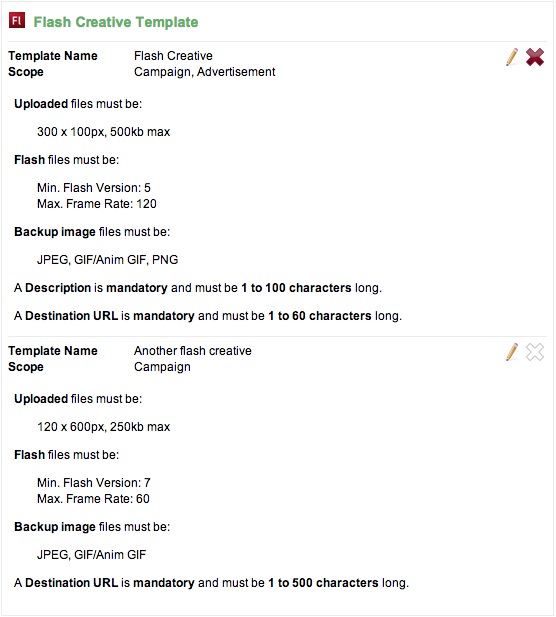
The above screen shot shows configuration where two Flash Creative templates have been added against one Product.
The top template has no features assigned to it and is showing an enabled delete icon. The bottom template has a feature in the system that is using this template configuration so deleting it has been disabled.
You can also see the difference in configuration for each of the templates:
-
Description has been set to hidden in the second template
-
The dimensions are different.
-
The second template restricts the uploaded backup image to only JPEG and GIF/Anim GIF.
-
Maximum allowed file size is slightly smaller in the second template.
-
Version and frame rates allowed are different.
-
Destination URL length limit has been increased on the second template.