
Creating a Custom Term
To create a new Custom Term, you can do so either by using the native Piano Management + Billing interface or by making the appropriate API call. The Subscription Management + Billing approach is best if you expect that many users will need the same access, but if you need a more dynamic approach to creating the term, an API call can be useful. These two methods are detailed below.
Subscription Management + Billing
Within Subscription Management + Billing, you can create new custom terms by clicking Manage→Terms. Then, click the blue NEW button at the top right of your screen, and select Custom from the resultant modal.
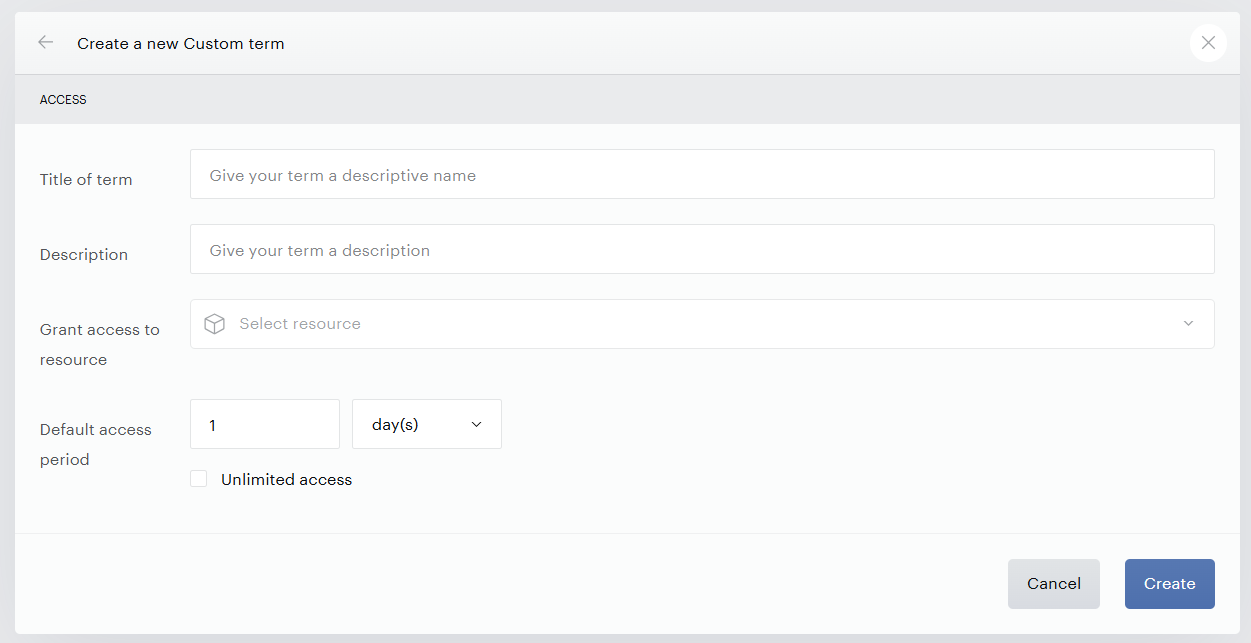
Then, populate the available fields with appropriate information regarding this term.
Title or Name: This is the name that will be presented. This will be visible both to you via User Mining and to the user via My Account.
Description: Here you may provide an internal-facing description of this term for your own identification purposes.
Resource: Link this term to a resource so that users who have converted on this term have the appropriate access.
Default access period: Define the duration you want access to continue for users who have converted on this term. You can specify unlimited access by clicking the appropriate checkbox.
API
To create a Custom Term via API, simply call /publisher/term/custom/create and pass in the appropriate parameters. Note that this method of creating a Custom Term requires that you know your AID and the RID of the desired resource. If you choose not to provide a custom access period, the default period will be applied.
The parameter custom_default_access_period uses a seconds format. You can follow this guide:
1 day = 86400 seconds
1 week = 604800 seconds
1 month (30 days) = 2592000 seconds
6 months (180 days) = 15552000 seconds
1 year (365 days) = 31536000 seconds
Granting Access
Once a user has converted on this term and completed checkout, your system must communicate with Piano to manage access for that user. To do so, the only automatic option is to make another API call. The appropriate endpoint for this process is /publisher/conversion/custom/create, the details of which can be found here. You must pass in your AID, the Term ID of the custom term you have created, and the UID of the user who is converting. Optional parameters relate to the duration of access.
If you do not specify an access period, the length of access will be the default period as defined by that term or by the system. If you set unlimited_access to TRUE, the period of access is overwritten and the user retains access indefinitely. The default is FALSE.
When this endpoint is called, Piano grants access to the user without the need for any Subscription migration but the user record itself needs to be already present in Piano.
Renewing Access
The same endpoint should be called when users need to renew their access. The same steps apply.
Logging Conversions
Once the user has converted, you will need to log that conversion for reporting purposes, including Composer conversion reporting. To do so, you will need to call the API endpoint /publisher/conversion/log. Here, you will need the tracking_id, which you can learn more about here. Additionally, you will need the term_id and term_name of the custom term.
Once you have specified these parameters and submitted the API call, the conversion will be represented within your Piano system.
Terminating Access
When a user elects to cancel their access, other API endpoints must be called.
First, you must find the access ID that belongs to the user. To do this, you can call /publisher/user/access/list. For this call, you will need the AID, the UID, and the offset for which you would like the results to be returned. Additionally, you can input an expand_bundled boolean, which will list access contained within a bundle separately when TRUE. You may also input a query (q) to further filter results. Finally, you may specify a limit, which will constrain the number of accesses listed when you make this call.
Next, you must revoke the access associated with the user. To do this, call /publisher/user/access/revoke, for which the only parameter to input is the access ID, which you obtained in the above step.
Note that this process is only required for terminated or canceled access, not for expired access.
Additional Notes
To work with custom terms, you do not need to use Offers within Piano Management + Billing, nor do you need the Show Offer card within Composer. However, you will still need the Show Template card with Templates that aptly reflect all details of your terms, including price, description, and visuals. From this Template, you should link directly to your checkout system for that service with the appropriate tracking_id parameter passed in.
To make the most of Custom Terms, you might want to set up a middleware solution. The middleware will handle user registration, payment processing, subscription management, and reporting. Here's a breakdown example of the middleware's responsibilities:
-
Registration and Access Control:
-
Users will register and gain access to resources in exchange for registration.
-
Users will have access to MyAccount, but Library, Cards, Payments & History sections will not display any data.
-
-
Payment Workflow:
-
Users who need to make payments for access will be redirected to a third-party middleware.
-
The middleware will manage payments, collect payment information, and process transactions.
-
It will store payment provider tokens for future use and handle recurring payments.
-
-
Subscription Management + Billing:
-
The middleware will track subscription details, including renewal dates.
-
Users can cancel or modify their subscriptions through the middleware.
-
-
Reporting and Synchronization:
-
The middleware will produce payment and subscription reports.
-
Conversion logging is vital, linking access in Piano to the payment.
-
Users with access to multiple resources will have their accesses listed.
-
-
User Experience:
-
Users will encounter a Composer template that links to an external page for payment information.
-
After successful payment processing, the middleware will grant access through Piano API.
-