
A registration term grants access to a resource in exchange for a reader creating an account, with no payment involved. A registration term does more than capture a signup: conversions appear in the Conversion Report, the term can trigger its own email notifications, it can be tied to a custom form to collect extra data, and it feeds the Likelihood to Register model with no additional setup.
Creating a Registration Term
First, click on Manage → Terms from the menu in the upper right of your screen. Then click on "New" at the top right and select "Registration" from the presented options. This screen will appear:
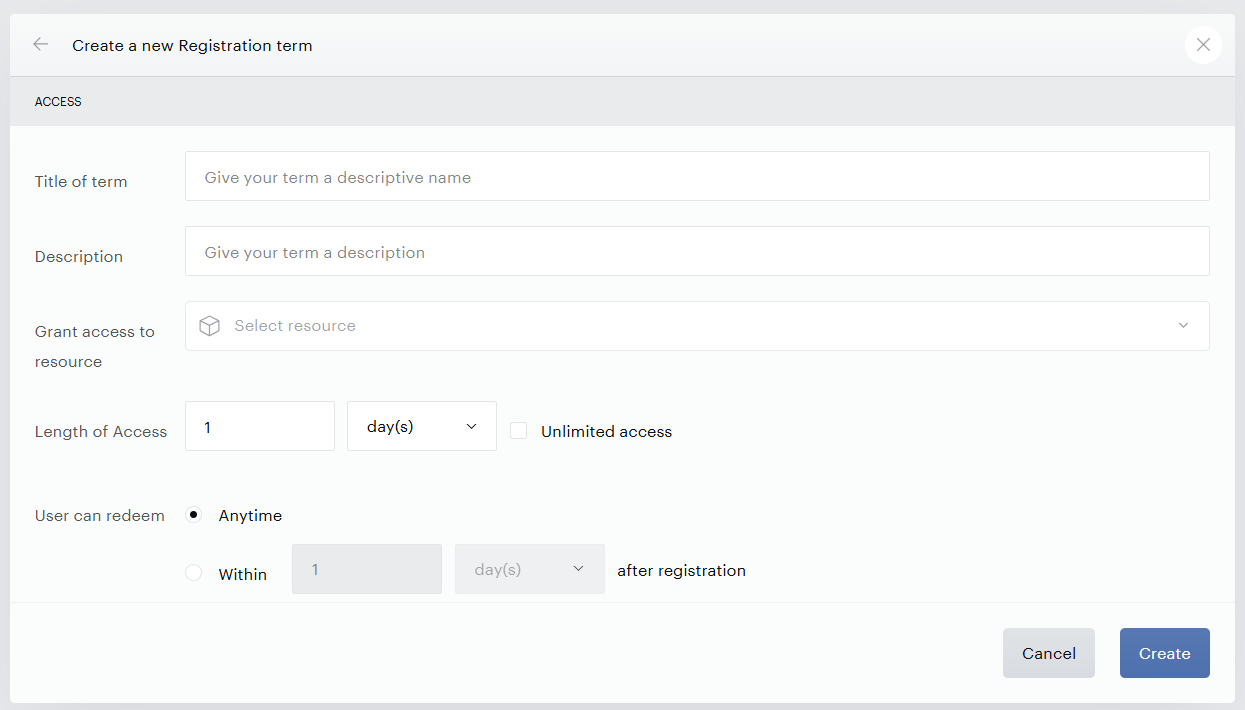
The fields you will fill out when creating a registration term include:
Name or Title: Provide a term name of your choosing. This name can be exposed to end users so it should be representative of the service you are offering, such as “Complimentary Access.”
Term names can contain up to 100 characters. If you enter a name longer than 100 characters, the term is still created, but the name is automatically truncated to the first 100 characters.
Description: You can provide an optional description for this term specifying what the user may expect if he or she purchases this term. Again, this description can be exposed to end users when converting on this term if you so choose.
Resource: Select the resource you would like to offer in your term by selecting it from the drop-down list or searching for it. See here for more information on how to create resources.
Length of access: Select how much access to grant in return for registration. Access can be configured in a number of seconds, minutes, hours, days, months, or years.
Unlimited access: If this box is checked, access will never expire.
User can redeem: You may select the window during which a user may redeem a registration term. This applies if a user registers independent of any terms and has not yet converted on any terms. You may allow users to redeem the term at any time or specify a window after registration that the term will be offered.
Please note that if a team member revokes a user’s access via the Piano Dashboard that was originally obtained through a registration term, the user will not be able to re-convert on the same registration term again.
Once all details have been finalized, click “Create."
Targeting Non-Registered Users
Guests and registered users will be able to see the registration term along with its description in the offer. To prevent registered users from seeing these registration terms, simply segment the user base by login status with Composer to target only those users who have not registered.
Users that have converted on a registration term will see an entry in the History tab of the My Account section with the following copy: "User converted on the registration term <term_id> on <date>".
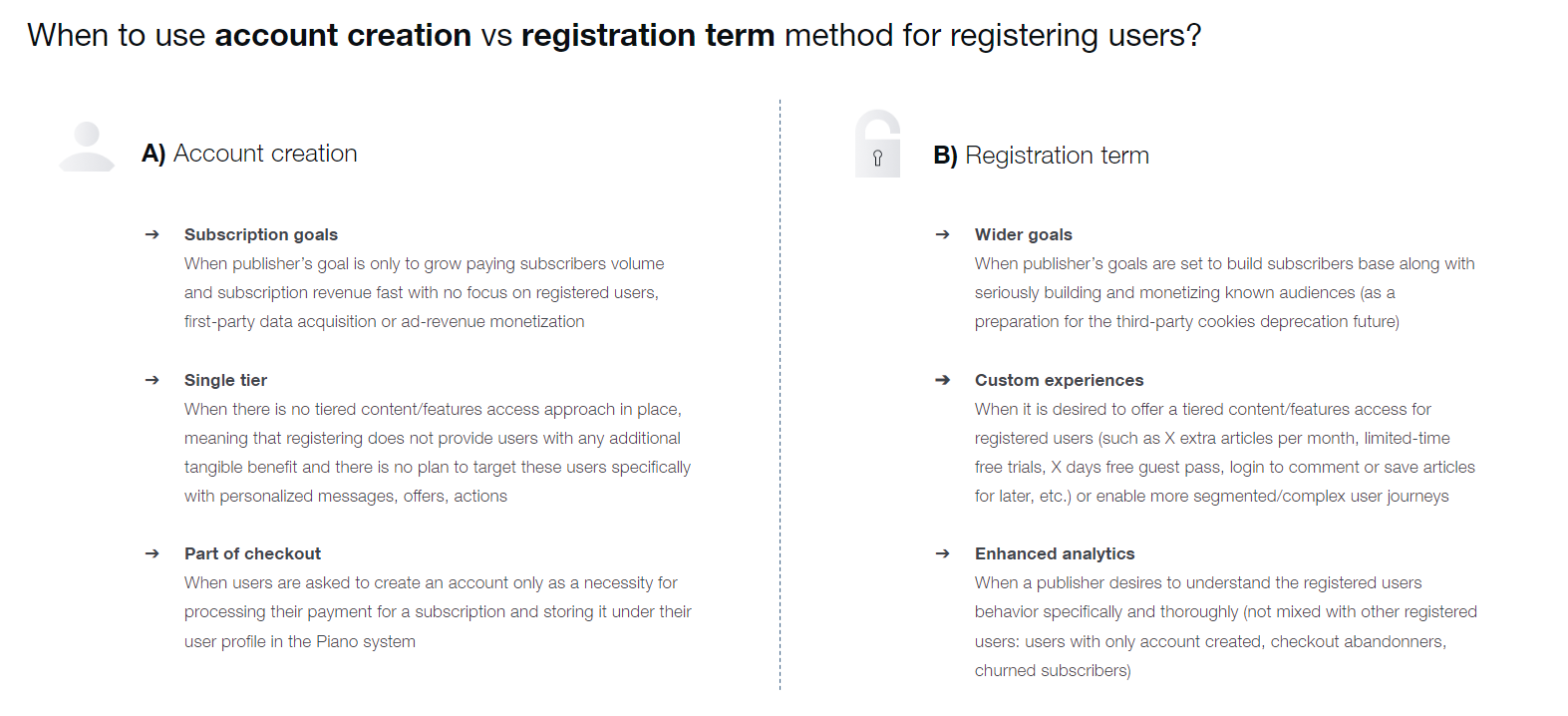
Registration Term Key Features
-
Multi-tiered access. Registration term allows the publisher to provide a user segment with specific event- or offer-based access to a resource (content/feature on publisher’s site), which can help in segmenting and targeting these users with personalized marketing comms driving users gradually throughout the customer journey funnel.
-
Default reporting. Using registration terms enables publishers to see registration conversions directly in the Conversion Report, and overall better track and analyze registered users' segment behavior, allowing optimization of strategies and campaigns accordingly.
-
Term-specific system emails. Using registration terms allows triggering specific email notifications to keep users informed about their access/engagement or communicate tailored messages/offers.
-
Custom forms. Registration terms can be tied to custom forms, enabling the collection of additional user data and targeting users based on their responses to these custom fields in Composer, which helps in creating personalized experiences and offers for this segment.
-
Likelihood to Register (LtR). Clients using registration terms will have registration conversion events tracked automatically, which are required to enable the LtR machine learning algorithm and targeting without additional technical setup.