Collecting User Mailing Addresses
If you would like to collect your user's mailing addresses, go to Manage → Terms. Then select the term that you would like to collect print addresses for. You may only collect addresses on payment terms with subscription billing configured or dynamic terms. The Collect address for this term checkbox will appear under the Address Collection section of your term:

If you select this box, additional boxes labeled Delivery zones and Pre-select country on address form will appear:
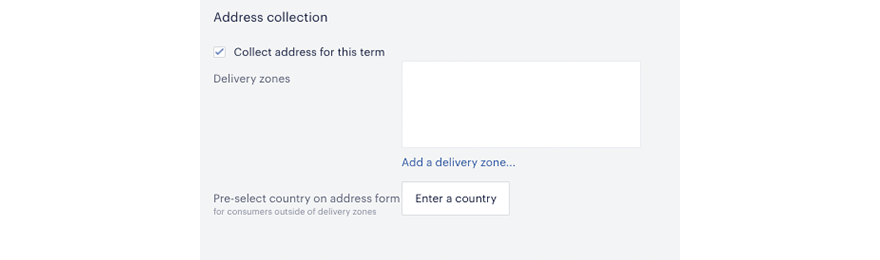
From here, you may add a delivery zone by clicking the appropriate text. A dropdown menu with all available delivery zones will appear. Select the delivery zone(s) that you would like to use. You must create delivery zones before you are able to add them. Click here for detailed instructions on how to create delivery zones.
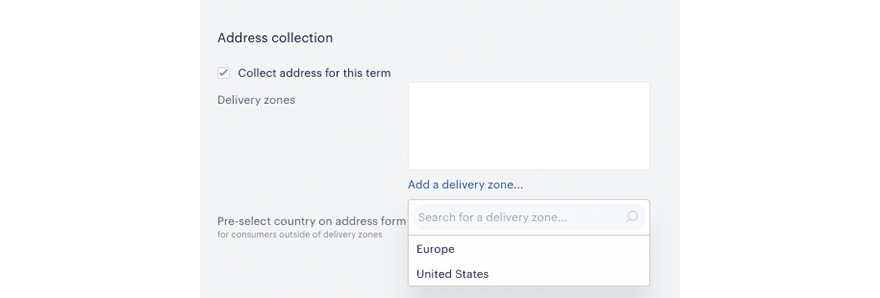
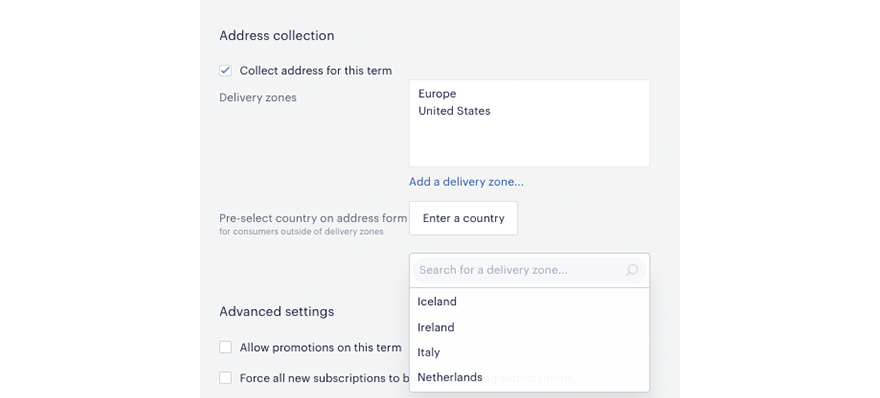
Select Pre-select country on address form if you would like the user’s window to be automatically populated with a particular country. All countries in the selected delivery zones will be available as options. This is useful if most of your conversions occur in one particular country. At checkout, if a user’s geoIP corresponds to one of the countries within your delivery zones, the Country field will be automatically populated with the name of their country. If not, a user will see the country name you have selected in Enter a country.
If you have chosen to collect addresses, the user will see an extra window during his or her subscription checkout where he or she will be invited to enter his or her name and mailing details.
The fields that the user will need to complete are Country, First name, Last name, Address 1, Address 2, City, State/Province, Postal code, and Phone.
A user cannot proceed with checkout until they enter an address. Since address collection here does not enforce any verification or confirmation, the user is responsible for entering a correct address when purchasing a term. User addresses are saved in the client dashboard where they can be viewed and edited.
Gift terms that contain a print subscription will only require address collection during redemption of the term by the giftee, not during the purchase of the gift term.
You can find all input user addresses in the Subscription details report. You can also view an individual user's address by navigating to the Addresses tab of their profile in your Piano dashboard.
Creating Delivery Zones
Delivery zones are used to filter users’ addresses by country and correspondingly limit access to terms. A delivery zone is a country or a bundle of countries grouped under one name. To add or configure delivery zones, go to Home → Edit Business → DELIVERY ZONE.
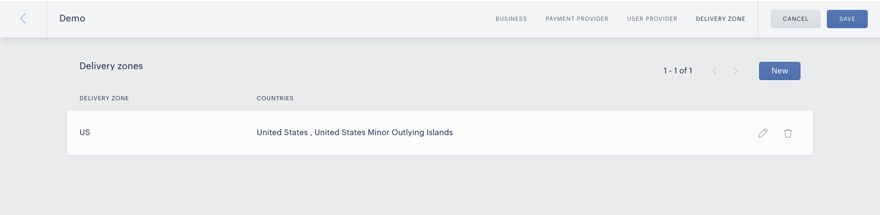
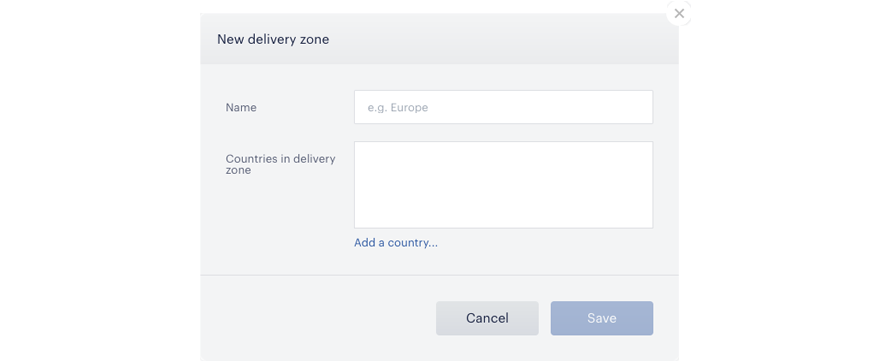
Click existing items to edit them or New to create a new delivery zone. Enter a name for your zone and select the countries you would like to include in your zone. Usually, delivery zones are named as countries or, if multiple countries are included, regions. For example, you may have one delivery zone just for the United States and another for the entire European Union.