
Definition of a Print User
A Print user is an end user who does not have a real email address for registration in Piano. Instead, these users are identified and managed through alternative means.
-
A last name is required to register a print user.
-
A first name is optional.
-
Print users are primarily intended for purchasing print products that require delivery to a physical address.
Since all end users in Piano must be registered with an email address, print users are assigned an automatically generated fake email address with the email domain: @uid.fake.piano.io.
Creating a Print User
Print users can only be registered via the publisher dashboard or imported into Piano. They cannot be registered through checkout and do not have access to My Account.
Client users can create both standard Piano users and print users via the publisher dashboard, either using the "Add a new user" button:

Or using the "Subscribe user" feature:
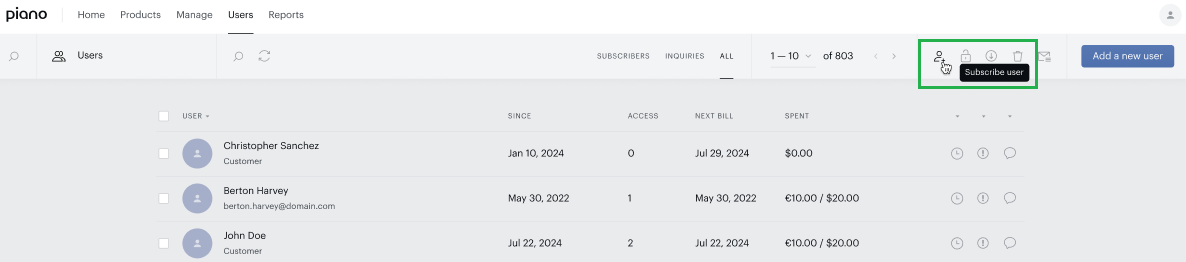
Under the tab "Add a new user":
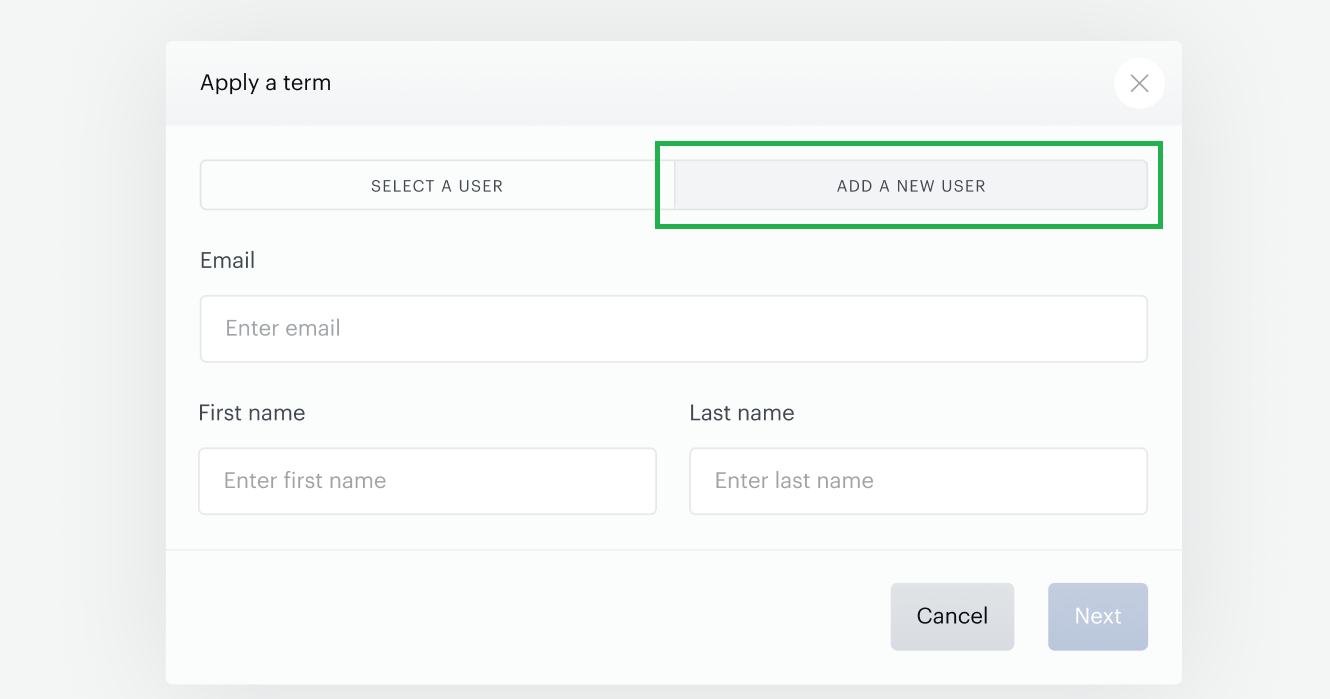
Entering a real email creates a standard Piano user, while leaving the email field empty creates a print user. For print users the last name is required, while the first name is optional unless the setting "First Name and Last Name Are Required" in the Identity Management configuration is enabled.
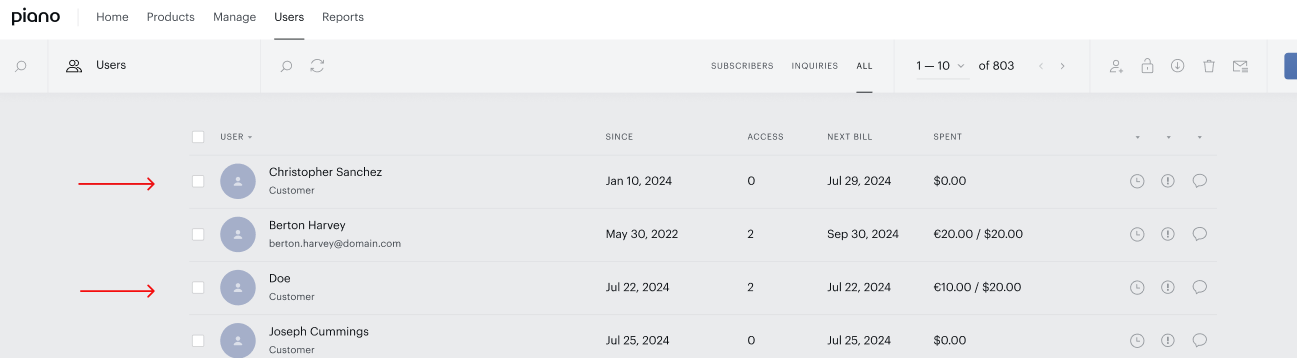
The fake emails of the print users are not displayed in the publisher dashboard. Instead, print users are marked with a Customer label.
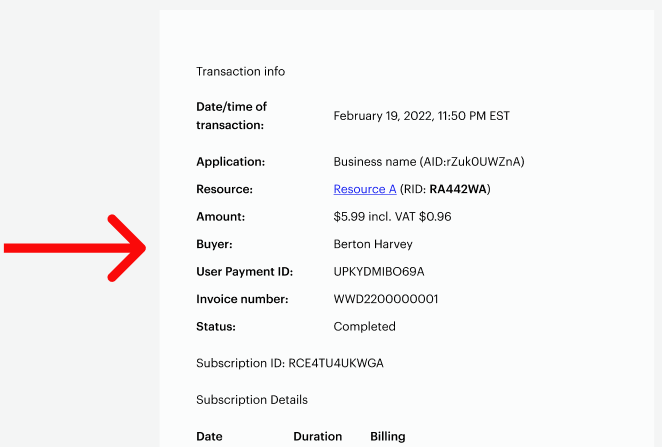
For email notifications and PDF receipts, the end user's email is replaced by their last name, or first name and last name. Additionally, these names are shown in the Buyer section of the PDF receipt for print users.
Important Considerations
In case Alias login is enabled, Alias fields appear in the user creation modals too. Please note, that client users can add aliases to print users, but these users cannot log in with aliases since they lack a real email or phone number for authentication.
In case Double opt-in is enabled, print users are created as confirmed users, although no confirmation emails or webhooks are sent in this case.
If a client user attempts to manually enter an email with the @uid.fake.piano.io domain, it is considered invalid, and an error message is displayed. The assignment of this fake email is done automatically on the backend.
If a print user is registered multiple times with the same first and last name, Piano cannot merge these accounts. Users registered through different channels cannot be merged.
Updating a Print User
Print user data can be modified using the Edit user button on the user's profile page in the publisher dashboard.
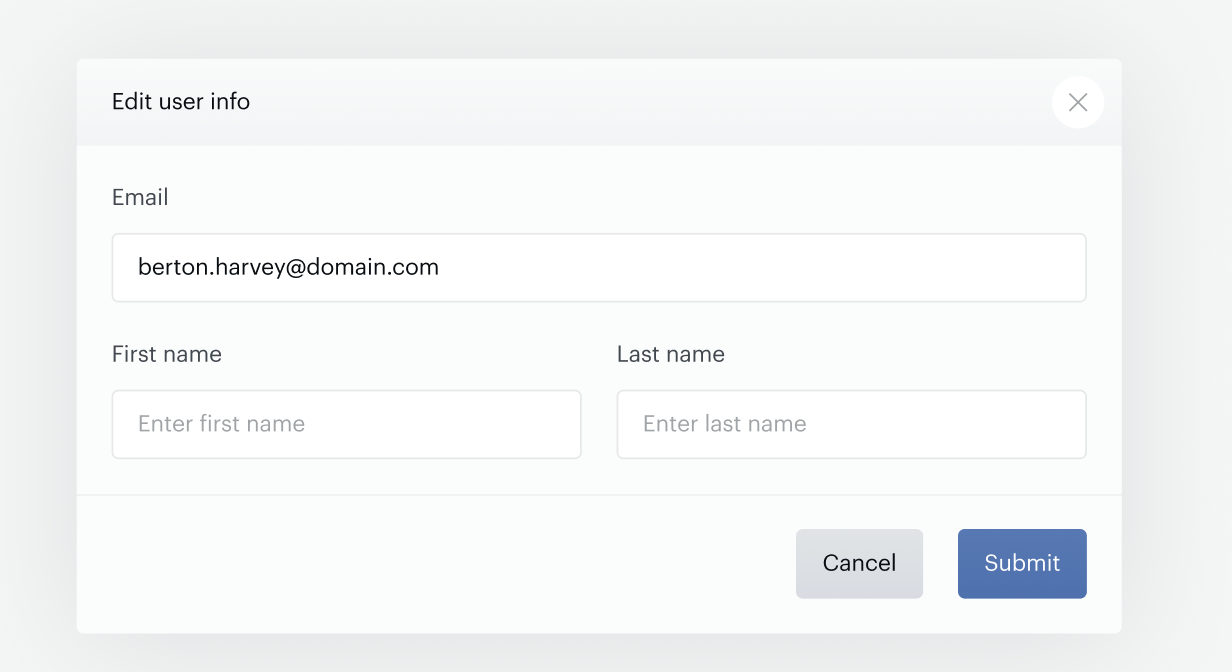
Both the first and last names of an existing print user can be updated. The last name is always required, while the first name is optional unless the setting "First Name and Last Name Are Required" in the Identity Management configuration is enabled.
A print user can be converted into a standard Piano user by adding a real email address when editing the user's information. When a real email is added, the fake email is replaced, but the user's UID remains unchanged.
At this point, the user receives an Email registered email notification to confirm the account creation. This email is only available at the Email Manager level and is not available at the term level.
Once a real email is assigned, it cannot be removed in either My Account or publisher dashboard, preventing the conversion of a standard Piano user back into a print user.
If a client user attempts to enter a fake email domain (@uid.fake.piano.io) in the Email field on the "Edit user" modal window, the input will be considered invalid.
After a real email is added, the print user becomes a standard Piano user, enabling them to use both checkout and My Account.
Deleting a Print User
Print users can be deleted using the following methods:
-
Publisher Dashboard: Go to Users, select a user, and click the trash can icon to delete.
-
API - User Endpoint: Use the endpoint
/publisher/user/disable. More information is available here. -
API - GDPR Endpoint: Use the endpoint
/publisher/gdpr/delete. More information is available here.
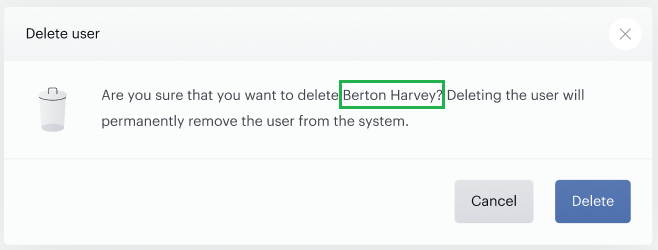
Unlike the standard user deletion flow, the confirmation modal window displays either the last name or the first name + last name of the print user instead of an email address.
Print User Purchases
Print users do not have real email addresses and therefore cannot log in to the Piano checkout and make purchases themselves. Client users, however, can purchase subscriptions on behalf of print users through the Publisher Dashboard using the "Subscribe user" feature.
Print User Reporting
In reports generated through the publisher dashboard, if the end user has a real email, it will be displayed. If the end user is a print user and only has an email with the fake domain @uid.fake.piano.io, the "Email" or "Customer" columns will remain empty. The User ID (UID) parameter can be used to identify print users in the reports.
Email Templates
Print Users are registered with fake email addresses in the format UID@uid.fake.piano.io or GPnumber@uid.fake.piano.io, with the UID and GPnumber stored as the User ID. These fake email addresses are not visible to clients or end users, and emails sent to these fake addresses are blocked from delivery.
However, certain emails, such as those sent to giftees and recipients of shared accounts, must be delivered to real email addresses, as these users have valid emails. To ensure accurate display, the gifter and owner of shared subscriptions, who have fake email addresses, must be properly represented in these emails. As a result, some adjustments to the email templates are required.
By default, the variable {{user}} is included in gift emails. Now, there are two new email variables used specifically for gifts: {{gifter_user}} and {{giftee_user}}. These variables follow a predefined logic based on the available user information:
-
If the user has both a first name and a last name → The variable displays the full name (first and last name).
-
If the user has only a last name → The variable displays the last name.
-
If the user has only a first name → The variable displays the first name.
-
If the user does not have a name:
-
If the user has a real email → The variable displays the real email address.
-
If the user does not have a real email (only a phone number) → The variable displays the first part of the fake email, which corresponds to the phone number.
-
The purchase of digital subscriptions on behalf of a print user via the Piano dashboard is not restricted. As a result, a print user may be subscribed to digital subscriptions with shared accounts. However, a customer can only act as a parent user, as Subscription Management + Billing prevents sharing subscriptions via fake emails, meaning a print user cannot become a child user.
For this purpose, two email variables are included in emails: {{parent_user}} and {{child_user}}. These variables follow a structured logic based on the available user information:
-
If the user has both a first name and a last name → The variable displays the full name (first and last name).
-
If the user has only a last name → The variable displays the last name.
Below is the updated HTML for the affected emails:
Gift delivery
The Gift delivery email.
<table width="500" style="margin: 0 auto; font-size: 14px; font-family: Helvetica, Arial, sans-serif; color: #53535d; line-height: 24px;">
<tr><td><p style="text-align: center; font-weight: normal; font-size: 22px; margin-top: 0px; padding-bottom: 10px;">
<t>You‘ve been sent a gift!</t> </p>
<p style="text-align: center; padding-bottom: 10px; color: #7b7b82;">
<span style="color: #0085D7;">{{gifter_user}}</span>
<t>purchased a gift just for you from</t>
<span style="color: #0085D7;">{{business_name}}</span>. </p>
<table bgcolor="#f2f4f8" width="100%" border="0" cellspacing="0" cellpadding="0" style="font-size: 14px;"><tr>
<td style="padding: 14px;line-height: 1.4;">
<span style="color: #0085D7; font-size: 16px">{{resource_name}}</span><br>
{{voucher_period}}</td>
<td width="35%"><t>Expires <b>{{voucher_expires}}</b> </t> </td> </tr> </table>
{{#if voucher_message}}
<table bgcolor="#f2f4f8" width="100%" border="0" cellspacing="0" cellpadding="0" style="margin: 6px 0 0 0; font-size: 14px;">
<tr><td style="padding: 14px;font-style: italic;">
"{{voucher_message}}"</td> </tr> </table>
{{/if}}
<p style="font-size: 16px; font-weight: bold; padding-top: 10px; padding-bottom: 10px;"><t>How to access your gift</t> </p>
<ol style="padding-bottom: 10px; color: #7b7b82;">
<li><t>Visit <a href="{{voucher_redeem_url}}" style="color: #0085D7; text-decoration: none;">{{voucher_redeem_url}}</a> </t> </li>
<li><t>Click on the Redeem button</t> </li>
<li><t>Use this code to redeem your voucher: <b style="color: #53535d;">{{voucher_code}}</b> </t> </li> </ol>
<table width="100%" border="0" cellspacing="0" cellpadding="0" style="margin: 40px 0 30px 0;">
<tr><td align="center">
<table border="0" cellspacing="0" cellpadding="0">
<tr><td align="center" style="-webkit-border-radius: 50px; -moz-border-radius: 50px; border-radius: 50px;" bgcolor="#0085D7">
<a href="{{voucher_redeem_url}}" target="_blank" style="font-size: 20px; color: #ffffff; text-decoration: none; -webkit-border-radius: 50px; -moz-border-radius: 50px; border-radius: 50px; padding: 12px 30px; display: inline-block;"><t>Open my gift</t></a> </td> </tr> </table> </td> </tr> </table>
<p style="text-align: center; font-size: 12px; margin-bottom: 0; padding-bottom: 10px;">
<t>To learn even more about {{business_name}}, check out our <a href="{{business_url}}" style="color: #0085D7; text-decoration: none;">website</a>!</t> </p> </td> </tr> </table>
Gift revoke
The Gift revoke email.
<table width="500" style="margin: 0 auto; font-size: 14px; font-family: Helvetica, Arial, sans-serif; color: #53535d; line-height: 24px;">

<tr> <td> <p style="text-align: center; font-weight: normal; font-size: 22px; margin-top: 0px; padding-bottom: 10px;">
<t>Unfortunately, your gift has been revoked</t> </p>
<p style="font-size: 16px; padding-top: 10px; padding-bottom: 10px;"><t>Voucher code {{voucher_code}} is not valid anymore.</t></p>
<p style="font-size: 16px; padding-top: 10px; padding-bottom: 10px;"><t>Gift details:</t></p>
<table bgcolor="#f2f4f8" width="100%" border="0" cellspacing="0" cellpadding="0" style="font-size: 14px;">
<tr> <td style="padding: 14px;line-height: 1.4;"> <span style="color: #0085D7;">{{gifter_user}}</span> </td>
<td width="35%"> <t><span style="color: #0085D7;">{{business_name}}</span></t> </td> </tr> </table>

<table bgcolor="#f2f4f8" width="100%" border="0" cellspacing="0" cellpadding="0" style="margin: 6px 0 0 0; font-size: 14px;">
<tr> <td style="padding: 14px;line-height: 1.4;">
<span style="color: #0085D7; font-size: 16px">{{resource_name}}</span> <br> {{voucher_period}} </td> <td width="35%"> <t>Expires <b>{{voucher_expires}}</b></t> </td> </tr> </table>

{{#if voucher_message}}
<table bgcolor="#f2f4f8" width="100%" border="0" cellspacing="0" cellpadding="0" style="margin: 6px 0 0 0; font-size: 14px;"> <tr>
<td style="padding: 14px;font-style: italic;"> "{{voucher_message}}" </td> </tr> </table>

{{/if}}
<p style="text-align: center; font-size: 12px; margin-bottom: 0; padding-bottom: 10px;"> <t>To learn even more about {{business_name}}, check out our <a href="{{business_url}}" style="color: #0085D7; text-decoration: none;">website</a>!</t> </p> </td> </tr></table>
Gift subscription expiration
The Gift subscription expiration email.
<p> <t>Hi {{giftee_user}},</t></p>
<p> <t>Your subscription to <a href="{{resource_url}}">{{resource_name}}</a> has just expired.</t></p>
<p> <t>If you'd like to resubscribe, go to <a href="{{resource_url}}">{{resource_name}}</a> and purchase new subscription.</t></p>
<p> <t>Sincerely,</t><br>
<t>{{business_name}}</t><br>
<t><a href="mailto:{{support_email}}">{{support_email}}</a></t></p>
X Days after gift subscription ends
The X Days after gift subscription ends email.
<p><t>Hi {{giftee_user}},</t></p>
<p><t>Just a heads up, your gift subscription to '<b>{{purchase_term}}</b>' has expired.</t></p>
<p><t>If you'd like to continue having access by purchasing a subscription, simply visit <a href="{{business_url}}" target="_blank">this link</a>.</t></p>
<p><t>Sincerely,</t><br>
<t>{{business_name}}</t><br>
<t><a href="mailto:{{support_email}}">{{support_email}}</a></t></p>
X Days after gift subscription starts
The X Days after gift subscription starts email.
<p><t>Hi {{giftee_user}},</t></p>
<p><t>How are you enjoying your gift subscription to '<b>{{purchase_term}}</b>'? Drop us a line! <a href="mailto:{{support_email}}">{{support_email}}</a></t></p>
<p><t>Just a reminder, to access your content simply visit <a href="{{business_url}}" target="_blank">this link</a>.</t></p>
<p><t>If you have any questions or encounter any problems, please send an email to <a href="mailto:{{support_email}}">{{support_email}}</a>.</t></p>
<p><t>Sincerely,</t><br>
<t>{{business_name}}</t><br>
<t><a href="mailto:{{support_email}}">{{support_email}}</a></t></p>
X Days until gift subscription ends
The X Days until gift subscription ends email.
<p><t>Hi {{giftee_user}},</t></p>
<p><t>Just a heads up, your gift subscription to '<b>{{purchase_term}}</b>' is about to expire in days.</t></p>
<p><t>If you'd like to continue having access by purchasing a subscription, simply visit <a href="{{business_url}}" target="_blank">this link</a>.</t></p>
<p><t>Sincerely,</t><br>
<t>{{business_name}}</t><br>
<t><a href="mailto:{{support_email}}">{{support_email}}</a></t></p>
Limitations
As print users are associated with fake email addresses, some functionality in the Publisher Dashboard is restricted.
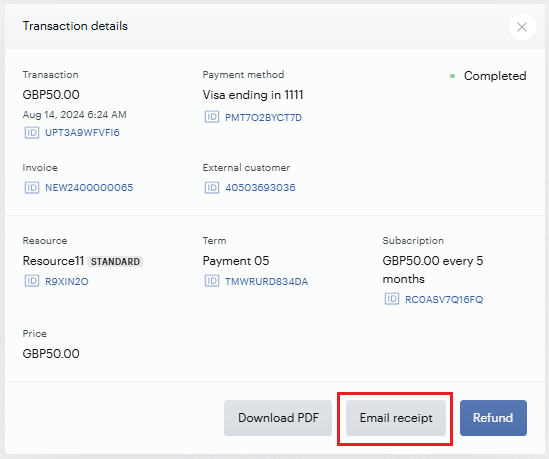
The Email Receipt button (located under Users → [Specific User] → Transactions tab) has been hidden to prevent receipt emails from being sent to fake email addresses.
The Piano dashboard does not restrict the purchase of digital subscriptions on behalf of a print user. Consequently, a print user may have digital subscriptions with shared accounts. However, a print user can only function as a parent user, as the subscription sharing via fake emails is blocked, preventing print users from becoming a child user.
Print users are considered invalid for insertion into ESP mailing lists.
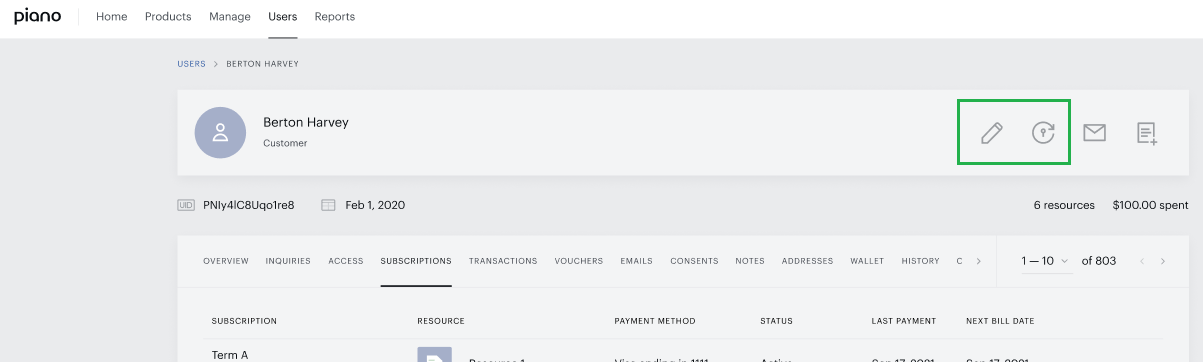
The "Grant Access" button has been hidden on the profile page for print users in the Publisher Dashboard, and granting access is blocked even for already registered print users.
Additionally, the creation of customers via the "Bulk users create" flow is restricted, as emails with the fake domain @uid.fake.piano.io are detected as invalid.
Users without a valid real email address cannot be added through this flow. If a client user attempts to add a user with an invalid email, an error message will be displayed.
The "Reset Password" button is also hidden for print users in the publisher dashboard to avoid confusion.
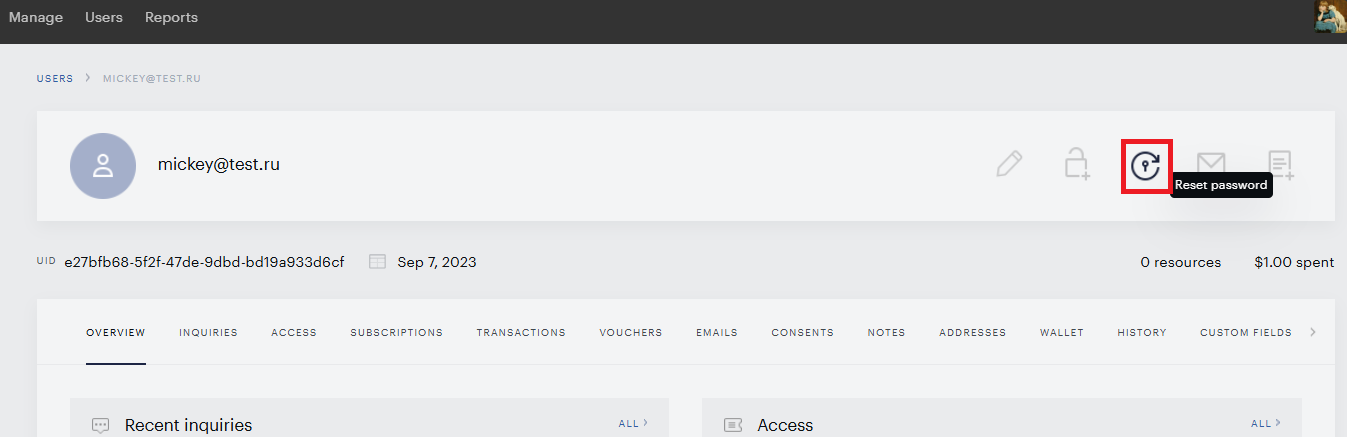
If a user has a real email, the button is visible; however, if the user has an email with the fake domain @uid.fake.piano.io, the button will remain hidden.