
Tax Settings
You can configure tax settings for your application by navigating to Edit Business → Settings → Tax Support.
Taxjar
If you would like to use Piano Tax support, select the Taxjar option and configure your settings:
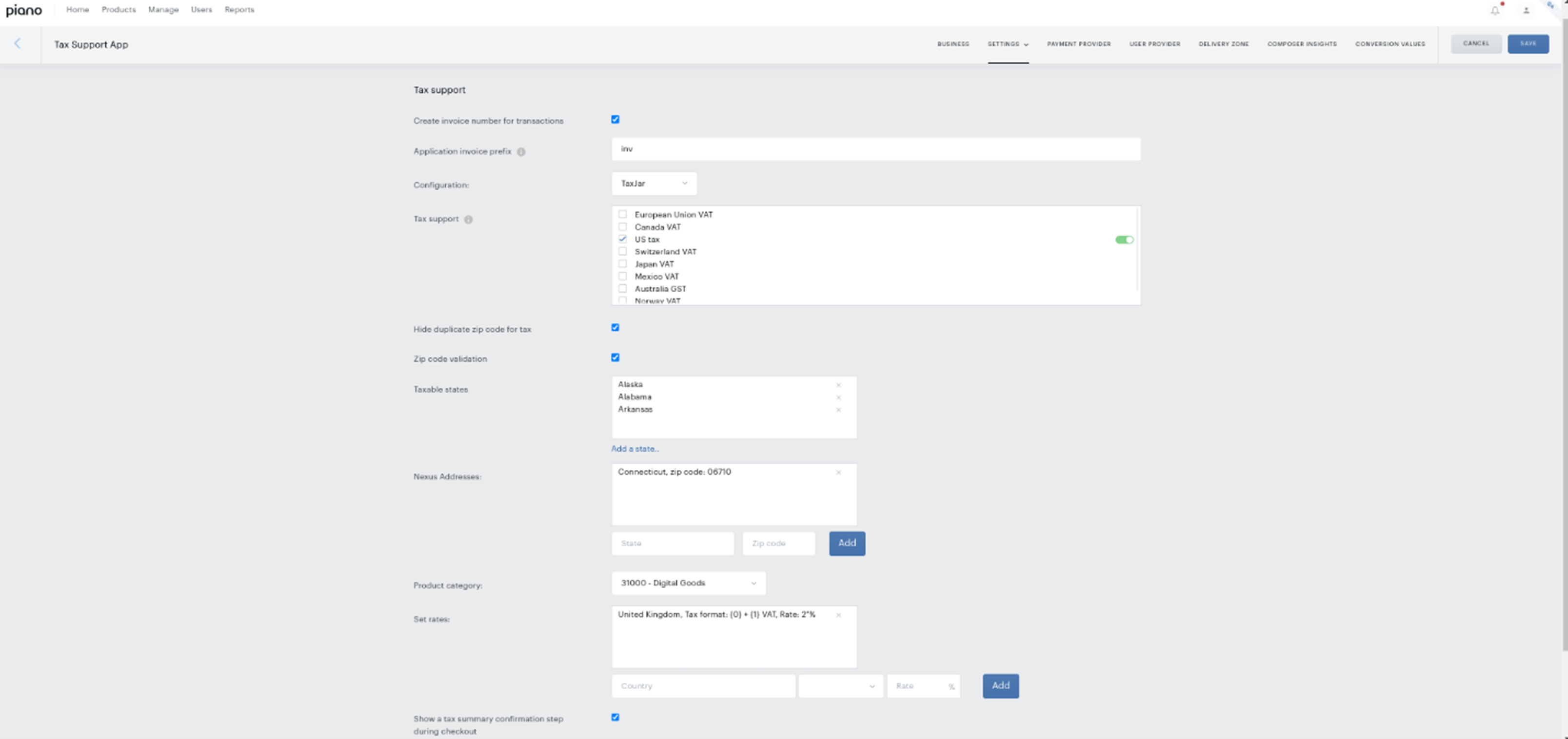
Create invoice number for transactions: Enable Piano to apply invoice numbers.
Application Invoice Prefix: Set your preferred prefix for Invoice numbers
Configuration: Allows selecting tax provider (Caution: if you change the tax provider your previous settings will be lost!)
-
Taxjar - Selecting Taxjar enables Piano out-of-the-box tax support for your application, in this scenario Taxjar is used to derive general rates for US sales tax and country level rates for supported regions except for Canada which follows Canada retail council rates
-
Avalara - Selecting Avalara in the configuration will enable Avalara configuration to appear under Integrations tab. You will need to configure Avalara integration settings before configuring other settings in the Tax settings
-
OneSource - Only supporting US Sales tax, this solution is deprecated and not recommended to be used.
-
Tax support - in this section, you can enable where to apply tax calculation based on your assessment and registrations in particular jurisdictions (Piano does not monitor threshold nor automates enabling tax registration on your behalf).
-
Piano Tax Supported Regions:
Piano provides basic tax support out of the box enabling Combined Sales tax or VAT support in the following regions using country (all) and zip code (US and Canada only) as the minimum required address values. For US Sales validation is performed against a TaxJar service:
European Union VAT OSS (Please note UK is still included in this setting due to legacy reasons, if you don’t need to calculate tax in other countries, please Set a custom rate for the UK VAT). The following countries are included:
“AT”, //Austria
“BE”, //Belgium
“BG”, //Bulgaria
“HR”, //Croatia
“CY”, //Cyprus
“CZ”, //Czech Republic
“DK”, //Denmark
“EE”, //Estonia
“FI”, //Finland
“FR”, //France
“DE”, //Germany
“GR”, //Greece
“HU”, //Hungary
“IE”, //Ireland
“IT”, //Italy
“LV”, //Latvia
“LT”, //Lithuania
“LU,” //Luxembourg.
“MT”, //Malta
“NL”, //Netherlands
“PL”, //Poland
“PT”, //Portugal
“RO”, //Romania
“SK”, //Slovakia
“SI”, //Slovenia
“ES,” //Spain
“SE,” //Sweden
“GB” //United KingdomCanada VAT
US Sales tax
Switzerland VAT
Japan VAT
Mexico VAT
Australia GST
Norway VATAlternatively, you can also set a custom tax rate per country in the Edit Business → Tax Support settings of your application in addition to the above-listed regions.
Please note, that currently, it's not possible to exempt government users from taxes if you use the out-of-the-box Piano Tax support. You can either enable taxes for all users or none based on the tax settings for the individual region or country.
-
-
Hide duplicate zip code for tax - a unique setting that enables you to hide the zip code in the Billing country dropdown and instead uses the zip code of your payment provider card field for improved customer experience (only applies to Braintree payment provider).
-
Zipcode validation - this setting applies an extra format and Piano internal database validation is maintained based on the USPS database updated monthly, when enabled a fully valid zip code must be provided by the user before a tax is calculated
-
Taxable States - you can select States where combined sales tax will be calculated, this specifies the Economic nexus states for US Sales Tax:
-
Economic Nexus: For US Sales tax you can configure Taxable states to specify in which US states a combined sales tax should be calculated. This configuration enables you to specify your economic nexus by listing the US State(s) where tax should be calculated.
-
Nexus: This setting allows you to specify your Physical Nexus - can be enabled by specifying a Nexus state and a zip code. Product Category: When the Nexus is enabled a single product category can be enabled for the application which will apply to the specified Nexus state only. If no Nexus is added, statewide combined sales tax is calculated per state you configure in the Taxable States, as such product category exemption is not available.
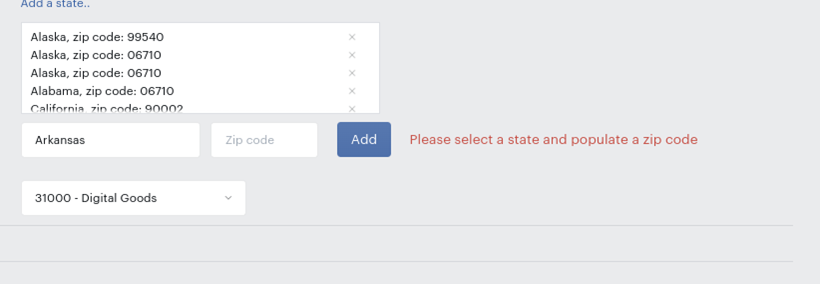
NOTE: Product tax categories are only supported in the US and supported only for a specified Nexus state(s).
Puerto Rico sales tax is calculated under the United States country and requires Puerto Rico to be set up as a taxable state. Alternatively, Puerto Rico can be set up as a country in which case a custom tax rate needs to be configured.
-
-
Set Rates - you can specify your own tax rate per country in this setting.
-
Show tax summary step at checkout - you can decide if you want to show an extra tax confirmation during the checkout to the user.
-
Stop purchases without calculated tax - Enable this setting to ensure that a transaction is only processed if the tax calculation is successful. When turned on, any transaction for which taxes cannot be calculated will be stopped, and the end user will see an error message. When turned off (default state), purchases will be processed even if the tax information has not been calculated for any reason.
-
Enable B2B: Activating this setting turns on B2B logic, which allows eligible customers to be excluded from tax calculations. When enabled, you must set up a dedicated B2B default custom field set to identify business users, and optionally capture their Tax ID.
You can create these default fields by going to Manage → Custom fields, opening the dropdown next to Create fieldset, and selecting the B2B field set under Default fields and sets. This automatically generates two custom fields with the IDs
b2b_buy_as_companyandb2b_tax_id, which you can rename if needed and include in your registration form.-
Exempt if only Tax ID is collected: This option is available only when B2B mode is enabled. If enabled, it exempts the user from tax calculation exclusively based on the presence of a valid Tax ID.
-
US Sales Tax considerations
At the minimum, Taxjar requires the buyer's zip code to provide a tax rate for calculation.
Generally, Taxjar is using the USPS address database where some zip codes labeled undeliverable may not return a tax rate, instead they result in an error from Taxjar.
There is no specific list of ZIP codes available from Taxjar.
Canada VAT considerations
Tax support in Canada applies a combined tax rate across GST (Goods and Services Tax), HST (Harmonized Sales Tax), and PST (Provincial Sales Tax - e.g. QST Quebec Sales Tax, varies across Provinces).
Canada provincial taxes are supported currently only by Piano preset tax rate values observing tax rates prescribed by the official source. When Canada VAT is enabled GST, and all provincial taxes are applied automatically. At this time Canada taxes can either be enabled or disabled using the Tax settings in the dashboard, should you require disabling a particular provincial tax, please reach out to the support team.
Note: No product exemptions or reductions are available outside the US.
Avalara
Once you enabled Avalara as your tax provider you will need to complete your Avalara integration configuration by providing your Avatax account credentials in the Integrations tab.
Then you can configure particular tax settings. Please note even though you can configure your taxable jurisdictions in your Avatax account, you still need to specify your registrations in the tax settings by enabling the required regions where you want to use Avatax to calculate your taxes.
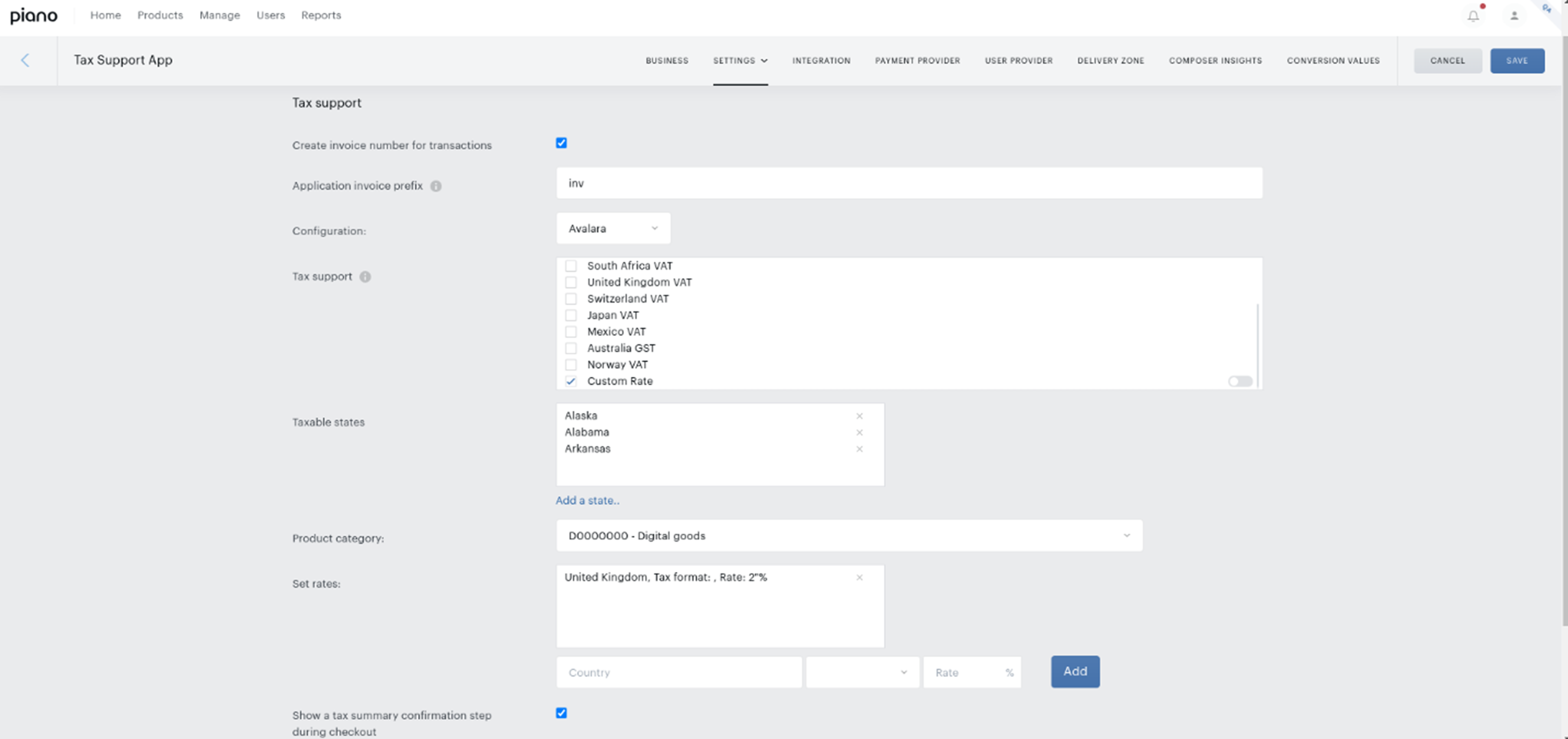
Please note your settings are NOT automatically saved and you have to click save to ensure any changes you make are applied to your application. In case you are making changes to your settings while someone else from your team is making changes, you will be notified about the latest version, and you will be required to refresh to see the latest settings before you can save any further changes.
When you make updates to the rates or regions, the calculation may take up to 24 hours to be applied.
Version conflict check and notifications
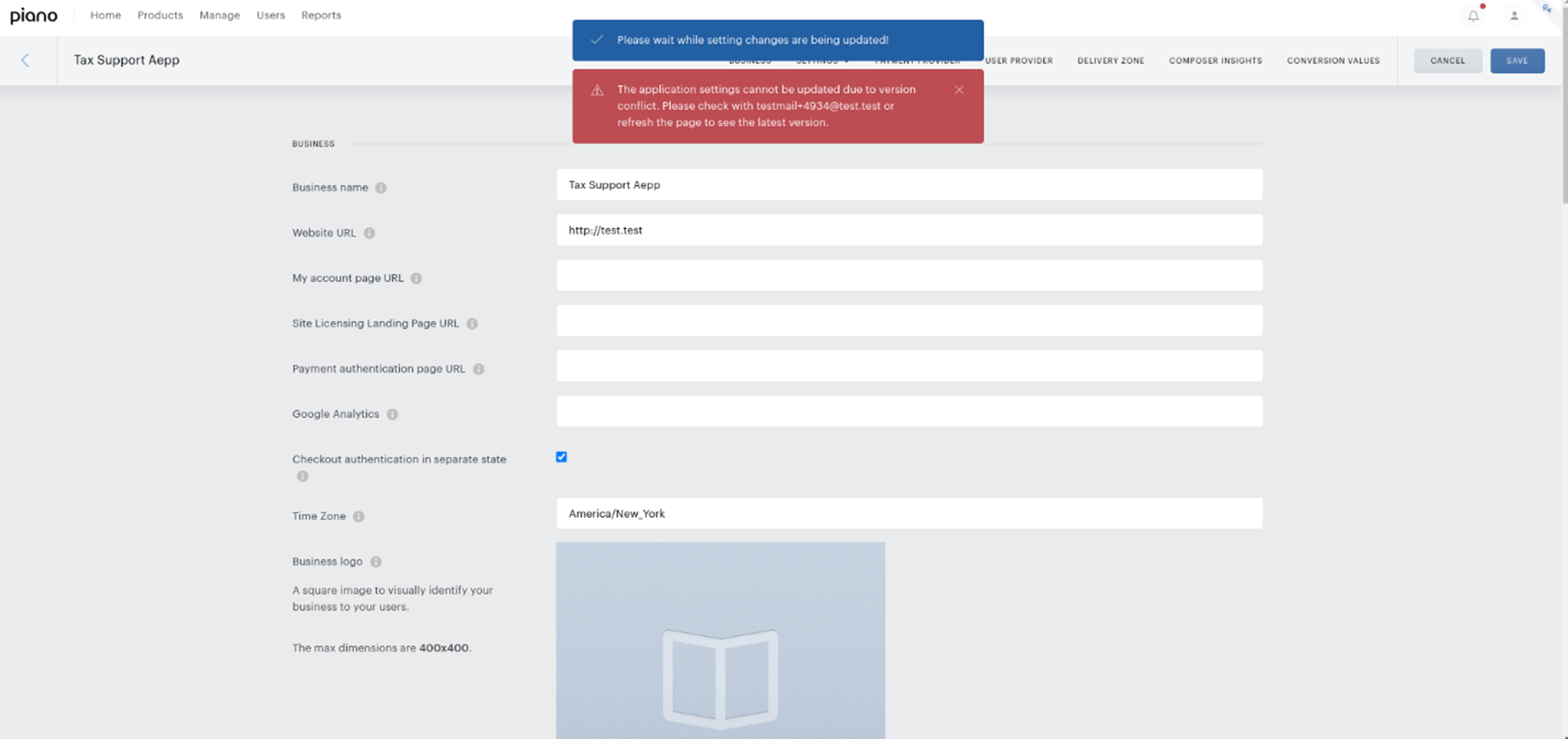
Settings within a selected tax provider will be retained even if you switch between tabs, the state of the tax settings will be saved (When you return to tax settings).
However, if you select another tax provider and then return to the previous tax provider, the settings will have to be re-configured and will not be saved.
Avalara Supported Regions
For more advanced tax compliance, Avalara integration is recommended.
Piano’s integration is certified with Avalara for Sales Tax. The existing integration allows enabling tax support in the following countries, and product tax categories can be set up on an individual term level:
-
European Union VAT
-
Canada VAT
-
US tax
-
Russia VAT
-
South Africa VAT
-
United Kingdom VAT
-
Switzerland VAT
-
Japan VAT
-
Mexico VAT
-
Australia GST
-
Norway VAT
Alternatively, a custom rate, a static tax rate per country can be set on your application in the Tax settings in the Edit Business settings. It is possible to apply multiple product tax categories within one application - configured on an individual term level once you configured your Avalara configuration.
Please note, that the Avalara integration requires an AvaTax account which is subject to 3rd party fees. If you use Avalara, you can configure multiple tax categories within your application as well as set a "no tax category" on your term, effectively offering tax-exempt products, however, if you require tax ID or other types of validation this needs to be handled outside of Piano, prior to showing offer terms or checkout, or after purchase.
Configuration Rules
Your application can be enabled with tax support for a single region or for multiple regions.
With the help of your Piano representative, you can decide whether exclusive or inclusive taxes are best for your business. Exclusive tax is presented in addition to the base price of the good, whereas inclusive tax means that the tax is included in the presented price. By convention, the EU uses inclusive, and the US uses exclusive taxes.
Calculating Exclusive Tax
To calculate the final price with exclusive tax, usually used in the US and Canada, you can apply the appropriate tax rate to the good and add that tax to the base price. For example, New York has a 6% sales tax and the term price is $10. The final price that the user sees will be displayed as $10.60, enumerated as $10.00 from the base price and $0.60 from the exclusive tax.
You can elect to set single or multiple taxable states for the US, and each state can have different tax laws.
Calculating Inclusive Tax
For inclusive tax, usually used in Europe, the presented term price automatically includes tax. To determine the term price that has your desired base price (before tax), simply add the tax to the desired base price. This is the amount that the user will see at checkout. For example, France has 20% EU VAT. If the total price of the term is 10 EUR, then the base price must be 8.33 EUR. The final price that the user sees will be displayed as 10 EUR, incl. VAT 1.67 EUR.
Tax logic
Default country checkout rules: Tax country based on a user’s choice
After Piano Suppor enables taxes on your application, the checkout will have an extra step, including a dropdown where a user selects their country (among those available for the tax provider and enabled by the client). Piano can add new billing countries for a specific tax provider by request.
A tax provider (we currently support TaxJar and Avalara) is an external reference service keeping information about the taxes to be applied for a specific country. In some cases (the US or Canada), state and city taxes are also added, so a user is invited to enter their zip code. National tax legislations tend to change over time, and a provider’s responsibility is to supply the most accurate and up-to-date data at any moment. To this end, we cache TaxJar’s responses for not more than 7 days. With Avalara we cache the rates for 30 mins.
If a user states (via a special checkbox) that their billing country is different from their country of residence, they are requested to select the country of residence which will serve as the basis for tax calculation.
The tax information is stored in Piano, but that tax calculation ultimately comes from third-party systems.
Checkout Rules
If taxes are enabled, users will see the Select your billing country dropdown at checkout. The default billing country is determined by user location based on Piano's GeoIP data. We use a GeoIP system to find the user's location and apply the correct tax.
If you are using Avalara, you can configure if a full billing address should be collected and validated. You can enable this in the Avalara configuration under the Integration tab in the Edit Business settings of your Piano dashboard.
If a user selects either the United States or Canada as the billing country, the user will also be prompted to enter a zip code:

A user residing in the EU, Japan, or Switzerland can change his or her billing country by unchecking the “I reside in the same country as my billing address” checkbox and providing his or her real billing country. Taxes will be re-calculated based on that choice.
For example, say a user resides in Switzerland but is traveling through France when making a purchase. Piano would determine the user's location as France, but the user may change it to Switzerland. Taxes would then be re-calculated and the user will be charged at the Swiss tax rate:
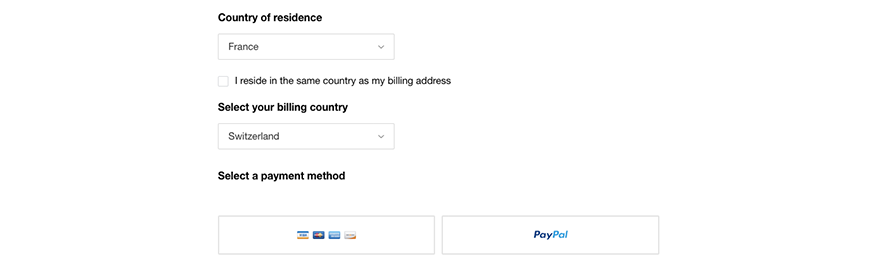
Once a user has selected a billing country, the user will select his or her payment method (e.g. credit/debit card or Paypal) and fill in his or her information. The user will then click the Complete Purchase button.
If you have users paying inclusive taxes, upon clicking that button the user will be directed to a payment receipt screen. If you have users paying exclusive taxes or if you are using Avalara as your tax provider also for inclusive taxes, the user will instead be taken to the Confirmation screen where the full amount to be charged is presented. The user can complete the purchase by clicking Complete Purchase again:
The user can complete the purchase by clicking Complete Purchase again:
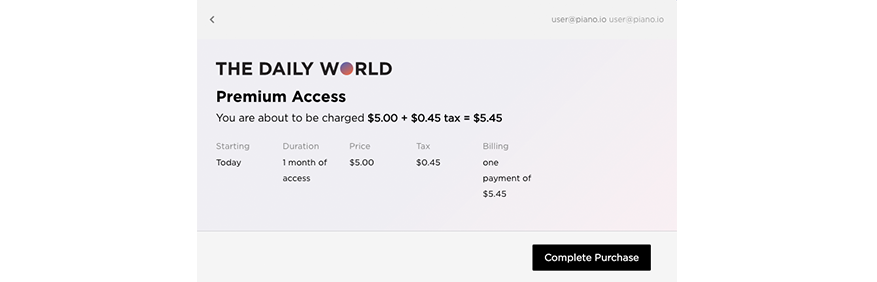
If you do not wish to show the Tax confirmation screen, you can disable this step in the Edit Business → Settings → Tax Settings section as per below:

Once a purchase is completed, the user will be brought to a payment receipt screen:

Piano stores the user’s country selection so that, in the case of manual or auto-renewal, taxes will be applied in the same way as before.
If the client has not enabled the country or state of a particular user (for example, the client has only enabled EU taxes and a user from the US wants to pay for content), the user can still select his or her country but will not be taxed. The price of the term will remain the same (as tax is not applied) and a confirmation screen will not be displayed during checkout. Instead, the transaction will be transmitted the first time a user clicks Complete purchase.
Management + Billing Revenue Report
Total revenue is calculated based on net price. For example:
-
A user using EU tax support with inclusive taxes: If the client has two purchases at 10 EUR each including a VAT of 1 EUR, the revenue report would equal 18 EUR.
-
A user using US tax support with exclusive taxes: If the client has two purchases at $10 each with $1 of state tax, the revenue report would equal $20.
FAQ
Q: Why is there no tax calculated or 0 rate applied?
A: The most common reasons for a zero tax result is one of the following:
|
Reason |
taxability_reason |
Explanation |
|
Not configured taxability |
not_configured |
You must enable appropriate country and/or state rules before collecting tax in a jurisdiction. You can specify where you’re registered to collect tax in the Tax Support settings. |
|
Exempt or zero-rated products |
Zerovalue_or_exempt |
Certain products are exempt from tax or zero-rated. In both cases, the buyer doesn’t pay tax. (e.g. digital goods are not generally taxed in California state) |
|
Error |
Could_not_calculate |
Could not calculate tax due to invalid address information or an error received from the provider. |
Additional settings
The Piano support team can enable or disable tax pre-calculation on all terms if desired for your business use case or legal obligation in your region. In this case, there are multiple calls made to Avalara which may result in an increased consumption of available Avatax API call volume and is generally not recommended.
Q: How do I switch from Taxjar to Avalara tax provider and what should I be aware of?
Switching from Taxjar to Avalara
A: Steps to follow to switch tax provider:
-
Make sure your customers have their country (any required countries) and zip code (US/CA) stored in their Piano profile User Payment method). If you want to supplement this information additionally you can reach out to the Piano support team and provide a list of such data to import it
-
Plan your switch time – make sure to make the settings change at a time of least traffic and in between the renewal job windows (typically these run multiple times per day please inquire with the support team when would be the best time to make such a switch for your application)
-
Update settings from one tax provider to another (note once you make this change your previous provider settings will be removed), and taxes will be calculated using the new provider from that moment on. Ensure you apply your tax settings properly
-
Monitor changes applied by observing your transaction log, in case you observe anything out of the ordinary please reach out to the Piano support team
Switching from Avalara to Taxjar
At this point we do not recommend switching from Avalara to Taxjar, as the address validation and processing of the data are different, and if you make such a change taxes will not be calculated for your stored payment methods.
Q: If I update a custom tax rate for a specific country, will the new rate apply only to new transactions, or also to subscription renewals?
A: The new tax rate will apply to both new transactions and subscription renewals. Tax is calculated using the billing information and tax configuration in effect at the time of the transaction.