
Integrating Zuora With Piano
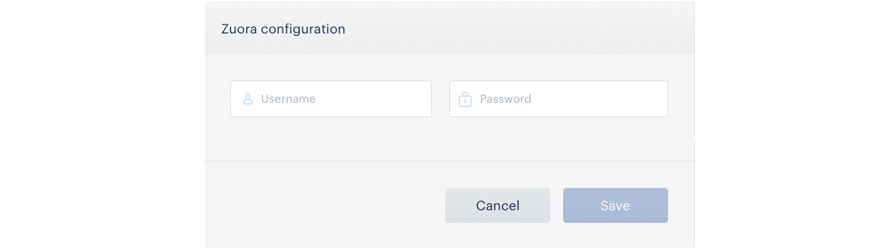
All it takes to integrate Piano with Zuora is going to Edit Business→Integration from your Piano Dashboard and inputting your Zuora credentials. For standard Zuora integrations, you will simply input your Zuora Username and Password into these fields:
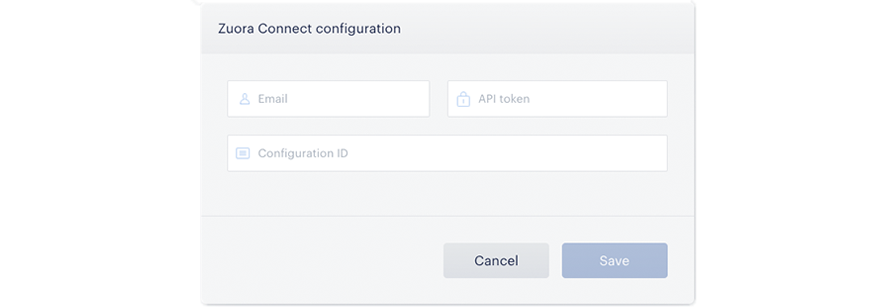
If you are using our Zuora Connect integration, which enables use of Zuora's Promotion Code Management app, you will also need to include your Zuora Connect email, API Token, and Configuration ID into these fields:
Zuora Show Offer Card Settings
After you've configured Zuora within Piano, you should go to Products→Composer and open up an Experience Card. On the lefthand sidebar, in the Actions section, you will then be able to select a Zuora Show Offer card and drag it over to the end of any experience you've constructed.
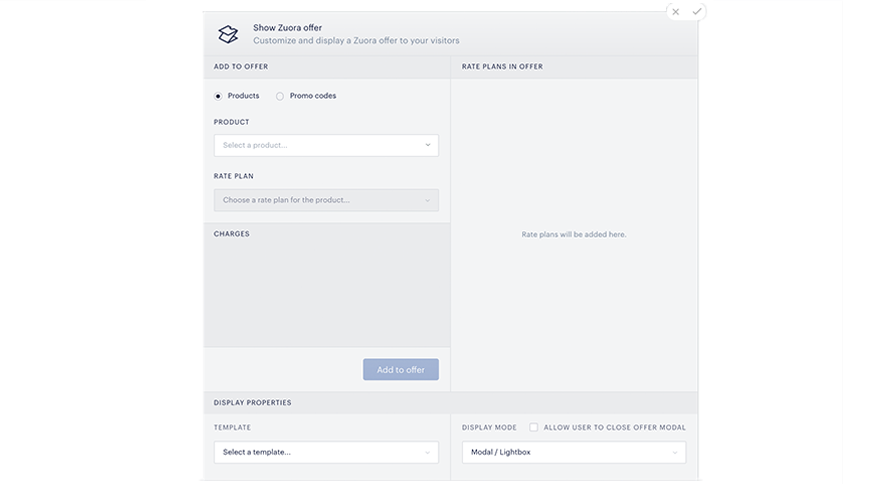
Products/Promo codes: Select "Products" if you are using Piano's standard Zuora integration. Select "Promo codes" if you are using Piano's integration with Zuora Connect's Promotion Code Management app. Piano automatically retrieves all of your Zuora products and promotions along with their associated rate plans.
Product/Promo code: If you've chosen to use Zuora "Products," clicking this tab will show you a list of all products currently configured within your Zuora account. If you've chosen to use "Promo codes," you will instead be presented with a list of all promo codes associated with your Zuora Connect account.
Rate Plan: Once you've selected a product or promo code, this tab will show all Zuora rate plans associated with that product or promo code.
Charges: Here you'll be able to see the details of selected rate plans before adding them to your offer.
Add to offer: This button adds a selected rate plan to your Zuora Offer. You are able to add multiple rate plans from different Zuora products and promo codes to a single offer.
Rate Plans in Offer: This is where you'll see all rates plans that have been added to an offer. You can remove a rate plan by hitting a trash icon next to it.
Display Properties: All of the settings in this part of the Show Zuora Offer card work exactly like Piano's Show Offer and Show Template cards.
Template: This dropdown menu will allow you to select the Piano offer template your Zuora offer will be presented in. More information on configuring these templates below.
Display Mode: Allows you present your template either as a modal or inline on the page. If you select inline, a "Selector For Inline Container" field will appear so you can specify the HTML element your template will appear within. More information on supported containers here.
Allow User to Close Offer Modal: Determines whether or not your offer is dismissible (whether the user can close out of it).
Configuring Zuora Offer Templates
Piano provides a front-end offer template for presenting Zuora offers. In order to construct a new Zuora offer template, you should click the "Manage" tab, select "Templates," click "New," select "Zuora Template" from the dropdown, give your template a name (a description is optional), and click "Create." Only offer templates created in this manner can be selected from within the Show Zuora Offer card.
The Zuora Model
Within a Zuora offer template, Piano makes available a zuora model that you'll need to use to connect the Zuora offers you construct in Composer to Zuora's backend. Here's the structure of the zuora model:
{
    "zuora": {
        "selectedItems": [{
                "type": "product",
                "product": {}, // raw Zuora product model
                "ratePlan": {} // raw Zuora rate plan model
            },
            ...{
                "type": "promotionCode",
                "promotionCode": {}, // raw Zuora promotion code model
                "product": {}, // raw Zuora product model
                "ratePlan": {} // raw Zuora rate plan model
            },
        ],
    }
}
The zuora model includes selectedItems, an array containing information about the products and promotions added to the Zuora Show Offer card. Each item in that array contains a type parameter. If you are using Piano's standard Zuora integration for "products," the type value will be product. If you are using Piano's Zuora Connect integration for "promo codes," the type value will be promotionCode. If you are using both integrations, you may have items of both types in the array; it depends entirely on the type of Zuora offers you'd added to the Zuora Show Offer card.
The other fields in the zuora model are objects returned from Zuora's own API. See here for an example of the full zuora model with the additional parameters from Zuora's product, ratePlan, and promotionCode objects shown. For more information about each if these parameters, you should reference Zuora's documentation. The parameters for the Zuora product and ratePlan objects can be seen in Zuora's API documentation here. For the promotionCode object, you'll need to reference the related Zuora Connect API documentation here.
There are a number of ways you can use the zuora model within Piano's Zuora offer template, but the most important use case is generating a URL that starts the Zuora checkout flow when a user clicks on a link within a Piano template. That link should direct the user to a URL on your domain where you want the Zuora checkout process to begin. Within that URL you'll need to include all the parameters that you want passed back to Zuora about the product or promo code the user has selected. Since Piano makes all Zuora parameters available, you can select any that are of importance to your configuration. At minimum, you will want to include information that allows Zuora to identify the product or promotion code the user has selected.
Below are examples URLs used to send parameters for each charge in each selected rate plan back to Zuora (note that the parameters required will vary depending on the specifics of your Zuora implementation). Here's an example for a product:
http://yourdomain.com/?productCode={{item.product.sku}}&productId={{item.product.id}}&chargeId={{charge.id}}
And here's an example of a URL with both promo codes and products that includes a number of additional parameters:
http://yourdomain.com/?originId={{item.promotionCode.customFields.ORIGIN_ID.value}}&productCode={{item.promotionCode.customFields.PRODUCT_CODE.value}}&productId={{item.product.id}}&promotionCode={{item.promotionCode.customFields.PROMOTION_CODE.value}}&offerCode={{item.promotionCode.customFields.OFFER_CODE.value}}&chargeId={{charge.id}}
The exact parameters you need to pass from the Piano template to Zuora will depend on your Zuora configuration and your needs. Your development team will work with implementation teams from Piano and Zuora to determine what parameters to include.
Customizing the Zuora Template
Just like Piano's standard offer template, Piano's Zuora offer template supports use of version 1.2.22 of Angular JS, which allows you to manipulate the zuora model using Angular directives discussed here.
In the default Zuora template shown below, you will notice this line of code: <div ng-repeat="item in zuora.selectedItems">. That code uses the angular directive ng-repeat to cycle through the zuora.selectedItems array, which makes available rate plan information for any Zuora product or promotion you've included in your Zuora Show Offer card. That allows you, for example, to include the name of a Zuora rate plan in your templates by using this formulation: {{item.ratePlan.name}}.
You can create as many Zuora offer templates as you like for your different Zuora offers, but using variables from the zuora model within your templates allows you to create a single template that you can populate with various Zuora products or promotions.
You can also customize the language, style, and behavior of the Zuora offer template using HTML/CSS along with a number of directives, methods, and models discussed in depth here (note that not all Piano offer template methods and models are available for use within the Zuora offer template because Piano is not ingesting user data from Zuora).
The Default Zuora Template
To give you an idea of how this all comes together, below is the default Zuora template. You should customize it to suit your brand identity and the specifics of your Zuora implementation:
<div class="row default-offer">
<div class="account-popup-header">
<div class="account-group">
<h3>
<t>Zuora offer</t>
</h3>
</div>
</div>
<div class="start-screen-content">
<div class="account-terms-section">
<div ng-repeat="item in zuora.selectedItems" class="zuora-rate-plan-block">
<div class="indents-from-border">
<div class="row account-head">
<div class="account-head-contentcol">
<h1>
{{item.ratePlan.name}}
</h1>
<p class="lead">
<t>Choose from one of the options below</t>
</p>
</div>
</div>
</div>
<table class="start-screen-terms account-terms" cellspacing="0" cellpadding="0">
<tbody>
<tr ng-repeat="charge in item.ratePlan.productRatePlanCharges">
<td class="title">
<h2>{{charge.name}}</h2>
</td>
<td ng-if="item.type == 'product'" class="choose detail">
<a class="button start-new-checkout big"
ng-href="http://example.com/?productCode={{item.product.sku}}&productId={{item.product.id}}&chargeId={{charge.id}}">
<span ng-if="charge.pricing[0].price !== null">
<span class="price">
{{ charge.pricing[0].price | isoCurrency:charge.pricing[0].currency }}
</span>
<span ng-if="charge.type === 'Recurring'"
class="period">/ {{charge.billingPeriod | zuoraPeriod}}
</span>
</span>
<span ng-if="charge.pricing[0].price === null">
Buy
</span>
</a>
</td>
<td ng-if="item.type == 'promotionCode'" class="choose detail">
<a target="_blank"
ng-href="http://example.com/?originId={{item.promotionCode.customFields.ORIGIN_ID.value}}&productCode={{item.promotionCode.customFields.PRODUCT_CODE.value}}&productId={{zuora.getProductBySku(item.promotionCode.customFields.PRODUCT_CODE.value).id}}&promotionCode={{item.promotionCode.customFields.PROMOTION_CODE.value}}&offerCode={{item.promotionCode.customFields.OFFER_CODE.value}}&chargeId={{charge.id}}"
class="button start-new-checkout big">
<span ng-if="charge.pricing[0].price !== null">
<span class="price">
<span>{{ charge.pricing[0].price | isoCurrency:charge.pricing[0].currency }} </span>
</span>
<span ng-if="charge.type === 'Recurring'"
class="period">/ {{charge.billingPeriod | zuoraPeriod}}
</span>
</span>
<span ng-if="charge.pricing[0].price === null">
Buy
</span>
</a>
</td>
</tr>
</tbody>
</table>
</div>
</div>
</div>
</div>
Informing Piano of Zuora Conversions
In order to take full advantage of Composer's built-in testing and reporting, you'll need to inform Piano's API of conversions that occur within Zuora. This will allow us to calculate the performance of A/B tests and provide you with holistic conversion data. Details on how report back this transaction data can be found here.