
Strong Customer Authentication
SCA was introduced in the European Economic Area (EEA), the market that comprises the EU and its related territories, on September 14, 2019. Under SCA, all non-exempt purchases must have two-factor authentication. Exemptions to SCA exist, such as “low-risk” transactions (based on fraud rates), low-value transactions, fixed-amount subscriptions, and others.
Piano's SCA Support
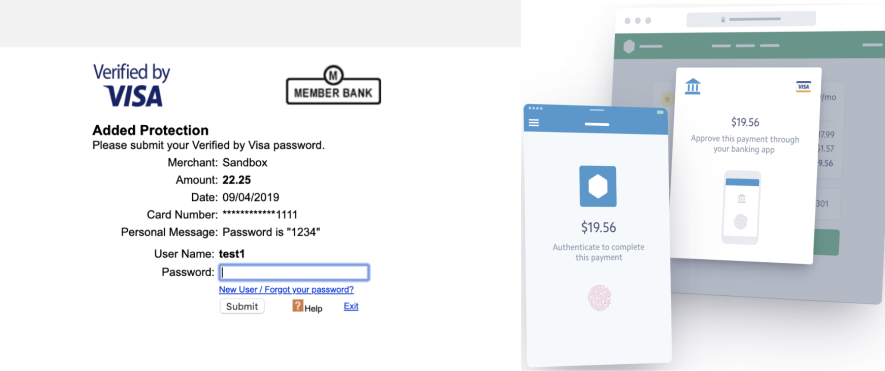
To comply with SCA, two-factor authentication screens must appear during purchase. Piano has updated our payment provider integrations to allow for the presentation of the necessary 3DS (3D Secure, a commonly supported authentication standard) screens during the purchase flow. Support for Braintree, Cybersource, Klarna, and Stripe has been successfully released, with updates to other providers released on a rolling basis. We are also updating our proprietary checkout templates to present the appropriate 3DS screens.
Please review our Frequently Asked Questions (FAQ) article here for more information.
Out of Scope
Piano’s software does not make the determination if SCA is required for a given transaction. Payment providers analyze the origin and destination of a transaction and use a variety of factors, including bank fraud rates, monetary value, transaction type, and others. Piano also does not authenticate payments, including recurring payments, such as subscriptions that are billed monthly. We rely on providers for all transaction authentication.
Piano does not have control or configuration ability over the SCA screens that allows users to authenticate. Each provider is responsible for working with banks to present the appropriate SCA screens, and to determine how they should look.
Template changes for Braintree
Please see below a list of template updates needed in case you're using Braintree as your payment provider and are planning on updating the integration from Version 2 to Version 3, with or without enabling 3D-Secure checkout.
Because this feature affects My Account, Checkout, and Payment components, there are multiple templates that must be updated. As always, we recommend Reverting to default if you have not made substantial changes to these templates. Otherwise, the required changes are detailed below.
If you're already using the default version of these templates, no further action is required.
There are also no template changes needed when switching from Version 3 with no 3DS support to Version 3 with 3DS support or vice versa.
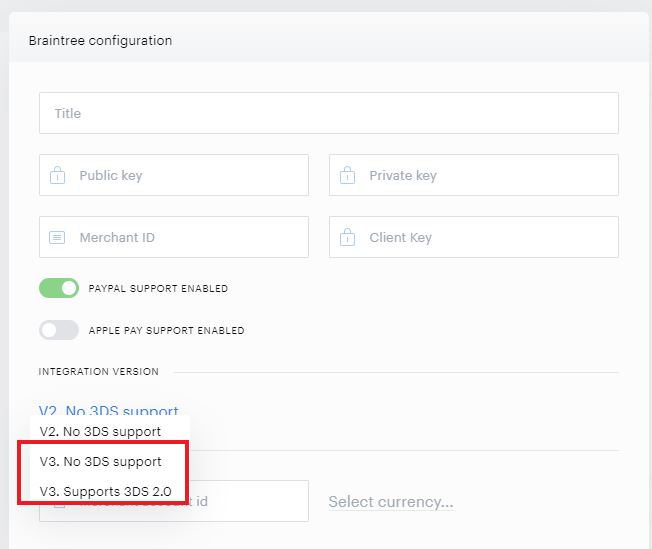
Changing the version of your Braintree integration (with or without enabling the functionality for 3D-secure checkout) can be done via the Piano dashboard under Edit Business → Payment provider → Braintree by any user with admin permissions.
Update the Integration version from V2. No 3DS support (Version 2) to V3. Supports 3DS 2.0 (Version 3) or if needed to V3. No 3DS support.
You can also enable or disable the 3DS checkout flow by switching the integration V3 from V3. No 3DS support to V3. Supports 3DS 2.0 or the other way around.
For any European clients, we recommend the configuration to be set to V3. Supports 3DS 2.0.
Important: Please make sure, that your Braintree account is enrolled in 3D-Secure transaction processing. More information about this is available under the following link.
3D Bank Secure Components
Ensure the 3D Bank Secure Components system template has (only) the following code:
<script type="text/ng-template" id="/widget/checkout/component/partials/bank-secure-component.html">
    <div no-language class="account-popup-header">
        <div class="previous-button-wrapper" ng-click="gotoPreviousState()">
            <a href="javascript:void(0)" class="button back"></a>
        </div>
    </div>

    <div id="bank-secure-container" class="bank-secure-container align-content-center-flex" style="height: 400px">
        <div id="bank-secure-loader" class="bank-secure-loader">
            <div class="loader-overlay"></div>
        </div>
        <div id="container-with-buttons" class="error-occurred-wrapper">
            <div class="onet-buttons-container align-content-center-flex">
                <a ng-click="gotoPreviousState()" class="button complete-purchase" style="margin-right: 10px;">
                    <t>Go back to previous step</t>
                </a>
                <t>or</t>
                <div class="complete-purchase-button" complete-purchase-button
                     title="{{'Try again' | tc:'checkout.platform'}}"
                     style="margin-left: 10px;"></div>
            </div>
        </div>
    </div>
</script>
Payment Components
Replace the block of code in the Payment components system template that begins with
</span><form<span style="font-weight: 400;"> class=</span><span style="font-weight: 400;">"new-card-form"</span><span style="font-weight: 400;"> name=</span><span style="font-weight: 400;">"ccForm"</span><span style="font-weight: 400;"> role=</span><span style="font-weight: 400;">"form"</span><span style="font-weight: 400;">>
in the component for Braintree (/widget/checkout/component/partials/cc-form-component.html) with this code:
<form class="new-card-form" name="ccForm" role="form">
  <div ng-show="isBraintreeV3() === true">
    <table class="table-form-inline" cellpadding="0" cellspacing="0">
      <tr>
        <td class="field-card-number">
          <div class="field-wrapper">
            <label class="icon card"></label>
            <div class="input">
              <div id="card-number" class="cc-field__input-wrap-container"></div>
            </div>
          </div>
        </td>
        <td class="field-card-expiry-month">
          <div class="field-wrapper">
            <label class="icon expiry"></label>
            <div class="input">
              <div id="expiration-date" class="cc-field__input-wrap-container"></div>
            </div>
          </div>
        </td>
        <td class="field-card-cvv">
          <div class="field-wrapper">
            <label class="icon password"></label>
            <div class="input">
              <div id="cvv" class="cc-field__input-wrap-container"></div>
            </div>
          </div>
        </td>
        <td class="field-card-postal-code">
          <div class="field-wrapper">
            <label class="icon cc-field__icon--zip-code"></label>
            <div class="input">
              <input type="text"
                     name="postal_code"
                     id="pn-postal-code"
                     class="flat"
                     data-e2e="pn-postal-code"
                     placeholder="{{'Postal code' | t}}"
                     ng-model="input.zipCode"
                     ng-change="onZipCodeChange()"
                     required />
            </div>
          </div>
        </td>
      </tr>
    </table>
  </div>
  <table ng-show="isBraintreeV3() !== true" class="table-form-inline" cellpadding="0" cellspacing="0">
    <tr>
      <td class="field-card-number">
        <div class="field-wrapper"></div>
      </td>
    </tr>
  </table>
</form>
In your Payment Components template, the <div ng-if="isPaymentMethod(CREDIT_CARD)"> section starting on line 22 is active when the credit card input is on.
Please check, if in that section, you have the following code on line 32:
<div class="complete-purchase-button" complete-purchase-button title="{{'Complete Purchase' | t}}"></div>
The buttons that are commented out actually should be present in order for the 3DS Authentication to work. In the default template version, they look like this:
<div ng-show="isConfirmStepEnabled()" class="complete-purchase-button" goto-confirmation-button title="{{'Complete Purchase' | t}}" is-disabled="isCaptchaV2Unresolved">
</div>

<div ng-show="!isConfirmStepEnabled()" class="complete-purchase-button" complete-purchase-button title="{{'Complete Purchase' | t}}" is-disabled="isCaptchaV2Unresolved">
Historically, removing the ability for the confirmation step to take place causes 3DS verification to fail because we use that step to collect the payment nonce needed for 3DS verification.
In order for taxes to be properly calculated after switching to the new Braintree integration version, please make sure to update the following line of code for the postal code field:
<div id="postal-code" class="cc-field__input-wrap-container"></div>
To this:
<input type="text"
       name="postal_code"
       id="pn-postal-code"
       class="flat"
       data-e2e="pn-postal-code"
       placeholder="{{'Postal code' | t}}" ng-model="input.zipCode"
       ng-change="onZipCodeChange()"
       required/>
Checkout
Add the below to the end of the Checkout template:
<div view="bankSecure">
   <div bank-secure-component></div>
</div>
My Account Library Components
The My Account Library Components template should include the below:
    <div class="update-payment-method" ng-show="stepManagePaymentMethod === 'createNewCard'">
        <div class="modal-content" ng-form="cardForm">
            <div class="clearfix section-delimiter">
                <span class="section-text">{{getTitle()}}</span>
                <button type="button" class="link-add-card" ng-click="stepManagePaymentMethod = 'update'">
                  <span class="link-add-card__inner">
                    <svg class="link-add-card__icon" aria-hidden="true" width="7" height="10" fill="none"><path d="M5.5 1.5L2 5l3.5 3.5" stroke="#428BCA" stroke-width="2"/></svg>
                    <t context="checkout.platform">Back to list</t>
                  </span>
                </button>
            </div>

            <div class="message-block">
                <div class="error" ng-show="card.formErrors.length>0">
                    <div class="icon-attention"></div>
                    <div>
                        <p ng-repeat="error in card.formErrors">
                            {{error.msg}}
                        </p>
                    </div>
                </div>
            </div>

            <div ng-if="stepManagePaymentMethod === 'createNewCard'">
                <new-flow-components-m-a
                        class="my-account-new-flow"
                        ng-if="hasNewFlow()"
                        payment-source="paymentSource"
                        readonly="false"
                        require-collect-cardholder-name="cyberSourceCollectCardholderName"
                        card="card">
                </new-flow-components-m-a>
                <div ng-show="!hasNewFlow()">
                    <my-account-wallet-list-form ng-if="hasCustomForm() === false" cardset="card" readonly="isEditing" payment-source="paymentSource" callback-on-init="callbackOnInit"></my-account-wallet-list-form>
                    <my-account-wallet-custom-form ng-if="hasCustomForm() === true" cardset="card" readonly="isEditing" payment-source="paymentSource" options="options"></my-account-wallet-custom-form>
                </div>
                <div
                    ng-if="getVisibilityOfApply()"
                    class="apply-this-method-checkbox"
                >
                    <input type="checkbox" id="default-payment-method" ng-model="card.needToApplyDefaultPaymentMethod">
                    <label for="default-payment-method"><t>Apply this payment method to all active subscriptions</t></label>
                </div>
            </div>
My Account Wallet Components
The My Account Wallet Components template needs four changes. Replace this block of code:
<div ng-show="!hasNewFlow()">
                    <my-account-wallet-list-form ng-if="hasCustomForm() === false" cardset="card" readonly="isEditing" payment-source="paymentSource"></my-account-wallet-list-form>
                    <my-account-wallet-custom-form ng-if="hasCustomForm() === true" cardset="card" readonly="isEditing" payment-source="paymentSource" options="options"></my-account-wallet-custom-form>
                </div>
With this block of code:
<div ng-show="!hasNewFlow()">
  <my-account-wallet-list-form ng-if="hasCustomForm() === false" cardset="card" readonly="isEditing" payment-source="paymentSource" callback-on-init="callbackOnInit"></my-account-wallet-list-form>
  <my-account-wallet-custom-form ng-if="hasCustomForm() === true" cardset="card" readonly="isEditing" payment-source="paymentSource" options="options"></my-account-wallet-custom-form>
</div>
Add the following right after the line of code that opens the
<div class="form">
under the component /widget/myaccount/partials/wallet/wallet_list_form.shtml:
<div ng-if="cardset.isEditing === true" class="braintree-new-form--card-field-no-select">
<div class="card-number">{{cardset.number}}</div>
</div>
<div ng-if="cardset.isEditing !== true" id="card-number" class="card-number braintree-new-form--card-field"></div>
</td>
<td class="table-cell expiry-cell">
<div id="expiration-date" class="expiry braintree-new-form--card-field"></div>
</td>
<td class="table-cell cvv-cell">
<div id="cvv" class="cvv braintree-new-form--card-field"></div>
</td>
<td class="table-cell postal-code-cell">
<div class="postal-code-new-form braintree-new-form--card-field">
<input type="text"
ng-model="cardset.zipcode"
ng-change="state.onZipCodeChanged()"
id="pn-postal-code"
data-e2e="pn-postal-code"
placeholder="{{'Postal code' | tc:'checkout.platform'}}"
name="zipcode"
class="postal-code"/>
</div>
</td>
</tr>
</table>
</div>
<table ng-if="cardset.isBankSecure !== true && !cardset.showCardholder" class="table-view">
<tr class="table-row">
<td class="table-cell card-number-cell">
<input type="text"
ng-model="cardset.number"
placeholder="{{'Card number' | tc:'checkout.platform'}}"
name="number"
class="card-number"
ng-readonly="readonly"
ng-required="true"/>
</td>
<td class="table-cell expiry-cell">
<input
type="text"
ng-model="cardset.expiration"
name="expiration"
placeholder="{{'MM/YY' | tc:'checkout.platform'}}"
format-expiry-date
format-year="2"
class="expiry "
ng-required="true"/>
</td>
<td class="table-cell cvv-cell">
<input type="text"
ng-model="cardset.cvv"
placeholder="{{'CVV' | tc:'checkout.platform'}}"
class="cvv"
name="cvv"
ng-required="true"/>
</td>
<td class="table-cell postal-code-cell">
<input type="text"
ng-model="cardset.zipcode"
placeholder="{{'Postal code' | tc:'checkout.platform'}}"
name="zipcode"
class="postal-code"/>
</td>
</tr>
</table>
If you’re not able to find <div class="form"> or <div ng-if="!cardset.isEigenV3" class="form"> you will need to put the above code right after <script type="text/ng-template" id="/widget/myaccount/partials/wallet/wallet_list_form.shtml"> <div>.
Then, add the following code to the end of the template:
<script type="text/ng-template" id="/widget/myaccount/partials/wallet/wallet_bank_secure.shtml">
    <div ng-click="close()" class="tp-close">x</div>
    <div class="modal-content" style="height: 400px;">
        <div id="secure-container-wrapper" style="height: 100%;">
            <div id="secure-container" style="height: 100%;">
            </div>
        </div>
    </div>
</script>
And finally, please update the following code snippet for the postal code field:
<div id="postal-code" class="postal-code-new-form braintree-new-form--card-field"></div>
With this one:
<div class="postal-code-new-form braintree-new-form--card-field">
  <input type="text"
         ng-model="cardset.zipcode"
         id="pn-postal-code"
         data-e2e="pn-postal-code"
         placeholder="{{'Postal code' | tc:'checkout.platform'}}"
         name="zipcode"
         class="postal-code"/>
</div>
Template changes for Stripe
In case you're using Stripe as your payment provider and plan to switch to a 3D-Secure checkout, we recommend reverting the following templates to their default versions. This is to ensure the latest code is loaded in Checkout and My Account.
-
3D Bank Secure Components
-
Payment components
-
Checkout
-
My Account Library Components
-
My Account Wallet Components
There are a few ways to update your templates, but the easiest is to reset to default if you haven’t stylized the templates.
If you did, then you can use the Compare code feature and compare the code between the default version and your current version, and carry over any new code line by line.
In case of specific template customizations already in place, please reach out to our Support Team at support@piano.io for further assistance.
Testing 3DS on Sandbox
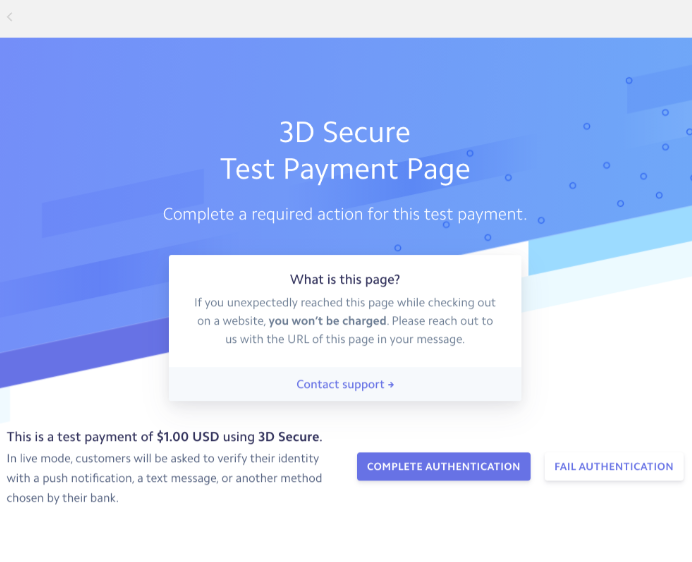
When simulating a 3D Secure (3DS) payment on Sandbox, you will not receive the verification code via text message or token, but you will be redirected to a 3DS Authentication simulator page. Based on the payment provider used, the response and 3DS testing cards might differ.
Due to Sandbox limitations, the 3DS screen is just a mock version of the actual one that will be shown in production. In the live environment, the user will need to enter the correct password/code in order to confirm the payment transaction.
Below is an overview of the most used payment provider's 3DS testing cards and codes.
Braintree
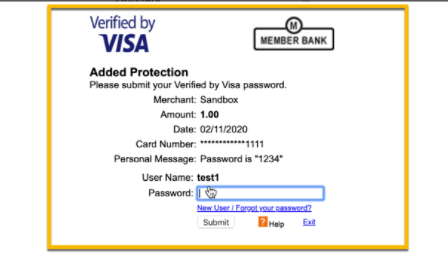
A list of all cards suitable for 3DS checkout testing is available here. Once such a card is applied during the test purchase, you'll be redirected to a 3DS screen, where you can simply enter the password 1234 in order to finish checkout.
Klarna
In order to simulate 3DS purchases on Sandbox, you can use the credit card provided under this link in the section Test Credit Card.
Stripe
A list of cards that can be used to simulate test purchases is available here. Please note, that not all cards are prompting the 3DS screen, so you need to select one from the section Regulatory (3D Secure) test card numbers. The 3DS screen will look like this:
PayU India
A list of credit cards that can be used for testing purposes for this payment provider is available here. On Sandbox, you will encounter the following screen prompting you to enter a code to complete the test purchase.
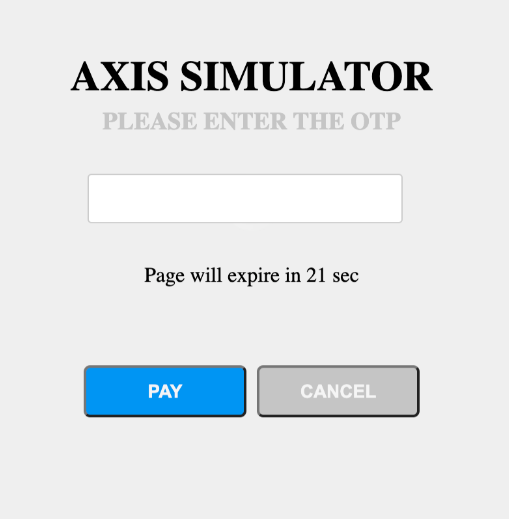
The code that should be entered is: 123456