
Introduction
By virtue of being a more established company, Avalara operates in nearly every country in the world and our integration with them allows for more tax codes than simply digital-only. The added functionality available requires that the clients establish their own contract with Avalara. To get started with Avalara, sign up for an account here.
The logic for the calculation of the tax amount is hosted in Avalara – Piano simply passes along the user and company info and Avalara returns the tax rate and amount.
Multiple tax codes for one single term and distinct tax codes for individual terms are currently not supported.
Enabling taxes
You can configure tax settings for your application by navigating to Edit Business → Settings → Tax settings and under Configuration select Avalara.
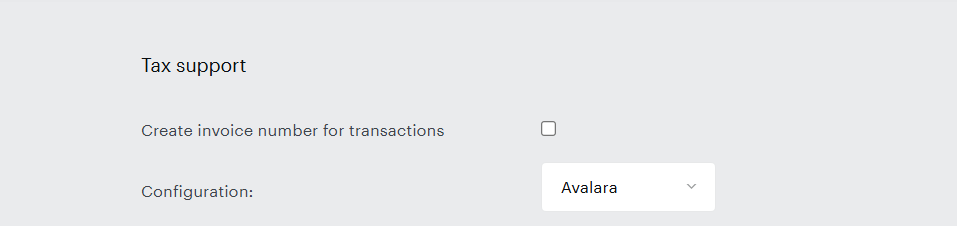
Selecting Avalara in the configuration will enable Avalara configuration to appear under Integrations tab of the Edit Business section. You will need to configure Avalara integration settings before configuring other options in the Tax Support settings.
Because the Avalara tax support simply updates the displayed price to the user, there are no template changes needed, unless you would like to also do address validation through AvaTax. More details on how that can be accomplished are provided below.
Avalara setup
Once taxes are enabled, you can proceed to locating the Avalara integration under the Integrations tab in the Edit Business section click on Add configuration. In the new window, you can enter the details about your account, specifically the following:
-
Account ID
-
License key
-
Company code
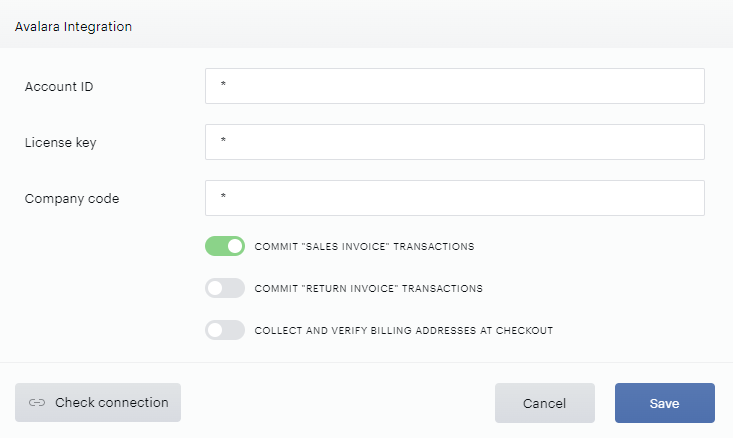
If you would like to leverage the Avalara integration, please provide these three pieces of information. You can find each of these pieces of information within the Avalara dashboard by following the steps below:
Account ID
From any page in the Avalara dashboard, click on the Account menu in the top right of the page. The account ID should be displayed at the top of the dropdown that appears.
License key
Avalara does not surface any license keys that you have previously generated, so there is no way to view an old license key if you have not written it down or otherwise saved it.
If you do not know your license key or have never created a license key, navigate to Settings → License and API keys. Then, under Reset license key, click Generate license key.
Company code
Navigate to Settings → Company details. Locate the Company code section. Please note that this field can be changed. If you decide to change it in the future, you must update Piano with the change or our calls to Avalara’s API will fail.
In addition to the above values, you are able to configure 3 additional settings:
-
Commit "Sales invoice" transactions: This setting will properly label requests to the AvaTax service from your application as committed or uncommitted so that all Avalara requirements are met. We set tax calculation transactions as uncommitted and tax submission transactions as committed.
-
Commit "Return invoice" transactions: This setting will only appear if the setting Commit "Sales invoice" transactions is enabled, and relates to refund transactions.
-
Collect and verify billing addresses at checkout: This setting should be enabled if you'd like to collect and verify billing addresses in the US and Canada. More information about this topic is available here.
Origin address
In addition to the above, you need to enter an Origin address for your company - this should be the legal entity address you would like to use for tax determination and calculation purposes. These Origin address fields are validated for clients in the USA and Canada for which Avalara provides address validation.
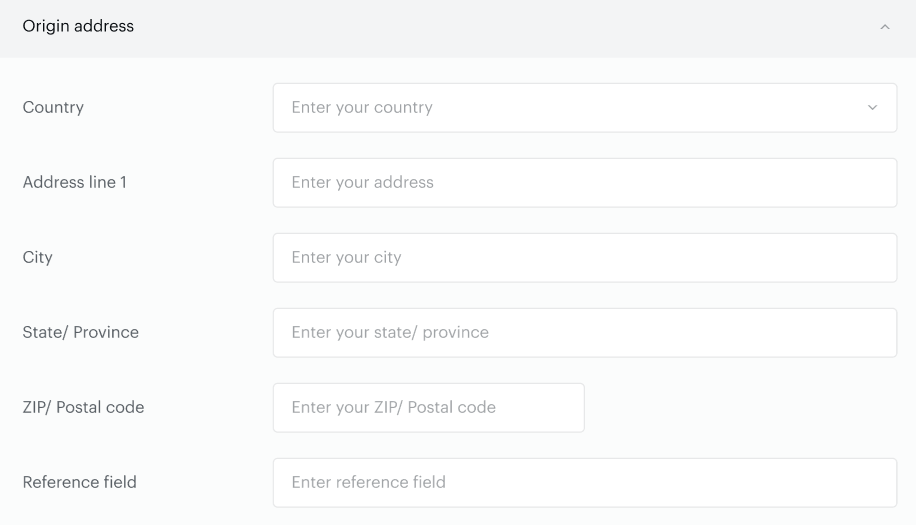
The following needs to be taken into consideration when configuring an Origin address:
-
After implementing the Origin address Piano starts counting taxes based on 2 parameters:
shipTo(end user's address) andshipFrom(your origin address). If theshipFromis empty it will be replaced with theshipTovalue. Taxes will be counted, either way, however, they will be calculated more precisely with the Origin address. -
Piano keeps the counted tax values in a cache, refresh time is 30 mins. This means that even after you have added the Origin address value to the configuration, taxes without an Origin address will be used during these 30 minutes.
-
The Origin address is validated by Avalara for USA and Canada.
-
Validation errors can be caused by incorrect configuration credentials. So, we recommend making a test connection before saving the Origin address.
Once you have added all the necessary information, you are able to validate your configuration to make sure that the AvaTax credentials added are correct and that the connection will be established.
This can be done by clicking the Check connection button:

You are also able to check the connection at any time you update your Avalara settings/configuration.
Below is a table with the mapping of parameters between Avalara and Piano:
|
Name in Avalara |
Description |
Piano parameters |
|
Customer Code |
Identify customer code (number, ID) to pass to the AvaTax service. |
UserID (UID) |
|
Item Code |
Identify the item code (number, ID) to pass to the AvaTax service. |
Term ID |
|
Item Description |
Identify item/service/charge description to pass to the AvaTax service with a human-readable description or item name. |
Term Name |
|
DocCode |
Values that can come across to AvaTax as the DocCode. |
TrackingID |
|
TaxCalculation Date |
The value that is used for Tax Calculation Date in AvaTax. |
Transaction Date |
|
DocType |
DocType is used for varying stages of the transaction life cycle. |
Sales invoice / committed |
|
Header Level-Destination Address |
The value that is sent to AvaTax for Destination Address at the header level. |
Billing Address |
|
Header Level - Origin Address |
The value that is sent to AvaTax for Origin Address at the header level. |
Publisher address = Origin Address (if configured in the Avalara settings in Piano) |
|
Send discounts appropriately |
Standard discounts included in the line-level extended amount, manufacturer’s coupons, and hostess credits transmitted as additional line items. |
Net amount/discounted amount |
Once this configuration is in place, you can go to Edit Business → Settings → Tax settings and proceed with any next configuration options as described in the article here.
Implementation of address validation
In the US and Canada, taxes can be calculated using the end user’s verified billing address. Addresses will be collected on the checkout form, verified by Avalara, and returned with a ZIP+4. The tax amount will be calculated by the ZIP+4 value and displayed to the end user. Their billing address will be saved in Piano.
Configuring the address for collection
When Avalara is selected for tax collection and the US and Canada are supported areas, the billing address for these countries can be configured under the Integration tab in the Piano dashboard.
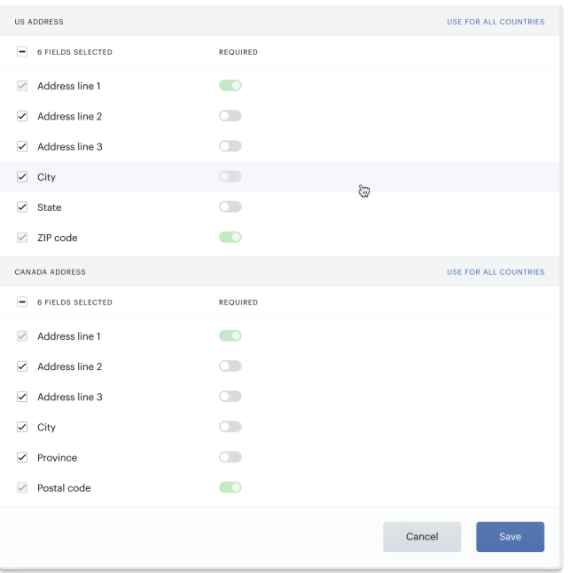
When the Avalara integration modal is open in the Integration tab, turn on the toggle labeled Collect and verify billing addresses at checkout.
The US and Canada default address templates will be displayed. These templates show the address fields that may be displayed to an end user. The fields can be displayed or hidden from the end user’s view, or made required or optional, except for address line 1 and the zip code field. These two fields are always required because they are needed to collect the ZIP+4.
Verifying the address at checkout
When an end user selects the US or Canada from the country dropdown at checkout, the full address template will appear. Otherwise, they will just be prompted to enter a zip code.
When the end user enters their address and the zip code and address line 1 is not empty, the address will be verified. On address validation, the tax will be calculated and displayed to the end user. The total will be summed from the cost of the term plus the tax.
If the address cannot be verified, the end user will see an error message until they can provide a valid address.
End users or Piano users may view and update the billing address after checkout from the My Account page or the publisher dashboard respectively. On update, the address must be verified as well.
Supported Product categories and Tax codes
Below is a table of all supported Product categories and Tax codes from Avalara:
|
Tax code |
Product category |
Description |
|
D0000000 |
Digital goods |
Digital goods are generally viewed as downloadable items that are sold on websites or that are otherwise transferred electronically. Examples would include computer software, artwork, photographs, music, movies, zip files, e-books, PDFs and more. |
|
D9999999 |
Temporary Unmapped Digital Goods SKU - taxable default |
A digital good that has not been mapped to a specific digital good tax code. This temporary unmapped code has a taxable default and will impose tax in all cases unless an entity or use base exemption is applicable. The purpose for using this code is limited to getting a SKU assigned to a system tax code until it can be adequately reviewed and a specific tax code can be accurately assigned. |
|
DA051012 |
Digital Audio Works (with rights conditioned on continued payments) |
|
|
DG020000 |
Electronically-Delivered Gift Cards |
|
|
DM010100 |
Digital Magazines (Digital Version Identical to Printed Version for non-business use) |
"Digital magazines" mean works that are generally recognized in the ordinary and usual sense as magazines, published in regular intervals, transferred electronically as digital files. If the magazine is sold in a hard-copy version and a digital version, both versions have the same information. The magazine is also sold for non-business use. |
|
DN010000 |
Digital Newspapers (Digital Version Identical to Printed Version for non-business use) |
"Digital newspapers" mean those publications which are commonly understood to be newspapers and which are printed and distributed periodically at daily, weekly, or other short intervals for the dissemination of news of a general character and of a general interest to the public, which is transmitted to the customer by electronic means. If the newspaper is sold in a hard-copy version and a digital version, both versions have the same information. The newspaper is also sold for non-business use. |
|
DO010000 |
Other Digital Goods -- No Physical Media |
Other sales not specifically identified by another tax code that are transferred to the customer through electronic means only. |
|
DV010000 |
Videos |
Videos that are transferred to the customer through electronic means or otherwise. |
|
DV010100 |
Videos - Physical Media |
Videos that are transferred to the customer through standard physical means. |
|
DV010200 |
Videos - Streaming / electronic download |
Videos that are transferred to the customer through electronic means only. |
|
DV010201 |
Videos - Streaming / electronic download |
Videos that are transferred to the customer through electronic means only. For purposes of the Chicago Amusement Tax only: Privilege of watching electronically delivered television shows, movies or videos wherein no possessory interest or permanent title is granted. Subscription or pay-per-view streaming. NOTE: Use of this code will apply the Chicago Amusement Tax to all transactions made to Chicago addresses. |
|
DV017194 |
Video Programming Streamed Over The Internet |
Code is for services that include cable services, satellite broadcasts, wireless cable services and internet protocol television provided through wireline facilities without regard to delivery technology. It can include prepaid on-demand internet streaming video to subscribers. Please note this may be subject to other cable-related service type taxes, depending on the state. |
|
OD020400 |
Dues/Membership |
Guarantees transfer of TPP (magazine subscription comes with membership) |
|
PM030000 |
Magazines (not second-class mail matter / not controlled circulation publication) |
Physical magazines only, does not include digital magazines. |
|
PM030811 |
Magazines Published 4 or More Times a Year (Example: Star Magazine) |
|
|
PM030812 |
Magazines Published 2 or 3 Times a Year |
|
|
PM030100 |
Magazines - non-religious content |
|
|
PM030108 |
Magazines - non-religious - Subscription - monthly publication |
|
|
PM030110 |
Magazines - non-religious - Subscription - semiannual publication |
|
|
PM039393 |
Periodical/Magazine Subscription - annual publication |
|
|
PM039394 |
Periodical/Magazine Subscription - quarterly publication |
|
|
PM039395 |
Periodical/Magazine Subscription - semimonthly publication |
|
|
PM039396 |
Periodical/Magazine Subscription - weekly publication |
|
|
PM039397 |
Periodical/Magazine Subscription - religious content |
|
|
PN050814 |
Newspapers |
|
|
PN052314 |
Newspapers - Retail Sale |
|
|
PN058970 |
Newspapers - Sold by Subscription |
|
|
ST080000 |
Training and Seminar |
|
|
SW050501 |
Website / Information access / Business use
|
It is possible to configure the Product category and Tax code also at a term level by going to Manage → Terms and selecting the term's Product tax category:
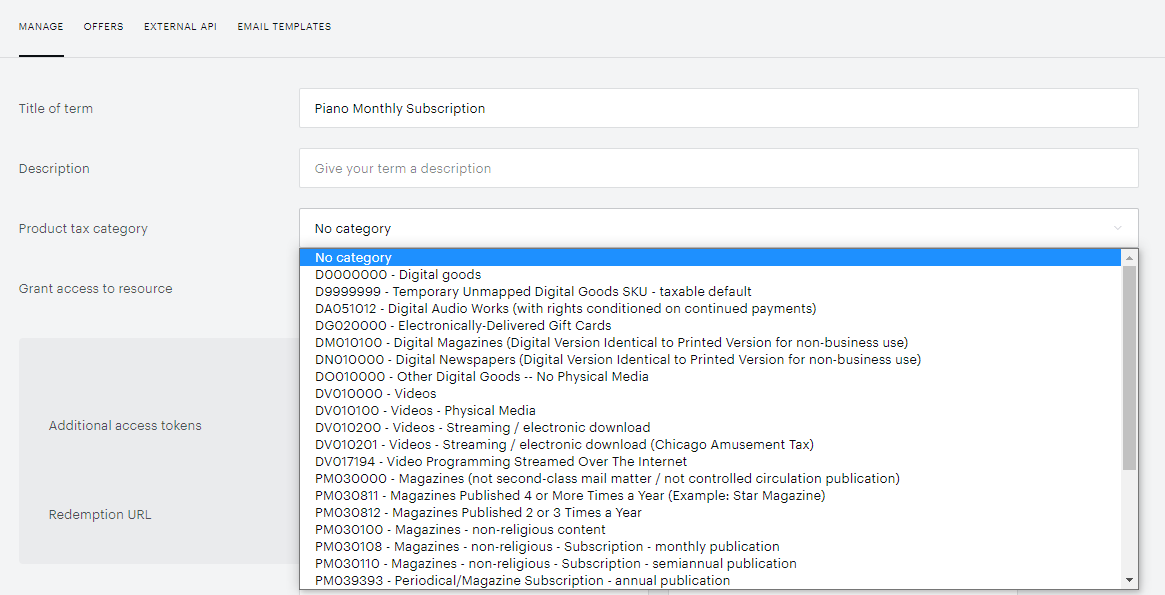
The default value is No category - this means that the Product category that is selected at the application level will be used.
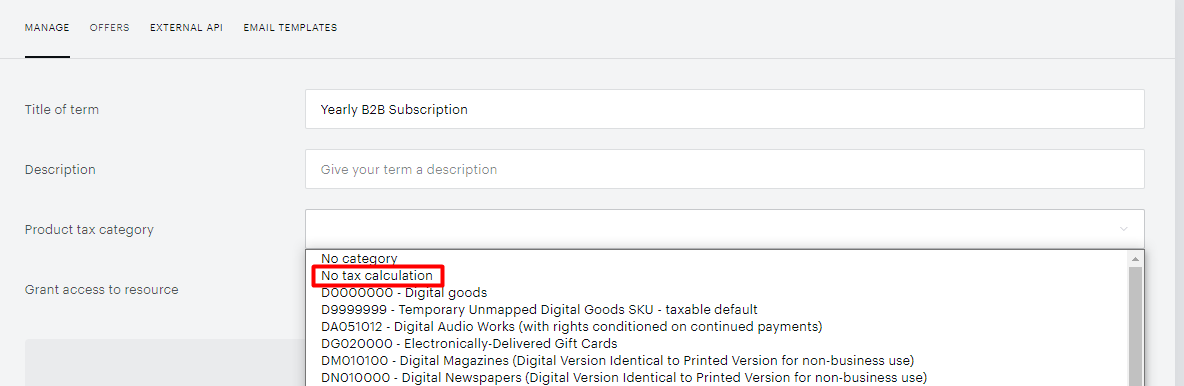
You are also able to use the Product tax category No tax calculation on the term-level configuration. When this setting is applied, no tax is calculated and no API calls are made to Avalara, effectively allowing clients to set up B2B terms.
Frequently Asked Questions
Q: How does Piano submit the amount to AvaTax?
A: Piano sends the term value to AvaTax along with the flag (taxIncluded). When Piano sets taxIncluded to true, the tax is calculated to ensure that the final amount equals the term amount. When Piano sets taxIncluded to false, tax is calculated based on the amount and added to the total sale price. The amount sent to AvaTax is net of any discounts; such as applied promotions.
Q: How many Avalara API calls are made for a typical purchase?
A: Calculating the tax based on the ZIP code found through GeoIP is the default behavior of the purchase flow. Depending on the customer billing address configuration and end-user changes during purchase there may be between 2 to 6 API calls made. Based on the Avalara team, there are usually 3-4 API calls on average for a committed transaction to Avalara.
Below are some example scenarios that may occur during purchase and associated calls made:
GeoIP service found the ZIP code:
-
Tax calculation based on the found ZIP code via a call to
api/v2/transactions/create/(commit=false). The price is updated at checkout, and the address form remains empty. -
The user enters the full billing address. Tax is recalculated using the new ZIP code from the billing address form via
api/v2/transactions/create/. -
The user clicks "complete purchase." The full user address is verified using
v2/addresses/resolve/. Piano updates the address with the one returned by Avalara, where the ZIP code will be in the format ZIP+4. -
If the ZIP code changes, another call to
api/v2/transactions/create/(commit=false) is made to recalculate the tax for ZIP+4. -
Upon successful purchase, an audit is sent via
api/v2/transactions/create/(commit=true).
GeoIP service didn't find a ZIP code:
-
The user enters the full billing address. Tax is calculated using the ZIP code from the billing address form via
api/v2/transactions/create/. -
The user clicks "complete purchase." The full user address is verified using
v2/addresses/resolve/. Piano updates the address with the one returned by Avalara, where the ZIP code will be in the format ZIP+4. -
If the ZIP code changes, a call to
api/v2/transactions/create/(commit=false) is made to recalculate the tax for ZIP+4. -
Upon successful purchase, an audit is sent via
api/v2/transactions/create/(commit=true).
GeoIP service did not find a ZIP code, full billing address is disabled:
-
The user enters a ZIP code. Tax is calculated via
api/v2/transactions/create/(commit=false). -
The user clicks "complete purchase." Successful purchase. An audit is sent via
api/v2/transactions/create/(commit=true).
GeoIP service found a ZIP code, full billing address is disabled:
-
Tax is calculated based on the found ZIP code via
api/v2/transactions/create/(commit=false). -
The user changes the ZIP code. Tax is recalculated via
api/v2/transactions/create/(commit=false). -
The user clicks "complete purchase." Successful purchase. An audit is sent via
api/v2/transactions/create/(commit=true).
If the user has a saved card, Piano also calculates the tax by default based on the ZIP code of the saved card.
The above scenarios depend on whether permanent tax calculation is enabled or not on your application. When this setting is disabled, tax is not pre-calculated for each offer term. However, if it is enabled, Piano will pre-calculate tax for all terms shown in the offer, which can significantly increase the number of API calls.
If you need it enabled or disabled, please contact Piano Support at support@piano.io, and they will make the necessary adjustments for you.