
Integration
The current state of the Newscycle integration allows you to show a Newscycle offer and create a template within Composer. To integrate Newscycle, you must first reach out to your account manager and have them enable Newscycle integration on your account. Once this has been done, go to Edit business and then the Integration tab.
Under Newscycle Configuration, click Add new. Enter in the endpoint provided by Newscycle and then click Save.
Please note, that this integration works for Identity Management and Identity Linking as well.
Composer
Now that you have successfully integrated your app with Newscycle, go into Composer and drag the ‘Newscycle show offer’ card, found under ‘Actions’ on the left-hand menu.
Drag the offer onto the dashboard and the Offer manager modal will open.
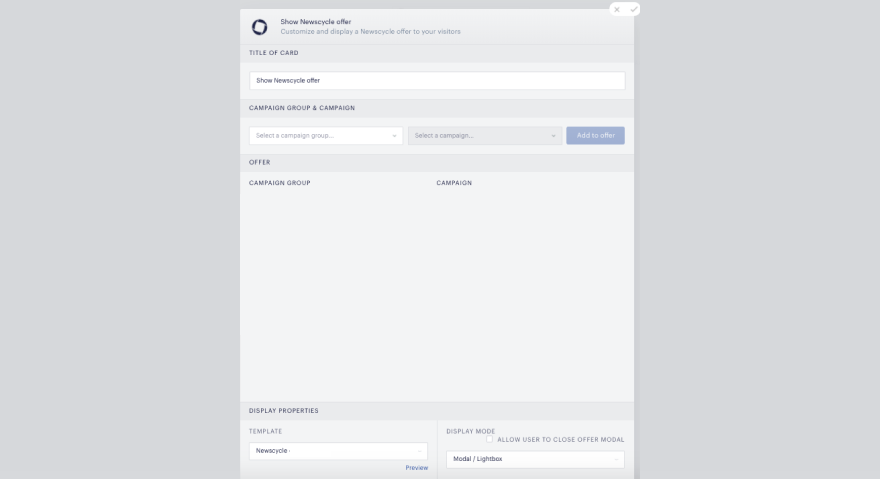
Add in a campaign and a campaign group.
To add in the Newscycle template, select it in the Template dropdown under 'Display properties' at the bottom left-hand corner of the screen. Click the checkmark on the top right-hand corner to add the card to your experience.
Template
To edit the Newscycle template, go to Manage → Templates and scroll down to ‘Newscycle’. Any of the information available from the endpoint that you have added to the Newscycle configuration should be available to use inside the provided template.
Reports
Reporting should be configured within the Newscycle site. Enter your account ID to get information on conversions reported back to Piano.