
Stripe Billing Integration Series: Part 2 of 3 · BYOP clients
This is the BYOP version of the setup guide (for clients who process payments through a non-Stripe processor such as Braintree, Datatrans, GoCardless, Cybersource, and others). If you process payments natively through Stripe, follow the Stripe Payments version instead. See the Client Guide Series index.
In BYOP mode, Stripe manages the subscription schedule and invoice lifecycle while Piano collects payment through your PSP. Because of this, Revenue Recovery (Smart Retries) does not apply to BYOP subscriptions. Passive Churn Prevention in Piano handles failed renewals. The two settings that matter most for BYOP are disabling automatic invoice emails and configuring the failed-payment / invoices-sent statuses correctly.
Getting Started
This section covers what your Piano representative enables for you, how to create or connect your Stripe account, and the Stripe Dashboard settings you apply before the Switch.
Enabling Stripe Billing
Stripe Billing must first be enabled on your application by your Piano representative. Clients are enabled progressively based on their use of Piano features. If you have any questions, please contact your Piano representative.
This article provides a general overview of the Stripe Billing setup for BYOP clients. For a complete breakdown of all configuration steps, supported features, and detailed implementation instructions, see the Stripe Billing Integration technical reference and the Non-Stripe Providers (BYOP) section.
Step 1: Determine your setup
BYOP lets you keep your existing payment processor while Stripe Billing manages the subscription schedule and invoicing. You will still need a connected Stripe account for Billing purposes even though payments are collected through your PSP. Contact your Piano representative to enable Stripe Billing and confirm your processor is supported (Braintree, PayPal/PPCP, Cybersource, Datatrans, Payway, GoCardless, GMO, Sony Payments, Vipps, Zlick, and others).
Step 2: Create or connect your Stripe account
Option A: Create a new Stripe account
-
In the Piano Dashboard, navigate to Edit Business → Billing Provider.
-
Click Add, then Connect.
-
Complete the Stripe onboarding flow.
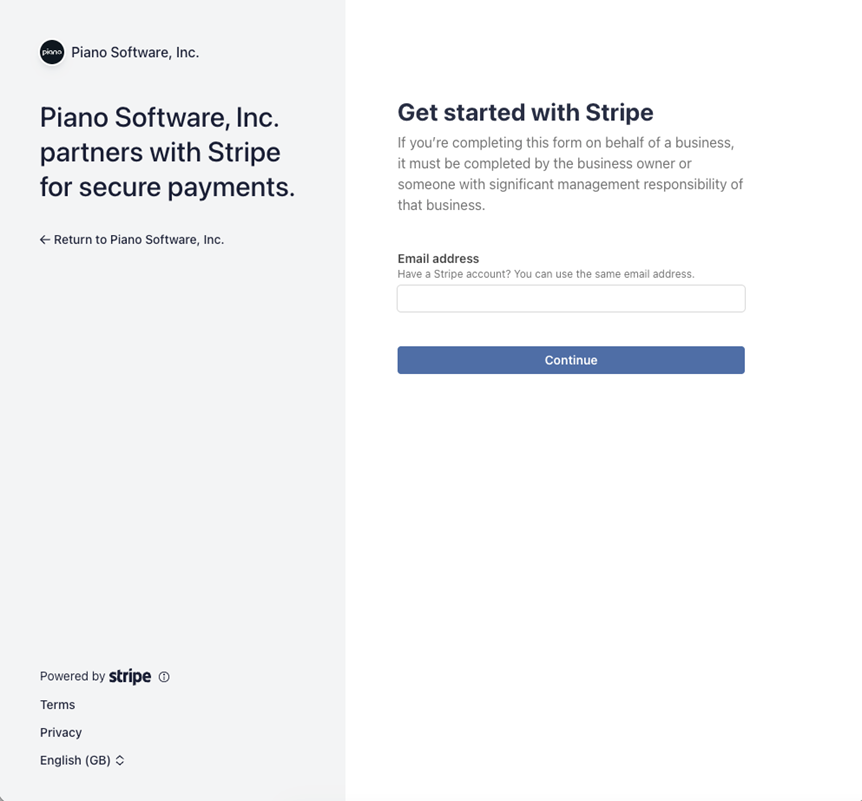
Follow the instructions provided by Stripe to create your account.
Option B: Connect an existing Stripe account
If you already have a Stripe account:
-
In the Piano Dashboard, navigate to Edit Business → Billing Provider.
-
Click Add, then Connect to authenticate your account via Stripe onboarding.
Ensure your Stripe API keys are configured in the Payment Provider settings.
Step 3: Verify configuration
Your Stripe Billing setup is complete when a Connected Account ID is present and API credentials are added and valid. Once both are configured, complete the Stripe Dashboard settings below.
Required Stripe Dashboard Configuration
The following settings apply to BYOP clients. Revenue Recovery is not included because it does not apply to BYOP subscriptions.
|
Setting |
Stripe Default |
Piano Guidance |
Key Risk if Misconfigured |
|---|---|---|---|
|
Invoice finalization period |
1 hour |
Recommended |
Do not change: affects renewal window and Piano sync logic |
|
Upcoming invoice events |
Stripe's dashboard default on a new account is 7 days before renewal. On an existing account the setting may be off entirely, so check it. |
3 days before renewal recommended |
Required for Piano-Stripe pre-renewal sync; not setting it risks out-of-sync state |
|
Invoice level rounding |
Round at invoice level |
Recommended |
Do not change to item-level: small discrepancies may cause sync failures |
|
Automatic invoice emails |
Send finalized invoices enabled |
Disable (critical for BYOP) |
Prevents customers paying directly on Stripe; if payment links are enabled on invoices this can cause double charges |
|
Invoice status (both Manage Failed Payment and Manage invoices sent) |
Past-due |
Set to Uncollectible in both sections |
Ensures Piano can manage BYOP grace and retry logic |
|
Subscription status (both Manage Failed Payment and Manage invoices sent) |
Cancel / Past-due |
Set to Unpaid in both sections |
"Cancel the subscription" must NEVER be selected for BYOP. It can lead to unexpected cancellation during grace and retry |
Never set the Subscription status to "Cancel" for BYOP. The subscription must remain active in Stripe so that Piano controls cancellation, grace, and retry. Setting Cancel can lead to unexpected cancellations during the grace and retry window.
Do not make any direct changes to any Piano-created entities in the Stripe Dashboard; manual changes will cause out-of-sync events and subscription operations will be limited.
Below, you'll find the same configuration steps outlined in a step-by-step format.
Billing Settings
Invoice Settings
Invoice Finalization Rules
In the Stripe Dashboard, navigate to Settings → Billing → Invoices → Invoice finalization grace period and locate the Edit button next to the default rule. Direct link: dashboard.stripe.com/settings/billing/invoice.
Required setting:
-
Set the finalization grace period to 1 hour (default)
-
Do not add additional rules
This setting determines the time between invoice creation and when it's finalized and sent to subscribers. Piano uses this window to validate the invoice before payment is collected.
For BYOP, access is extended on invoice finalization (not on payment), so this window matters.
Upcoming Invoice Events
In the Stripe Dashboard, navigate to Settings → Billing → Subscriptions and emails → Prevent failed payments → Upcoming renewal events.
Required setting:
Configure events for upcoming renewals to ensure proper validation between Piano and Stripe. This is an important integration point between the systems. Change the "Upcoming renewal events" setting to be triggered 3 days before a subscription renews.
Stripe's dashboard default on a new account is 7 days, which is compatible. It does, however, widen the period within which changes may still happen before the renewal invoice is finalized. On an existing Stripe account, check that the setting is configured at all: if it is off, the pre-renewal sync does not run and subscriptions can go out of sync.
Invoice Level Rounding
In the Stripe Dashboard, navigate to Settings → Billing → Invoices → Manual tax amount rounding.
Required setting:
If you use Piano Tax support, choose "Round manually entered taxes at invoice level". This ensures that the invoice level rounding rules are enabled in your Stripe account invoice settings to prevent discrepancies.
This setting applies only to invoices with manual tax rates, which is what Piano creates. Invoices calculated with automatic Stripe Tax always sum tax amounts first and then round, which is one more reason Stripe Tax must not be enabled while Piano manages tax.
Disable Automatic Invoice Emails
To prevent customers from paying directly on Stripe when using a non-Stripe processor, disable automatic notifications.
In the Stripe Dashboard, navigate to Settings → Billing → Subscriptions and emails → Manage invoices sent to customers and disable the customer emails toggle for Send finalized invoices and credit notes to customers.
BYOP clients: this is required. It prevents customers from paying directly on Stripe when your own processor is collecting the charge. Also make sure no payment links are enabled on invoices, otherwise there may be double charges.
Stripe Payments clients: this is optional. You may leave the setting enabled if you prefer Stripe to send invoice emails. If you do, make sure Stripe email rules and Piano Email Manager do not conflict or send duplicate emails.
Manage Failed Payments setting
Under Settings → Billing → Subscriptions and emails, navigate to Manage failed payments and update the Subscription status to Unpaid and the Invoice Status to Uncollectible.
This section applies to both Stripe Payments and BYOP clients.
Manage Invoices Sent to Customers
In the Stripe Dashboard, navigate to Settings → Billing → Subscriptions and emails → Manage invoices sent to customers and update the Subscription status to Unpaid and the Invoice Status to Uncollectible.
These settings apply to BYOP invoices, because BYOP invoices use collection_method = send_invoice and Stripe's automatic dunning does not apply to them. Stripe Payments subscriptions use charge_automatically and are governed by the Manage failed payments section instead, so a pure Stripe Payments client does not need to set the statuses here.
This is important to ensure Piano can manage BYOP grace and retry logic and handle cancellation. In no case set the Subscription status to Cancel.
These settings apply to BYOP invoices since they use collection_method = send_invoice. This is important to ensure Piano can manage BYOP grace and retry logic and handle cancellation. In no case set the Subscription status to Cancel.
Non-Stripe providers and Dual Retry run
If you are migrating from a third-party provider to Stripe and a Dual Retry run is recommended, do not configure Automations. Use only the general failed-payment settings above: set the Subscription status to "Mark subscription unpaid" and Invoice status to "Mark invoice uncollectible" so that fallback retry logic in Piano can attempt retrying the legacy tokens for optimal success on any migrated card retries.
For BYOP subscription retries, Passive Churn Prevention in Piano continues to be used. Any Smart Retry configurations will not affect subscription fail and retry logic managed by Piano.
Where the grace period is configured
Grace period length is set per term under Manage → Terms, in the term's settings. If Passive Churn Prevention is enabled, it overrides the term-level values with its own default of 15 days. To keep custom lengths, create churn prevention logics under Management → Churn Prevention and select them at term level.
Your grace period settings continue to apply to BYOP subscriptions, because Piano still runs the retries. For Stripe-native subscriptions they are ignored: Stripe determines the retry schedule, and the grace period equals the billing period.
Switch Timeline
Your Piano team will coordinate your transition to Stripe Billing through a phased rollout process:
1. Pre-switch
Configuration review and Stripe account setup.
Subscription Billing intervals: Stripe currently supports billing intervals of up to 3 years. Subscriptions with longer billing intervals cannot be switched to or purchased with Stripe Billing. For more details, see Billing periods and the 3-year guideline.
2. New purchases move to Stripe Billing immediately
From the moment your application is activated on Stripe Billing, all new subscription purchases are processed through Stripe Billing immediately, with payment collected through your PSP. No action is required on your part.
3. Switch for Existing Subscriptions
Switching your existing subscriptions is a brief, coordinated process. During the Switch, Piano creates all required subscription entities in Stripe Billing and sets each subscription to renew through Stripe from its next renewal date. BYOP support enables switching for all subscription types even when the subscriber's payment method is non-Stripe. There is no subscriber-visible change during this process and no interruption to access.
A small number of subscriptions may not transition automatically at renewal (for example, those in a failed payment or suspended state). These are handled by Piano's account team and transition at the next successful renewal or payment method update. If you have questions about a specific subscription, contact the Piano support team.
4. Post-switch and Go-Live
Validation and monitoring period. All subscription purchases and renewals flow through Stripe Billing, with charges collected through your PSP. Your Piano Account Manager will provide specific dates and migration steps for your account.
Appendix: Stripe Account Configuration
This appendix explains how your Stripe accounts map to your Piano applications, and what you can and cannot change once Stripe Billing is live.
Account Hierarchy Scenarios
There may be multiple account hierarchy use cases; such as 1 to 1, 1:2 and many to 1 scenario between Piano and Stripe applications and account structures. It is important to understand the effect of multiple account configurations.
Known limitations:
A Stripe Customer and its saved payment methods belong to a single connected account. Stripe can clone a payment method onto another connected account, but the result is a separate Customer, and activity on one is not reflected on the other.
This is why all Stripe payment provider integrations in a single Piano application, for example Stripe Elements and Stripe Apple Pay, must point at the same Stripe account ID. If they do not, subscribers will lose access to saved payment methods when you switch to Stripe Billing.
Scenario 1: 1 to 1 (Supported and recommended)
Most common implementation scenario, fully supported and recommended.
Scenario 2: Many Piano apps to 1 Stripe account (Supported)
Using a single Stripe account for payment processing across multiple Piano applications is supported.
Scenario 3: 1 Piano app to 2 Stripe accounts (Unsupported DO NOT USE!)
Using multiple Stripe payment integrations connected under the same application in Piano with two different Stripe accounts for processing payments is not supported and should never be used.
If your application is already in this configuration, contact your Piano representative before enabling Stripe Billing. The application cannot be switched until the integrations are consolidated onto a single Stripe account.
Important Notes
-
Once your Stripe account is connected to Piano and used for billing, you cannot change it. To switch to a different account, a migration on both Piano and Stripe side will be required.
-
The same connected account used across different Piano applications doesn't guarantee that billing configurations will be created for each application.
-
To disconnect already connected accounts from Piano, clients need to inform their Piano and Stripe Account representatives.
Continue the Stripe Billing Integration Series
Previous: Part 1: Stripe Billing Integration Overview
Next: Part 3, Manage Subscriptions (BYOP version). See the Client Guide Series index.