General Information
Piano JavaScript runs asynchronously on our clients' sites. This means that the content of your site will be loaded and presented to the user independently of Piano's scripts. Then, Piano's JavaScript loads and the necessary components of your site are either shown or obscured. The elapsed time between when your content loads and our JavaScript finishes running is generally no more than a brief moment.
If you believe there is an issue with the integration between the Piano JavaScript and your site content, there are several methods of validating our scripts, which are outlined below:
Validating Piano JS
Using Chrome's inspect element tool, simply follow these steps:
-
Load the page, right click, and choose Inspect
-
Select the Network tab
-
Refresh the page
-
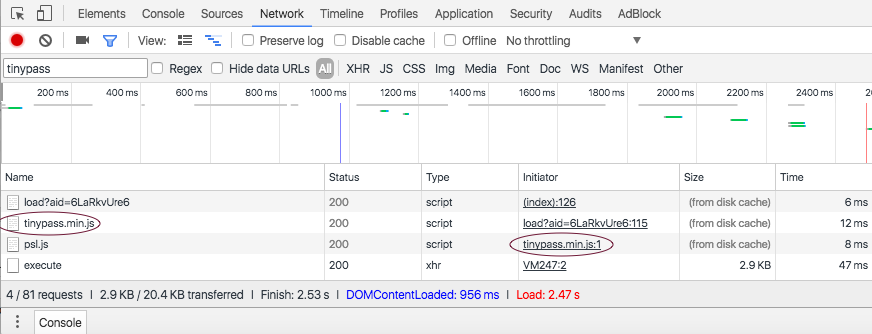
Filter for “tinypass” in the Network console (you may need to refresh the page)
-
Seeing "tinypass" entries means that Piano's JS is firing on the page
Here's an example of the kind of values you should see in the console when Piano JS is running:
Validating Customized Piano JS
Any custom data you're passing to Piano (custom variables, tags, additional AI tracking, etc) will be available as attributes to the tp object in the JavaScript. How to the read contents of this object using Chrome's inspect element tool:
-
Load the page, right click, and choose Inspect
-
Click on the Console tab
-
Type “tp.” followed by one of the attribute names and press Enter
-
If you’ve typed everything correctly but see an error, it might indicate that the JS library failed to initialize due to incorrect implementation
Here's an example of what you should see in the console if everything is working properly (if an attribute has not been detected by the Piano library, an empty string is returned).
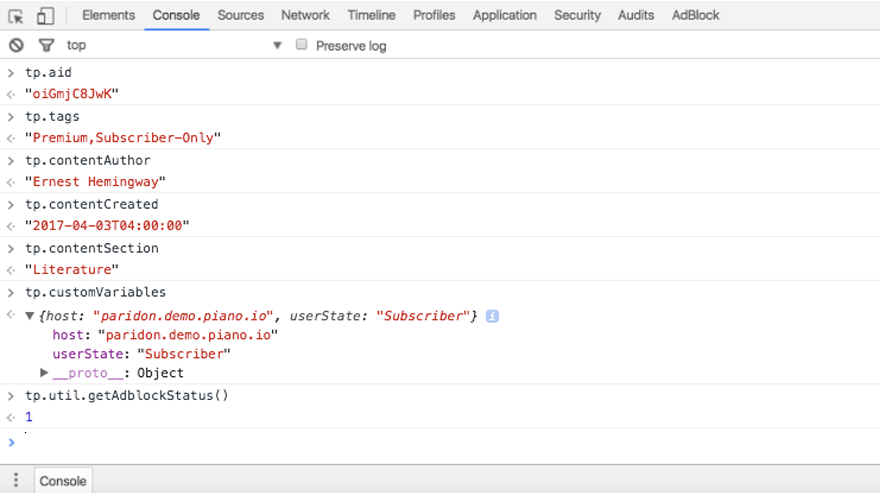
Below are the calls and corresponding returns for Piano's JavaScript methods.
|
Attributes |
Syntax |
Result |
|
Application ID |
tp.aid |
This will return your application ID, native to the application hosting the website and unaffected by any pushes to Piano's database. |
|
Tags |
tp.tags |
This will return any tags that you applied to the given page. Tags are labels that you give to your content in order to better organize your system and understand user interests. |
|
Content author |
tp.contentAuthor |
The contentAuthor attribute returns any author(s) associated with the given page. This may be blank if your page does not have an author or if you have not pushed an author to Piano's servers. |
|
Content creation time |
tp.contentCreated |
This attribute provides the date and time of the creation of the given content. The time given is Coordinated Universal Time (UTC). |
|
Content section |
tp.contentSection |
contentSection will return the section of your site that your content has been assigned to. This is primarily for the organization and flow of your site. |
|
Custom variables |
tp.customVariables |
This will return any custom variables that you have set on your content. Such variables are often used for tracking user status or monitoring newsletter subscriptions. |
|
Adblock status |
tp.util.getAdblockStatus() |
This returns |
|
AAM zone |
tp.zone |
Not shown here, this will return any AAM zones that you have assigned to your content. For more information on AAM zones and their uses, please view the document on Effective Pages. |
|
Custom parameters |
tp.customParams |
Similar to customVariables, customParams also returns a scope for which the parameter applies to so that a parent can have children with different parameters. This call returns any active parameters for the given content. |
|
Native content |
tp.contentIsNative |
contentIsNative will return |
Validating Ad Blocker Detection
To use Chrome's inspect element tool to validate that Piano's ad block detection script is running follow these steps:
-
Load the page in Incognito mode, right click, and choose Inspect
-
Click on the Console tab
-
Type “tp.util.getAdblockStatus()”
If the JS library is initialized correctly, you should see 0, indicating that adblock is not enabled. If you see -1, the library was not properly initialized.
Validating Composer Experience Execution
To check the Composer experiences running on your pages follow these steps using Chrome's inspect element tool:
-
Load the page, right click, and choose Inspect
-
Select the Network tab
-
Refresh the page
-
Filter for “execute” in the Network console (you may need to refresh the page)
-
Click on the entry you've found. If you can’t find any entries, you should re-check your front-end configuration.
-
Once you've found the entry, on the right side of the tool click on Preview tab
-
Expand the models node
-
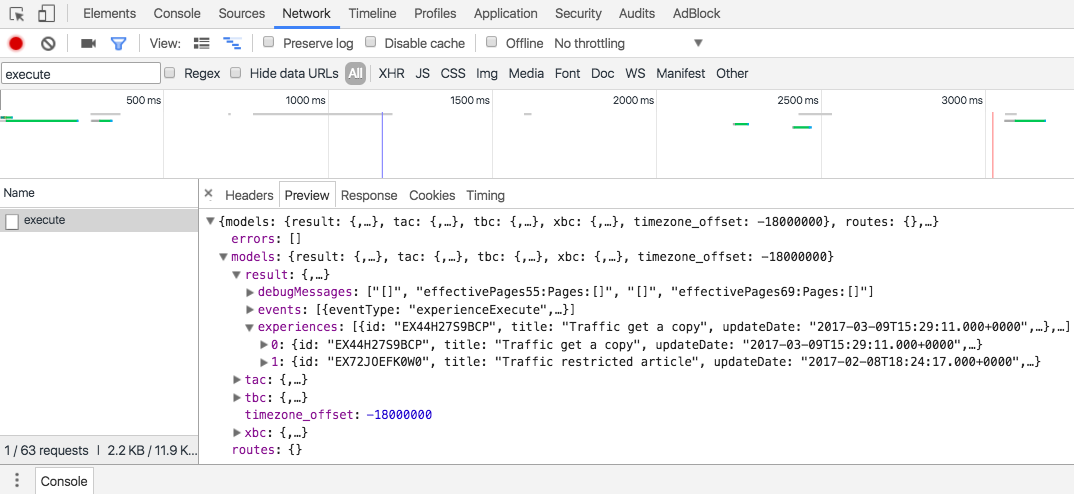
Expand the result node and then experiences. If the experiences node is not expandable, it means there are no live experiences. If you only see the errors node, something is not configured correctly.
The nodes found within the experiences node represent all the experiences currently running on that page. You should be able to see the names and IDs of the experiences. If you're able to see your experiences, that also means Piano AI is automatically capturing data about those experiences and your users.
Here's an example of what you should see if Composer experiences are running on your site: