
How to Use
You can add keys directly into the HTML of Lightweight templates (for these keys, publishers can provide translations via the Localization Manager in the dashboard — these keys and translations are stored in the Subscription Management + Billing database), as well as in the component code.
Usage in Templates
// HTML | JSX tab
<PianoTranslate>your text key</PianoTranslate>
<T>your text key</T>

<PianoTranslate context="offer.component">your text key</PianoTranslate>
<T context="offer.component">your text key</T>

<PianoTranslate template={{ arg1: 10, arg2: "juice" }}>your [[ arg1 ]] temlate [[ arg2 ]] key</PianoTranslate>
<T template={{ arg1: 10, arg2: "juice" }}>your [[ arg1 ]] temlate [[ arg2 ]] key</T>

<PianoTranslate context="offer.component" template={{ arg1: 10, arg2: "juice" }}>your [[ arg1 ]] temlate [[ arg2 ]] key</PianoTranslate>
<T context="offer.component" template={{ arg1: 10, arg2: "juice" }}>your [[ arg1 ]] temlate [[ arg2 ]] key</T>
Do not use {} interpolation or components inside the <T> tag. Instead, if you need dynamic data in a translation string, use a template. For a string that contains components, split it into substrings and wrap those parts with the <T> component. You can use only text strings and native HTML elements inside the <T> tag.
Incorrect:
<T>some text <A href="some url">some link text</A> another text <SomeSolidJsComponent /> rest text</T>
Correct:
<T>some text </T><A href="some url"><T>some link text</T></A> <T> another text </T> <SomeSolidJsComponent /> <T> rest text</T>
Incorrect:
<T>some text {context.someVariable} rest text</T>
<T>some text [%% someContentField %%] rest text</T>
Correct:
<T template={{ templateVariable: context.someVariable }}>some text [[ templateVariable ]] rest text</T>
<T template={{ templateVariable: [%% someContentField %%] }}>some text [[ templateVariable ]] rest text</T>
For cases when we have text in a content field, which should be translated, we should surround the content field by T tags as well. The publisher should add the value of the content field to the Localization manager and provide the translation.
Incorrect:
<div>[%% someContentField %%]</div>
Correct:
<div><T>[%% someContentField %%]</T></div>
If you use the T component without a context argument, the default context pn-widgets.default will be applied.
Elements on end pages only load translations for two contexts: pn-widgets.default and {element_name}.component. This optimization was introduced to reduce translation payload size (previously, all translations for all contexts were loaded).
Therefore, it's critical to specify the context correctly as {element_name}.component or leave it empty (defaults to pn-widgets.default).
Examples:
-
Element "Offer" → context
offer.component -
Element "Pure" → context
pure.component -
...and so on.
Note for Developers
When creating a new element, don't forget to add T and PianoTranslate components to the baseComponents object. For example:
...
import { PianoTranslate } from "../../shared/components/i18n/PianoTranslate";
import { T } from "../../shared/components/i18n/T";
...

const baseComponents: Record<string, Component<any>> = {
  PianoHeader,
  PianoPrimaryButton,
  PianoExternalEvent,
  PianoExternalLink,
  PianoTranslate,
  T,
};
...
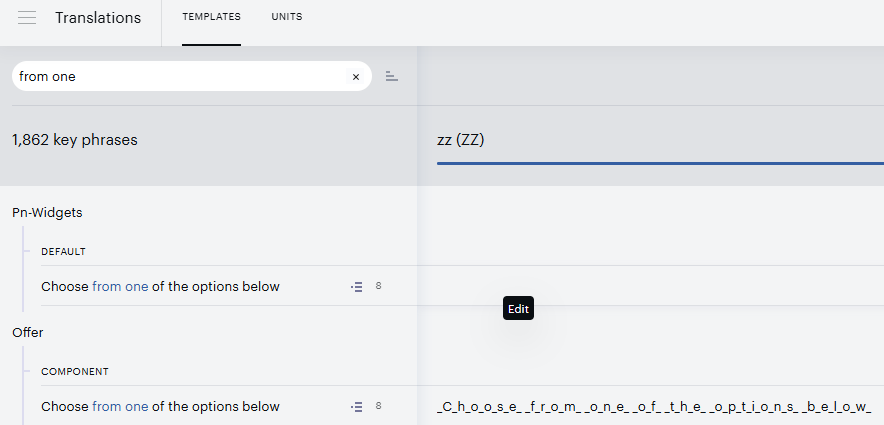
Keys for Lightweight templates in Localization Manager appear as shown in the screenshot below:
Usage in JS
// JS tab
const text1 = context.t("your text key");
const text2 = context.t("your [[ arg1 ]] template [[ arg2 ]] key", { arg1: 10, arg2: "juice" });
const text3 = context.trc("offer.component", "your text key");
const text4 = context.trc(i18nStore.contexts.Offer, "your text key");
const text5 = context.trc("offer.component", "your [[ arg1 ]] template [[ arg2 ]] key", { arg1: 10, arg2: "juice" });
<div>{text1}</div>
<div>{text2}</div>
<div>{text3}</div>
<div>{text4}</div>
<div>{text5}</div>
Usage in Components
In components, you can use either the component-based approach (see template examples above) or the functional approach:
import { useI18n } from "../../../../../core/contexts/i18n/I18n.provider";
import { PianoTranslate } from "../../shared/components/i18n/PianoTranslate";
import { T } from "../../shared/components/i18n/T";

const { t, trc, i18nStore } = useI18n();

t("your text key");
t("your [[ arg1 ]] template [[ arg2 ]] key", { arg1: 10, arg2: "juice" });
trc("offer.component", "your text key");
trc(i18nStore.contexts.Offer, "your text key");
trc("offer.component", "your [[ arg1 ]] template [[ arg2 ]] key", { arg1: 10, arg2: "juice" });

...

return (
  <>
    <T>localized text</T>
    <PianoTranslate context="offer.component">another localized text</PianoTranslate>
    <Checkbox label={t("localized checkbox label")} name="some name" />
  </>
);
For the functional approach, the context handling rules are the same as for templates.