
Snippets are ready-to-use code blocks within Lightweight Templates which implement some UI functionality. Snippets can contain any HTML/CSS/JS code.
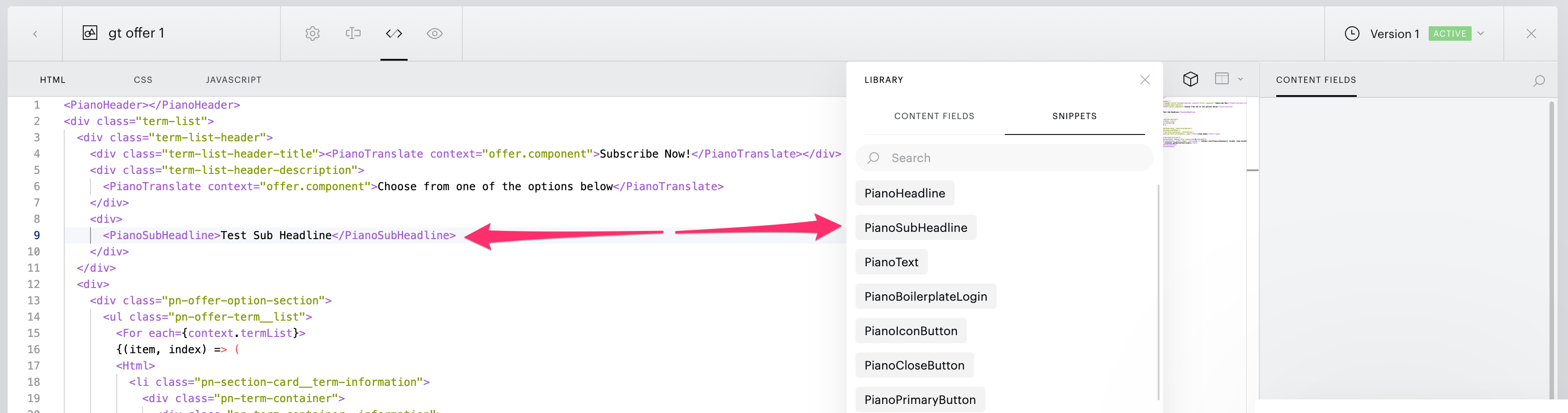
Snippets can be dragged and dropped onto the code canvas from the Library Snippets dropdown element:
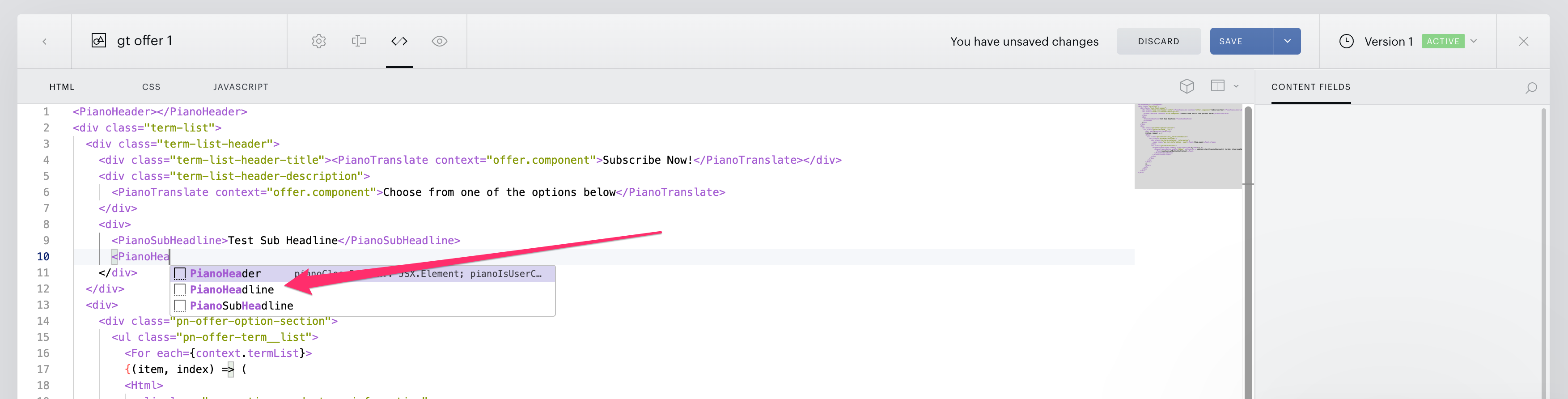
Snippets can also be added from the context menu:
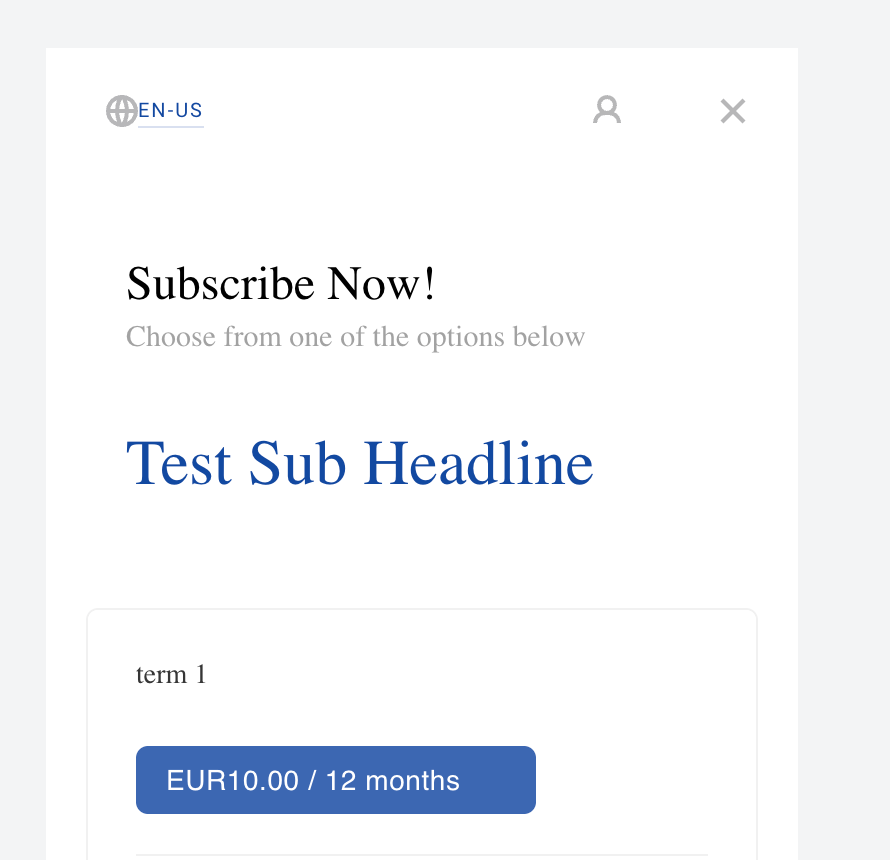
As a result, we have styled code in the template:
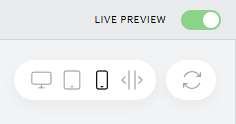
To see a snippet immediately in your template, make sure you have the Live preview in your Editor switched on. The Live preview toggle is shown in the image below.
List of Available Snippets
BulletPoints
Creates a bullet point list.
<ol class="bullet-points" style="list-style-type: disc">
  <For each={["Lorem ipsum 1", "Lorem ipsum 2"]}>
    {(item, index) => <li class="bullet-points-item">{item}</li>}
  </For>
</ol>
LearnMore
Creates a learn more link.
<A href="" class="learn-more">Learn more</A>
ViewsLeft
Creates a div element that shows how many views are left.
<div class="views-left">{context.viewsLeft()}</div>
AlreadyHaveAccount
Creates an "Already have an account?" section.
<Show when={!context.user()}>
  <PianoText>
    <T>Already have an account?</T>
    <PianoGhostButton underlined={true} onClick={(e) => context.login()}>
      <T>Login</T>
    </PianoGhostButton>.
  </PianoText>
</Show>
Price
Shows a selected term price.
<div class="price">{context.termList?.[0]?.price}</div>
context.termList may be in the process of loading. Use the ?. operator for secure access to termList properties.
CrossedOutPrice
Shows a discounted price (price shown at discounts with a strikethrough on the original price).
<div class="crossed-out-price">
  <span style={{ "margin-right": '5px', "text-decoration": "line-through" }}>$10</span>
  $7
</div>
Login
Shows a login ghost button if the user is not logged in.
<Show when={!context.user()}>
  <PianoGhostButton onClick={(e) => context.login()}>
    <T>Login</T>
  </PianoGhostButton>
</Show>
Radio
Creates a radio input.
<input type="radio" name="radio" style={{ width: "14px", height: "14px" }} />