
Stripe Billing Configuration in Piano
Stripe Account Configuration in Piano
There may be multiple account hierarchy use cases; such as 1 to 1, 1:2 and many to 1 scenario between Piano and Stripe applications and account structures. It is important to understand the effect of multiple account configurations.
Known limitations:
A Stripe Customer and its saved payment methods belong to a single connected account. Stripe can clone a payment method onto another connected account, but the result is a separate Customer, and activity on one is not reflected on the other.
This is why all Stripe payment provider integrations in a single Piano application, for example Stripe Elements and Stripe Apple Pay, must point at the same Stripe account ID. If they do not, subscribers will lose access to saved payment methods when you switch to Stripe Billing.
Scenario 1: 1 to 1 (Supported and recommended)
Most common implementation scenario, fully supported and recommended.
Scenario 2: Many Piano apps to 1 Stripe account (Supported)
Using a single Stripe account for payment processing across multiple Piano applications is supported.
Scenario 3: 1 Piano app to 2 Stripe accounts (Unsupported DO NOT USE!)
Using multiple Stripe payment integrations connected under the same application in Piano with two different Stripe accounts for processing payments is not supported and should never be used.
If your application is already in this configuration, contact your Piano representative before enabling Stripe Billing. The application cannot be switched until the integrations are consolidated onto a single Stripe account.
How to connect Piano with Stripe Billing
Creating a new Stripe Account
You need to create Stripe account for Billing purposes even if you do not use Stripe for Payments. To do that, navigate to Piano Dashboard → Edit Business → Billing Provider → click Add and then Connect:

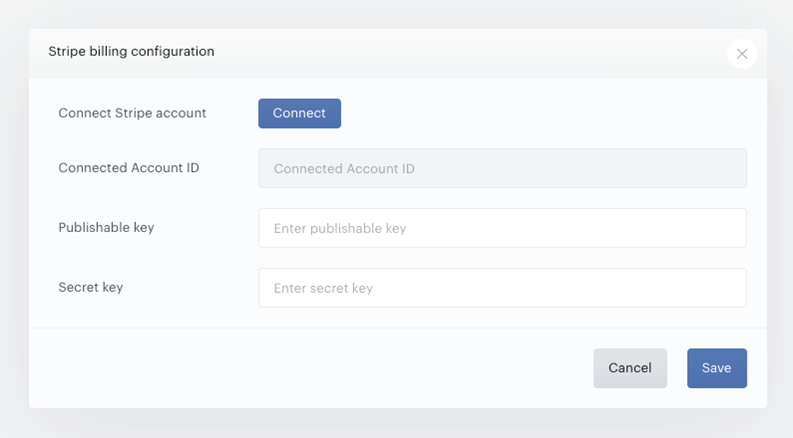
This will trigger Stripe onboarding flow:
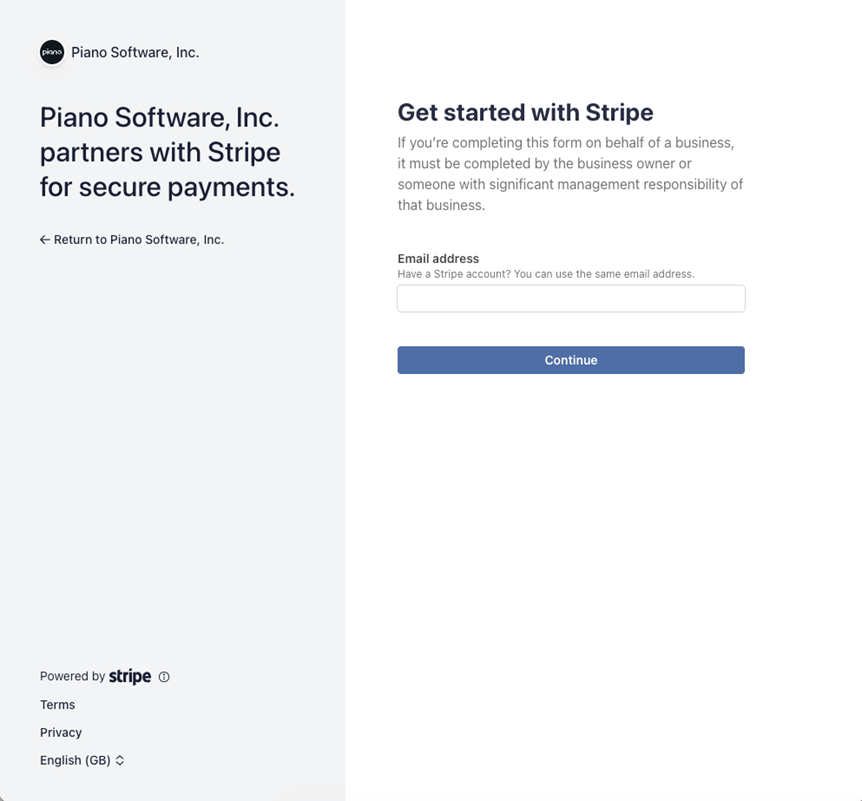
Follow the instructions in the flow to create an account.
Connecting an existing Stripe Account
Clients using Stripe payments have their accounts connected automatically and presented in the Billing configuration already. If your Stripe API keys are not already added in the Payment Provider configuration, you will need to add them to connect Stripe Billing. In case you have not yet connected your Stripe account, you will need to "Connect" in Piano.
Piano will use the account ID from your Stripe payment provider configuration to make sure that your customers and payment methods information already created in the application will be used with Billing.
In the Piano Dashboard, navigate to Edit Business → Billing Provider and click Add and then Connect to trigger the Stripe onboarding flow to authenticate your Stripe Account.
The Stripe Billing configuration is ready to use when BOTH Connected Account ID and API credentials are populated and valid. You can check this in the Billing Provider settings: when the configuration is ready, the Connected Account ID is shown against your Stripe account and the saved API credentials are accepted. When it is not ready, the Connected Account ID is empty or the API credentials are reported as missing or invalid, and Piano does not let you save the configuration.
To get your Stripe API credentials, navigate to the Stripe dashboard and login. On your Home page you can find your API keys in the top right corner:
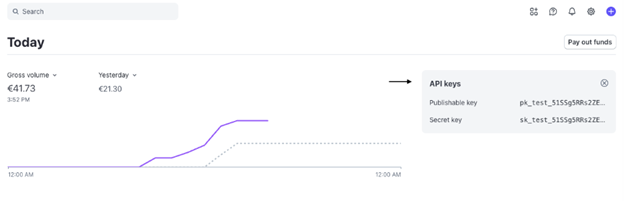
In case you cannot see the keys on your Home page, you can also find them in the Settings → Developers → API Keys. Select the Standard API keys, and do not use restricted keys as these may lead to loss of functionality. You need both Standard keys: the publishable key and the secret key.
Clients already using Stripe for payments, but Stripe account is not yet connected
Clients need to connect their account for Stripe billing using Stripe billing configuration. In this case, their Stripe payment provider integrations won't be affected.
Important note:
You must use the same Stripe account as used in payment integrations. Piano will validate the connection before setting up and will restrict saving of configuration with different account ID.
Stripe Account for Billing additional considerations
-
Once your Stripe account is connected to Piano and used for billing, you cannot change it in Stripe payment provider configuration nor in Stripe billing provider configuration. To switch to a different account, a migration on both Piano and Stripe side will be required. It is NOT recommended to change accounts in the application once connected.
-
The same connected account used across different Piano applications doesn't guarantee that billing configurations will be created for each application. To switch all applications to Stripe, make sure each application has Stripe Billing configured.
-
After the application has been switched to Stripe billing, all new connections to Stripe made with payment provider integrations will use the same connected account ID from the Billing configuration.
-
To disconnect already connected accounts from Piano, clients need to inform their Piano and Stripe Account representatives to help organize the process of disconnecting without losing or corrupting any information.