
Stripe Dashboard Navigation
Stripe dashboard can be accessed via https://dashboard.stripe.com/ for both production and sandbox instances. For more details on how Piano regional instances are connected to Stripe accounts see docs.
We recommend you learn about Stripe Dashboard features and settings. Some of those features are explained below and you should review the full Stripe documentation.
Below is a brief overview of the key places where Piano-created entities will appear.
Once you login, you will see the following view.
Home view
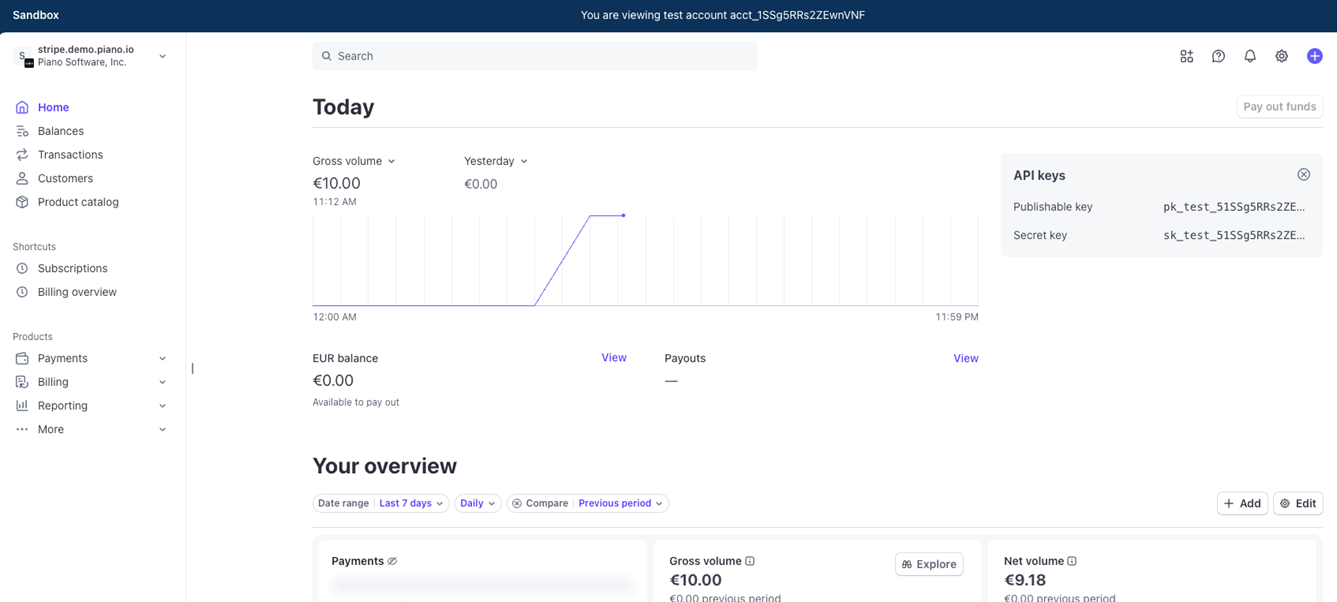
The Home view is your Stripe account overview, showing gross volume, balances, and recent activity across every payment Piano collects through Stripe.
Transactions view
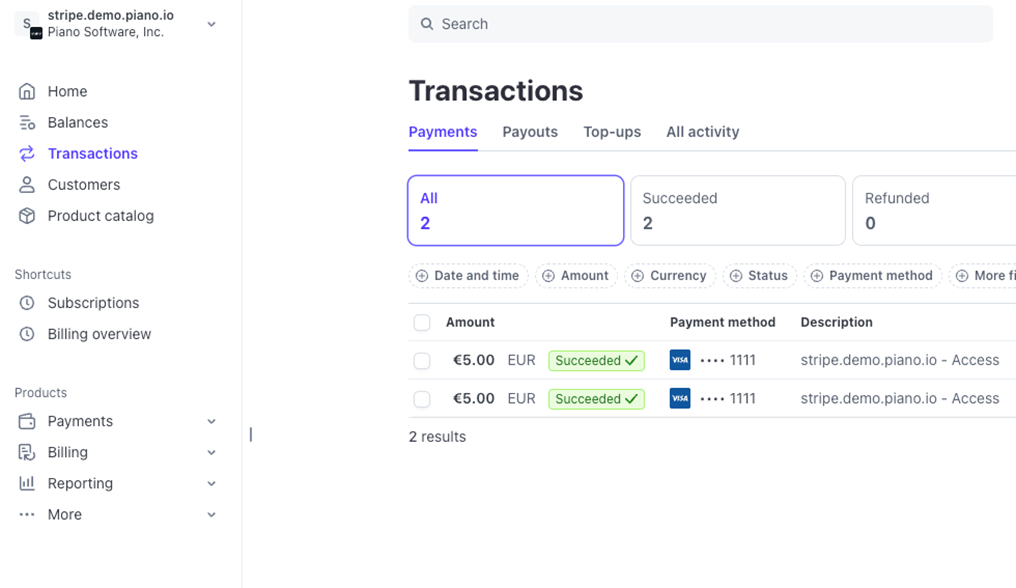
The most important and relevant tabs to navigate are Transactions, Customers, and Subscriptions. You may already be familiar with Transactions and Customers if you use Stripe for payments:
Transactions tab shows all payments executed for customers; this is what clients using Stripe Payments typically see and use, in addition to the Customers tab.
Customers view
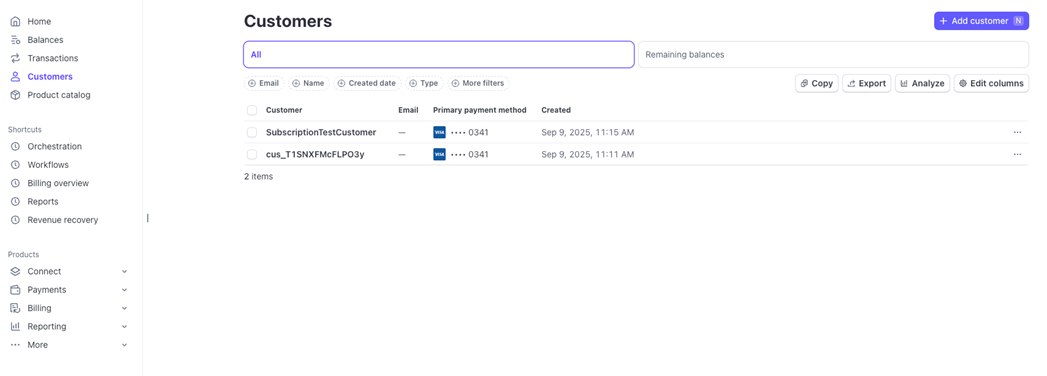
The Customers tab lists a Stripe Customer for every Piano subscriber billed through Stripe Billing, with their saved payment methods, invoices, subscriptions, and Piano metadata.
Product Catalog view
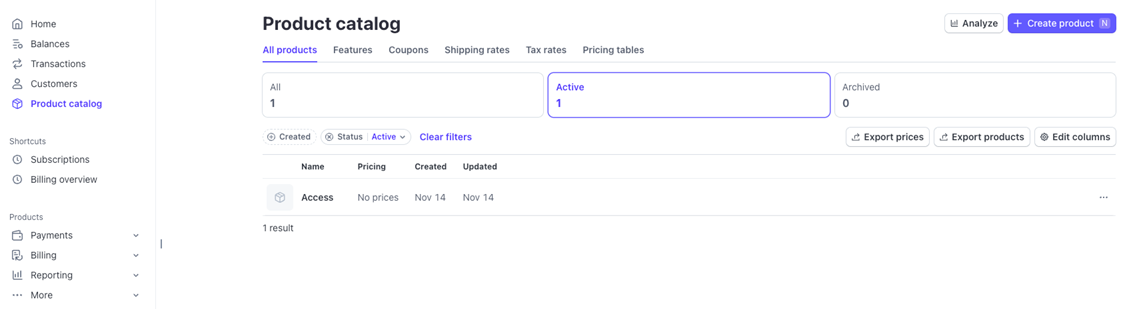
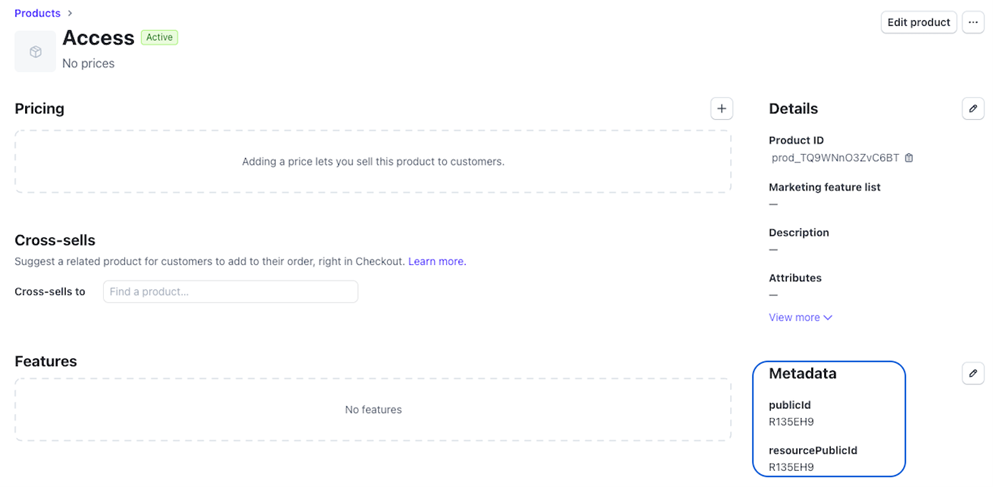
Product Catalog stores Piano Resources and Tax Rates as Stripe Billing entities; it shows every Piano Resource that has been converted to a Stripe product.
IMPORTANT: DO NOT make any changes to Product catalog directly in Stripe; this will lead to issues with syncing of the entities and events between Piano and Stripe. This also applies to all other tabs within the Product Catalog view. Clients must use Piano dashboard for all subscriber operations.
Each Product will include Piano Metadata, which should not be edited in Stripe, for more details on Metadata please see the Piano Metadata in Stripe page.
Tax rates
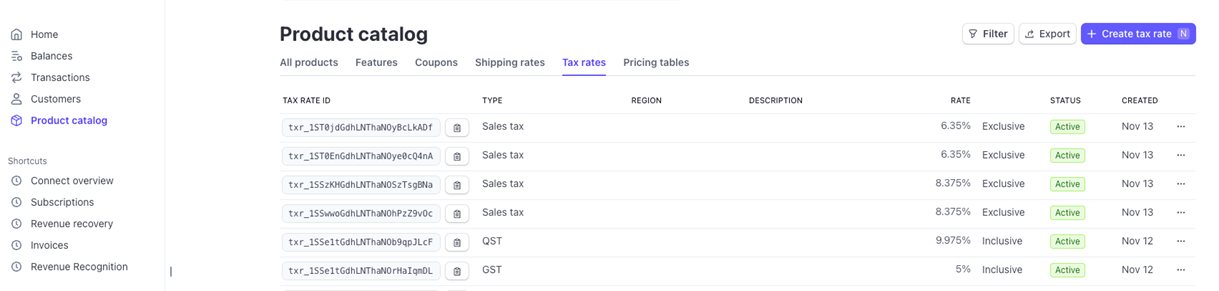
Under the Tax Rates tab, clients using any of the Piano Tax support and its integrations will see manual tax rates created there automatically on any switched or newly purchased products. Do not make changes to the tax rates in Stripe; these are programmatically maintained and in sync with Piano Tax support.
Automatic Stripe Tax is not supported in the current phase and must not be enabled at this time as it will lead to conflicts across entities and integration.
Example with Piano created tax rates (these must not be changed in Stripe at any time):
Invoices
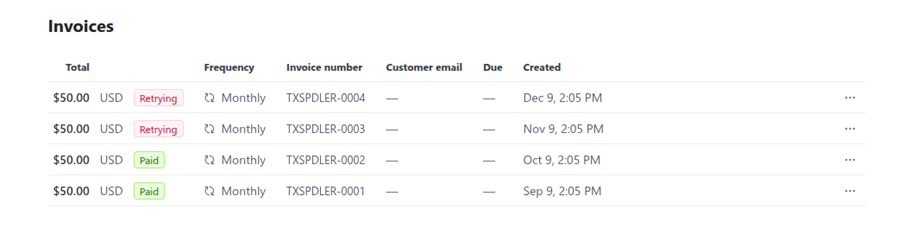
The Invoices tab shows all invoices for every customer and the status of each billing operation on subscriptions:
When the invoice payment is being retried, the status is updated at the individual invoice level.
Subscriptions view
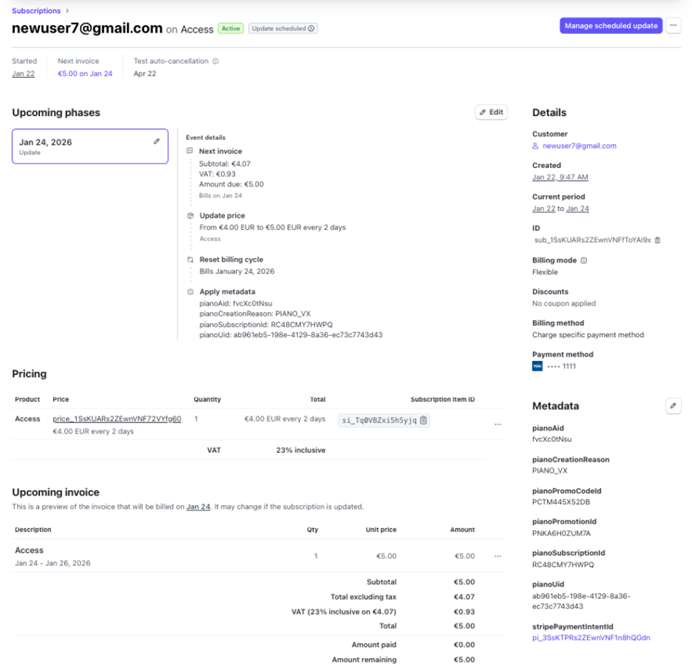
Subscriptions tab will include all subscriptions including any Piano subscriptions switched to Stripe Billing and newly purchased subscriptions after Billing integration is enabled. Clicking on a subscription in the list shows details including customer email, resource (Stripe product), price, tax rate and amount, access period and a preview of the customer's next invoice:
All of the associated data is maintained in sync with Piano. Metadata provides additional Piano context.
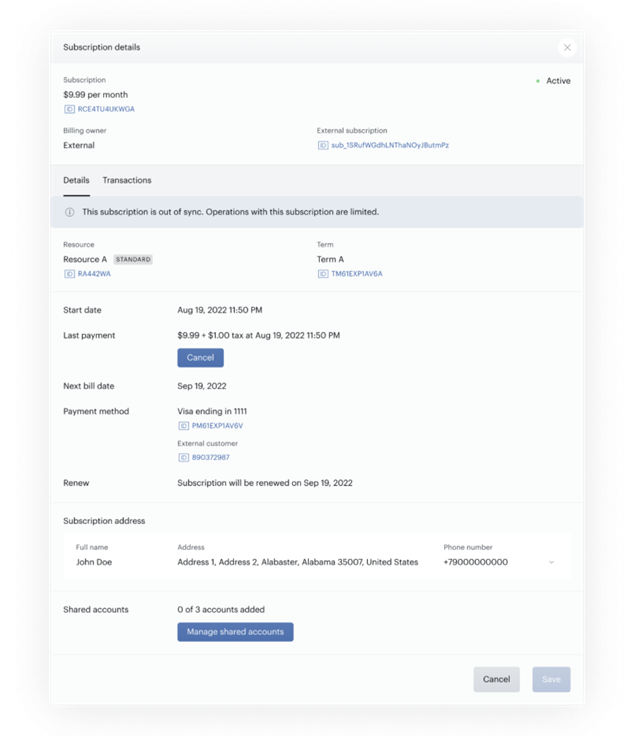
Important Note: Do not make any direct changes on Piano created entities in "Actions" or on Customer and Subscription as manual changes made in Stripe Dashboard will cause out-of-sync events and subscription operations will be limited.
Out-of-sync recovery
Manual changes to Piano-managed entities in Stripe put the subscription out of sync.
Piano automatically cross-checks and repairs discrepancies it detects during its own validations. Changes Piano cannot cross-check, for example a product or price created directly in Stripe and attached to a subscription, cannot be repaired automatically. In those cases Piano stops managing billing and collection for that subscription, every operation except cancellation is blocked in the Piano Dashboard, and Piano keeps extending access to the original resource only while the subscription is active in Stripe.
A notification appears in the Subscription details view when this happens:
Contact Piano support: support can reset the subscription state so that Piano manages it again. Fully automated reconciliation is planned for a future release.