
LIGHTWEIGHT TEMPLATES
AI Template Converter
The AI Template Converter is an automated way to convert your Classic Offer templates into the Lightweight template format. Instead of rewriting a template by hand in the new syntax, you select the templates you want to convert and the Converter produces Lightweight versions for you, typically within a couple of minutes per template.
The Converter is available directly in the Template Manager, so the whole flow: selecting templates, converting them, and reviewing the result, happens in one place.
Beta status
The AI Template Converter is released as a Beta feature. AI-driven code translation and visual recreation are not perfectly one-to-one. This is an industry-wide characteristic of the technology, not specific to Piano, so a converted template may differ from its Classic source in details such as spacing, fonts, or specific styling. For this reason, the Converter is best understood as a way to do the bulk of the migration work automatically, with a manual review to bring each template to production quality.
We continue to improve the conversion quality after release.
Before you start
A few things to know:
-
The converter is currently available for Offer templates only. Other template types (Piano ID, My Account, custom forms, system templates) are not yet supported but are planned to be at a later stage.
-
Your Classic templates remain untouched. The conversion produces a new Lightweight version in the Lightweight section of the Template Manager; the original Classic templates stay where they were.
-
Conversion typically takes 3–5 minutes per template, sometimes longer, depending on template complexity.
-
The converter is AI-powered, which means results aren't 1:1 at every conversion. We spent many hours on optimizing the underlying prompts, but templates in the platform are built in an enormous variety of ways, so the results might not always be satisfying.
None of the limitations below are permanent; the converter keeps improving.
After the template conversion, while checking the results, please pay attention to the aspects mentioned below:
Cosmetic differences
The classic and new engines lay out and style content slightly differently, so expect small visual variations rather than a pixel-perfect match:
-
Minor differences in text line breaks, element heights, and spacing.
-
Templates that silently relied on the classic bundle's implicit CSS defaults may render differently, since those defaults no longer apply.
-
:hostselectors and other shadow-DOM-specific CSS don't apply in every rendering mode, so some rules may not take effect. -
If a publisher's external stylesheet (fonts, design tokens) can't be fetched at conversion time, the result differs from a run where it could.
Constructs that need manual attention
Most of these are cases we detect and either handle or flag rather than ship silently. They're still where a converted template is most likely to need a human look.
Content fields
Field values are by far the most common source of issues. If a field holds anything beyond plain text and simple markup, check it first.
-
Angular expressions in a value:
{{ app.name }},{{ params.url }}, including inside a quoted attribute of the field's own markup. -
Values that aren't valid markup on their own: unclosed tags, stray quotes or braces. The classic engine's forgiving HTML parser tolerated this; the new engine compiles the template, so a broken fragment matters.
-
Boolean-like values used as conditions: a field holding the text
falseis not the same as the valuefalse. Straightforward cases are handled; a field mixed into a larger expression ([%% flag %%] && somethingElse) is where subtle differences appear. -
Backticks or
${…}in a value: these characters have special meaning in the generated code.
Custom scripts
-
Angular application wiring:
app.controller(),.directive(),.factory(), dependency injection,$scopeusage,$apply/$digest,$sce. There's no Angular at runtime, so this is rewritten rather than translated. Small, self-contained scripts convert well; a script that builds an application does not. -
Code reaching outside the widget:
document.querySelectoragainst the host page,angular.element(...).scope(), directwindow.parentaccess, jQuery-style DOM manipulation. The widget renders in an isolated context, so selectors that used to find something may now find nothing. -
Third-party libraries loaded inside the template: sliders, carousels, animation libraries. The libraries themselves may load fine, but the code that hooks them into Angular's lifecycle often doesn't convert cleanly.
-
Timing-dependent code:
setTimeout/setIntervalthat assumes a particular render order, countdowns, script-driven animations. -
AngularJS- and jQuery-specific APIs: the converter writes lightweight equivalents wherever it can, to keep the template working. Complex business logic is hard to reproduce faithfully, and the replacement code adds noticeably to the template's JavaScript.
Dynamic behavior
-
Values that change after the first render: counters, countdowns, anything recalculated on interaction. The initial render is generally faithful; continuous updates are the harder part.
Scale
-
Very large or highly complex templates: the more logic in a single template, the higher the chance something needs review.
-
A/B variants: each variant carries its own field values, so check each one separately from the base template.
Converting templates
The Converter works from the Classic section of the Template Manager. You select one or more Classic templates, confirm the conversion, and the resulting Lightweight templates appear in the Lightweight section of the Template Manager.
Three ways to start a conversion
You can run the converter from three places in the Template Manager, all leading to the same outcome:
From the Tile view
-
Open the Template Manager and navigate to the Classic templates section.
-
Switch to Tile view if it isn't already active.
-
Hover over the tiles to reveal checkboxes, and select one or more templates you want to convert.
-
An action bar appears at the bottom of the view. Click Convert to Lightweight.
-
A confirmation dialog appears. Review the number of templates selected and the estimated conversion time, then click Convert to start.
Or from the List view
-
In the Template Manager, switch to List view if it isn't already active.
-
Use the checkbox at the start of each row to select one or more templates.
-
An action bar appears at the bottom of the view. Click Convert to Lightweight.
-
Confirm in the dialog and click Convert.
The bulk and single-template flows in List view behave the same as in Tile view; the only difference is the density of the layout.
From a single template's properties
-
Open any individual Classic Offer template by clicking its tile or row.
-
In the template's options or actions menu, choose Convert to Lightweight.
-
Confirm in the dialog and click Convert.
This entry point is useful when you've just been editing a specific template and want to convert it without going back to the multi-select view.
Selecting templates
-
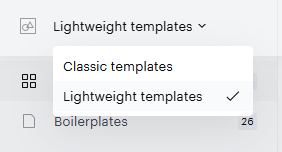
Open the Template Manager and switch to the Classic templates using the dropdown menu in the top left corner.
-
Each template displays a checkbox. This is available in both Tile view and List view. Select the checkbox on every template you want to convert.
-
Once at least one template is selected, a floating action bar appears at the bottom of the screen. It shows the number of selected templates and the Convert to Lightweight action.
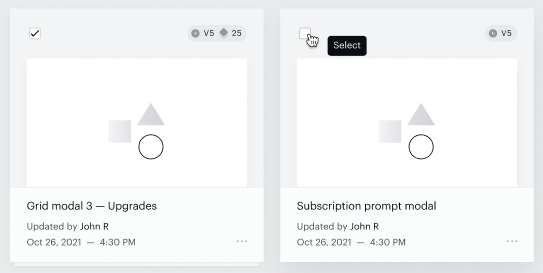

In addition to the conversion action, the floating bar provides supporting controls: select all, deselect all, and archive the selected templates.
The floating bar appears only in the Classic part of the Template Manager. It is not present in the Lightweight part, because templates are not converted from Lightweight to any other format.
Selecting multiple templates
There is no upper limit set on the number of templates you can convert at once, but for practical reasons we recommend:
-
Starting small: convert 1–3 templates first so you can validate the converter against your specific styling and structure before committing to a bulk migration.
-
Grouping by similarity: converting templates that share components or styling patterns in the same batch gives you a clearer signal of how well the converter handles your particular template family.
Confirming the conversion
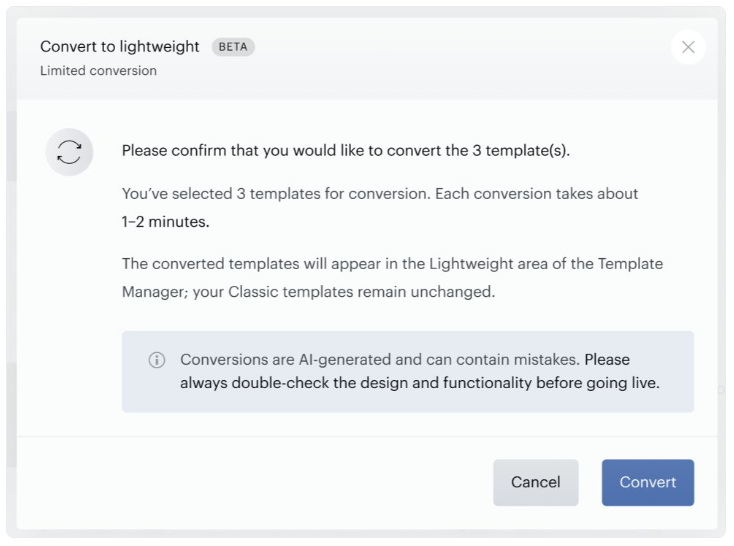
When you click Convert to Lightweight, a confirmation window appears. The window summarizes how many templates you have selected and the expected duration, and reminds you that the converted templates will appear in the Lightweight part of the Template Manager while your Classic templates remain unchanged.
Because conversions are AI-generated, the window also reminds you to review the design and functionality of each converted template before using it in production.
Confirm to start the conversion.
What happens during conversion
A single conversion takes about 3-5 minutes on average, though the exact time depends on several factors. To achieve the best possible quality, the system compares each converted template against its source before adding it to the Lightweight side, and if the result is not close enough to the original, it attempts the conversion again.
Beyond that, the time depends on how many templates are currently in the conversion queue and on the complexity of the template itself, so more elaborate templates take longer than simple ones.
After you click Convert, a notification banner appears at the top of the Template Manager indicating that the conversion is in progress. The banner is non-blocking: you can continue working in the Template Manager, navigate to other sections, or close the tab. The conversion runs server-side and completes regardless of whether you stay on the page.
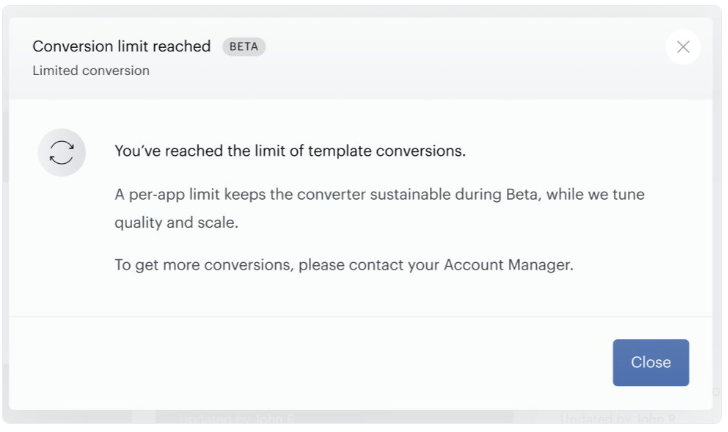
Each application has a limit on the number of successful conversions, described in the Conversion limits section at the end of this chapter. Once the limit is reached, the confirmation window is replaced by a message letting you know, with guidance on how to continue.
Tracking conversion progress
Because a conversion can take a couple of minutes and you can convert several templates in one batch, the conversion runs in the background while you can continue working. You can track its progress in the Lightweight part of the Template Manager.
A conversion status indicator is located in the toolbar of the Lightweight Template Manager, to the left of the Add template button.
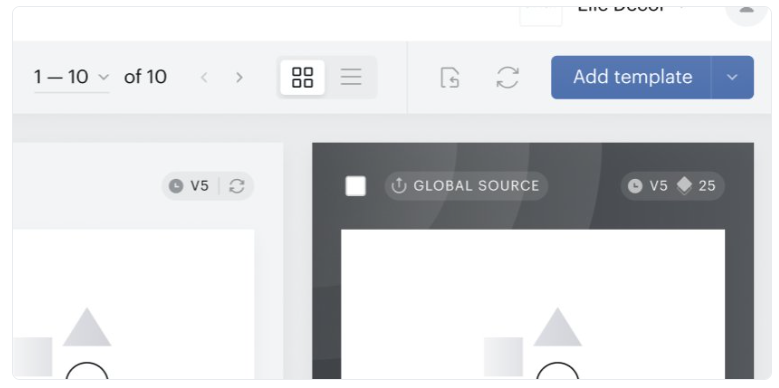

Click the indicator to expand a panel that shows the current status. The indicator shows the following states:
-
Idle: no conversion is running.
-
Converting: a conversion is in progress. The panel shows the running count (for example, "Converting 3 of 5"), a progress bar, and a Stop button.
-
Finished: all selected templates were converted successfully (for example, "Converted 5 of 5").
-
Partially finished: the conversion completed, but one or more templates could not be converted into a usable result and were not added. The count reflects only the templates that were successfully converted.
-
Stopped: you stopped the conversion before it finished. The count reflects the templates converted up to that point.
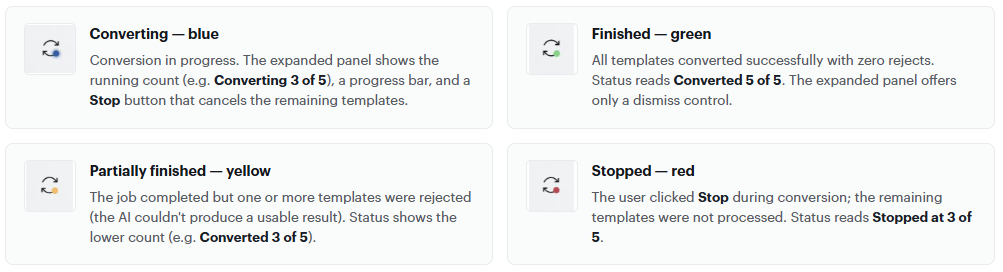
You can stop a running conversion at any time using the Stop button in the expanded panel. This is useful when a large batch would otherwise take longer than you want to wait. Stopped and finished states can be dismissed once you have reviewed them.
About rejects
A per-template conversion can land in one of three outcomes: a clean 1:1 result, a needs-review result (small differences such as font or styling but still usable, which appears in the Lightweight Template Manager for the user to refine), or a reject (output too far from the source to be useful and not shown in the Lightweight area, so it doesn't count toward the converted total). A batch finishes green only when every template lands as clean or needs-review; any reject pushes the batch to yellow. Stops by the user always land in red, regardless of how many templates were converted up to that point.
Reviewing the result
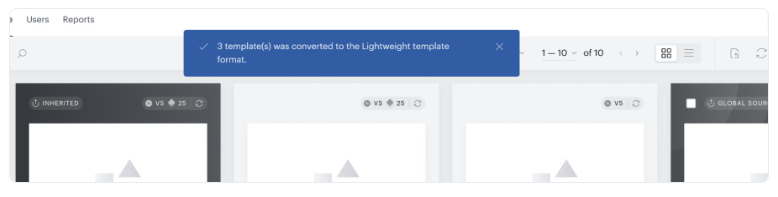
When a conversion completes, a confirmation message appears at the top of the Lightweight Template Manager, indicating how many templates were converted.
To find your converted templates:
-
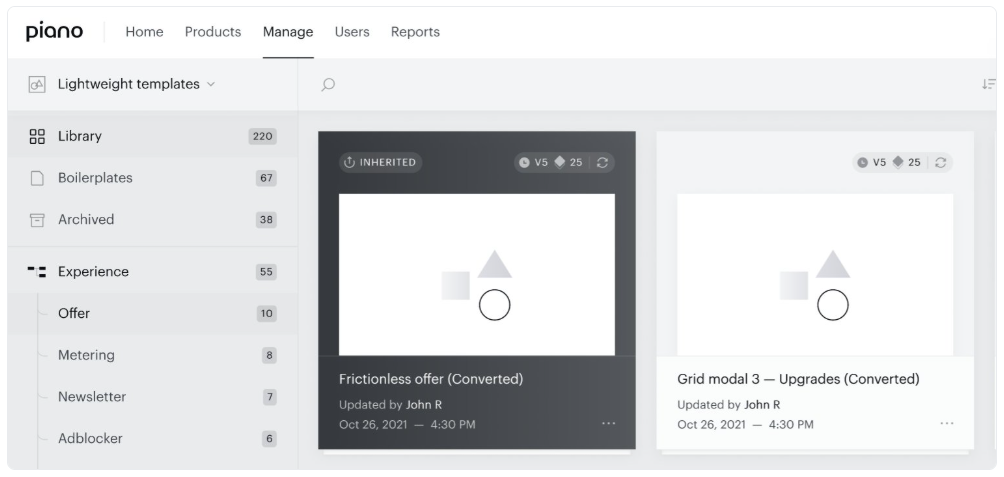
In the Template Manager, switch from Classic templates to Lightweight templates in the section navigation.
-
The newly converted templates appear in the list, ready for review. You can find them with added “(Converted)” in the template name.
You should now:
-
Open each converted template and review the HTML, CSS, and JS tabs to make sure the conversion preserved your template's intent.
-
Test the template in your sandbox or test dashboard before publishing it to a live experience. Pay particular attention to interactive elements (form fields, click handlers, custom JavaScript), conditional rendering, and any custom styling that referenced classic-specific selectors.
-
Compare the Lightweight version against the original Classic version for any visual or functional regressions. The original Classic template is still available in the Classic section for reference.
Important: Always check your converted templates for design and functionality before setting them into a live experience.
If you find issues in the converted output, you can edit the Lightweight template directly in the editor, just like any other Lightweight template.
Once a template has been converted, any attempt to convert it again is ignored. During development, we found that the AI always handles a given template the same way, so repeat conversions produce an identical result. You can duplicate the template and convert the copy, but the outcome will be the same.
Conversion limits
During Beta, each application, both production dashboards and sandboxes, has a limit on the number of successful conversions, which keeps the Converter sustainable while we tune its quality and capacity. The limit depends on the number of active templates the application uses in experiences:
-
Applications with fewer than 30 active templates in experiences receive up to 50 successful conversions.
-
Applications with 30 or more active templates in experiences receive up to 200 successful conversions.
Only successful conversions count toward the limit. If you reach the limit, the confirmation window is replaced by a message explaining that the limit has been reached.
To reset your limit, contact your Account Manager.
Frequently asked questions
Will the converter modify or delete my Classic templates?
No. The conversion creates new Lightweight versions and leaves the Classic originals untouched in the Classic section. You can always go back to them.
What happens if the conversion fails for one template in a batch?
Conversions are independent. If one template fails, the others in the same batch are unaffected. Successfully converted templates appear in the Lightweight section; failed ones do not.
Can I run the converter on a template that I've heavily customized?
Yes. The converter handles customized templates the same way it handles defaults. However, the more custom logic and unusual patterns a template contains, the more likely you'll need to review and adjust the converted output.
How long do conversions take?
Typically 3–5 minutes per template, depending on complexity. It also may take longer.
Is there a success notification when a conversion completes?
Yes, it appears in the status indicator becoming either green or yellow.