
LIGHTWEIGHT TEMPLATES
How to Use
You can add keys directly into the HTML of Lightweight templates (for these keys, publishers can provide translations via the Localization Manager in the dashboard — these keys and translations are stored in the Subscription Management + Billing database), as well as in the component code.
Usage in Templates
// HTML | JSX tab
<PianoTranslate>your text key</PianoTranslate>
<T>your text key</T>

<PianoTranslate context="offer.component">your text key</PianoTranslate>
<T context="offer.component">your text key</T>

<PianoTranslate template={{ arg1: 10, arg2: "juice" }}>your [[ arg1 ]] template [[ arg2 ]] key</PianoTranslate>
<T template={{ arg1: 10, arg2: "juice" }}>your [[ arg1 ]] template [[ arg2 ]] key</T>

<PianoTranslate context="offer.component" template={{ arg1: 10, arg2: "juice" }}>your [[ arg1 ]] template [[ arg2 ]] key</PianoTranslate>
<T context="offer.component" template={{ arg1: 10, arg2: "juice" }}>your [[ arg1 ]] template [[ arg2 ]] key</T>
Do not use {} interpolation or components inside the <T> tag. Instead, if you need dynamic data in a translation string, use a template. For a string that contains components, split it into substrings and wrap those parts with the <T> component. You can use only text strings and native HTML elements inside the <T> tag. Only the div, span, strong, em, b, i, u, s, small, mark, sup, sub and a elements are kept in the translated text, with only their href, style, class and id attributes; any other tag is removed and its text kept.
Incorrect:
<T>some text <A href="some url">some link text</A> another text <SomeSolidJsComponent /> rest text</T>
Correct:
<T>some text </T><A href="some url"><T>some link text</T></A> <T> another text </T> <SomeSolidJsComponent /> <T> rest text</T>
Incorrect:
<T>some text {context.someVariable} rest text</T>
<T>some text [%% someContentField %%] rest text</T>
Correct:
<T template={{ templateVariable: context.someVariable }}>some text [[ templateVariable ]] rest text</T>
<T template={{ templateVariable: `[%% someContentField %%]` }}>some text [[ templateVariable ]] rest text</T>
For cases when we have text in a content field, which should be translated, we should surround the content field by T tags as well. The publisher should add the value of the content field to the Localization manager and provide the translation.
Incorrect:
<div>[%% someContentField %%]</div>
Correct:
<div><T>[%% someContentField %%]</T></div>
If you use the T component without a context argument, the element's own context {element_name}.component will be applied (for example, offer.component in the Offer element).
Elements on end pages only load translations for the contexts pn-widgets.default and {element_name}.component (the Piano ID elements, PianoIdAuth and PianoIdCustomForm, also load piano.id). This optimization was introduced to reduce translation payload size (previously, all translations for all contexts were loaded).
Therefore, it's critical to specify the context correctly as {element_name}.component or pn-widgets.default, or leave it empty (defaults to {element_name}.component).
Examples:
-
Element "Offer" → context
offer.component -
Element "Pure" → context
pure.component -
...and so on.
Note for Developers
When creating a new element, build its template with useElementTemplate, passing the element's context {element_name}.component and any element-specific components: it adds the base template components and a T component bound to that context. An element that passes its own components object to useCustomTemplate adds T: TWithContext("{element_name}.component") itself. For example:
...
import { useElementTemplate } from "../../hooks/custom-template/use-element-template.hook";
...

const OfferCustomTemplate = useElementTemplate("offer.component", {
  PianoBuyAsAGiftButton,
  PianoStartCheckoutButton,
});
...
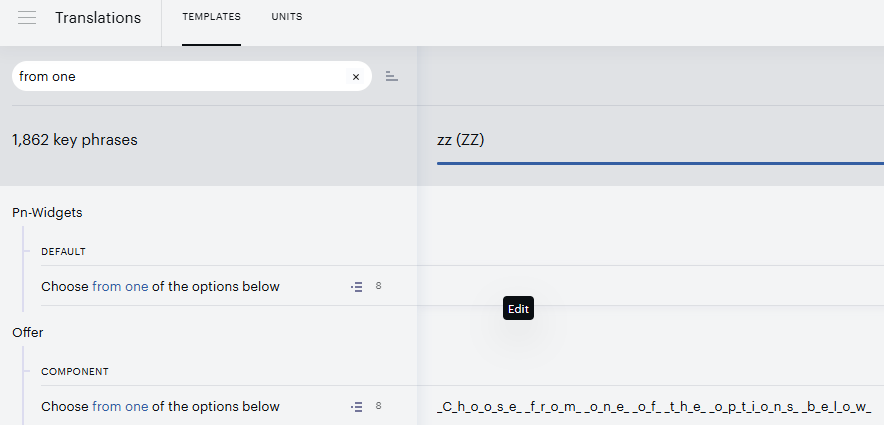
Keys for Lightweight templates in Localization Manager appear as shown in the screenshot below:
Usage in JS
// JS tab
const text1 = () => context.t("your text key");
const text2 = () => context.t("your [[ arg1 ]] template [[ arg2 ]] key", { arg1: 10, arg2: "juice" });
const text3 = () => context.trc("offer.component", "your text key");
const text4 = () => context.trc("offer.component", "your [[ arg1 ]] template [[ arg2 ]] key", { arg1: 10, arg2: "juice" });
<div>{text1()}</div>
<div>{text2()}</div>
<div>{text3()}</div>
<div>{text4()}</div>
Usage in Components
In components, you can use either the component-based approach (see template examples above) or the functional approach:
import { useI18n } from "../../../../../core/contexts/i18n/I18n.provider";
import { PianoTranslate } from "@pn-widgets/published/src/components/PianoTranslate/PianoTranslate";
import { T } from "@pn-widgets/published/src/components/PianoTranslate/T";

const { t, trc, i18nStore } = useI18n();

t("your text key");
t("your [[ arg1 ]] template [[ arg2 ]] key", { arg1: 10, arg2: "juice" });
trc("offer.component", "your text key");
trc(i18nStore.contexts.Offer, "your text key");
trc("offer.component", "your [[ arg1 ]] template [[ arg2 ]] key", { arg1: 10, arg2: "juice" });

...

return (
  <>
    <T>localized text</T>
    <PianoTranslate context="offer.component">another localized text</PianoTranslate>
    <PianoCheckbox label={t("localized checkbox label")} name="some name" />
  </>
);
For the functional approach, the context handling rules are the same as for templates, except the default: in components, t() and a T or PianoTranslate without a context argument use the default context pn-widgets.default, not the element's own context.