

Stripe overview
Stripe is a payment provider working with businesses of every siz, from new startups to public companies. More information about Stripe pricing is available under the following link.
You can easily sign up or connect your existing account directly through the Piano dashboard (under Edit Business → Payment Provider → Stripe).
Please note, that Piano handles all billing and payments, you do not need to use Stripe billing.
Piano currently features multiple Stripe integrations. Stripe Elements is the latest version with many new features and methods, with more coming on a regular basis. Stripe Credit Cards only enables card payments and Stripe Apple Pay enables Apple Pay payments. You can use any combination of these integrations, target them using checkout flows or enable Apple Pay Frictionless checkout. If you’re looking to use Cards, Google Pay, Direct debit, or popular local Bank redirect methods, then enabling Elements is the right choice. You can offer Cards separately using the Stripe Credit Card version, or use Stripe Elements to offer cards along with other methods.
Supported countries
Stripe is supported in the countries listed on https://stripe.com/global, please note some countries may have additional limitations or may be in beta/preview by Stripe and not available via Piano.
Review the Stripe Payment method country availability list to understand which countries are supported by the available methods.
Supported currencies
Please note that when processing transactions through Stripe, it is crucial to refer to their documentation on supported currencies and charge amounts. Stripe provides comprehensive information on the minimum and maximum charge amounts for each supported currency. Any attempts to make charges lower than the specified minimum amount are likely to result in a decline or error. For detailed insights, please consult the Supported currencies section of the Stripe Documentation.
Piano supports the following Stripe supported currencies:
|
Supported Currencies |
||||
|
AED |
ARS |
AUD |
BAM |
BGN |
|
BRL |
CAD |
CHF |
CLP |
CNY |
|
COP |
CRC |
CZK |
DKK |
EUR |
|
GBP |
GTQ |
HKD |
HRK |
HUF |
|
IDR |
ILS |
INR |
ISK |
JMD |
|
JPY |
KES |
KRW |
MXN |
MYR |
|
NIO |
NOK |
NZD |
PEN |
PHP |
|
PLN |
PYG |
RON |
RSD |
RUB |
|
SEK |
SGD |
THB |
TRY |
TWD |
|
UAH |
USD |
UYU |
XOF |
ZAR |
Before adding a payment method in My Account or publisher dashboard, we display a currency selection dropdown whenever multiple currencies are available based on the payment provider configuration. The currency selector is injected into the page via JavaScript, so no template modifications are required by default. However, if a publisher needs to position the currency selector in a specific location within the template, this can be implemented using one of the supported customization methods described here.
Supported features and functionality
Please click on the "Fullscreen" option below to enlarge the table to show all available payment method features.
|
Integration type |
Stripe Elements |
Stripe Elements |
Stripe Elements |
Stripe Elements |
Stripe Elements |
Stripe Elements |
Stripe Elements |
Stripe Credit Cards |
Stripe Apple Pay |
|
Feature |
Cards (Visa, Mastercard, American Express, Discover, JCB, Diner's Club, China UnionPay, Cartes Bancaires) |
Apple Pay¹ |
Google Pay |
Direct Debits (SEPA, Bacs) |
Bank redirect (Ideal, Bancontact) |
Link |
ACH |
Cards (Visa, Mastercard, American Express, Discover, JCB, Diner's Club) |
Apple Pay |
|
Connection and configuration |
|||||||||
|
Trials and promo descriptors |
Yes |
Yes |
NA |
NA |
NA |
NA |
NA |
Yes |
Yes |
|
Automatic card updates (cards only) |
Yes |
NA |
NA |
NA |
NA |
NA |
NA |
Yes |
NA |
|
Import endpoint: Migration support |
Yes |
Yes |
Yes |
Yes |
Yes*** |
Yes*** |
Yes*** |
Yes |
Yes |
|
Grace and Retry |
Yes |
Yes |
Yes |
NA** |
NA** |
Yes |
NA** |
Yes |
Yes |
|
Checkout and Billing |
|||||||||
|
Purchase with a new payment method |
Yes |
Yes |
Yes |
Yes |
Yes |
Yes |
Yes |
Yes |
Yes |
|
Purchase with saved payment method |
Yes |
NA |
Yes |
Yes |
Yes |
Yes |
Yes |
Yes |
NA |
|
Remember my payment method |
Yes |
Yes |
Yes |
Yes |
Yes (via SEPA) |
Yes |
Yes |
Yes |
NA |
|
Tax support (Taxjar, Avalara, OneSource) |
Yes |
Yes |
Yes |
Yes |
Yes |
Yes |
Yes |
Yes |
Yes |
|
Promotions (free / discounted) |
Yes |
Yes |
Yes |
Yes |
Yes |
Yes |
Yes |
Yes |
Yes |
|
Trials (free / paid) |
Yes |
Yes |
Yes |
Yes |
Yes |
Yes |
Yes |
Yes |
Yes |
|
Support 3DS (cards only) |
Yes |
NA |
NA |
NA |
NA |
Yes |
NA |
Yes |
NA |
|
Email notifications |
Yes |
Yes |
Yes |
Yes |
Yes |
Yes |
Yes |
Yes |
Yes |
|
Auto-renewal / Free renewal |
Yes |
Yes |
Yes |
Yes |
Yes |
Yes |
Yes |
Yes |
Yes |
|
Manual renewal flow |
NA |
NA |
Yes |
Yes |
Yes |
Yes |
Yes |
Yes |
NA |
|
MyAccount |
|||||||||
|
Display UPI in Payment methods section |
Yes |
Yes |
Yes |
Yes |
Yes |
Yes |
Yes |
Yes |
Yes |
|
Tax Support (Taxjar, Avalara, OneSource) |
Yes |
Yes |
Yes |
Yes |
Yes |
Yes |
Yes |
Yes |
Yes |
|
History events |
Yes |
Yes |
Yes |
Yes |
Yes, synchronously |
Yes |
Yes |
Yes |
Yes |
|
Inquiries support |
Yes |
Yes |
Yes |
Yes |
Yes |
Yes |
Yes |
Yes |
Yes |
|
Cancel subscription |
Yes |
Yes |
Yes |
Yes |
Yes |
Yes |
Yes |
Yes |
Yes |
|
Vouchers |
Yes |
Yes |
Yes |
Yes |
Yes |
Yes |
Yes |
Yes |
Yes |
|
Support 3DS for card payments (Upgrades, Manual Renewal) |
Yes |
NA |
NA |
NA |
NA |
NA |
NA |
Yes |
NA |
|
Support 3DS for adding new card payments (Adding payment, Update renewal method) |
Yes |
NA |
NA |
NA |
NA |
NA |
NA |
Yes |
NA |
|
Add payment method |
Yes |
NA |
Yes |
Yes, SEPA only* |
Yes |
Yes |
Yes |
Yes |
NA |
|
Delete payment instrument |
Yes |
Yes |
Yes |
Yes |
Yes |
Yes |
Yes |
Yes |
Yes |
|
Update renewal payment method with new payment method |
Yes |
NA |
Yes |
Yes, SEPA only* |
Yes |
Yes |
Yes |
Yes |
NA |
|
Update renewal payment method with saved payment method |
Yes |
NA |
Yes |
Yes |
Yes |
Yes |
Yes |
Yes |
NA |
|
Upgrade |
Yes |
Yes |
Yes |
Yes, synchronously |
Yes, synchronously |
Yes |
Yes |
Yes |
Yes |
|
Manual renewal flow (including 3ds) |
NA |
NA |
Yes |
Yes |
Yes |
Yes |
Yes |
Yes |
NA |
|
MyAccount: Cancel and Refund |
Yes |
Yes |
Yes |
Yes, synchronously |
Yes, synchronously |
Yes |
Yes |
Yes |
Yes |
|
Publisher Dashboard: Reports and logs |
|||||||||
|
New Activity Report |
Yes |
Yes |
Yes |
Yes |
Yes |
Yes |
Yes |
Yes |
Yes |
|
Revenue Report |
Yes |
Yes |
Yes |
Yes |
Yes |
Yes |
Yes |
Yes |
Yes |
|
Transactions Log: Statuses (completed, refunded, pending) |
Yes |
Yes |
Yes |
Yes |
Yes |
Yes |
Yes |
Yes |
Yes |
|
Transactions Log: Latest Revenue Recognition List |
Yes |
Yes |
Yes |
Yes |
Yes |
Yes |
Yes |
Yes |
Yes |
|
Transactions Log: Latest Revenue Recognition Summary |
Yes |
Yes |
Yes |
Yes |
Yes |
Yes |
Yes |
Yes |
Yes |
|
Publisher Dashboard: User Profile |
|||||||||
|
Overview (display data) |
Yes |
Yes |
Yes |
Yes |
Yes |
Yes |
Yes |
Yes |
Yes |
|
Subscription Details: Cancel |
Yes |
Yes |
Yes |
Yes |
Yes |
Yes |
Yes |
Yes |
Yes |
|
Subscription Details: Cancel & Refund |
Yes |
Yes |
Yes |
Yes, asynchronously |
Yes, synchronously |
Yes |
Yes, asynchronously |
Yes |
Yes |
|
Subscription Details: Change Billing date |
Yes |
Yes |
Yes |
Yes |
Yes |
Yes |
Yes |
Yes |
Yes |
|
Subscription Details: Update Renewal Method |
Yes |
NA |
Yes |
Yes |
Yes |
Yes |
Yes |
Yes |
NA |
|
History events |
Yes |
Yes |
Yes |
Yes |
Yes |
Yes |
Yes |
Yes |
Yes |
|
Transactions: Refund |
Yes |
Yes |
Yes |
Yes, asynchronously |
Yes, synchronously |
Yes |
Yes, asynchronously |
Yes |
Yes |
|
Inquires support |
Yes |
Yes |
Yes |
Yes |
Yes |
Yes |
Yes |
Yes |
Yes |
|
Subscription Details: Upgrade |
Yes |
Yes |
Yes |
Yes |
Yes |
Yes |
Yes |
Yes |
Yes |
|
Vouchers: Refund & Revoke |
Yes |
Yes |
Yes |
Yes, asynchronously |
Yes, synchronously |
Yes |
Yes, asynchronously |
Yes |
Yes |
|
Wallet: Add payment instrument |
Yes |
NA |
NA |
Yes |
NA |
NA |
NA |
Yes |
NA |
|
Wallet: 3DS for adding cards |
Yes |
NA |
NA |
NA |
NA |
NA |
NA |
Yes |
NA |
|
Wallet: Apply to all active subscriptions |
Yes |
NA |
Yes |
Yes (same currency only) |
Yes (same currency and country only) |
NA |
Yes (same currency only) |
Yes |
NA |
|
Wallet: Delete payment instrument |
Yes |
Yes |
Yes |
Yes |
Yes |
Yes |
Yes |
Yes |
Yes |
|
Wallet: Set as default |
Yes |
NA |
Yes |
Yes |
Yes |
Yes |
Yes |
Yes |
NA |
|
Publisher Dashboard: Subscribe User |
|||||||||
|
Purchase with a new payment method |
Yes |
NA |
NA |
NA |
NA |
NA |
NA |
Yes |
NA |
|
Purchase with saved payment method |
Yes |
NA |
Yes |
Yes |
NA |
NA |
NA |
Yes |
NA |
|
Tax Support (Taxjar, Avalara, OneSource) |
Yes |
NA |
Yes |
NA |
NA |
NA |
NA |
Yes |
NA |
|
Apply this payment method to all active subscriptions |
Yes |
NA |
Yes |
NA |
NA |
NA |
NA |
Yes |
NA |
|
Checkout: Frictionless |
NA |
NA |
NA |
NA |
NA |
NA |
NA |
NA |
Yes**** |
|
Transactions Log: Status (charged back/disputed) |
Yes |
Yes |
Yes |
Yes |
Yes |
Yes |
Yes |
NA |
NA |
|
Passive Churn prevention |
Yes - Advanced support |
Yes - Advanced support |
Yes - Advanced support |
NA |
NA |
Yes - Advanced support |
NA |
Yes - Advanced support |
Yes - Advanced support |
|
Dynamic terms |
Yes |
Yes |
Yes |
Yes |
Yes |
Yes |
Yes |
Yes |
Yes |
*Stripe does not support BACS in the SetupIntent API for adding a payment method.
**The Grace and Retry functionality is not compatible with asynchronous payment methods, likewise there is no retry logic available on Stripe for this type of method. Consider adding information and additional guidance to your Payment Renewal Failure email notifications (e.g. "If you paid with SEPA Direct Debit, updating your method in the My Account will not reactivate your subscription access, instead please select one of the options from our offer on ").
***Payment token import is supported. Please visit this link for more information.
To facilitate payment token imports, specific information is needed for the following payment methods:
-
For Link and ACH, the payment method token is required.
-
For SEPA and Bacs, both the payment method token and mandate ID are needed.
-
In the case of Bank redirects, the payment method token along with the SEPA ID is required.
Additionally, if necessary, the supported provider input parameters for tax information can be provided.
****Apple Pay as a payment method is currently not supported for frictionless checkout with Dynamic terms that have a first free period.
¹ To enable Apple Pay, the merchant must verify their domain in accordance with Stripe's requirements. Domain verification is a mandatory step that allows Apple Pay to be used securely on the website. Before Apple Pay can be activated, all domains involved in the checkout or payment flow must be registered and verified in Stripe. This includes the client website domain as well as the Piano checkout domain, such as buy.tinypass.com. If you use a whitelabeled Piano checkout domain, that domain must be added and verified in Stripe too. For detailed instructions, refer to Stripe's Apple Pay domain registration documentation.
Passive Churn Prevention
It's crucial to understand how the various error codes that may arise during a payment failure are handled by the Passive Churn Prevention feature. These error codes provide insights into why a renewal attempt may have failed, enabling you to take appropriate actions to prevent churn. This section details the specific error codes encountered during a payment failure and their mapping to a decline reason.
|
Decline reason |
Error codes |
|
Suspected fraud |
fraudulent - The payment was declined because Stripe suspects that it was fraudulent merchant_blacklist - The payment was declined because it matches a value on the Stripe user’s block list. |
|
Insufficient funds |
insufficient_funds - The card has insufficient funds to complete the purchase |
|
Expired card |
expired_card - The card has expired |
|
Card is stolen or lost |
lost_card - The payment was declined because the card is reported as lost pickup_card - The customer can’t use this card to make this payment (it’s possible it was reported lost or stolen) restricted_card - The customer can’t use this card to make this payment (it’s possible it was reported lost or stolen) stolen_card - The payment was declined because the card is reported stolen |
|
Limit exceeded |
card_velocity_exceeded - The customer has exceeded the balance or credit limit available on their card withdrawal_count_limit_exceeded - The customer has exceeded the balance or credit limit available on their card |
|
Network failure |
issuer_not_available - The card issuer couldn’t be reached, so the payment couldn’t be authorized processing_error - An error occurred while processing the card |
|
3DS failure |
authentication_required - The card was declined as the transaction requires authentication |
|
Call issuer |
call_issuer - The card was declined for an unknown reason generic_decline no_action_taken not_permitted |
|
Do not honor |
do_not_honor - The card was declined for an unknown reason |
|
Everything else |
All error codes not listed above |
Handling of Chargebacks and Disputes in Piano
When a chargeback or dispute occurs for a payment processed through Stripe, Piano handles these events by integrating with Stripe's webhooks to ensure accurate payment status updates and to prevent double refunds. Note that the dispute management function is not Piano functionality, clients must use the Stripe dashboard to manage dispute process.
When an end user requests a chargeback through their bank, and the dispute process terminates, Stripe notifies Piano via webhooks such as charge.dispute.closed or charge_refunded. Upon receiving a charge.dispute.closed webhook with a status lost or a charge_refunded webhook, Piano checks the charge_id in the webhook and identifies the related transaction and user payment. If the original user payment status is COMPLETED, Piano changes it to REFUNDED and ensures no further refunds can be issued for this payment.
The dispute amount is stored in the refundedAmount field of the user payment, whether it is equal to, less than, or more than the original transaction amount. If the chargeback amount is higher than the original user_payment amount (e.g. due to currency conversion), the refund amount in Piano will be limited to the original user_payment amount. Multiple chargebacks for a single payment are not supported, as a payment can only be refunded once. Standard email notifications and history events for refunds are also generated in the My Account and Publisher Dashboard, and the status changes are reflected in transaction logs, revenue reports, and access reporting logs.
For direct debit disputes, which are always lost and resolved with refunds, Piano checks the mandate status after receiving the charge.dispute.closed webhook and marks the mandate as inactive in the system.
How to enable Stripe Elements in Piano
Using Stripe Elements you can sign-up or authenticate using your Stripe account directly from the Piano dashboard.
Payment Provider Configuration
You can input your Stripe account information into the Piano dashboard by clicking Edit Business→Payment Provider→Stripe Elements (Add New).
To integrate Stripe Elements with Piano, have the following information ready to enter into the form fields and then click Save:
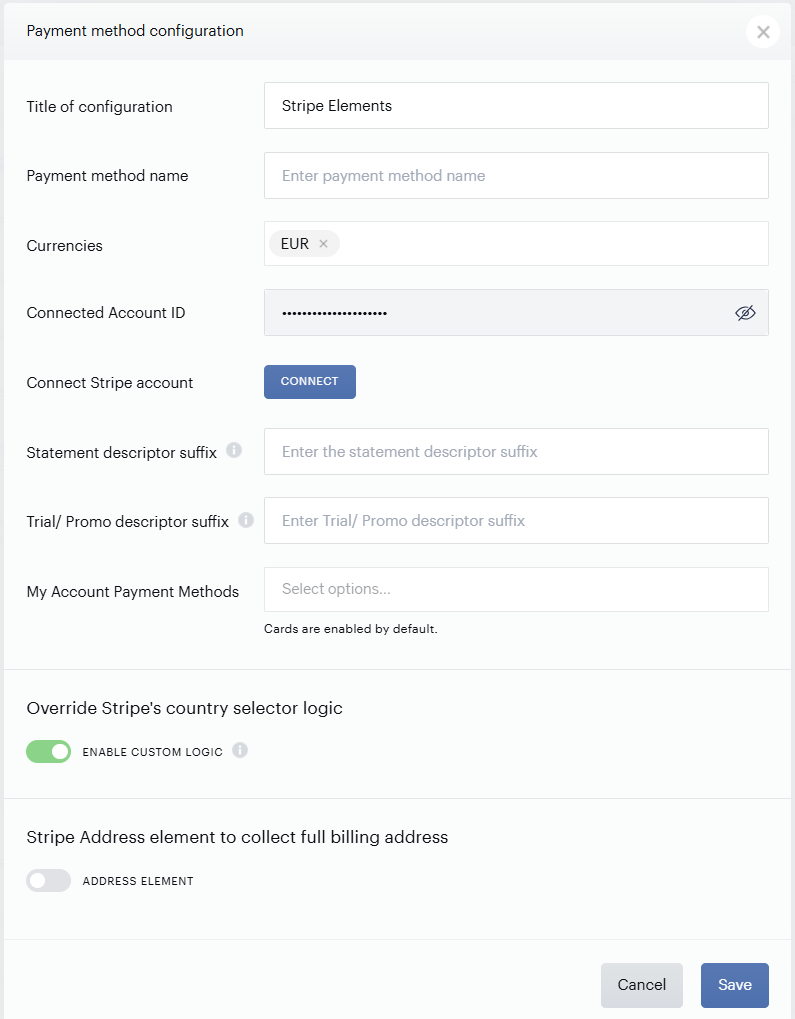
-
Title of configuration: The name of this integration (for your reference only)
-
Payment method name: This field allows you to easily change the naming of the provider in the interfaces in My Account and the Publisher Dashboard without changing any template(s) code.
-
Currencies: you will need to select the currencies that are to be supported.
-
Connected Account ID: For this field to be populated, in the configuration, click Connect and then follow the flow, if you have an existing account, you will be able to authenticate into this account and connect with your Piano application. If you don’t, follow the onboarding process and create a new Stripe account.
-
Statement descriptor suffix: Select a short descriptor suffix for a user to identify the transaction executed. The suffix should be up to 13 characters, including at least one letter, and can't include special characters like
< > \ ' " *. The description prefix can be configured in your Stripe dashboard as explained here. -
Trial/Promo descriptor suffix: Enter a descriptor suffix for trial or promo payments.
-
My Account Payment Methods: This enables payment methods available in My Account's "Add a payment method option". This setting is independent of what is shown during the checkout process. Even if you disable a payment method in My Account, if it is enabled in your Stripe account it might still appear during checkout. This option is there specifically to tailor the My Account experience.
-
Enable custom logic: If Custom logic is enabled, the Postal code field in Stripe’s iframe for US and Canada is hidden, in case that field is predefined by settings or taxes. More details are available here.
-
Address element: If enabled, allows you to configure the way the address is collected via Stripe's Address element in checkout. More details are available here.
Please note the Statement descriptor prefix is available in your Stripe dashboard, see this doc and the below screenshot for further details, you need to specify it in addition to the suffix set up in the Piano payment provider configuration.
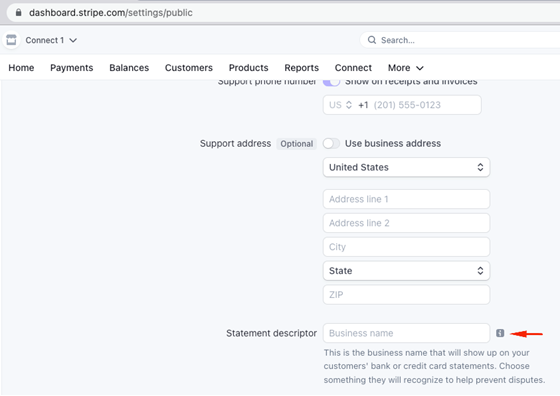
Payment Method Configuration in Stripe
To review your Payment methods settings navigate to Settings/ Payments/ Payment methods and select desired configuration. These settings allow you to specify which methods you would like to offer in the Piano checkout.
EU, AP, AU, US Instance
Cards, Apple Pay, Google Pay and Link are on by default. JCB, Korean Cards, Japan installments cards, Bacontact, Ideal, BACS, SEPA, ACH are off by default.
If you are on Piano EU instance you can also select from additional options: “All supported methods enabled” or “All supported methods off by default”, in case you are not seeing you configurations to propagate. You can customize which methods can be used, except methods currently unsupported which are blocked.
Please note support for Stripe Link has also been added to Card elements by Stripe team, therefore it may appear in your checkout if you use Stripe Cards integration. If you do not wish to offer Link, please disable it in your payment method configuration accordingly in your Stripe account.
All other methods such as SEPA, BACS, Ideal, Bancontact, and ACH are disabled by default in your Stripe account settings. To use these, you will need to enable each method manually in the Piano Software, Inc. configuration within your Stripe account settings (see screenshot example).
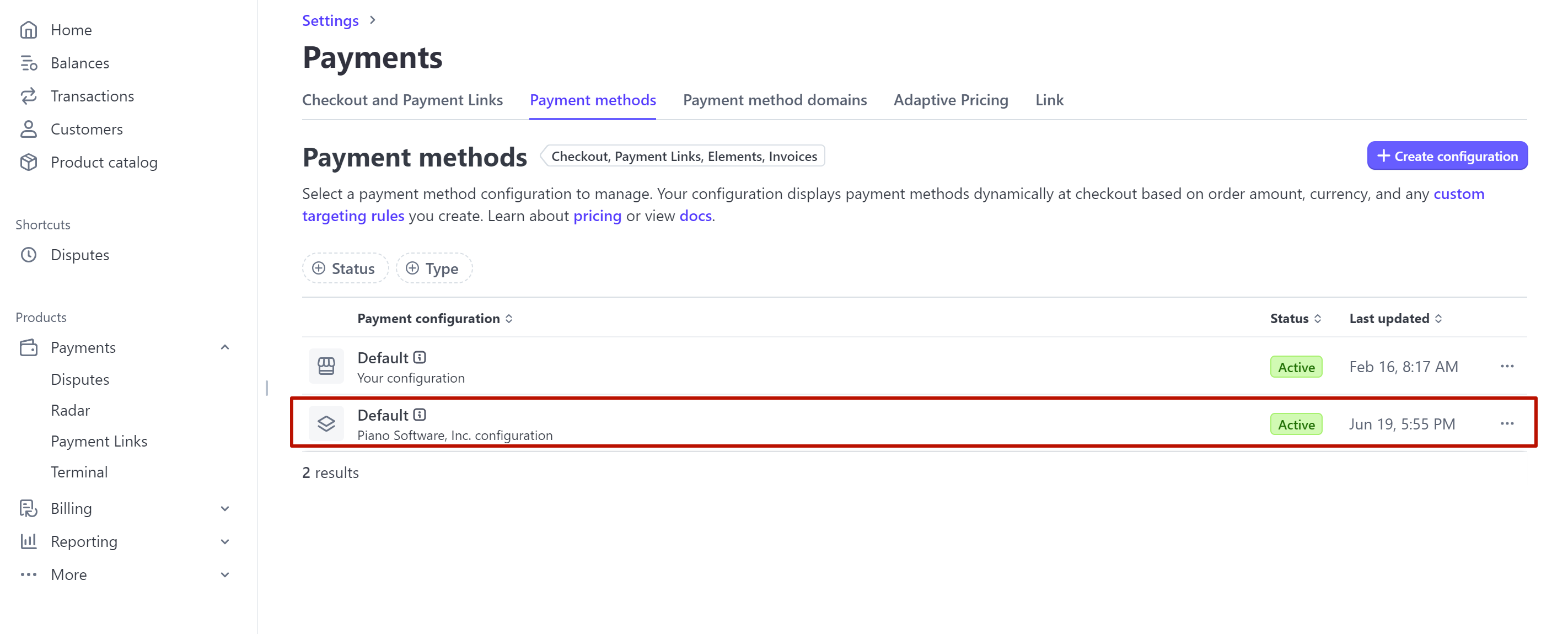
It’s important to note that enabling these payment methods in "Your Configuration" within Stripe does not affect the Piano checkout; only the methods configured under Piano Software, Inc. will be recognized.
Please review each setting as some of these methods require further configuration on your side. Apple Pay can be configured either as a payment method within Stripe Elements or through the dedicated Stripe Apple Pay integration. Merchants must ensure that their domain is registered and verified in Stripe in accordance with Apple's requirements.
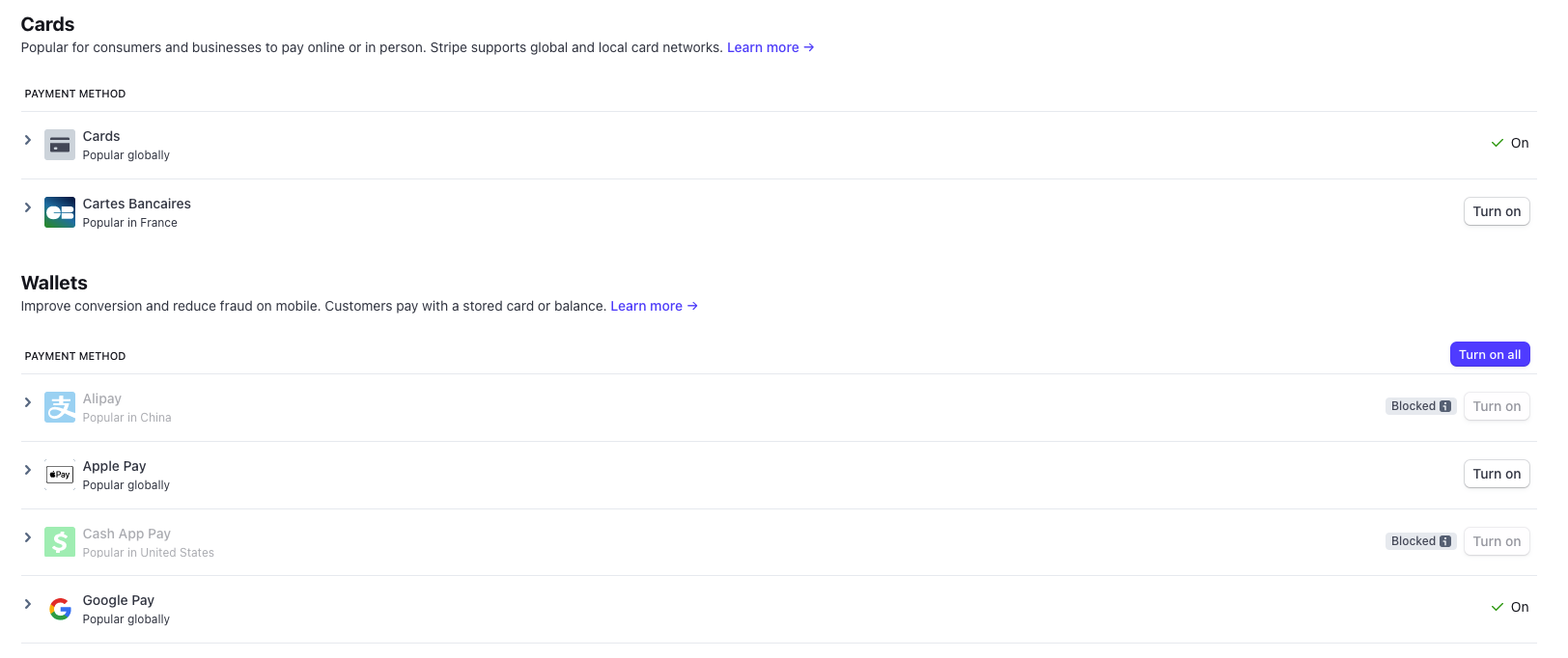
Enabling methods in My Account
To enable specific methods in your My Account widget you need to have the given methods enabled in your Stripe account, then you can easily activate them in your Stripe configuration in the Piano dashboard under Edit Settings → Stripe Elements → My Account Payment Methods:
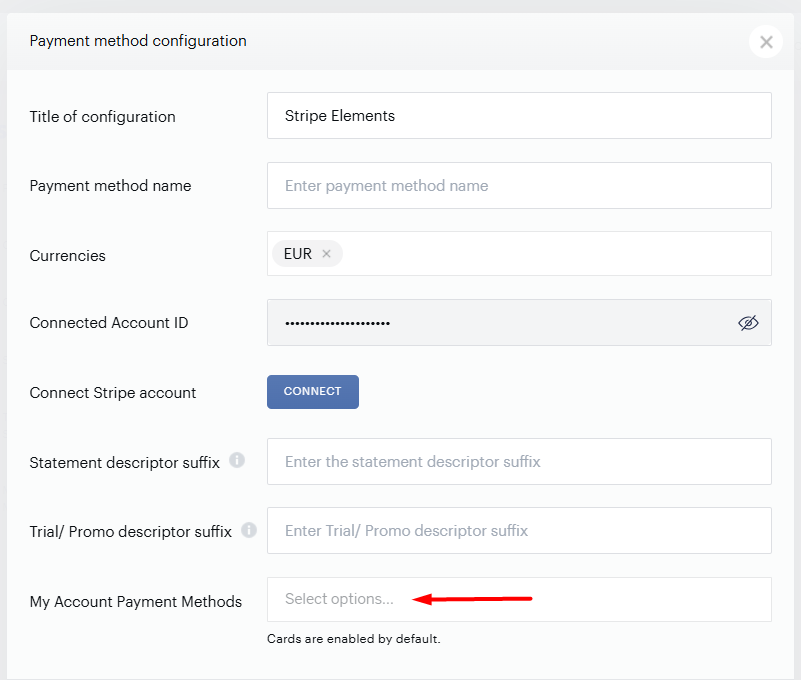
When enabled, it will automatically appear as one of the options users can select to add it in My Account.
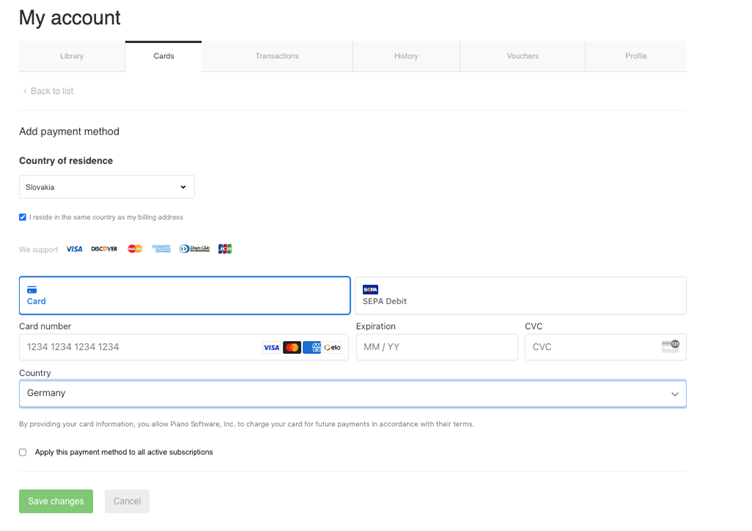
Due to the nature of Stripe Elements, multiple options are displayed under Add a Payment method. You can customize the copy in the My Account system templates as desired.
Card payments
Card payments are enabled by default, if you wish you can enable additional card payment types in your Stripe dashboard. For testing cards see this page. More information about how to perform payment testing on the Production dashboard is available here.
Piano's integration with Stripe supports co-badged cards, which are payment cards featuring multiple card networks, allowing users to select their preferred network during transactions. For more detailed information, visit Stripe's Co-Badged Cards Documentation.
Google Pay
Disabled by default and can be enabled in your payment method settings, it will be shown automatically in Chrome browser.
SEPA and BACS payments
Disabled by default within Piano Stripe's integration, please review the payment method manual settings configuration in your Stripe account, and ensure it is fully configured in your Stripe application, for SEPA you will also need to provide an identifier.
-
SEPA - Country of operation has to be from the EU
-
BACS - Country of operation has to be the UK
For testing please see these instructions.
Please note, that SEPA and BACS Direct debit methods are asynchronous payment methods, which means payment confirmation is not immediate and it may take up to 14 days, although in the majority of cases, it is usually confirmed within 5 days from the purchase. During such a confirmation period, you will see transactions made with Direct Debit methods in “Pending” status until they get confirmed or in some cases declined (in which case you will see the transaction in "Canceled" status, and the access will be revoked and subscription canceled).
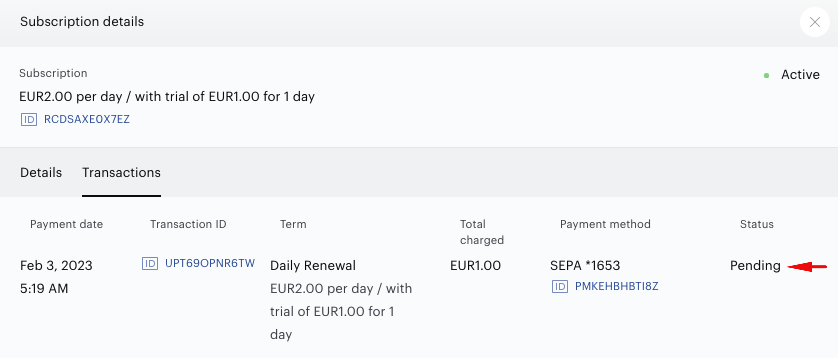
When the transaction is in "Pending" status, subscription managing functions that affect payment processing will be disabled until the transaction has been confirmed.
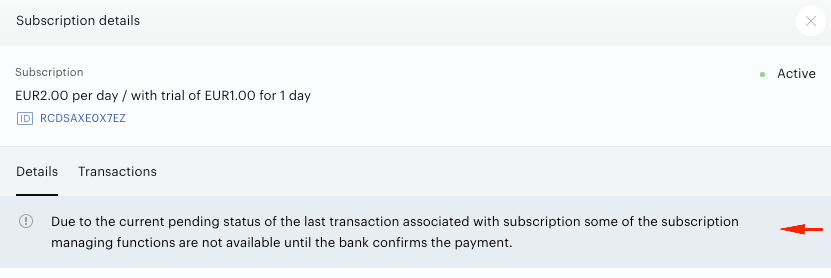
The same message appears in the My Account when asynchronous methods are used. Please see the last FAQ on how to modify this message.
Note that SEPA and BACS (as well as ACH) refunds via the Piano dashboard are processed asynchronously. This will show an extra status "Refund requested", and once it’s been processed it should change to "Refund completed".
Email notification updates
SEPA and BACS email notification updates
To comply with the rules for direct debit notifications*, existing Piano notifications have been updated to include required variables. To comply you will need to review the SEPA debit notifications requirements and/or BACS rules and make updates to your email notifications accordingly, using the variables:
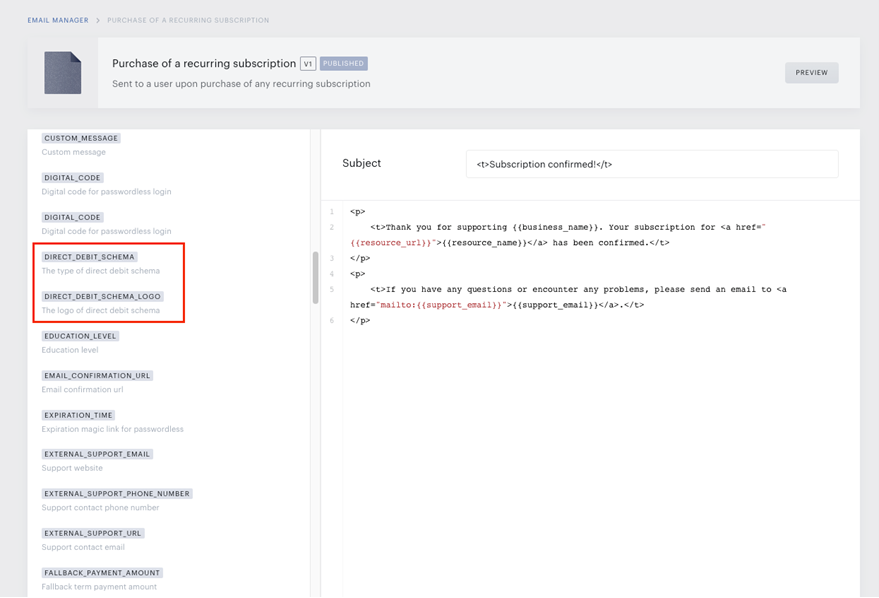
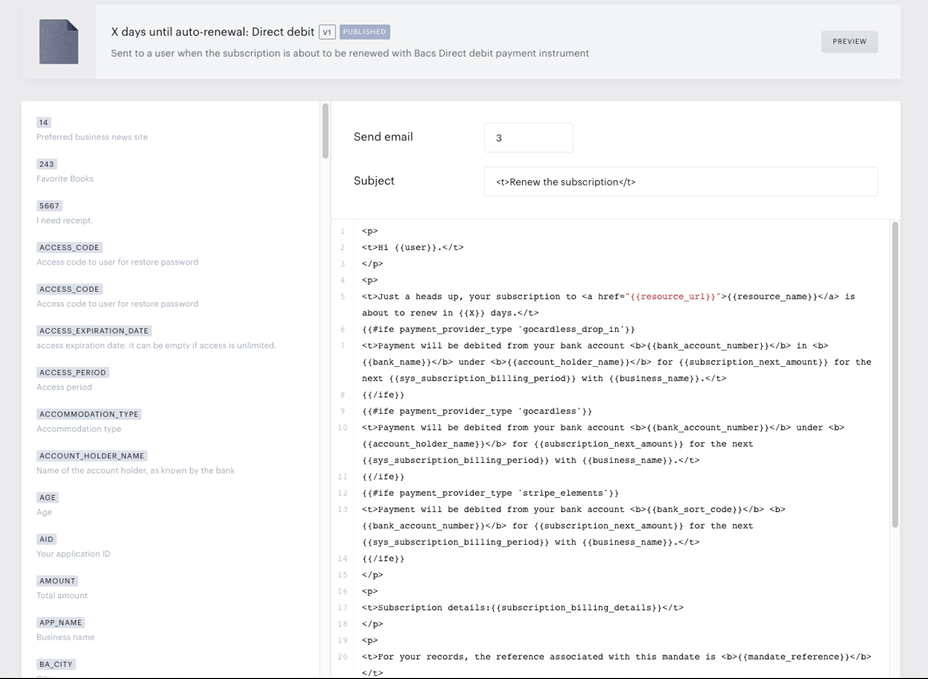
Additionally, for the Direct debit, a new email notification X days until auto-renewal: Direct Debit has been added to Email Manager to comply with BACS rules.
When selling via BACS or SEPA, it's important to configure a Direct debit setup confirmation email for your customers.

This email serves as a confirmation for the mandate setup and should be sent at the time of the initial purchase or when a direct debit payment method is added to the wallet. However, note that in the case of adding a payment method to the wallet, billing details will not be included in this notification. This ensures your customers are informed about their payment authorization for direct debit transactions.
ACH email notification updates
Following the requirements for ACH processing, additional variables were added to the email notification Direct debit setup confirmation. If you offer ACH as a payment method and opted to use Piano email notifications then ensure that you configured this notification to be sent and review the following variables to be present (you may need to create a new version of the notification if the below doesn’t appear in your template);
-
ACH AGREEMENT_DATE = CREATE_DATE
-
BANK_NAME = will be automatically populated for the end-user
-
BANK_ROUTING_NUMBER = will be automatically populated for the end-user
-
ACCOUNT_HOLDER_NAME = will be automatically populated for the end-user
-
Additional text was added to the notification for ACH payments:
'You have authorized <business_name> to debit the bank account specified above for any amount owed for charges arising from your use of <business_name> services and/or purchase of products from <business_name>s, pursuant to <business_name> website and terms, until this authorization is revoked. You may amend or cancel this authorization at any time by providing notice to <business_name> with 30 (thirty) days notice.'
Stripe
Direct Debit setup confirmation
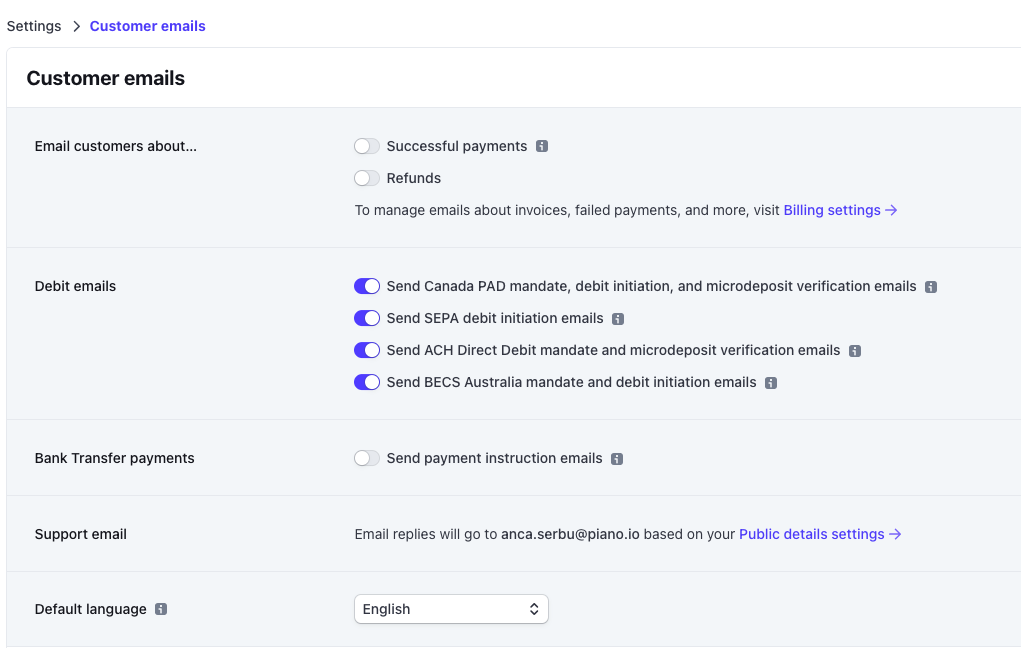
You can either enable Direct debit emails to be sent automatically from Stripe or configure Piano email notifications as described above. If you decide to use Piano notifications, please make sure to disable the Stripe notifications in your Stripe dashboard.
Ideal and Bancontact
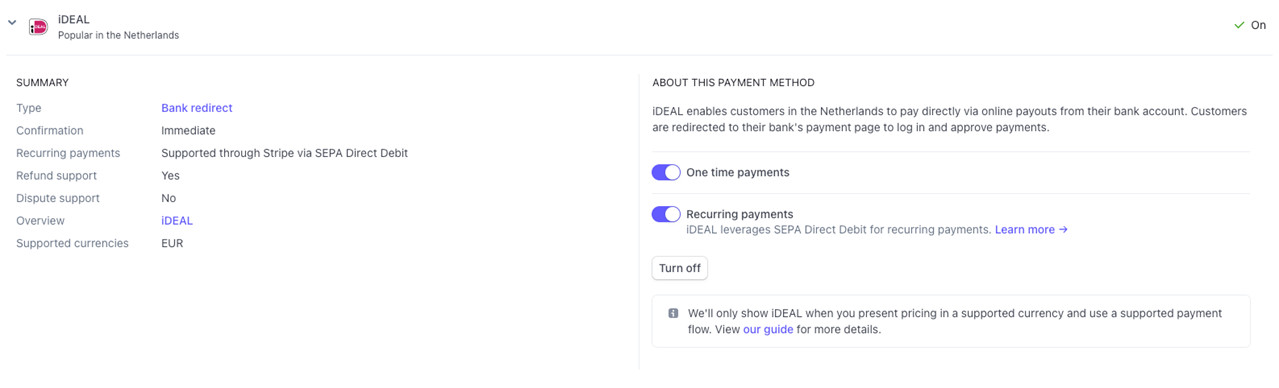
To enable the bank redirect methods such as Ideal, or Bancontact, you need to have Stripe Elements implemented. Once implemented you will just need to go to your Stripe Dashboard and turn these methods on. They will automatically appear in your checkout.
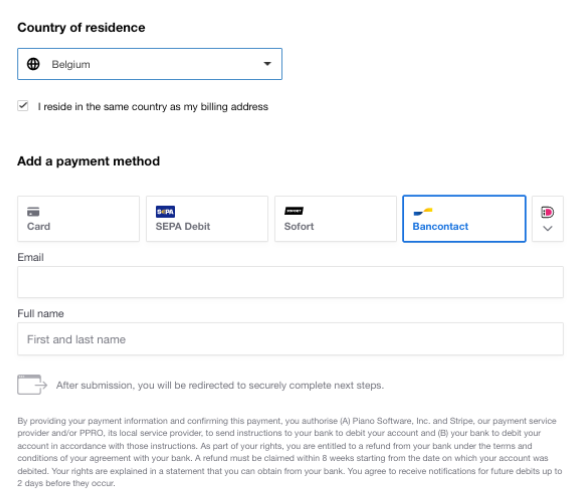
Please note the Name field is required for these methods due to the SEPA mandate set up.
Sofort is no longer supported in Stripe following Klarna’s decision to discontinue the service. This payment method will be fully removed in the future. However, SEPA renewals will continue to function as expected.
Recurring payments are supported for all methods via SEPA Rails. This means the initial payment is made via one of these and as part of this transaction, the Sepa mandate is automatically set up, as long as you have configured Recurring Payments support on your payment method in the Stripe Dashboard. You will need SEPA enabled in your account as well in order to support recurring direct debit payments.
Indian Cards
Processing India-issued cards is affected by the RBI regulation and heavily impacts the payment processing for domestic Indian users. The majority of the features across MyAccount, Checkout and Dashboard are affected, because transactions require user consent and authentication to store the card and process the recurring payments, and for payments above 15,000 INR also an authorization upon receiving a pre-debit notification by the bank for each renewal.
Setup requirements
-
Cards must be authenticated via 3DS before they can be saved for future use. 3DS authentication made during a payment is sufficient to save the card information.
-
India recurring payments require Network tokenization, see India Recurring payments for the subscription-level impact.
-
The Use Indian E-mandates toggle must be enabled in the Stripe Elements configuration in the Piano Dashboard under Edit business → Payment provider for mandate creation to run on customer-present charges.
-
The Card Storage Consent flow applies to PaymentIntents and SetupIntents only when the transaction currency is INR and the relevant toggle is enabled. When these conditions are met, Piano passes mandate data to Stripe; Stripe then attempts to create a mandate depending on whether it recognizes the card’s BIN as an eligible India-issued card (see card network support below). If the BIN isn’t eligible, no mandate is created and no error is returned.
-
To process recurring payments when the end user is not present, a mandate must be stored for the payment method rather than for each subscription. Both mandate and consent are required.
Card network and currency support
-
Only Visa and Mastercard India-issued cards support Stripe-managed e-mandates. Amex, RuPay, Diners, JCB, Discover, and UnionPay are not supported; Stripe will not create a mandate for these networks and will not return an error, so the failure is on the API side only. We recommend letting your users know about the available card options.
-
Mandate creation supports INR only, regardless of the Stripe account’s registered country.
If clients decide to use Stripe only for Indian cards, targeting users from India can be done in two ways:
-
Ensure INR currency is not available in any other provider configuration, and set your Stripe Elements configuration to work with INR currency only; this way the other provider will not appear in the checkout if any INR terms are selected.
-
Alternatively, configure a separate checkout flow with Stripe Elements to be used with an INR offer.
Limitations
-
Purchases with a saved card that lacks a mandate will trigger 3DS authentication, and Stripe will attempt to create a mandate for the saved card when possible. Mandate creation only runs when the transaction currency is INR and the Use Indian E-mandates toggle is enabled. Mandates still cap at 15,000 INR. This is supported in Checkout (purchases and manual renewals) and in My Account (manual renewals).
-
The opt-out Consent for recurring transactions is not available, because the PaymentIntent API only supports the Stripe-managed consent flow.
-
A mandate cannot be updated or cancelled programmatically once created.
-
India-issued card payments are attempted once only on renewal, there are no automatic retries, regardless of your account's retry settings.
-
During network tokenization, the cardholder can choose to tokenize their card or not:
-
Customers who tokenize can use the saved card for future purchases.
-
Customers who don't must enter their 16-digit card number, expiry, and CVV for every card transaction, the card token cannot be stored for future payments.
-
Recurring transactions are asynchronous and may take up to 72 hours after the renewal date, as Stripe waits on the third-party bank's pre-debit confirmation.
-
-
Recurring payments above 15,000 INR (~$183) always require 3DS authentication. The authentication link is sent to the end user along with the bank's pre-debit notification.
-
Specific test cards exist to simulate mandate scenarios, see India recurring payments.
-
See the feature support table below for details.
Feature Support - Indian Card payments
|
Support
|
|---|---|
|
Purchase one-off with new payment method (CH) |
yes |
|
Purchase subscription with new payment method (CH) |
yes |
|
Remember my card (CH) |
yes |
|
Promo and 100% discount (CH) |
yes |
|
Taxes support (CH, MA) |
yes |
|
Trial and free trial (CH) |
yes |
|
Renewals (renew job) |
yes |
|
Manual (including free) renew (CH) |
yes,
|
|
Purchase with saved payment method (CH) |
yes |
|
Set as default payment instrument (CH, MA) |
no |
|
Display the purchased terms in Library and Voucher sections: one-off, subscription, voucher (MA) |
yes |
|
Display purchases/ wallets in Overview (PD) |
yes |
|
Display the purchased terms in User profile → Access, Subscription and Subscription details, Vouchers sections: one-off, subscription, voucher (PD) |
yes |
|
Display UPI in Payment method section (MA) |
yes |
|
Display UPI in User profile -> Wallet section (PD) |
yes |
|
Display the transactions in Transaction section (MA) |
yes |
|
Display the transactions in User profile → Transaction section (PD) |
yes |
|
Cancel and refund (MA) |
yes |
|
Add a card (MA) |
yes |
|
Cancel the subscription (MA, PD) |
yes |
|
Delete the payment method UPI (MA, PD) |
yes |
|
Upgrades support (MA, PD) |
no |
|
Email notifications for purchase |
yes |
|
History events (MA, PD) |
yes |
|
Inquires support (MA, PD) |
yes |
|
Reports and logs (PD) |
yes |
|
Download payment as PDF (MA) |
yes |
CH - Checkout, MA - MyAccount, PD - Publisher dashboard.
Additional notes
Please note, given the limitations imposed by RBI, some features cannot be used currently and a workaround should be considered (e.g. upon failed renewal, instead of guiding the user from the email notification to the MyAccount, ask the user to go to offer page/checkout page and sign up again in order to capture consent and authentication).
The opt-out card storage consent flow is not available in Stripe, because the PaymentIntent API works only with the Stripe consent flow, as such 3rd party flow cannot be implemented by Piano, therefore Opt-out Card Storage Consent option is not available.
Stripe Credit Cards
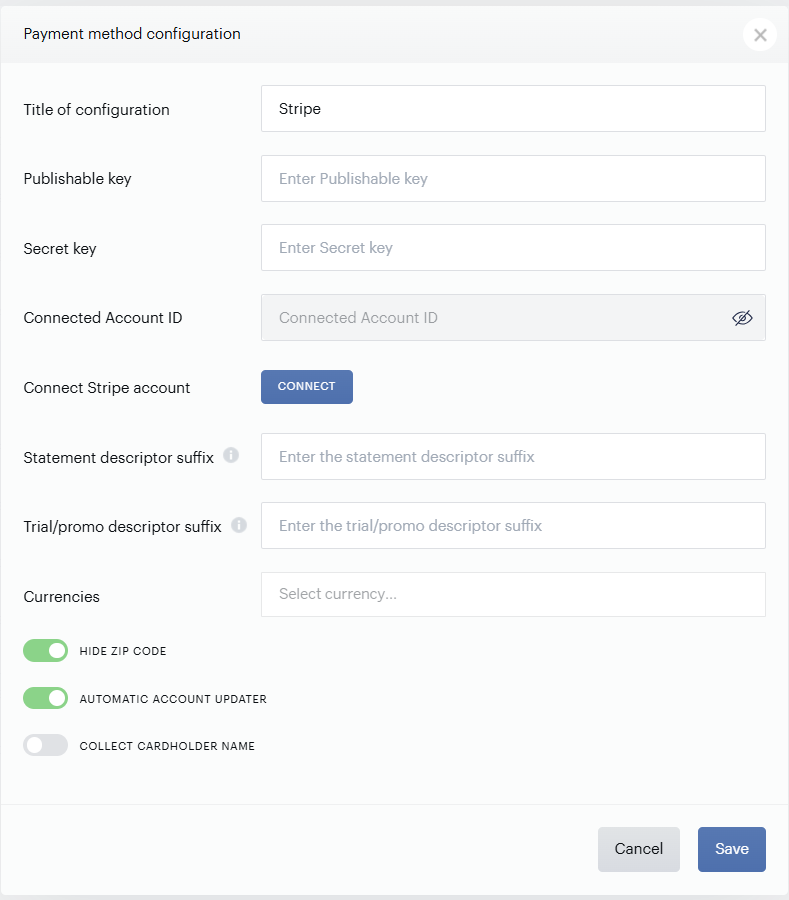
To integrate your Stripe account with Piano, simply click Edit Business → Payment Provider → Stripe (Add New).
-
Title: Pick a title for your configuration.
-
Publishable key: No longer required, please use Connect button to authenticate your Stripe account instead.
-
Secret key: No longer required, please use Connect button to authenticate your Stripe account instead.
-
Statement descriptor suffix: Select a short descriptor suffix for a user to identify the transaction executed (for example, "TEST123"). The suffix should be up to 13 characters, including at least one letter, and can't include special characters like
< > \ ' " *. The description prefix can be configured in your Stripe dashboard as explained here. -
Trial/Promo descriptor suffix: Enter a descriptor suffix for trial or promo payments.
-
Currencies: Choose one or multiple currencies from the list of available options.
-
Hide Zip code: Enable this toggle if you don't want users to need to enter a zip code during checkout.
-
Automatic Account updater: This toggle is no longer relevant, once you Connect your Stripe account and enable account updating in Stripe, Piano automatically processes all updates. You do not need to enable this toggle, it is pending to be removed from the interface.
If interested, you can use Stripe's webhooks to be notified before or after a card is automatically updated. Listening to
payment_method.automatically_updatedwill notify you of automatic card updates from the network. The event includes the card’s new expiration date and last four digits, should you need to update your own records.More information about this functionality is available here.
-
Collect cardholder name: Allows you to optionally collect the cardholder's name during payment processing for enhanced 3DS authentication and compliance with Visa’s updated mandatory data requirements. When enabled, a text input field will appear on the payment interface, requiring users to provide their cardholder name (up to 50 alphanumeric characters). Ensure that your system templates are updated before enabling the Cardholder name option in the configuration as described here.
Once all the settings are filled in, click Save.
For Piano clients using Stripe, Piano supports Apple Pay as a payment option. For more information on how to enable Apple Pay, please see this article.
A payment intent sent to Stripe can include the following metadata:
-
trackingId
-
aid
-
uid
-
termId
-
termName
-
taxCountry
-
taxState
-
subscriptionId
-
customerEmailAddress
Stripe Apple Pay
In the Piano dashboard, click on Edit Business and navigate to the Payment Provider tab. Add the Apple Pay Stripe configuration by clicking on the appropriate Add button on the left side of the screen:
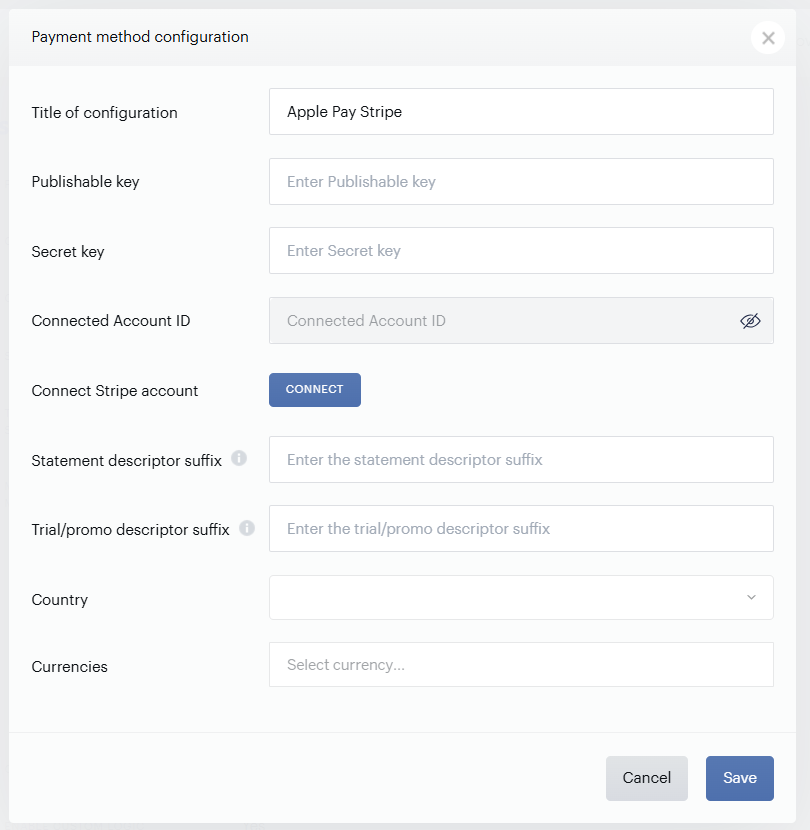
Then click the Connect button to authenticate your Stripe account, this will automatically fetch the required parameters to establish the connection. You do not need to fill out Publishable and Secret keys manually anymore. Complete the fields and click Save.
Please note, that you need to verify your domain within Apple Pay as well. More information about this is available here.
Under this link, you can find more details about Piano's Apple Pay Integration | applepaystripe.
Please also review this article: How to enable Frictionless checkout | apple pay Stripe
Template changes
For Stripe Elements, to ensure the latest code is loaded in the Checkout and My Account, system template changes are required. There are a few ways to update your templates;
-
The easiest is to reset to default if you haven’t stylized the templates.
-
If you did, then you can use the Compare code feature and compare the code between the default version and your current version, and carry over any new code line by line.
Check that the Payment Components template contains the following components, incl. the relevant code:
<script type="text/ng-template" id="/frontend/providers/components/stripeelements/checkout/component.shtml">
As well as:
<script type="text/ng-template" id="/frontend/providers/components/stripeelements/common/baseTemplate.shtml">
*If your application has been created a long time ago, please check the Checkout template is also using the latest version.
Please check that you are using the latest version of the My Account Wallet Components, you can either reset to default or use the compare versions feature to make updates to your template.
Cardholder name
Before enabling the collection of the Cardholder name for card payments in the configuration, ensure that your system templates are updated accordingly.
There are numerous ways to update your system template to fetch the latest functionality;
-
Reset to default (easiest but depending on your level of customization you may need to decide if feasible)
-
Use the Compare to default feature in the System template editor, and carry new lines of codes over to your version
-
Follow the below instructions to implement the new lines of code in your system template
Template updates for Stripe Credit Cards
Go to Manage → Templates → System → Payment Components and find <script type="text/ng-template" id="/frontend/providers/components/stripe/checkout/component.shtml"> , and inside this component find:
<dynamic-base-inputs-component name="providerName"
 zip-is-hidden="zipIsHidden"
 credit-card="credit_card"></dynamic-base-inputs-component>
And replace with:
<dynamic-base-inputs-component name="providerName"
 zip-is-hidden="zipIsHidden"
 credit-card="credit_card"
 data="data"></dynamic-base-inputs-component>
Find <script type="text/ng-template" id="/frontend/providers/components/stripe/common/baseTemplate.shtml">, and at the end of <div class="cc-fields-layout" ng-init="callbackOnFormInit()"> add:
<div class="cc-fields-layout__field cc-fields-layout__card-holder" ng-show="data.collectCardholderName">
        <credit-card-holder ng-model="credit_card.holder.value"
                            on-change="credit_card.holder.onChangeCallback"
                            ng-disabled="credit_card.holder.disabled"
                            ng-required="credit_card.holder.required"
                            ng-readonly="credit_card.holder.readonly"
                            maxlength="credit_card.holder.maxlength"
                            valid="credit_card.holder.valid"
                            name="'holder'">
        </credit-card-holder>
    </div>
So afterwards the code should look like this:
<div class="cc-fields-layout" ng-init="callbackOnFormInit()">
.........
  <div class="cc-fields-layout__field cc-fields-layout__card-holder" ng-show="data.collectCardholderName">
        <credit-card-holder ng-model="credit_card.holder.value"
                            on-change="credit_card.holder.onChangeCallback"
                            ng-disabled="credit_card.holder.disabled"
                            ng-required="credit_card.holder.required"
                            ng-readonly="credit_card.holder.readonly"
                            maxlength="credit_card.holder.maxlength"
                            valid="credit_card.holder.valid"
                            name="'holder'">
        </credit-card-holder>
    </div>
</div>
Go to Manage → Templates → My account → My Account Wallet Components and find <script type="text/ng-template" id="/frontend/providers/components/stripe/my_account/component.shtml"> , and inside this component find:
<dynamic-base-inputs-component
                name="providerName"
                credit-card="credit_card"
                zip-is-hidden="zipIsHidden"
                callback-on-form-init="callbackOnFormInit"></dynamic-base-inputs-component>
And replace with:
<dynamic-base-inputs-component
                name="providerName"
                credit-card="credit_card"
                zip-is-hidden="zipIsHidden"
                callback-on-form-init="callbackOnFormInit"
                data="data"></dynamic-base-inputs-component>
Find <script type="text/ng-template" id="/frontend/providers/components/stripe/common/baseTemplate.shtml">, and at the end of <div class="cc-fields-layout" ng-init="callbackOnFormInit()"> add:
<div class="cc-fields-layout__field cc-fields-layout__card-holder" ng-show="data.collectCardholderName">
        <credit-card-holder ng-model="credit_card.holder.value"
                            on-change="credit_card.holder.onChangeCallback"
                            ng-disabled="credit_card.holder.disabled"
                            ng-required="credit_card.holder.required"
                            ng-readonly="credit_card.holder.readonly"
                            maxlength="credit_card.holder.maxlength"
                            valid="credit_card.holder.valid"
                            name="'holder'">
        </credit-card-holder>
    </div>
So afterwards the code should look like this:
<div class="cc-fields-layout" ng-init="callbackOnFormInit()">
.........
  <div class="cc-fields-layout__field cc-fields-layout__card-holder" ng-show="data.collectCardholderName">
        <credit-card-holder ng-model="credit_card.holder.value"
                            on-change="credit_card.holder.onChangeCallback"
                            ng-disabled="credit_card.holder.disabled"
                            ng-required="credit_card.holder.required"
                            ng-readonly="credit_card.holder.readonly"
                            maxlength="credit_card.holder.maxlength"
                            valid="credit_card.holder.valid"
                            name="'holder'">
        </credit-card-holder>
    </div>
</div>
Currency selector
To place a currency selector in a specific location within a My Account template, publishers can apply template modifications rather than relying on the default JavaScript injection.
Template updates for Stripe Elements
There are two separate selector div's: for adding a new card <div id="stripe-elements-for-new-payment" class="stripe-elements-for-new-payment"></div> and one for saved cards <div id="stripe-elements-for-saved-payment" class="stripe-elements-for-saved-payment"></div>.
To add go to Manage → Templates → My account → My Account Wallet Components, and insert the selectors for example like this:
In <script type="text/ng-template" id="/frontend/providers/components/stripeelements/my_account/component.shtml">:
<script type="text/ng-template" id="/frontend/providers/components/stripeelements/my_account/component.shtml">
<div>
    <my-account-billing-country></my-account-billing-country>
    <!-- it might be here -->
    <div id="stripe-elements-for-new-payment" class="stripe-elements-for-new-payment"></div>
    <div id="stripe-elements-for-saved-payment" class="stripe-elements-for-saved-payment"></div>

    <table class="supporting" ng-if="!readonly">
        <tr>
            <td class="support-caption"><t context="checkout.platform">We support</t></td>
            <td class="support-images">
                <img src="/images2/Visa.png" style="width: 30px;">
                <img src="/images2/Discover.png" style="width: 49px;">
                <img src="/images2/MasterCard.png" style="width: 29px;">
                <img src="/images2/AmericanExpress.png" style="width: 36px;">
                <img src="/images2/DinCl.png" style="width: 53px;">
                <img src="/images2/JapaneseCreditBank.png" style="width: 25px;">
            </td>
        </tr>
    </table>
    <!-- it might be here -->
    <!-- <div id="stripe-elements-for-new-payment" class="stripe-elements-for-new-payment"></div>
    <div id="stripe-elements-for-saved-payment" class="stripe-elements-for-saved-payment"></div> -->

    <div class="form">
        <div class="position-relative">
            <div id="pp-loader" class="pp-loader"><t>Process...</t></div>
            <dynamic-base-inputs-component
                name="providerName"
                credit-card="credit_card"
                readonly="readonly"
                data="data"
                callback-on-form-init="callbackOnFormInit"></dynamic-base-inputs-component>
        </div>
        <div error-section
             errors="formErrors"
             heading="{{'Couldn\'t submit issue' | t}}"></div>
    </div>
    <!-- it might be here -->
    <!-- <div id="stripe-elements-for-new-payment" class="stripe-elements-for-new-payment"></div>
    <div id="stripe-elements-for-saved-payment" class="stripe-elements-for-saved-payment"></div> -->
</div>
</script>
In <script type="text/ng-template" id="/frontend/providers/components/stripeelements/common/baseTemplate.shtml">:
<script type="text/ng-template" id="/frontend/providers/components/stripeelements/common/baseTemplate.shtml">
<div ng-init="callbackOnFormInit()">
  <div id="stripe-elements-for-new-payment" class="stripe-elements-for-new-payment"></div>

  <div ng-show="!data.isEditing" id="stripe-payment-elements"></div>
  <div ng-show="data.isEditing">
    <div ng-show="data.isCardType">
      <div class="stripeelements-pm-title">
        <t context="checkout.platform">Your credit or debit card</t>
      </div>
      <div class="cc-fields-layout__flex-row">
        <div id="stripe-elements-for-saved-payment" class="stripe-elements-for-saved-payment"></div>
      </div>
      <div class="cc-fields-layout__flex-row">
        <div class="cc-fields-layout__field cc-fields-layout__card-number">
          <credit-card-number ng-model="data.paymentInstrument.num.value"
                              ng-disabled="true"
                              ng-required="false"
                              ng-readonly="false"
                              valid="true"
                              name="'num'">
          </credit-card-number>
        </div>

        <div class="cc-fields-layout__field cc-fields-layout__expire">
          <cc-expire-component ng-model="data.paymentInstrument.expire.value"
                               ng-disabled="true"
                               ng-required="false"
                               ng-readonly="false"
                               valid="true"
                               name="'expire'">
          </cc-expire-component>
        </div>
        <div class="cc-fields-layout__field cc-fields-layout__expire">
          <credit-card-cvv ng-model="data.paymentInstrument.cvv.value"
                               ng-disabled="true"
                               ng-required="false"
                               ng-readonly="false"
                               valid="true"
                               name="'cvv'">
          </credit-card-cvv>
        </div>
        <div ng-show="data.paymentInstrument.postal_code.value" class="cc-fields-layout__field cc-fields-layout__postal-code">
          <credit-card-postal-code ng-model="data.paymentInstrument.postal_code.value"
                           ng-disabled="true"
                           ng-required="false"
                           ng-readonly="false"
                           valid="true"
                           name="'zip'">
          </credit-card-postal-code>
        </div>
      </div>
    </div>
    <div ng-show="data.isMandateType">
      <div class="stripeelements-pm-title">
        <t context="checkout.platform">Your mandate</t>
      </div>
      <div class="stripeelements-mandate-based-wrapper">
        <div class="cc-field-outer-wrap__left-placeholder">Mandate</div>
        <div class="controls">
          <table class="stripeelements-table stripeelements-mandate-table">
            <tr class="stripeelements-table-row">
              <td class="stripeelements-table-cell-mandate">
                {{data.paymentInstrument.fundingSource.value}}
              </td>
            </tr>
          </table>
        </div>
      </div>
    </div>
    <div ng-show="data.isEmailType">
      <div class="stripeelements-pm-title">
        <t context="checkout.platform">Your email</t>
      </div>
      <div class="cc-fields-layout__flex-row">
        <div class="cc-fields-layout__field cc-fields-layout__email">
          <cc-email-component ng-model="data.paymentInstrument.email.value"
                              ng-disabled="true"
                              ng-required="false"
                              ng-readonly="false"
                              valid="true"
                              name="'email'">
          </cc-email-component>
        </div>
      </div>
    </div>
  </div>

</div>
</script>
Please note that each of the two selector element IDs should appear only once per template. For instance, if they are included in a base template component, they must be removed from other components within the same template to prevent duplication.
Template updates for Stripe Credit Cards
There are two separate selector div's: for adding a new card <div id="stripe-for-new-payment" class="stripe-for-new-payment"></div> and one for saved cards <div id="stripe-for-saved-payment" class="stripe-for-saved-payment"></div>.
To add go to Manage → Templates → My account → My Account Wallet Components, and insert the selectors for example like this:
In <script type="text/ng-template" id="/frontend/providers/components/stripe/my_account/component.shtml">:
<script type="text/ng-template" id="/frontend/providers/components/stripe/my_account/component.shtml">
<div id="stripe-input-style" class="stripe-input-style">
{
    "elements": {
        "fonts": [
            {
                "family": "graphik",
                "src": "url(/fonts/Graphik-Regular-Web.woff2) format('woff2')"
            }
        ]
    },
    "cardNumber": {
        "style": {
            "base": {
                "fontSize": "13px"
            },
        "invalid": {
            "color": "black"
            }
        },
        "placeholder": "Card number"
    },
    "cardCvc": {
        "style": {
            "base": {
                "fontSize": "13px"
            }
        },
        "placeholder": "CVV"
    },
    "cardExpiry": {
        "style": {
            "base": {
                "fontSize": "13px"
            }
        },
        "placeholder": "MM/YY"
    },
    "postalCode": {
        "style": {
            "base": {
                "fontSize": "13px"
            }
        },
        "placeholder": "Postal code"
    }
}
</div>
<div>
    <my-account-billing-country></my-account-billing-country>

    <!-- it might be here -->
    <div id="stripe-for-new-payment" class="stripe-for-new-payment"></div>
    <div id="stripe-for-saved-payment" class="stripe-for-saved-payment"></div>

    <table class="supporting" ng-if="!readonly">
        <tr>
            <td class="support-caption"><t context="checkout.platform">We support</t></td>
            <td class="support-images">
                <img src="/images2/Visa.png" style="width: 30px;">
                <img src="/images2/Discover.png" style="width: 49px;">
                <img src="/images2/MasterCard.png" style="width: 29px;">
                <img src="/images2/AmericanExpress.png" style="width: 36px;">
                <img src="/images2/DinCl.png" style="width: 53px;">
                <img src="/images2/JapaneseCreditBank.png" style="width: 25px;">
            </td>
        </tr>
    </table>

    <!-- it might be here -->
    <!-- <div id="stripe-for-new-payment" class="stripe-for-new-payment"></div>
    <div id="stripe-for-saved-payment" class="stripe-for-saved-payment"></div> -->

    <div class="form">
        <div class="position-relative">
            <div id="pp-loader" class="pp-loader"><t>Process...</t></div>
            <dynamic-base-inputs-component
                name="providerName"
                credit-card="credit_card"
                zip-is-hidden="zipIsHidden"
                callback-on-form-init="callbackOnFormInit"
                data="data"></dynamic-base-inputs-component>
        </div>
        <div error-section
             errors="formErrors"
             heading="{{'Couldn\'t submit issue' | t}}"></div>
    </div>
</div>
</script>
In <script type="text/ng-template" id="/frontend/providers/components/stripe/common/baseTemplate.shtml">:
<script type="text/ng-template" id="/frontend/providers/components/stripe/common/baseTemplate.shtml">
<div class="cc-fields-layout" ng-init="callbackOnFormInit()">
    <div class="cc-fields-layout__field cc-fields-layout__currency">
      <div id="stripe-for-new-payment" class="stripe-for-new-payment"></div>
      <div id="stripe-for-saved-payment" class="stripe-for-saved-payment"></div>
    </div>
    <div class="cc-fields-layout__field cc-fields-layout__card-number">
        <credit-card-number ng-model="credit_card.num.value"
                            ng-show="credit_card.num.value"
                            on-change="credit_card.num.onChangeCallback"
                            ng-disabled="true"
                            ng-required="credit_card.num.required"
                            ng-readonly="credit_card.num.readonly"
                            maxlength="credit_card.num.maxlength"
                            valid="credit_card.num.valid"
                            name="'num'">
        </credit-card-number>
        <div class="cc-field-wrap" ng-show="!credit_card.num.value">
            <div class="cc-field-outer-wrap">
                <div ng-show="credit_card.num.showLabel === true" class="control-label"><t>Card number</t></div>
                <div class="cc-field-outer-wrap__field cc-field cc-field--num">
                    <label class="cc-field__icon cc-field__icon--card"></label>
                    <div id="stripe-card-number-element" class="cc-field__input-wrap"></div>
                </div>
            </div>
        </div>
    </div>
    <div class="cc-fields-layout__field cc-fields-layout__expire">
        <cc-expire-component ng-model="credit_card.expire.value"
                             ng-show="credit_card.num.value"
                             on-change="credit_card.expire.onChangeCallback"
                             ng-disabled="credit_card.expire.disabled"
                             ng-required="credit_card.expire.required"
                             ng-readonly="credit_card.expire.readonly"
                             maxlength="credit_card.expire.maxlength"
                             valid="credit_card.expire.valid"
                             name="'expire'"
                             on-change="onChangeCallback">
        </cc-expire-component>
        <div class="cc-field-wrap" ng-show="!credit_card.num.value">
            <div class="cc-field-outer-wrap">
                <div ng-show="credit_card.expire.showLabel === true" class="control-label"><t>Expiration</t></div>
                <div class="cc-field-outer-wrap__field cc-field cc-field--expire">
                    <label class="cc-field__icon cc-field__icon--expiration"></label>
                    <div id="stripe-card-expiry-element" class="cc-field__input-wrap"></div>
                </div>
            </div>
        </div>
    </div>
    <div class="cc-fields-layout__field cc-fields-layout__cvv">
        <credit-card-cvv ng-model="credit_card.cvv.value"
                         ng-show="credit_card.num.value"
                         on-change="credit_card.cvv.onChangeCallback"
                         ng-disabled="true"
                         ng-required="credit_card.cvv.required"
                         ng-readonly="credit_card.cvv.readonly"
                         maxlength="credit_card.cvv.maxlength"
                         valid="credit_card.cvv.valid"
                         name="'cvv'">
        </credit-card-cvv>
        <div class="cc-field-wrap" ng-show="!credit_card.num.value">
            <div class="cc-field-outer-wrap">
                <div ng-show="credit_card.cvv.showLabel === true" class="control-label"><t>CVV</t></div>
                <div class="cc-field-outer-wrap__field cc-field cc-field--cvv">
                    <label class="cc-field__icon ng-scope cc-field__icon--cvv"></label>
                    <div id="stripe-card-cvc-element" class="cc-field__input-wrap"></div>
                </div>
            </div>
        </div>
    </div>
    <div class="cc-fields-layout__field cc-fields-layout__postal-code" ng-show="!zipIsHidden">
        <credit-card-postal-code ng-model="credit_card.postal_code.value"
                                 ng-show="credit_card.num.value"
                                 on-change="credit_card.postal_code.onChangeCallback"
                                 ng-disabled="credit_card.postal_code.disabled"
                                 ng-required="credit_card.postal_code.required"
                                 ng-readonly="credit_card.postal_code.readonly"
                                 maxlength="credit_card.postal_code.maxlength"
                                 valid="credit_card.postal_code.valid"
                                 name="'postal_code'">
        </credit-card-postal-code>
        <div class="cc-field-wrap" ng-show="!credit_card.num.value">
            <div class="cc-field-outer-wrap">
                <div ng-show="credit_card.postal_code.showLabel === true" class="control-label"><t>Postal code</t></div>
                <div class="cc-field-outer-wrap__field cc-field cc-field--postal_code">
                    <label class="cc-field__icon ng-scope cc-field__icon--zip-code"></label>
                    <div id="stripe-postal-code-element" class="cc-field__input-wrap"></div>
                </div>
            </div>
        </div>
    </div>
    <div class="cc-fields-layout__field cc-fields-layout__card-holder" ng-show="data.collectCardholderName">
        <credit-card-holder ng-model="credit_card.holder.value"
                            on-change="credit_card.holder.onChangeCallback"
                            ng-disabled="credit_card.holder.disabled"
                            ng-required="credit_card.holder.required"
                            ng-readonly="credit_card.holder.readonly"
                            maxlength="credit_card.holder.maxlength"
                            valid="credit_card.holder.valid"
                            name="'holder'">
        </credit-card-holder>
    </div>
</div>
</script>
Please note that each of the two selector element IDs should appear only once per template. For instance, if they are included in a base template component, they must be removed from other components within the same template to prevent duplication.
Stripe Elements modes vs. Piano instances
Piano Sandbox is now connecting to a standalone Stripe Sandbox account under the Piano US Connect platform account.
For Production, Piano instances US, EU, AU, and AP are connecting to individual Stripe Connect accounts in order to process webhook events properly, therefore for Stripe live mode production processing your Stripe account will be connected to your Piano dashboard instance accordingly.
Please note that the “test mode” or “sandbox mode” of your Stripe account will be connected to Sandbox nested under Piano US Connect account. Since Sandboxes are separate environments, if you cannot see your test payments in your Stripe test mode, this is most likely because your Sandbox is connected to a different account.
Frequently asked questions
Q: When checking out after completing a purchase nothing happens.
A: This may be due to an additional setting ("3DS Full redirect") that needs to be enabled by Piano, if this happens please notify your Piano representative to get this checked by sharing your AID.
Q: How can I customize the provider buttons in the checkout, if I want to hide some providers from appearing in the “Select a payment method” option?
A: You can use the payment method id and work with the active class to hide different options as described here.
Q: How to pre-select Stripe if you use other providers in addition to Stripe in the checkout?
A: You can use an expression such as <div-ng-init="selectPaymentMethod(paymentMethods[0])"></div> to pre-select Stripe elements.
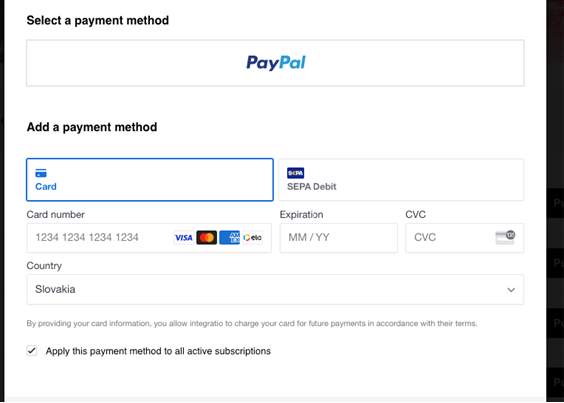
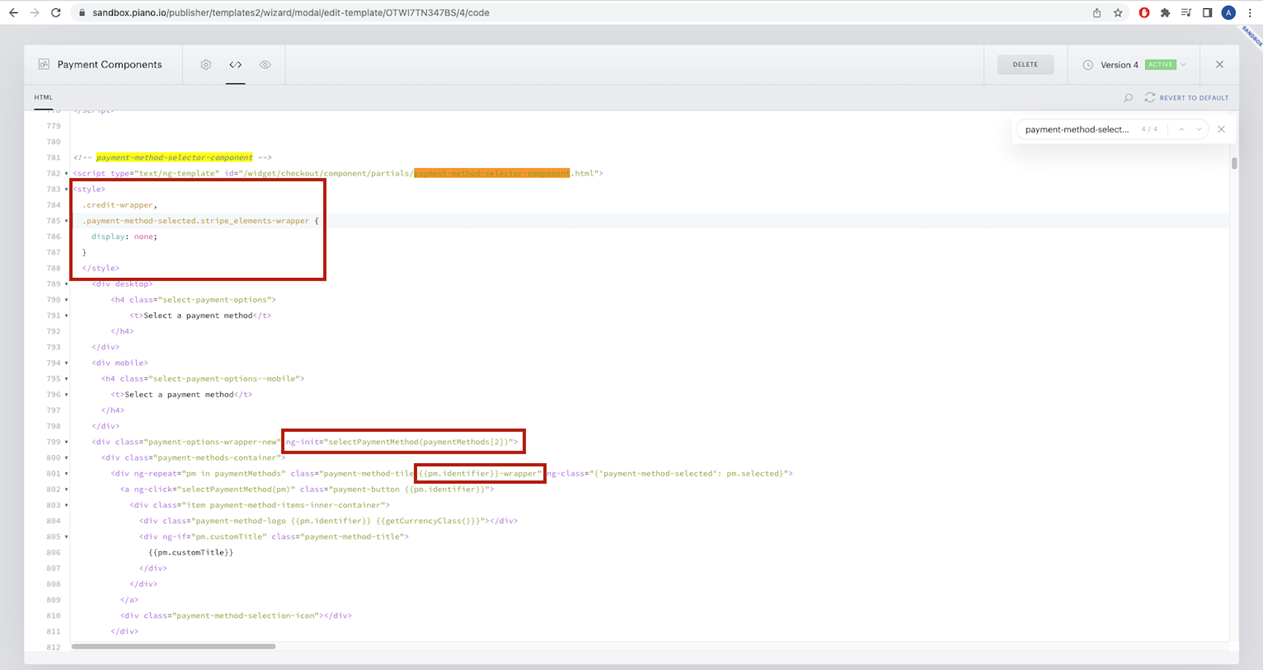
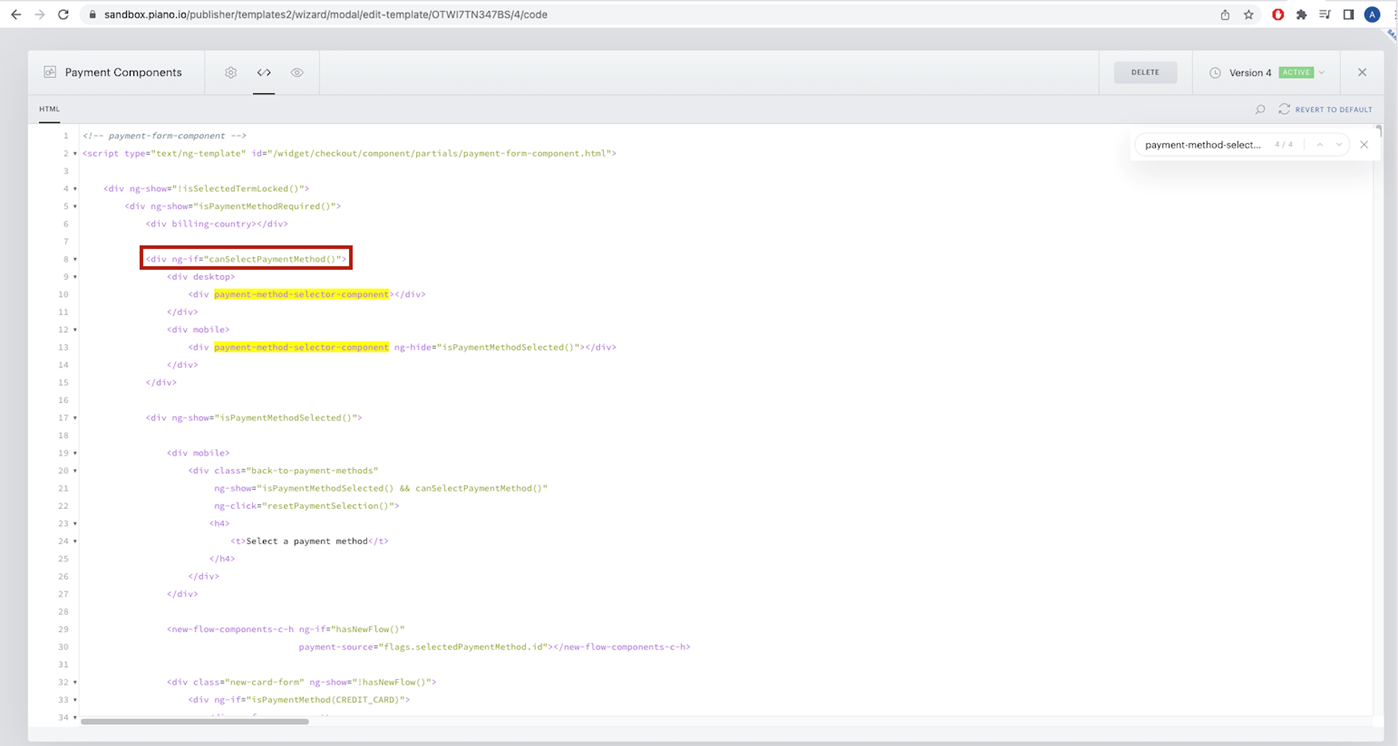
Q: Is it possible to prepopulate the email within the Sepa payment method?
A: Yes, if available, Piano can pre-populate it automatically, and you can decide to hide this field.
You will need to update the Payment Components template and add a special tag like in the following example.
Please note, this is a sample code of the customized template, if you do not want to default to Germany in your checkout fields, make sure to customize the below lines:
<!-- https://stripe.com/docs/js/elements_object/create_payment_element#payment_element_create-options -->
<div id="stripe-elements-create-options" class="stripe-elements-create-options">
  {
    "paymentMethodOrder":["sepa_debit", "card"],
    "defaultValues":{
        "billingDetails":{
            "address":{
                "line2": "empty",
                "country": "DE"
            }
        }
    },
    "fields":{
        "billingDetails":{
            "email": "never",
            "address":{
                "line2": "never"
            }
        }
    }
}
</div>
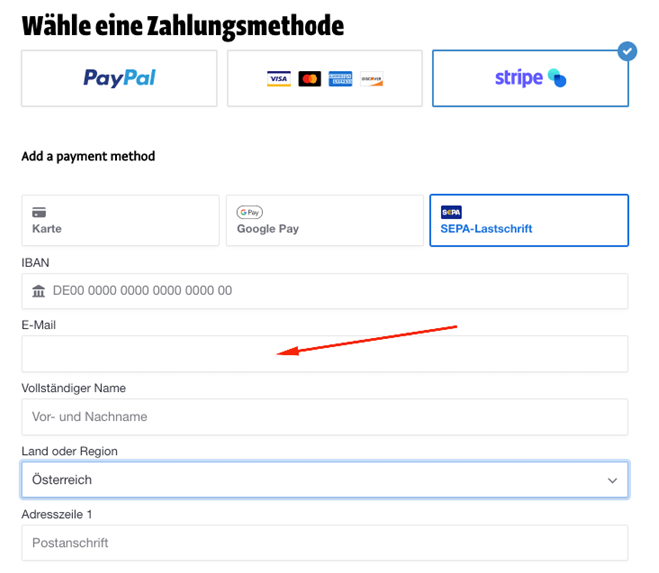
Before (SEPA is the second option, email and line2 are visible):
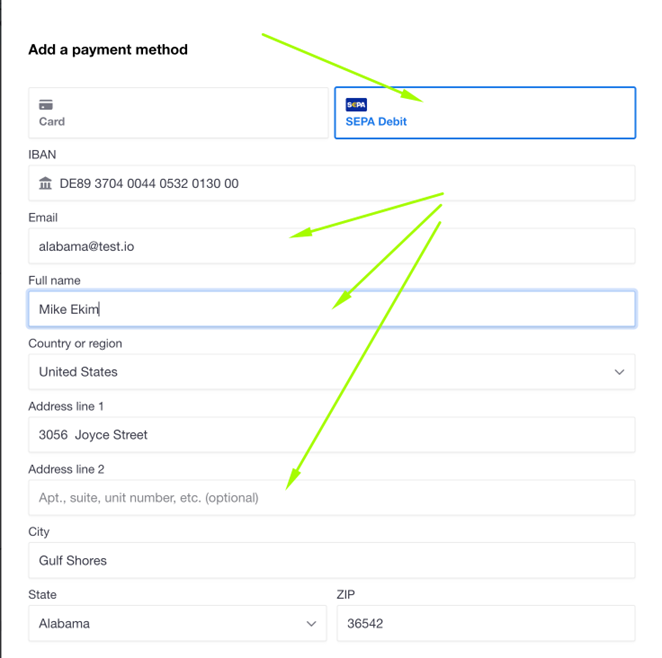
After the sample code is added (SEPA is the first option, email and line2 are hidden):
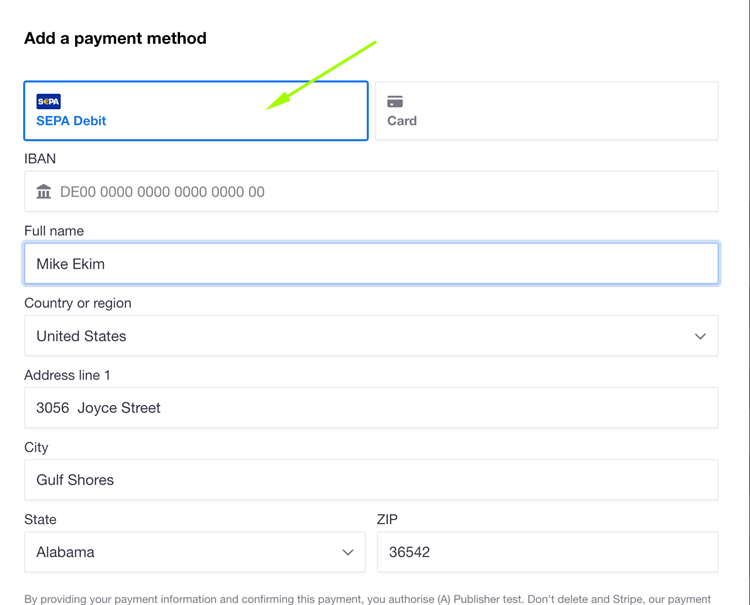
If you hide some field using "never" you should pass the default value for the field. Applies to every field except name and email. For those two fields, values are automatically pre-populated.
Q: Why do I not see any metadata coming through in my Stripe application or why can’t I see the payment methods?
A: This is most likely because you have not given Piano Software Inc. (Connect platform) permissions to manage these on your behalf, please navigate to Applications and enable Piano Software Inc. to handle these actions.

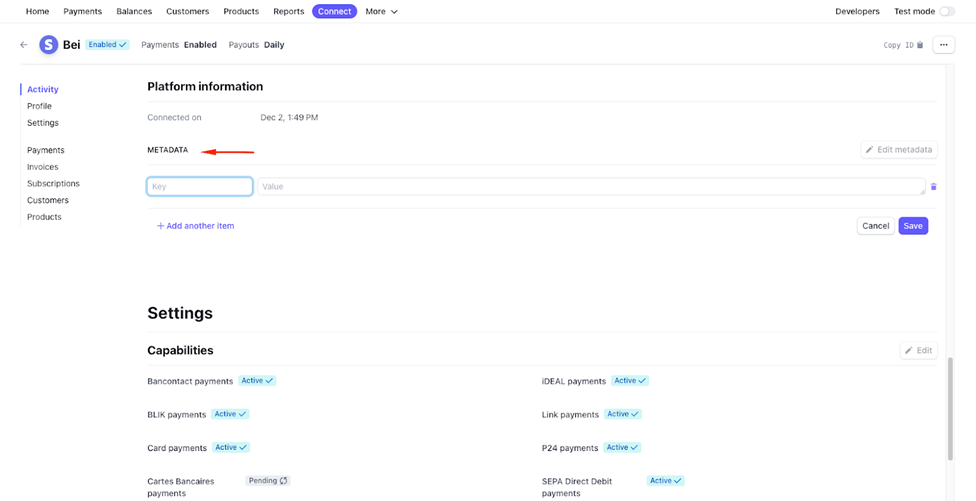
Q: How can I pass custom metadata to the Piano platform?
A:
Q: Why do certain payment methods not appear in the checkout?
A: Please note, that by default your application will only have card payments enabled. Other payment methods need to be enabled in your Stripe account, please navigate to settings, when logged in to your Stripe dashboard and turn on the desired methods, follow any further instructions on how to configure the method.
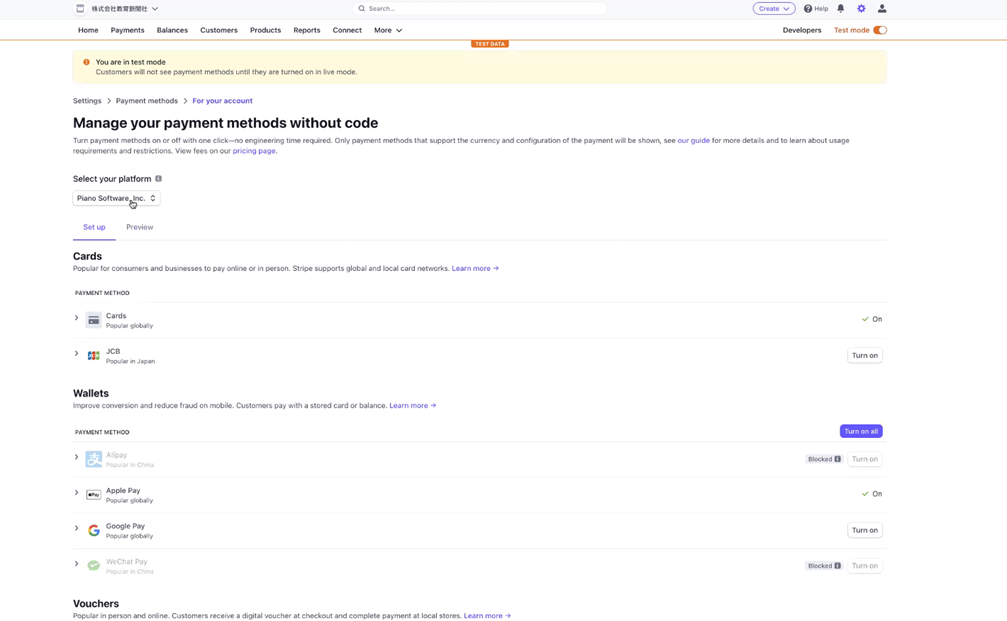
Q: What happens if I connect my Stripe account to multiple Piano instances?
A: When reviewing the payment methods settings, you will notice an additional dropdown from within which you will need to select the correct platform name.
Q: Are there any country limitations?
A: Apple and Google Pay payment methods are not supported in India by Stripe.
More details about the supported countries are listed here.
Q: How can I customize the element fields in the checkout?
A: For this, make sure your Payment Components template is up to date, then using the stripe-elements-create-options and stripe-elements-appearance class you can customize the display of the fields, the below code is just a sample - make sure to customize it to your country or use case.
The available customization options are described in the Stripe documentation here:
Examples:
<!-- https://stripe.com/docs/elements/appearance-api -->
<div id="stripe-elements-appearance" class="stripe-elements-appearance">
  {
    "theme": "stripe",
    "variables": {
      "fontFamily": "'Helvetica Neue', Arial, sans-serif",
      "borderRadius": "2px",
      "fontSizeBase": "0.9rem"
    }
  }
</div>
<!-- https://stripe.com/docs/js/elements_object/create_payment_element#payment_element_create-options -->
<div id="stripe-elements-create-options" class="stripe-elements-create-options">
  {
    "paymentMethodOrder":["sepa_debit", "card"],
    "defaultValues":{
        "billingDetails":{
            "address":{
                "line2": "empty",
                "country": "DE"
            }
        }
    },
    "fields":{
        "billingDetails":{
            "email": "never",
            "address":{
                "line2": "never"
            }
        }
    }
}
</div>
This will allow you to customize the order and hide/show fields as desired:
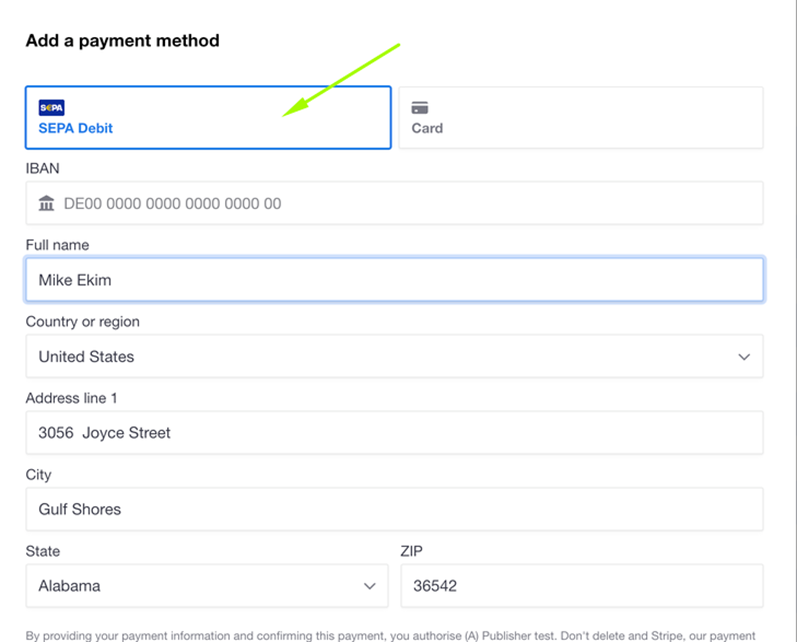
If you hide a field using never you should pass a default value for that field. This applies to all fields except name and email.
The email and first/last name are pre-populated by Piano.
You can hide any address fields (country, line 1, line 2, city, state, zip) but in such case, you have to provide values for the hidden fields. Stripe will throw an error if the field is set to never and the value is empty. It does not depend on the payment type.
Stripe's Address Element
In the payment provider configuration for Stripe Elements accessible from the Piano dashboard's Edit Business section, you can enable Stripe's Address element for address collection during checkout and configure further details.
Please note that the settings from this configuration are applied to checkout only.
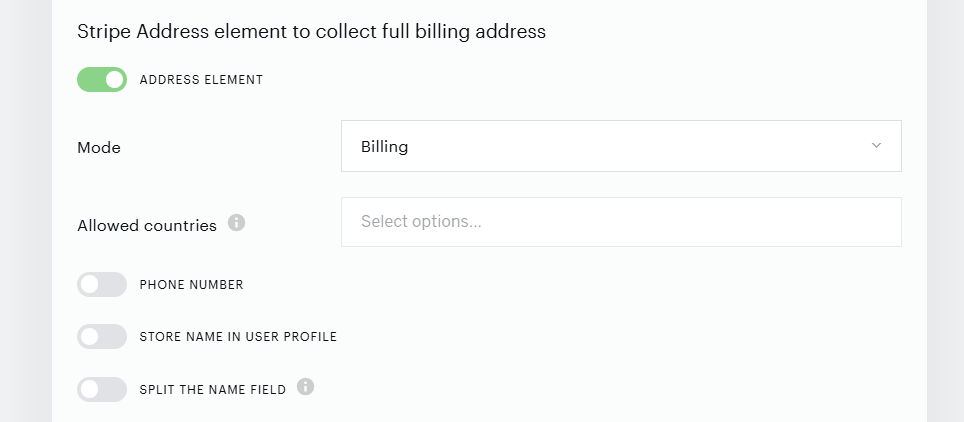
The Stripe Address Element allows you to collect full billing or shipping addresses during payment processing in checkout, ensuring comprehensive address data collection across all Stripe payment methods.
For credit card payments that require the cardholder's name for 3DS authentication, the Address element collects the First and Last name during checkout and automatically passes them to Stripe.
All collected billing address properties are available in the downloadable file of the Transaction log report.
Configuration Options:
-
Mode: Choose between "Billing" and "Shipping". In "Shipping" mode, the billing address is collected with the Payment Element. Default is "Billing" mode.
-
Allowed Countries: Restrict the list of available countries in the dropdown menu of the Country selector.
-
Phone Number: Enable or disable the collection of phone numbers in addition to regular fields.
-
Required Phone Number: Make phone number collection (if enabled) mandatory.
-
-
Store Name in User Profile: When enabled, the name collected during the payment process is saved to the user's profile in Piano.
-
Split Name Field: Configure the Address Element to split the name field into "First Name" and "Last Name" inputs.
Q: How to manage the element fields when taxes are enabled (using custom logic)?
A: If you collect taxes using one of our tax provider integrations (TaxJar or Avalara), you may choose to automatically hide duplicated country and postal code fields in the Stripe Elements iframe.
To do so, you should enable Custom logic in the Stripe Elements configuration (Edit business → Payment providers → Edit Stripe Elements configuration).
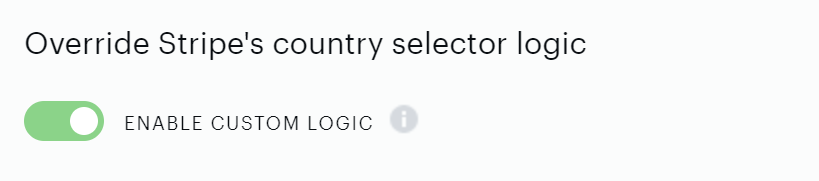
In this case, country and postal code values entered by the user in billing details will be automatically applied to Stripe fields and then corresponding Stripe fields will be hidden.
If you’re using only the card payment method then you may not use the template configurations described below. Just enable Stripe custom logic, and selected billing details (country and postal code) will be applied to Stripe fields and we will hide them.
If you wish to collect certain address fields for SEPA (while you’re using custom logic), you may configure your template in the following example:
{
  "defaultValues": {
    "billingDetails": {
      "address": {
        "line1": "any",
        "line2": "",
        "postal_code": "",
        "state": "",
        "city": "",
        "country": ""
      }
    }
  },
  "fields": {
    "billingDetails": {
      "address": {
        "line1": "never",
        "line2": "never",
        "postalCode": "auto",
        "state": "never",
        "city": "never",
        "country": "auto"
      }
    }
  }
}
The case above allows you to collect country and postal code values without duplications.
Pay attention, that you need to define line1 with a default value (at least 3 characters) in order to pass Stripe validation to collect the postal code value.
Also, you may use template configurations described in the SEPA and Bacs payment method sections below.
Important note: there might be an infrequent error with postal code validation on Stripe's side due to the inability of the Stripe iframe to update geo-located customers country within the SEPA or Bacs payment iframe. In other words, if the Stripe iframe located you in Belgium (while the country field is hidden), and in our tax billing details you set another country, i.e. Norway, you won’t pass the validation with a Norwegian postal code, you’ll have to enter the Belgian one.
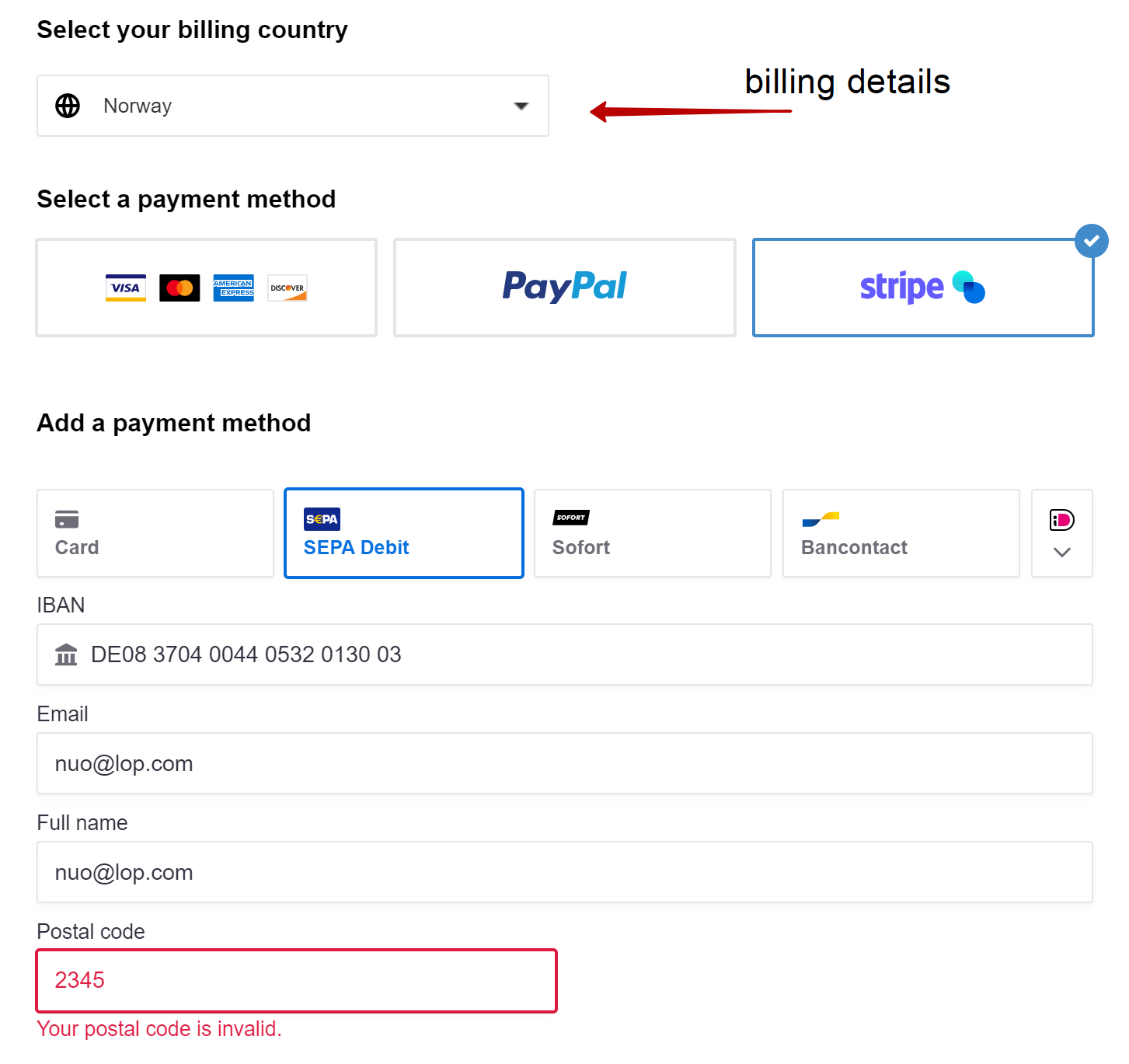
Managing the fields when custom logic is disabled
Card payment method
The following template configuration is applicable if you do not want to collect country and postal code values and you do not use the Custom logic described above.
{
  "defaultValues": {
    "billingDetails": {
      "address": {
        "postal_code": "",
        "country": "GB"
      }
    }
  },
  "fields": {
    "billingDetails": {
      "address": {
        "postalCode": "never",
        "country": "never"
      }
    }
  }
}
Pay attention that you need to define a default country value in order to pass Stripe’s validation. In this case, every customer will have a Great Britain address in the Stripe dashboard.
The case below if you want to collect postal code only:
{
  "defaultValues": {
    "billingDetails": {
      "address": {
        "postal_code": "",
        "country": "GB"
      }
    }
  },
  "fields": {
    "billingDetails": {
      "address": {
        "postalCode": "auto",
        "country": "never"
      }
    }
  }
}
As you can see we still need to define default country value in order to pass Stripe’s validation.
The case below if you want to collect country value only:
{
  "defaultValues": {
    "billingDetails": {
      "address": {
        "postal_code": "",
        "country": ""
      }
    }
  },
  "fields": {
    "billingDetails": {
      "address": {
        "postalCode": "never",
        "country": "auto"
      }
    }
  }
}
In this case, you may not define default values.
SEPA payment method
In case you do not want to collect any addresses from your SEPA customers you should use this code:
{
  "defaultValues": {
    "billingDetails": {
      "address": {
        "line1": "",
        "line2": "",
        "postal_code": "",
        "state": "",
        "city": "",
        "country": "GB"
      }
    }
  },
  "fields": {
    "billingDetails": {
      "address": {
        "line1": "never",
        "line2": "never",
        "postalCode": "never",
        "state": "never",
        "city": "never",
        "country": "never"
      }
    }
  }
}
Pay attention that you need to define a default country value in order to pass Stripe’s validation. In this case, every customer will have a Great Britain address in the Stripe dashboard.
Alternatively, you can fill every default address field with any value, so every customer will have a constant address.
In case you want to collect certain address fields the code will be as follows: (example below: collect postal code, city and country)
{
  "defaultValues": {
    "billingDetails": {
      "address": {
        "line1": "any",
        "line2": "",
        "postal_code": "",
        "state": "",
        "city": "",
        "country": ""
      }
    }
  },
  "fields": {
    "billingDetails": {
      "address": {
        "line1": "never",
        "line2": "never",
        "postalCode": "auto",
        "state": "never",
        "city": "auto",
        "country": "auto"
      }
    }
  }
}
Please pay attention that you’ll have to define a default value for line1 (at least 3 characters) in order to pass Stripe’s internal validation, otherwise you won’t see other address fields.
Bacs payment method
Bacs payment method requires us to complete all address fields, so in this case, if you want to hide all fields you need to define all address fields with the default values:
{
  "defaultValues": {
    "billingDetails": {
      "address": {
        "line1": "any",
        "line2": "any",
        "postal_code": "any",
        "state": "any",
        "city": "any",
        "country": "GB"
      }
    }
  },
  "fields": {
    "billingDetails": {
      "address": {
        "line1": "never",
        "line2": "never",
        "postalCode": "never",
        "state": "never",
        "city": "never",
        "country": "never"
      }
    }
  }
}
Please pay attention that you have to define a real country code.
In case you want to collect certain address fields the code will be as follows: (example below: collect postal code, city and country)
{
  "defaultValues": {
    "billingDetails": {
      "address": {
        "line1": "any",
        "line2": "any",
        "postal_code": "",
        "state": "any",
        "city": "",
        "country": ""
      }
    }
  },
  "fields": {
    "billingDetails": {
      "address": {
        "line1": "never",
        "line2": "never",
        "postalCode": "auto",
        "state": "never",
        "city": "auto",
        "country": "auto"
      }
    }
  }
}
Q: How do I use the new Stripe integration if I already use the earlier version?
A: After completing your testing successfully, you can hide the Stripe Credit Cards version in your checkout from within the Edit Business → Payment Provider configuration settings, and start using the Stripe Elements integration for any new subscribers immediately.

Q: Can I modify the provider logos in the checkout if I use multiple Stripe integrations and/or other providers?
A: Yes, you can modify the system templates as desired. Please note, Stripe Elements houses multiple payment methods within the same iframe, therefore by default the Stripe Elements integration will show as follows:
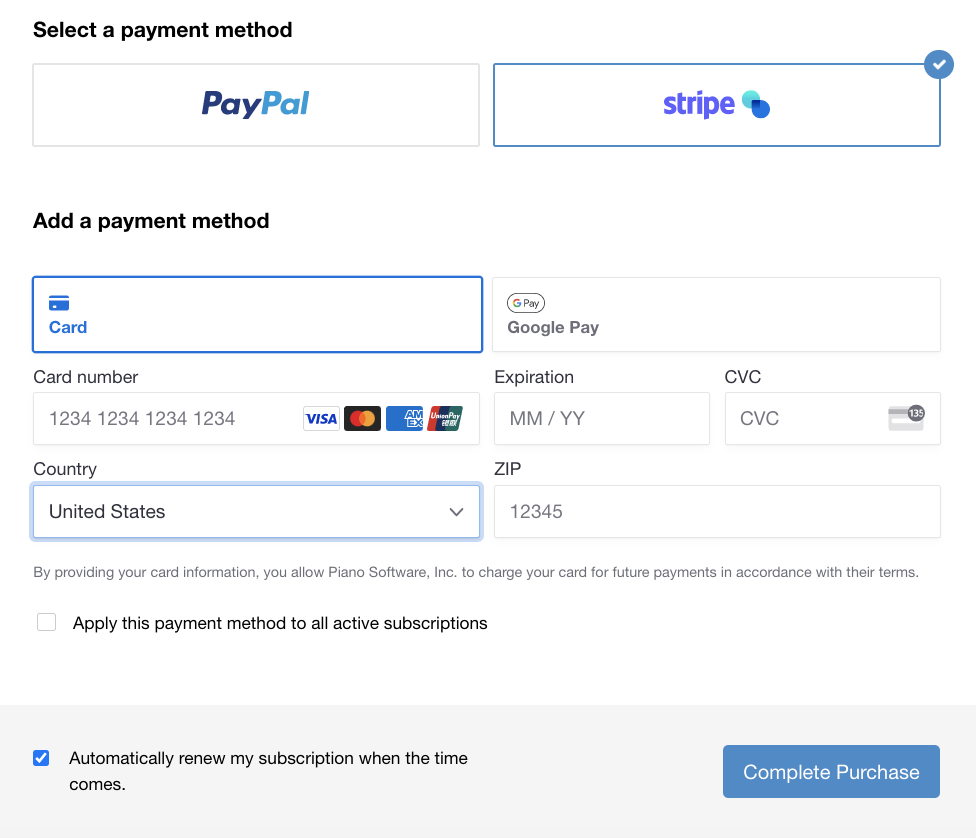
If you would like to further customize the provider button and present specific methods you can do so easily by adding your own logo and replacing the default Stripe logo in the "Select a Payment Method" section by going to Manage → System Templates → Checkout Style and updating the following code:

Q: How do I modify the pending state message in My Account?
A: If you wish to change the message you can do so under Manage → Templates → My Account Help Components and My Account Library Components by updating the following tag copy:

Q: Why do I see Uncaptured payments in my Stripe dashboard?
A: Starting Aug 29th, you will no longer see Refunded payments (Reversals) on free period (trial/promo) transactions in the Stripe dashboard, as a two-step authorization and capture card processing was implemented. Although rare, due to headless transaction processing, you may notice some transactions hang in an "uncaptured state" for a short period of time. Piano features a reconciliation job that runs validation on a regular basis and makes necessary updates at which point transactions that should be captured will be automatically completed, and uncaptured payments which are the result of a duplicate headless payment made by the user will be automatically cancelled. The reconciliation job runs every hour and reviews and updates transactions within a 6-hour window.
Q: How to map Piano users to Stripe customers?
A: You can use an email address to find the customer in Stripe or you can find the Stripe Customer ID under the External Customer section in the Subscription Details or Transaction Details located in the User Overview in the Piano dashboard:
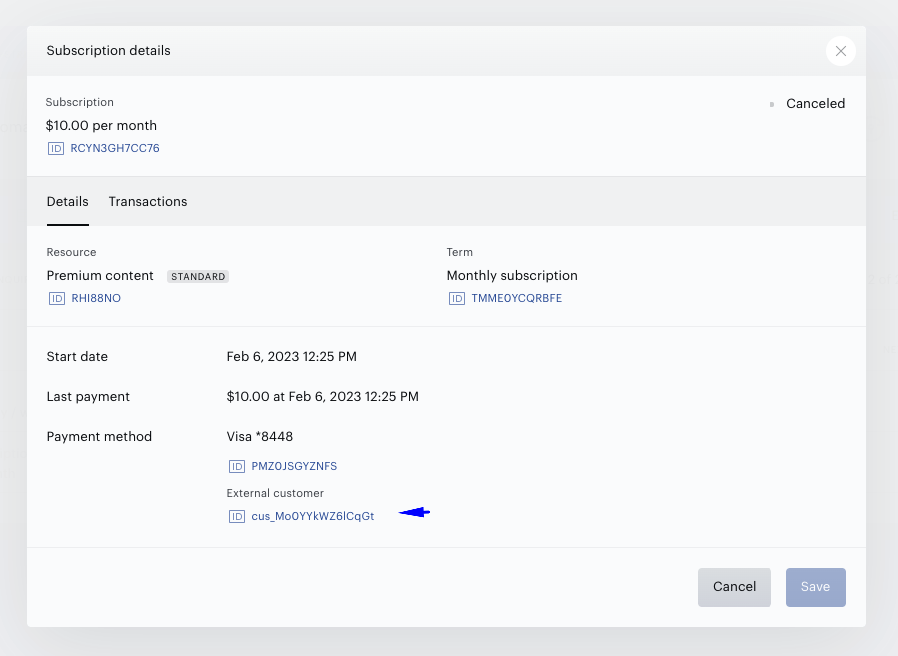
Additionally, you can infer this connection through the Transaction log report, where the User ID field (UID) is the unique identifier of the user associated with a particular transaction, and the External Tx ID field is the unique Stripe paymentIntent ID. By matching transactions, you can infer which UID is associated with which Stripe customer ID. Piano provides an External Transaction ID in the Transaction log report which is the paymentIntent ID in Stripe. For more information check the External Transaction and Subscription Mapping between Stripe and Piano.
Q: How and how often is payment method adding or updating communicated to Stripe?
A: When a card is added to the Piano wallet, the corresponding payment method gets automatically added to a Stripe customer. This is facilitated by the tokenization of the card information, which is then stored as a payment token in Piano. This token, provided by Stripe, does not contain any sensitive data but allows Stripe to identify what payment method data they need to use to process the transaction. This is instant.
Q: How and how often is a payment method removal from the Piano wallet, communicated to Stripe?
A: When a payment method is removed from the Piano wallet, the associated payment method also gets removed from Stripe. This is because Piano only stores a payment token representing the payment method, not the actual card details. When the token is removed from Piano, the corresponding payment method in Stripe is also deleted. This is also done immediately using the detach API.
Q: When a card is directly updated on a Stripe account, does the card in the Piano Wallet also get updated?
A: When a payment method is directly updated on a Stripe account, the card information in Piano also gets updated. In the same way, if a user’s payment method information gets updated, it also updates in Stripe. This is managed by webhook handling of the payment_method.automatically_updated event.
If a card is removed in Stripe directly, it is not automatically removed from the Piano wallet. Therefore, it is recommended to delete payment methods in Piano rather than directly in the Stripe dashboard.
Q: How can I edit the Stripe Elements naming in the platform if I want to communicate specific methods available in the element?
A: Under Edit Business → Payment Provider → Stripe Elements, you can change the Payment method name field.
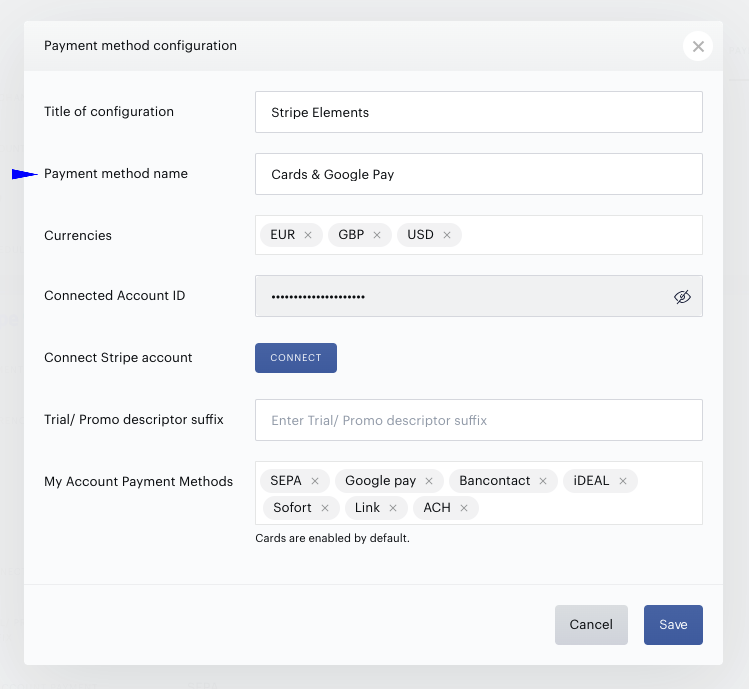
This will update the name of the provider (and replace the Multiple Options placeholder) in the My Account section's "Add payment method" dropdown as well as in the Dashboard's interface. The maximum length limit is 30 characters.
Q: Are CIT / MIT indicators supported in the transaction processing?
A: More details about this are available in Stripe's documentation.
Q: Can purchases be made using a single-use card?
A: No, purchases cannot be completed with single-use cards as they are automatically blocked. However, you can generate a standard virtual card, make your purchase, and then deactivate the card. This transaction will be accepted by the system.
Q: How do ACH payments work with Piano (asynchronous flow)?
A: Unlike card payments, which are authorised and settled synchronously, ACH Direct Debit payments are asynchronous. When a user completes an ACH checkout, Piano does not wait for bank confirmation before granting access. The sequence is as follows:
-
The user submits their bank account details at checkout.
-
Piano immediately creates the subscription and grants access, recording the transaction in a Pending status.
-
Stripe initiates the ACH debit with the user's bank. This process typically takes 3–5 business days.
-
Stripe sends a webhook notification to Piano when the debit either succeeds or fails.
-
Piano updates the transaction status accordingly:
-
Payment succeeds → transaction moves to Completed; access and subscription remain active.
-
Payment fails → access is revoked and the subscription is cancelled.
-
Piano automatically registers the required webhook endpoint with Stripe when you configure Stripe Elements as your payment provider. You do not need to manually create or configure webhooks in your Stripe Dashboard for the core payment flow, including ACH, to work correctly.