
Piano Audience automatically identifies non-human traffic — crawlers, spiders, and bots — across every site group, so that segments and analyses reflect real visitor behavior by default. This page explains how bot detection works, how it's excluded by default, and how to include or filter on bot traffic if you need to.
How Piano identifies bot traffic
Piano labels bot traffic using the IAB/ABC International Spiders and Bots List, an industry-standard registry of known automated traffic sources maintained by the IAB. Every pageview event that matches this list is flagged internally with a bot indicator (isBot), which is available to use in segment and traffic filters.
Because this classification happens upstream, on every event, it applies consistently across all Piano Audience customers and site groups — no setup is required to benefit from it.
Bot traffic is excluded from your data by default
Bot traffic is excluded from all customer segments by default. You do not need to take any action for this to take effect — it applies automatically across your site groups.
If your organization has a specific use case that requires bot traffic to be included (for example, testing, monitoring, or analyzing crawler behavior), you can opt back in on a per-segment basis. See Including bot traffic in a segment below.
Including bot traffic in a segment
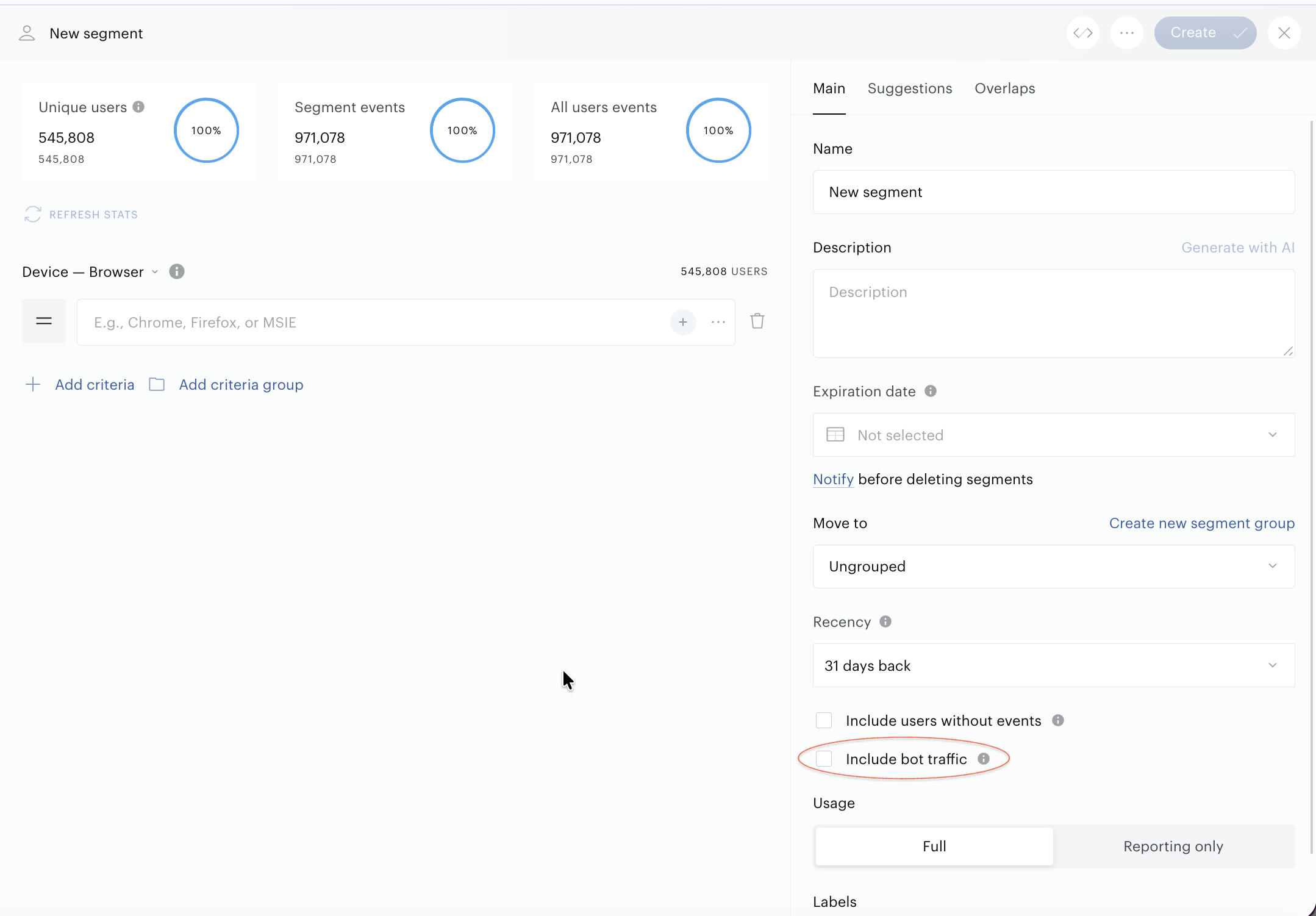
User segments in the Segment Builder include an Include bot traffic checkbox, located below Include users without events. This option is available in both Basic and Advanced mode.
-
Default state: Unchecked. Bot traffic is excluded from the segment unless you explicitly choose to include it.
-
Tooltip copy: "By default, automated traffic (crawlers, spiders and bots) identified via the IAB/ABC Spiders and Bots List is excluded, so your segment reflects real human visitors. Select this option to include bot activity as well."
-
Where it applies: Only user segments. Contextual, lookalike, external, and combined segments are not affected by this setting, since bot classification is a user-level (not content- or context-level) signal.
-
What it affects: When unchecked, the exclusion is applied both to the saved segment definition and to the live counts shown in the Segment Builder (per-criterion counts, Match Rate, and the Overlap tab). The site-group total shown as a baseline always reflects all traffic, so it remains a stable 100% reference point regardless of the checkbox state.
Advanced Mode
Because bot exclusion is controlled centrally through the Include bot traffic checkbox, manually adding an isBot filter node within the Advanced mode filter tree is not supported. If a segment's filter definition contains an isBot condition at any nesting level, saving the segment will be blocked with a validation error. Use the checkbox to control bot inclusion instead — this avoids conflicting or duplicate configuration between the checkbox and a manually added filter.
Frequently asked questions
Why might a segment's user count be lower than I expect? If a segment matches on traffic that includes automated activity, its unique user count will not include those bot-flagged events, since bot traffic is excluded by default. If your use case relies on bot traffic being counted, check the Include bot traffic box for that segment.
Does this also apply to Piano Insight? Piano Insight includes bot traffic in its reporting by default. If you want to exclude it, use the Bot traffic filter (with a more granular Bot name breakdown available) to inspect or filter it out of a report.
Can I see which bots are being detected? The Include bot traffic checkbox itself doesn't break bot traffic down by individual bot. For that level of detail, use Piano Insight: the Traffic report includes a Bot name filter under Source & destination that lists individual detected bots (crawl, headlesschrome, slurp, mediapartners-google, googlebot, and so on) along with their share of traffic.
What if I only want to exclude (or include) specific bots, not all of them? The Include bot traffic checkbox is an all-or-nothing toggle per segment. To target specific bots instead, add an Event parameter → botName condition in the Segment Builder (available in both Basic and Advanced mode, under the same event parameter picker used for other attributes) and filter on the bot name(s) you care about.