
Overview
With Contextual segments we provide you with a new segment type in Piano Audience which will enable contextual targeting within your respective ad server. The contextual segments only include a collection of URLs (articles) within a given segment, rather than user IDs compared to what we provide you with when using User segments (Lookalike, External, etc.).
Please make sure to update your ad server integration to export contextual segments for targeting. Currently, you can create and use contextual segments with GAM. For more details about updating your integration to enable exporting contextual segments to GAM, please read this documentation. If you are using another ad server and would like to export contextual segments, please reach out to your Account Manager.
Contextual Segments will be available even in case the end user did not consent when visiting your website as Piano Audience does not rely on any user-level identifiers which helps you to monetize non-consented traffic.
Contextual segments list
The Contextual Segments List screen is the list you see when you navigate to Audience→Segments→Contextual segments:
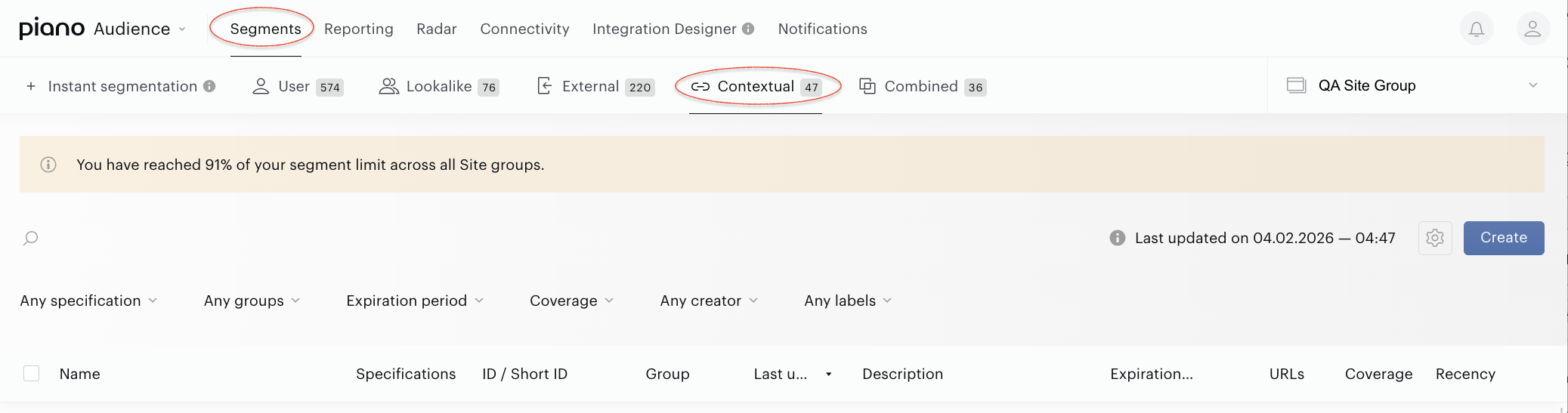
This page contains all the contextual segments created in your account for the selected site group. The list contains the segments and main information about them:
-
Name.
-
Specifications (icons indicate, for example, the Usage parameter).
-
ID and Short ID (unique segment identifiers).
-
Group name (if a segment was added to the segment group).
-
Last update (the column shows the date and time when the segment has been created and updated).
-
Description (if added to the segment).
-
Expiration date (the date when the segment can be deleted automatically, read more here).
-
URLs (the size of the segment audience; this metric is calculated as the number of URLs within the current segment based on the segment’s criteria setup).
-
Coverage (the metric shows the Number of URLs within the segment vs. Total number of URLs within a current site group).
-
Recency (this filter allows to select URLs based on their Publish date parameter).
Clicking the name of the column sorts the data in the column and in the whole table.
Additionally in the Segment list the following features are available:
-
Site group selector in the top right corner that lets you select the site group for work.
-
Filters by specification, expiration period, segment group, coverage, label, and segment creator that allow you to find contextual segments faster.
-
Search bar for searching segments by type, name, id, or description.
-
Checkboxes for each segment in the segment list that allow providing group operations with segments:
-
Move to operation allows you to move selected segments from one segment group to another, remove them from the segment group or add them into a segment group for the very first time.
-
Delete operation allows you to delete one or multiple segments at the same time.
-
Change usage operation allows you to update the usage status for selected segments (Full/Reporting only).
-
Add labels operation allows you to add the same label to the several selected contextual segments at the same time.
-
Change expiration date operation allows you to add the Expiration date or change existing ones.
-
Read more about bulk operation, about their capabilities and restrictions here.
If you want to create a new Contextual segment press the Create button. The Segment builder for the contextual segments will be opened.
You may notice that several contextual segments have already been created in your site-group(s). Why were these specific segments created in your site group? The logic in the backend job works as follows:
-
For each sitegroup, do a /traffic/keyword query to get top 7 IAB category values for this sitegroup in the last month
-
For each IAB category, check whether it already exists as a
contextualsegment, create if not -
As long as the sitegroup does not have more than 4
contextualsegments based on IAB category already -
Create the 2 default
contextualsegments ("Brand-safe News & Politics articles" and "Articles published in the last month") in the sitegroup, if not exists already
Please also note that these automatically created segments cannot be deleted.
Contextual segment builder
To create a Contextual segment, open the Segment Builder page, navigate to: Audience→Segments→Contextual segments and press the Create button.
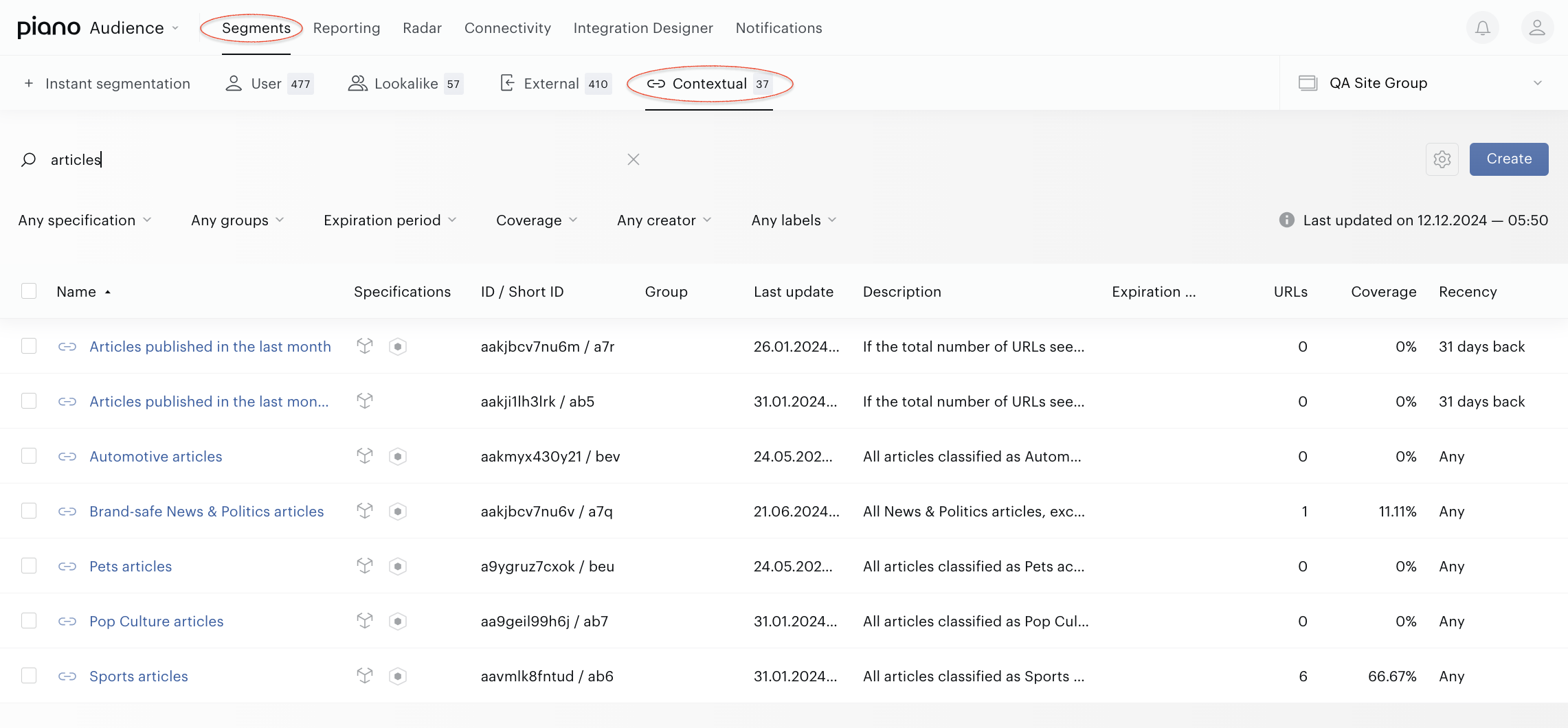
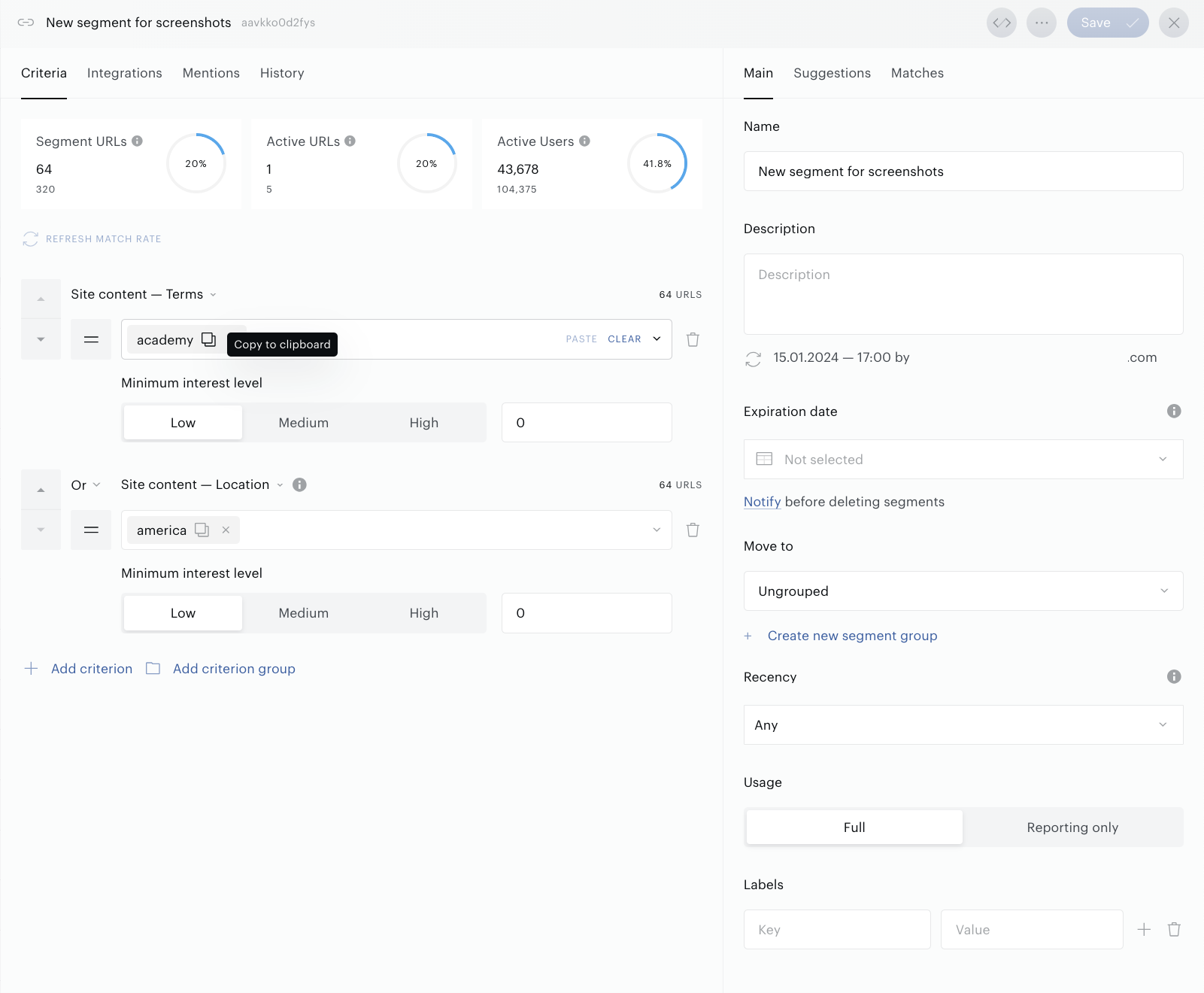
In Segment Builder, you see multiple fields identifying the segment and the criteria section:
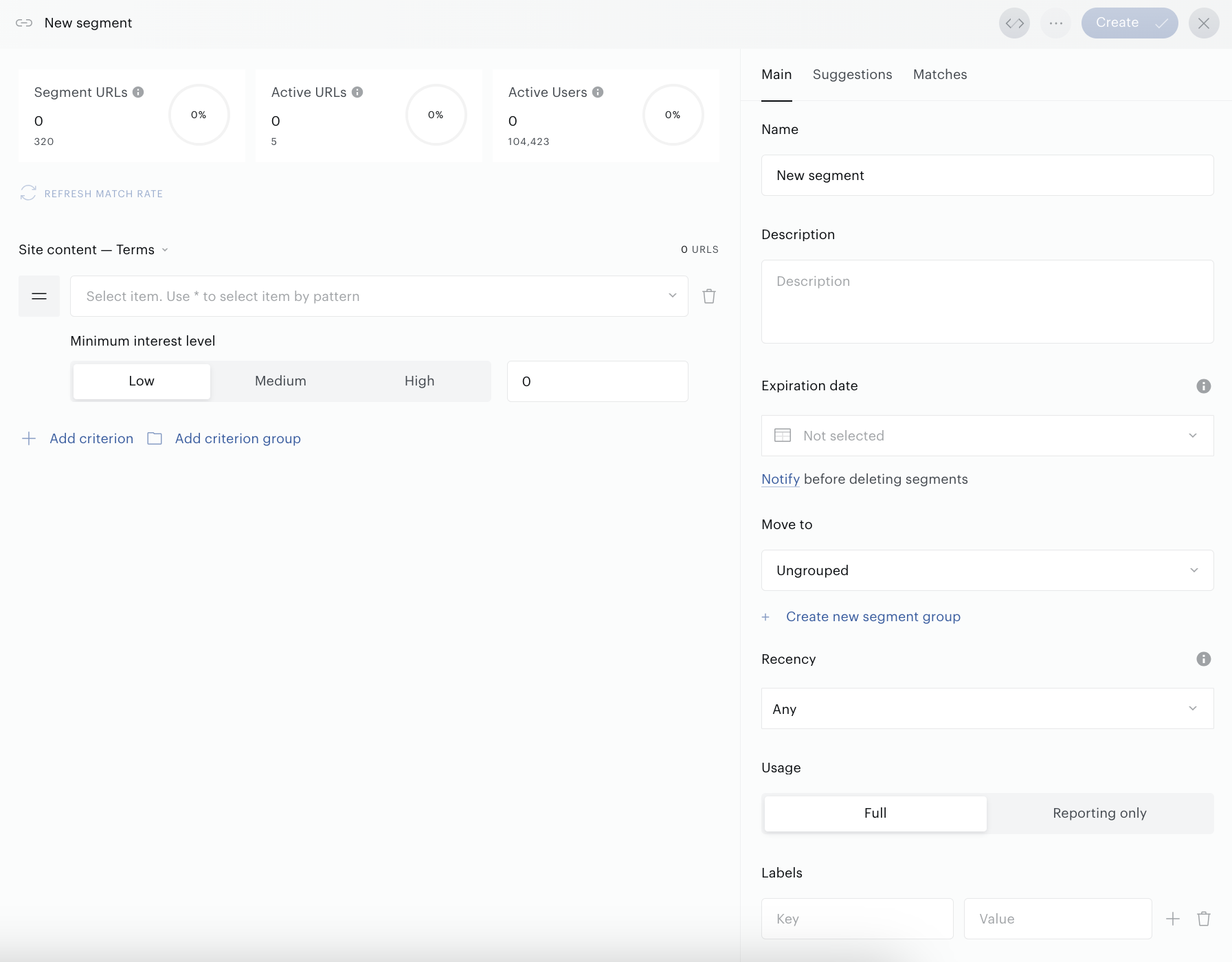
The right-side panel consists of 3 tabs: Main, Suggestions, and Matches.
The left-side panel consists of several tabs which become visible depending on the operation you work on. If you create a new segment – only the Criteria section is available. If you open an existing segment – you will see additional tabs, such as Integrations, Mentions, History.
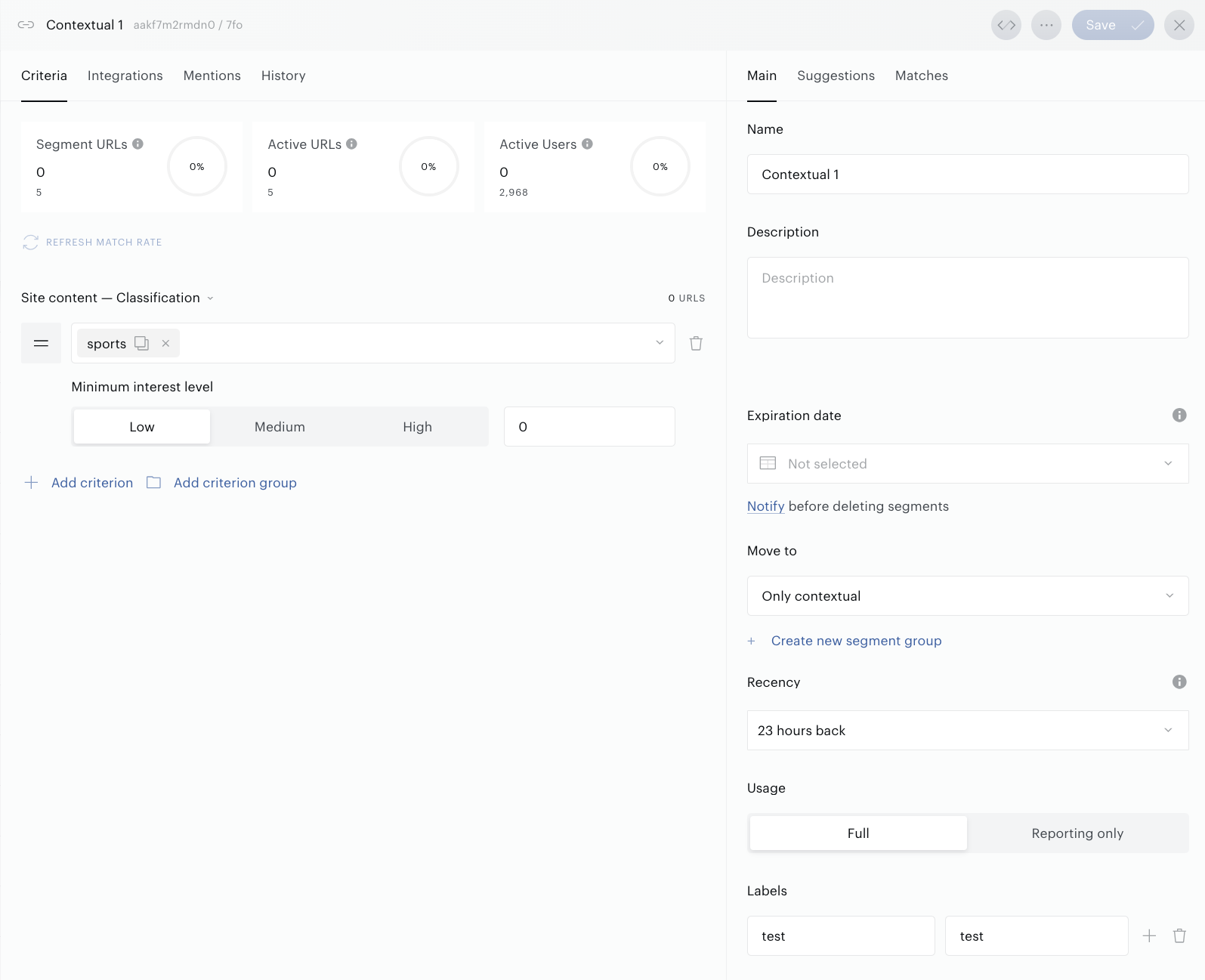
Main parameters
The Main tab allows you to manage obligatory and non-obligatory segment parameters.
Name
Mandatory parameter. The input field is used for the segment name and limited to 250 characters.
Description
It is also recommended to add some meaningful description in the Description area.
Manual Segment Description
-
In the segment creation or editing interface, enter the segment name in the right-side panel.
-
Add a meaningful description in the Description area, e.g., "Users who visited the sports section 3+ times this month."
Using AI-Powered Segment Description
-
Define your segment filters (e.g. first-party or behavioral data).
-
Click the Generate with AI button in the segment interface.
-
The AI generates a concise summary, e.g., "Active subscribers aged 25-34 engaging with tech news."
-
Edit the AI-generated description in the Description area if needed.
Expiration Date
This date shows when a segment can be deleted automatically. Upon pressing the link Notify…, you will be redirected to the Notifications functionality and can activate an event providing notifications before segment deletion. The Expiration date can be updated at any time, during the creation of the segment or later.
Segment Grouping
This feature within the Segment builder enables you to match the segment with one of the existing segment groups. If there is no group to choose from, you can click Create new segment group and create a new one. When the New segment group field is filled, the new segment can be moved there immediately. It is possible to move a segment to another group on the Segment builder page and on the Segment list page using the same-name bulk operation.
Recency
With this non-mandatory parameter, you can set the days to consider for defining your segment’s audience. This filter is related to the article’s Publish date parameter, it is recommended to review and update these parameter’s values to get more accurate segments’ audiences.
Usage
This mandatory parameter defines whether the segment will be used for all the features of Piano Audience including segment export, targeting, and reporting (Full), or only for composing reports and analysis (Reporting only). Reporting only segments can be exported like Full usage segments, but they cannot be used for targeting in real campaigns.
Labels
Use this section to add additional metadata (generic key-value pairs) to your segments. With Labels, you can:
-
Organize a growing list of segments by grouping them into batches.
-
Filter your segments on the Segments List using the filter by the label.
-
Control programmatic steps using Piano API (/segment/create or /segment/read).
-
Select segments for export in Audience→Connectivity, using labels as a filter.
The label key is limited to 256 characters. It should start with a letter and can only contain ASCII characters a-z, A-Z, 0-9, or _ (underscore).
The label value should be less than 256 characters.
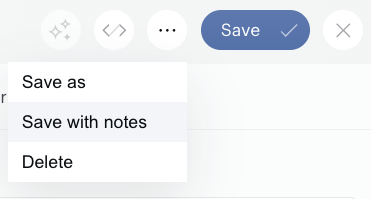
Save with Notes
To save your changes and additionally save notes about the edits made, go to the More menu and click the Save with notes button.
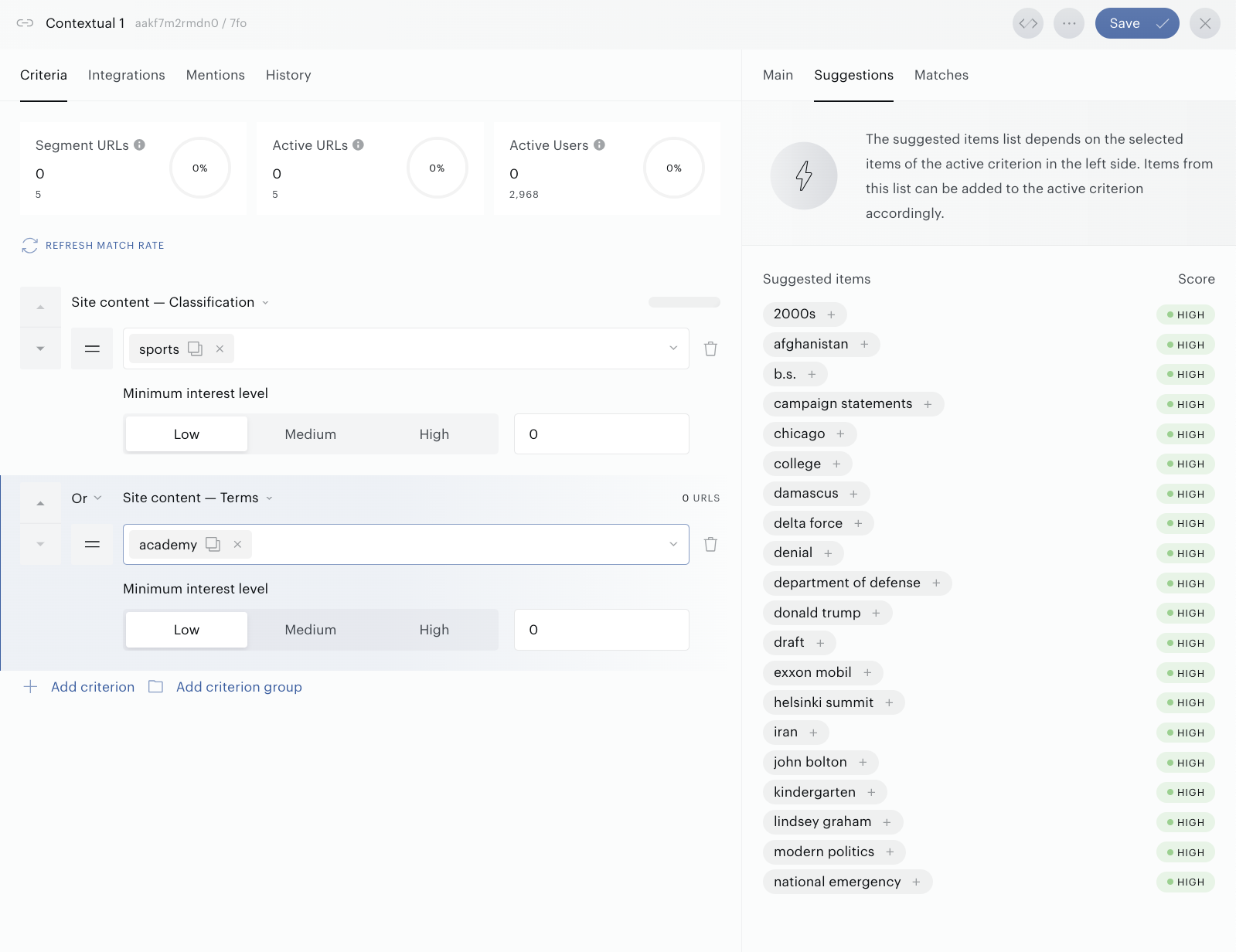
Suggestions tab
Currently, the suggestions are supporting the following content profile attributes: Terms, Person, Company, Location, Concept and Keyword filter groups from the Site content filter category.
When you add one of the above-mentioned filters as a segment criterion, you can hit the Suggestions tab and will see the list of suggested items. This list includes up to 20 items and depends on the selected items of the active criterion on the left side panel. Items from this list can be added to the active criterion accordingly – just click on the item itself. Active criterion in the left-side panel is highlighted in blue to be more visible in case if you use several filters.
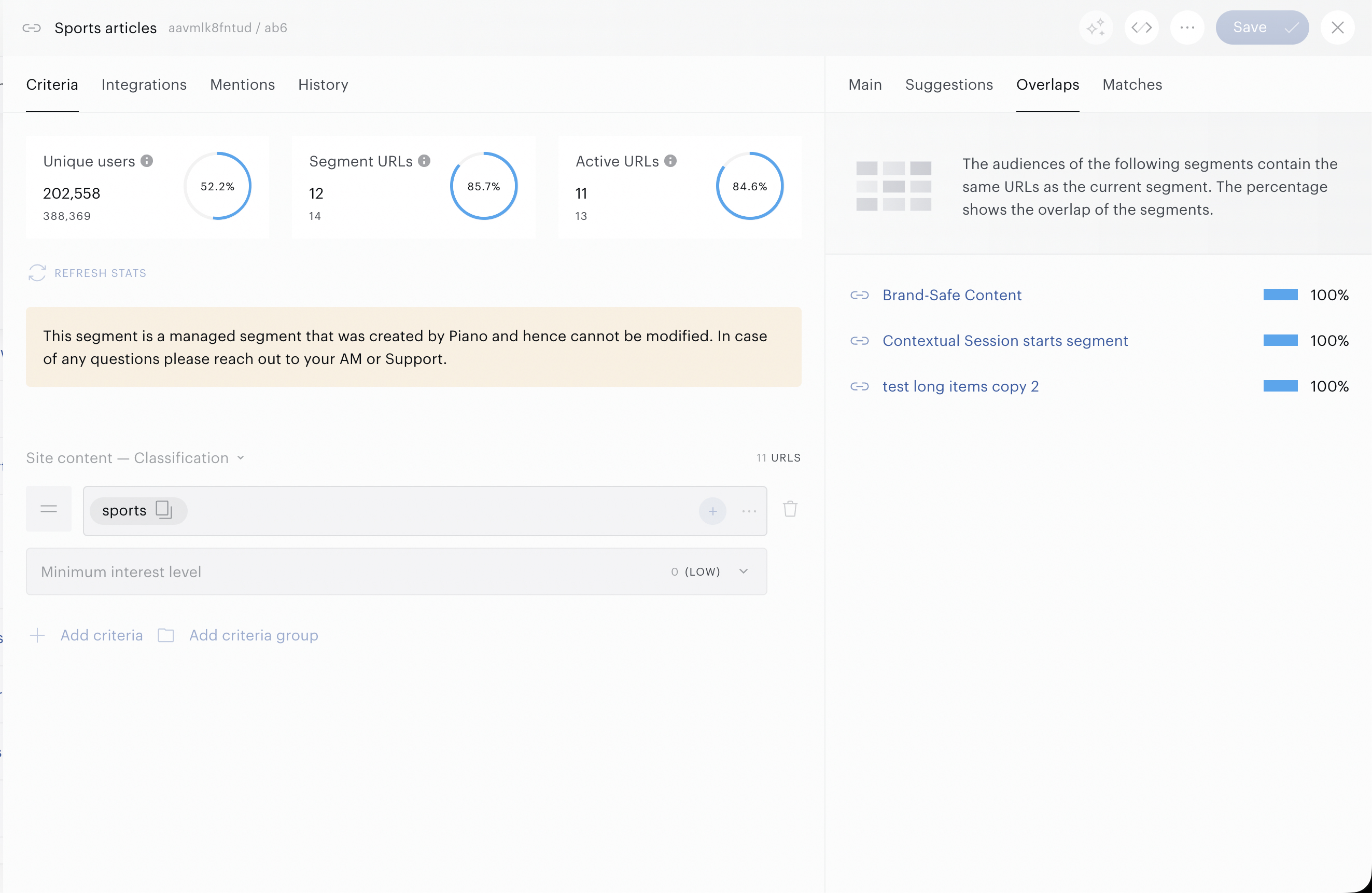
Overlaps tab
The Overlaps feature provides real-time feedback on how a new contextual segment overlaps with existing segments during creation, helping you optimize audience definitions and avoid duplication. Available in the Segment Builder UI, this feature is subject to specific limitations to ensure relevance and accuracy.
How It Works
-
In the Segment Builder, after defining criteria (e.g., pages containing "Business & Finance" content), switch to the Overlaps tab.
-
Click Refresh Stats to generate a report showing the percentage and number of pages in the new segment that overlap with existing segments.
-
Only segments with an overlap of at least 50% with the new segment appear in the list.
-
Right-click on listed segments to open them in a new tab for side-by-side comparison, aiding decisions on whether to refine or proceed with the new segment.
-
Overlaps are now computed exclusively based on activity from the last 24 hours.
Matches tab
Configuring filters on the Criteria tab you can activate the Matches tab in the right-side panel. The view within the Matches tab reflects the top 50 matching articles for this segment ordered by the number of page views.
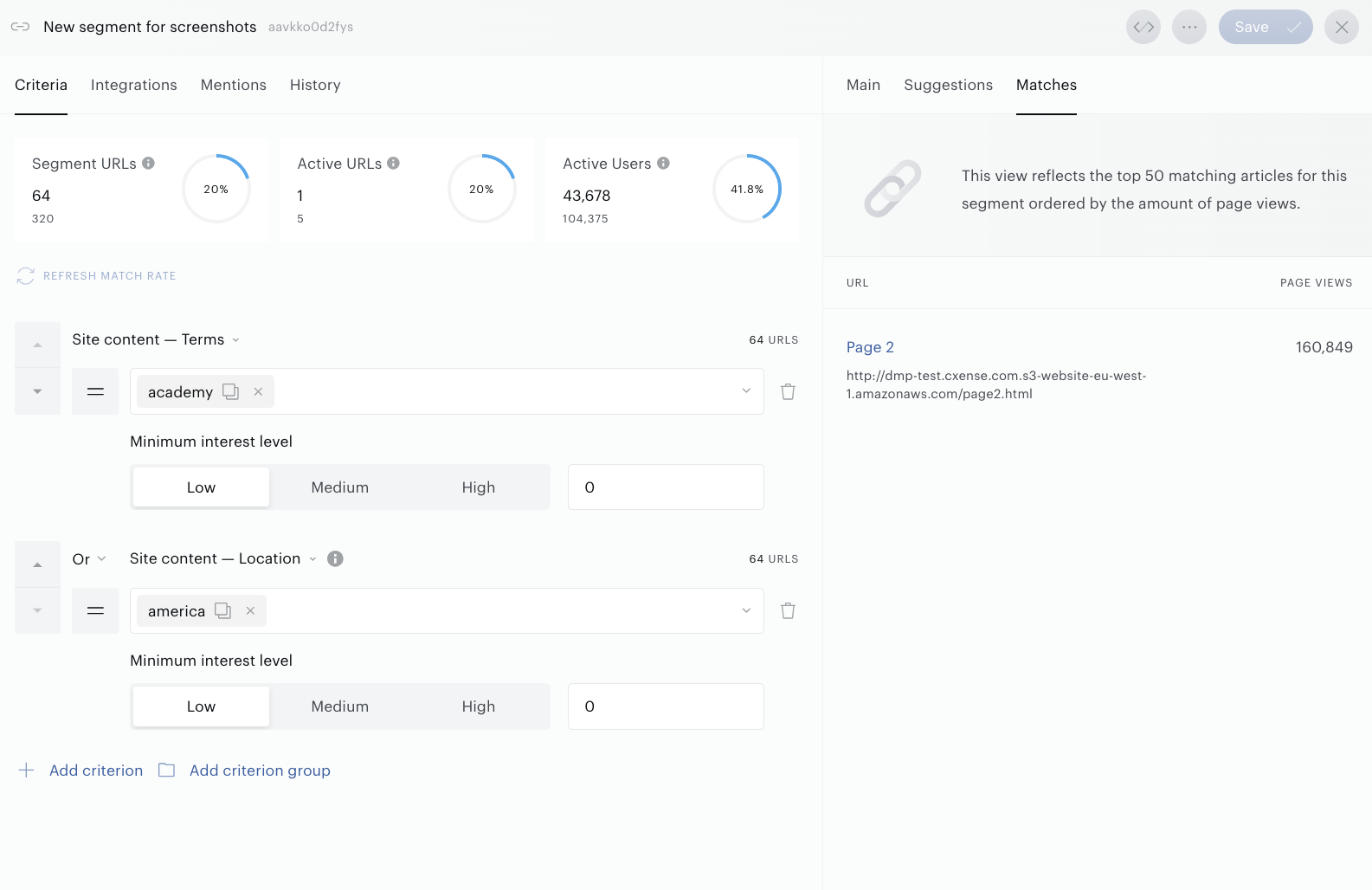
It allows you to observe the contextual segment audience while you create or update the segment.
Criteria tab
In the Criteria tab, use the Criterion and Criterion group options and logical operators (And, Or) to filter your audience and compose segments like “Articles related to the electric cars’ brands.” or “The newly created articles about gardening.”
Logical operations can be applied to separate criteria or criterion groups.
If a segment is created without stating criteria, the default criterion "Site content - Terms" is applied.
Using Move filter up or Move filter down (those buttons are located next to the filter; on the left side) it is possible to move a criterion within the Criteria section. This function is more suitable for complex segments with lots of filters.
Using Copy to clipboard elements (this element is available next to filter item name) it is possible to copy an item and past it in another filter that supports the same set of items then.
The match rate diagram is a widget consisting of 3 metrics:
-
Segment URLs metric shows all pages linked to the current setup whether they have seen traffic or not.
-
Active URLs metric shows all pages that have seen any traffic within the selected Recency. Currently this metric is limited to reflecting data of the last 24 hours only.
-
Active users metric shows all users that have been visiting the page within the segment.
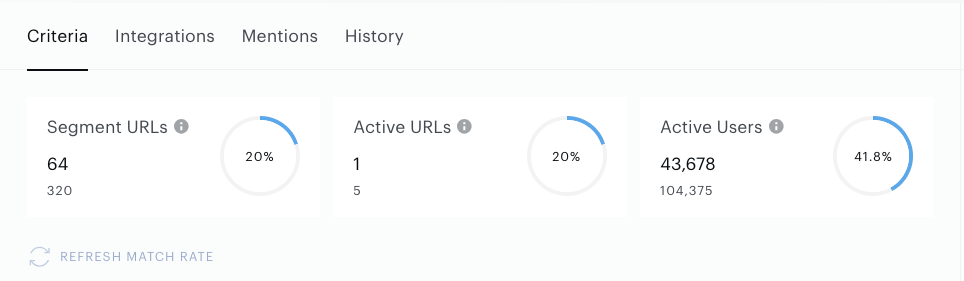
When you are creating a segment and want to see how adding some criteria would influence the widget, click Refresh match rate button. When you are done and click Create or Save, the widget is updated automatically.
Brand Safety
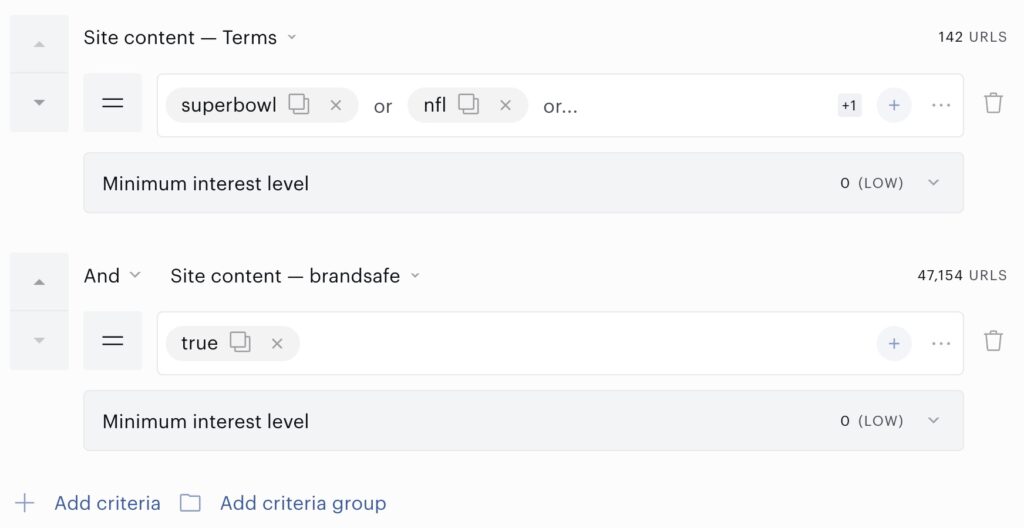
To ensure that only brand-safe content is included in your contextual segments, we utilize our Natural Language Processing capabilities to identify and flag appropriate content. This allows you to add a positive filter to the segment definition, ensuring that only content safe for brands is included.
We mark pages considered safe for brands by adding a "brandsafe" attribute to the content profile. This attribute can be used when you are creating segments. Please consider the following example:
Integrations tab
By selecting this tab, you can get a list of connections where this contextual segment is used (segment has been selected for export to the Partners’ platforms).
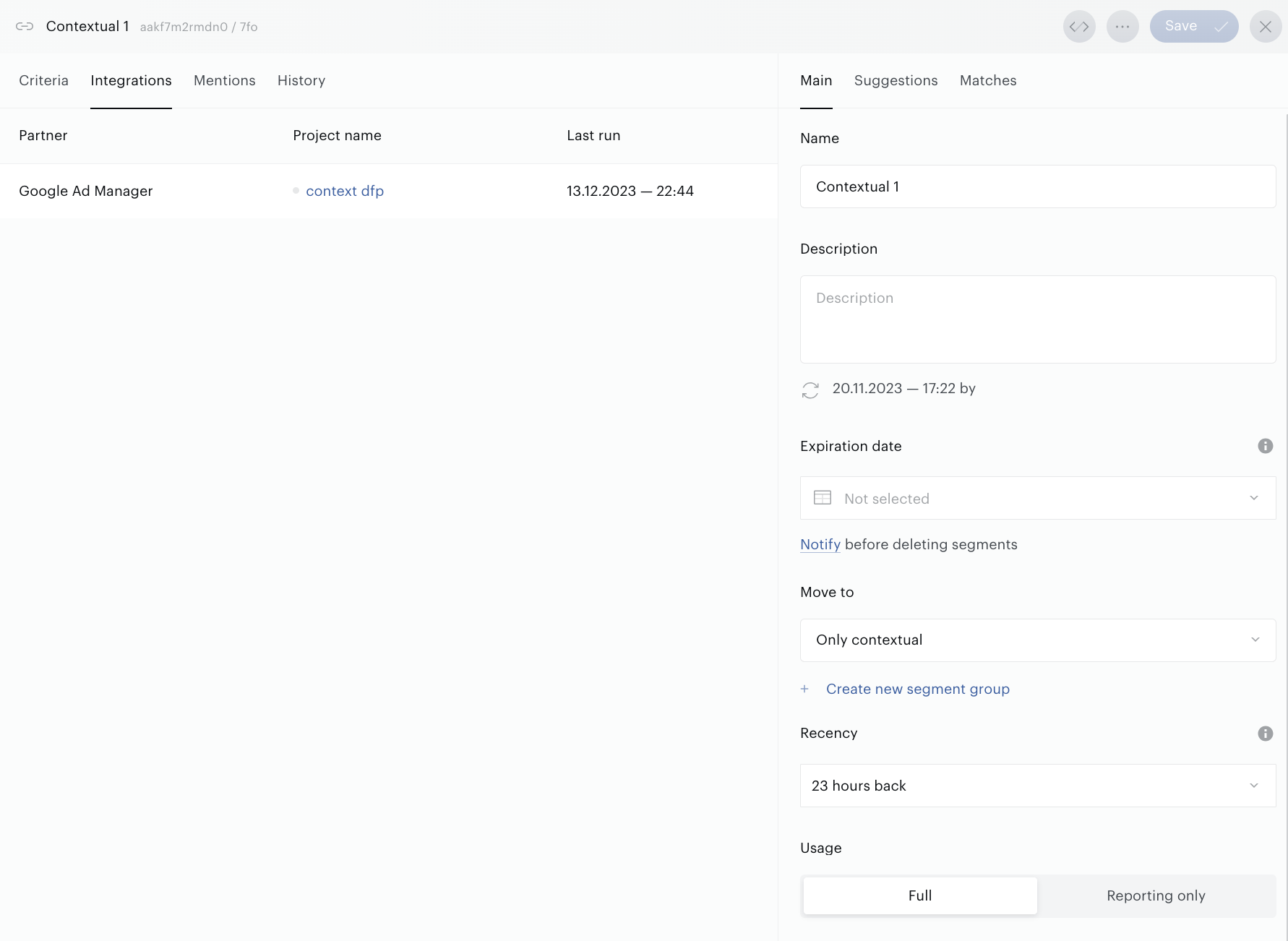
Clicking the link in the Project name column, you will be redirected to the Audience→Connectivity to manage the specific connection.
Mentions tab
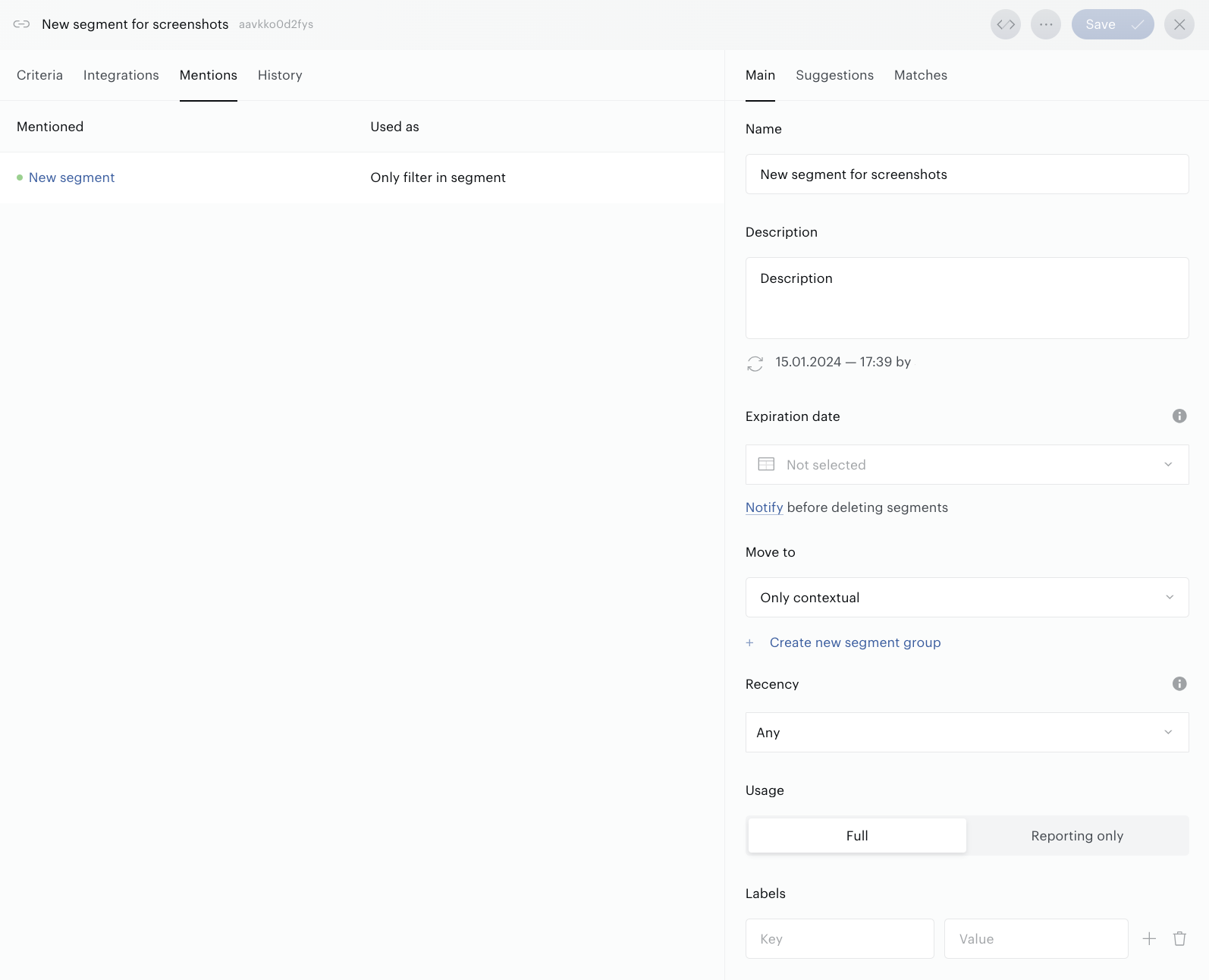
It is possible to create segments referring to other segments as filters (see Segments – Match, Segments – Member filter groups). This tab shows the list of related segments. Clicking the link in the Mentioned column, you will be redirected to the specific segment – a new browser tab will be opened.
History tab
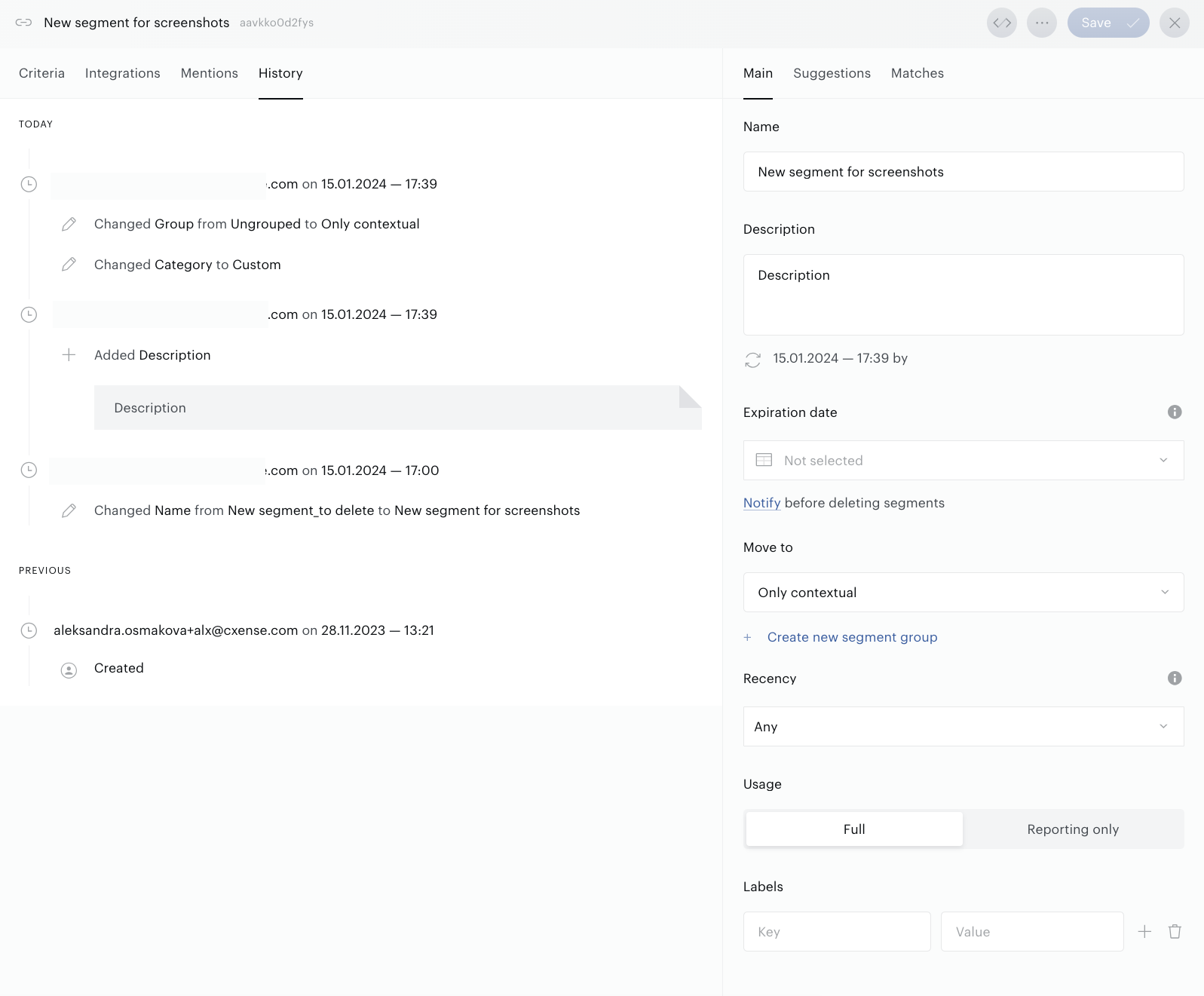
From the time it is created until it is deleted, a segment can be modified many times. If there are no specific restrictions, it is possible to change the segment at any time by changing any parameter, from the name to the criteria, which, in turn, can lead to a change in the consistency and size of the segment’s audience.
Any such changes are recorded and displayed on the History tab. You can always see what exactly has been done, by whom and of course when it has been done.
Additional Features
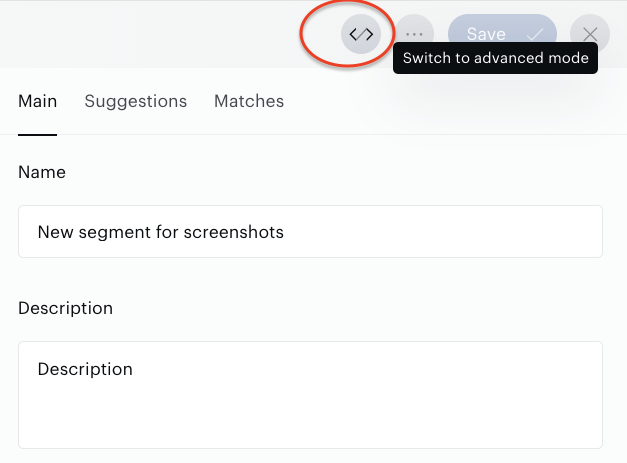
You can use an icon in the top-right corner to configure contextual segments in Advanced mode.
When creating contextual segments in advanced mode, adding a time filter is necessary to avoid unexpected behavior when used with combined segments
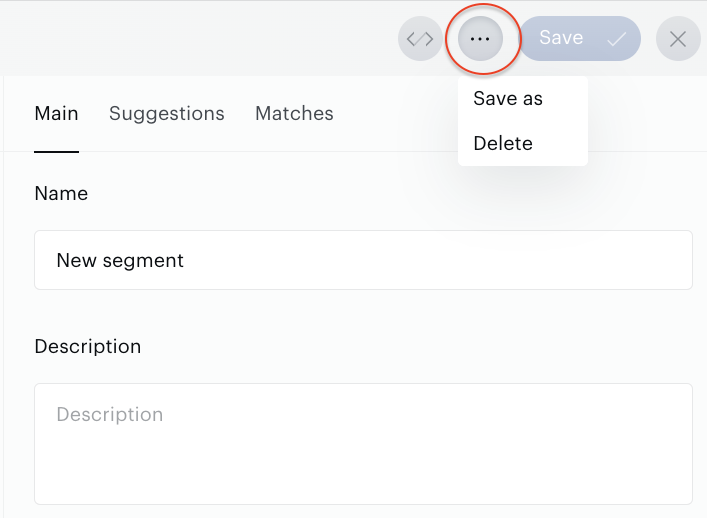
In addition to that, being in the Segment builder you can make a copy of a segment or delete it.
-
To duplicate the segment, go to the More menu and click on Save as menu item. Fill in the new segment name to avoid creation of a lot of the same-name segments. Do not forget to save changes.
-
To delete the segment, go to the More menu and click on Delete menu item.
Transparency
To build trust and ensure you have full visibility into how this works, we're committed to transparency in our use of AI. Piano Audience's new segment description feature utilizes Anthropic’s Claude, a state-of-the-art large language model designed for safe and helpful text generation.
-
How it works: When you click the "Generate AI Description" button, the Claude model is queried with specific instructions to generate the description, along with contextual information from your segment filters. This includes filter names, values, operators (e.g., "AND," "OR"), and any associated metadata - all of which is already visible to you in the Audience interface. No additional or hidden data is used; the AI only processes the exact filter details you provide for that segment.
-
Data usage and privacy: We do not store or use your segment data for training the model or any other purposes beyond generating the description in real-time. Insights are based solely on the model's ability to interpret and summarize the provided context.
-
Limitations: As with any AI-generated content, descriptions are suggestions and may occasionally require review for accuracy, especially if filter names are ambiguous. We recommend always verifying against your original filters.