The Contextual Segments List screen is the list you see when you navigate to Audience → Segments → Contextual segments:
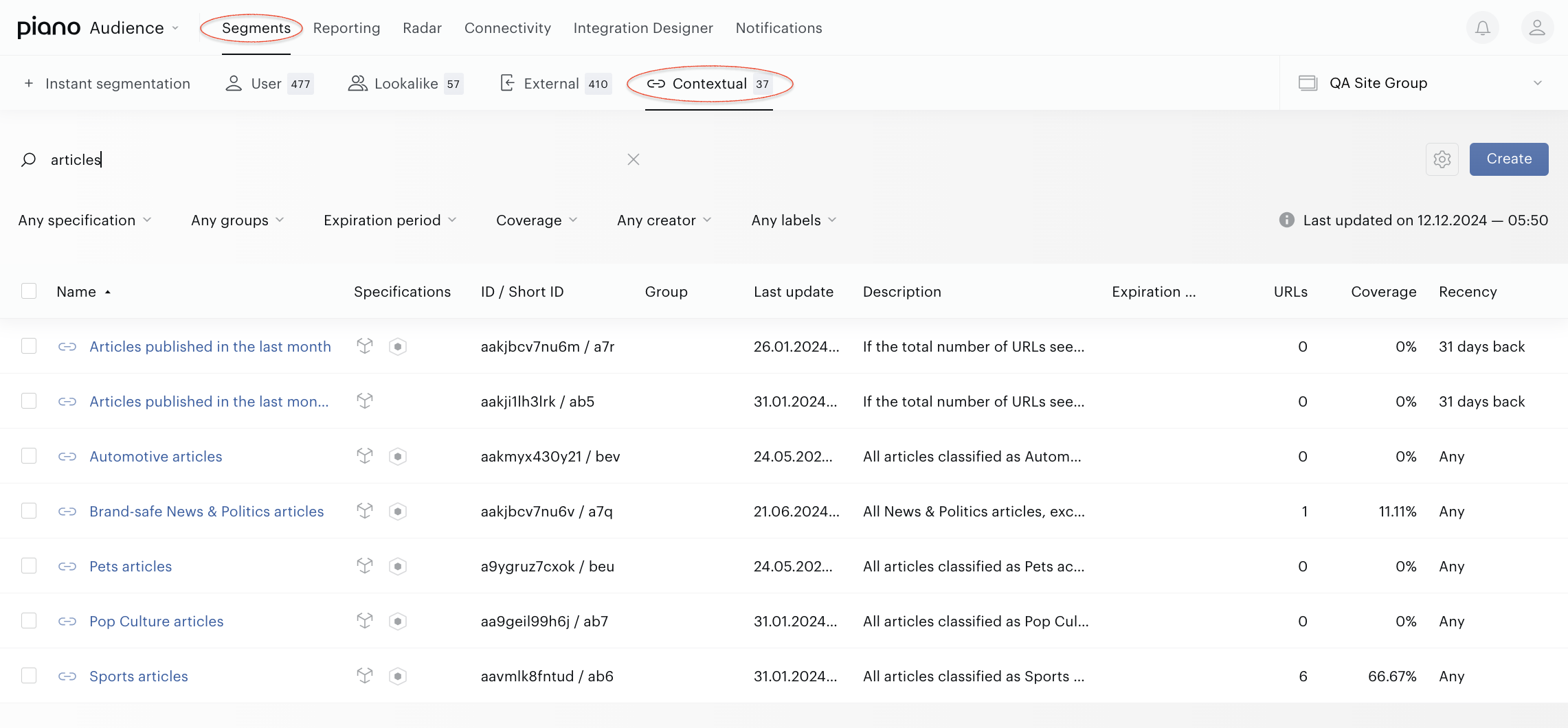
This page contains all the contextual segments created in your account for the selected site group. The list contains the segments and main information about them:
-
Name.
-
Specifications (icons indicate, for example, the Usage parameter).
-
ID and Short ID (unique segment identifiers).
-
Group name (if a segment was added to the segment group).
-
Last update (the column shows the date and time when the segment has been created and updated).
-
Description (if added to the segment).
-
Expiration date (the date when the segment can be deleted automatically, read more here).
-
URLs (the size of the segment audience; this metric is calculated as the number of URLs within the current segment based on the segment’s criteria setup).
-
Coverage (the metric shows the Number of URLs within the segment vs. Total number of URLs within a current site group).
-
Recency (this filter allows to select URLs based on their Publish date parameter).
Clicking the name of the column sorts the data in the column and in the whole table.
Additionally in the Segment list the following features are available:
-
Site group selector in the top right corner that lets you select the site group for work.
-
Filters by specification, expiration period, segment group, coverage, label, and segment creator that allow you to find contextual segments faster.
-
Search bar for searching segments by type, name, id, or description.
-
Checkboxes for each segment in the segment list that allow providing group operations with segments:
-
Move to operation allows you to move selected segments from one segment group to another, remove them from the segment group or add them into a segment group for the very first time.
-
Delete operation allows you to delete one or multiple segments at the same time.
-
Change usage operation allows you to update the usage status for selected segments (Full/Reporting only).
-
Add labels operation allows you to add the same label to the several selected contextual segments at the same time.
-
Change expiration date operation allows you to add the Expiration date or change existing ones.
-
Read more about bulk operation, about their capabilities and restrictions here.
If you want to create a new Contextual segment press the Create button. The Segment builder for the contextual segments will be opened.
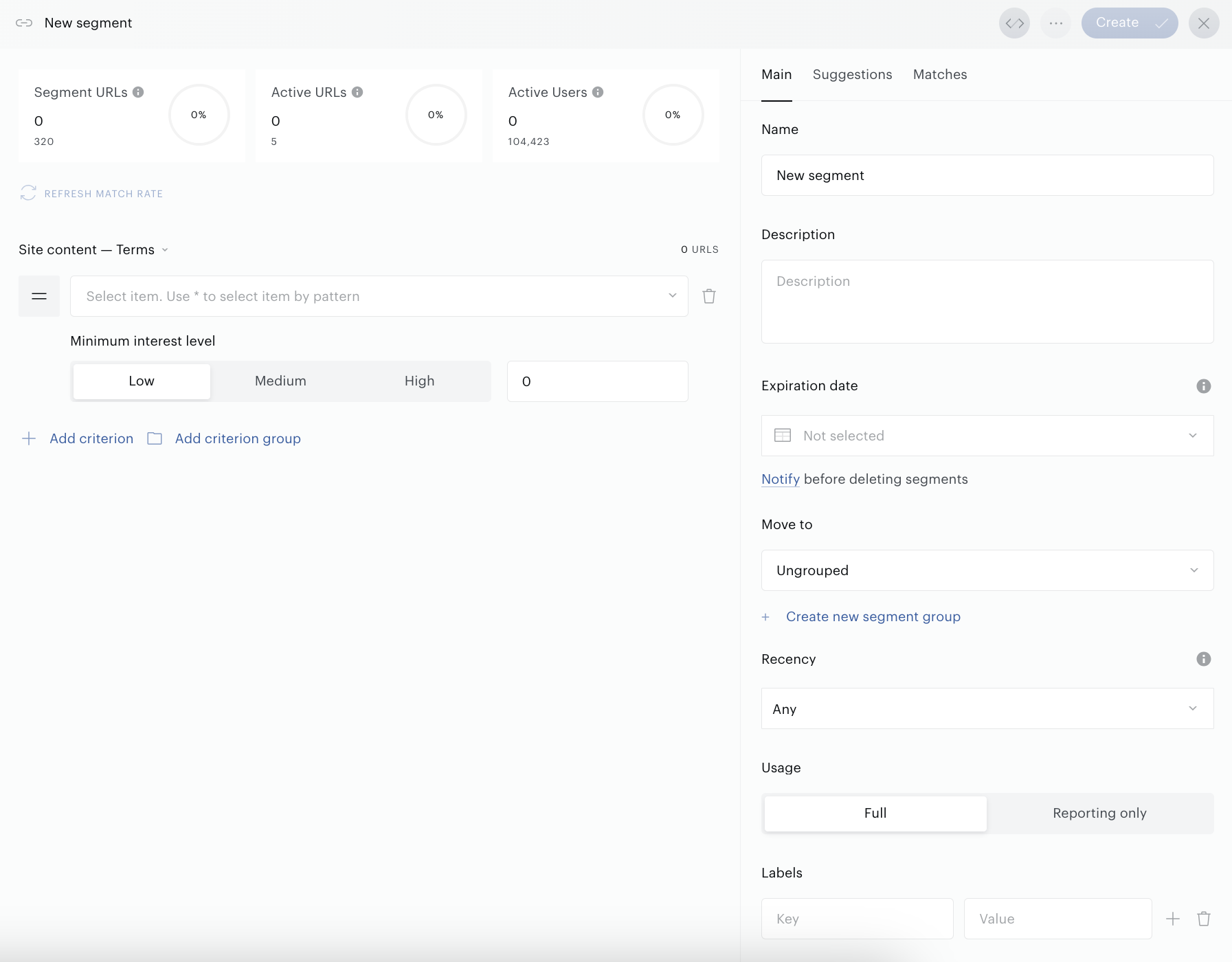
Read details about the segment creation here.
Clicking the segment name in the Segment list opens the Segment builder. You may shift between different segments by selecting the name of the segment without closing the Segment builder UI form.
Additionally, the following operations are available in the Segment builder:
-
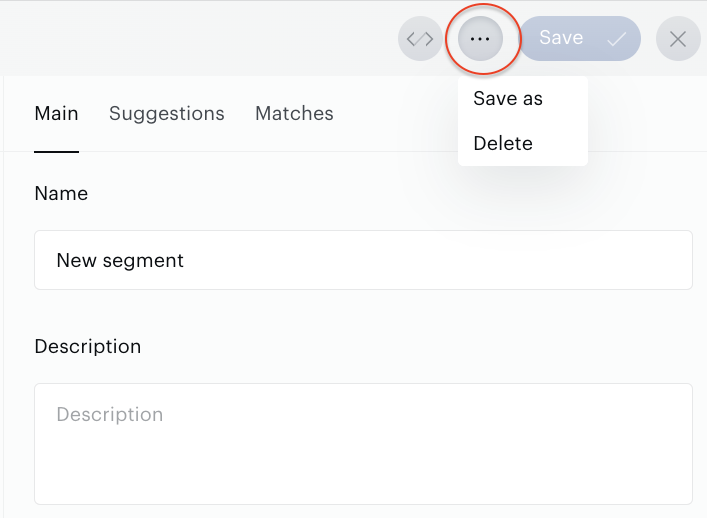
To duplicate the segment, select the Save as menu item in the context menu. Do not forget to change the name for the new segment to avoid confusion because of the enormous number of the same-name segments.
-
To delete the segment, select the Delete menu item in the context menu and approve the deletion.