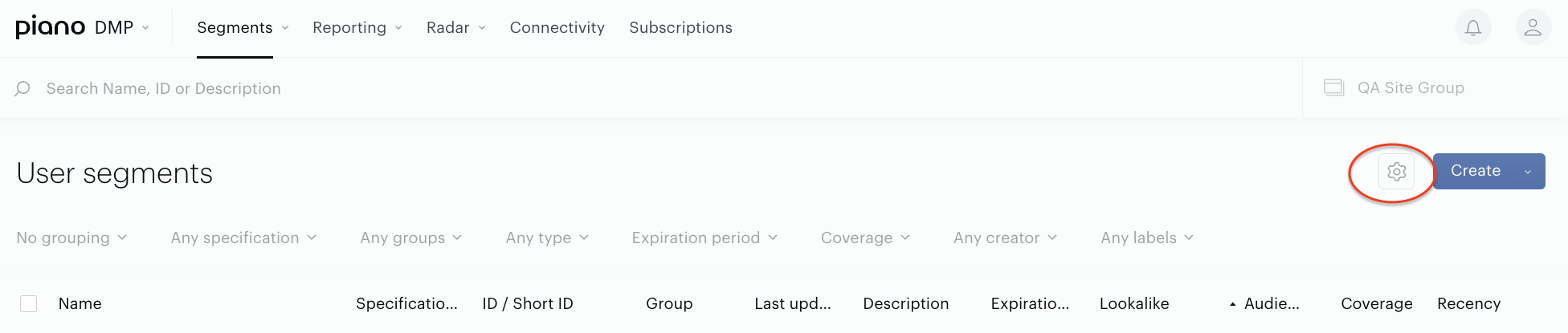
The User Segments screen is the list you see when you navigate to Audience→Segments→User segments:

This page contains all the User segments created in your account for the selected site group. The list contains the segments (Traffic, DMP, Lookalike, etc.) and main information about them:
-
Name. When you click on the segment name, the Segment builder with the segment’s details is opened.
-
Specifications. Icons in this column indicate, for example, the Usage parameter, if the segment is used in the Composer, etc.
-
ID/Short ID. Unique segment identifiers.
-
Group. If a segment was added to the segment group, you will see the segment group name.
-
Last update. It shows the date and time when the segment was created and updated for the last time.
-
Description. If a description was added, you will see it in this column.
-
Expiration date. The date when the segment can be deleted automatically, read more here.
-
Lookalike. The names of lookalike segments are based on the current traffic segments.
-
Audience. The size of the segment audience.
-
Coverage. The number of segmented users from the total audience of the site group as a percentage.
-
Recency. The count of days of traffic to be considered for defining the audience; the recency for traffic segments is "last month" by default.
Audience and Coverage are two parameters based on Reach report data. After segment creation, you can see the text "There is no data yet". This is the usual behavior. You will see the values after the Reach calculation. It may take several minutes or several hours for just created segments. Calculation time depends on the difficulty of your segment.
Additionally in the User Segments page the following features are available:
-
Site group selector in the top right corner that lets you select the site group for work.
-
Filters by specification, segment type, expiration period, segment group, coverage, label, and segment creator that allow you to find User segments faster.
-
Search bar for searching segments by type, name, id, or description.
-
Clicking the name of the column sorts the data in the column and in all tables.
-
Checkboxes for each segment in the segment list that allow providing group operations with segments:
-
Move to operation allows you to move selected segments from one segment group to another, remove them from the segment group or add them into a segment group for the very first time.
-
Add into connection operation allows you to add selected segments in the existing connections right here without redirection to the Connectivity application.
-
Delete operation allows you to delete one or multiple segments at the same time.
-
Change usage operation allows you to update the usage status for selected segments (Full/Reporting only).
-
Add labels operation allows you to add the same label to the several selected contextual segments at the same time.
-
Change expiration date operation allows you to add the Expiration date or change existing ones.
-
Read more about bulk operations, about their capabilities and restrictions here.
The button Create above the table leads to the segment creation menu.
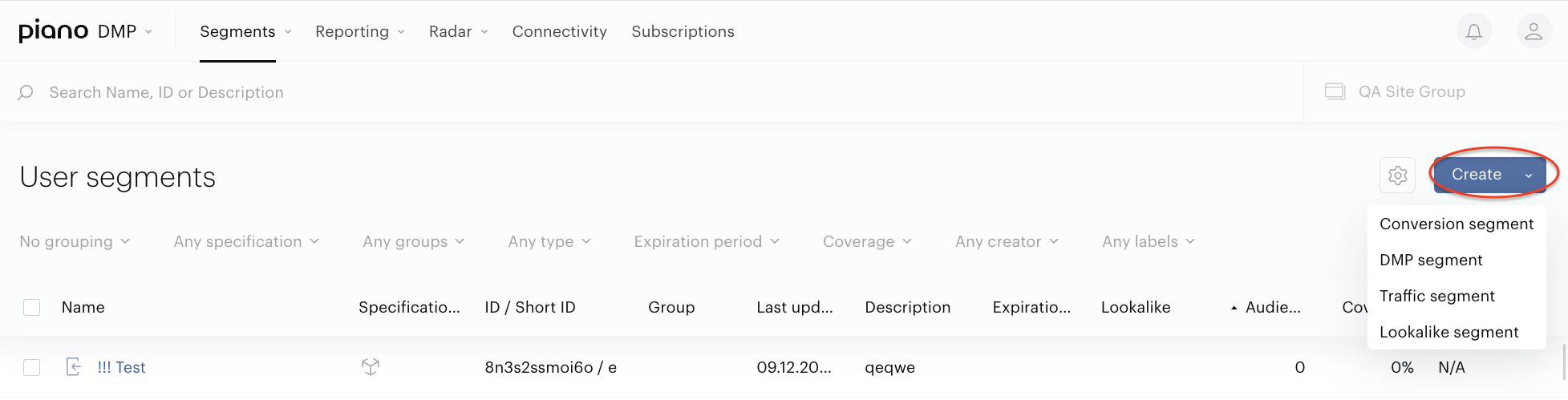
The Customize columns button next to the Create button allows you to customize the table view. Read details here.