
Overview
Audience segmentation provides a powerful tool to target your content and ads. Once defined in Piano Audience, segments can also be used with external platforms and Piano’s other products. This article is to show how to configure the system of segment categorization.
Piano's Segment builder supports a lot of audience segmentation criteria grouped by categories. Below you see the Segment category containing Match and Member filters.
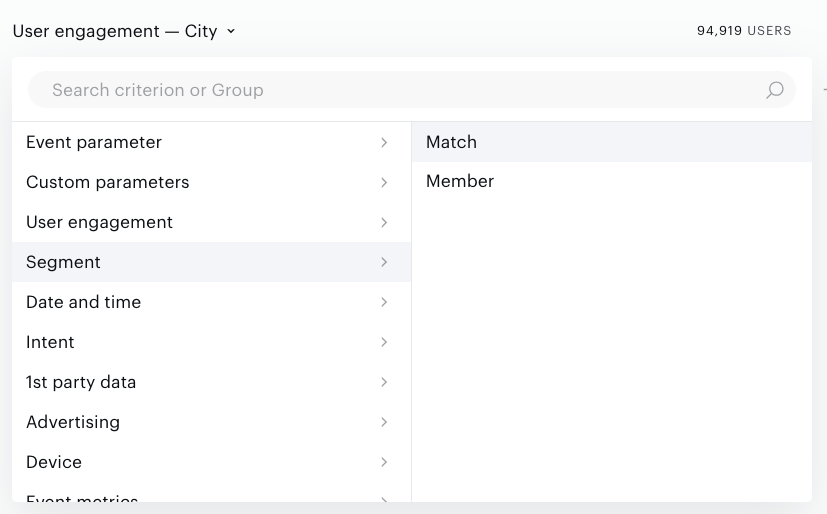
The list of available filters depends on customer, site group, and factors like:
-
Segment types (User segments, Contextual segments).
-
Customers access to data.
-
The availability of 1st-party data. Customers can upload their users’ data and use it for segmentation. Read more about Data Import in Piano Audience.
User engagement
The "User Engagement" category in Piano Audience provides powerful filters like Sessions, Visit Days, and Page Views to analyze user behavior and content interaction. These engagement parameters help you create targeted segments for personalized campaigns and performance tracking.
Page Views
In Piano Audience, a page view event tracks when a user views a page on your site or app. It’s automatically captured using Piano’s JavaScript tag or SDK to monitor engagement, or you can push this data via the HTTP API for custom tracking (see HTTP API). It includes details like the page URL, title, referrer (source link), and timestamp, showing how users navigate your content. Custom parameters can add user-specific info, like preferences or status, enhancing behavior and traffic insights. This data powers metrics like page views or unique visitors in Piano’s reporting tools. Learn more on the event data page.
User Segments
The "Page Views" filter for user segments enables you to define a group of users based on the number of page view events they have performed within a specified timeframe (recency). For example, you can create a segment of users who have viewed at least 10 pages in the last 7 days. This is e.g. useful for identifying highly engaged users or targeting specific audience behaviors.
-
Configuration: In the segment builder, select the "User Engagement" category, choose "Page Views," and set the desired count (e.g., "greater than or less than 10") and recency (e.g., "in the last 7 days").
-
Use Case: Target users for campaigns, such as offering premium content to those with high engagement (e.g., 20+ page views in 7 days).
Contextual Segments
The "Page Views" filter for contextual segments allows you to identify pages that meet a specific page view threshold within a given timeframe. This helps analyze content performance by segmenting pages that have achieved a certain level of traffic.
-
Configuration: In the segment builder, under the "User Engagement" category, select "Page Views" for contextual segments. Define the threshold (e.g., "pages with more than 1,000 views") and the timeframe (e.g., "in the last 30 days").
-
Use Case: Segment pages that have a certain level of page views to pass them to your activation tool, enabling a paywall to be shown once the threshold is met (e.g., pages exceeding 5,000 views in a month).
User preference
The User preference criterion in Segment builder forms Interest segments that will serve as a base for the User interest segment group. Each Interest segment reflects one of the IAB top tier categories (e.g., Automotive fans or Book & Literature fans).
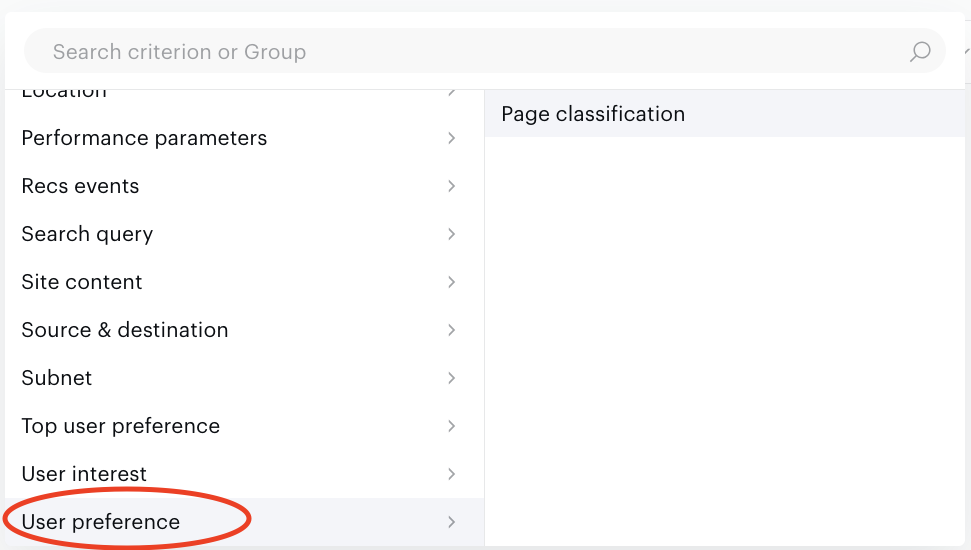
The User preference criterion reflects specific interests of the audience against their overall engagement with a given website.
You can create Interest segments using the Advanced or Basic mode of Segment builder.
To create a segment in Basic mode:
-
Open the Criteria tab of Segment builder.
-
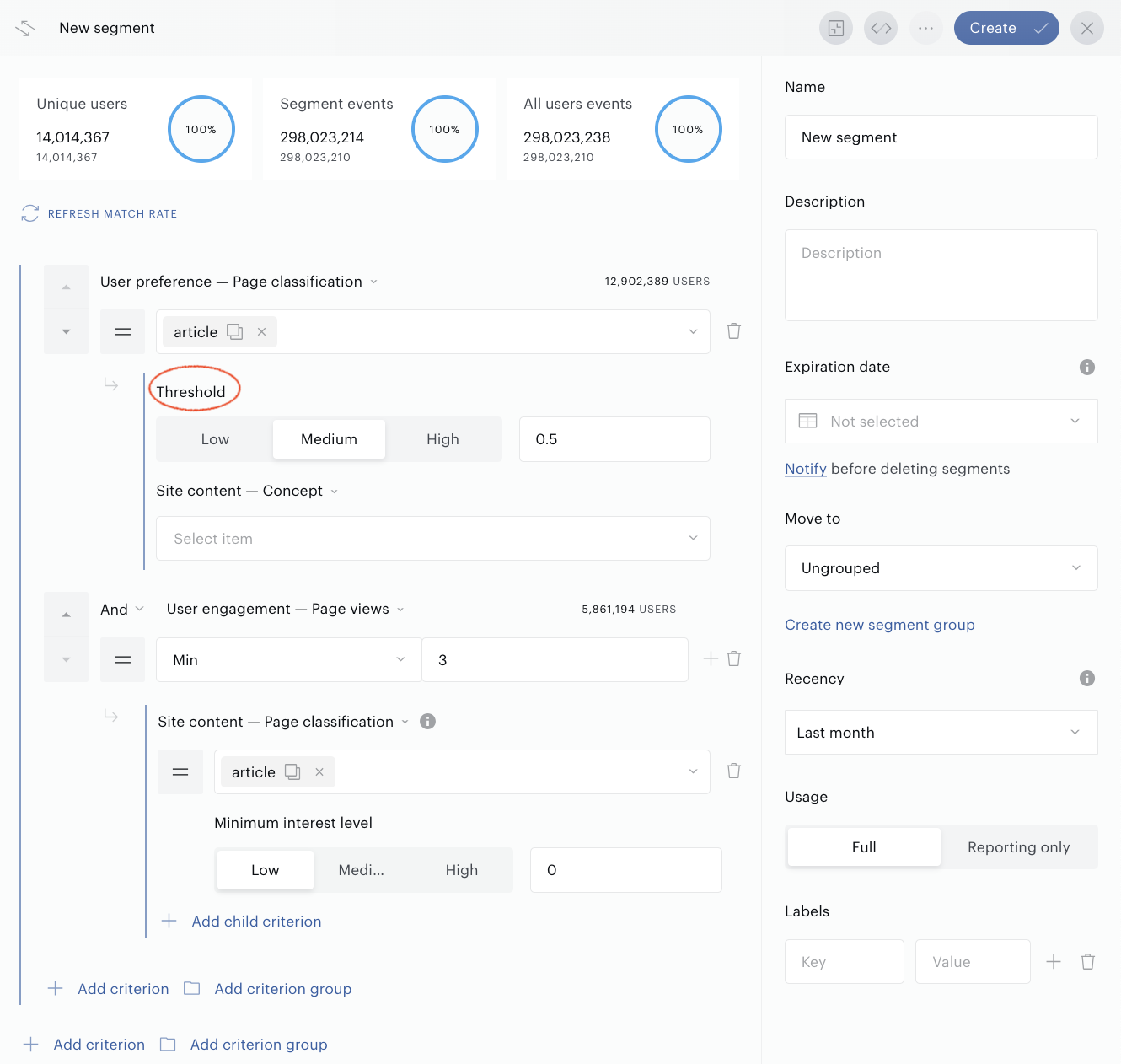
Select User Preference - Page Classification category. Segment builder will now reflect a predefined criteria set.
-
Modify the filters according to your needs:
-
Page Classification - Article: reflects the audience engagement in terms of articles viewed. If needed, sections and frontpages can also be counted as "articles".
-
Threshold: (0.5 by default) can be updated to reflect the engagement with the selected criteria. The higher the threshold the stronger the engagement will be.
-
Site content - Concept: filters the audience preferring content related to a specific concept. For example, if you select "fc liverpool" as a criteria value, you segment on users interested in this football team. You can edit this criterion within the Site Content category.
-
User engagement - Page views: defines the minimum (or maximum) amount of page views to include a user in a certain segment. To keep your segments meaningful we recommend setting the minimum to 3 page views or higher.
-
-
Fill in other parameters and pressCreate.
In the Advanced mode, you can write code to define the same parameters you set in the UI of the Basic mode.
In this example, the segment includes users with a strong reading preference for business and finance articles:
{
 "type": "user-preference",
 "filter": { # We consider pageviews
 "type": "keyword", # with content profile
 "group": "pageclass", # classifying the page
 "item": "article" # as an article.
 },
 "threshold": 0.85, # We include article reads for users with 85% of their read articles
 "targetFilter": { # having
 "type": "keyword", # content profile
 "group": "classification", # with IAB classification
 "item": "business-and-finance" # business and finance.
 }
}
Top user preference
You can use the Top user preference criterion as an alternative to User Preference.
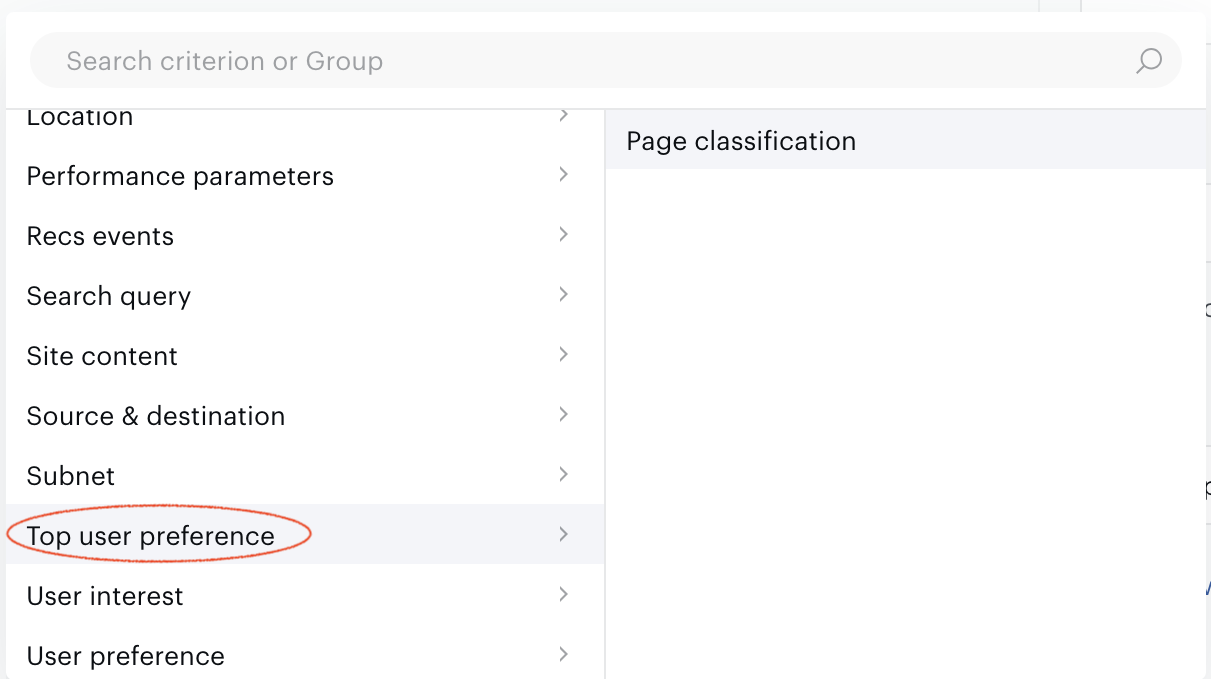
To create a segment in the Basic mode:
-
Open the Criteria tab of Segment builder.
-
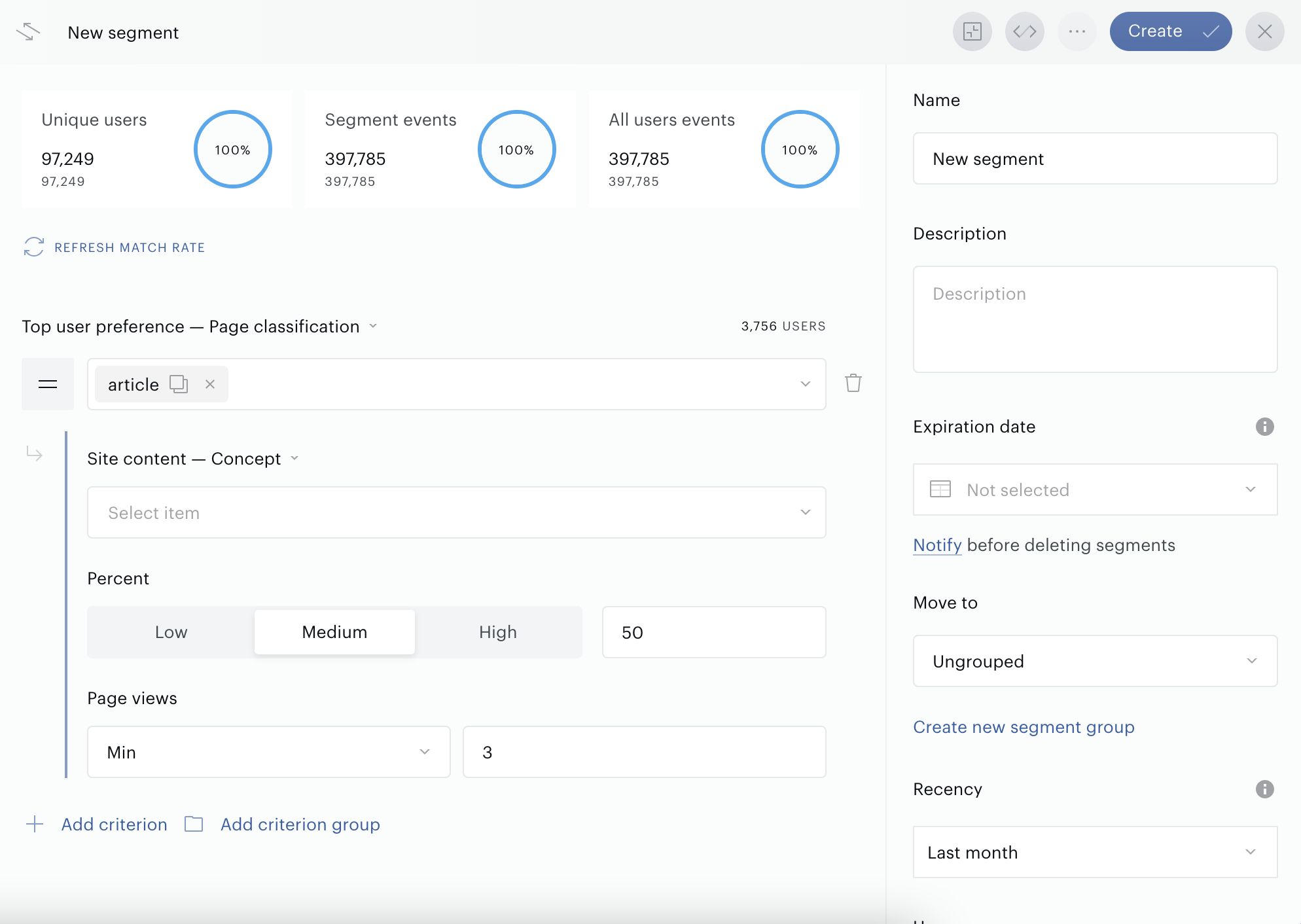
Select Top user preference - Page classification. Segment builder will now reflect a predefined criteria set.
-
Modify the filters according to your needs:
-
Page classification - Article: reflects the audience engagement in terms of articles viewed. If needed, sections and frontpages can also be counted as "articles".
-
Percent: an input field, 50% by default; can be updated to reflect the number of users interested in a selected article. The higher the value used, the higher your audience size will be.
-
Site content - Concept filters the audience preferring content related to a specific concept. For example, if you select "fc liverpool" criteria value, you segment on users interested in this football team. You can edit this criterion within the Site Content category.
-
Page views defines the minimum (or maximum) amount of page views to include a user in a certain segment. To keep your segments meaningful we recommend setting the minimum to 3 page views or higher.
-
-
Fill in other parameters and press the Create button.
In the Advanced mode, you can write code to define the same parameters you set in the UI of the Basic mode.
The following example code defines a segment of 85% users with the strongest reading preference for business and finance articles:
{
     "type": "time",
     "start": "-31d",
     "filter": {
       "type": "top-user-preference",
       "filter": {
         "type": "user",
         "having": {
           "min": 3,
           "filter": {
             "type": "keyword",
             "group": "pageclass",
             "item": "article"
           }
         }
       },
       "percent": 0.5,
       "targetFilter": {
         "type": "keyword",
         "group": "keyword",
         "item": "fc liverpool"
       }
     }
   }
uSonar
uSonar's filters are currently available only for our Japanese customers. You need an additional contract to use them. Please reach out to your Account Manager.
uSonar is a Japanese company owning a database with over 930 million records for 8.2 million offices and business locations based in Japan. uSonar's database allows you to identify affiliations and connections between parents and subsidiaries, head offices, branches and outlets.
Piano Audience imports data from uSonar’ database and enriches pageview events for you to base your criteria on more comprehensicve information.
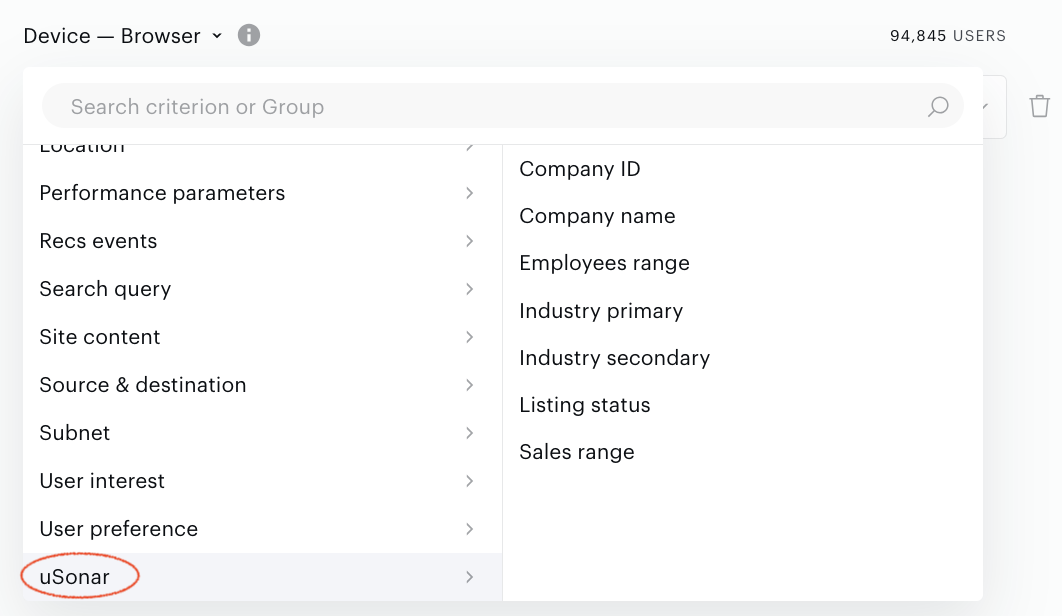
The uSonar category in Segment builder enables creating segments using the following criteria:
-
Industry primary
-
Industry secondary
-
Listing status
-
Company name
-
Company ID
-
Employees range
-
Sales range
Thus, these segments can be used in:
-
Advertising: you can create new ad products to target B2B companies.
-
Subscription: you can offer corporate subscriptions to business users.
-
Analytics: you can analyze which company is engaged with your content the most.
To create a segments in the Basic mode:
-
Open the Criteria tab of Segment builder.
-
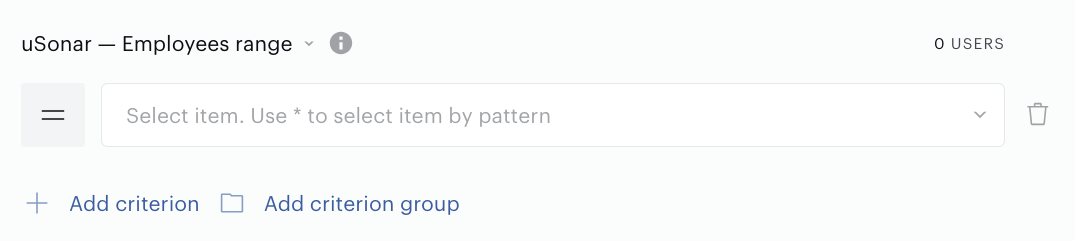
Select criterion in the uSonar category.
-
Select one or more items (criterion values) from the items selector
-
Fill in other parameters and press Create.
Terms
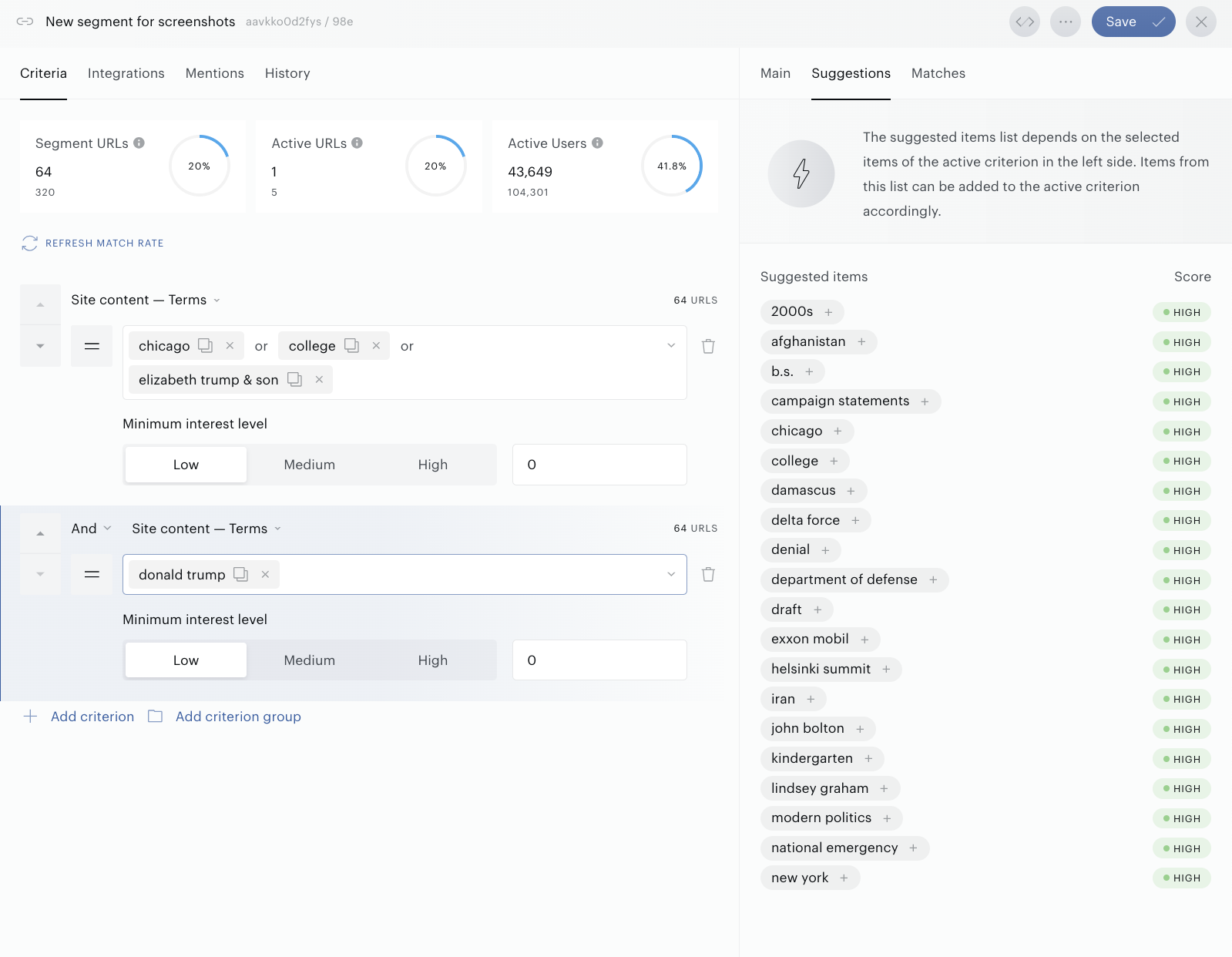
Terms is a new filter group (filter) that consists of items of the following known filter groups: Person, Location, Company, Concept, Keyword, Category & Taxonomy and behave the same way as mentioned filter groups behave individually.
The main purpose of having this new filter is to make the process of criteria configuration faster and more convenient for you. For example, if you want to target a Harry Potter context, it is not obligatory for you to know whether Harry Potter will be a person, an entity, a keyword, etc. The same, for example, if you want to target electric cars and Tesla. No need to think whether it is a brand name, or keyword, or anything else.
It is possible to add several Terms items, configure filter groups. Using logical operators, it is possible to include or exclude data from the result segment.
All earlier mentioned filters (Person, Location, Company, Concept, Keyword) are still supported, but it is recommended to use Terms instead.
To create a new segment in Basic mode:
-
Open the Criteria tab of Segment builder.
-
Select Site content - Terms.
-
Configure criteria and save changes.
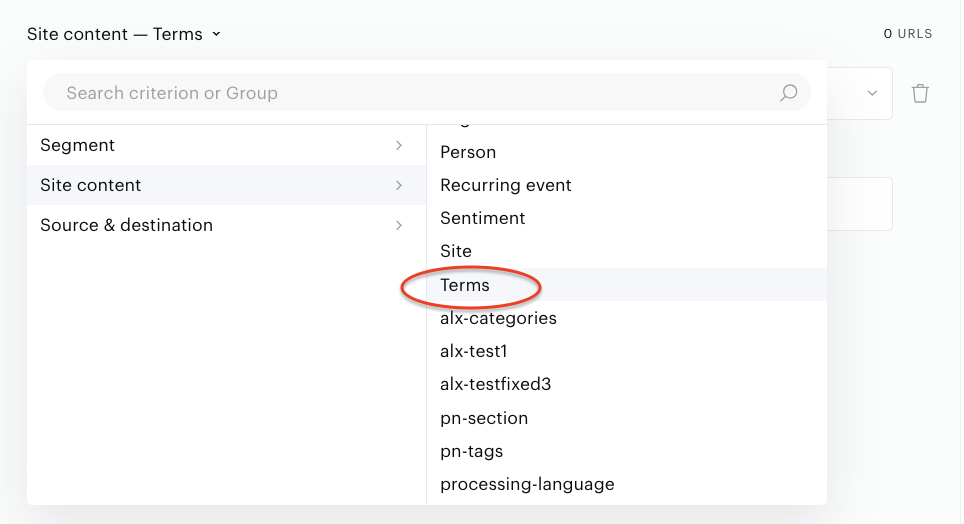
In the Segment Builder for Contextual segments this filter is available by default. Terms is supported in the Segment builder for User segments as well.