
Overview
Instant Segmentation is an innovative feature within Piano Audience designed to make segment creation straightforward and efficient.
This tool provides two options for creating User and Contextual segments. The first option allows you to generate segments by interacting with tiles representing segment templates in the Categories section. Alternatively, segments can be created using prompts in the AI creation section, where the system generates segment configurations based on user input.
Prerequisites
Ensure the Piano Audience setup is complete, particularly the siteGroupId(s), which are essential for this feature.
To enable segment creation using prompts, the ai feature must be activated for the client.
Prompt-Based Segments
From the Piano Audience home page, select your site group and navigate to Segments→Instant Segmentation. Go to the AI creation section.
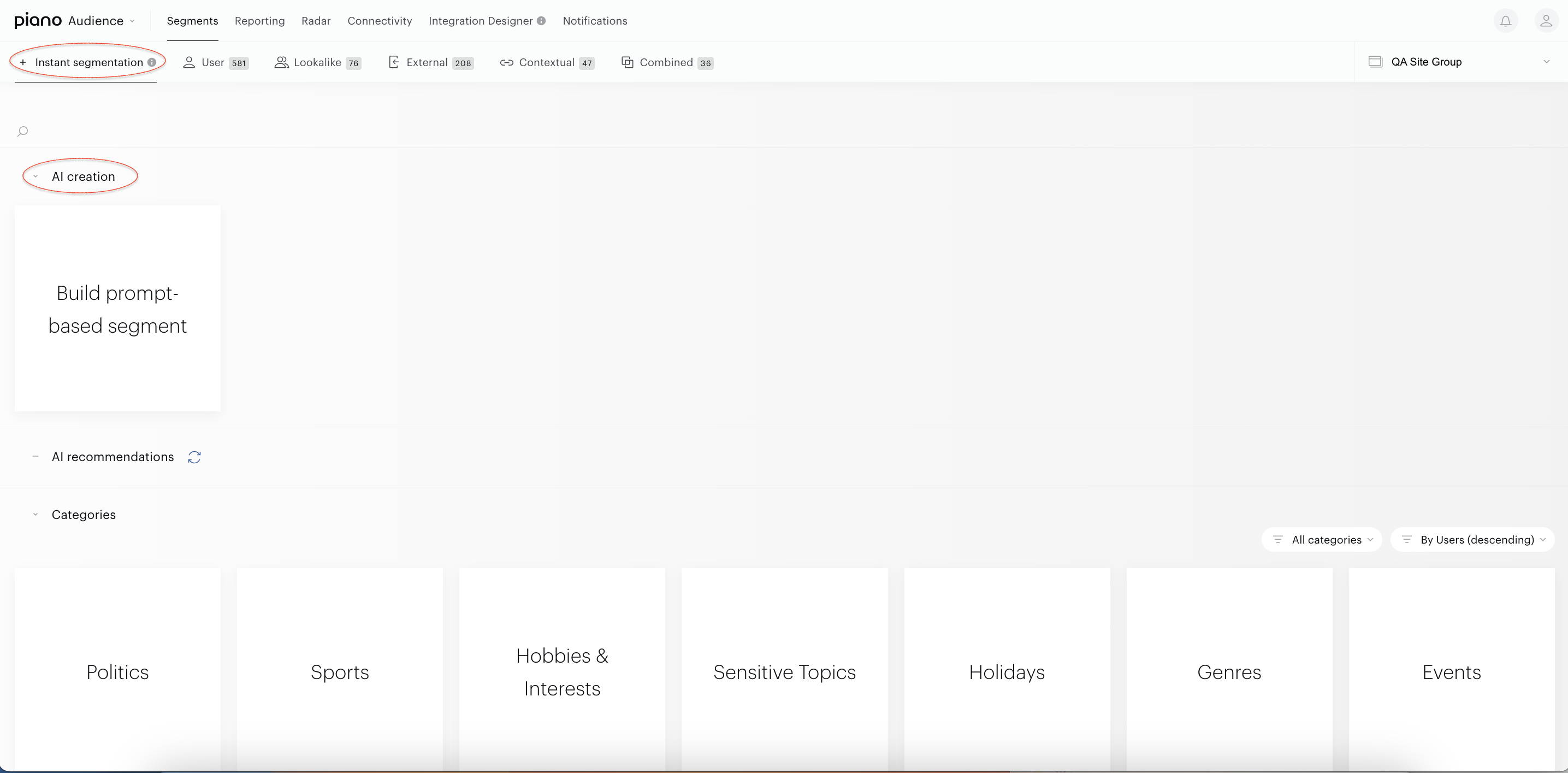
To create a segment using AI, click the Build prompt-based segment tile. A text input field for the prompt will appear on the screen. You can write the prompt yourself or use one of the suggested examples. When selecting a predefined prompt, you may keep it as is or modify it before submitting the request to create the segment.
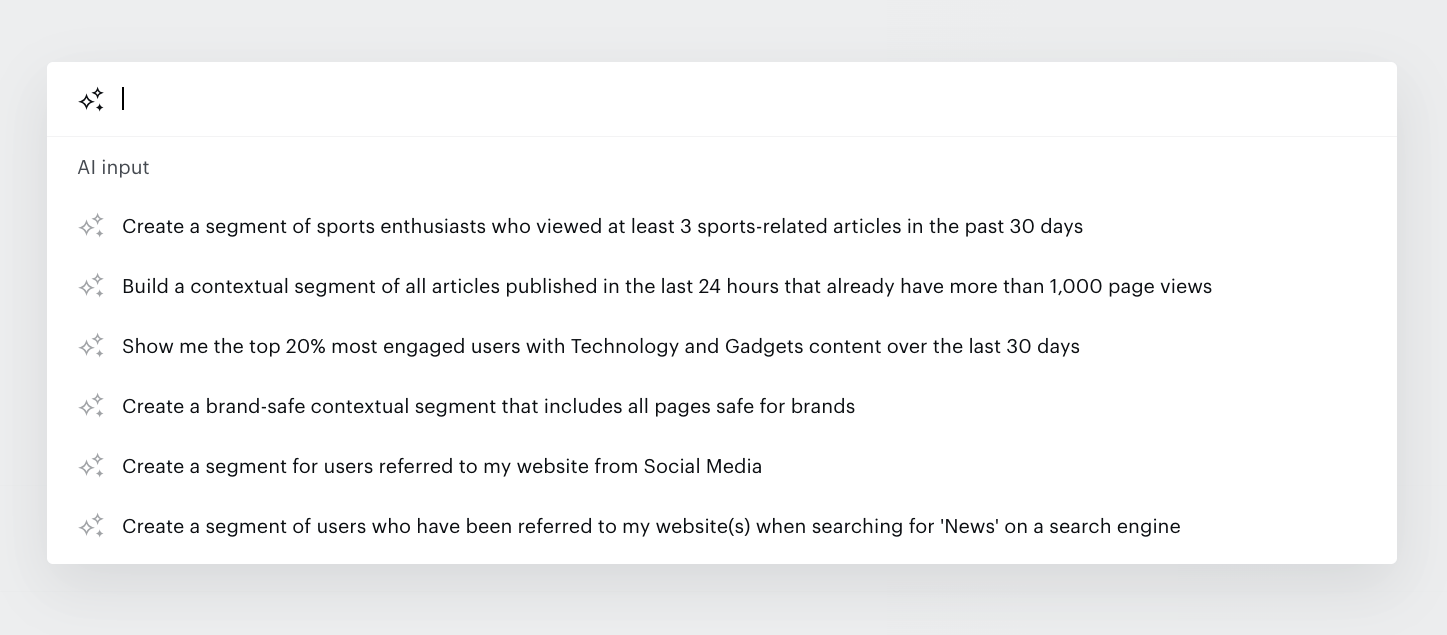
Note: Prompt examples are not based on data from the current site group or previously created segments. If required data is not available to fulfill the prompt, the system will return a negative result (an error).
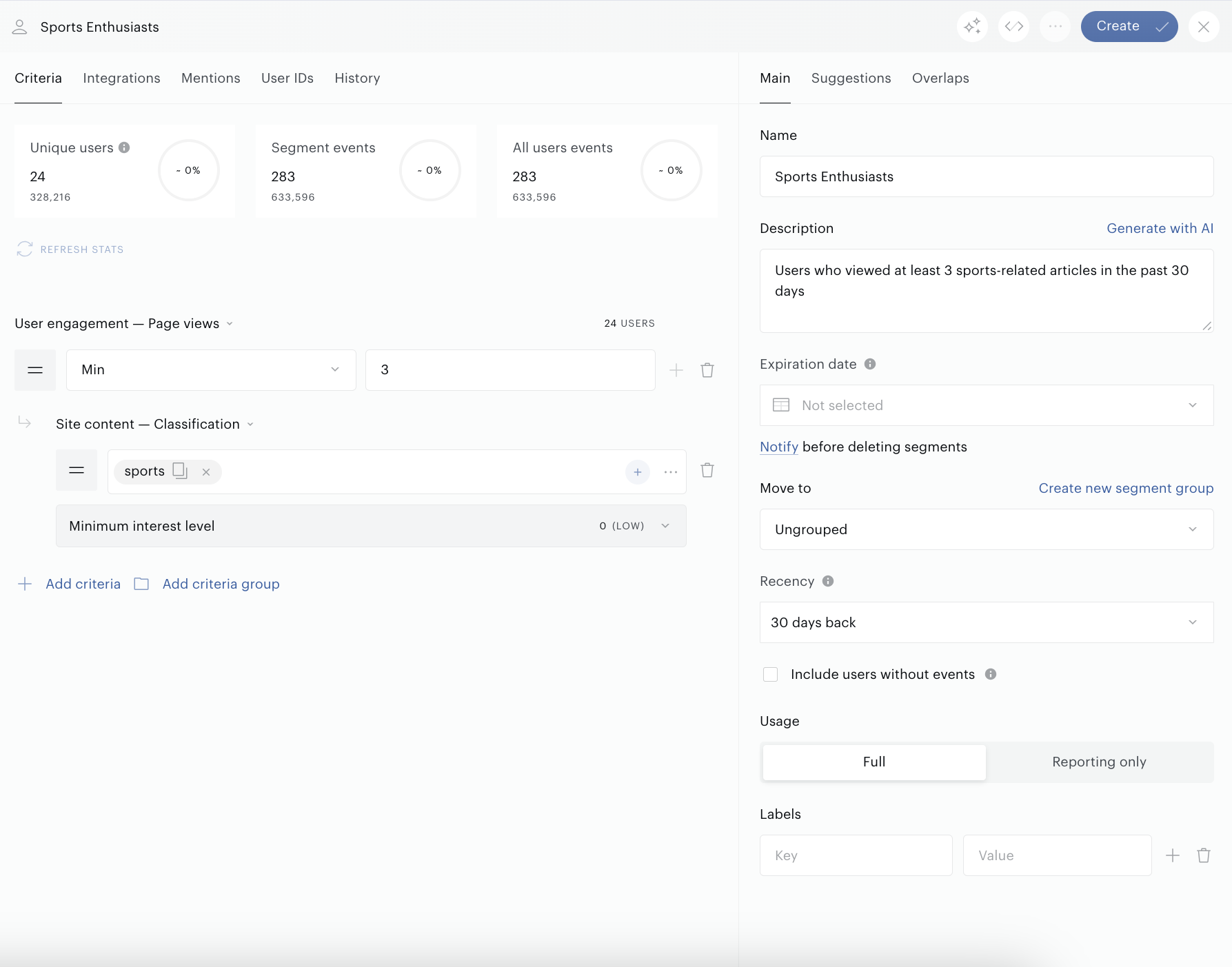
After entering the prompt text, click Create segment and wait a bit - the Segment builder will open with pre-filled parameters, including segment criteria.

At this stage, the segment has not yet been created; you can review the data and make any adjustments if needed, and only then click Create to finalize it.
AI Recommendations
Overview
The AI Recommendations feature automatically analyzes your site group’s unique data ecosystem — including behavioral data, external user attributes, contextual signals, connected data sources, and your existing segments — to instantly surface personalized, high-value user segment suggestions tailored to your audience.
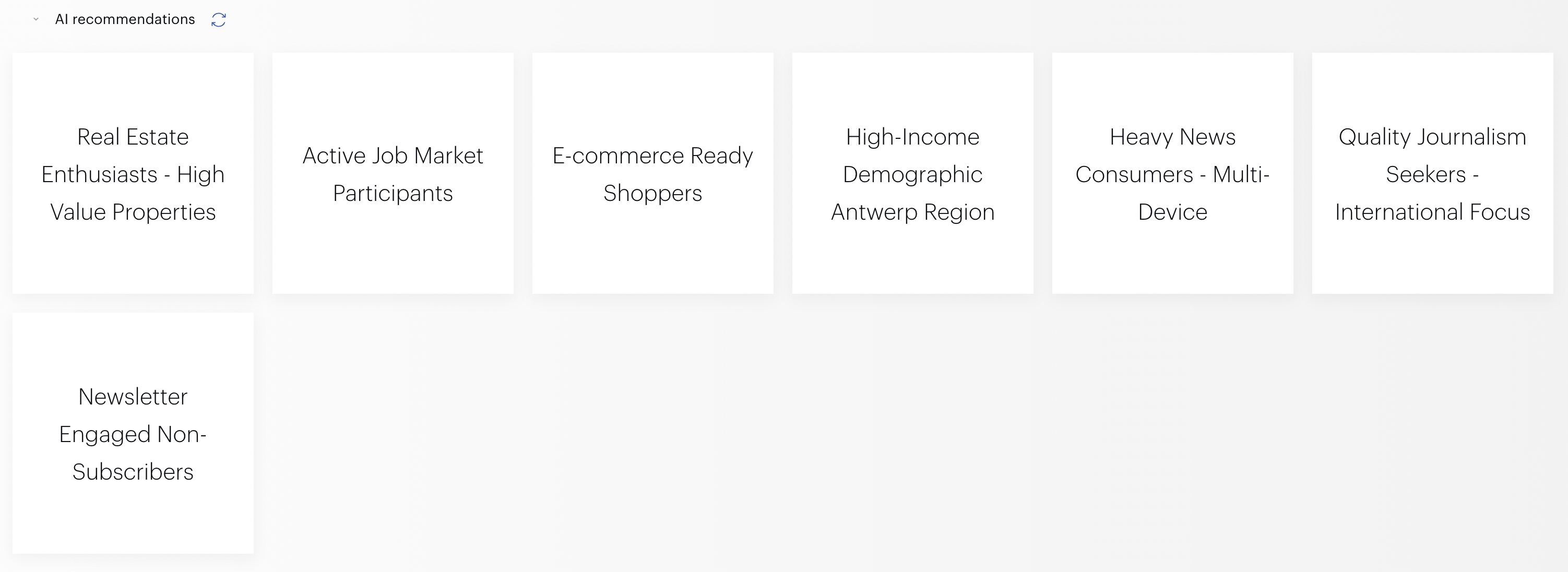
These recommendations are generated using generative AI and appear automatically the moment you land on the Instant Segmentation tab. They help you discover new opportunities (e.g., sociodemographic, behavioral or retargeting user segments) that you might not have considered, accelerating campaign creation and unlocking additional subscription and advertising revenue.
How to Access and Use AI Recommendations
-
Navigate to Segments → Instant Segmentation.
-
Scroll to the AI recommendations section (it appears automatically below the “Build prompt-based segment” card).
You will see a grid of ready-to-use recommendation cards, each displaying:
-
A clear, natural-language segment name
-
-
Hover over any card to reveal a forecast of the estimated audience size (number of users that would be included in the segment).
-
Create and review a segment from a recommendation:
-
Click any recommendation card.
-
The segment is automatically created in the background.
-
You are immediately redirected to the Segment builder, where the freshly created segment is pre-filled and ready for review.
-
Make any final adjustments if needed, then save (or simply close if you’re happy with it).
-
-
Refresh recommendations:
-
If the suggestions don’t match your current needs, click the refresh icon (⟳) next to the “AI recommendations” heading.
-
A new set of recommendations will be generated based on the latest data.
-
Finding and Managing Recommended Segments
-
Newly created segments appear in Audience → Segments → User.
-
You can edit, duplicate, or delete them exactly like any other segment.
Tips for Best Results
-
Recommendations become richer and more numerous as your data ecosystem grows (more behavioural events, additional connectors, or more existing segments).
-
Hovering gives you an immediate sense of scale before you create the segment.
Prerequisites
-
AI features must be enabled for your account (same as prompt-based segments). If AI features have been disabled at your request, this section will not appear.
Limits
-
Recommendations are generated once when you visit the Instant Segmentation tab and remain static until you click the refresh icon (⟳).
-
There is no limit on how many recommendations you can turn into segments.
IAB categories segments
From the Piano Audience home page, select your site group and navigate to Segments→Instant Segmentation. Go to the Categories section.
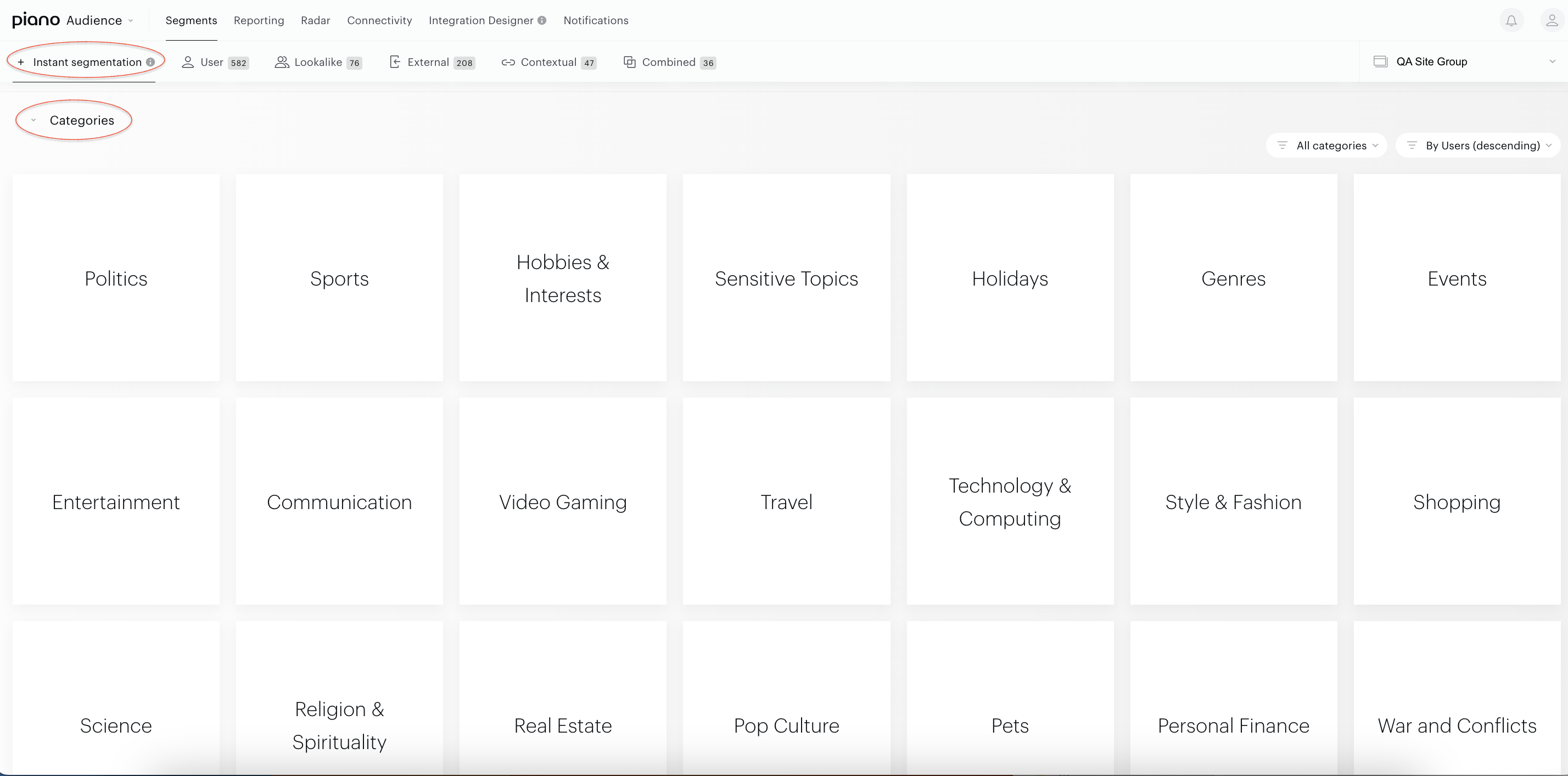
The interface displays tiles for the first tier of IAB categories. You will see:
-
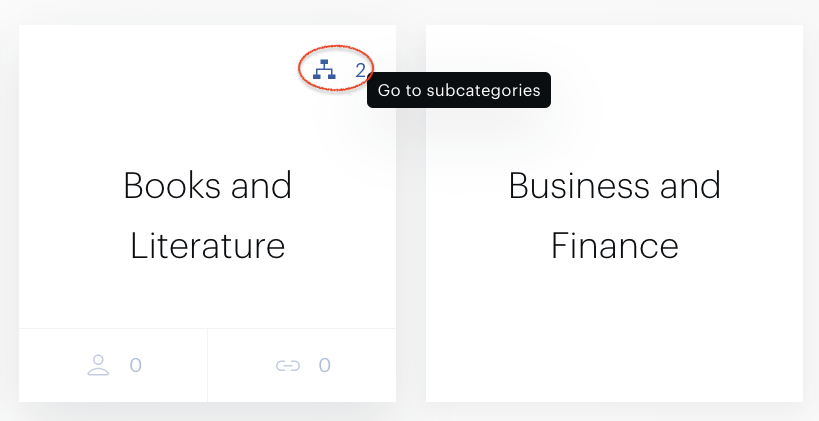
Subcategories. Click the Go to subcategories button to explore deeper category tiers. The number next to the icon indicates how many subcategories exist.
-
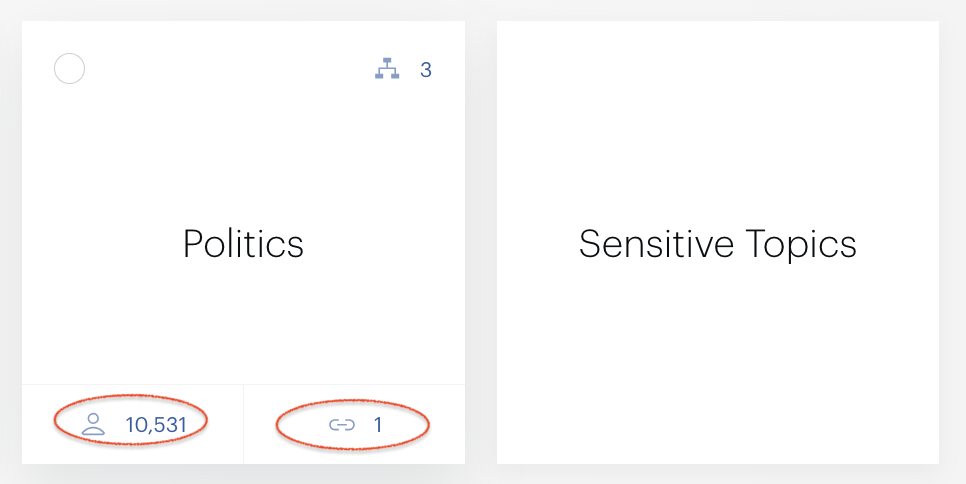
Individual segments creation. Use Create user segment or Create contextual segment buttons. Numbers next to these icons represent potential User counts or URL counts for the segment, helping estimate audience size.
-
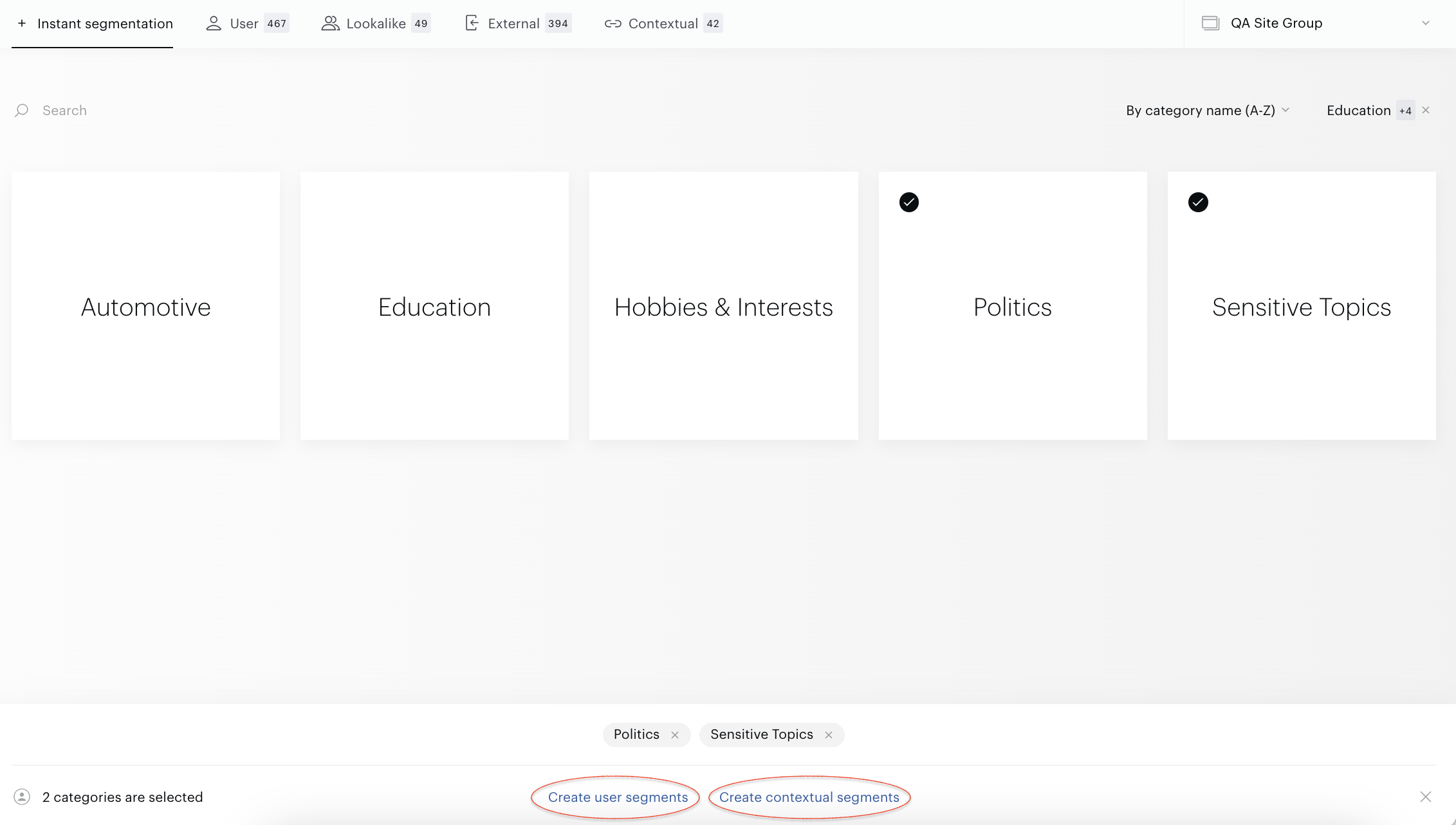
Bulk segments creation. Select multiple categories across tiers to create several segments simultaneously using Create user segments or Create contextual segments options.
Creation Filters
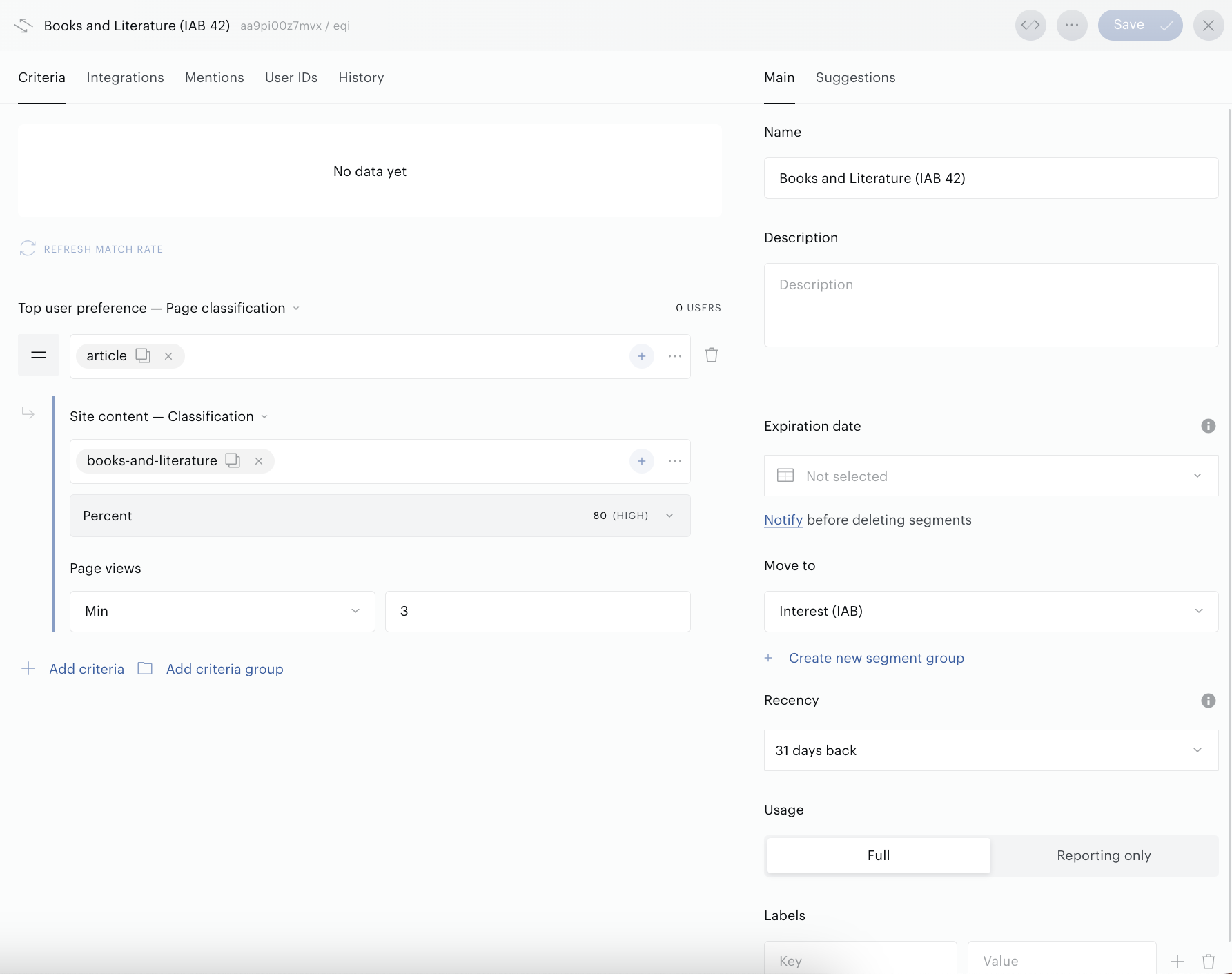
User Segments. Utilizes the Top user preference — Page classification filter. For more details, see here.
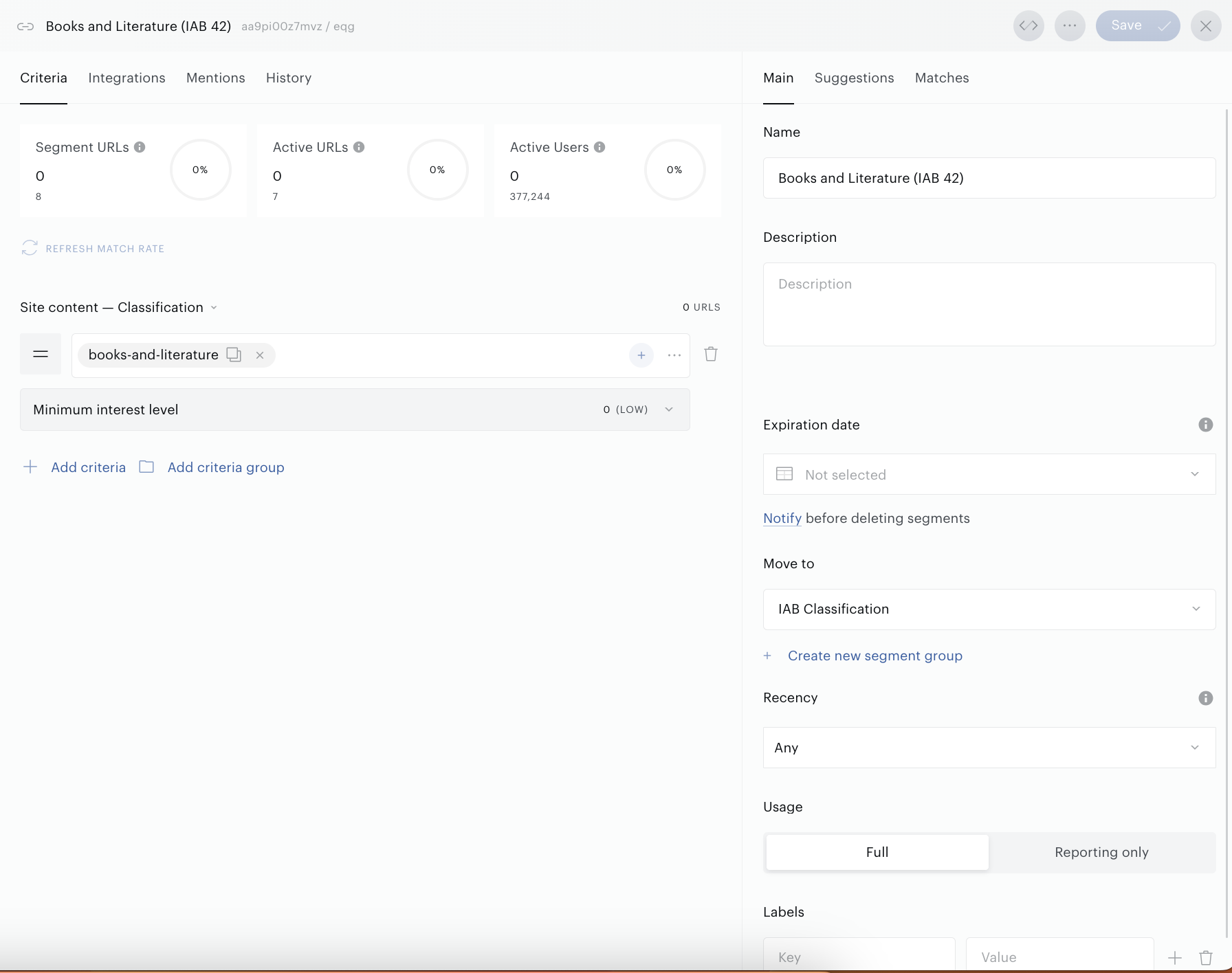
Contextual Segments. Employed with the Site content — Classification filter.
Finding your segments
Navigate to Audience→Segments→User for User segments, or Audience→Segments→Contextual for Contextual segments. Use the Search function by entering the category name which doubles as the segment name.
Segment Groups
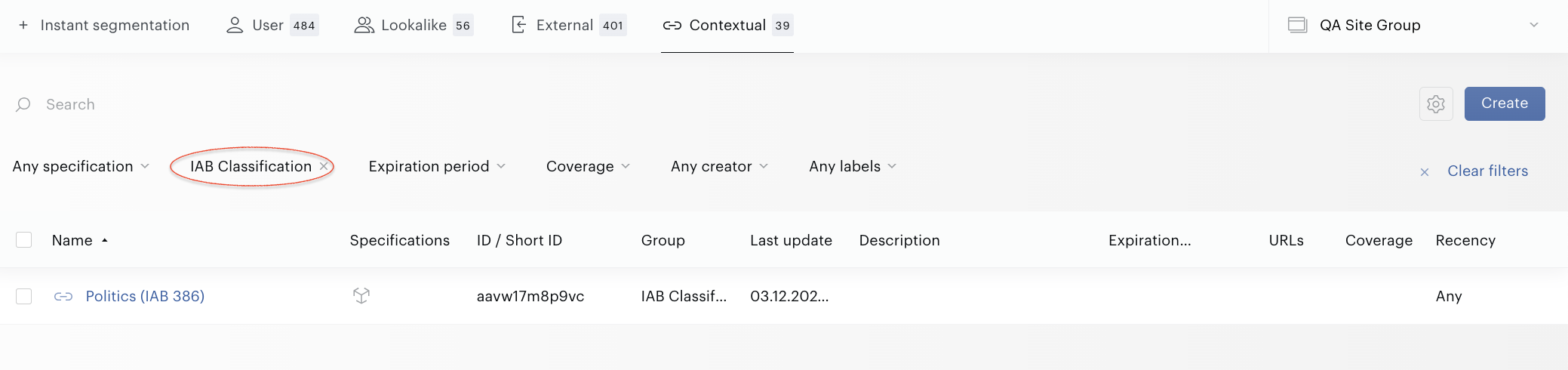
Segments created via Instant Segmentation are automatically categorized under predefined groups like Interest (IAB) for User segments and IAB Classification for Contextual segments, allowing for easy filtering.
Segment Creation Limits
To prevent duplication, Instant Segmentation allows for one User and one Contextual segment per IAB category. However, you can revisit the User or Contextual tabs to modify, update, or delete these segments, enabling reuse of Instant Segmentation.
Alternative Creation Method
For those needing more control or creating numerous segments, consider using the Segment builders found in the User or Contextual tabs for unlimited segment creation.