
The Combined Segments screen displays a list of all Combined segments created for the selected site group, accessible via Audience→Segments→Combined.
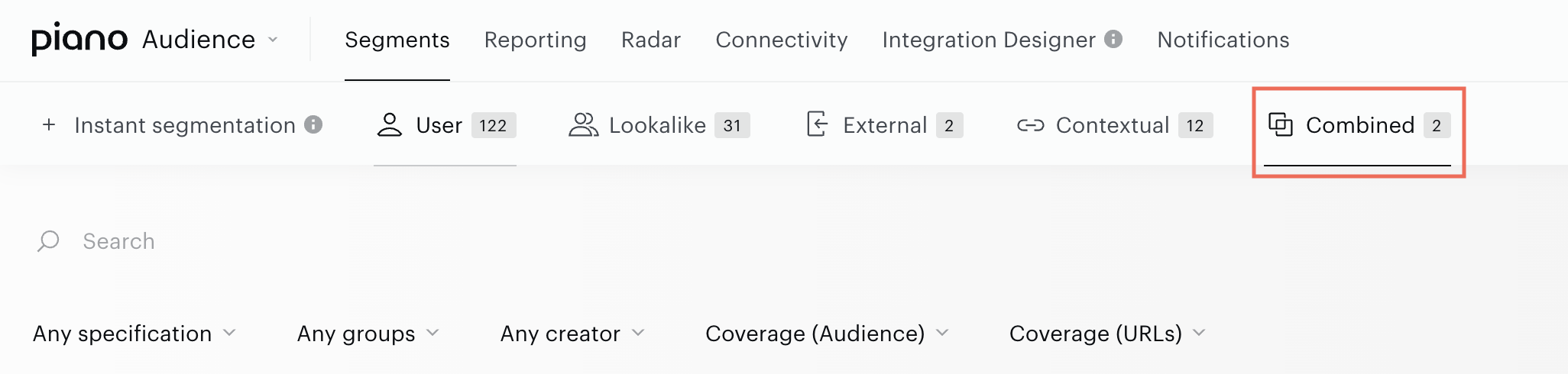
This list provides an overview of all Combined segments in your account for the chosen site group. Below are the key columns and their descriptions:
-
Name. Clicking a segment name opens the Segment Builder, displaying the segment’s details.
-
Specifications. Icons in this column indicate properties such as the Usage parameter (e.g., whether the segment is used in Composer).
-
ID/Short ID. Unique identifiers for each segment.
-
Group. Displays the segment group name if the segment is assigned to one.
-
Last Update. Shows the date and time when the segment was created or last updated.
-
Description. Displays the segment’s description, if provided.
-
Audience. Indicates the number of Unique Users in the segment.
-
Coverage (Audience). Represents the percentage of segmented users relative to the total audience of the site group.
-
URLs. Shows the number of Active URLs associated with the segment.
-
Coverage (URLs). Displays the percentage of URLs within the segment compared to the total URLs in the site group.
Audience, URLs, and Coverage metrics are derived from Reach report data. After creating a segment, you may see the message "There is no data yet." - This is expected behaviour, as values will appear after the Reach calculation completes. Depending on the segment’s complexity, this process may take from several minutes to several hours.
The Audience size, URLs, and their respective Coverage metrics displayed in this overview are calculated based on data from the last 31 days for all Combined segments. As a result, these values may slightly differ from those shown in the segment detail view when a segment is selected, as the detail view may reflect different recency settings or additional parameters.
The Combined Segments overview page also includes the following features:
-
A site group selector in the top-right corner to choose the site group you want to work with.
-
Filters for specifications, segment group, coverage (Audience), coverage (URLs), and segment creator to help you locate Combined segments quickly.
-
A search bar to find segments by type, name, ID, or description.
-
Column headers that, when clicked, sort the data in ascending or descending order across all tables.
-
Checkboxes next to each segment for performing bulk operations, such as:
-
Delete: Delete one or multiple segments simultaneously.
-
Learn more about bulk operations, including their capabilities and limitations, here.
The Create button above the table opens the segment creation menu.
Clicking a segment name in the list opens the Segment Builder. You can switch between segments by selecting another segment name without closing the Segment Builder interface.
The Customize Columns button, located next to the Create button, allows you to tailor the table view. Learn more here.
