
Lookalike Segments allow you 1) to identify users similar to those who have proved to be good customers and 2) to use this information in targeting new campaigns.
General description
Lookalike modeling allows you to find users similar to the ones who have already bought a subscription or product, to target those similar users with campaigns driving the best conversions and sales. Lookalike Segments can be based on an original segment of users that you know have a specific demographic property, e.g., age or gender. Modeling can use your first-party data (uploaded from your CRM system) but is not limited to that.
For example, over the last 31 days, our site group has had a total audience of 100 unique visitors. 5 of them bought a subscription. We want to target the ads of a similar subscription to the most relevant audience, but not limited to the 5 subscribers. To this end, we join the 5 subscribers in a segment and let the Piano algorithm find what parameters are common for them. In the next step, we create a Lookalike Segment from the base segment, where we define how many users (out of 100) will see our ads. In configurations, we set the balance between the reach and quality of the future campaign, and Piano Audience finds the best audience for it relying on the base segment data.
Creating a lookalike segment
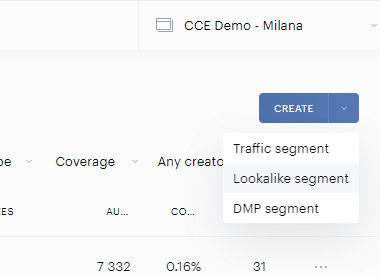
On the Segments tab, click Create → Lookalike segment.
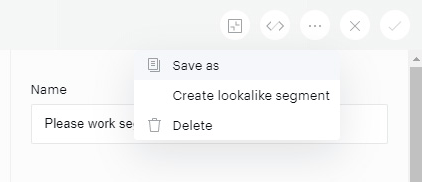
You can also select Create lookalike segment in the More menu when editing a traffic segment.
The Segment builder page for a Lookalike Segment opens.
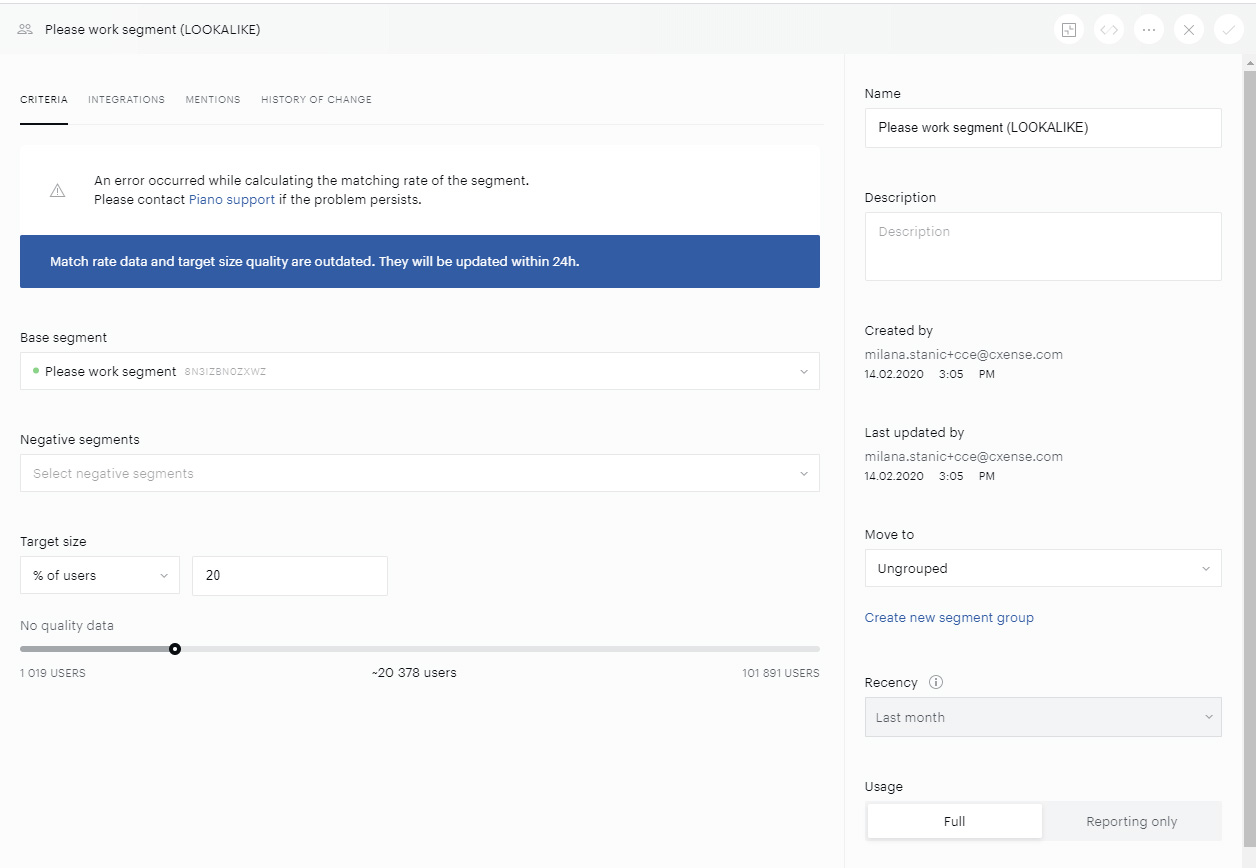
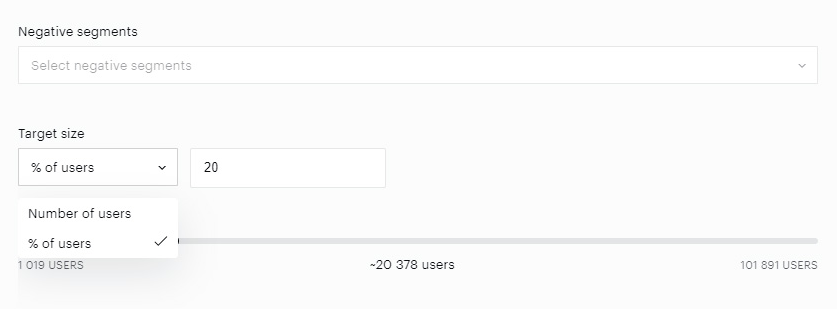
Set the Base Segment for your Lookalike Segment. If necessary, add one or more Negative Segments to refine and reduce the audience of your Lookalike Segment.
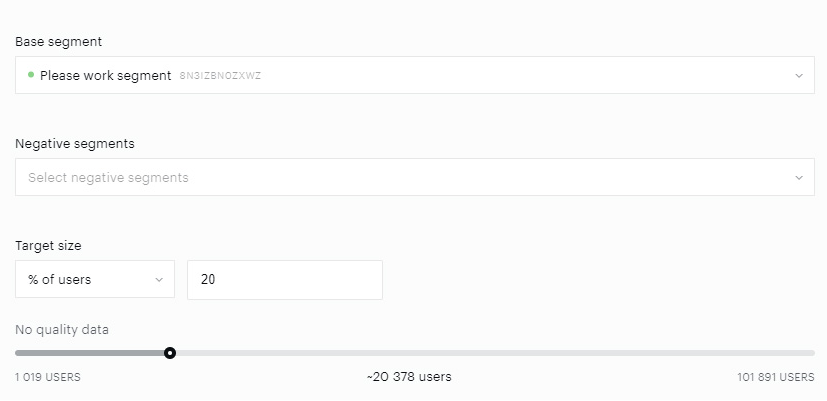
With the Target size field and slider set the real number of users in the final segment or the percentage of the total audience to cover. The values also indicate advertising quality: the lower the number of users you specify, the higher the quality of the segment.
One lookalike segment can be based on one traffic segment only. But it’s still possible to use that lookalike segment as a filter in creating new traffic segments if you need to combine more parameters.
Name
Enter the segment name in the right-side panel (up to 250 characters).
Description
It is also recommended to add some meaningful description in the Description area.
Manual Segment Description
-
In the segment creation or editing interface, enter the segment name in the right-side panel.
-
Add a meaningful description in the Description area, e.g., "Lookalike Segment for Sports Enthusiasts that are subscribed."
Using AI-Powered Segment Description
-
Define your segment filters (e.g. first-party or behavioral data).
-
Click the Generate with AI button in the segment interface.
-
The AI generates a concise summary, e.g. "Lookalike for active subscribers aged 25-34."
-
Edit the AI-generated description in the Description area if needed.
Segment Grouping
Move to enables you to match the segment with one of the existing segment groups. If there is no group to choose from, you can click Create new segment group and create a new one.
When the New segment group field is filled, the new segment can be moved there immediately. It is possible to move a segment to another group by selecting the respective group in the dropdown.
Recency
The Recency for Lookalike Segments is 31 days.
Usage
Usage defines whether the segment will be used for all the features of Piano Audience including segment export, targeting, and reporting ("Full"), or only for composing reports ("Reporting only").
"Reporting only" segments can be exported as well as "Full" segments, but they can't be used for targeting in real campaigns.
Labels
Use the Labels section to add additional metadata (generic key-value pairs) to your segments. With Labels, you can:
-
Organize a growing list of segments by grouping them into batches.
-
Filter your segments on the Segments List using the filter by the label.
-
Control programmatic steps using Piano API (/segment/create or /segment/read).
-
Select segments for export in Connectivity Hub, using labels as a filter.
The label key is a unique value of fewer than 256 characters. It should start with a letter and can only contain ASCII characters a-z, A-Z, 0-9, or _ (underscore). The label value should be less than 256 characters.
To complete the procedure, simply click Create at the top of the page.
Save with Notes
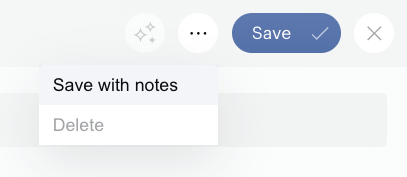
To save your changes and additionally save notes about the edits made, go to the More menu and click the Save with notes button.
Notes
If a base segment is deleted, Lookalike Segments based on it will be deleted automatically.
Segments should contain at least 100 active users who accessed URLs classified as an article (not a frontpage) within the last 31 days for Lookalike modeling to be able to train ML models on the dataset.
The base segment must be active, set to "Full" Usage, for Lookalike modeling to work as intended.
Find more theories related to lookalike modeling here.
Troubleshooting
If your lookalike segment is not populating, work through the checks below in order.
1. Confirm the Base Segment Is Eligible
The base segment must meet all of the following requirements before the lookalike model can train:
-
The base segment is a Traffic segment and is active
-
Usage is set to Full (not "Reporting only")
-
The segment contains at least 100 active users within the last 31 days
-
Those users have viewed article-type URLs (not front pages)
-
The target size is not set to 0
If any of these conditions are not met, the lookalike segment will not populate regardless of how long you wait.
2. Verify URL Classification and Tagging
The lookalike model relies on users visiting URLs classified as article pages. If article classification or site traffic tagging is incorrect, the model may have insufficient signals to train.
-
Confirm that your article URL classification is configured correctly.
-
Confirm that site traffic tagging is functioning and collecting pageview and URL data as expected.
3. Check for Recent Edits That Reset Processing
Editing the base segment or the lookalike configuration — including changing the target size or other settings — after creation will restart the modeling job. If changes were made, wait for the full processing window again from the time of the most recent edit.
4. Allow Sufficient Processing Time
Processing times vary based on data volume, base segment complexity, and system load:
-
Typical: approximately 24 hours
-
Under load or for large audiences: up to 48 hours
-
Large or complex environments: potentially several days
If the audience count remains at 0 shortly after creation, this is often expected while the base segment and modeling pipeline complete. Avoid making further edits to the segment until it has populated.
5. Review Negative Segment Compatibility (If Used)
If your lookalike configuration includes a negative segment, ensure it is compatible with the base segment — for example, that both are within the same segment group or category as required by your setup. Misaligned negative segments can contribute to unexpected results.
Transparency
To build trust and ensure you have full visibility into how this works, we're committed to transparency in our use of AI. Piano Audience's new segment description feature utilizes Anthropic’s Claude, a state-of-the-art large language model designed for safe and helpful text generation.
-
How it works: When you click the "Generate AI Description" button, the Claude model is queried with specific instructions to generate the description, along with contextual information from your segment filters. No additional or hidden data is used; the AI only processes the exact filter details you provide for that segment.
-
Data usage and privacy: We do not store or use your segment data for training the model or any other purposes beyond generating the description in real-time. Insights are based solely on the model's ability to interpret and summarize the provided context.
-
Limitations: As with any AI-generated content, descriptions are suggestions and may occasionally require review for accuracy, especially if filter names are ambiguous. We recommend always verifying against your original filters.