Overview
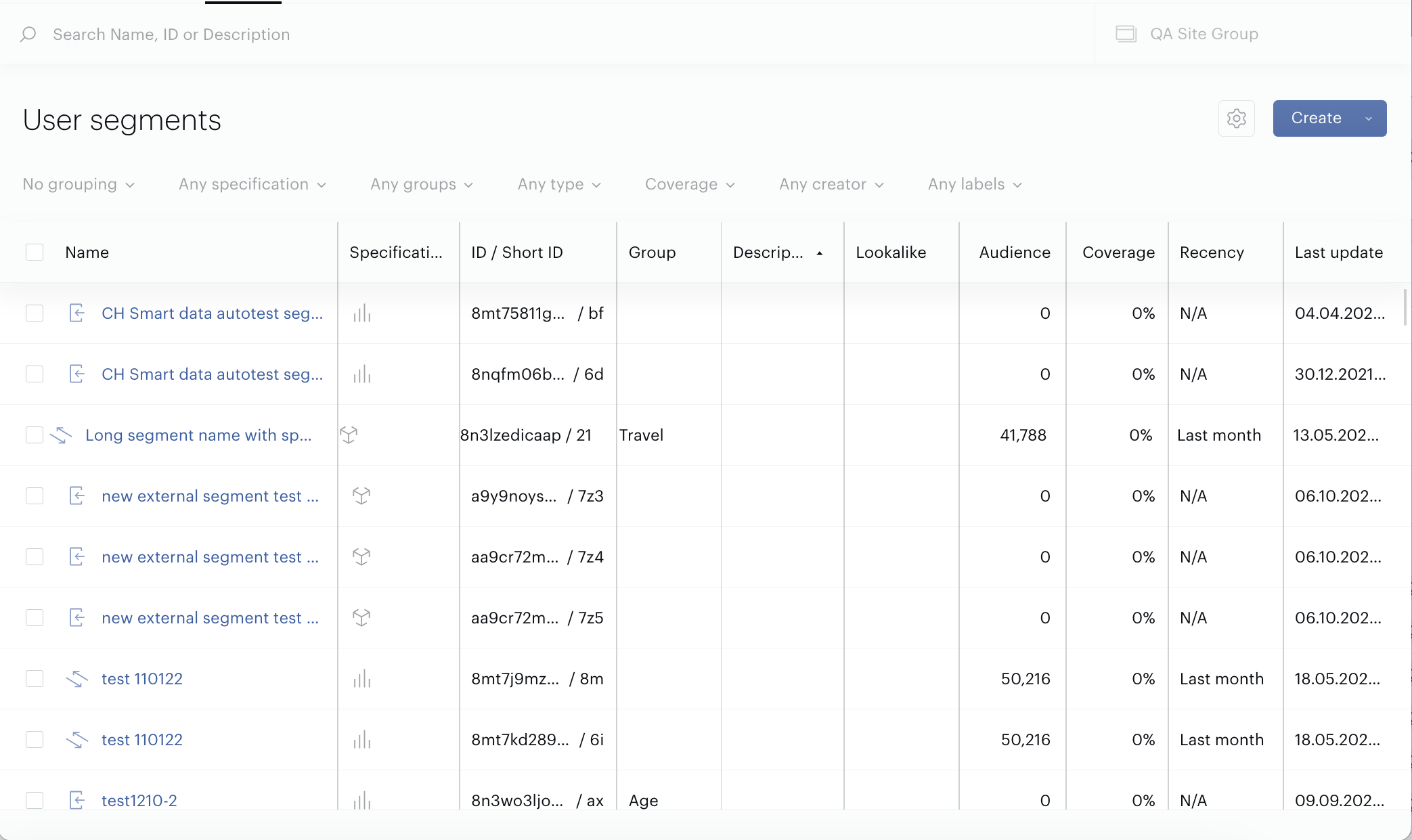
The Customize columns feature allows you to customize the Segments List, you can hide or show columns, or change the columns order.
Configure settings once and they will be applied to all Customer’s site groups for the app user (your account).
To be able to do this go to the Audience→Segments. Being in the Segments List press the Customize columns button next to the Create one.
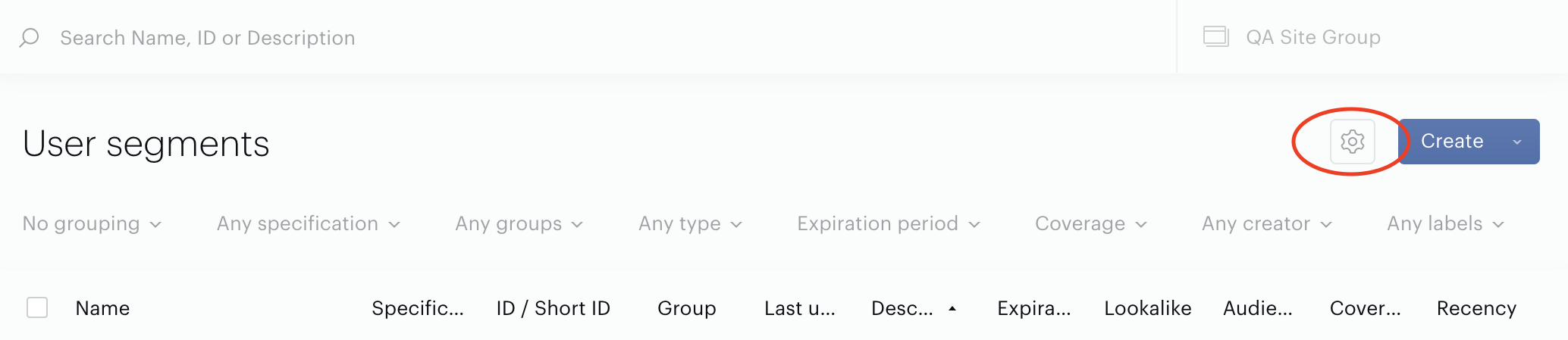
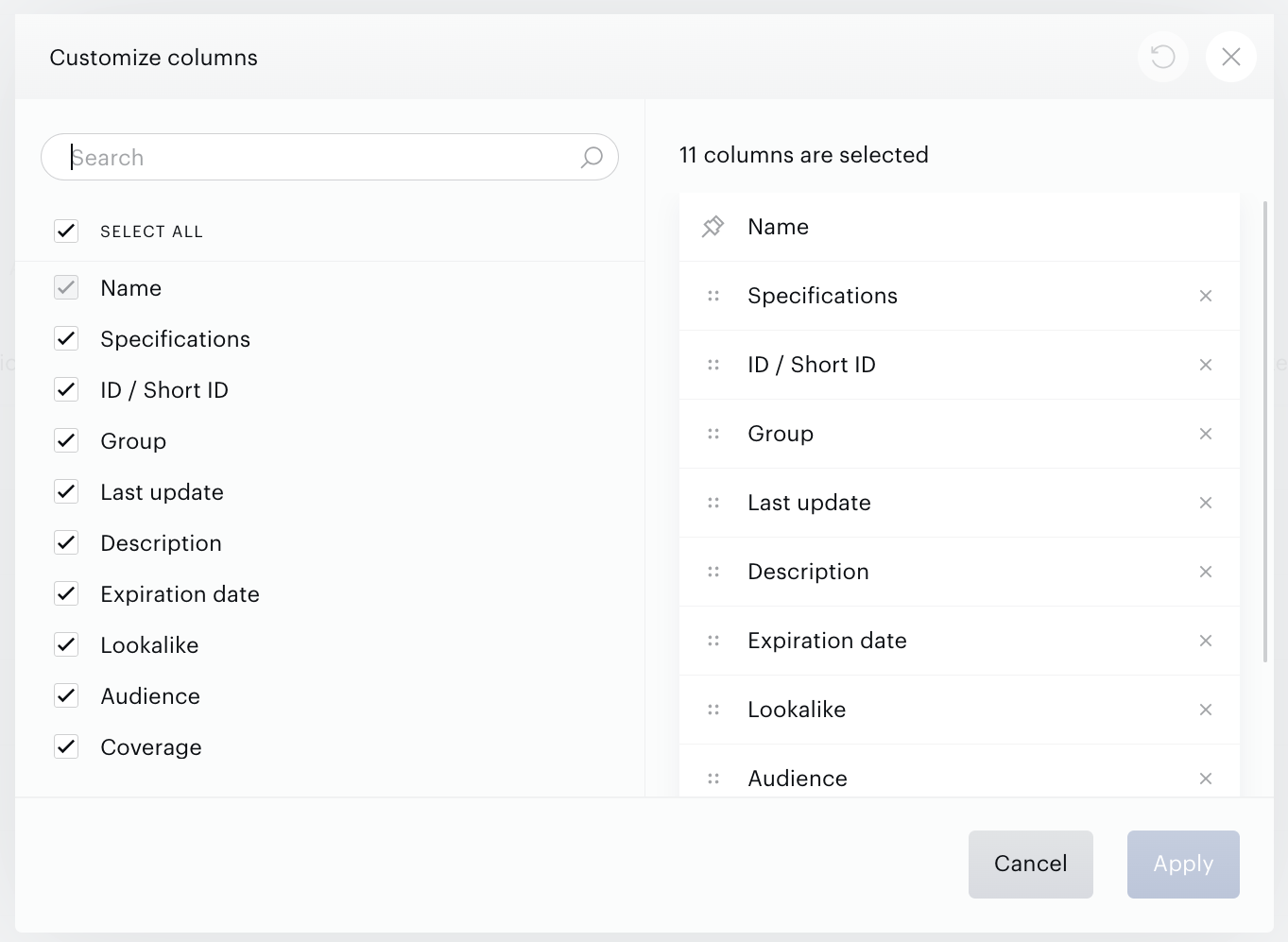
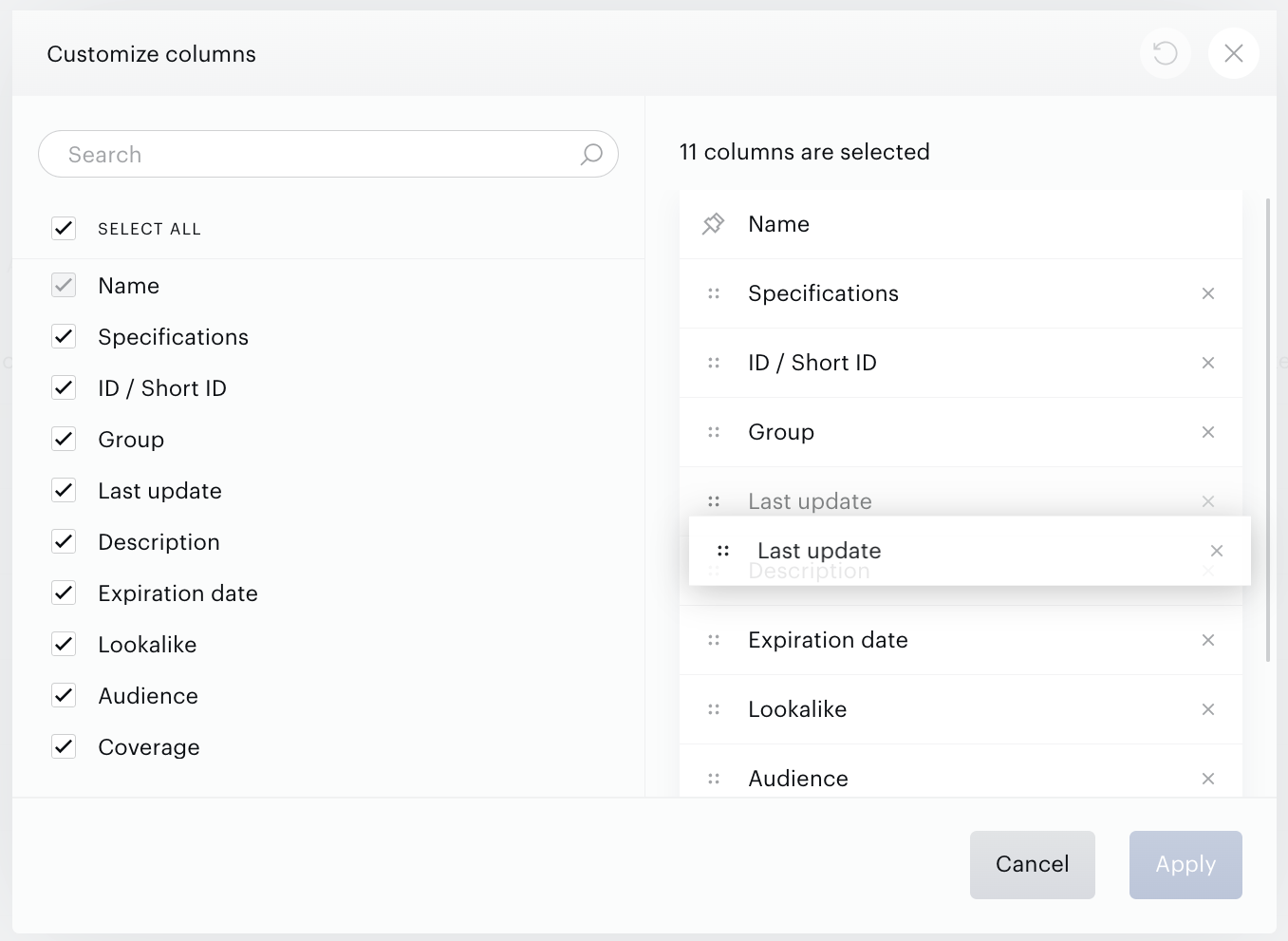
As soon as the Customize columns button is pressed, the customization form opens:
Columns visibility
To be able to hide or show the columns, untick or tick the checkboxes next to the column names.
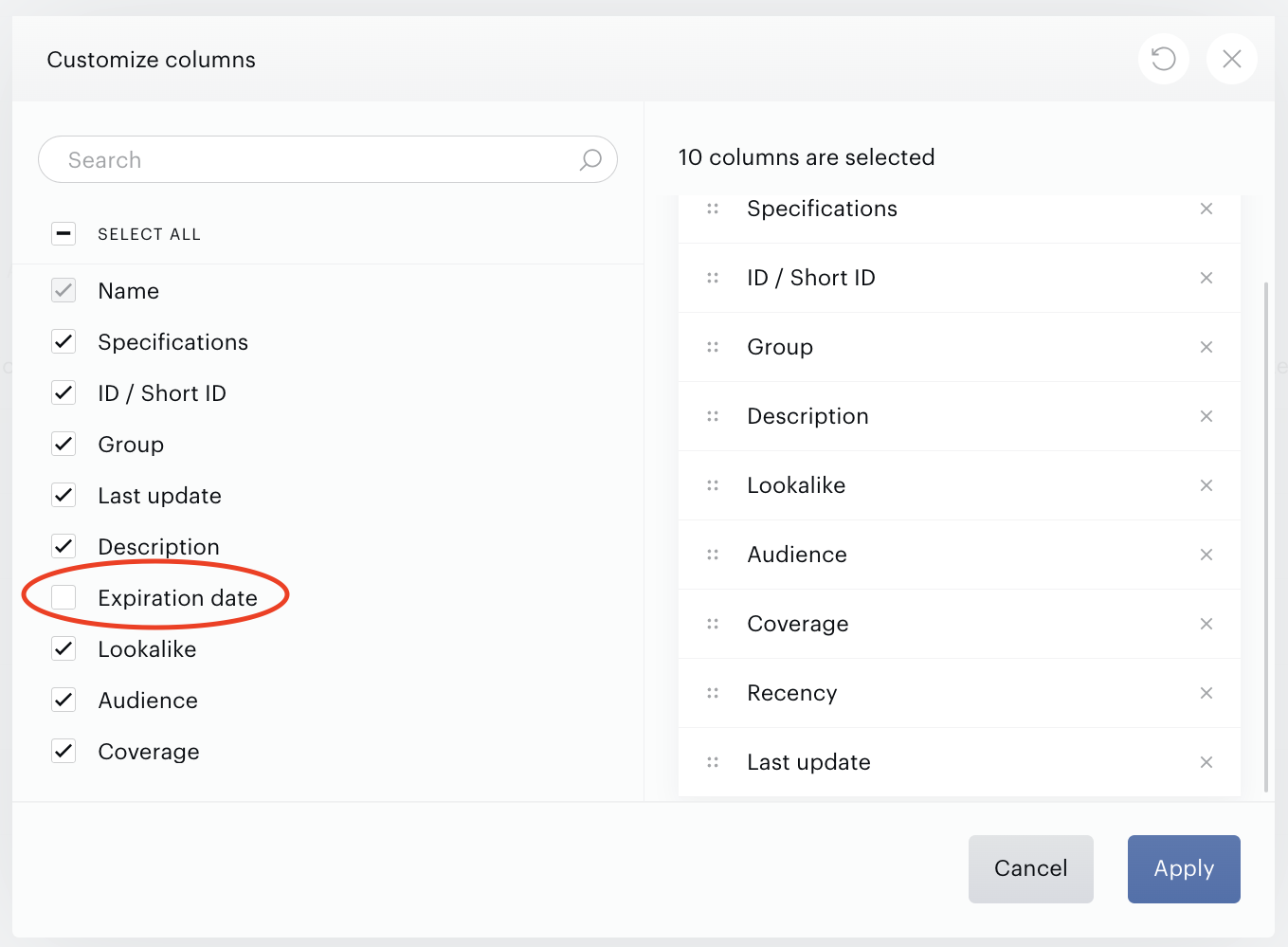
When you hide the columns in the Segments List, it affects the related filters. The filters related to the hidden columns are hidden automatically. For example, if you hide the Group column, the Any groups filter will be hidden as well.
The Segment name column cannot be hidden.
Columns order
To be able to change the columns order, drag and drop the column name within the right part of the Customize columns form.
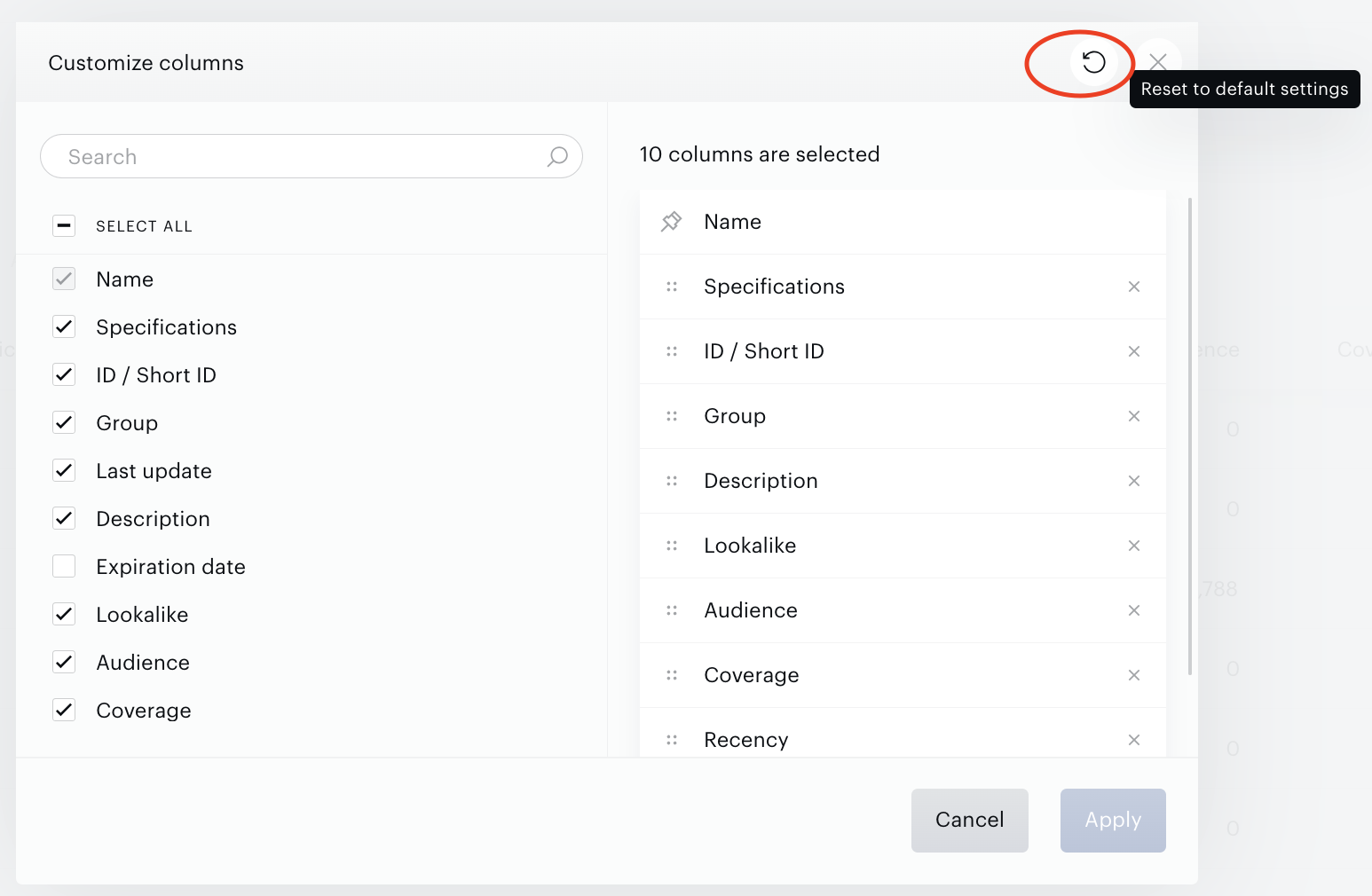
If you want to get back to the default settings being in the Customize columns form press the button Reset to default settings.
To save any changes, press the Apply button.
Columns resizing
If you want to resize the column width, being in the Segment list hold and drag a column border, extend or narrow the column width down. Extra lines help to visualize how the column width changes.