
Overview
Combined segments is a powerful feature in Piano Audience, enabling you to merge User, Contextual, Lookalike, and External segments into sophisticated audience segments.
This functionality eliminates the need to combine targeting parameters in external systems like ad servers, streamlining audience management and enhancing targeting precision within the Piano Audience platform.
Combined segments list
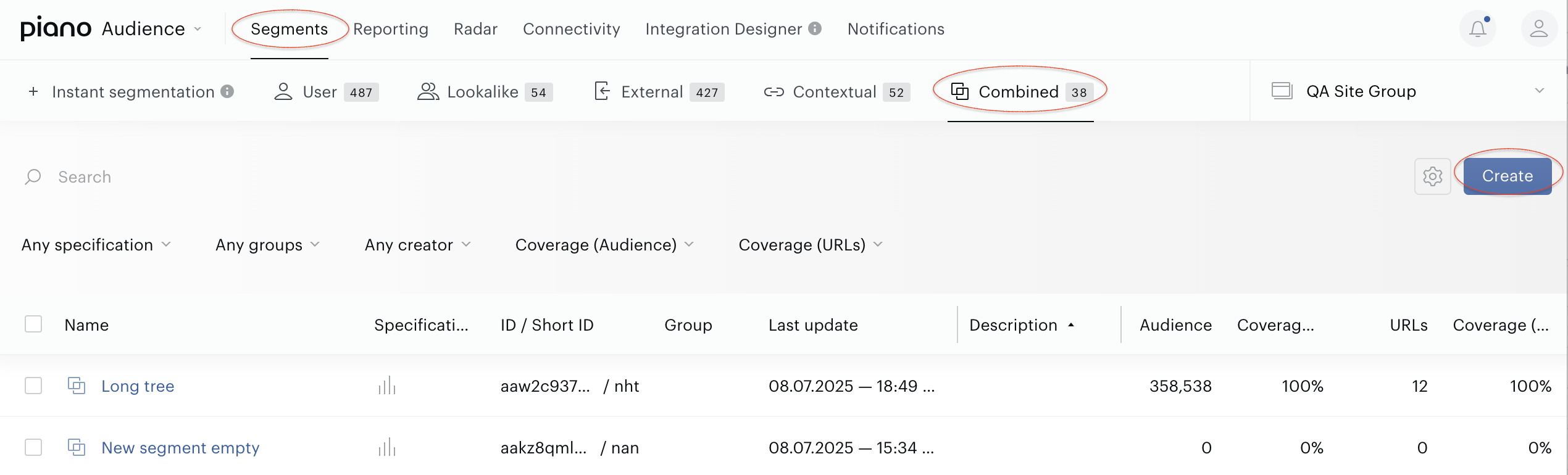
The Combined Segments screen displays a list of all Combined segments created for the selected site group, accessible via Audience→Segments→Combined.
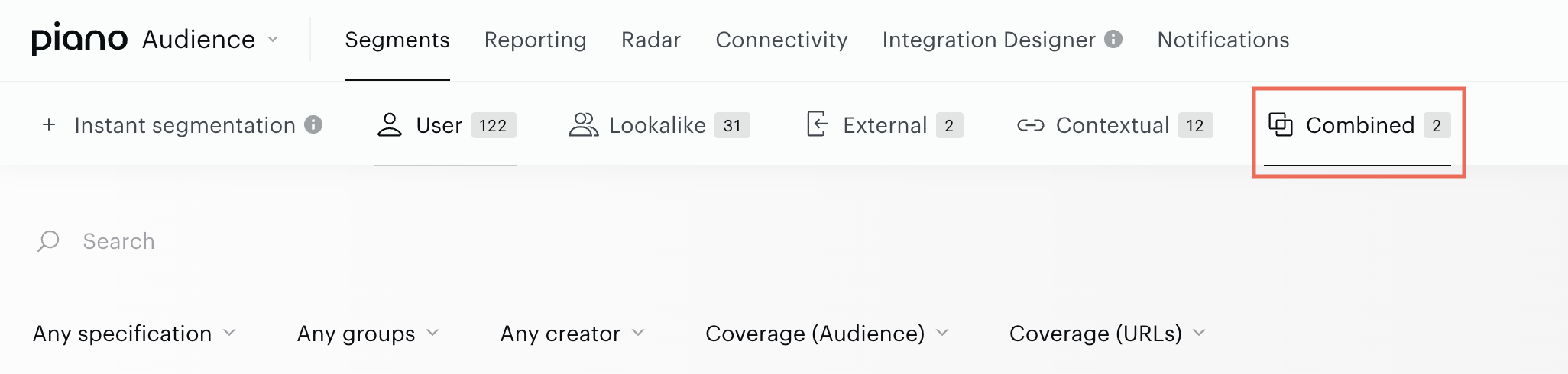
This list provides an overview of all Combined segments in your account for the chosen site group. Below are the key columns and their descriptions:
-
Name. Clicking a segment name opens the Segment Builder, displaying the segment’s details.
-
Specifications. Icons in this column indicate properties such as the Usage parameter (e.g., whether the segment is used in Composer).
-
ID/Short ID. Unique identifiers for each segment.
-
Group. Displays the segment group name if the segment is assigned to one.
-
Last Update. Shows the date and time when the segment was created or last updated.
-
Description. Displays the segment’s description, if provided.
-
Audience. Indicates the number of Unique Users in the segment.
-
Coverage (Audience). Represents the percentage of segmented users relative to the total audience of the site group.
-
URLs. Shows the number of Active URLs associated with the segment.
-
Coverage (URLs). Displays the percentage of URLs within the segment compared to the total URLs in the site group.
Audience, URLs, and Coverage metrics are derived from Reach report data. After creating a segment, you may see the message "There is no data yet." - This is expected behaviour, as values will appear after the Reach calculation completes. Depending on the segment’s complexity, this process may take from several minutes to several hours.
The Audience size, URLs, and their respective Coverage metrics displayed in this overview are calculated based on data from the last 31 days for all Combined segments. As a result, these values may slightly differ from those shown in the segment detail view when a segment is selected, as the detail view may reflect different recency settings or additional parameters.
The Combined Segments overview page also includes the following features:
-
A site group selector in the top-right corner to choose the site group you want to work with.
-
Filters for specifications, segment group, coverage (Audience), coverage (URLs), and segment creator to help you locate Combined segments quickly.
-
A search bar to find segments by type, name, ID, or description.
-
Column headers that, when clicked, sort the data in ascending or descending order across all tables.
-
Checkboxes next to each segment for performing bulk operations, such as:
-
Delete: Delete one or multiple segments simultaneously.
-
Learn more about bulk operations, including their capabilities and limitations, here.
The Create button above the table opens the segment creation menu.
Clicking a segment name in the list opens the Segment Builder. You can switch between segments by selecting another segment name without closing the Segment Builder interface.
The Customize columns button, located next to the Create button, allows you to tailor the table view. Learn more here.

Creating Combined Segments
Prerequisites
To create Combined segments, you need access to the Piano Audience DMP/CDP, existing segments, and appropriate permissions.
-
Existing User, Contextual, Lookalike, or External segments to combine.
-
Permissions to create and manage segments.
Steps to Create a Combined Segment
Creating a Combined segment allows you to build targeted audience profiles directly within Piano Audience. Follow these steps to configure and save a Combined Segment for use in your campaigns.
Navigate to Segment builder. In the Piano Audience interface, go to the Combined segments section and hit Create
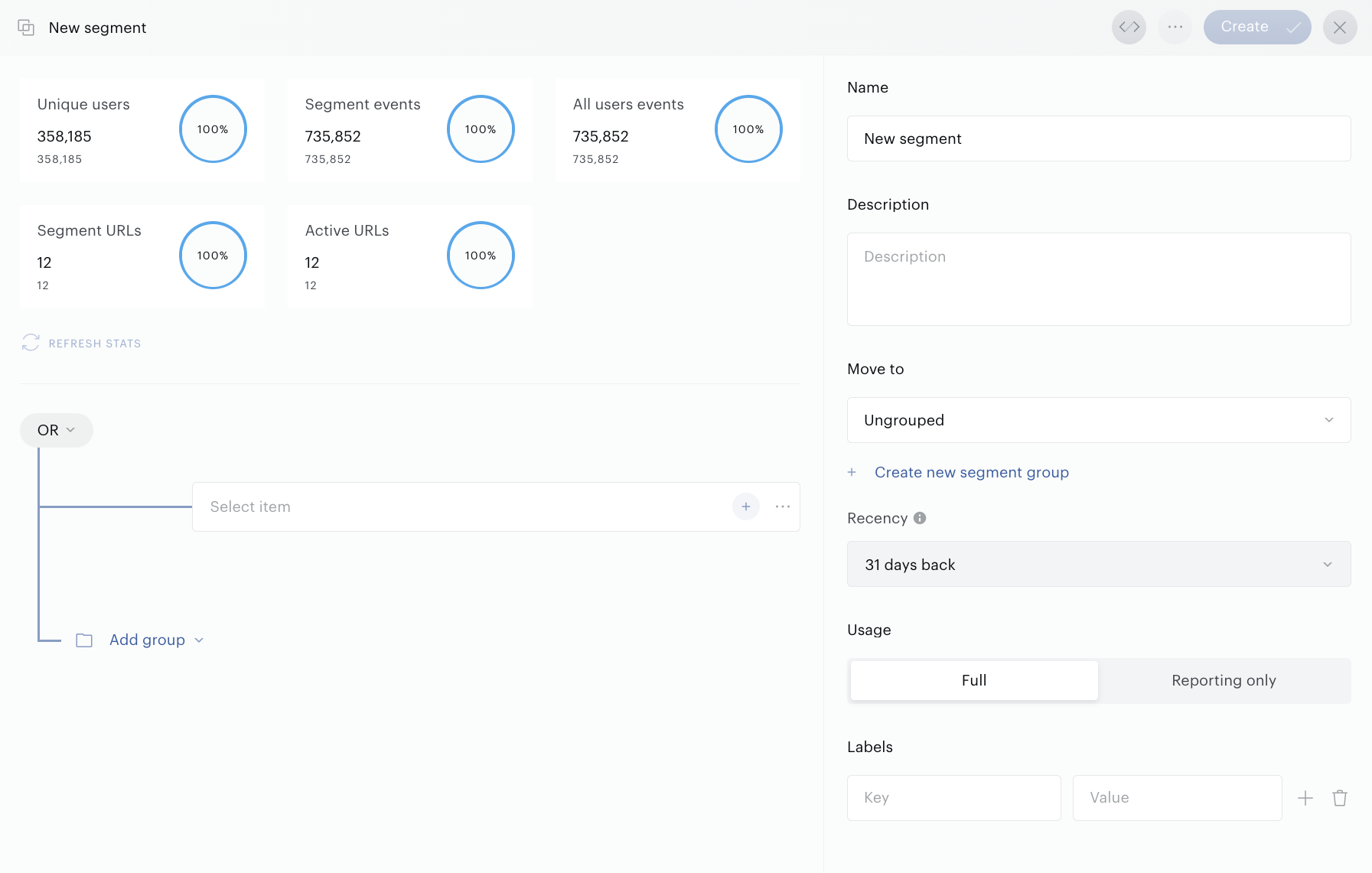
Configure Basic settings. Set the segment’s name (up to 250 characters), description (up to 250 characters), assign it to a segment group, and add labels for categorization.
Manual Segment Description
Add a meaningful description in the Description area, e.g., "Users who visited the sports section 3+ times this month."
Using AI-Powered Segment Description
-
-
Define your segment filters.
-
Click the Generate with AI button in the segment interface.
-
The AI generates a concise summary, e.g., "Active subscribers aged 25-34 engaging with tech news."
-
Edit the AI-generated description in the Description area if needed.
-
The recency parameter, non-editable, defaults to 31 days if selected segments’ recency filters differ, otherwise resective Recency is reflected. Usage settings (e.g., Full or Reporting) to flag a segment as active or internal only. Additionally add labels if desired.
-
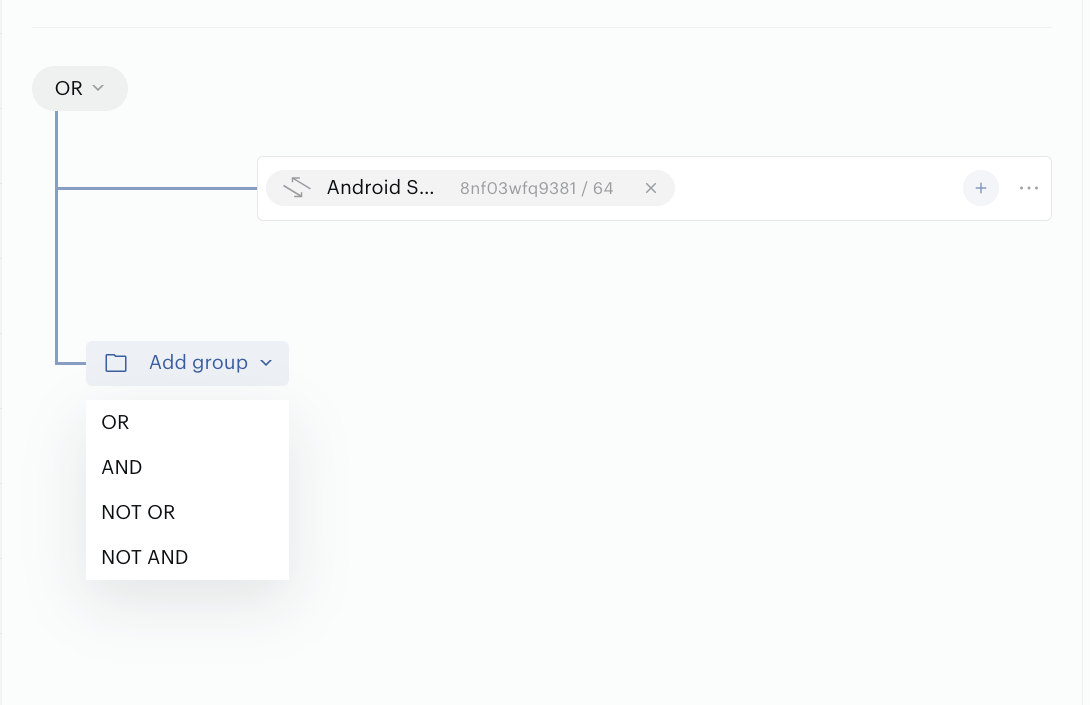
Define logic in Criteria Tab tab. Use AND, OR, NOR or NAND operators to combine User, Contextual, Lookalike, or External segments. Combining Combined segments with other Combined segments is not supported. The Criteria Tab supports four operators to define how segments are combined:
-
OR: Includes users who belong to at least one of the selected segments. For example, combining a User segment (users who visited sports pages) with a Contextual segment (articles about technology) with OR includes users who either visited sports pages or viewed technology articles.
-
AND: Includes users who belong to all of the selected segments. For example, combining a User segment (users who purchased a subscription) with a Contextual segment (brand-safe articles) with AND includes only users who both purchased a subscription and viewed brand-safe articles.
-
NOR (NOT OR): Includes users who do not belong to any of the selected segments. For example, combining a User segment (subscribers) with a Contextual segment (news articles) with NOR includes users who are neithersubscribers nor viewed news articles.
-
NAND (NOT AND): Includes users who do not belong to all of the selected segments simultaneously. For example, combining a User segment (subscribers) with a Contextual segment (news articles) with NAND includes users who are not both subscribers and news article viewers (e.g., subscribers who didn’t view news, news viewers who aren’t subscribers, or users who are neither).
-
-
Review Metrics. View user-related metrics for User or External segments, or contextual metrics for Contextual segments, based on the selected segment types.
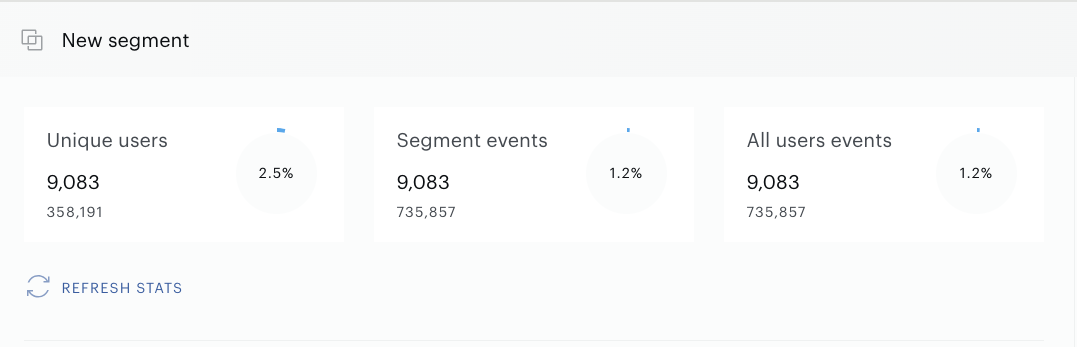
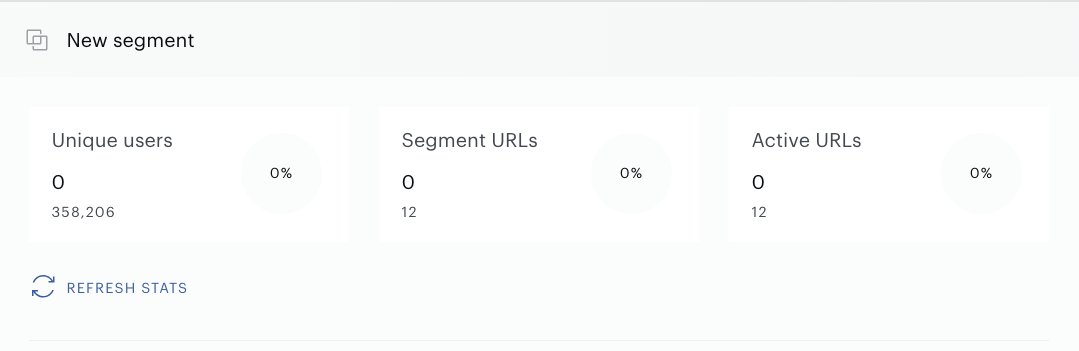
-
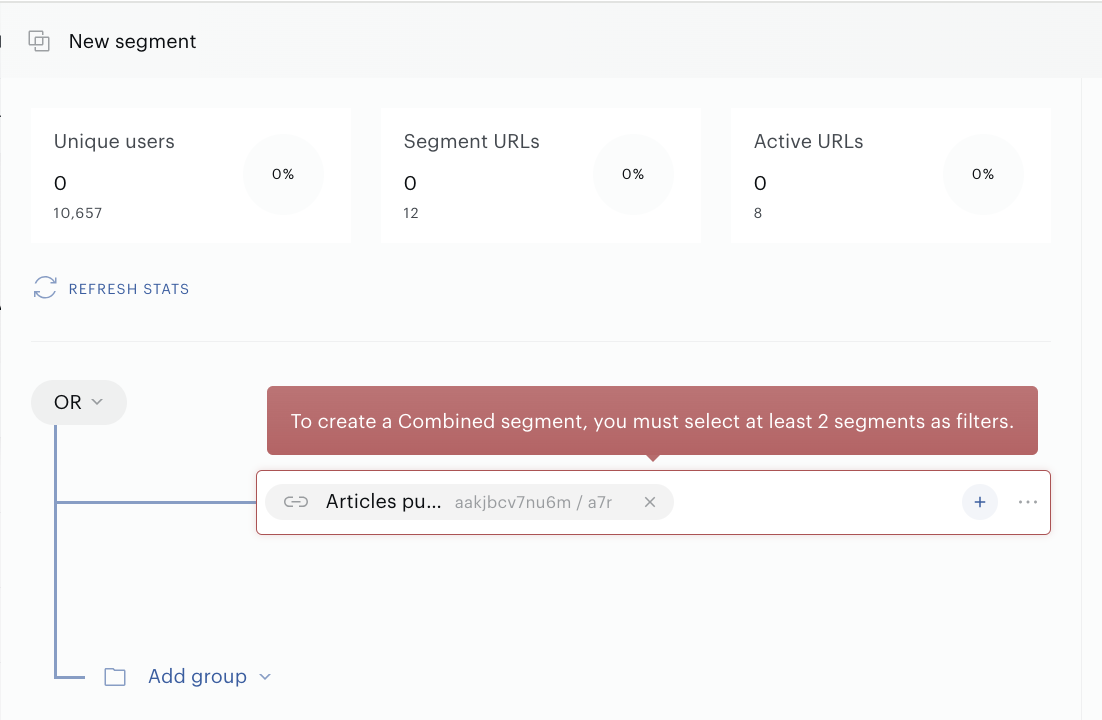
Save and Export. Save the segment for use in Piano Audience or export it to Google Ad Manager (GAM) for advertising campaigns. To successfully save the segment, make sure you have selected at least 2 segments as filters. Additionally, selecting more than 5 segments of each supported type is currently not allowed, with a total limit of 20 segments.
-
Track changes. Monitor all updates in the History tab for a clear record of modifications.
Save with Notes
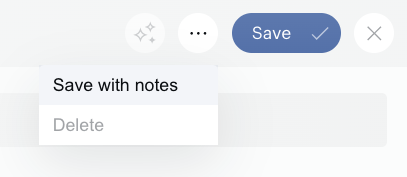
To save your changes and additionally save notes about the edits made, go to the More menu and click the Save with notes button.
Restrictions and Limitations
Combined segments provide flexible targeting with certain constraints to ensure optimal performance.
-
Combining Combined segments with other Combined segments is not allowed.
-
A maximum of 10 segments per type (User, Contextual, Lookalike, External), allowing up to 40 segments total in a Combined segment (e.g., 10 User, 10 Contextual, 10 External, 10 Lookalike; or 5 User, 3 Contextual, 2 External, 1 Lookalike).
-
Recency defaults to 31 days if selected segments’ filters differ.
-
Combined segments do not count toward the customer’s segment limit in Piano Audience.
Transparency
To build trust and ensure you have full visibility into how this works, we're committed to transparency in our use of AI. Piano Audience's new segment description feature utilizes Anthropic’s Claude, a state-of-the-art large language model designed for safe and helpful text generation.
-
How it works: When you click the "Generate AI Description" button, the Claude model is queried with specific instructions to generate the description, along with contextual information from your segment filters. This includes filter names, values, operators (e.g., "AND," "OR"), and any associated metadata - all of which is already visible to you in the Audience interface. No additional or hidden data is used; the AI only processes the exact filter details you provide for that segment.
-
Data usage and privacy: We do not store or use your segment data for training the model or any other purposes beyond generating the description in real-time. Insights are based solely on the model's ability to interpret and summarize the provided context.
-
Limitations: As with any AI-generated content, descriptions are suggestions and may occasionally require review for accuracy, especially if filter names are ambiguous. We recommend always verifying against your original filters.