
Deprecated. Please use Google Ad Manager Campaign Reporting instead
The integration with Google Ad Manager Performance data import (also known as DFP performance import) allows all Google Ad Manager (GAM) customers to import statistical data of views, clicks etc. to the DMP analytics engine. It enables, for example, creating user segments with both GAM and DMP data. The integration works both with Google Ad Manager and with Google Ad Manager 360. It requires Ad Manager Data Transfer reports (GAM log files), a paid feature. For pricing information, please contact your Google account manager. It also requires an Ad Tag modification for DMP to connect GAM events with DMP entities.
Limitations of the current version
-
Only impressions and clicks data are imported (including backfill logs).
-
Оne network can be configured for one prefix (site group).
-
DMP doesn't import object names (line items, orders, ad units etc.). We import object IDs instead.
-
The data import schedule is fixed. User-configured schedule may be supported in one of the next versions.
Architecture overview
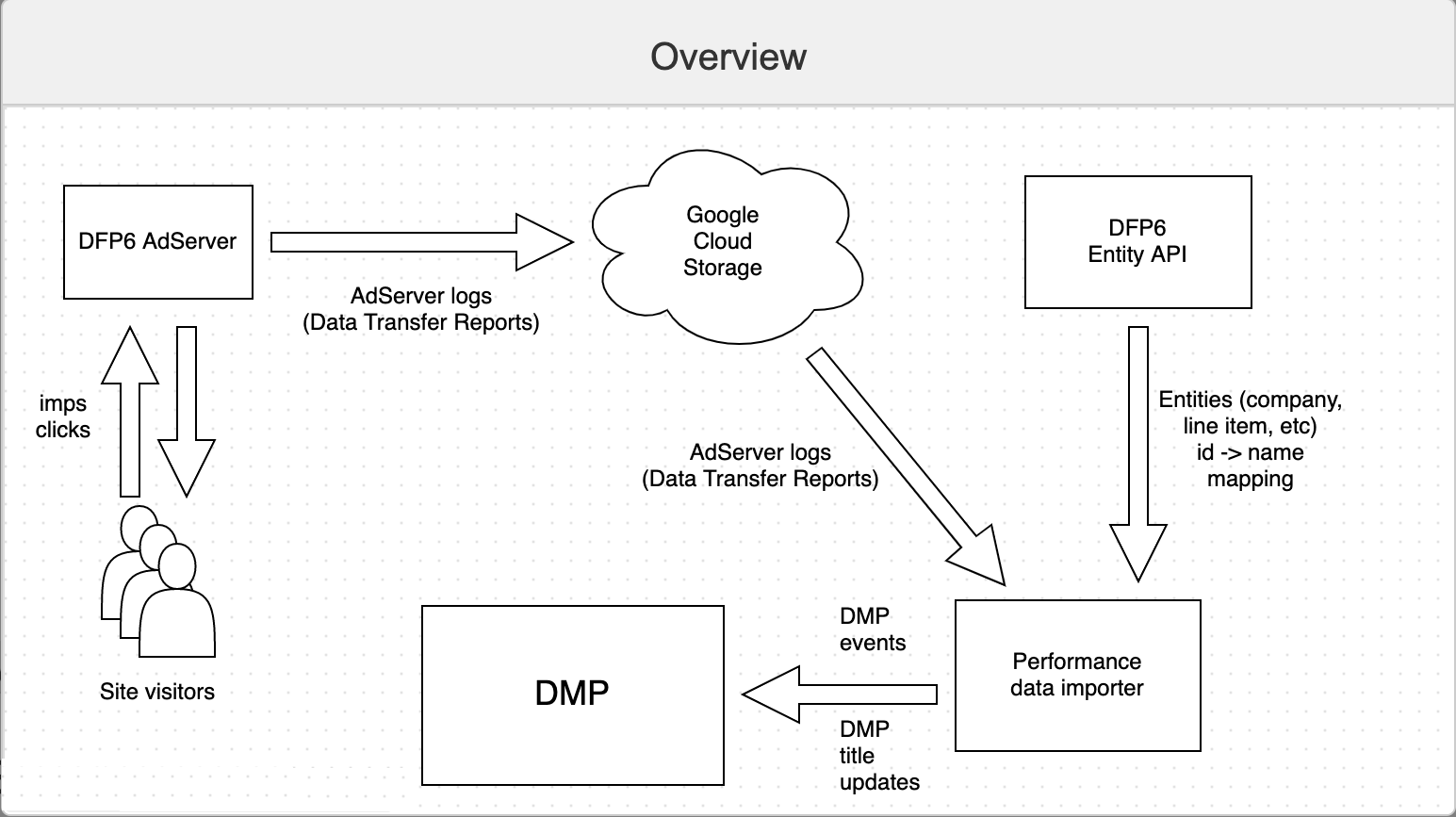
Configuring the integration
-
Enable DFP's Data Transfer reports feature.
-
Grant Piano's service account access to the data.
-
Create a role with minimum permissions in DFP6 Ad Network.
-
-
Enable JSON API in Google Developer Console.
-
Create required Custom Targeting keys in DFP6 Ad Network.
-
Ad tag modification: custom targeting.
-
Case 1: you have no Piano DMP segment integration configured (Google Ad Manager Integration).
-
Case 2: you already have segment integration with Piano (Google Ad Manager Integration).
-
-
Ad Manager Data Transfer reports
(GAM log files)
-
Enable DFP Data Transfer reports
From the docs: "Data Transfer report files come at an additional cost. Contact your account manager to obtain an order form and set up your report file configurations.".
To get started with Data Transfer, reach out to your Account Manager for a setup form which you can use to customize data fields in your reports. We’ll notify you once the data transfer is fully enabled for your account, then you can begin retrieving your files from Google Cloud Storage".
The action required is emailing Google Ad manager support to start negotiations about price and log fields to export.
Make sure to include the Custom Targeting field in exported logs. It is vital to match GAM and DMP entities. Another field that this integration relies on is "TimeUsec2" (preferred) or "TimeUsec". Additional fields may have to be exported too, depending on supposed use cases. Contact the Piano Integration team for assistance.
The full list of the parameters needed for GAM performance integration:
-
Time
-
UserId
-
AdvertiserId
-
OrderId
-
LineItemId
-
CreativeId
-
AdUnitId
-
CustomTargeting
-
TimeUsec2
-
Product
-
Grant data access to a Piano service account
For this step, you'll need to get a service account ID from Piano, an email-like identifier.
First, according to the docs, you'll need to create a Google group and invite the service account (Piano service account) to that group. After that, you'll need to email GAM support a request to manage access to Google Cloud Storage buckets containing the exported GAM logs via that Google group. The request has to include the GAM Ad Network ID and Google Group name.
Second, you'll need to add a service account to your Ad Network. You'll also can create a new user which should be impersonated by that service account. It is recommended that both the service account and the user are assigned with the Administrator role and the All entities team. If this is impossible, a new role and/or team should be created.
A Google account user that can access Ad Manager data programmatically with applications. Service accounts require an account key for credential authorization.
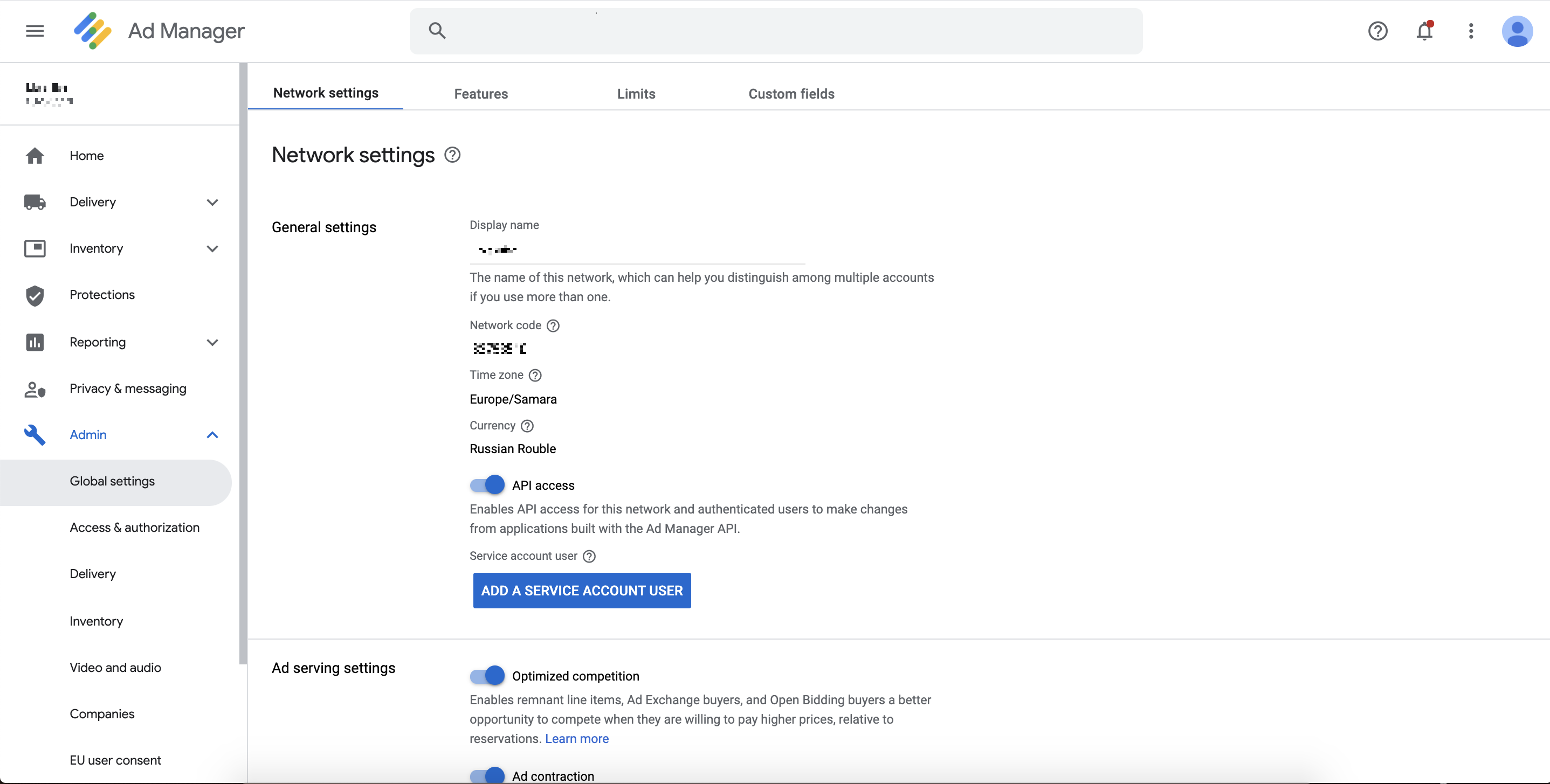
In Google Ad Manage UI, navigate to Admin → Global settings → Network settings and click on the “Add a service account user” button:
-
Fill the form fields:
-
Name: Piano DMP performance data.
-
Email: (usually ends with "gserviceaccounts.com").
-
Confirm email: Repeat the above.
-
Role: Select Administrator. If this is not possible, a new role should be created.
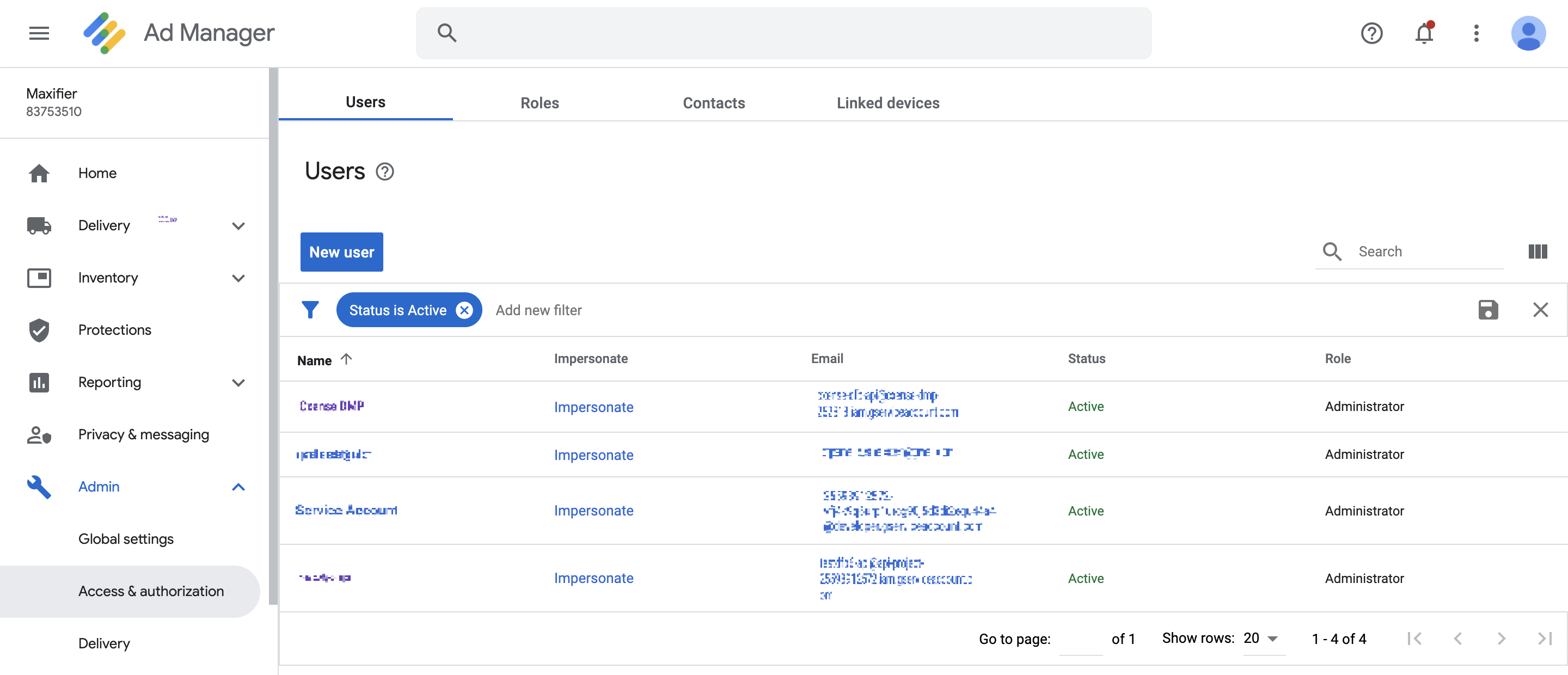
Click the blue Save button. Navigate to Admin → Access & authorization → Users to see your service account users.
-
-
As a result, an invitation email will be sent to the service account user to be accepted by the Piano team. At least two emails should arrive in the service account user's mailbox: one for Google Group, and one for Ad Network.
If team or role customization is required, proceed to the next sections.
-
Create a role with minimum permissions in DFP6 Ad Network
Role defines which action the user is allowed to perform. The targets of those actions, i. e. the set of objects that the action can affect, is defined by the Team.
In the GAM UI, navigate to Admin → Access & Authorization → Roles. Click the New role button:
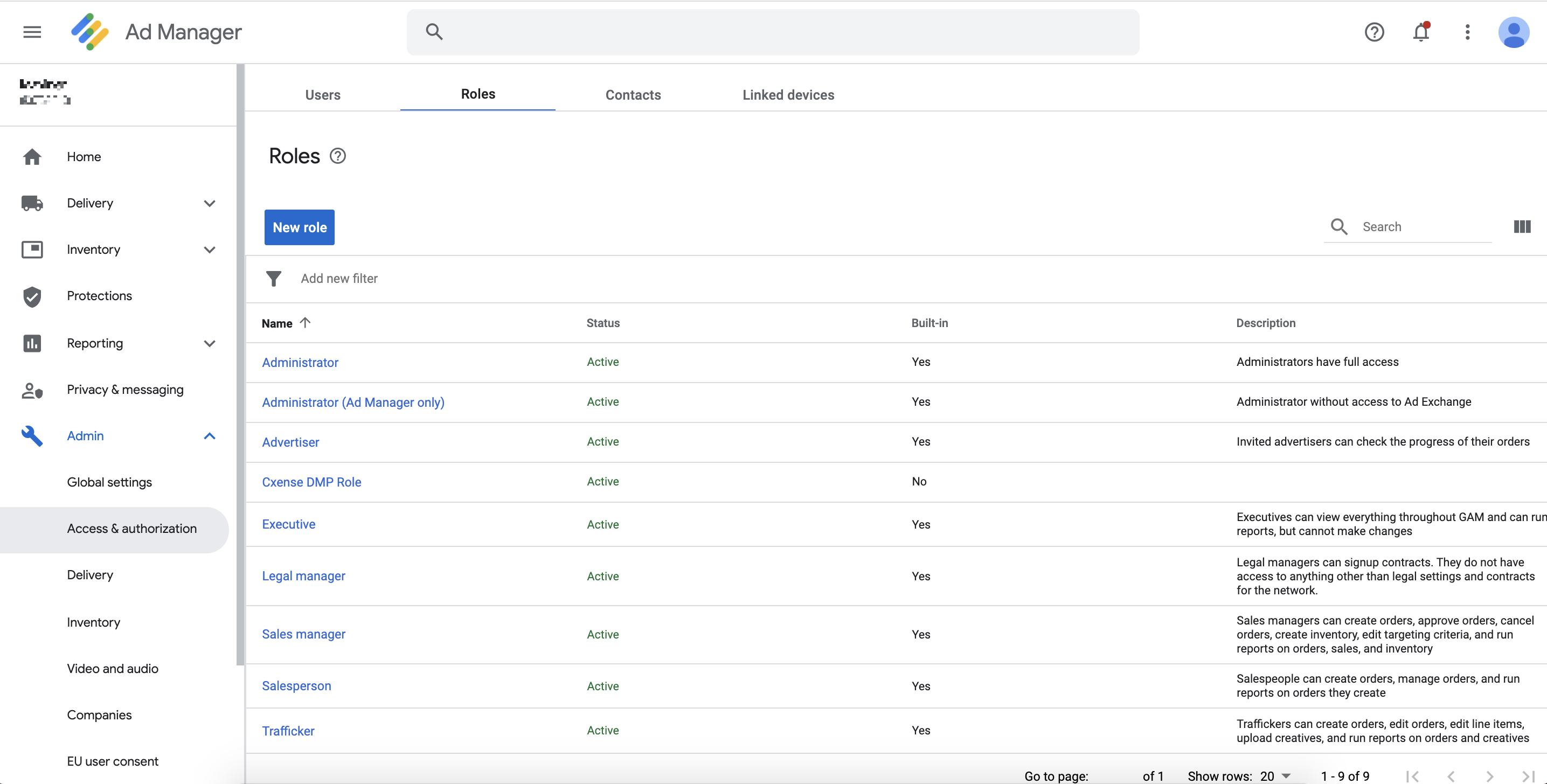
Read more about User role management.
Here are the minimal permissions required to have the advertiser, order, line item and creative names displayed in DMP's web UI:
-
View all orders and line items
-
View creatives
-
View ad units, placements, key-values, and labels
-
View my orders and line items
-
View mobile apps
-
View companies and contacts
-
Create and view reports
The only details accessed are the ID and name of those entities.
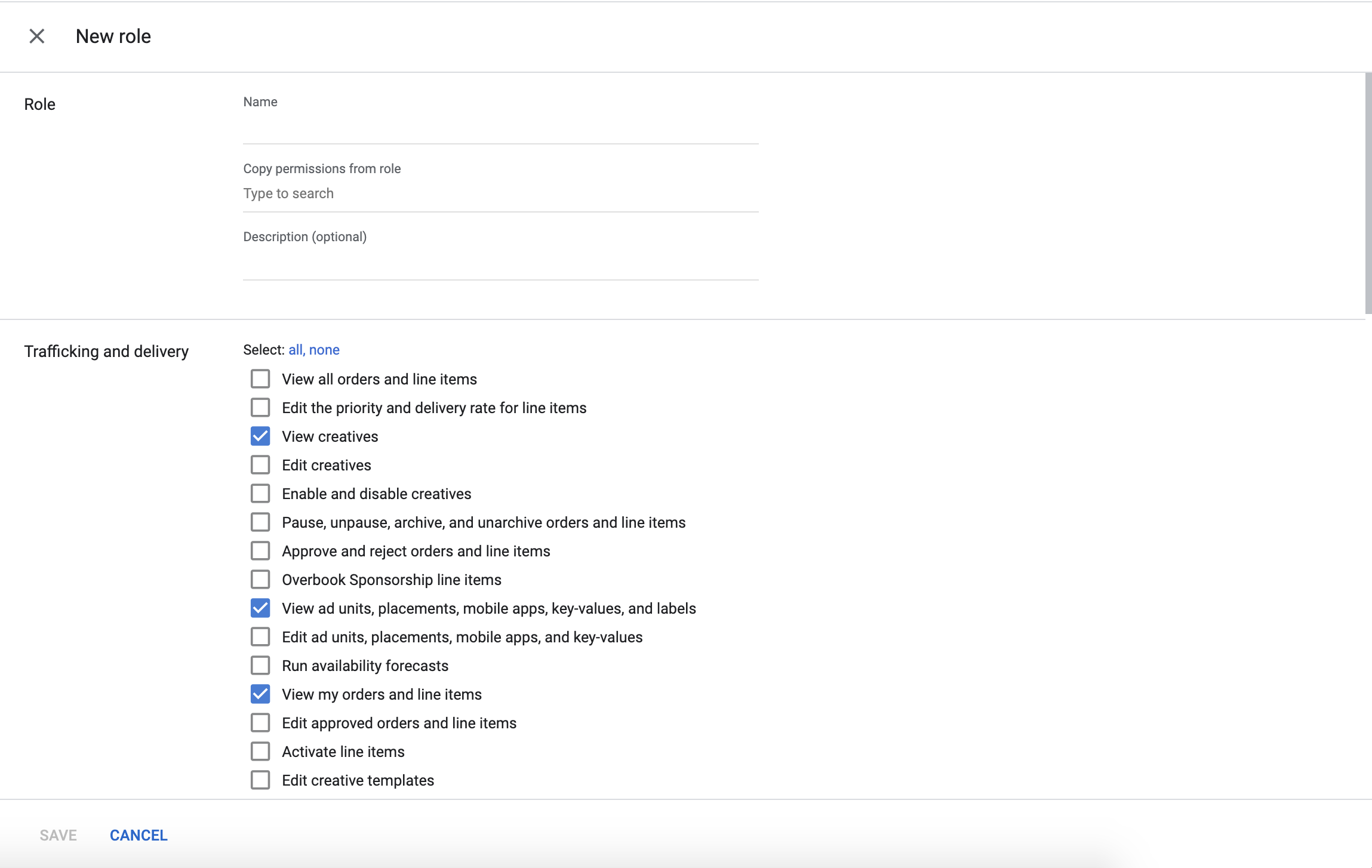
Click the Save button. The newly created role can now be assigned to the Piano DMP service account.
-
Enable JSON API in Google Developer Console
JSON API is required for the programmatic interaction with Cloud Storage. Data import service uses a Cloud Storage client library built around those APIs.
In the API manager web UI, navigate to APIs & Services → Library.
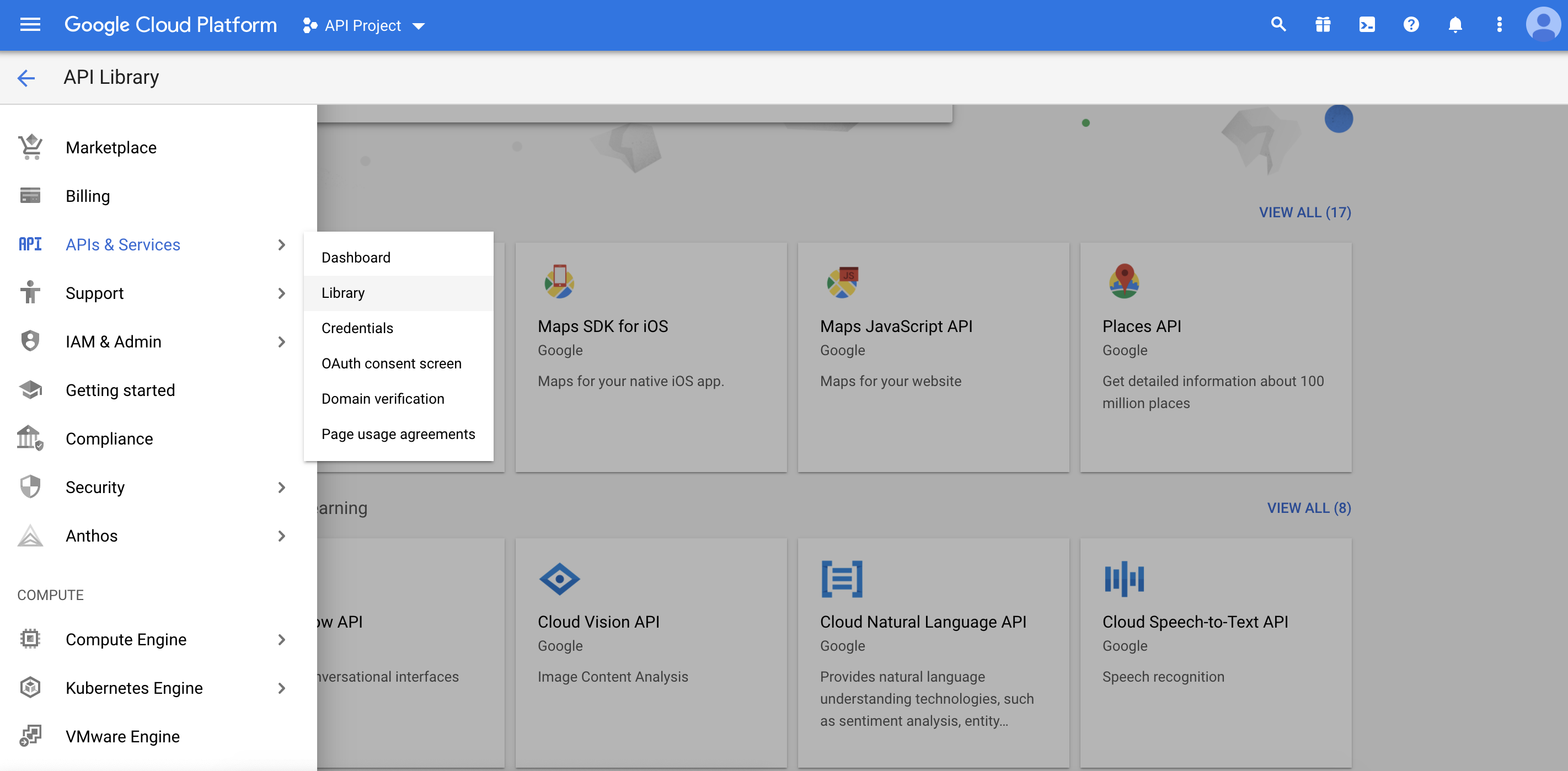
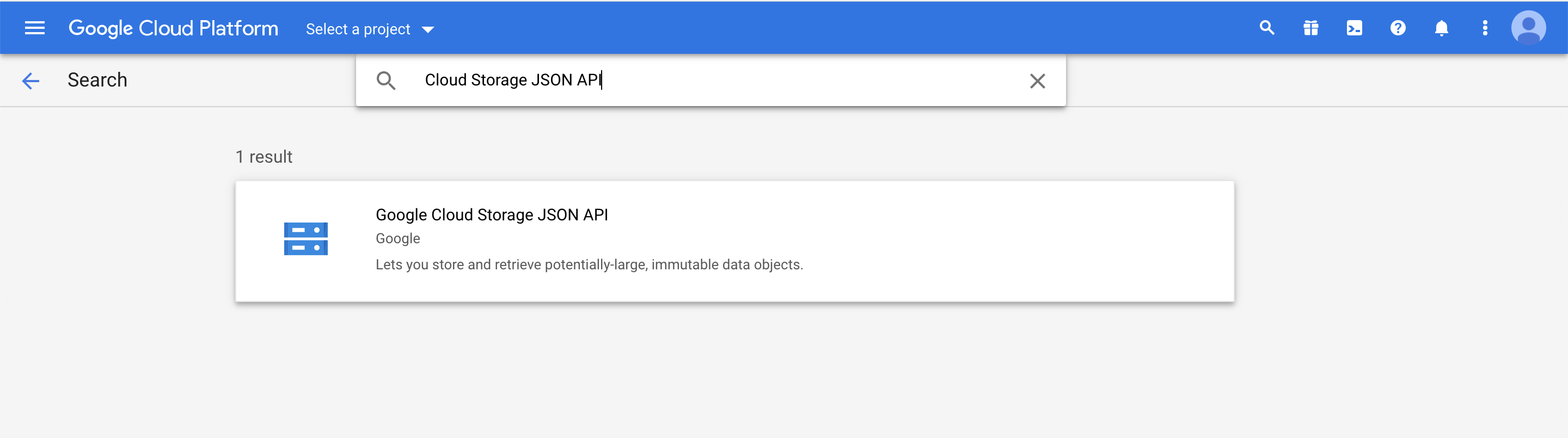
Using a search bar, search “Cloud Storage JSON API”. Click on search result:
Click the Enable button.
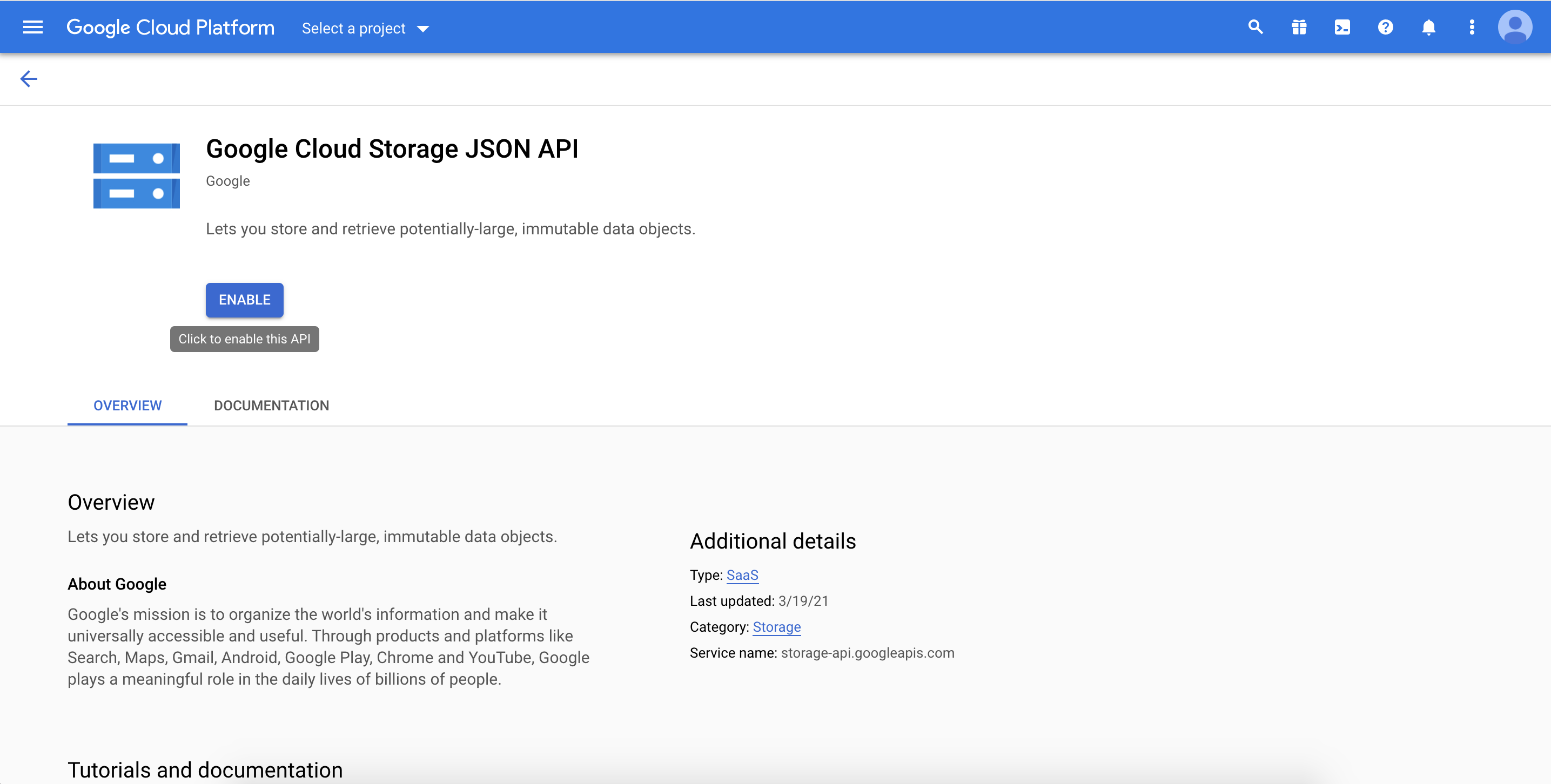
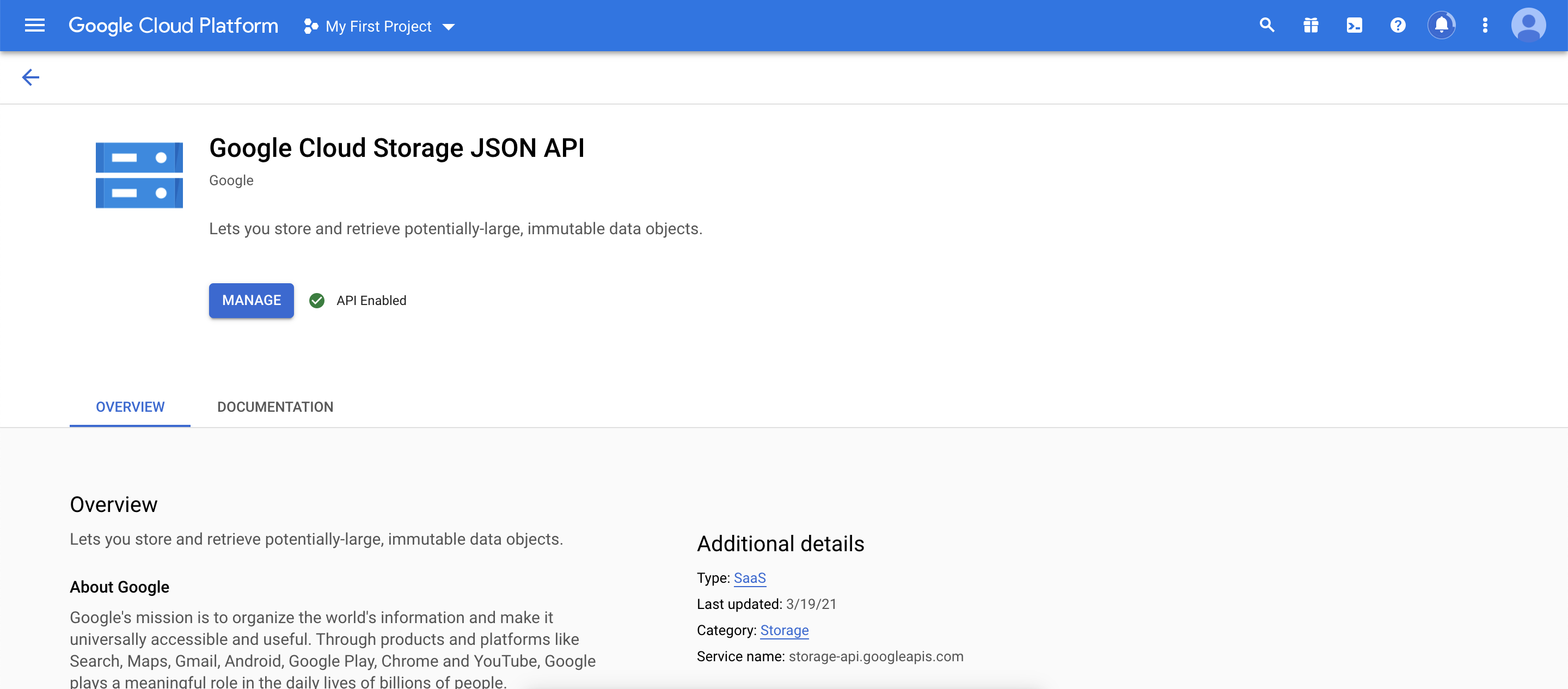
At this point, you can contact the Piano team, and they will check that access is configured correctly.
-
Create required Custom Targeting keys in DFP6 Ad Network
Custom Targeting is required for the Piano identifiers to be saved to the GAM log. Those identifiers are then used by Piano DMP to link events to the corresponding DMP entities: sites, users etc.
There are currently four required Custom Targeting keys: CxSegments, cxid, cxsiteid, and cxprnd.
In the GAM UI, navigate to Inventory → Key-values
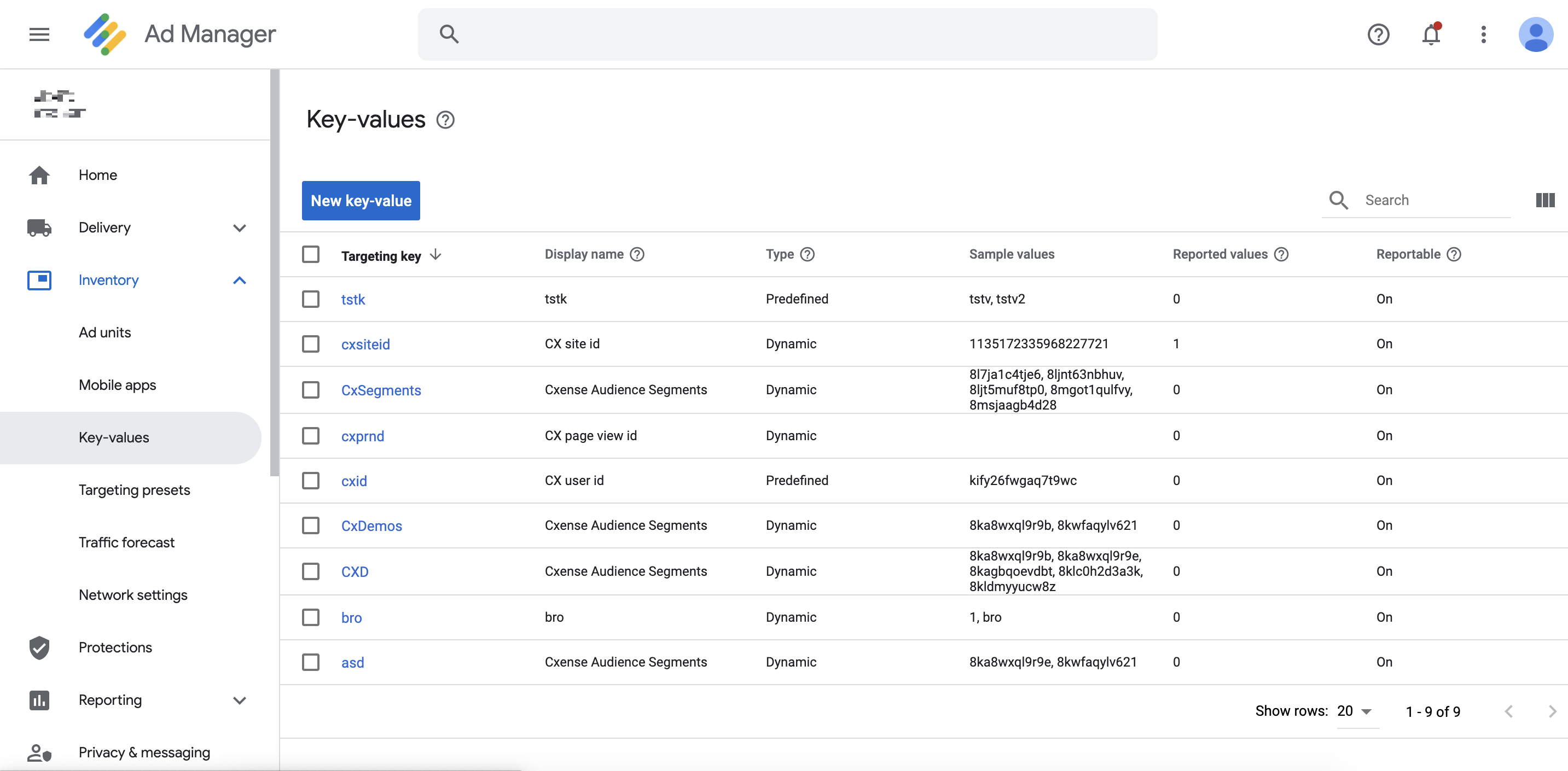
Click the red New key-value button, enter a new key name and a display name, then click the blue Save button (don't click the blue New values button)
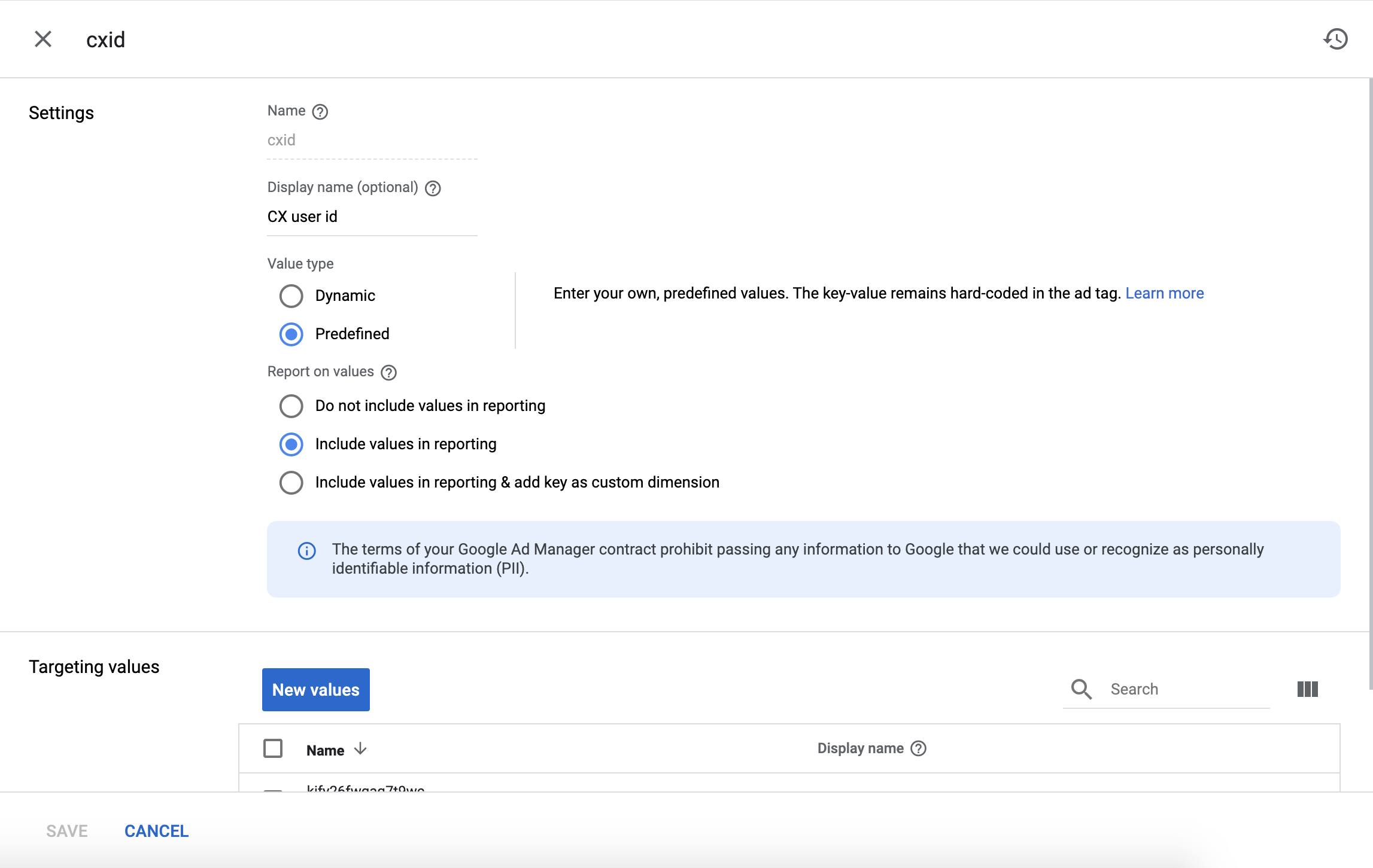
Please note that the created keys should be of "Free-form" type, not "Predefined" one
Ad Tag modification: custom targeting
Read details here.
Creating an integration config on DMP's side
This connection doesn’t have a Configure connection form in the Connectivity Hub. To be able to complete creation of the Performance Data Import, the customer should provide the DMP Product team with the following information:
-
Network ID.
-
URL to the cloud bucket, usually it looks like “
https://console.cloud.google.com/storage/browser/gdfp-
XXXXXXX” and the Bucket name.
-
Site groups where the customer wants to have data and main prefix.
-
Parameters that we should import, choose from the list: "ADVERTISER", "ORDER", "LINE_ITEM", "AD_UNIT", "CREATIVE", "PRODUCT", "HB_DEAL". It allows us to understand what fields should be imported. If the customer wants to import any other fields, let us know, the DMP Product team will check if it is possible to import more than the above fields.
After that, a connection will be completely created.