
The Adnuntius connector enables seamless integration between Piano Audience and Adnuntius, allowing you to share user segments for targeted advertising. This setup is similar to integrations with Google Ad Manager (GAM) or Adform, where Audience segments are passed to the ad server to enhance ad personalization and performance.
Important Notes:
-
This integration supports only User segments. We do not provide support for Contextual segments or Combined segments at this point
-
Ensure you have administrative access to both your Piano account and Adnuntius network.
-
Replace placeholders (e.g.,
<persistedQueryId>,abcd) with your actual values from Piano and Adnuntius.
Prerequisites
Before setting up the integration:
-
Piano Setup:
-
Create segments in Piano Audience that you want to target in Adnuntius.
-
Create a persisted query for the segment lookup, details here.
-
Access the Piano Connectivity Hub to configure the Adnuntius connector (see below).
-
-
Adnuntius Setup:
-
Obtain your Adnuntius Network ID (e.g.,
abcdin the example) from Admin → Network -
Create ad units in Adnuntius with unique IDs (e.g.,
12345). -
Obtain your Adnuntius API key from your Adnuntius account settings: Users → API Keys upon creation
-
-
Website Implementation: Your site must include the Piano Audience script for segment retrieval.
Step-by-Step Integration Guide
Configure the Adnuntius Connector in Piano’s Connectivity Hub
To enable segment sharing with Adnuntius, configure the connector in Piano’s Connectivity Hub:
Connector setup
-
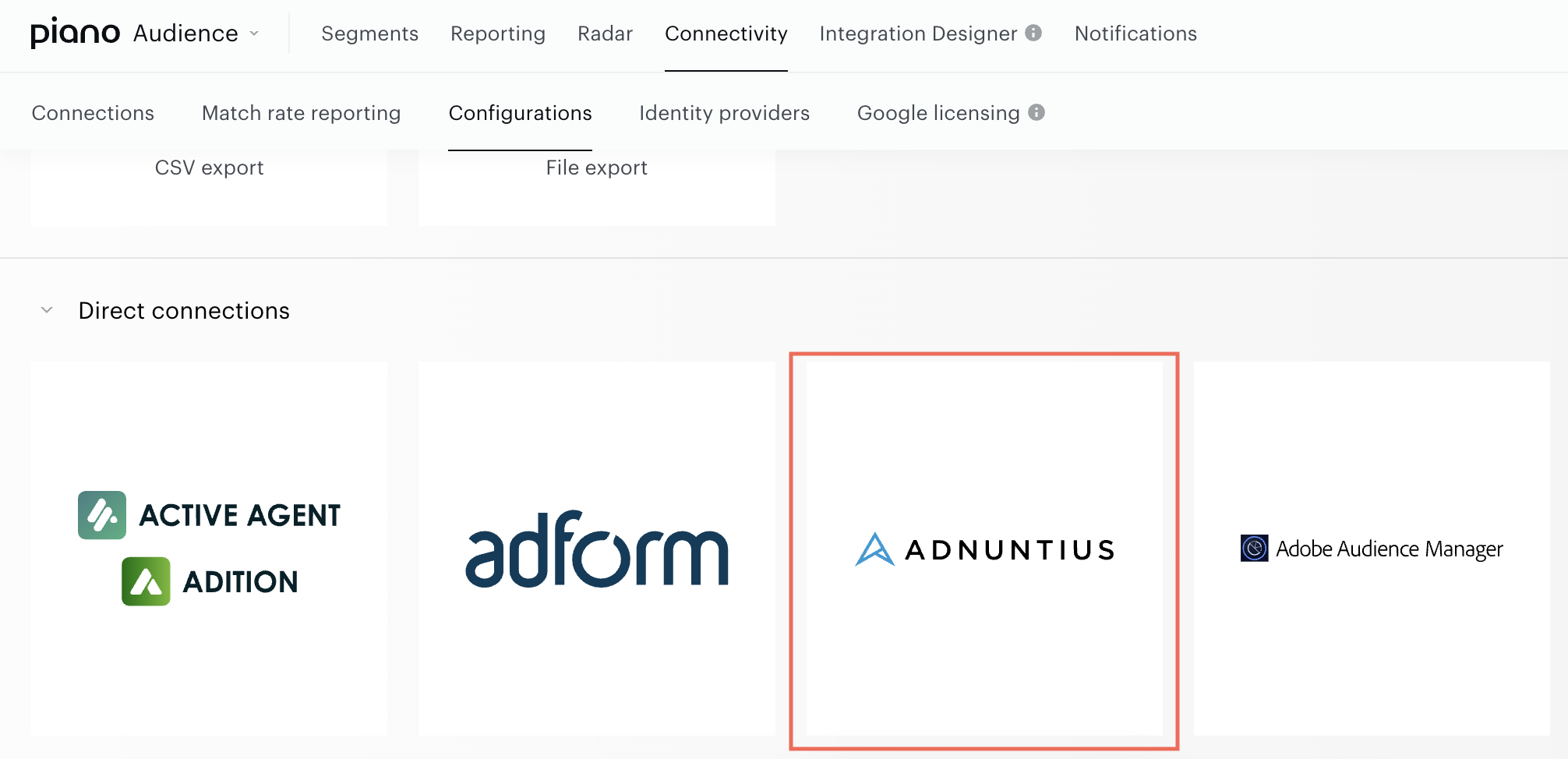
Navigate to Audience → Connectivity Hub in your Piano account.
-
Locate the Adnuntius connector in the list of available (export-) connectors and click to select it.
-
Provide the following details:
-
Project Name: Enter a descriptive name for this integration (e.g., “Adnuntius Segment Sync”).
-
API Key: Input the API key provided by Adnuntius, found in your Adnuntius account settings (Users → API Keys).
-
Click the Test Connection button to verify the integration.
-
If the test is successful, a confirmation message will appear.
-
If the test fails, check the API key and ensure your Adnuntius account is properly configured. Contact Adnuntius support if issues persist.
-
-
Save the configuration to activate the connector.
Configure Segments for Adnuntius
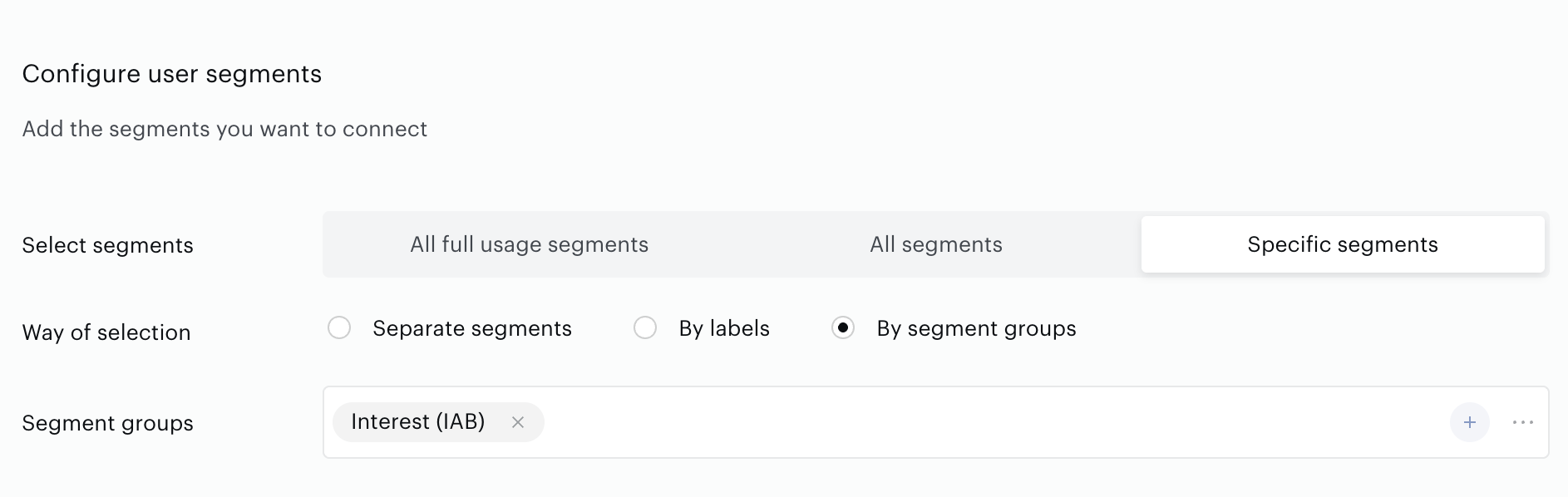
A successful connection test enables the Configure Segments form, where you can specify which segments to share with Adnuntius. The following options are available:
-
All Full Usage Segments: All active (Full Usage) segments will be sent to Adnuntius. Any newly created Full Usage segments will be automatically included in the sync.
-
All Segments: Includes both Full Usage and Reporting Only segments for export to Adnuntius. Newly created segments of either type will be automatically included.
-
Specific Segments: Allows you to manually select individual segments for export. Newly created segments are not automatically included. You can choose segments using the following methods:
-
Separate Segments: Search and select segments individually from the list of available User segments.
-
By Labels: Select one or more labels (key-value pairs), and Piano Audience will export segments associated with the chosen labels.
-
By Segment Groups: Select one or more segment groups, and Piano Audience will export all segments within those groups. This option is ideal for clients who organize segments into specific groups.
-
Monitoring and Updates
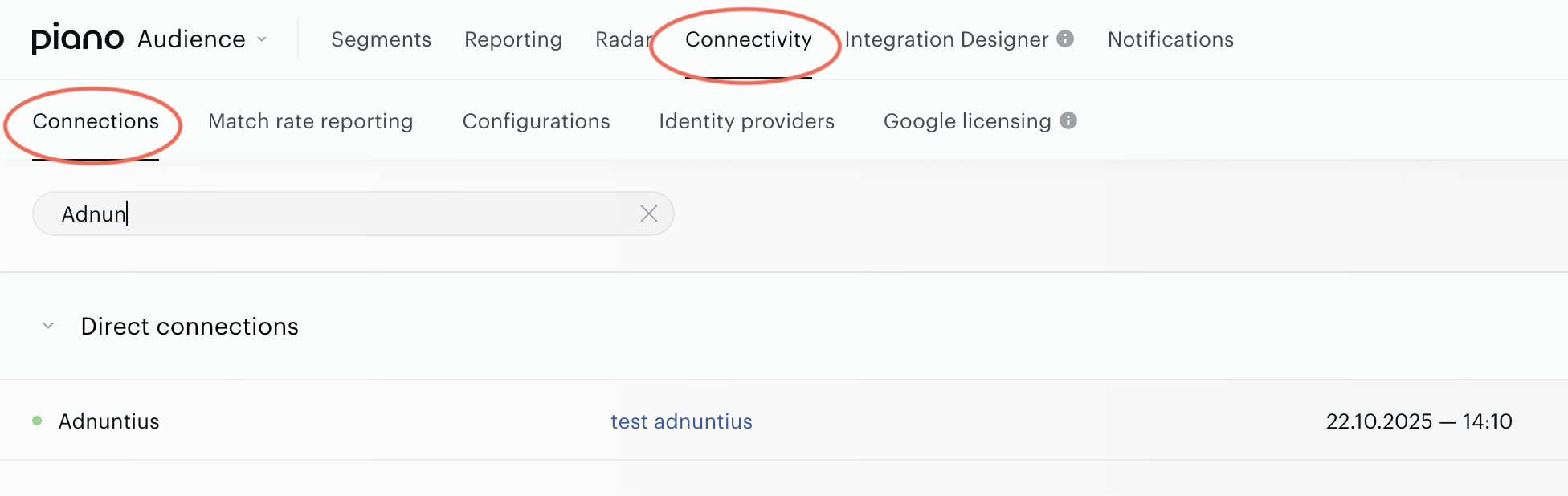
Configured connections are listed and editable in the Connections tab.
Include the Piano Audience and Adnuntius Scripts
Add the Piano Audience (cx.js) and Adnuntius delivery scripts to your website to enable segment retrieval and ad serving.
In the <head> section, include the Piano Audience script:
<script type="text/javascript"> (function(d,s,e,t){e=d.createElement(s);e.type='text/java'+s;e.async='async'; e.src='https://cdn.cxense.com/cx.js'; t=d.getElementsByTagName(s)[0];t.parentNode.insertBefore(e,t);})(document,'script'); </script>
In the <body> section, include the Adnuntius script:
<script src="https://cdn.adnuntius.com/adn.js" async></script>
Initialize Adnuntius and Segment Retrieval
Use the cX.getSegments() function to fetch user segments from Piano and pass them to Adnuntius for ad targeting. Add the following script in your <body> after the ad unit placeholders:
<!-- Ad unit placeholder (repeat for each ad unit) -->
<div id="adn-12345" style="display: none"></div>

<script>
  // Initialize Adnuntius queue
  window.adn = window.adn || {};
  adn.calls = adn.calls || [];

  // Use Piano's callQueue to fetch segments and request ads
  cX.callQueue.push(['invoke', function () {
    cX.getSegments('<persistedQueryId>', function (segments) {
      console.debug('segments', segments); // Optional: Log for debugging
      adn.calls.push(function () {
        adn.request({
          segments: segments.map(s => s.id), // Pass segment IDs
          network: "abcd", // Your Adnuntius Network ID
          adUnits: [
            {
              auId: '12345', // Your Ad Unit ID
              auW: 0,         // Width (0 for auto)
              auH: 0          // Height (0 for auto)
            }
            // Add more ad units as needed
          ]
        });
      });
    });
  }]);
</script>
Key Customizations:
-
<persistedQueryId>: Replace with your Persisted Query ID. -
Network ID: Replace
"abcd"with your actual Adnuntius Network ID. -
Ad Units: Customize the
adUnitsarray with your specificauId, dimensions (auW,auH), and other Adnuntius parameters. -
Multiple Ad Units: Add additional objects to the
adUnitsarray for multi-unit requests. -
Error Handling: Consider adding try-catch blocks or fallback logic for production use.
Place Ad Unit Divs
For each ad unit, add a placeholder <div> in your page where the ad should render. Use the format id="adn-{auId}" to match your Ad Unit ID.
Example:
<div id="adn-12345" style="width: 300px; height: 250px;"></div> <!-- Adjust styles as needed -->
Test the Integration
-
Ensure the Adnuntius connector is active in the Connectivity Hub and the connection test was successful.
-
Load your webpage in a browser with the scripts implemented.
-
Open the browser console to check for the
console.debug('segments', segments);output, confirming segments are retrieved. -
Verify ad requests in the Adnuntius dashboard or network logs.
-
Test with known users to ensure segments are passed correctly.
Go Live
Once tested:
-
Remove debug logs (e.g.,
console.debug). -
Monitor performance and segment accuracy in Adnuntius reports.
-
Ensure compliance with privacy regulations (e.g., GDPR) by obtaining user consent for segment usage.
Troubleshooting
-
No Segments Retrieved: Verify that the Piano script is loaded correctly, the Persisted Query ID is valid, and the segments are selected in the Connectivity Hub. Ensure user consent for tracking is obtained.
-
Connection Test Fails: Double-check the Adnuntius API key and network ID. Contact Adnuntius support if issues persist.
-
Ads Not Rendering: Confirm that Ad Unit IDs match between your code and Adnuntius. Check for JavaScript errors in the console.
-
Integration Errors: Refer to the Adnuntius Developer Documentation or contact Piano support for Audience-related issues.