
The integration allows using Piano Audience segments in Adform DMP which is a part of Adform's full stack. Segments can be subsequently transferred from Adform DMP to external services (e.g. a DSP) with the help of Adform team. This article describes three main elements of the Piano-Adform interaction: initial user matching between the databases, configuration setup, and regular export.
User matching process
Before starting the matching process, you need to complete Piano Audience setup (the integration requires one or more siteGroupId).
Matching user IDs of Piano and Adform relies on the Cookie Sync tag which should be put on your website pages. The entire process of user matching usually takes a month or two, so it's a good practice to put the tag in advance. Make sure that the tag is used for alive and the most visited webpages because it's traffic that defines matching speed.
Putting the CookieSync Tag on your webpages
Put one of these tags on your webpages with high traffic.
-
Synchronous tag
<script type="text/javascript" src="//cdn.cxense.com/cx.js"></script>
<script type="text/javascript">
 cX.sync('adform');
</script>
-
Asynchronous tag
<script type="text/javascript">
       (function(d,s,e,t){e=d.createElement(s);e.type='text/java'+s;e.async='async';
       e.src='http'+('https:'===location.protocol?'s://s':'://')+'cdn.cxense.com/cx.js';
       t=d.getElementsByTagName(s)[0];t.parentNode.insertBefore(e,t);})(document,'script');
       var cX = cX || {}; cX.callQueue = cX.callQueue || [];
       cX.callQueue.push(['sync','adform']);
   </script>
Configuring Piano Audience for Adform
-
Create an Adform configuration
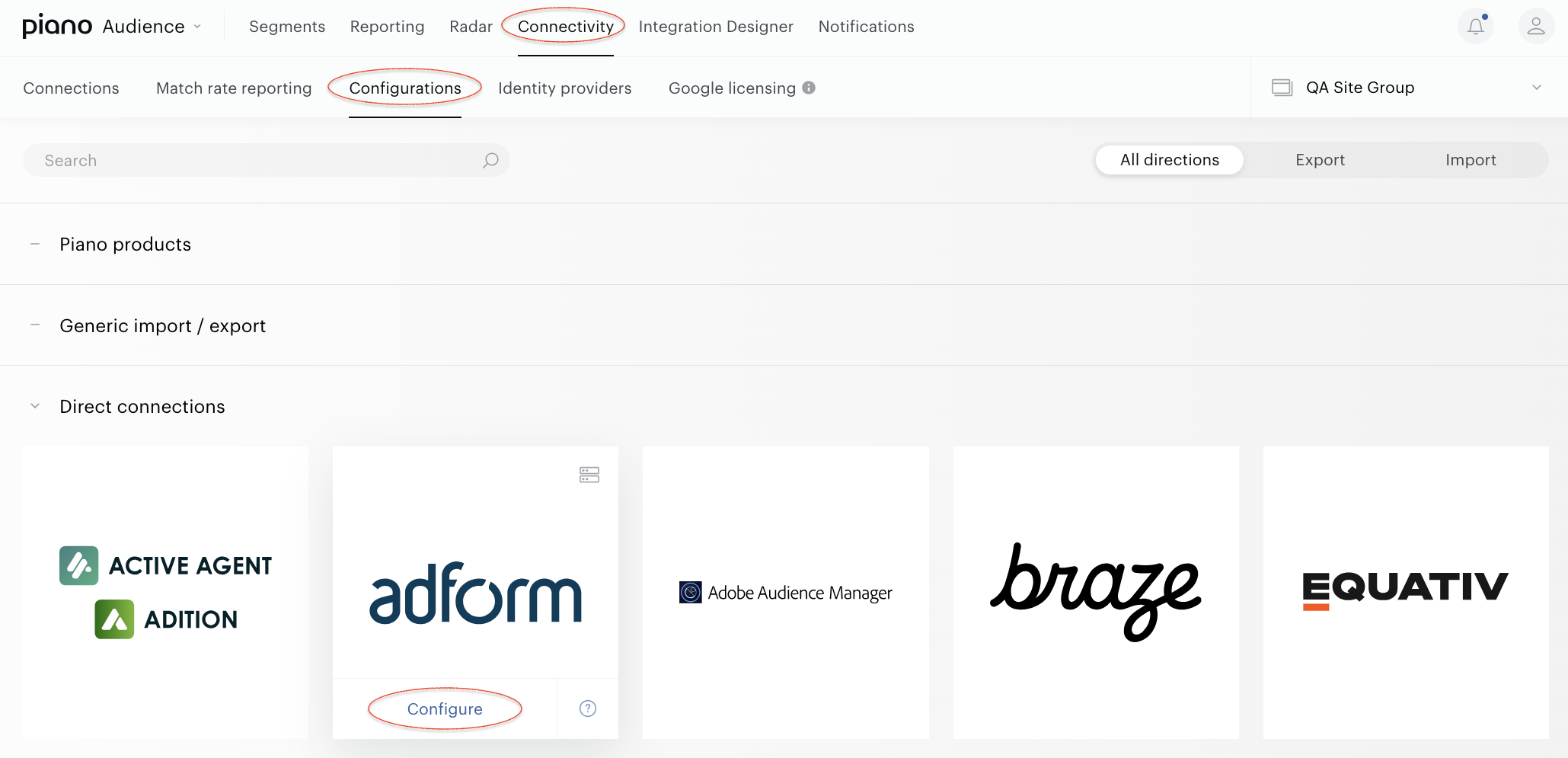
From the Piano Audience home page, go to the Connectivity tab → the Configurations tab →the Adform icon and click the Configure button.
-
Configure the connection
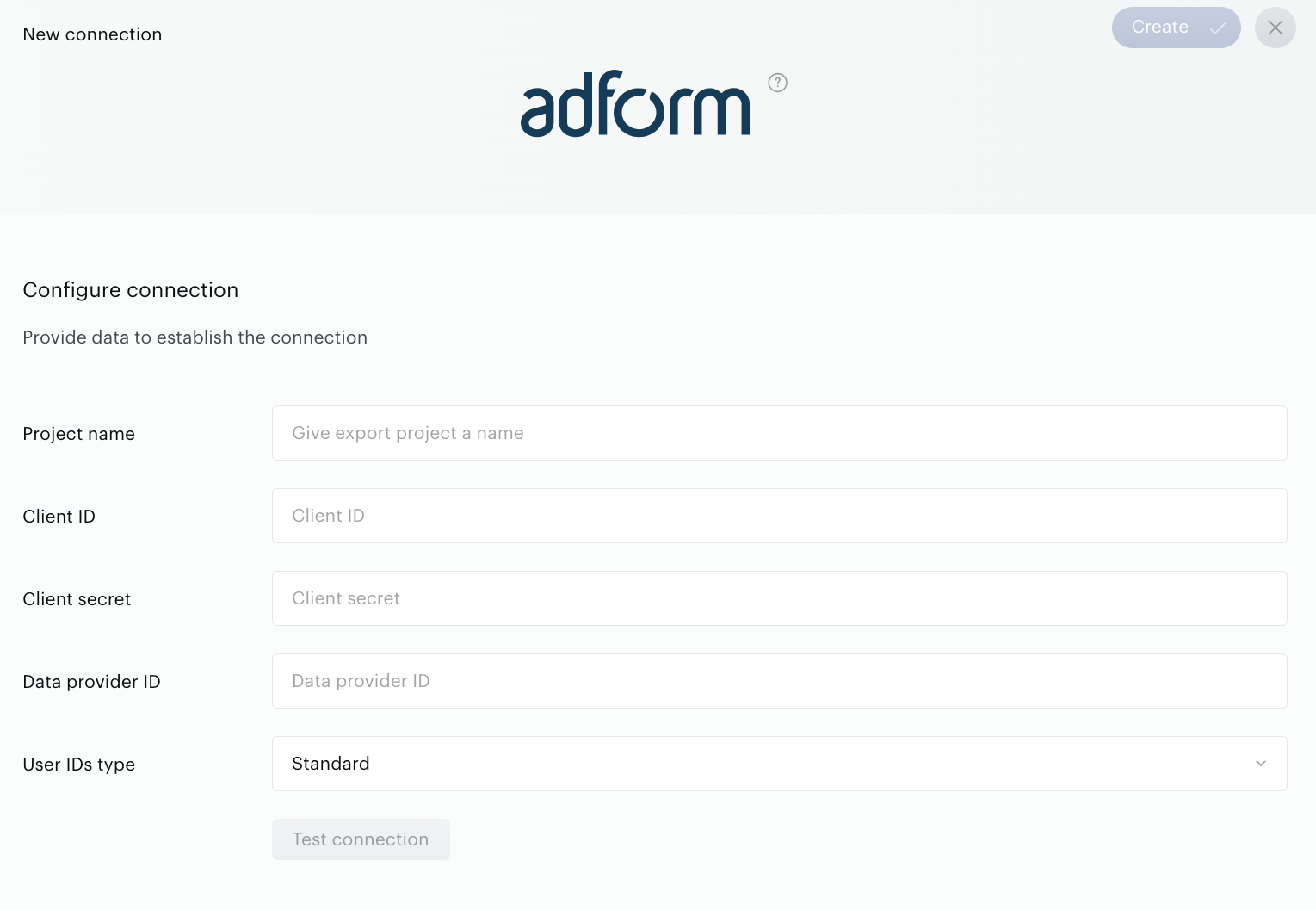
In the New Connection menu, the following parameters are available:
-
Project name: to be shown in Piano Audience only, intended to simplify managing numerous integrations.
-
Client ID and Client secret: OAuth user credentials that customers have to receive themself from the Adform Audience Base team. They are used instead of Username and Password since the end of January 2022.
-
Data Provider ID: given in the Settings of your Adform account (if you can't find it, please contact your Adform manager).
-
Export type: a radio button to select between standard (web), mobile IDs, and ID5.
Set the parameters and click Test Connection.
A successful test connection activates new configuration sections and the Create button at the top right of the window. Click it before you go on. The button will turn to Save, which you can use to save any further changes in your connection. In case of any problems you will see a message. If you don't know how to fix your problem, please contact the Support or Professional Services team.
-
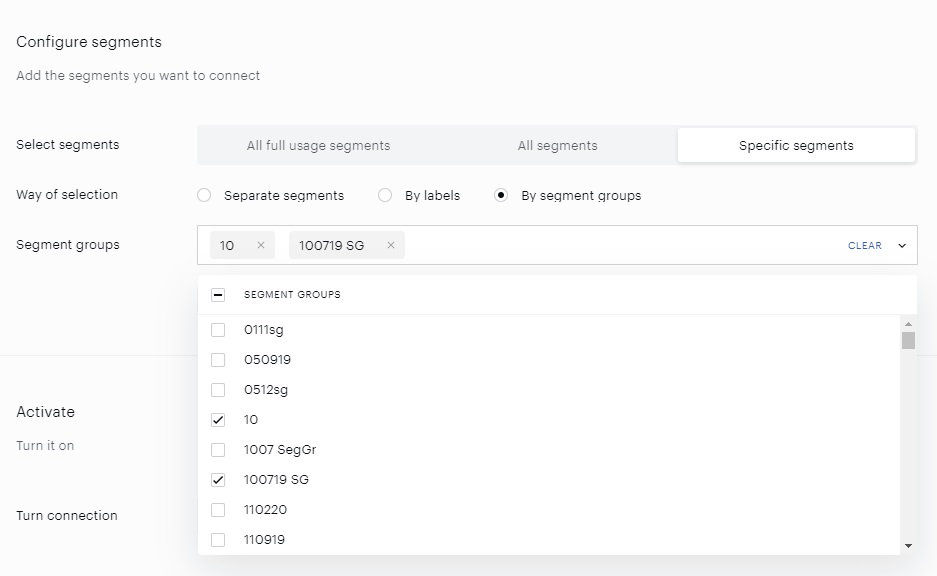
Configure segments
Successful test connection enables the Configure segments form where:
-
All full usage segments means that all active full usage segments will be sent to Adform; any newly created active full usage segment will be added automatically.
-
All segments includes both types of usage segments: Full and Reporting only segments.
-
Specific segments allows the customer both to send some part of the active segments and to check if a needed segment is active now. If a needed segment is inactive, it can be activated on the Segments tab.
Specific segments options allow the customer to choose how exactly Piano Audience should select segments for export:
-
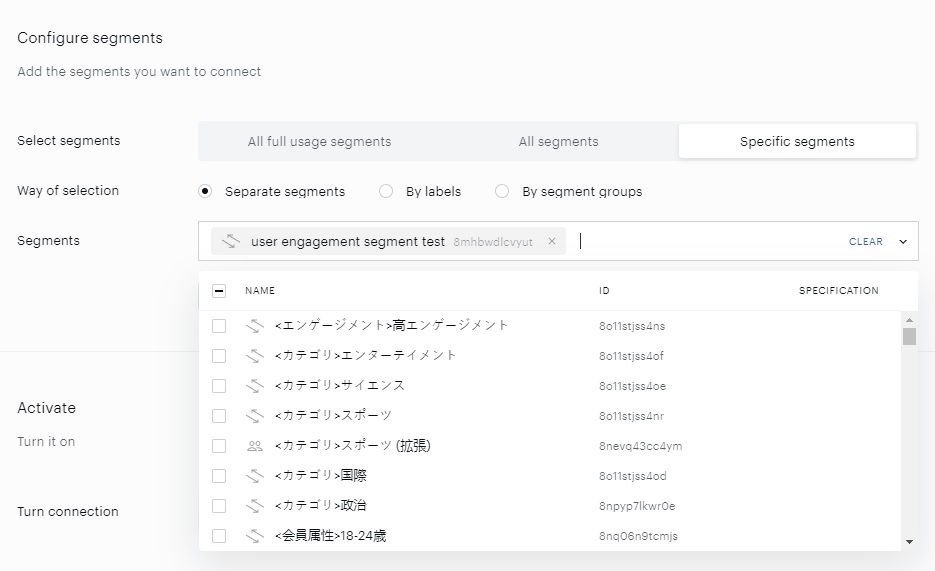
Separate segments allows the customer to search and select segments one by one manually.
-
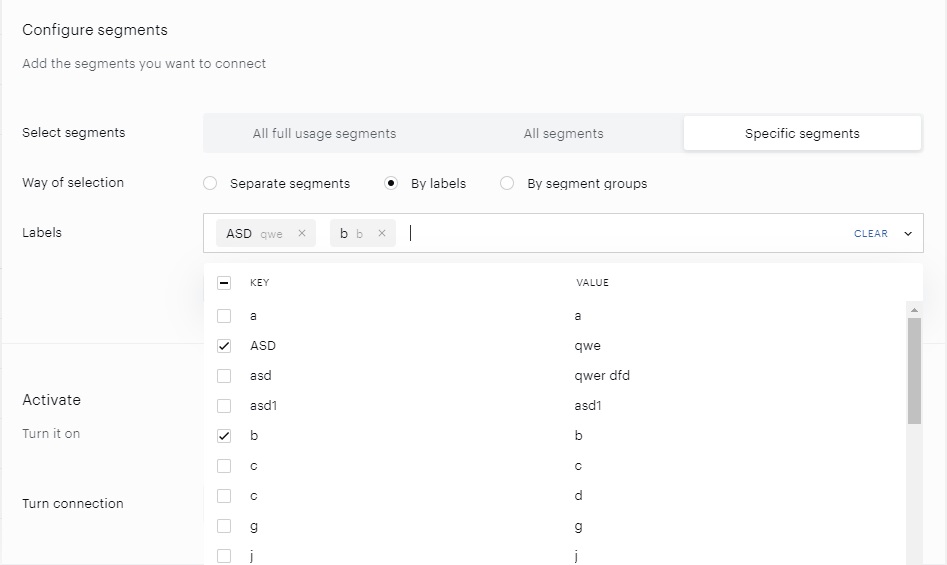
By labels allows the customer to select one or more labels (key-value pairs). Audience will find segments by the selected labels and export them.
-
By segment groups allows the customer to select one or more segment groups, and Audience will export segments within these specific segment groups. It is more suitable for those clients who prefer to organize their segments specifically.
-
Export segments
You can click Export now in the Configure segments section for almost immediate export of selected segments without waiting for the next scheduled data transfer.
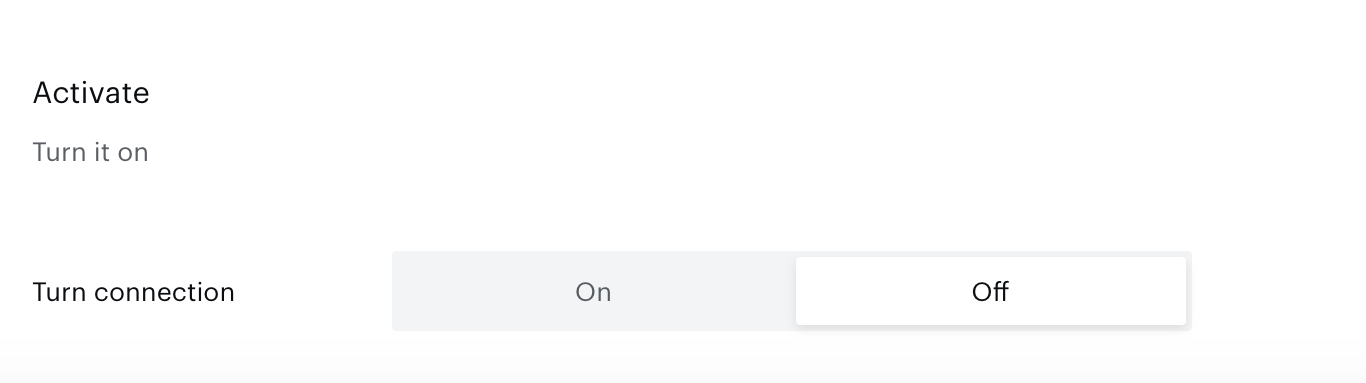
The other option is configuring scheduled data transfer in the Activate section below. There, you can either set up a daily data transfer by turning connection on, or hold the created configuration without activation yet.
When ready, click Create or Save (if editing) in the top right corner of the page.
Creating new segments in Adform DMP
All new segments created in Adform DMP have the following default parameters:
-
Time To Live (TTL): 30 days.
-
Frequency: 1
-
Price: minimal as agreed with Adform
You can update them manually.
A category can be created if it does not exist.
Removing audience data
Please note that deleting a user from a Piano Audience segment results in deleting them from Piano Audience with the next daily export session.
Export ID5 universal IDs
Adform supports S2S integration to bring ID5 Universal IDs from Piano Audience into Adform. The integration uses the following name for this user IDs type: External 1st party IDs. Read more about the Accepting External First-Party IDs in Site Tracking on the Adform help portal.
The ID5 solution overview is here.
cx.js
Preconditions
Customer’s websites have to be configured to work with ID5 in order to obtain ID5 universal IDs. Customer can select any option of working with ID5. In general publishers can retrieve the ID5 IDs in two ways:
-
Via Prebid User ID module
-
Via ID5 JavaScript Library
Find out more details about it on the ID5 support portal.
The cx.js code examples below transfer ID5 IDs from the customer’s websites to the Piano Audience. The selection of the cx.js code depends on the option that customer selects to be able to work with ID5.
Using id5-api.js
cX.callQueue.push([
  "invoke",
  function () {
    // get or init id5-api object
    window.id5Api =
      window.id5Api ||
      window.ID5.init({
        partnerId: <ID5 PARTNER ID>,
      });

    // send id5 id to Piano Audience
    var id5Callback = function (id5Status) {
      var id5UserId = id5Status.getUserId();
      cX.callQueue.push(["sync", { partner: "idf", userId: id5UserId }]);
    };
    // trigger callback onAvailable and onUpdate
    window.id5Api.onAvailable(id5Callback).onUpdate(id5Callback);
  },
]);
Using prebid.js
userId module must be added to Prebid.js and configured.
Export ID5 IDs cx.js code:
pbjs.que.push(function () {
  pbjs.getUserIdsAsync().then(function (userIds) {
    if (userIds.id5id) {
      cX.callQueue.push([
        "sync",
        { partner: "idf", userId: userIds.id5id.uid },
      ]);
    }
  });
});
Configuring Piano Audience for Adform
Read general information about how to configure connection, save changes, activate or deactivate connection above.
The following should be done if the customer want to export ID5 user IDs:
-
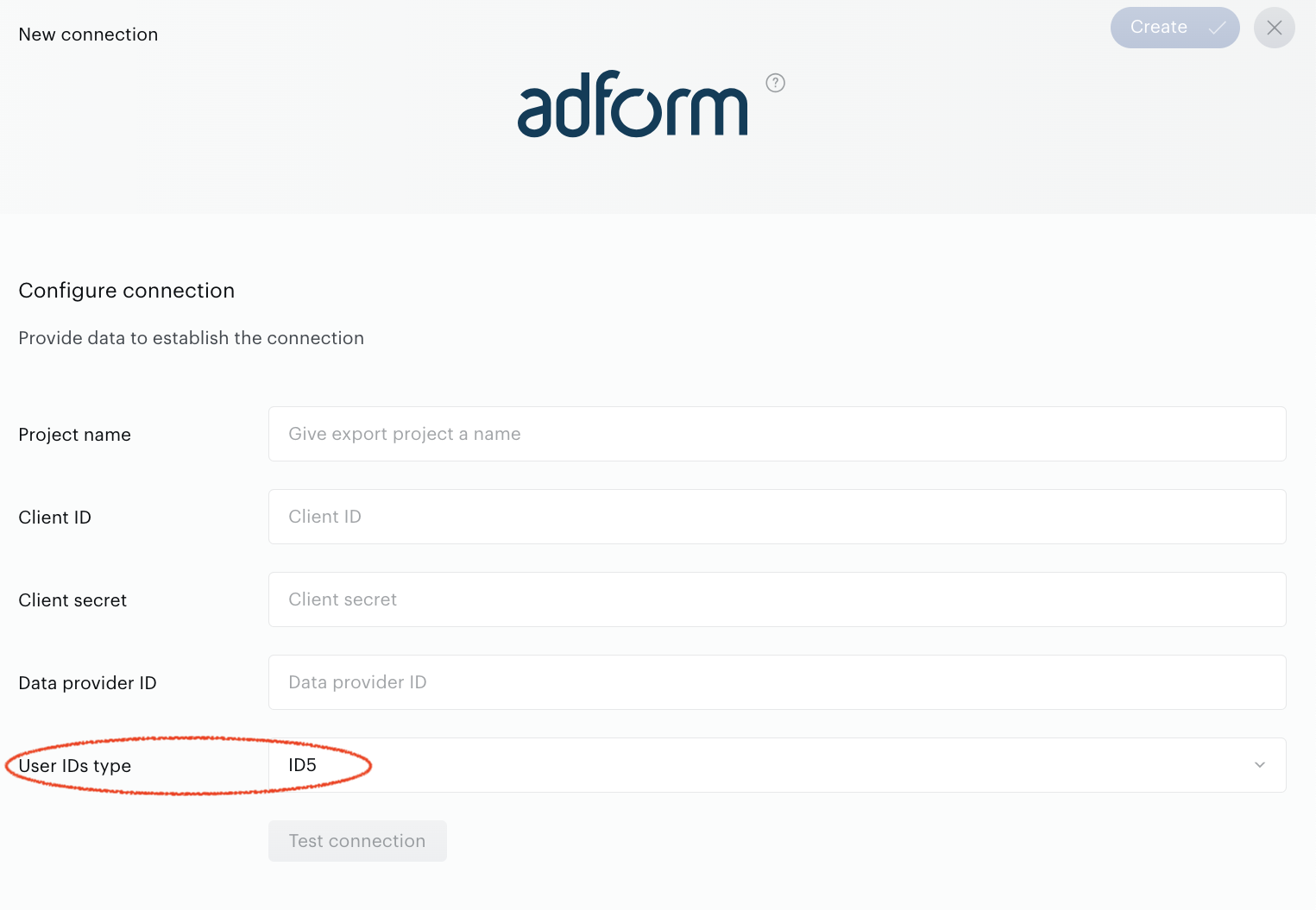
When set up User IDs type parameter, choose “ID5” option.
Don’t forget to fill other obligatory fields, make Test connection and save changes.
If a customer wants to export ID5 user IDs alongside the Partner user IDs, the customer has to create several connections in parallel. The more it makes sense because Adform requires separate different user IDs - they can’t be mixed.
Export Czech Ad IDs
Adform supports S2S integration to bring Czech Ad Ids from Piano Audience into Adform. The Czech Ad Ids solution overview is here.
cx.js
Preconditions
Customer’s websites have to be configured to work with Czech Ad Ids to obtain Czech Ad Ids. It can be done using Prebid User ID module.
The cx.js code example below transfer Czech Ad Ids from the customer’s websites to the Piano Audience.
Using prebid.js
var idToPrefix = {
  czechAdId: "czi",
};

var pbjsKeys = ["czechAdId"];

pbjs.que.push(function () {
  pbjs.getUserIdsAsync().then(function (userIds) {
  function sync(url) {
    var img = new Image();
    img.src = url;
  }

  cX.callQueue.push([
    "invoke",
    function () {
      var siteIdParam = cX.getSiteId();
      var cxenseUserId = cX.getCxenseUserId();
      var hasConsent = cX.isConsentRequired()
? cX.hasConsent('ad') : true;

      cX.Array.forEach(pbjsKeys, function (key) {
        if (userIds[key] && cxenseUserId && hasConsent) {
          sync(
            "https://csyn.cxense.com/" +
              idToPrefix[key] +
              ".png?cxsite=" +
              siteIdParam +
              "&userId=" +
              userIds[key] +
              "&cxckp=" +
              cxenseUserId
          );
        }
      });
    },
  ]);
});
});
Configuring Piano Audience for Adform
Read general information about how to configure connection, save changes, activate or deactivate connection above.
The following should be done if the customer wants to export Czech Ad IDs:
-
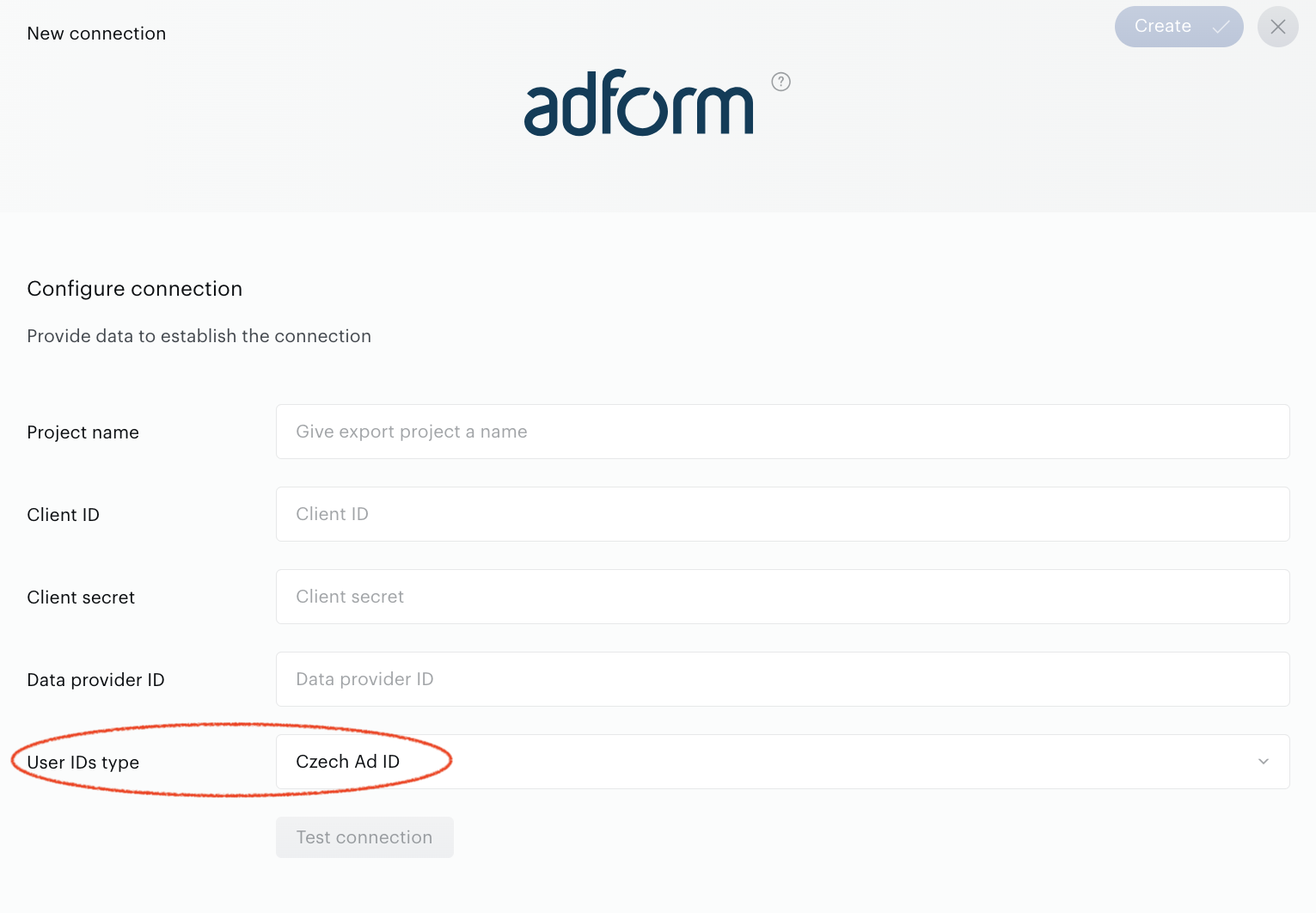
When setting up User IDs type parameter, choose “Czech Ad ID” option.
Don’t forget to fill in other obligatory fields, make Test connection and save changes.
If a customer wants to export Czech Ad IDs alongside the Partner user IDs, the customer has to create several connections in parallel. The more it makes sense because Adform requires separate different user IDs - they can’t be mixed.