Platform161 is a demand-side platform (DSP) working with advertisers and agencies. The integration allows using Piano Audience segments in Platform161 DSP.
Setting the CookieSync tag
Platform161 and Piano Audience has server-side and client-side integrations.
If you choose server-side integration, membership data will be uploaded to Platform161 by schedule. Segment mapping will be stored on Piano Audience' side.
Decide which tag is more convenient for you and put it on all the websites of your network.
-
Synchronous tag
 <script type="text/javascript" src="//cdn.cxense.com/cx.js"></script>
    <script type="text/javascript">
        cX.sync('p161');
    </script>
-
Asynchronous tag
<script type="text/javascript">
       // Async load of cx.js
        (function(d,s,e,t){e=d.createElement(s);e.type='text/java'+s;e.async='async';
        e.src='http'+('https:'===location.protocol?'s://s':'://')+'cdn.cxense.com/cx.js';
        t=d.getElementsByTagName(s)[0];t.parentNode.insertBefore(e,t);})(document,'script');
        var cX = cX || {}; cX.callQueue = cX.callQueue || [];
        cX.callQueue.push(['sync','p161']);
    </script>
After that, you need to tell the Piano onboarders or support team which site group should be integrated. Then Piano makes a request to Platform 161's support team.
Configuring Piano Audience
-
Create a Platform 161 configuration
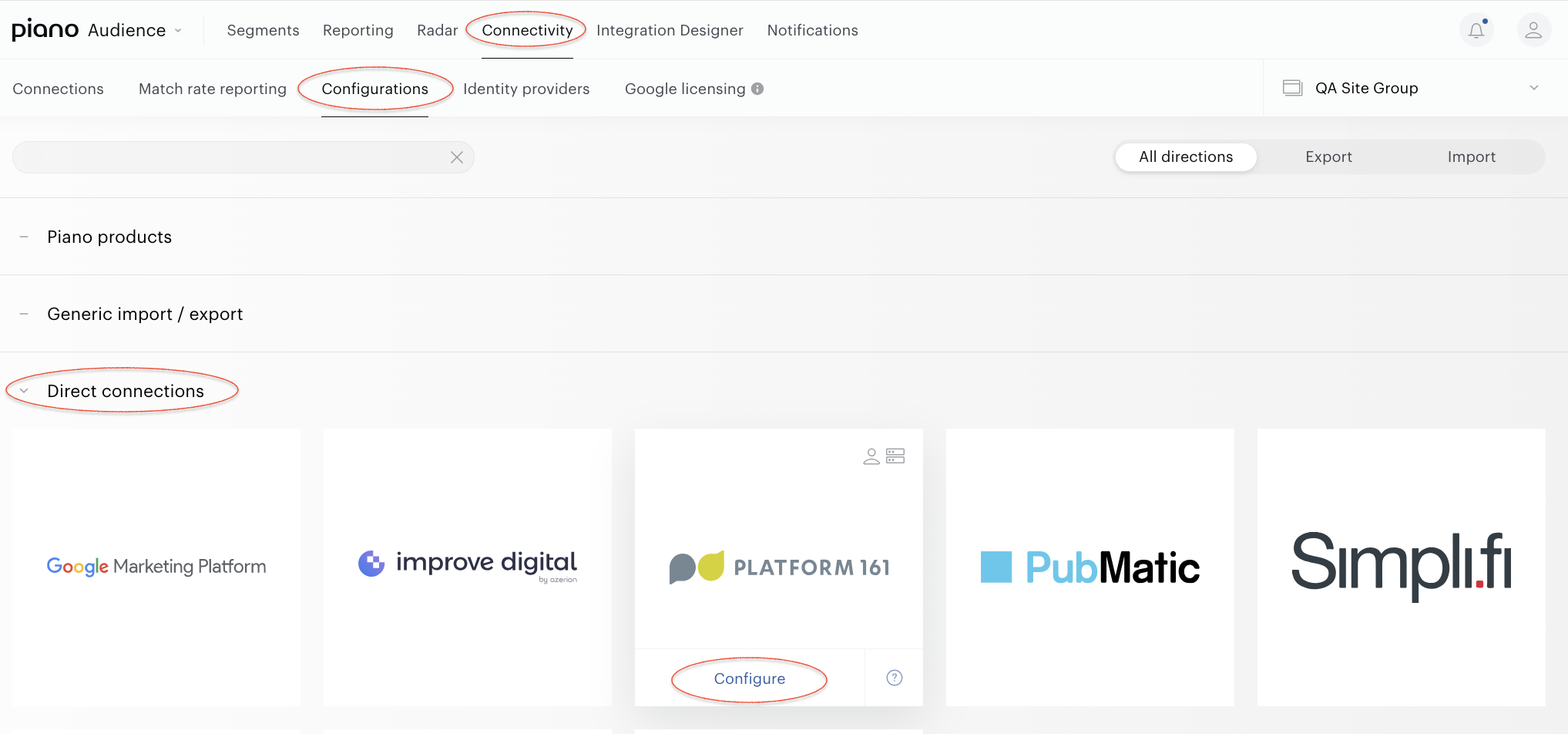
With your site group selected, from the Piano Audience home page, go to the Connectivity tab → the Configurations tab →the Platform 161 icon and click the Configure button.
-
Configure the connection
In the New Connection menu, you want to set
Project name: It will be shown in Piano Audience only to simplify managing numerous integrations.
Type of synchronization: Client-side integration will send segments only, while server-side integration will also send members of those segments.
When everything is set, click the Test connection button. A request to the specified account on the partner’s side will be sent, and, if everything works correctly, you'll get a corresponding notification. The Create button in the upper right corner will be activated. Click it. Create will turn to the Save button you can use any time during further configuration.
When your configuration is created, Platform161 should be notified about a new customer connection. Ask Support or your account manager to double check.
-
Configure segments
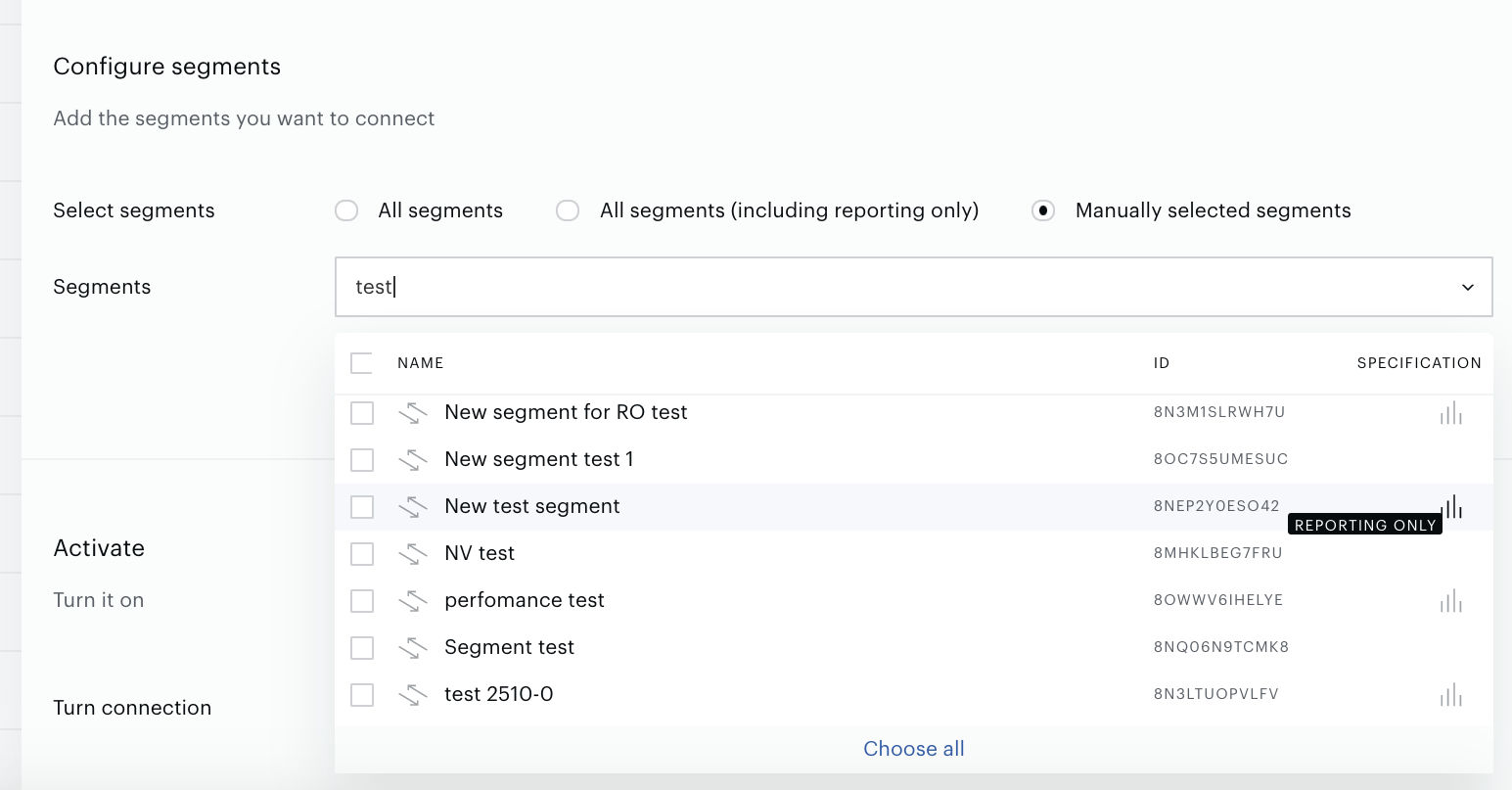
Successful test connection enables the Configure segments form where:
-
All segments means that all active full-usage segments will be sent to Platform 161; any newly created active full usage segment will be added automatically.
-
All segments (including Reporting only) includes reporting-only segments.
-
Manually selected segments allows both to send some part of active segments and to check if a needed segment is active now. If a needed segment is inactive, you can activate it on the Segments tab. To select a segment, click its name. Multiple selection is supported.
Set the parameter.
-
Export segments
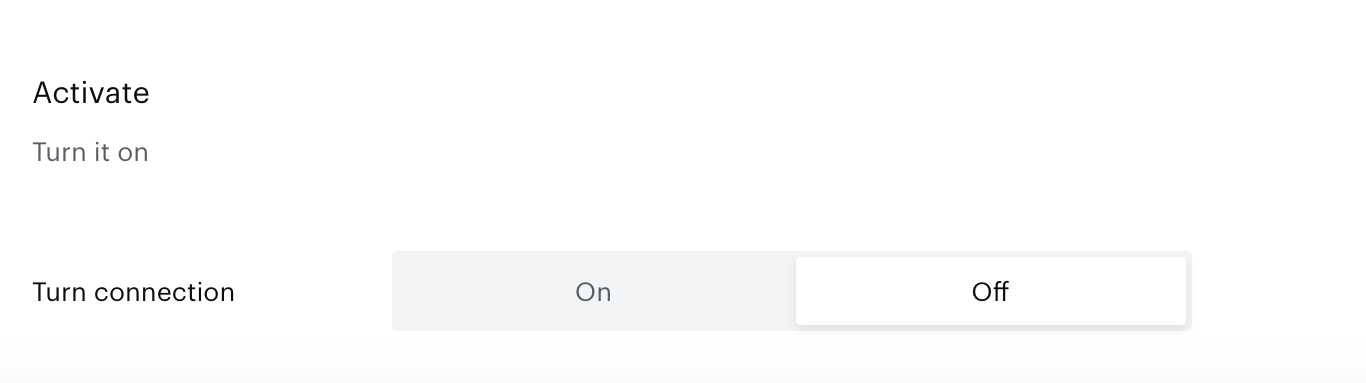
You can click Export now in the Configure segments section for almost immediate export of selected segments without waiting for the next scheduled data transfer. The other option is configuring scheduled data transfer in the Activate section below. There, you can either set up a daily data transfer by turning connection on, or hold the created configuration without activation yet and set the connection to "off".
When ready, click Create or Save (if editing) in the top right corner of the page.
Monitoring and update
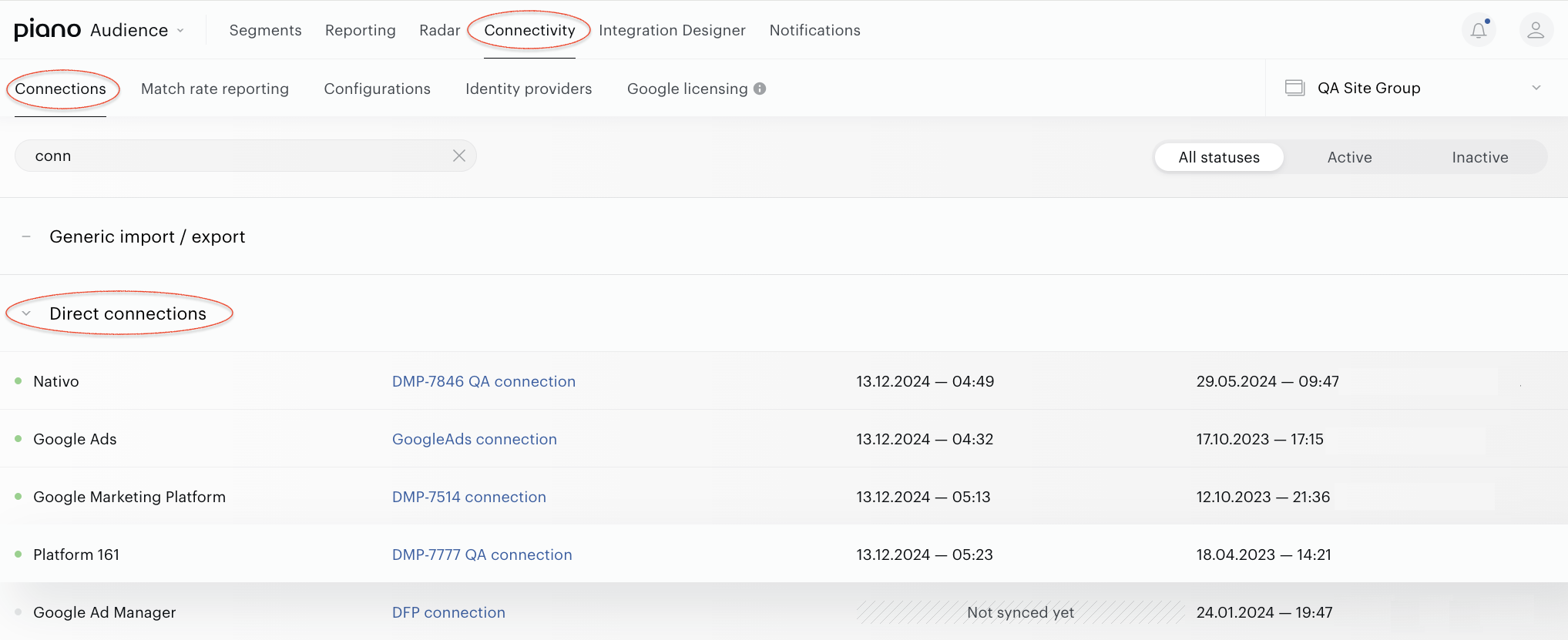
Configured connections can be viewed and edited in the Connections tab. They are also available under the Match rate reporting tab.
Data is normally exported once a day. The Export now button allows to export segments (not membership data) almost immediately.
By default, if segments export is enabled, then all site group segments are exported. The same applies to membership export.