Braze is a customer engagement platform used by businesses for multichannel marketing. Find out more about the Braze platform in the documentation.
Prerequisites
This integration allows you to enrich the user profiles in the Braze platform with the Piano Audience segment data.
This also means that user profiles should exist in the Braze platform; the integration will not create users there, just update them with segments data.
Configuring Piano Audience
Create a configuration
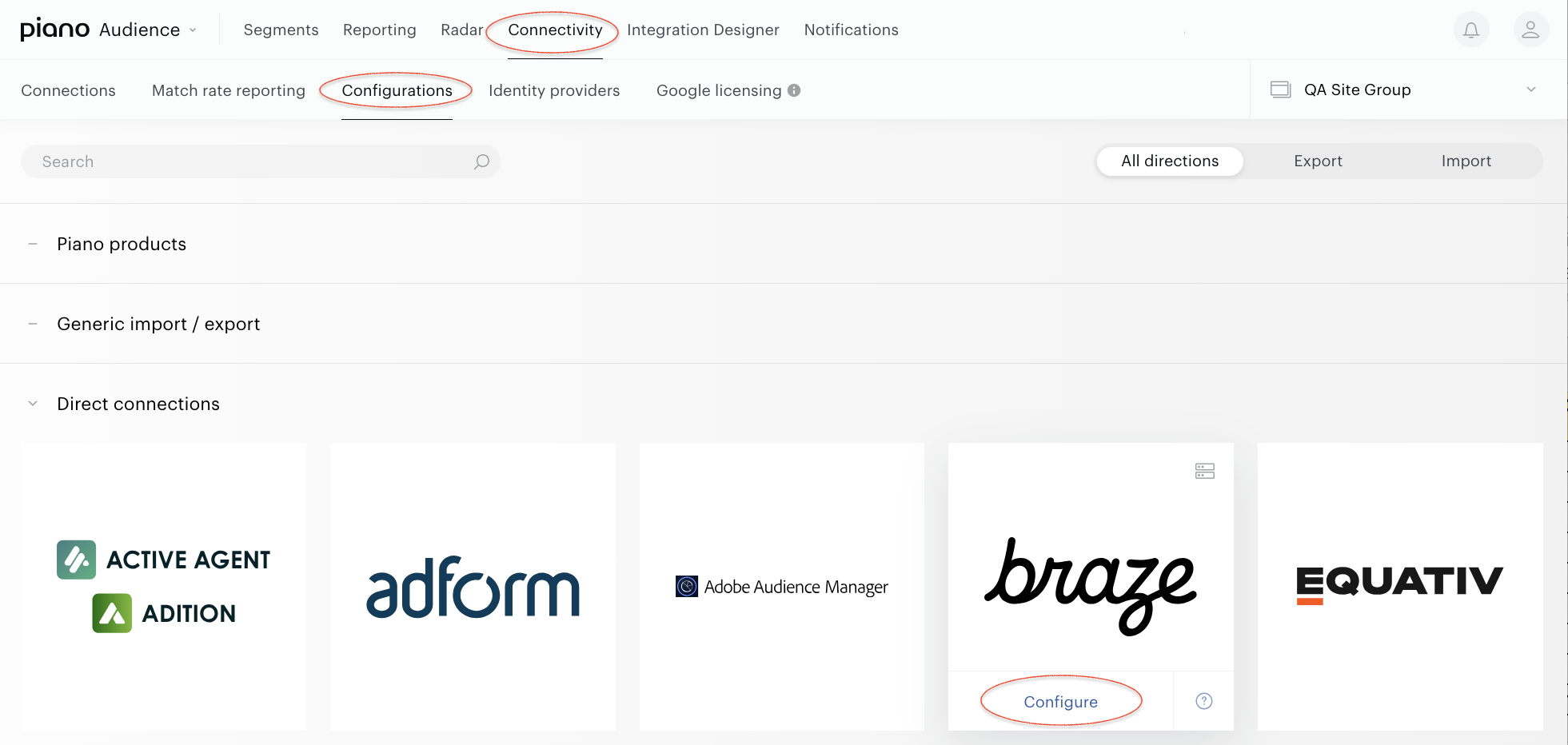
With your site group selected, from the Piano Audience home page, go to the Connectivity tab → the Configurations tab →the Braze icon; click the Configure button.
Configure the connection
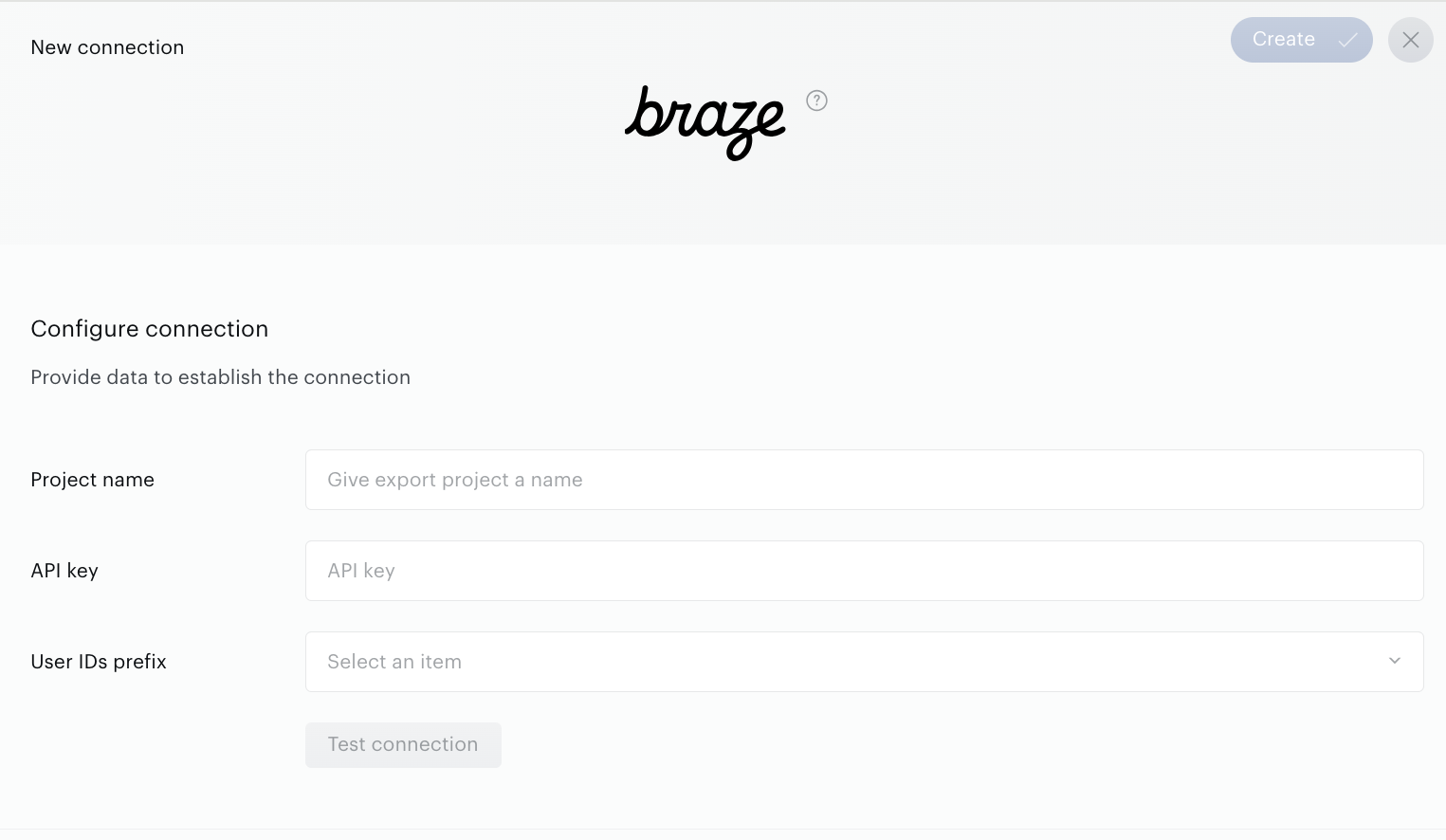
In the Configure connection section, you have to set:
-
Project name: to be shown in Piano Audience only, intended to simplify managing numerous integrations.
-
API key: API parameter needed to send segment data. Obligatory.
-
User IDs prefix: obligatory parameter that allows us to understand what user profiles should be updated.
The last step of the configuration process is to test the provided parameters: click the Test connection button when everything is set.
The Create button in the upper right corner will be activated right after successful Test connection. Click it. Create will turn to the Save button; you can use it at any time during further configuration.
Configure segments
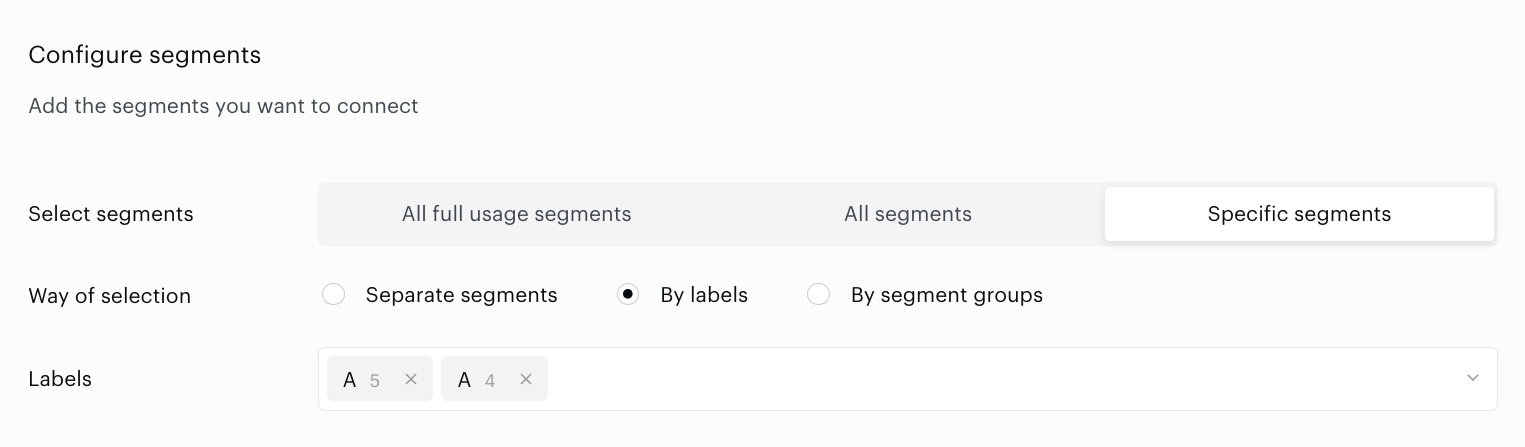
Successful test connection enables the Configure segments section where:
-
All full usage segments means that all active Full usage segments will be sent to Braze; any newly created active full usage segment will be added automatically.
-
All segments option includes both types of usage segments: Full and Reporting only segments.
-
Specific segments option opens up more ways to choose how exactly Piano Audience should select segments for export:
-
-
Separate segments option allows you to search and select segments one by one manually.
-
By labels option allows you to select one or more labels (key-value pairs). Audience will find segments by the selected labels and export them.
-
By segment groups option allows you to select one or more segment groups, and Audience will export segments from these specific segment groups. It is more suitable for those customers who prefer to organise their segments specifically.
-
Set the parameter.
Export segments
The other option is configuring scheduled data transfer in the Activate section. There, you can either set up daily data transfer by turning the connection on or hold the created configuration without activation yet and set the connection to off.

When ready, click Create or Save (if editing) in the top right corner of the page.
Monitoring and update
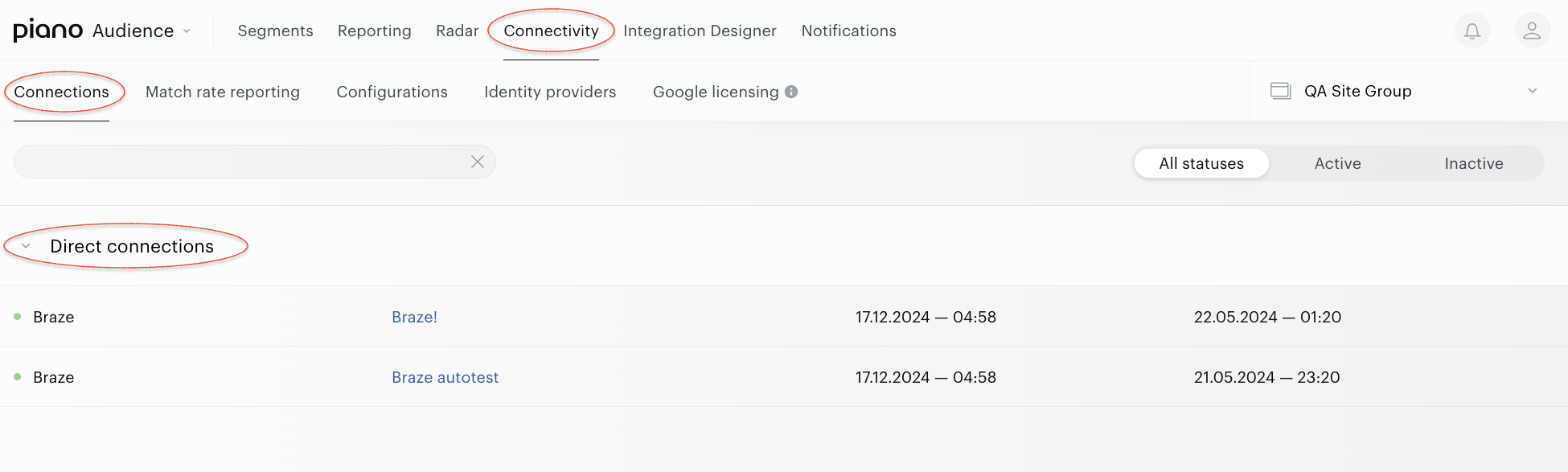
Configured connections can be viewed and edited on the Connections tab.
Data is normally exported once a day.