This integration between Piano Audience and the Freewheel platform can be used for sending segments to Freewheel SFX (SSP) only.
User matching
Decide which tag is more convenient for you and put it on all the websites of your network (our recommendation is to choose the asynchronous version). You need the tag working on the sites with high traffic to provide a high Match Rate with Freewheel.
-
Synchronous tag
<script type="text/javascript" src="http://cdn.cxense.com/cx.js"></script>
<script type="text/javascript">
cX.sync('frw');
</script>
-
Asynchronous tag
<script type="text/javascript">
// Async load of cx.js
(function(d,s,e,t){e=d.createElement(s);e.type='text/java'+s;e.async='async';
e.src='http'+('https:'===location.protocol?'s://s':'://')+'cdn.cxense.com/cx.js';
t=d.getElementsByTagName(s)[0];t.parentNode.insertBefore(e,t);})(document,'script');
var cX = cX || {}; cX.callQueue = cX.callQueue || [];
cX.callQueue.push(['sync','frw']);
</script>
Configuring Piano Audience for FreeWheel
-
Create a FreeWheel configuration
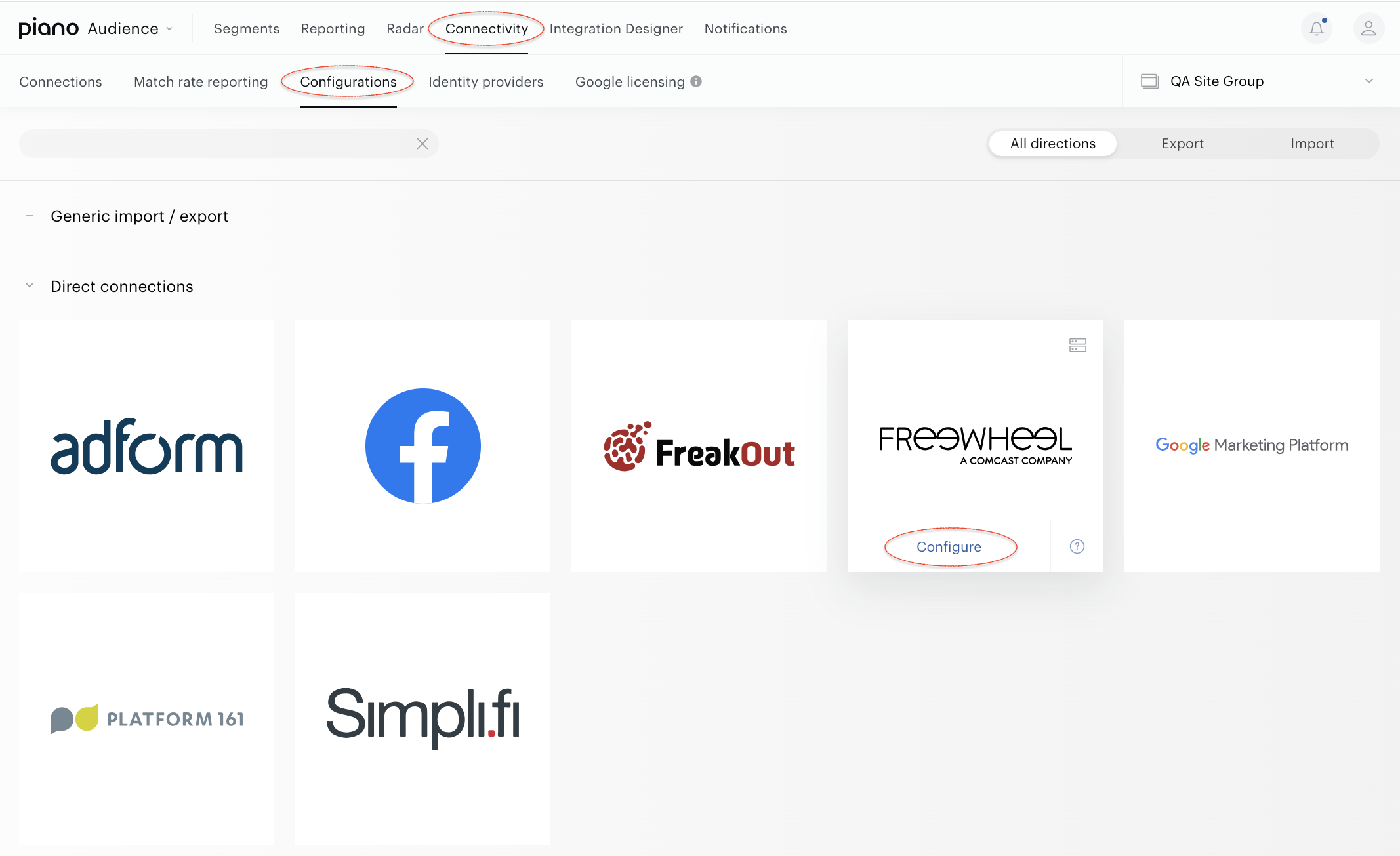
With your site group selected, from the Piano Audience home page, go to the Connectivity tab → the Configurations tab →the FreeWheel icon and click the Configure button.
-
Configure the connection
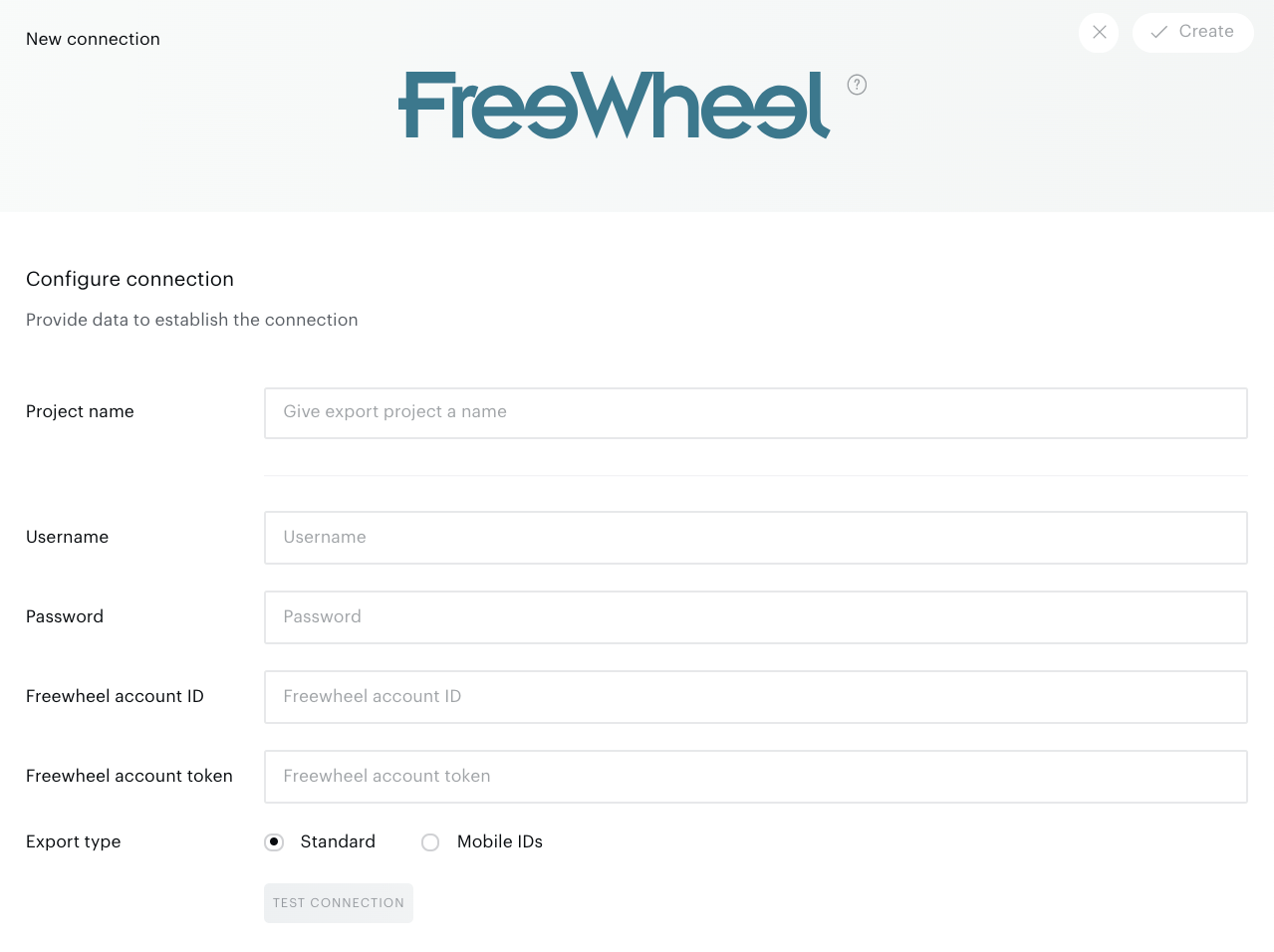
In the New Connection menu, you want to set:
-
Project name: to be shown in Piano Audience only, intended to simplify managing numerous integrations.
-
Username and password: SFTP parameters needed to send users related to the selected segments.
-
Account ID and Account token: API parameters needed to send segment data (e.g. name). If you don't want to use API, you can use SFTP only, but segment names won't be sent to Freewheel automatically.
To get the above SFTP and API parameters, you should request an integration from the Freewheel team. After that, the Freewheel support will do setup, generate API and SFTP credentials and give them back to you.
The FreeWheel integration supports two export types:
-
Choose Standart for user global IDs export.
-
Choose Mobile IDs for user mobile IDs export.
If you need both, create two connections, they will be working in parallel.
The last step of the configuration process is to test the provided parameters: click the Test connection button when everything is set. A request to the specified account on Freewheel side will be sent, and, if everything works correctly, you'll get a corresponding notification. The Create button in the upper right corner will be activated. Click it. Create will turn to the Save button you can use any time during further configuration.
-
Configure segments
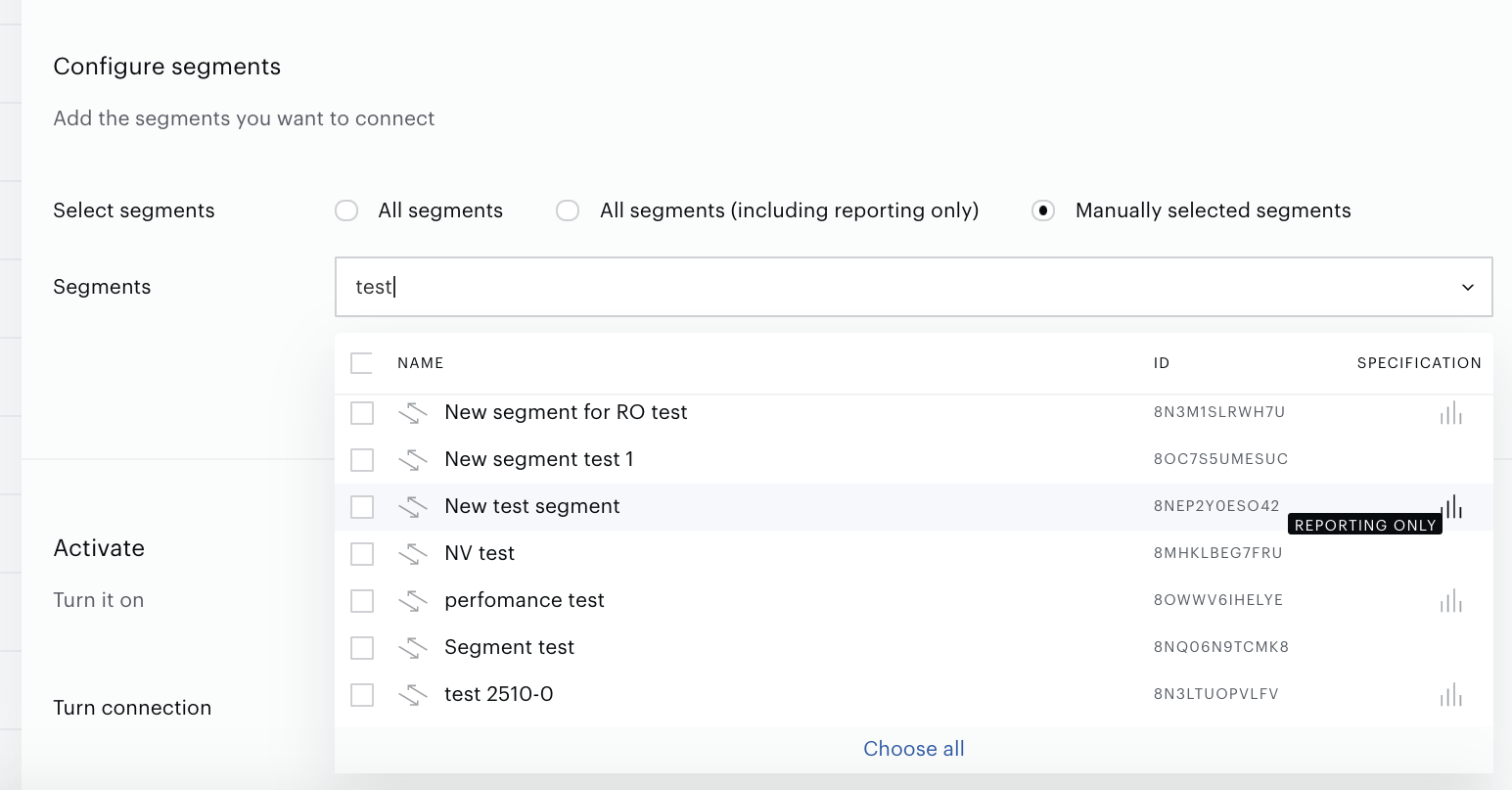
Successful test connection enables the Configure segments form where:
-
All segments means that all active full usage segments will be sent to FreeWheel; any newly created active full usage segment will be added automatically.
-
All segments (including Reporting only) includes Reporting only segments.
-
Manually selected segments allows both to send some part of active segments and to check if a needed segment is active now. If a needed segment is inactive, you can activate it on the Segments tab. To select a segment, click its name.
Set the parameter.
-
Export segments
-
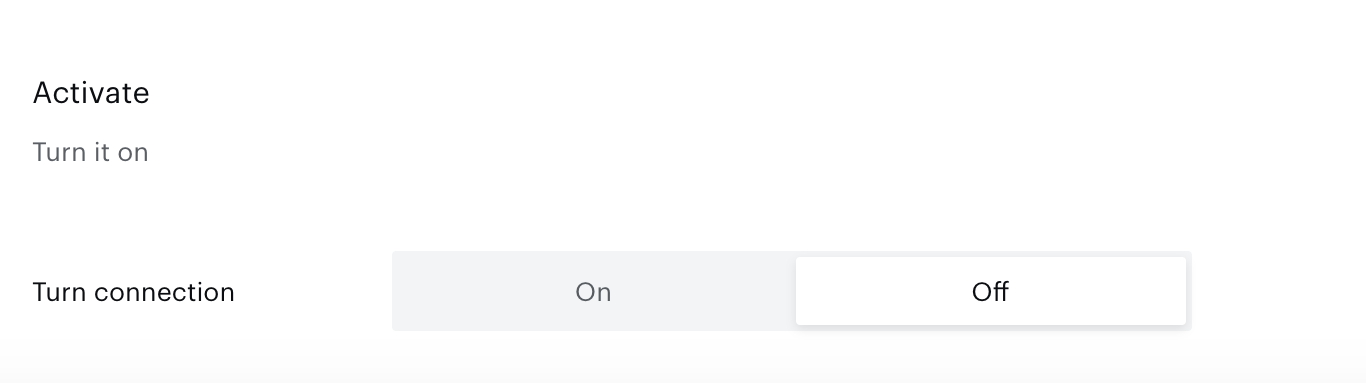
You can click Export now in the Configure segments section for almost immediate export of selected segments without waiting for the next scheduled data transfer. The other option is configuring scheduled data transfer in the Activate section below. There, you can either set up a daily data transfer by turning connection on, or hold the created configuration without activation yet and set the connection to "off".
When ready, click Create or Save (if editing) in the top right corner of the page.
Monitoring and update
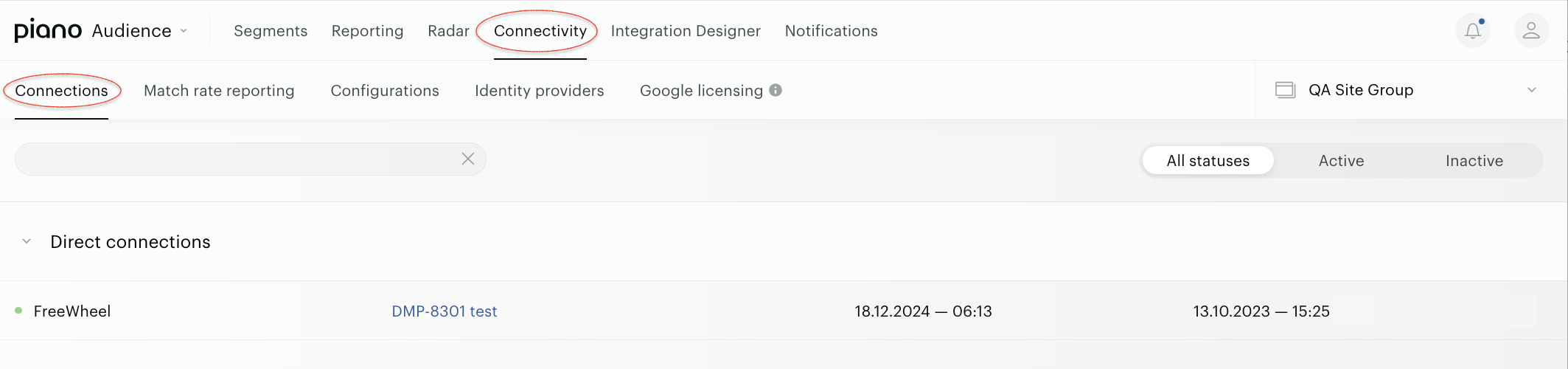
Configured connections can be viewed and edited in the Connections tab. They are also available under the Match rate reporting tab.
Data is normally exported once a day. The Export now button allows to export segments (not membership data) immediately.