
Pubmatic is an SSP for advertisers and publishers. This integration enables to use Piano Audience segments in PubMatic. Before you can start integration, Piano Audience setup should be completed since one or more siteGroupId is needed for this integration.
User matching
If you are using a S2S integration, you need to put the Cookie Sync tag on your site. Membership data will be uploaded to PubMatic by schedule (not at runtime like for a tag-based integration). Since PubMatic expects to see their user IDs in membership data, we have to store mapping on our side.
-
Put the Cookie Sync tag on your site.
Standard tag
<!-- Piano script begin -->
<script type="text/javascript">
    var cX = cX || {}; cX.callQueue = cX.callQueue || [];
    cX.callQueue.push(['setSiteId', '<SITE_ID>']);
    cX.callQueue.push(['sendPageViewEvent']);
</script>

<script type="text/javascript">
    (function(d,s,e,t){e=d.createElement(s);e.type='text/java'+s;e.async='async';
    e.src='http'+('https:'===location.protocol?'s://s':'://')+'cdn.cxense.com/cx.js';
    t=d.getElementsByTagName(s)[0];t.parentNode.insertBefore(e,t);})(document,'script');
</script>
<!-- Piano script end -->
Modified tag
<!-- Piano script begin -->
<script type="text/javascript">
    var cX = cX || {}; cX.callQueue = cX.callQueue || [];
    cX.callQueue.push(['setSiteId', '<SITE_ID>']);
    cX.callQueue.push(['sendPageViewEvent']);
     <!-- Added cookie sync -->
    cX.callQueue.push(['sync', {'partner': 'pubmatic', 'customerId': '<account id (Pubmatic's language for customer id)>'}]);
</script>

<script type="text/javascript">
    (function(d,s,e,t){e=d.createElement(s);e.type='text/java'+s;e.async='async';
    e.src='http'+('https:'===location.protocol?'s://s':'://')+'cdn.cxense.com/cx.js';
    t=d.getElementsByTagName(s)[0];t.parentNode.insertBefore(e,t);})(document,'script');
</script>
<!-- Piano script end -->
-
After that, you need to contact your Pubmatic account manager and request your account ID and data provider ID.
-
You contact your Piano account manager or the support and request access to the PubMatic connectivity tab.
-
Piano account manager or the support whitelists you.
-
You schedule segments to be exported using ConnectivityTab->PubMatic.
-
You are able to use segments.
Configuring Piano Audience
-
Create a PubMatic configuration
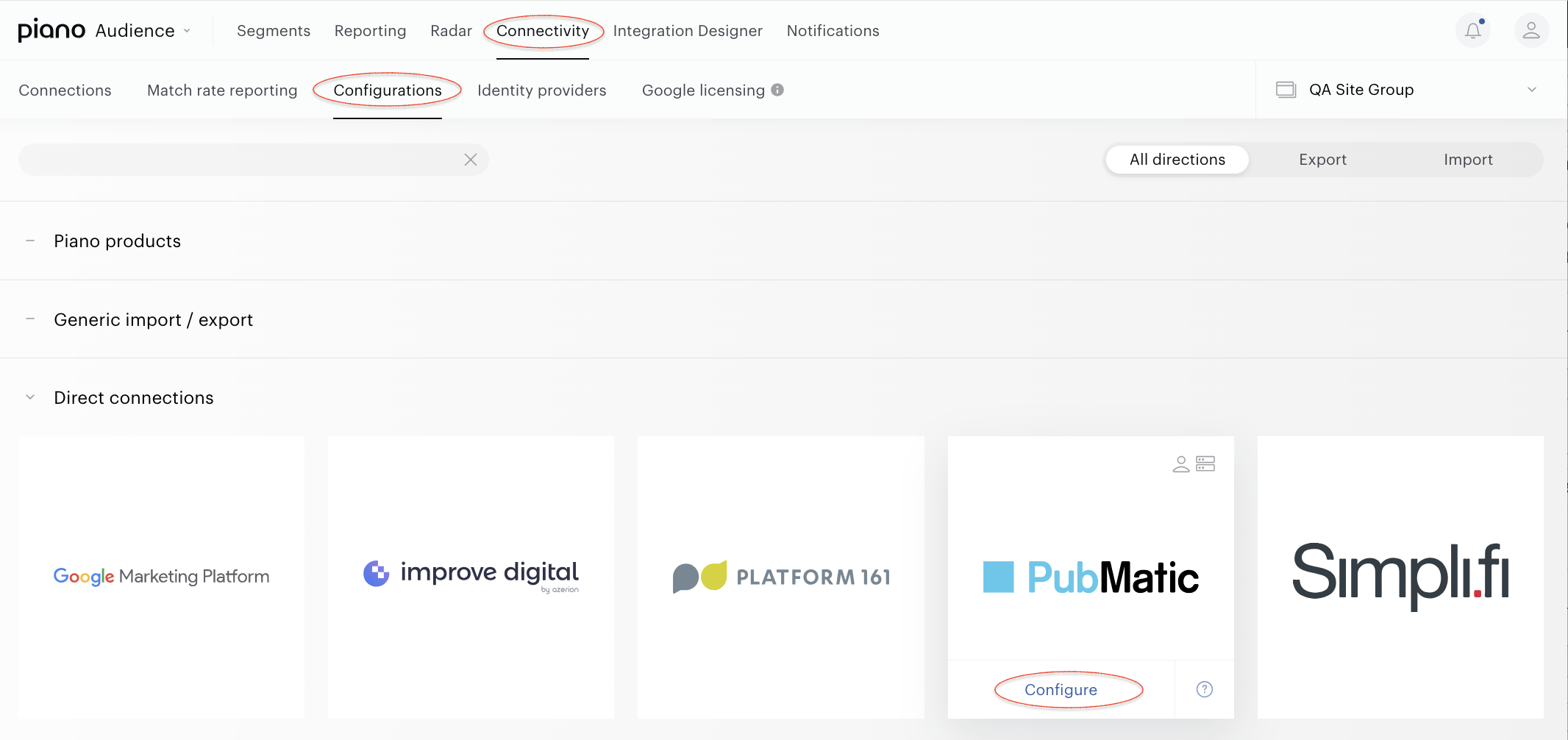
With your site group selected, from the Piano Audience home page, go to the Connectivity tab → the Configurations tab →the PubMaticicon and click the Configure button.
-
Configure the connection
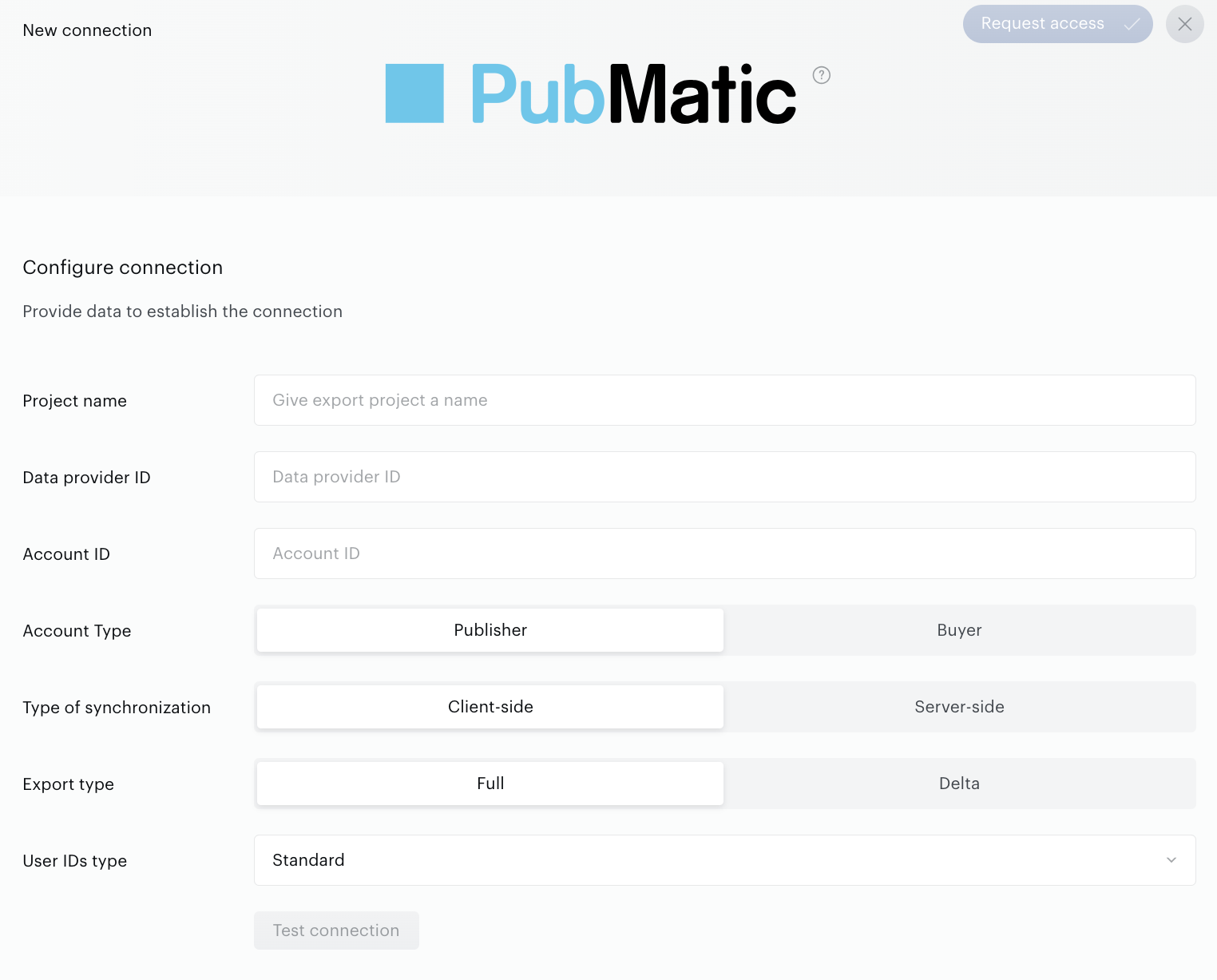
In the New Connection menu, you want to set:
-
Project name: to be shown in Piano Audience only, intended to simplify managing numerous integrations.
-
Data provider ID and Account ID: retrieved from your contact person at PubMatic.
-
Account type: "Publisher" (available by default) or "Buyer" according to your account type on the PubMatic platform.
-
Type of synchronization: client or server side.
-
Export type: Full (available by default) or Delta.
-
User IDs type: standard or mobile IDs.
Any new publisher willing to use Piano Audience has to contact PubMatic’s account manager and request to map Piano users to their account. Once the user is mapped, you will be able to create audience segments on the Publisher's account.
Please use the following email address: dmp-integration@piano.io. You must provide this address when submitting the request to PubMatic’s account manager.
PubMatic’s account manager will start the “API access” process and publisher will approve it.
Fill in the connection detail fields:
-
Project name: any name which will be shown on Piano side only and intended to help in case of a big number of configured integrations.
-
Data provider ID, Account ID, and Account type (you must already have an account with PubMatic and know your Data Provider ID).
-
Type of synchronization: "Client-side" (sending segments only) or "Server-side" (sending segments with the members of such segments).
-
Export type: “Full” (sending full segment data through the Pubmatic SFTP) or “Delta” (sending delta data and ones in a period of type - full data through the Pubmatic APIs).
-
User IDs type: “Standard” (sending global (web) user IDs), “Mobile IDs” (sending iOS, Android user IDs), "ID5" (sending ID5 user IDs). If you want to export several types of user IDs, several connections should be created in parallel.
The last step of the configuration process is to test the provided parameters: click the Test connection button when everything is set. A request to the specified account on the partner’s side will be sent, and, if everything works correctly, you'll get a corresponding notification. The Create button in the upper right corner will be activated. Click it. Create will turn to Save you can use it any time during further configuration.
Configure segments
Successful test connection enables the Configure segments form where:
-
All full usage segments means that all Full usage segments will be sent to Pubmatic; any newly created Full usage segment will be added automatically.
-
All segments includes both types of usage segments: Full and Reporting only segments.
-
Specific segments allows the customer both to send some part of the Full usage segments and to check if a needed segment is active (Full usage) now. If a needed segment is inactive (Reporting only), it can be activated on the Segments tab.
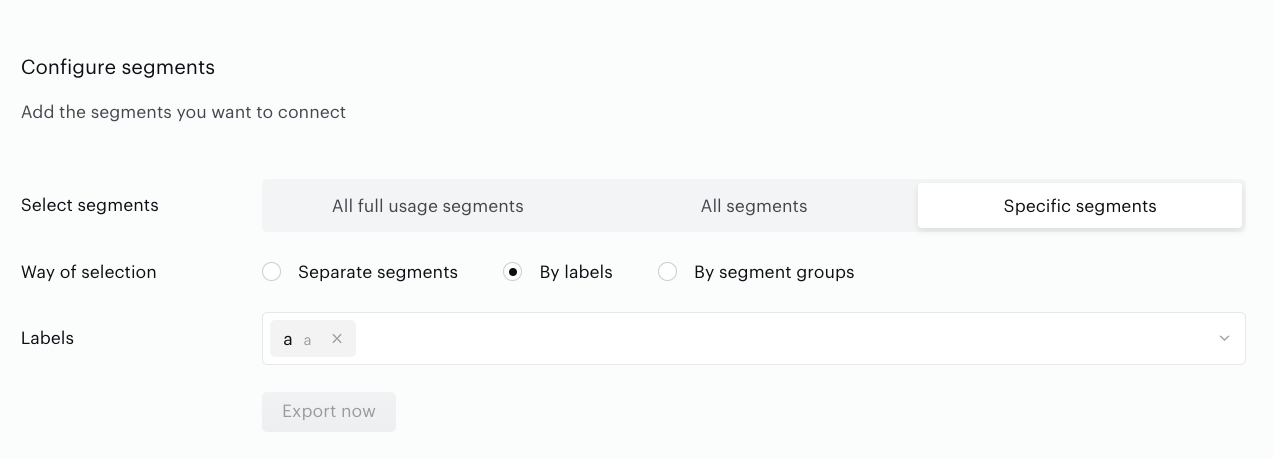
Specific segments options allow the customer to choose how Piano Audience should select segments for export:
-
Separate segments allows the customer to search and select segments one by one manually.
-
By labels allows the customer to select one or more labels (key-value pairs). Piano Audience will find segments by the selected labels and export them.
-
By segment groups allows the customer to select one or more segment groups, and Piano Audience will export segments within these specific segment groups. It is more suitable for those clients who prefer to organize their segments specifically.
Set the parameter.
Export segments
You can click Export now in the Configure segments section for almost immediate export of selected segments without waiting for the next scheduled data transfer. The other option is configuring scheduled data transfer in the Activate section below. There, you can either set up a daily data transfer by turning connection on, or hold the created configuration without activation yet and set the connection to "off".
When ready, click Create or Save (if editing) in the top right corner of the page.
Monitoring and update
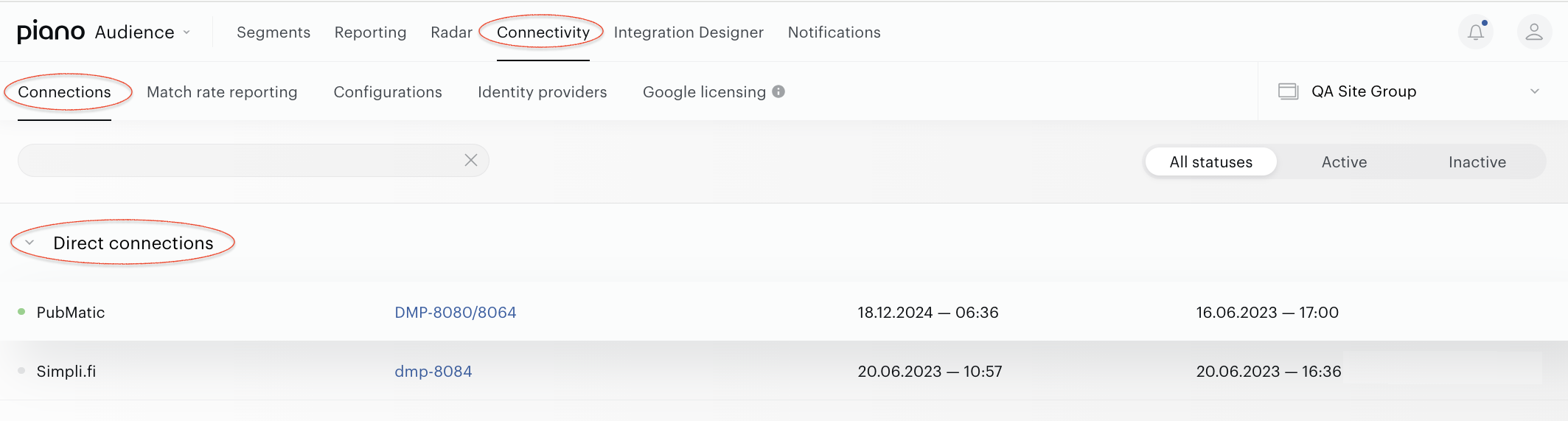
Now you can see your connection on the list of existing connections (Connectivity → Connections) and Match Rate report (Connectivity → Match Rate Reporting).
To change the project settings, please find the needed connection on the list of existing connections (Connectivity → Connections).
Exporting ID5 user IDs
PubMatic supports S2S integration to share ID5 User IDs from Piano Audience with PubMatic. The ID5 solution overview is here.
cx.js
Preconditions
Customer’s websites have to be configured to work with ID5 in order to obtain ID5 user IDs. Customer can select any option of working with ID5. In general publishers can retrieve the ID5 IDs in two ways:
-
Via Prebid User ID module
-
Via ID5 JavaScript Library
The cx.js code examples below transfer ID5 IDs from the customer’s websites to Piano Audience. The selection of the cx.js code depends on the option that customer selects to be able to work with ID5.
Using id5-api.js
cX.callQueue.push([
  "invoke",
  function () {
    // get or init id5-api object
    window.id5Api =
      window.id5Api ||
      window.ID5.init({
        partnerId: <ID5 PARTNER ID>,
      });

    // send id5 id to Cxense
    var id5Callback = function (id5Status) {
      var id5UserId = id5Status.getUserId();
      cX.callQueue.push(["sync", { partner: "idf", userId: id5UserId }]);
    };
    // trigger callback onAvailable and onUpdate
    window.id5Api.onAvailable(id5Callback).onUpdate(id5Callback);
  },
]);
Using prebid.js
userId module must be added to Prebid.js and configured.
Export ID5 IDs cx.js code:
pbjs.que.push(function () {
  pbjs.getUserIdsAsync().then(function (userIds) {
    if (userIds.id5id) {
      cX.callQueue.push([
        "sync",
        { partner: "idf", userId: userIds.id5id.uid },
      ]);
    }
  });
});
Configuring Piano Audience for PubMatic
Read general information about how to configure connection, save changes, activate or deactivate connection above.
The following should be done if you want to export ID5 user IDs:
-
When setting up User IDs type parameter, choose “ID5” option.
Don’t forget to fill in other obligatory fields, make Test connection and save changes.
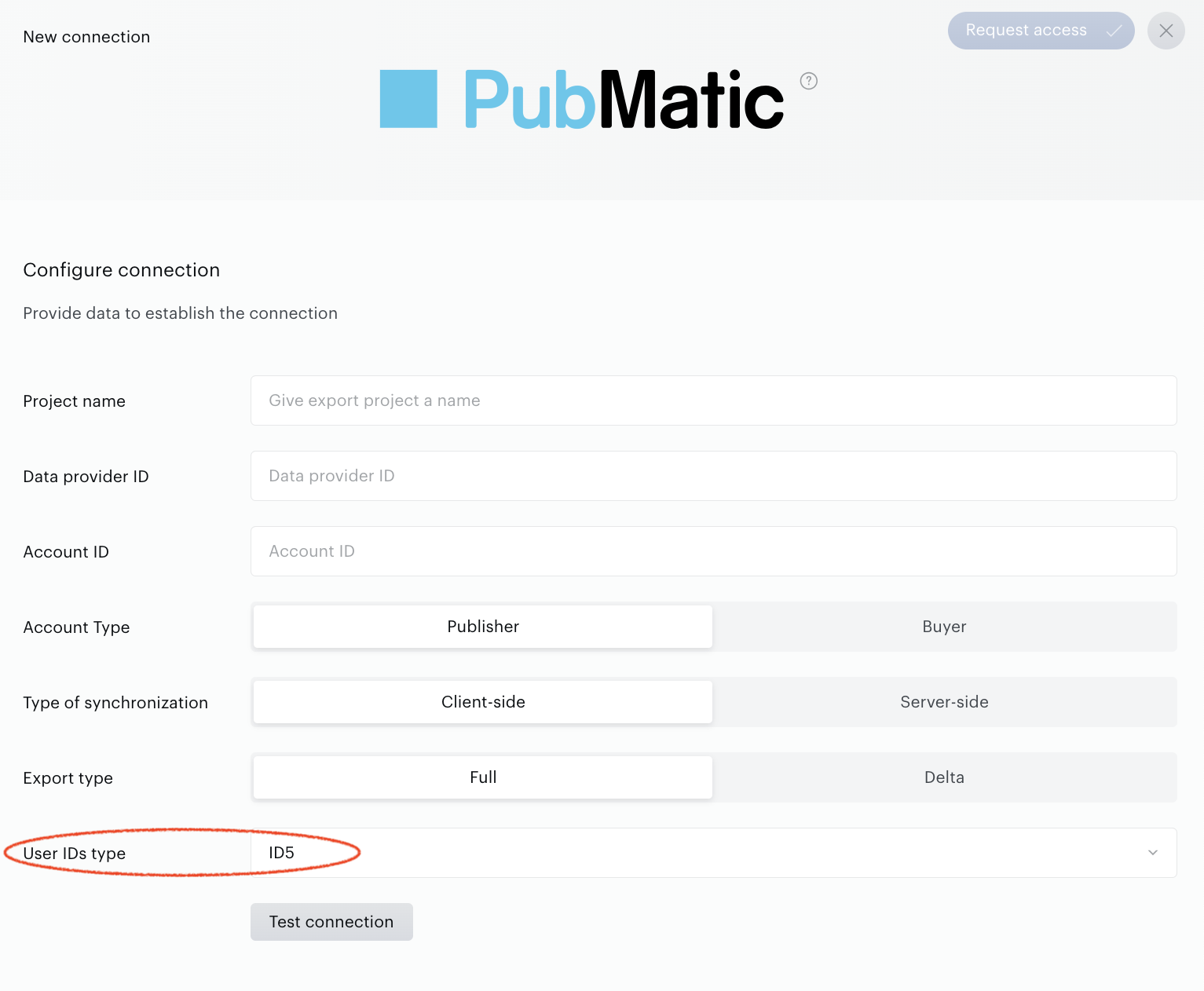
If you want to export ID5 user IDs alongside the Partner user IDs, you have to create another connection in parallel.