
Information has been moved (current details are available here). This page is no longer maintained.
1. Overview
2. Auto-deletion per site group
3. What kind of segments can be deleted if the function is enabled?
4. Auto-deletion using the Expiration date parameter
5. Bulk operation “Change expiration date”
6. How to find segments that can be deleted soon?
7. Why wasn't a segment automatically deleted?
Overview
All Piano Audience customers have a certain Limit of segments that can be created for specific site groups. By default, it amounts to approx. 200 segments and covers Full usage segments.
When reaching the limit, you can prevent the accumulation of obsolete or unused segments (like segments with zero audience) by periodically deleting them.
Piano Audience allows to delete segments in the following ways:
-
Manually, one by one in the Segment List or using the Segment Builder.
-
Manually, using the Delete bulk operation. The customer can select multiple segments and delete them simultaneously.
-
Using API endpoints. This option is available only for admins.
-
Automatically, based on the site group settings or the Expiration date parameter. Read details below.
Auto-deletion per site group
For auto-deletion per site group, follow these steps:
1. Go to the Accounts Management application.
2. Open the Site groups tab.
3. Open the site group builder to create or update a site group.
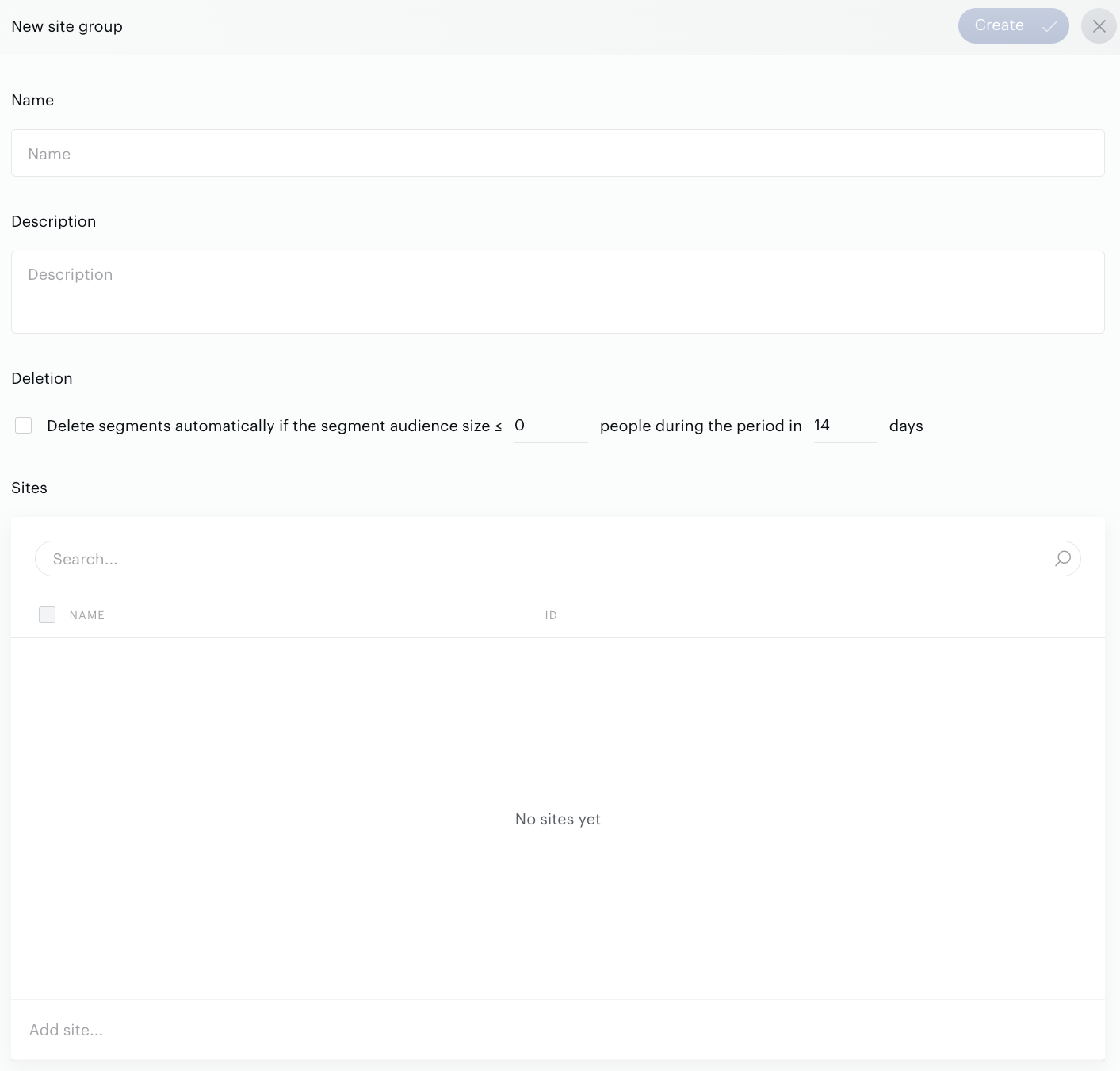
4. Enable the Auto-delete function by selecting the Deletion checkbox. Specify the audience size limit and the amount of time (in days) an audience must be within the specified limit before segments can be deleted automatically.
5. Activate the Update related segments checkbox to enable the option which leads to updating and/or deleting related segments in case of automatic deletion. The checkbox is available for editing if the Delete segments automatically… checkbox is enabled.
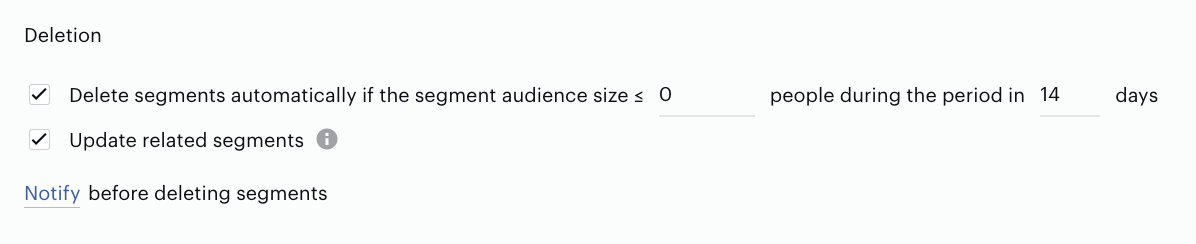
If you do not activate the Update related segments checkbox, Piano Audience will automatically delete only segments without any related segments.
6. Save changes.
What kind of segments can be deleted if the function is enabled?
Basically, customers can automatically delete all segments that can be deleted manually, except for External segments (this option can be added later).
The following segments can’t be deleted by the customer manually or automatically:
-
Internal segments
.
-
Segments with non-Custom category such as Interest, Age, Gender segments.
Only admins can manage the auto-delete function per site group. This function can be enabled or disabled any time.
If the function is enabled, the customer can activate the associated event in Subscriptions and receive notifications before the deletion. Just click on the Notify… link or open the Subscriptions tab.
The email will include a list of segments that can be deleted automatically in, for instance, 3 days.
Read details about notification events here.
Auto-deletion using the Expiration date parameter
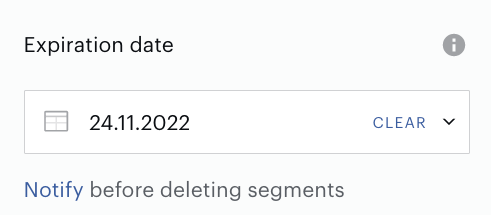
One more option that allows customers to delete segments is using Expiration date parameter that available in the Segment Builder: 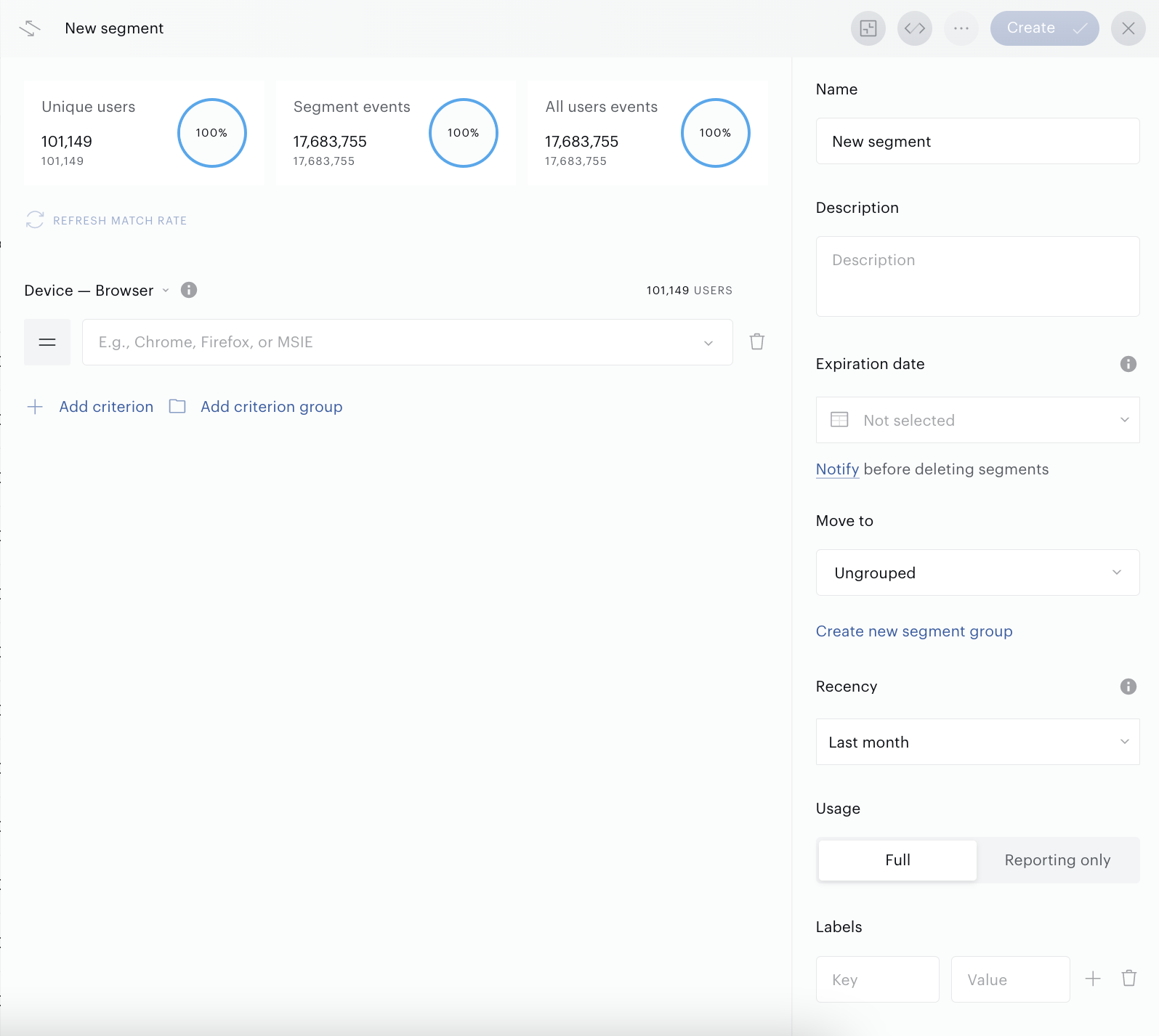
This parameter is supported in almost all types of segments, except those segments that won’t be deleted anyway, such as Internal or Sociodemographic.
The customer can define this param at any time: when the segment is created or updated. The opposite is also true. It is enough to press a “clear” link in the field and delete the previously filled value. The customer can press the Notify… link below the Expiration date parameter to be redirected to Subscriptions where they can activate the associated event and get notifications before the segment deletion.
The Expiration date parameter has some restrictions:
-
It is impossible to set up the current date or date in the past. Use a date in the future.
-
This parameter is not supported in the Segment Builder for
Internal
segments or segments with non-Custom category because these segments can’t be deleted by the customer.
Bulk operation “Change expiration date”
In the segment list, there is a bulk operation Change expiration date that allows to modify this parameter for multiple segments at a time:
1. Select one, two or more segments in the Segment list.
2. Press the Change expiration date button in the footer of the page (the Bulk operations section): 
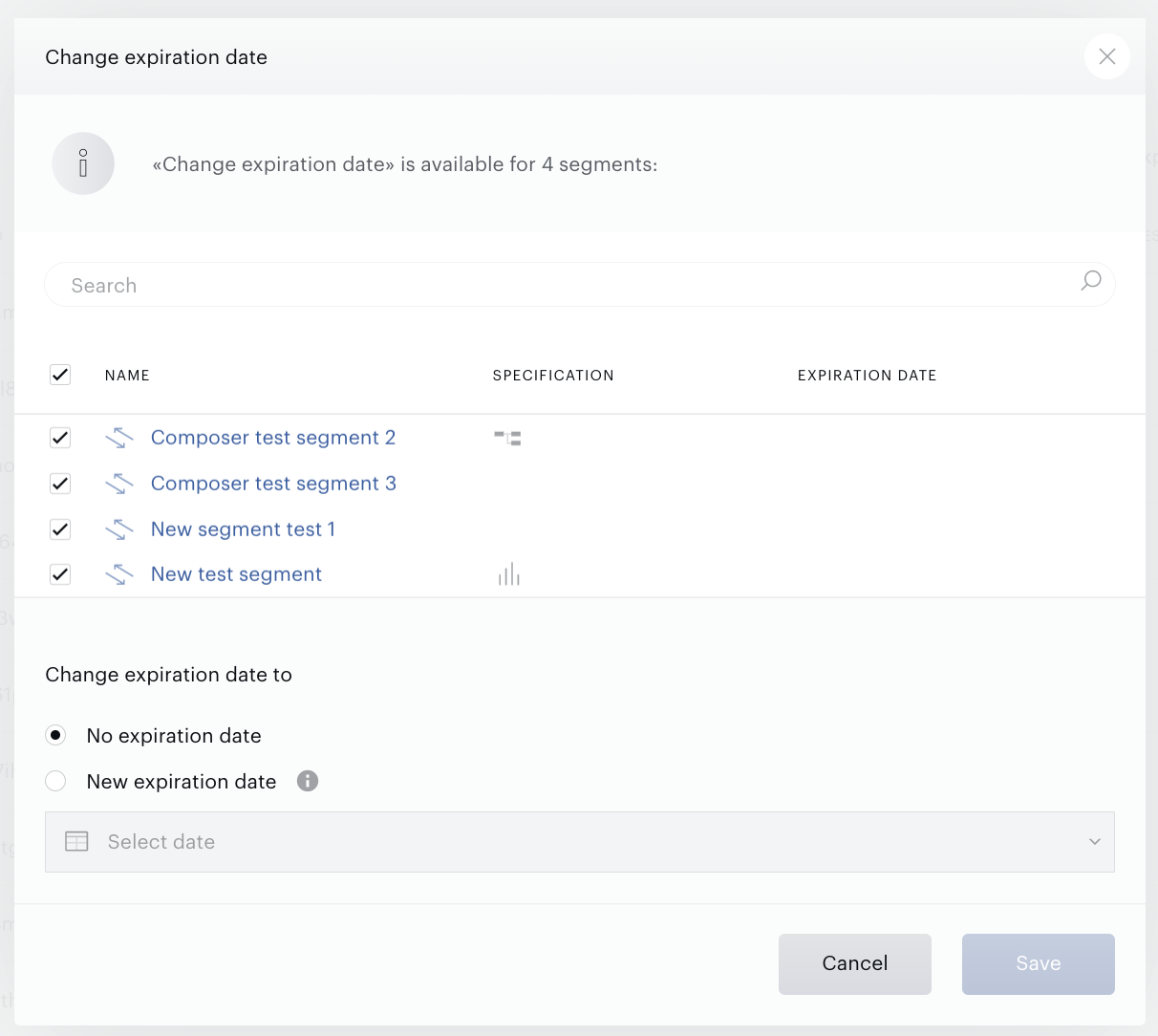
Use the No expiration date option if you want to clear the parameter. Or use the New expiration date option to set the expiration date.
4. Save changes pressing the Save button.
How to find segments that can be deleted soon?
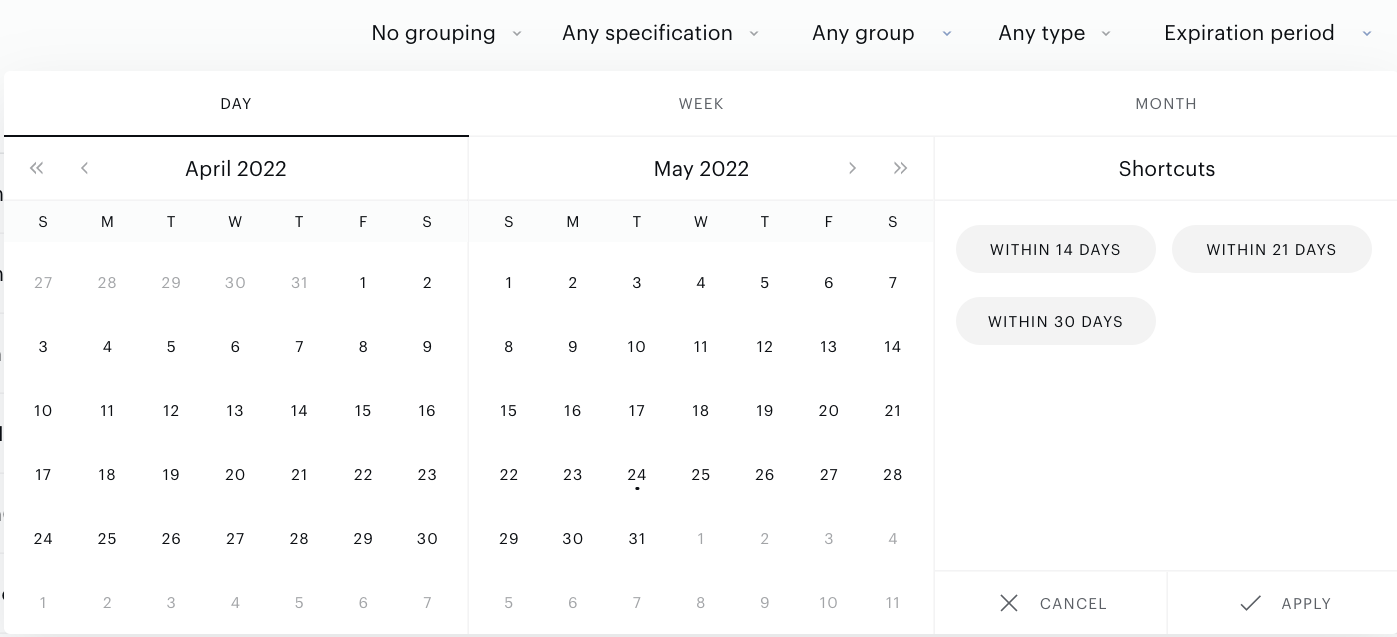
There are two options available in the Segment List:
-
Expiration date: a column, data can be sorted.
-
Expiration period: a filter for segments with a specific Expiration date:
Why wasn't a segment automatically deleted?
The main reasons why segments can’t be deleted automatically have been already mentioned. Piano Audience doesn’t allow to delete:
-
Internal segments.
-
Segments with non-Custom category.
-
External segments (automatic deletion can be added later).
In addition to the main reasons, at the moment of deletion the following segments can’t be deleted as well:
-
If the segment is used in an active Composer experience.
-
If the segment is being used in Modules (CCE, Content).
-
If the segment is a base segment in Lookalike segment(s) (to avoid corruption of the Lookalike segment).
-
In rare cases, the reason can be related to technical problems.
An expired Expiration date parameter will be cleared automatically. On a daily basis, Piano Audience finds segments with expired Expiration date parameter and clears such dates.