
Information has been moved (current details are available here). This page is no longer maintained.
1. Overview
2. Move to
3. Change usage
4. Add labels
6. Delete
Overview
Segment Builder in Audience→Segments allows you to manage segments one by one. If the same operation should be done with the more than one segment at the same time it can be done by using Bulk operations:
-
Move to
- allows to add several selected segments to the particular segment group at the same time; allows to move from one segment group to another or move out all segments from the segment group.
-
Change usage
- allows to set up parameter Usage for the selected segments. You can make all selected segments Full usage or Reporting only usage.
-
Add labels
- operation allows to add the same labels (key-value pairs) to the selected segments at the same time.
-
Add into connection
- operation allows adding one or more selected segments to the existing connection.
-
Delete
- allows one or more segments to be deleted at the same time.
-
Change expiration date
- allows to set up the same Experience date for the selected segments.
To be able to see the bulk operation menu items it is enough to choose at least one segment by using checkboxes next to the segment names in the Segment List:

If the bulk operation cannot be applied to all selected segments, the bulk menu item will be disabled with the general or specified hint text.
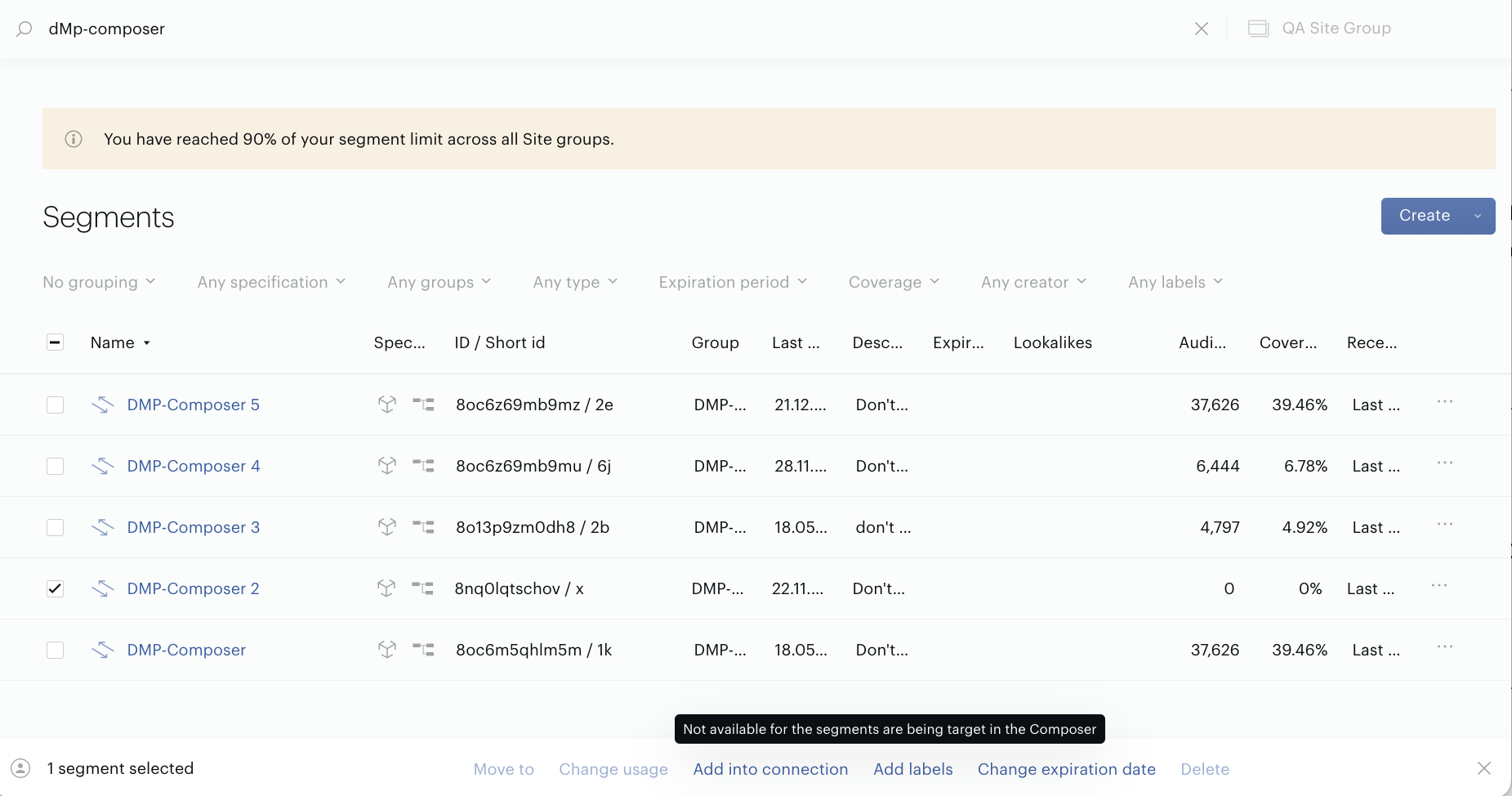
Move to
Using this operation you can:
-
Add segments to the selected segment group.
-
Move selected segments from one segment group to another.
-
Move selected segments out of segment group(s), using the Ungrouped option.
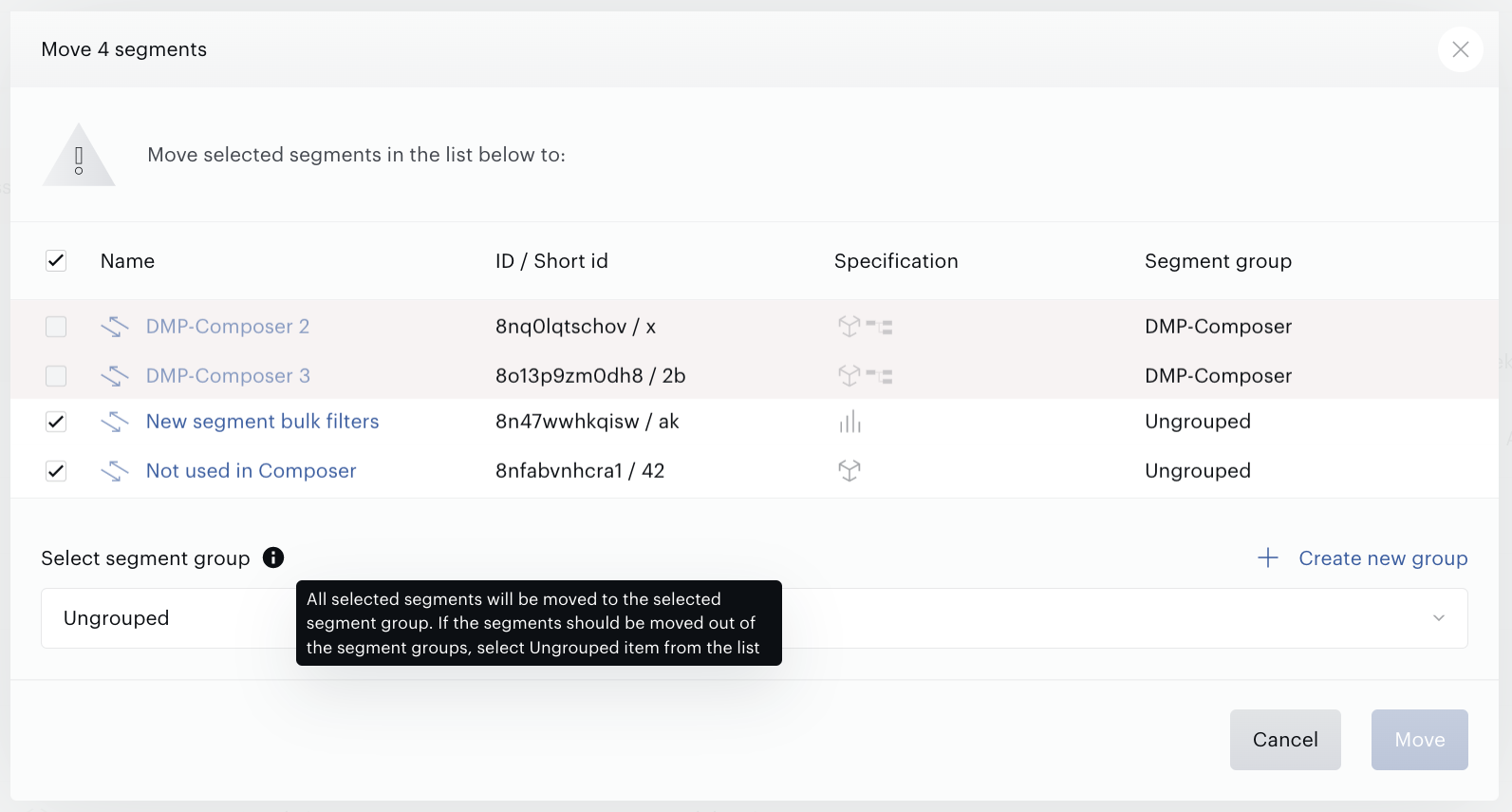
Piano Audience verifies if this operation is possible.
-
You cannot manage the Standard segment group, which means that customers can’t delete segments from the Age/Gender/etc segments groups or add other segments to these groups. Usually segments within these segment groups are Internal.
-
You cannot move segment(s) out of the segment group if the segment is used in the active Composer experience(s).
-
You cannot move segment(s) from one segment group to another, if it is the same segment group.
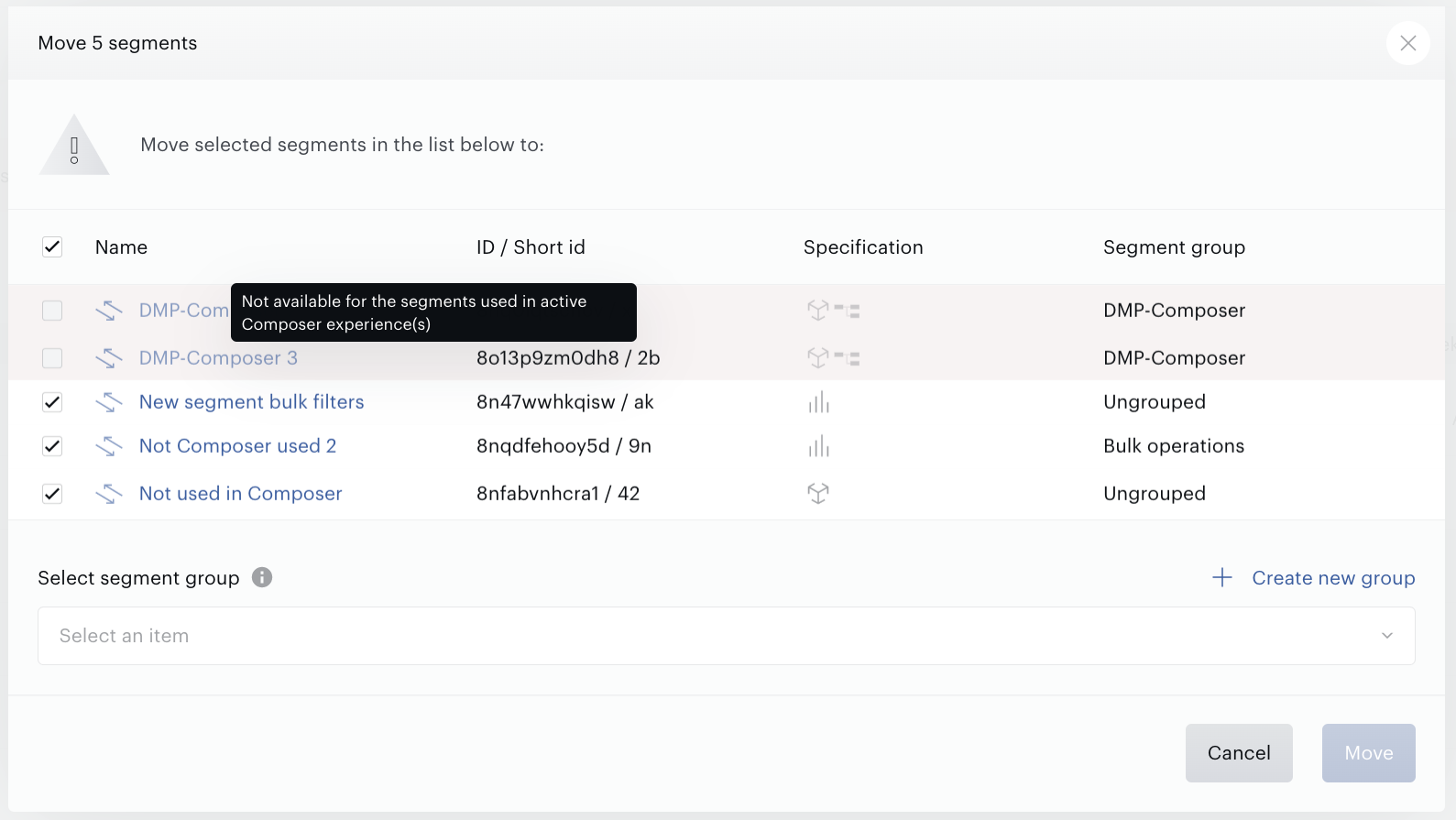
List of segment groups that can be selected as the destination segment group includes Custom segment groups and an Ungrouped option only.
If some of the segments were selected by mistake, you can deselect them right in the modal form using the checkboxes next to the segment names.
Change usage
Using this operation you can set up the same Usage parameter for all selected segments in a list.
Piano Audience verifies if this operation is possible.
-
You cannot set up the Composer used segment Usage as Reporting only.
-
You cannot change the Usage parameter of the
Internal
, External segments.
-
You cannot save changes if they lead to exceeding the Customer segments limit.
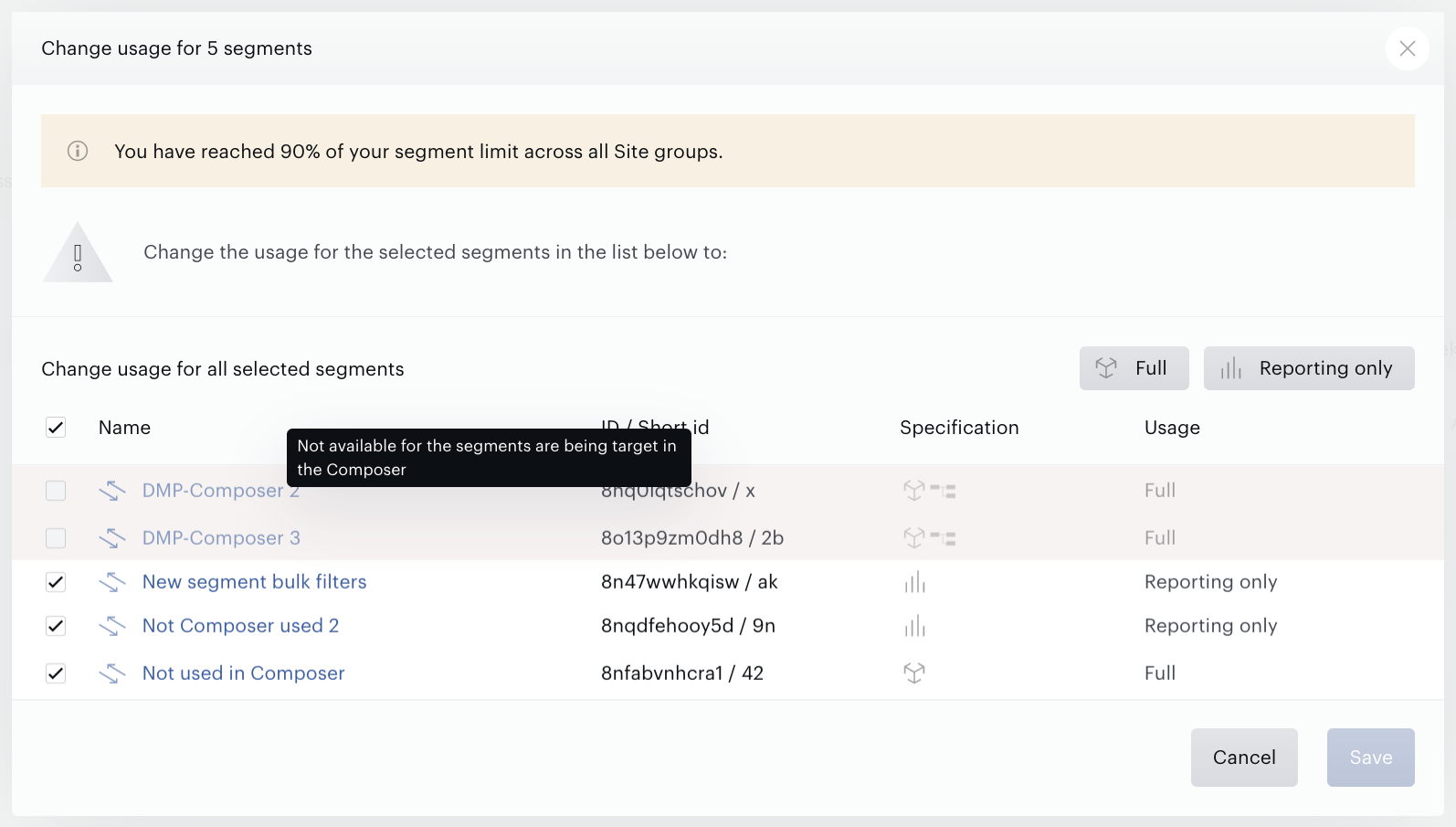
If some of the segments were selected by mistake, you can deselect them right in the modal form using the checkboxes next to the segment names.
Add labels
Labels (key-value pairs, also known as Annotations) are used for segment grouping; they can be used as an extra filter to be able to find segments faster, Labels can be exported outside and used for automatic operations, etc.
Using this operation you can add Labels (key-value pairs) to the selected segments.
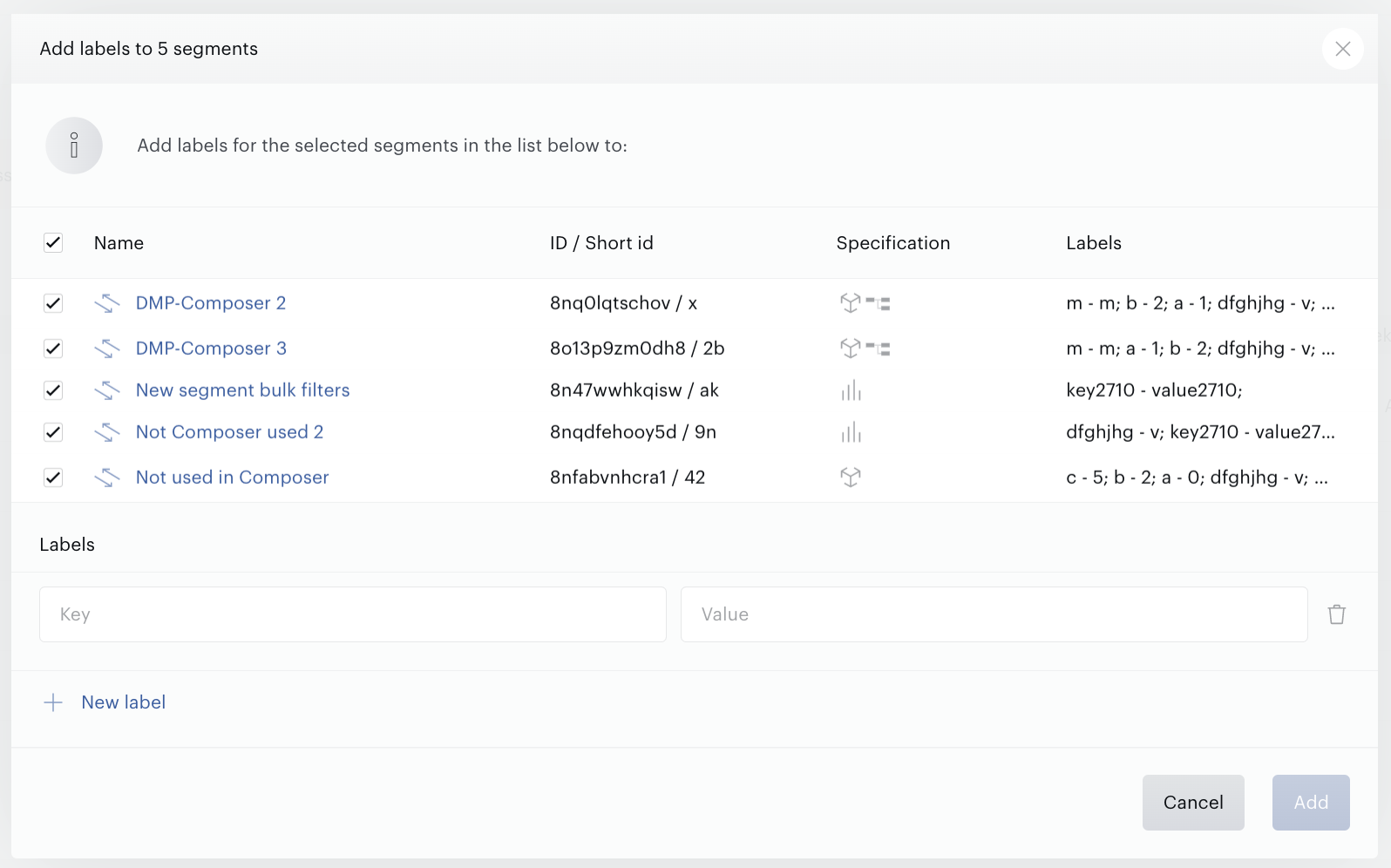
Piano Audience verifies if this operation is possible:
-
Key-value pairs should be correct in terms of format. It is expected to use only legal characters.
-
You cannot add the same Labels as the segment already has. Piano Audience doesn’t allow duplicate Labels in the segment.
-
You cannot update Internal segments in terms of Labels.
-
You cannot manage specific Composer used Labels.
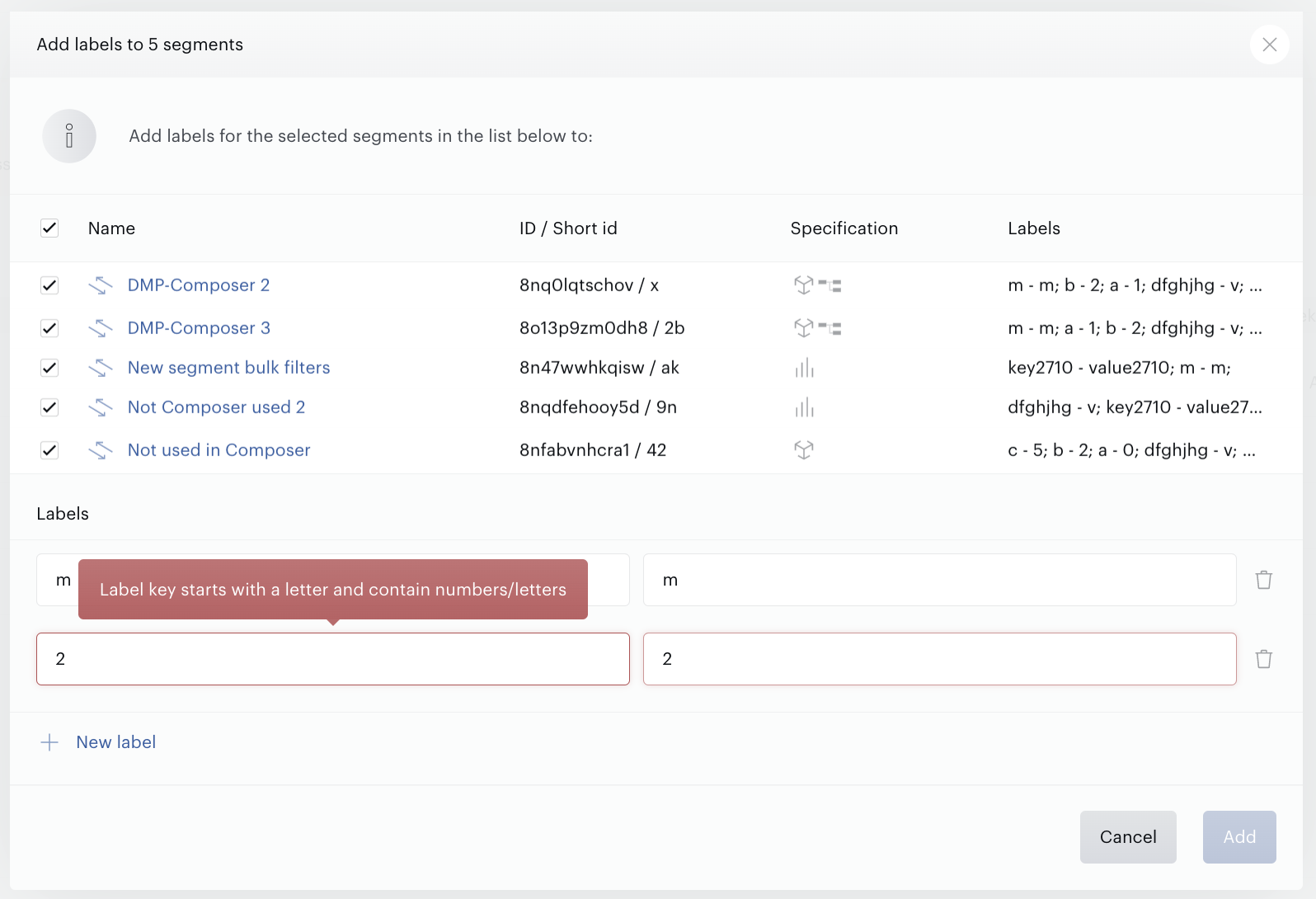
If some of the segments were selected by mistake, you can deselect them right in the modal form using the checkboxes next to the segment names.
Change expiration date
Using this operation you can manage the Expiration date parameter for all selected segments in a list: fill the Expiration date, update or even delete it and set up the same new Expiration date for the selected segments.
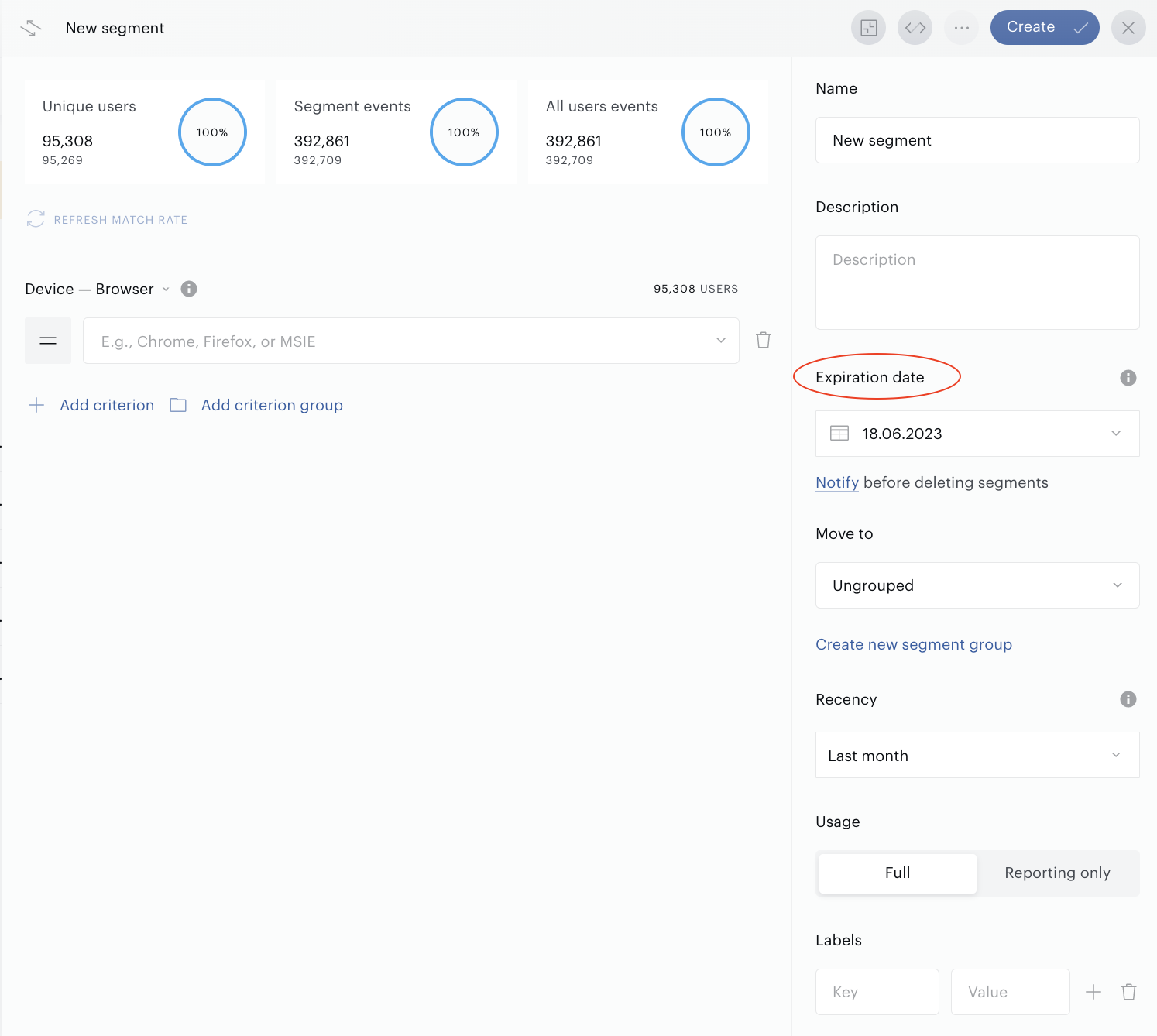
Piano Audience verifies if the operation can be done:
-
Expiration date is not supported for the External segments (it can be changed later) and
Internal
segments.
-
You cannot select the date from the past.
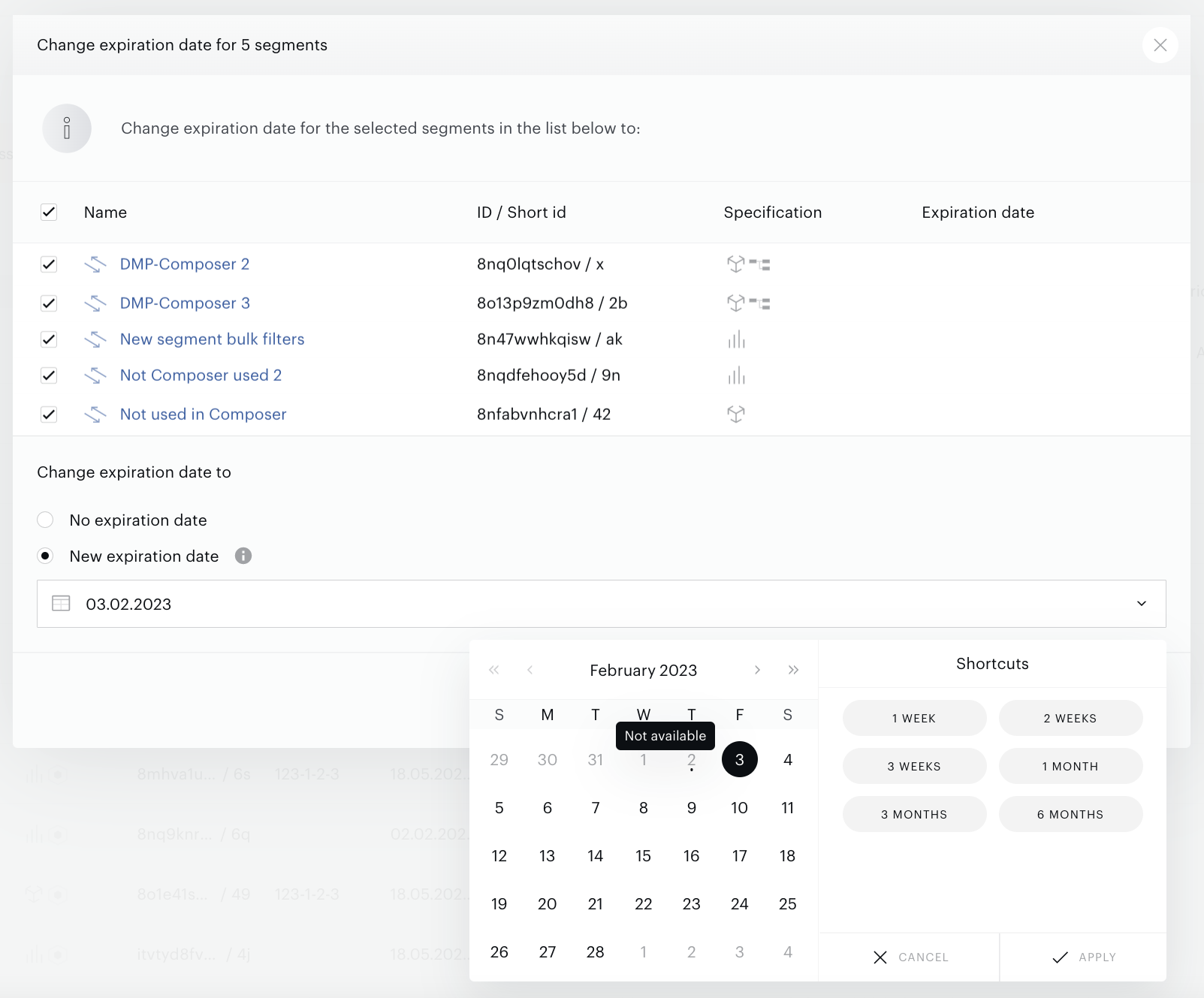
If some of the segments were selected by mistake, you can deselect them right in the modal form using the checkboxes next to the segment names.
Delete
Using this operation you can delete several selected segments at a time.
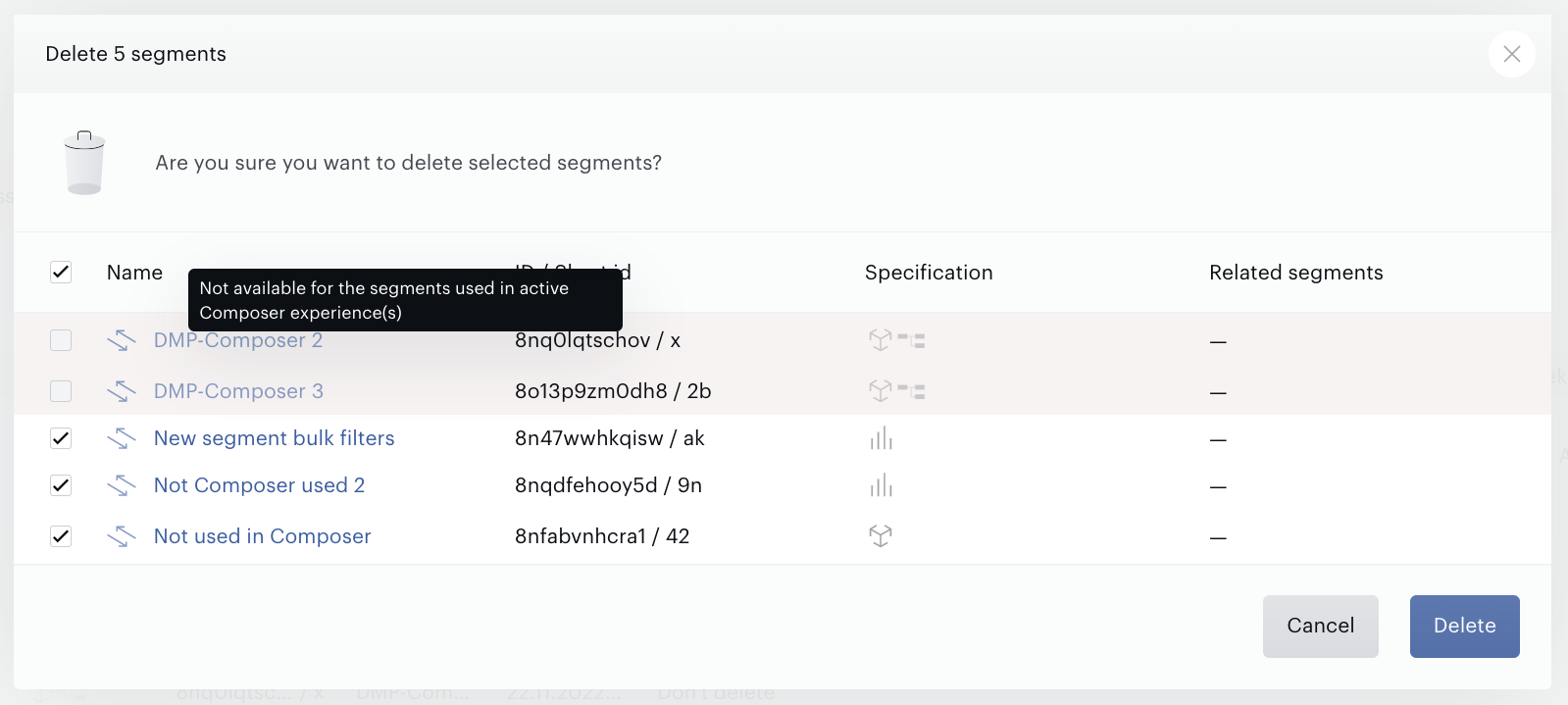
Piano Audience verifies if the operation can be done. You cannot delete the following segments:
-
Internal, or segments that are used as filter(s) in the Internal segments.
-
Segments that are used in the active Composer experience(s).
-
Segments that are used in Modules.
Piano Audience highlights segments that cannot be deleted using the red color background. Tooltips can show more details about the reasons.
If the segment that should be deleted is used in other segments as a filter for example, after deletion these segments will be updated or deleted as well. It is possible to see how segments are related to each other by pressing the See related segments link.
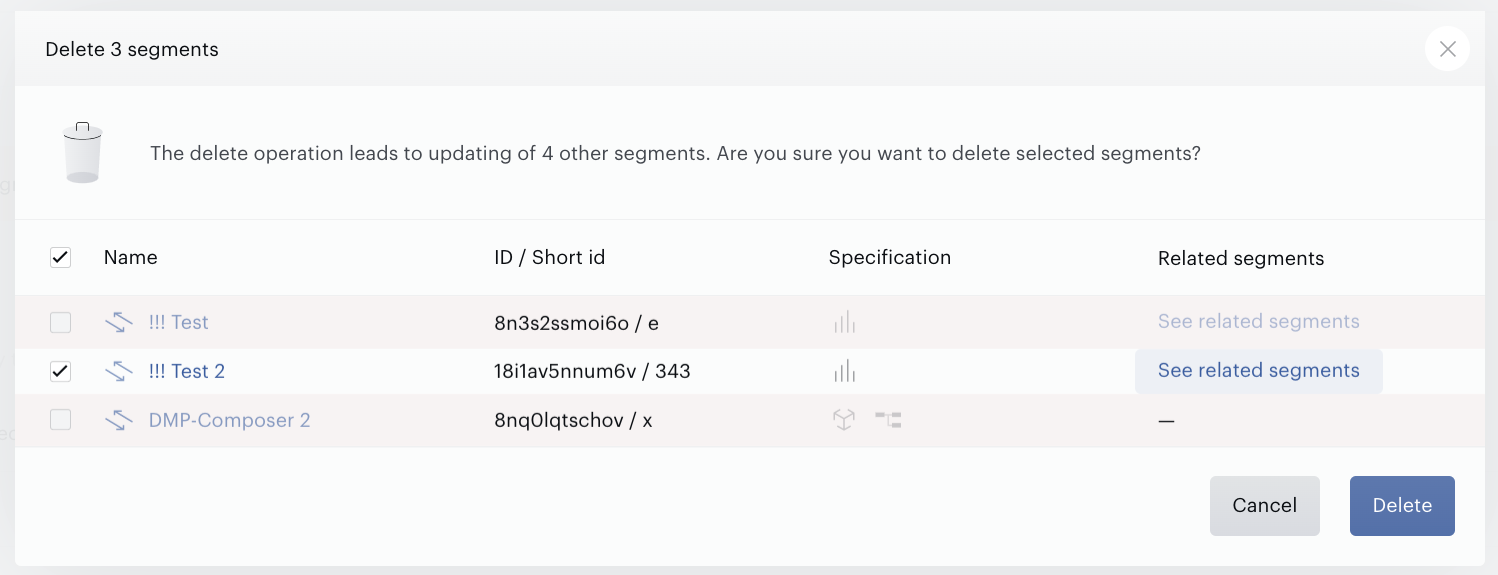
In the new modal form the full list will be shown.
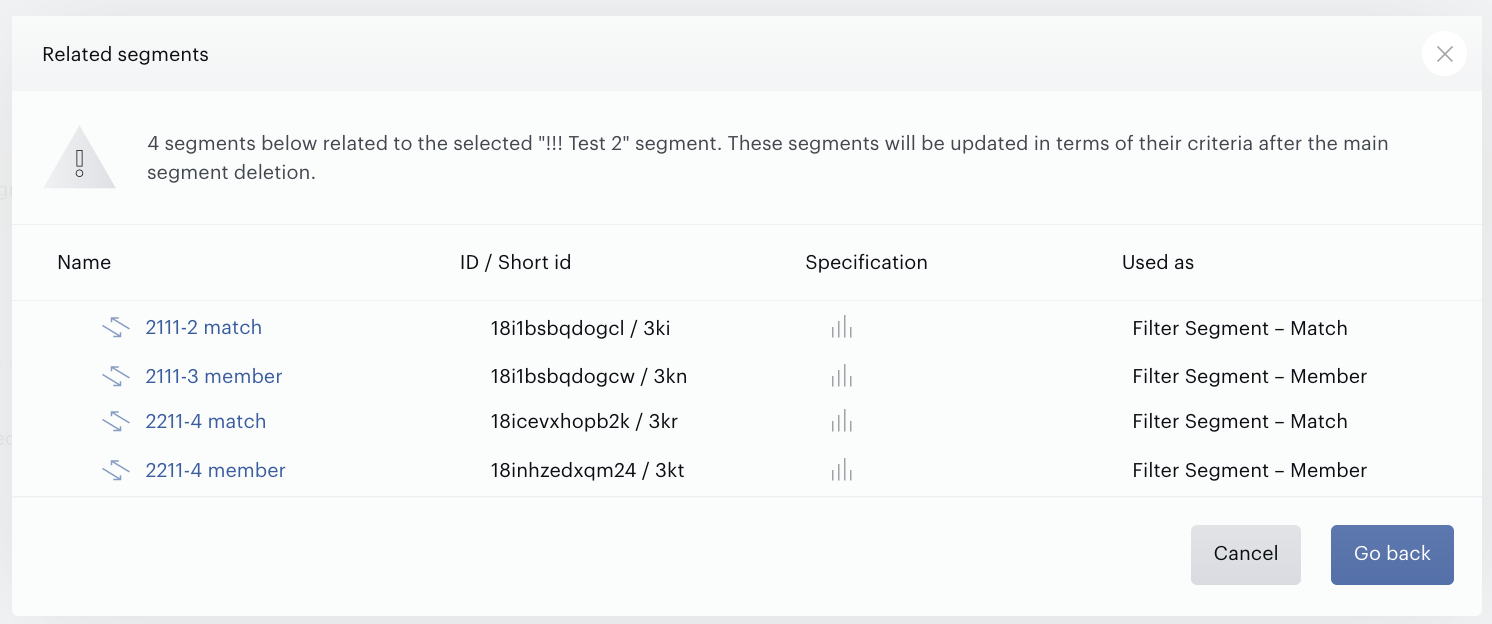
To be able to come back to the main modal form, you have to press the Go back button.
If some of the segments were selected by mistake, you can deselect them right in the modal form using the checkboxes next to the segment names.
Add into connection
Using this operation you can add several selected segments into existing connection(s).
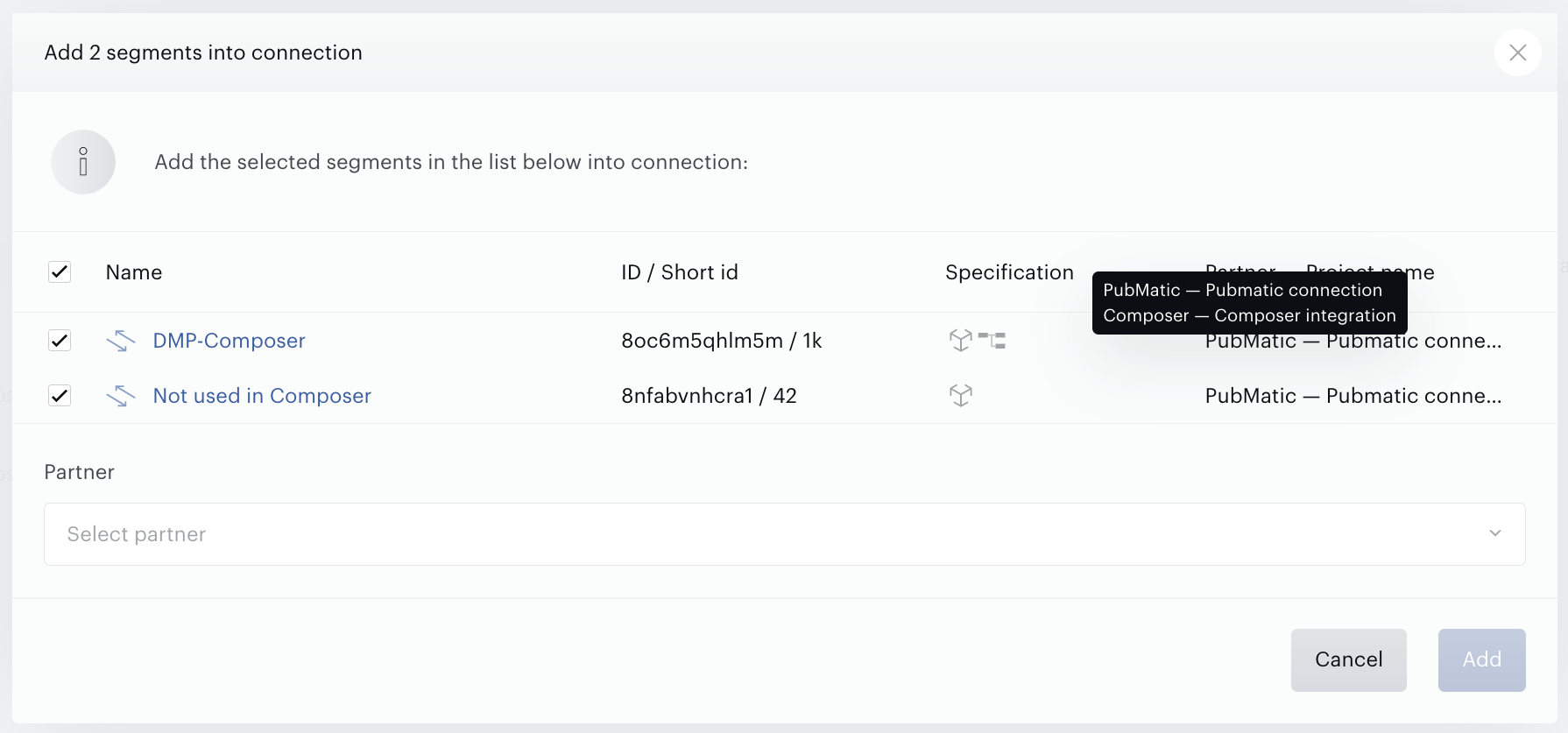
It is possible to see where the particular segment has been added already. Use the Partner-project name column and tooltips show you this information.
Audience doesn’t support this bulk operation for the Xandr (also known as AppNexus) Populating connection. Please, use connection in the Connectivity to add new segments.
Piano Audience verifies if the operation can be done.
-
You can add segments into connection if at least one connection for the selected Partner exists and if the connection status is Active.
Audience supports some restrictions if you want to add segments into the Composer connection. It is possible to add into Composer connection the following segments only:
-
If the Usage parameter equals Full.
-
Segments must be classified under a segment group.
-
The total number of segments transferred to the Composer cannot be more than the Composer limit per the site group. By default this limit equals 30 segments.
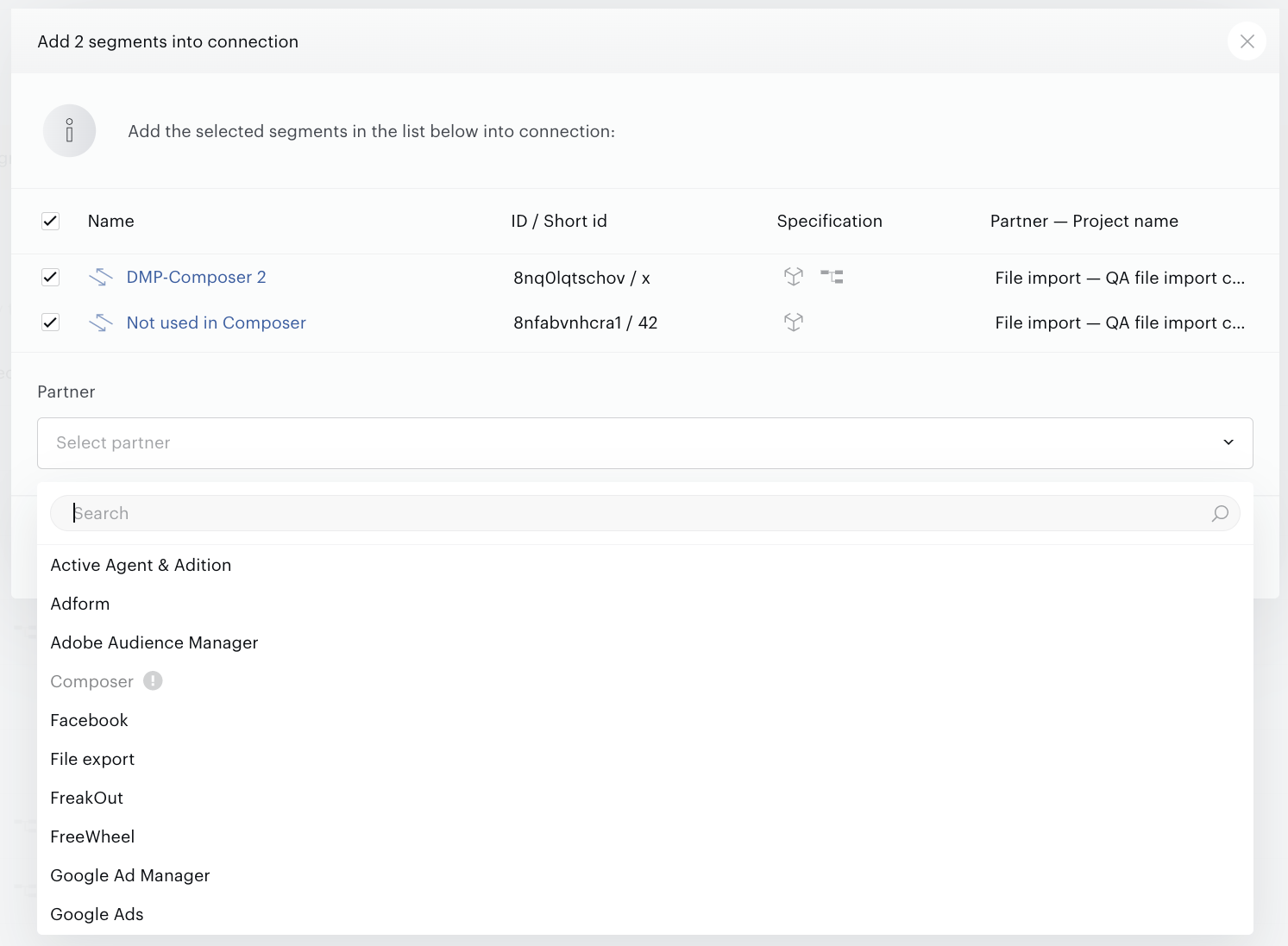
If you select segments in the Segment list and press Add into connection form, the modal form will appear. Select one of the available Partner:
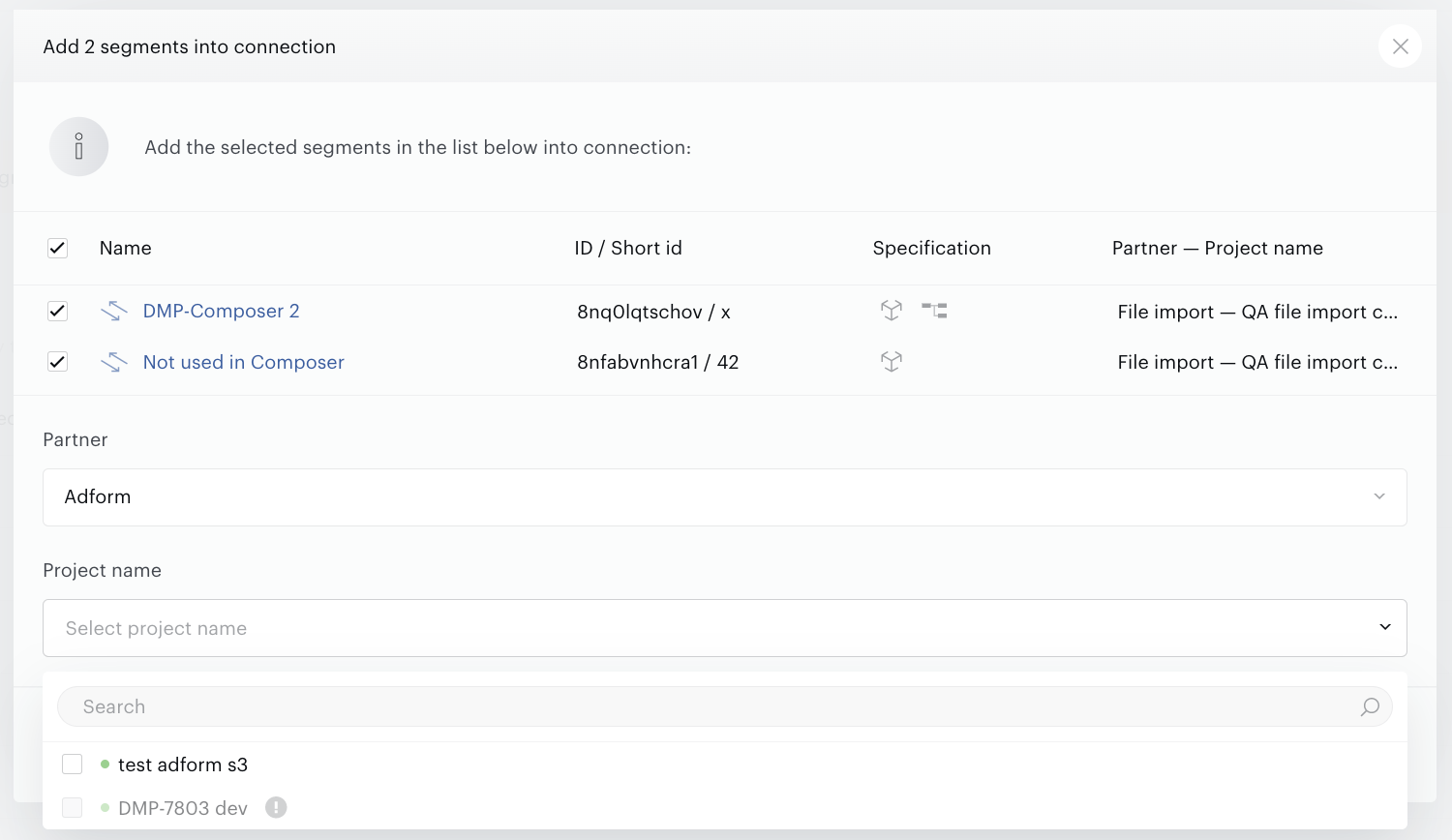
After that select at least one of the existing (earlier created in the Connectivity) connections, using the Project name selector:
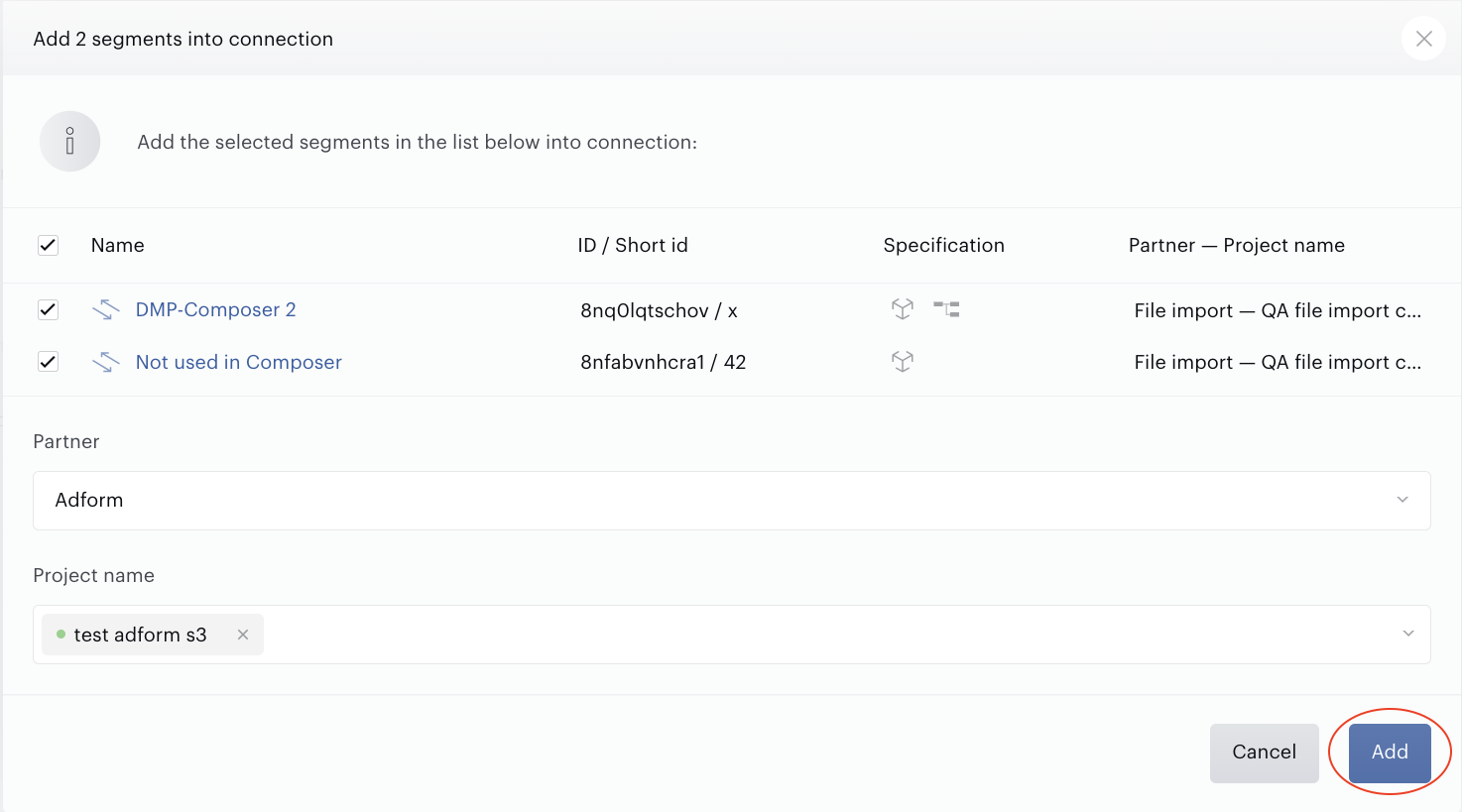
Press Add button to complete the bulk operation:
If some of the segments were selected by mistake, you can deselect them right in the modal form using the checkboxes next to the segment names.