
Images for terms in Offer templates are at the moment defined as follows:
-
You can use our default SVG icon and the text inside it changes automatically. If the term is weekly, the text inside the SVG changes to week, if it's monthly, it changes to month, and so on. This is the default behavior.
-
The second way the icons can be defined is via Content fields in the Offer template. In the template, you can find for example the section
paymentTermIcon. By adding a URL to this Content field you can now change the icon to the one you want.
However, both of these approaches have some limitations.
-
You probably don’t want to use default icons as a publisher.
-
The URL that you enter, changes all term icons to the one you've added. You cannot determine if it’s a weekly/monthly/annual term.
To have custom icons that also allow defining the periods, you need to implement some custom code.
In your Offer template, you can find the following section. Here is where our logic for the definition of the icon is available. (You can find it by searching the code for paymentTermIcon)
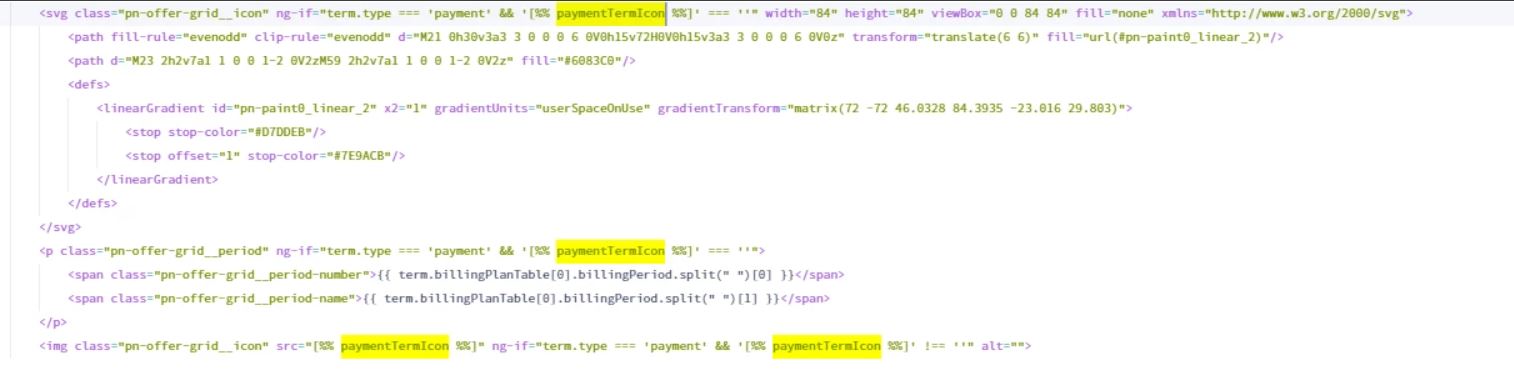
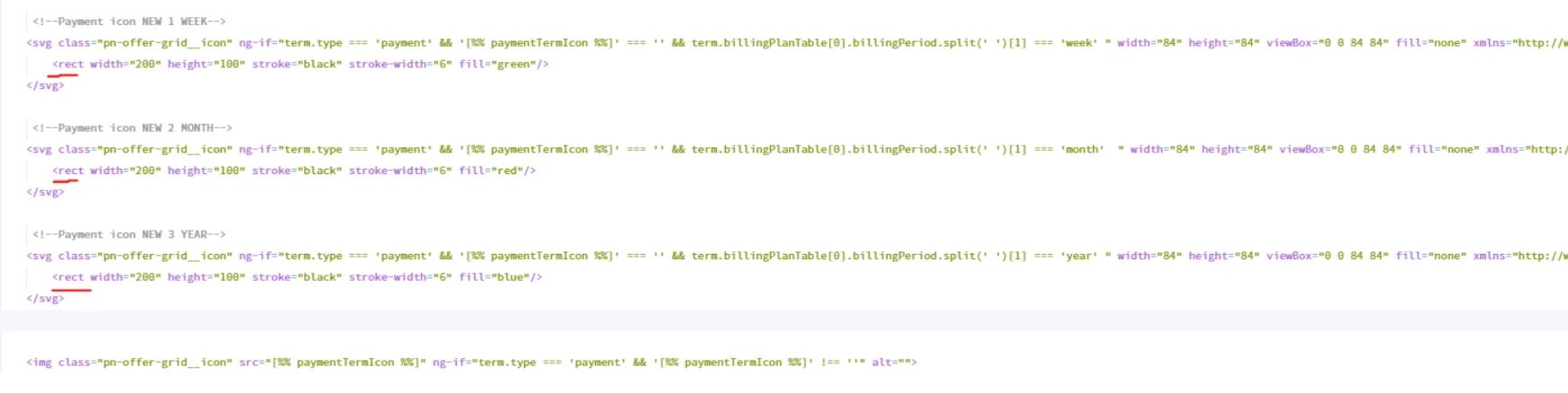
Essentially, what you’ll do, is to delete the <p> HTML tags, leave the <svg> and <img> tags as they are. Then you'll duplicate the SVG/Images so they are available for each period (week/month/year or other) and move the logic of the <p> tags period determination to the svg icons or images. If you use SVG icons, you can replace the <rect> tags with your own SVG content. If you use images (in the format png, jpg, etc.) you can copy all SVG attributes and add them to <img> tags and add the source URL destination of your image.
If you want to use SVG icons, you can use the below code. You'll just need to replace the SVG content( via the tag <rect>):
<svg class="pn-offer-grid__icon"
ng-if="term.type === 'payment' && '[%% paymentTermIcon %%]' === '' && term.billingPlanTable[0].billingPeriod.split(' ')[1] === 'week'"
width="84"
height="84"
viewBox="0 0 84 84"
fill="none"
xmlns="http://www.w3.org/2000/svg">
<rect width="200" height="100" stroke="black" stroke-width="6" fill="green"/>
</svg>
<svg class="pn-offer-grid__icon"
ng-if="term.type === 'payment' && '[%% paymentTermIcon %%]' === '' && term.billingPlanTable[0].billingPeriod.split(' ')[1] === 'month'"
width="84"
height="84"
viewBox="0 0 84 84"
fill="none"
xmlns="http://www.w3.org/2000/svg">
<rect width="200" height="100" stroke="black" stroke-width="6" fill="red"/>
</svg>
<svg class="pn-offer-grid__icon"
ng-if="term.type === 'payment' && '[%% paymentTermIcon %%]' === '' && term.billingPlanTable[0].billingPeriod.split(' ')[1] === 'year'"
width="84"
height="84"
viewBox="0 0 84 84"
fill="none"
xmlns="http://www.w3.org/2000/svg">
<rect width="200" height="100" stroke="black" stroke-width="6" fill="blue"/>
</svg>
<img class="pn-offer-grid__icon"
src="[%% paymentTermIcon %%]"
ng-if="term.type === 'payment' && '[%% paymentTermIcon %%]' !== ''"
alt="">
This will look like this:
If you want to use images, you can use the below code. You’ll just need to add src values to the image source:
<img class="pn-offer-grid__icon"
src="ENTER URL HERE"
ng-if="term.type === 'payment' && '[%% paymentTermIcon %%]' === '' && term.billingPlanTable[0].billingPeriod.split(' ')[1] === 'week'"
width="84"
height="84"
alt="">
<img class="pn-offer-grid__icon"
src="ENTER URL HERE"
ng-if="term.type === 'payment' && '[%% paymentTermIcon %%]' === '' && term.billingPlanTable[0].billingPeriod.split(' ')[1] === 'month'"
width="84"
height="84"
alt="">
<img class="pn-offer-grid__icon"
src="ENTER URL HERE"
ng-if="term.type === 'payment' && '[%% paymentTermIcon %%]' === '' && term.billingPlanTable[0].billingPeriod.split(' ')[1] === 'year'"
width="84"
height="84"
alt="">
<img class="pn-offer-grid__icon"
src="[%% paymentTermIcon %%]"
ng-if="term.type === 'payment' && '[%% paymentTermIcon %%]' !== ''"
alt="">
This will look like this:
