
You can show the Identity Management register template also inline, in an embedded form, using JavaScript.
Example:
 tp.pianoId.show({
        displayMode: 'inline',
        screen: 'register',
        containerSelector: '#login-form',
        loggedIn: function(data) {
            console.log('user ', data.user, ' logged in with token', data.token);
        },
        loggedOut: function() {
            console.log('user logged out');
        }
    });
You can choose where it is placed (by replacing the selector #login-form with your own custom container on your website).
It is also possible to define a specific Identity Management register page template that should be shown using the key value pair: templateId:'<Template_ID>'
So the code snippet would look like this:
 tp.pianoId.show({
        displayMode: 'inline',
        screen: 'register',
        containerSelector: '#login-form',
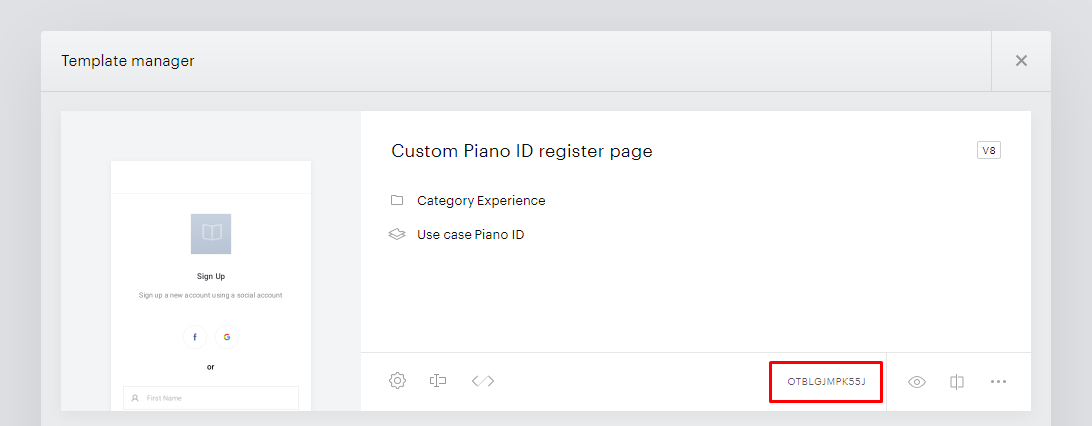
        templateId: 'OTBLGJMPK55J',
        loggedIn: function(data) {
            console.log('user ', data.user, ' logged in with token', data.token);
        },
        loggedOut: function() {
            console.log('user logged out');
        }
    });
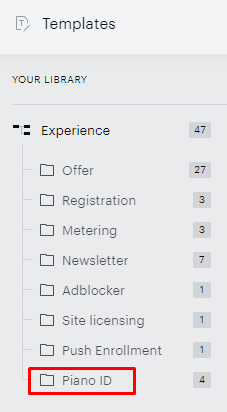
Replacing OTBLGJMPK55J with the actual value of the template ID from your customized Identity Management register page template created previously in your Piano dashboard under Manage → Templates, found under the Experience > "Identity Management" category on the left-hand side of the template overview:
For more information and options see our documentation here.