
Export Piano Audience segments to LinkedIn as Matched Audiences for ad targeting and retargeting on the LinkedIn advertising platform.
Overview
With the LinkedIn Matched Audiences integration, you can share a Piano Audience segment with your LinkedIn advertising account. Piano exports the users belonging to a segment — matched using hashed email addresses — to LinkedIn, where they become a targetable Matched Audience in Campaign Manager. You can then use that audience for retargeting and campaign targeting on LinkedIn.
Server-side integration
This is a server-side connection. Piano Audience sends segment memberships (user identifiers) directly to LinkedIn's DMP Segment API — it does not rely on a client-side tag, and LinkedIn does not support passing third-party segment IDs through the LinkedIn Insight Tag or any browser pixel. All matching happens server-side.
How it works
-
You create and manage your audience segments in Piano Audience.
-
Piano exports the users in a selected segment, sending the user identifiers to LinkedIn's DMP Segment API.
-
LinkedIn matches those identifiers against LinkedIn member profiles.
-
Matched members become a Matched Audience available in your LinkedIn Campaign Manager account.
-
You use the audience for targeting or retargeting in your LinkedIn ad campaigns.
Prerequisites
-
An active LinkedIn advertising account (Ad Account) in LinkedIn Campaign Manager.
-
A completed Piano Audience setup with at least one available
siteGroupId. -
OAuth application credentials for LinkedIn (Client ID, Client secret) and valid tokens (Refresh token, Access token) with the required advertising permissions.
-
Segments in Piano Audience whose users can be matched by LinkedIn (see Supported identifiers). Email is the primary identifier — segments made up solely of anonymous users cannot be matched.
Supported identifiers
The connector matches the users you export against LinkedIn member profiles using the following identifiers:
|
Identifier |
Role |
Format |
|---|---|---|
|
Hashed email (SHA256) |
Primary |
HEX-encoded, up to 64 characters. Lowercase and whitespace-trimmed before hashing. |
Important notes on identifiers
-
Email is required in practice. Each user must have at least one valid identifier for LinkedIn to match them; in most cases this is a hashed email address.
-
Hashing is the client's responsibility. Piano does not hash email addresses. Your user data must already contain the identifiers in the required (SHA256-hashed) form for them to be exported and matched.
-
Apple IDFA is not supported by LinkedIn Matched Audiences (deprecated by LinkedIn in September 2025).
Ingesting the hashed email into Piano Audience
For the connector to export a hashed email for a user, that identifier must first exist on the user's profile in Piano Audience. There are two ways to ingest the required hashed email identifier. Choose whichever fits your data setup — you do not need to use both.
Option 1 — User profile data import (recommended)
Use the User profile data import to attach the hashed email to existing user profiles in bulk, without any additional client-side code.
The import maps an identifier you already store against Piano's user ID and adds the hashed email as an additional identifier on the profile. In practice you provide:
-
Row 1 — a mapping key: your existing cookie ID or the external ID under your configured prefix, so Piano can locate the correct user profile.
-
Row 2 — the hashed email (SHA256): the additional identifier to be stored on that profile and later exported to LinkedIn.
This approach is ideal when you already hold the mapping between your user identifiers and the (hashed) email in your own systems, because it avoids the need for another client-side ID sync.
When to choose this option
Use the data import if your identifiers and hashed emails live in a back-end system (CRM, CDP, data warehouse) and can be delivered to Piano as a file/feed. It keeps the browser free of additional syncing logic.
Option 2 — Client-side external user identifiers
Alternatively, you can supply the hashed email at collection time using External user identifiers in the event data collected on your site. This attaches the additional identifier to the user's profile client-side as events are collected.
When to choose this option
Use external user identifiers if the hashed email is available in the page/app context at the time of data collection and you prefer to pass it inline with your existing tracking, rather than via a separate import.
Summary
Both methods achieve the same result — a hashed email identifier stored on the Piano Audience user profile that the LinkedIn connector can export. Use User profile data import for back-end/bulk ingestion (no extra client-side sync required), or External user identifiers for client-side, collection-time ingestion.
Configuring Piano Audience
Create a configuration
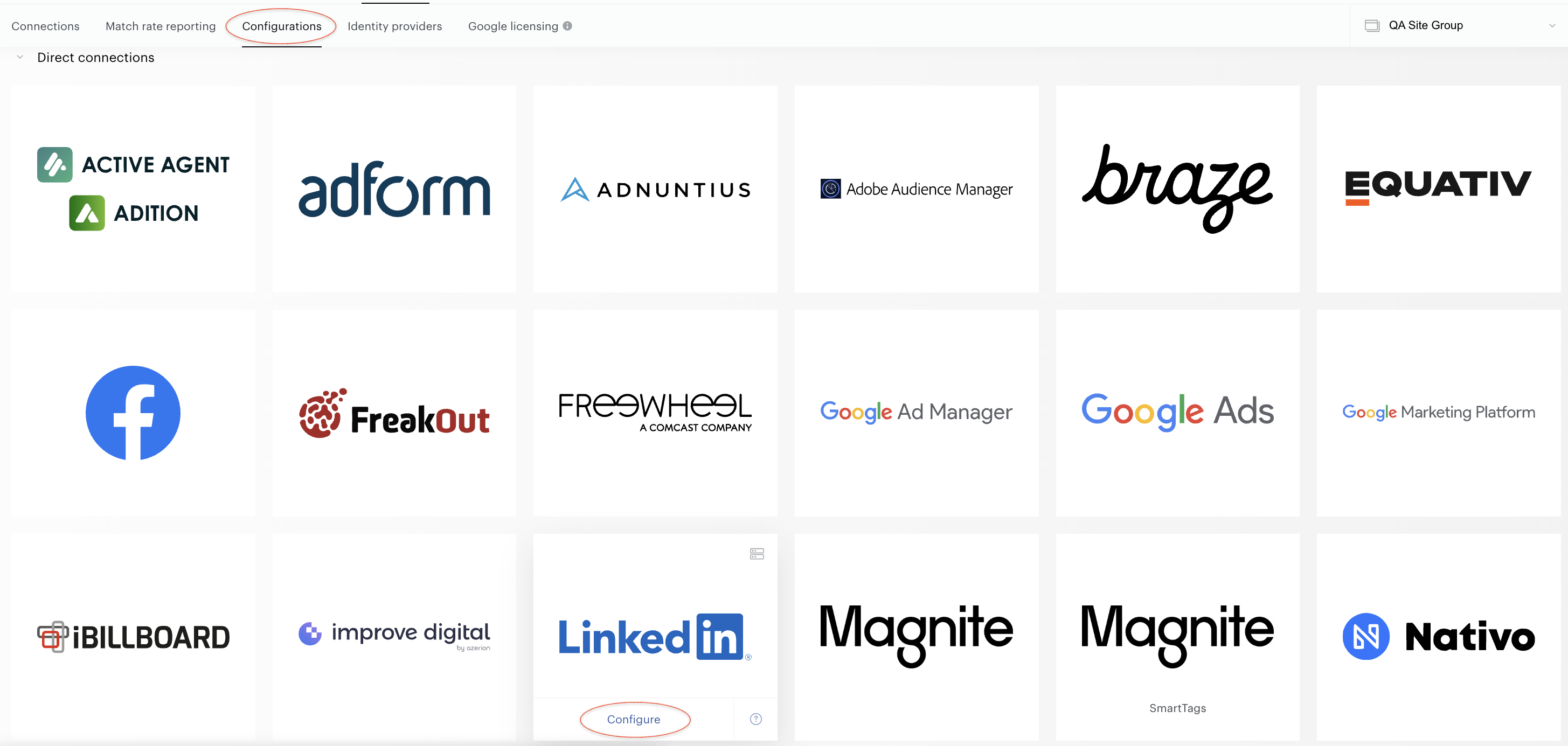
Select your site group. Go to Connectivity → Configurations → Direct Connections, hover over the LinkedIn logo, and click Configure to open the New Connection panel.
Configure the connection
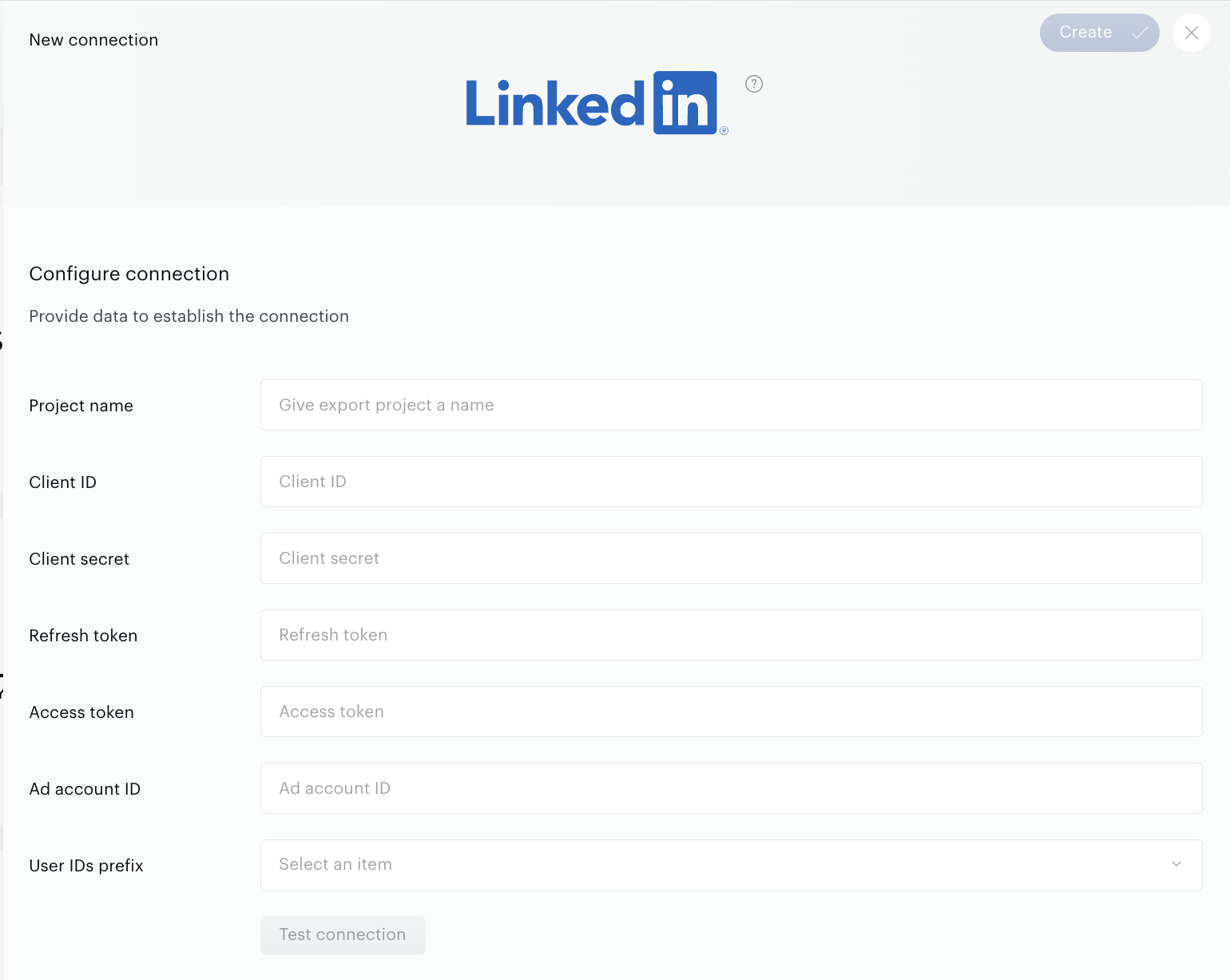
In the Configure connection panel, provide the data required to establish the connection:
|
Field |
Description |
|---|---|
|
Project name |
A name for the export project. Shown in Piano Audience only, to help you manage multiple integrations. |
|
Client ID |
The Client ID of your LinkedIn OAuth application. |
|
Client secret |
The Client secret of your LinkedIn OAuth application. |
|
Refresh token |
The OAuth refresh token used to renew access to the LinkedIn API. |
|
Access token |
The OAuth access token used to authenticate API requests. |
|
Ad account ID |
Your LinkedIn advertising account (Ad Account) ID that the audiences will be created under. |
|
User IDs prefix |
Select the identifier prefix used to label the exported user IDs. Choose the item that corresponds to your configured identifier setup. |
Once the fields are completed, click Test connection. A request is sent to LinkedIn and, if the credentials and account are authorized correctly, you'll receive a confirmation and the Create button (top right) will activate. Click it. Create then becomes Save, which you can use at any time during further configuration.
If the test connection fails, verify your Client ID, Client secret, and tokens are valid and not expired, and that the Ad account ID is correct and authorized. If the issue persists, contact your Piano Account Manager.
Configure segments
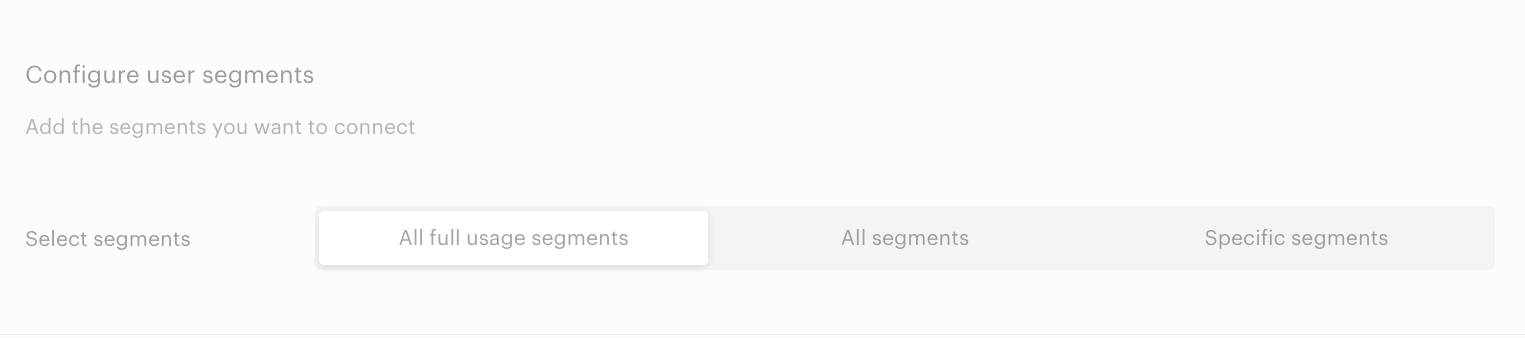
A successful test connection enables the Configure segments form, where you can choose:
-
All full usage segments — all active (Full usage) segments are sent to LinkedIn; any newly created Full usage segment is added automatically.
-
All segments — includes both Full usage and Reporting only segments.
-
Specific segments — select individual segments. Newly created segments are not added automatically. You can select:
-
Separate segments — search and pick segments one by one.
-
By labels — select one or more labels (key-value pairs); Audience finds and exports matching segments.
-
By segment groups — select one or more segment groups; Audience exports the segments within them.
-
Export segments
Click Export now in the Configure segments section to push the selected segments immediately, without waiting for the next scheduled transfer. Alternatively, configure a scheduled transfer in the Activate section below — turn the connection on for a daily transfer, or leave it off to save the configuration without activating it yet.
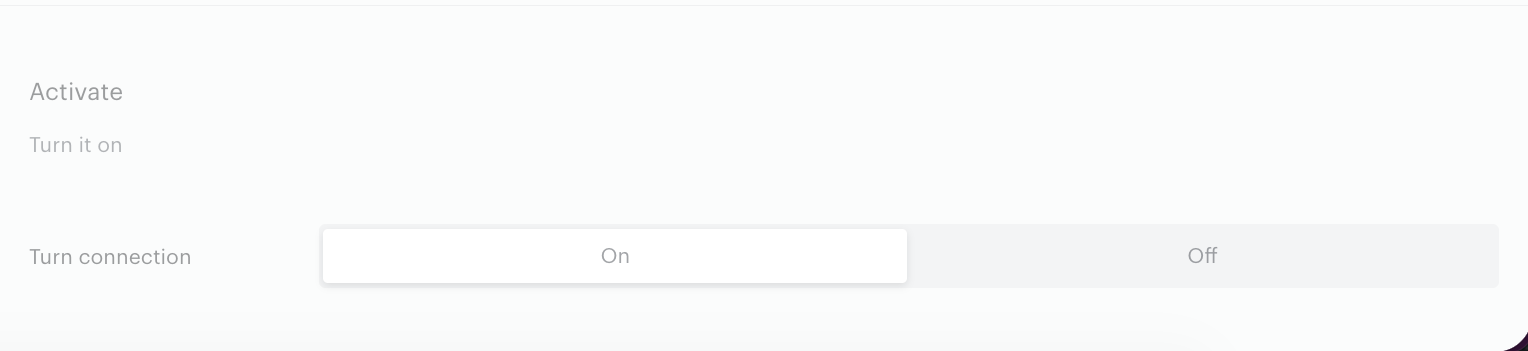
When ready, click Create (or Save, if editing) in the top right corner of the page.
When will my audience appear in LinkedIn?
After the first export, LinkedIn needs time to match your users against member profiles.
|
Stage |
Timing |
|---|---|
|
Initial matching (first export) |
Up to 48 hours |
|
Subsequent updates (segment refreshes) |
Up to 24 hours |
A segment moves through the following states in LinkedIn: BUILDING → READY. Once READY, the audience can be used in campaigns. Refreshing a segment moves it to UPDATING and back to READY.
Minimum audience size
A Matched Audience must contain at least 300 matched members before it can be used for campaign targeting. If fewer than 300 members match, LinkedIn shows the match rate as <5% and the audience cannot be targeted.
Why does my audience show 0 or a small size?
-
No matches were found for the identifiers provided.
-
Matches had low confidence and were excluded.
-
After matching, LinkedIn applies a privacy filter that removes members who opted out of third-party data targeting — this can lower the final count below the raw matched number.
Segment lifecycle in LinkedIn
-
Archival: a segment not used in a draft or active campaign for 30 days is archived.
-
Expiry: a segment inactive for 90 days is expired, and its data is purged in line with GDPR requirements.
-
To reactivate an expired segment, run a new export to it.
Monitoring and updates
Configured connections can be viewed and edited in the Connections tab, and are also available under Match rate reporting. Data is normally exported once a day. The Export now button lets you push segment updates immediately.
Tip
For the best match rates, ensure your Piano Audience segments contain identified (logged-in / registered) users whose email addresses are available in the required hashed form, and keep segments above the 300-member threshold that LinkedIn requires for targeting.
Related articles
LinkedIn user IDs linking
The LinkedIn integration enables linking of LinkedIn user IDs with Piano user IDs and can later be used for audience segments, reporting and targeting.
-
For you to get the LinkedIn user ID of the current user, that user must log in to LinkedIn from the current page. This only needs to happen once (more info).
-
Create a prefix to link the LinkedIn ID to it, e.g. 'lnk' (more info).
-
Create a persisted query for /profile/user/external/link/update where you lock down the "type" to be your prefix and make "id" and "cxid" mutable (more info).
-
(Optionally) The LinkedIn ID can be one-way hashed to remove the possibility of later getting a LinkedIn user from a Piano user ID.
-
Add the below tag anywhere on the page (preferably earlier in the file to make sure that it is loaded before the user navigates somewhere else):
<!-- Piano LinkedIn user linking script begin -->
<script type="text/javascript">
    window.cX = window.cX || {}; cX.callQueue = cX.callQueue || [];
    cX.callQueue.push(['invoke', function() {
        var intervalId = setInterval(function() {
            if (window.IN && IN.User && typeof IN.User.isAuthorized === 'function' && IN.User.isAuthorized()) {
                clearInterval(intervalId);

                // Read the LinkedIn user ID
                var linkedInUserId = IN.User.getMemberId();

                // Map the LinkedIn user ID to the Cxense user ID
                var persistedQueryId = '<PERSISTED-QUERY-ID>'; // <-- TODO: Insert persisted query id here
                var apiUrl = 'https://api.cxense.com/profile/user/external/link/update?callback={{callback}}'
                    + '&persisted=' + encodeURIComponent(persistedQueryId)
                    + '&json=' + encodeURIComponent(cX.JSON.stringify({ id: linkedInUserId, cxid: cX.getUserId() }));
                cX.jsonpRequest(apiUrl, function (data) { /* If wanted, verify success here*/ });
            }
        }, 1000);
    }]);
    // Async load cx.js
    (function(d,s,e,t){e=d.createElement(s);e.type='text/java'+s;e.async='async';
        e.src='http'+('https:'===location.protocol?'s://s':'://')+'cdn.cxense.com/cx.js';
        t=d.getElementsByTagName(s)[0];t.parentNode.insertBefore(e,t);})(document,'script');
</script>
<!-- Piano LinkedIn user linking script end -->