
Prorated Refund is a product feature that allows Piano clients to pre-calculate refund amounts based on the number of full days left from the original access period and the remaining balance from the subscription. For example, if the end user cancels a monthly subscription on the 15th day, Piano will pre-calculate the refund amount as a cost of 15 days left from the original subscription. But the client support representative will still be able to change the amount and make whatever necessary refund.
Our system will automatically detect if a client’s payment provider supports a prorated refund or not.
If a client’s payment provider doesn’t support a prorated refund, the refund amount cell cannot be edited and it will always show the full refund amount.
If a client’s payment provider does support a prorated refund, the amount will be available for editing and the default amount will be a prorated amount, the client will be able to change it to whatever possible value if needed.
Here is the formula we use to calculate a partial/prorated refund:
price/(nextBillingDate-previousBillingDate)*((nextBillingDate-previousBillingDate)-(Now-previousBillingDate))
So for example, if we have a monthly subscription with a price of $15 that is being billed on the 30th of each month, and we want to issue a refund on the 19th of a month, the partial refund amount would be:
15/30*(30-19) = $5.50
The payment providers that support prorated refunds include:
-
Braintree
-
Chase
-
CreditGuard
-
Cybersource
-
Datatrans
-
Eigen
-
GMO
-
GoCardless
-
Klarna
-
OBI
-
Openpay
-
Paypal Express Checkout
-
PayU Latam
-
Sony
-
Spreedly
-
Stripe
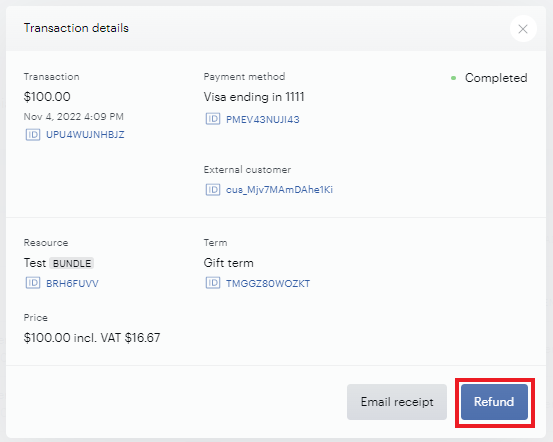
To issue a prorated refund, clients can go to their Piano dashboard and under Users → click into a specific user → tab Transactions → click into a specific transaction → click on Refund button:
And in the new modal, review the prorated refund amount:
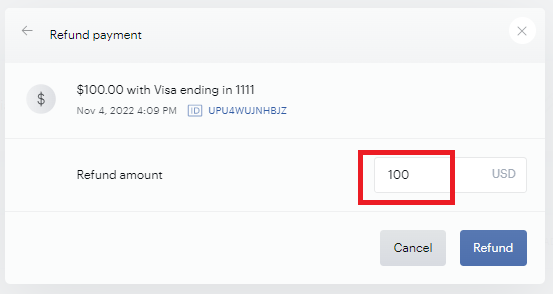
To issue the refund for the displayed amount, click Refund again.
Note that once a prorated refund is issued, it's not possible to issue a second refund for the remaining amount.