
Passive churn prevention increases client retention by triggering customizable notifications to remind subscribers who might involuntarily churn due to payment failures to take action. With the release of this feature, we also created a new Passive Churn Prevention report. Please click here if you would like to know more about the report.
To find out more about how to enable the feature, please check here.
If your application uses Stripe Billing, subscriptions billed with Stripe Payments follow Stripe's retry schedule instead of the retry cadence and grace period set here. The email settings on this page still apply. See this article for more information.
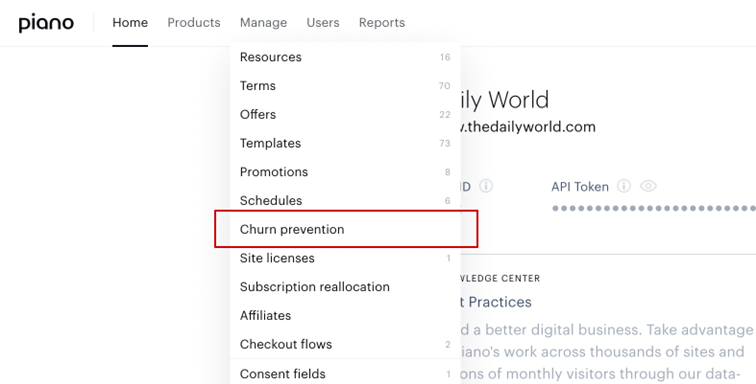
When the churn prevention feature is enabled for the application, a client user will be able to see a new option in the Manage section of the main menu.
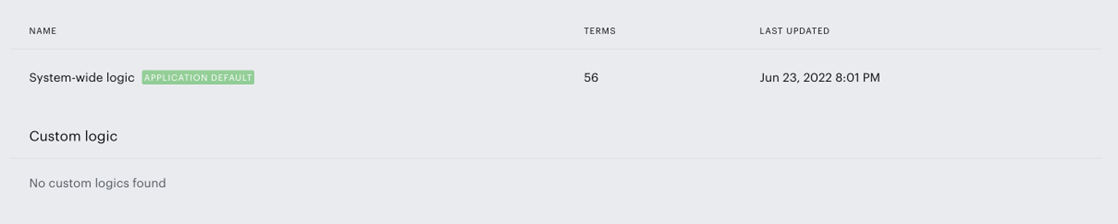
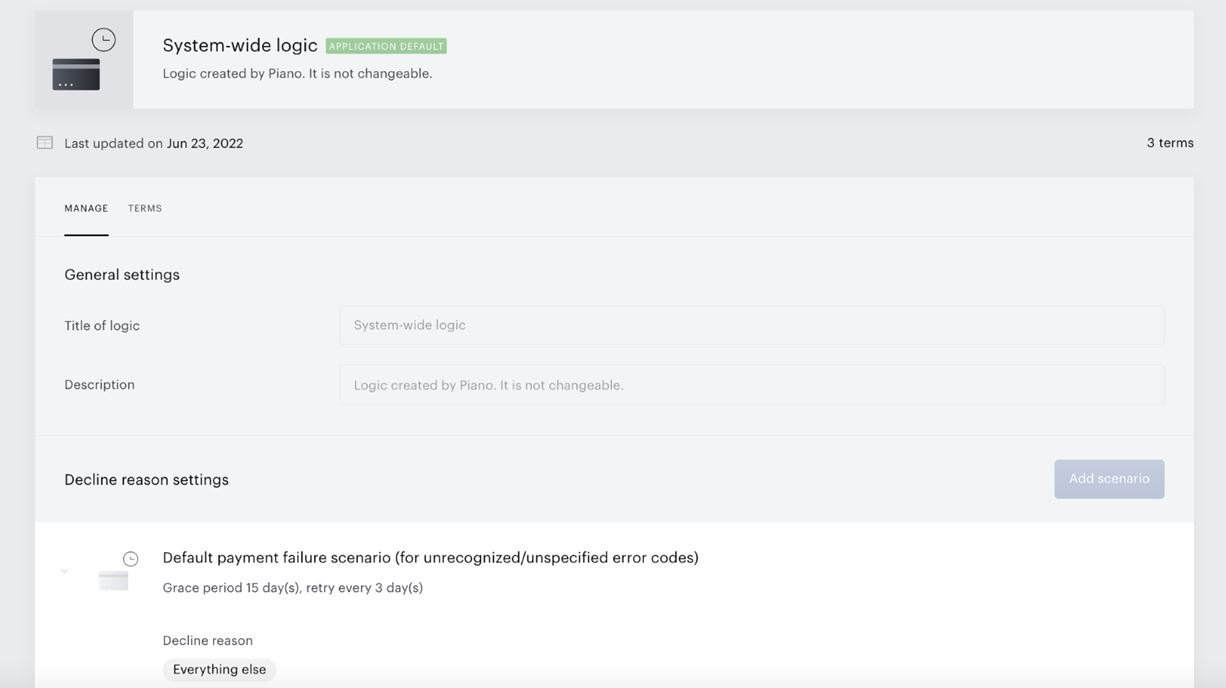
By default, there will be only one logic available - system-wide logic. This is a pre-configured Piano logic that replicates the current default system-wide behavior for error handling. This logic is maintained by Piano and is subject to change without notice.
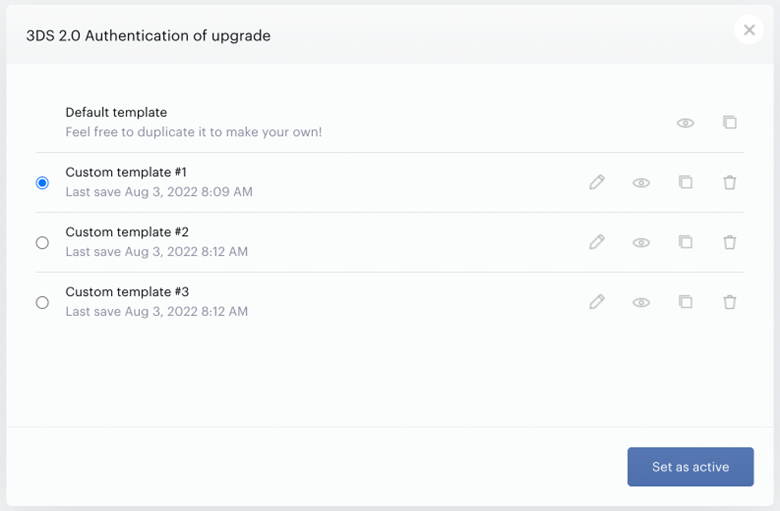
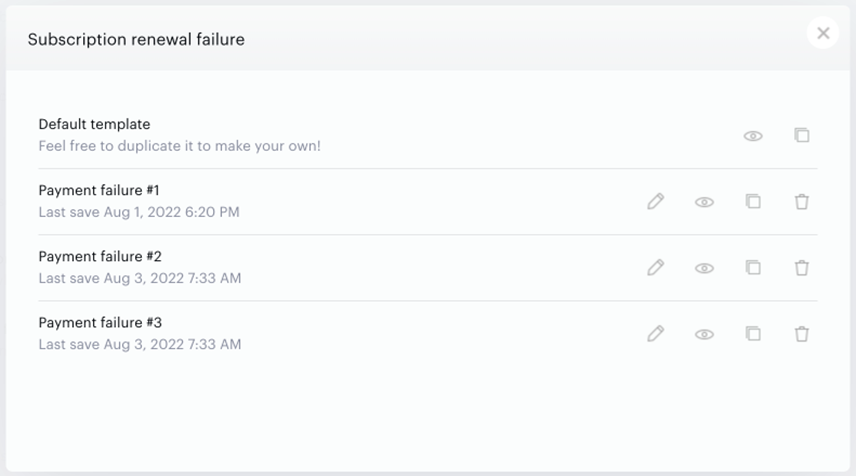
Also, there will be several changes in the Email manager. A new section of email templates will appear.
This section will contain two email templates that are mandatory to enable and for the churn prevention feature to work. Also, the behavior of these email templates will change. Previously it was possible to have a number of template versions, but only one of them could be selected as active.
For these two email templates – 3DS 2.0 Authentication of upgrade and Subscription renewal failure, it is now possible to have multiple active versions since any of them can be selected as an email template for retry attempts.
Important:
Right after the feature is enabled for the application there will be multiple changes that will affect the application setup immediately:
-
The default renewal cadence of 1 retry attempt every 5 days will be changed to 1 retry attempt every 3 days.
-
All existing grace periods configured on a term level will be hidden from the term and changed to a unified grace period of 15 days configured in a system-wide churn prevention. If clients require custom periods, they will need to transition to custom logic and create distinct ones with varying grace periods, which can then be selected on the term level.
-
Subscriptions with a grace period longer than 15 days will expire at the next renewal job attempt* when the system-wide churn prevention logic is applied. To avoid this, it’s recommended to promptly configure and switch to a new custom logic scenario immediately after enabling the feature. This provides a short window to keep the affected subscriptions active before the next renewal job is executed.
-
Two existing email templates ‘Subscription renewal failure’ and ‘3DS 2.0 Authentication’ will be replaced with two new templates with the same names that can have multiple active versions (a requirement for passive churn prevention). It is important to save the contents of these emails before the feature is enabled and restore them into new templates after passive churn prevention is enabled.
*Renewal jobs run at 02:20, 03:20, 04:20, 05:20, 06:20, and 11:20 AM, as well as 05:20 and 09:20 PM in the EST timezone for the US dashboard, and at the same times in CET timezone for the EU dashboard.
Passive Churn Logic Configuration and Payment Providers
The level of the Passive churn logic configuration depends on the payment provider you have in place. Please ensure you read this section before proceeding to the logic set up to avoid potential questions.
To help you understand the difference, we segmented payment providers into three levels (details about the segments and indication below).
Segment 1: Payment providers with advanced implementation
Segment 2: Payment providers with standard implementation
Segment 3: Payment providers not supported
If your provider belongs to the first two segments, you need to:
-
Be aware that your customized grace period will be reverted back to system default (15 days) for all terms.
-
Be aware that your retry email cadence will be changed to the system default (retry attempts every 3 days with the same email template).
-
And with this information, if you have created custom templates for any of the two following emails - 3DS 2.0 authentication and Subscription renewal failure - and would like to use the same copy in the future, please save these templates on your side. Once the Passive Churn feature is enabled, these custom templates will be removed from the Email Manager section and you can paste these templates back with the copy you saved.
Once all the above actions are done, you should reach out to your Account Manager to request activating the feature.
If your provider is on the Segment 3 list, please understand that at the moment, we cannot activate the feature for you.
Grace periods are disabled for asynchronous payment methods (of Segment 3 providers). As a result, if renewal fails, the subscription simply expires instead of entering a grace period - without any email notifications being triggered and periodic renewal attempts from the churn logic. Therefore, if you solely use a Segment 3 payment provider, the Passive Churn Prevention feature can't be enabled.
If you utilize payment providers from various segments, we can enable the feature. However, it's important to note that the default or custom logic will exclusively apply to providers from Segment 1 or 2.
Segment 1: Payment providers with advanced implementation
Provider list:
-
Braintree Apple Pay
-
Braintree Credit Cards
-
Braintree Paypal
-
Braintree Google Pay
-
Chase Payment
-
Stripe Apple Pay
-
Stripe Credit Cards
-
Stripe Elements Credit Cards, Google Pay, and Link
-
Sony Payments
-
CyberSource
-
CyberSource(TMS)
-
Datatrans CC
-
Datatrans Google Pay
-
Datatrans Apple Pay
-
Datatrans Paypal
-
Eigen
-
OBI
-
OBI PayPal
-
GMO
-
Payway (Edgil) Apple Pay
-
Payway (Edgil) - Credit Cards
-
PayU Latam Chile
-
PayU Latam Colombia - Credit Cards
-
PayU Latam Peru
-
CreditGuard CC
-
PayPal Express Checkout
-
PayPal
Definition: Clients using these payment providers can enjoy the full benefits of the Passive Churn Prevention feature. Clients can set custom logic and emails based on individual payment decline reasons to better engage customers.
Segment 2: Payment providers with standard implementation
Provider list:
-
Klarna
-
Datatrans PostFinance
-
Datatrans Twint
-
Bancard
-
Onet
-
Paymentez
-
PayU India NetBanking
-
PayU India Credit Cards
-
PayU Latam Brasil
-
PayU Latam Colombia - PSE
-
PayU Latam Argentina
-
GMO Softbank
-
GMO Au
-
Vipps
-
Zlick
Definition: Clients using these payment providers can set up system-wide logic with a single thread of emails. The key difference between Segment 1 and Segment 2 is the ability to configure custom payment decline reasons. Even though the custom payment decline reasons are visible, the logic won’t take effect because these decline reasons cannot be mapped with your payment provider at the moment.
Segment 3: Payment providers not supported
Provider list:
-
GoCardless Direct Debit
-
GoCardless Drop-In - all schemas (SEPA, Bacs, ACH, Becs, BecsNZ, PAD, BetalingsService)
-
Stripe Elements - all payment methods, except for credit cards, Google Pay and Link
-
Openpay Cash Payments
-
PayU India UPI (Bank transfer)
-
PayU Columbia PSE
-
PayU Brazil Boleto
-
Invoice option 1
-
Invoice option 2
-
Invoice payments
Definition: Passive Churn Prevention logic retries and email sequences cannot be implemented due to incompatible provider processing or the nature of the payment method. But the initial payment attempt failure email will still be sent.
Create a Churn Prevention Logic
Once you are aware of the different payment provider segments and capabilities, you can start configuring the Passive churn prevention logic.
There are two preconfigured scenarios in any newly created logic (which can’t be deleted), these are there to ensure that even if you didn’t set up anything yet, you still have a default logic to run:
-
System-wide logic - a scenario that is used to configure retry and email logic for any unrecognized or unspecified case.
-
3DS failure - separate scenario for handling 3D-Secure related errors
Configuration of a Custom Logic
If you think the default logic does not fit your needs, you can create a new custom logic.
Segment 1: Payment providers with advanced implementation
Clients in Segment 1 can create new custom scenarios based on specific payment decline reasons.
To create a new custom logic click on the Create logic button at the top right corner of the churn prevention section. A new modal will appear with some predefined logic.
-
Title of logic - the name of the new logic that will be visible everywhere (required field);
-
Description - brief description of the logic or where it may be used (optional field).
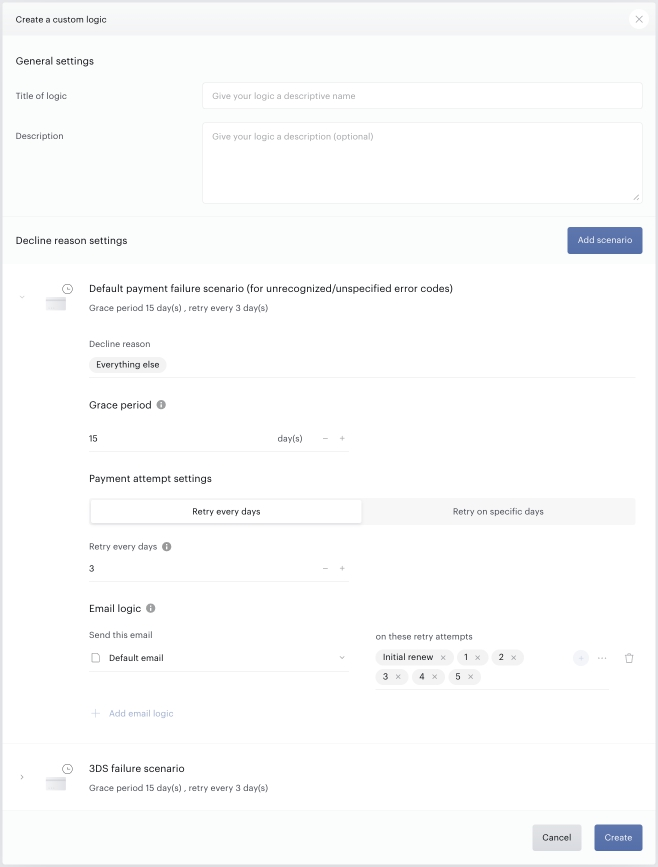
To handle some specific error codes separately add new scenarios and specify decline reasons.
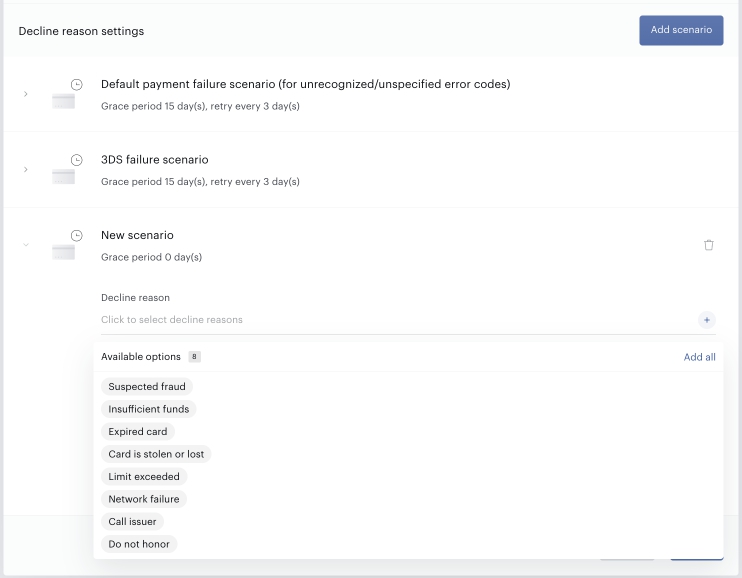
There are eight more decline reasons currently available in Piano for configuration:
-
Suspected fraud - payment was declined because the payment provider suspects that it’s fraudulent;
-
Insufficient funds - the card has insufficient funds to complete the purchase. The customer needs to top up the card or use an alternative payment method;
-
Expired card - card has expired. The customer needs to use another card;
-
Card is stolen or lost - payment was declined because the card is reported stolen;
-
Limit exceeded - the customer has exceeded the balance or credit limit available on the card. The customer needs to increase the limit or use an alternative payment method;
-
Network failure - an error occurred while processing the card. Most likely there is a network breakdown and the card issuer couldn’t be reached, so the payment couldn’t be authorized;
-
Call issuer - the card was declined for an unknown reason. The customer needs to contact their card issuer for more information;
-
Do not honor - card was declined for an unknown reason. The customer needs to contact their card issuer for more information.
Decline reason is an abstraction on top of the error codes coming from the payment provider. Since Piano supports multiple payment providers and each of them has its own list of error codes - it was decided to build generic payment failure reasons and group different error codes from different providers under these groups. Please see here which payment providers are currently not supported.
After identifying decline reasons, configure a grace period length and a cadence of renewal attempts that have to be performed for a subscription that failed to renew with a specified error. The total number of retry attempts will be calculated automatically based on the length of the grace period and a number of days between retry attempts.
There are two types of retry attemps configuration:
1. Retries every X days
You need to specify the length of the garce period and then how often to makre tries (every X days)
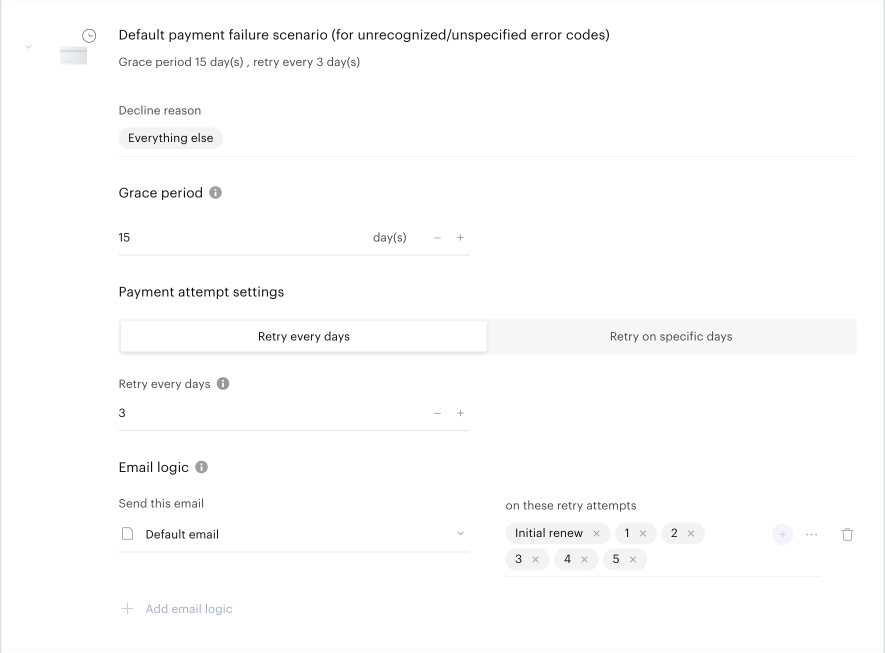
Also specify what email template will be used on each payment attempt failure by clicking on the Add email logic link.
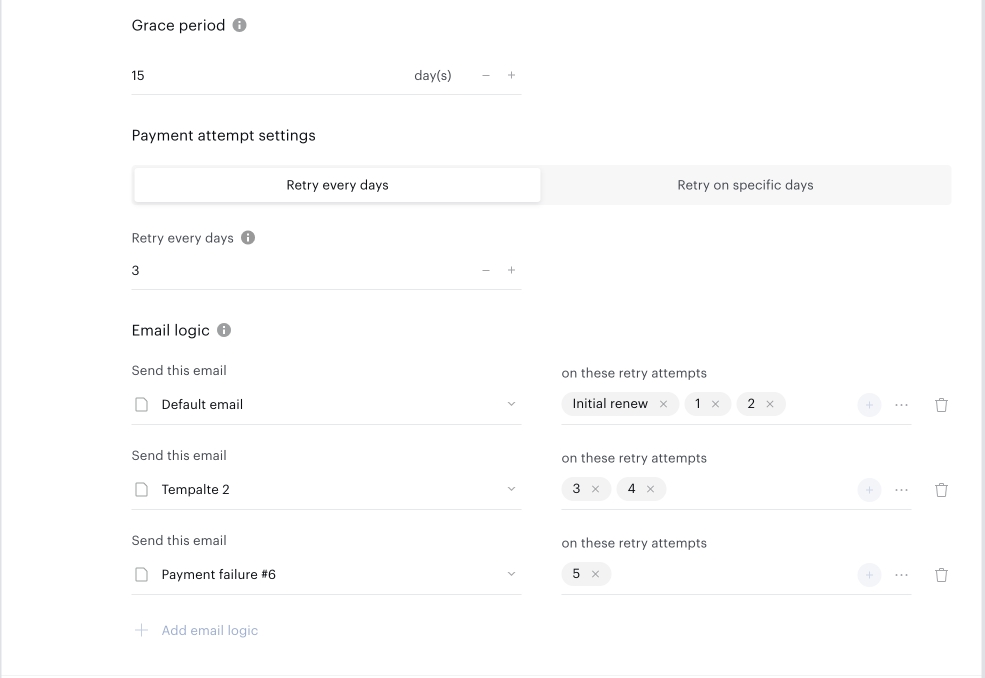
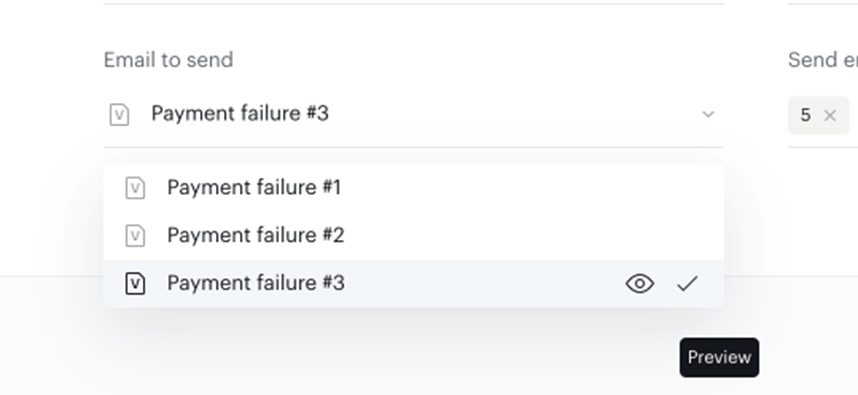
It is possible to preview the template right from the configuration modal by clicking on the eye icon. It is necessary to click on the tick icon to select the template.
It is also possible to configure a scenario without an email configuration. In this case, the scenario will only specify how and when renewal attempts will be made, but will not send any emails to the end user.
2. Retries on specific days of the grace period
First you need to switch to this option and you will see the retry attempt on the last day of grace period is already configured. This is a mandatory configuration, there must be a retry attempt on the last day of grace period.
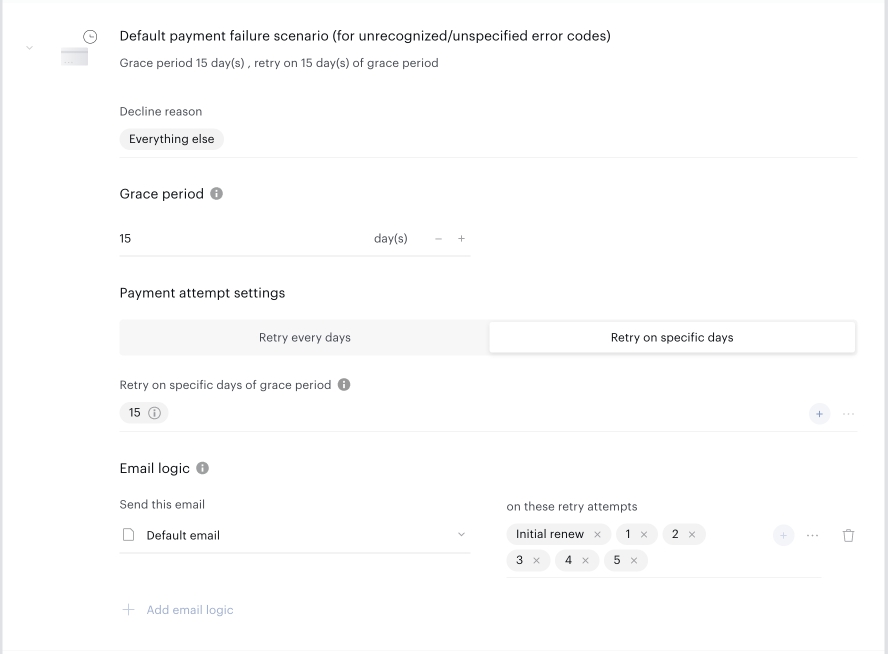
Then you can add more days in the configuration and the same way as in the previous case configure what emails should be sent (not sent) on every retry attempt.
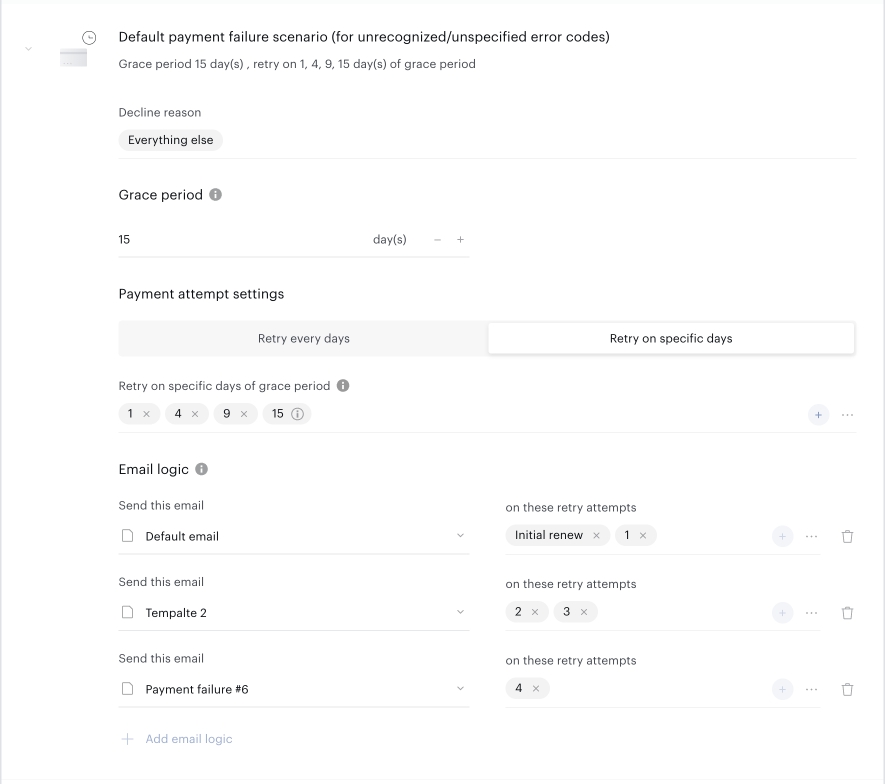
It is also important to notice that the whole logic is built based on the initial error code from the initial renewal attempt that failed. If the error code coming from the payment provider changes during the grace period it will not be taken into account.
Segment 2: Payment providers with standard implementation
Clients in Segment 2 can follow the above configuration, however, due to the limitations of the mapping of payment error codes and decline reason, you can only set up one Passive churn logic without customizing based on decline reason.
When setting up your Passive churn logic, please choose the decline reason "Everything else" and use that custom logic as your default one.
The logic for other decline reasons won’t take effect.
Edit churn prevention logic
Add new scenario
To add a new scenario to the logic just click on the Add scenario button and configure the scenario the same way as during the creation.
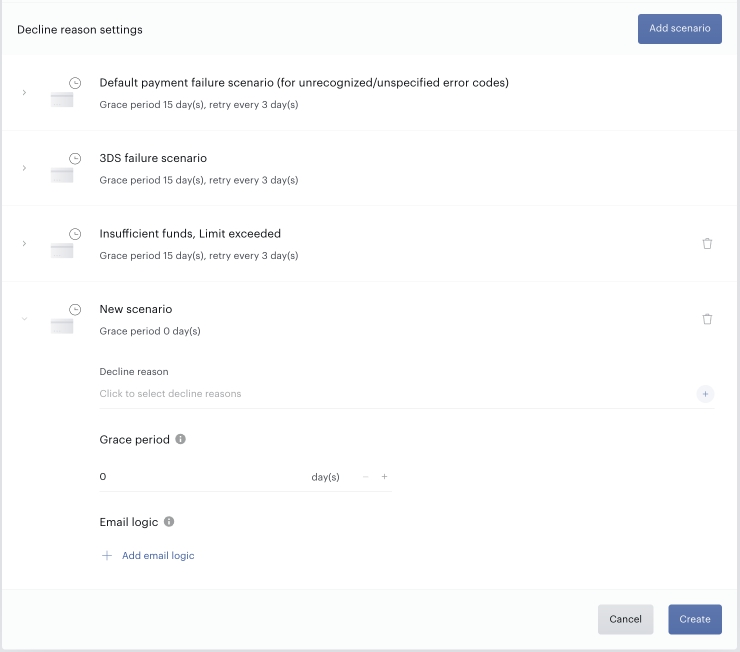
The maximum length of the grace period is limited to 60 days. Grace period also can't be longer than the billing period of the payment term or the billing period of the access period of the dynamic term, otherwise, it will be truncated on the renewal attempt.
Edit existing scenario
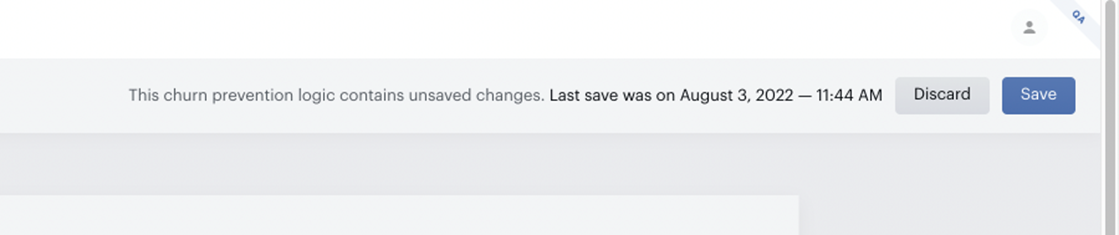
When editing a churn prevention logic it is possible to change all parameters of the logic. All changes will be applied upon saving the logic. All unsaved changes will be reverted.
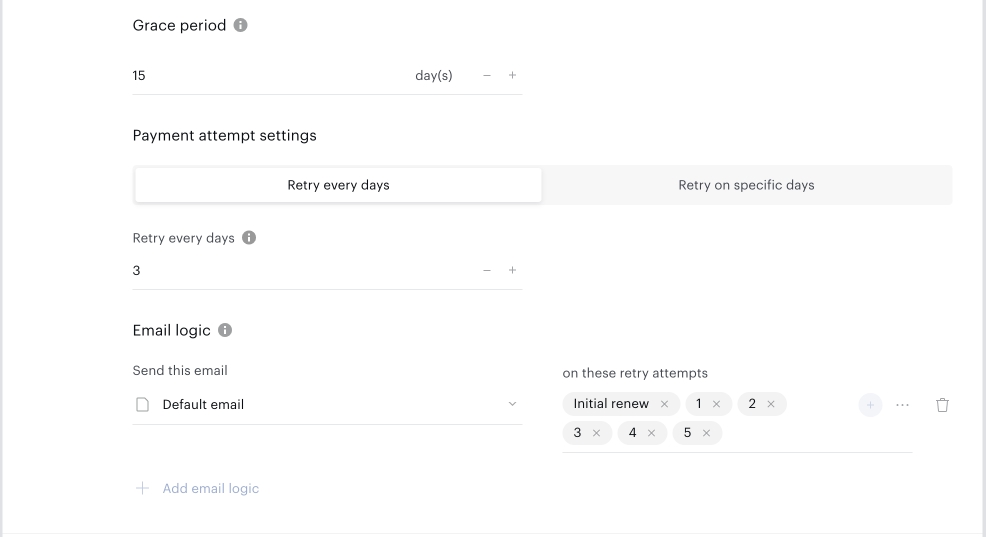
It is not possible to add a new email-sending logic if all retry attempts are already configured to use an existing email template.
Delete scenario
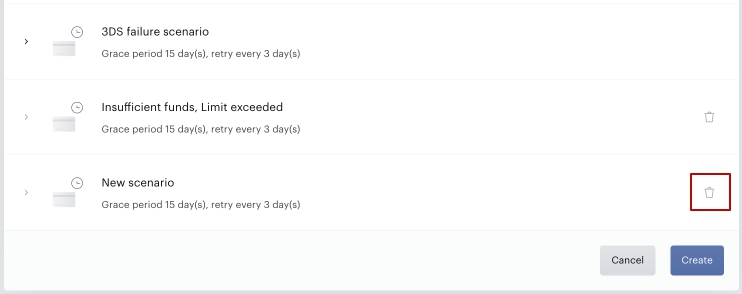
It is not possible to delete preconfigured default and 3DS scenarios. To delete any other scenario just click on the trash bin icon.
Add terms to the logic
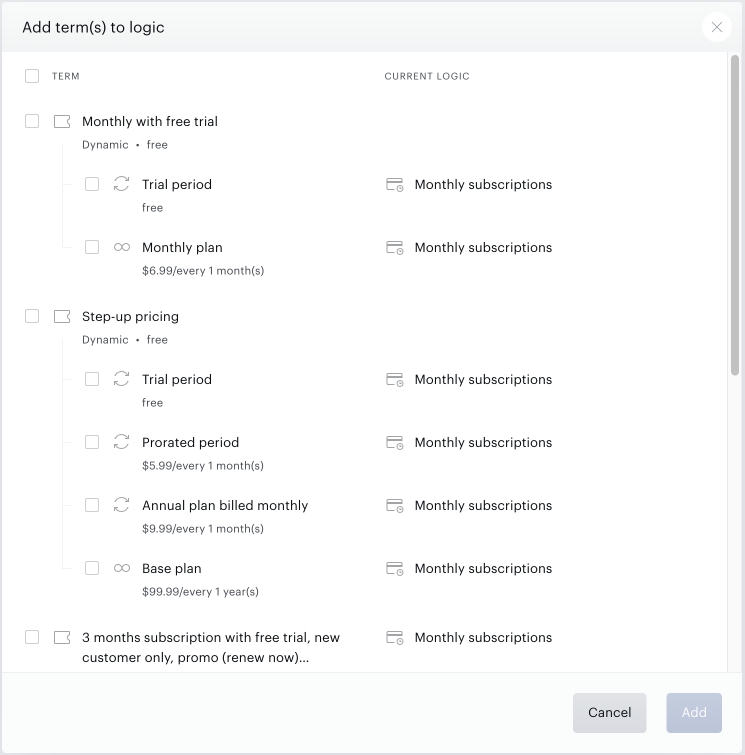
It is also possible to link a number of terms with the passive churn logic at once if you don't need to switch all of them to a different logic, but just some parts. In churn prevention logic modal windows switch to the "Terms" tab and click on the "Add term" button.
Passive churn prevention logic can also be selected on the term level individually for the payment term of for each access period of the dynamic terms. In this case grace period length and renewal cadence will be configured individually for a selected term/access period.
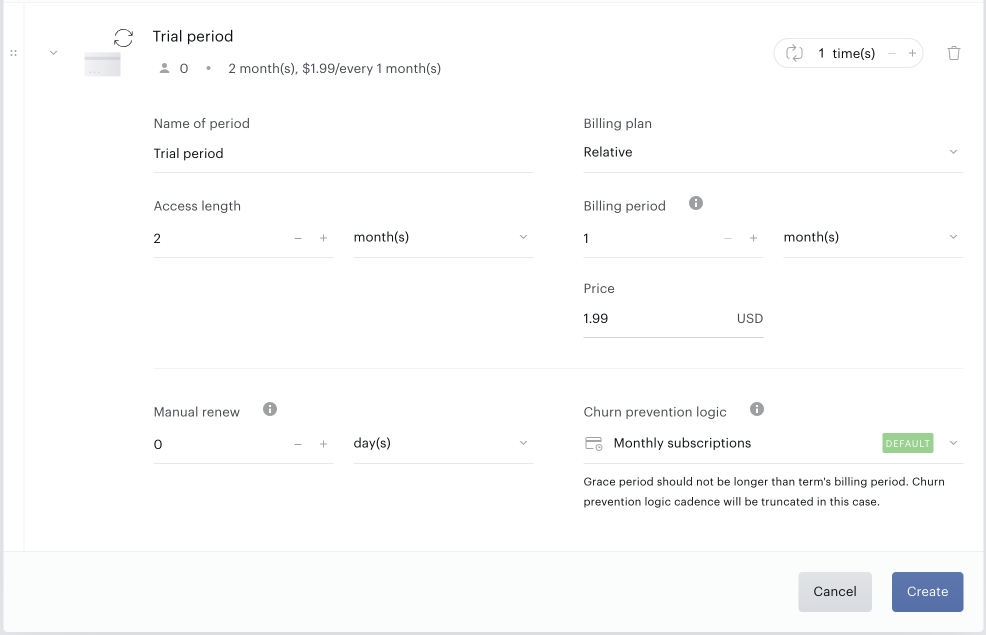
Keep in mind, that grace period is technically a part of the next access period that is given to the end-user to have enough time to deal with the payment failure occurred on renewal. It means that grace period configuration and renewal cadence will be taken from the next access period, that the end-user is attempting to renew to.
Making churn prevention logic default
By default, all existing terms will be renewed according to the system-wide preconfigured logic. It is possible to create more types of custom logic, but they all will not work until you select any of them to become an application-wide default logic.
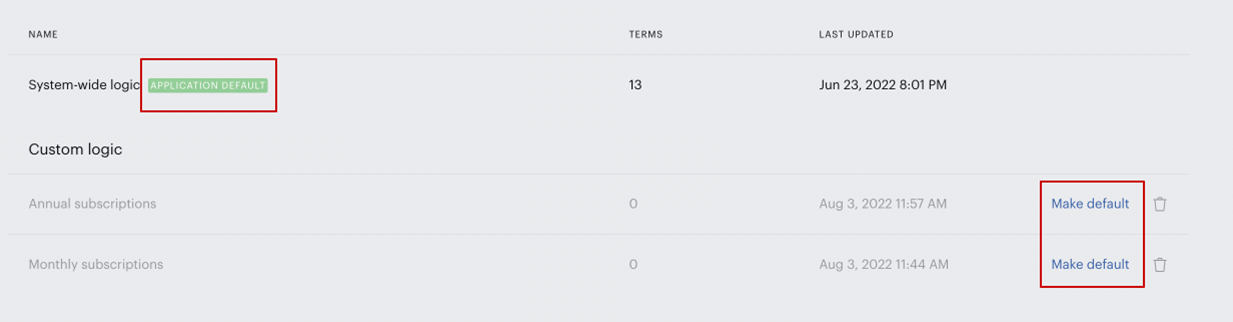
After doing this the selected custom logic will become the application-wide default and will be completely managed by the client.
System-wide logic will keep receiving data-driven updates made by Piano, but these updates will not take effect until system-wide logic is selected as the default logic again.
Current error code mapping
Below you can find more details about the error code mapping of the payment failures for each provider with advanced passive churn prevention support.
Payment providers that currently are not supported by the passive churn prevention feature will still work with it but with limited functionality. All errors from these providers will fall under the 'Everything else' decline reason, which means that it will still be possible to configure grace period, retry cadence and emails, but only without the ability to differentiate them based on the initial error message from the payment provider.
Renewal cadence logic
There is a general limitation that subscriptions can only be expired by a renewal job. In addition to that, there should be a gap between that last retry attempt and the previous one, which should be no less than the retry period.
Here is an explanation of how the system will act in different cases taking these limitations into account.
Grace period and retry attempts cadence match
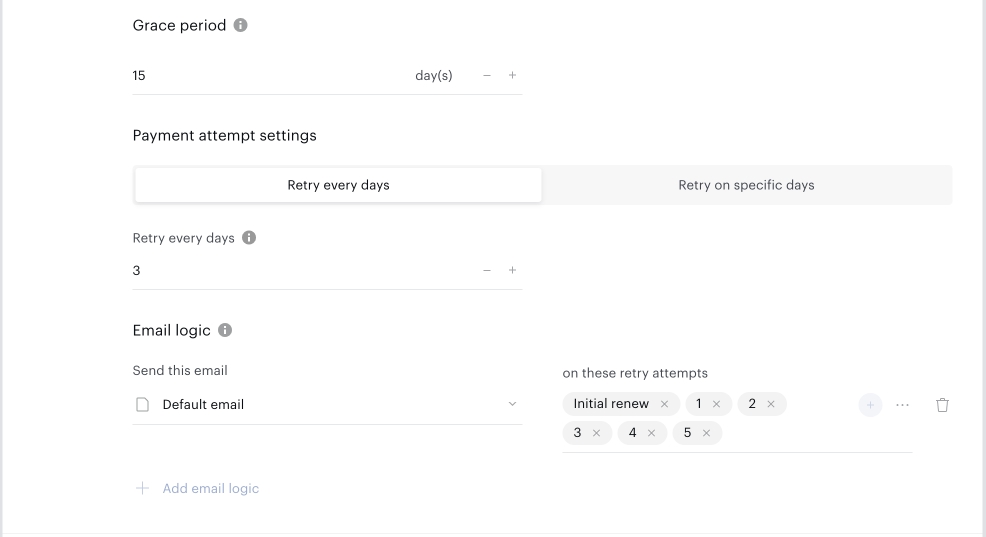
In a configuration where the grace period is 15 days, and the system is configured to make 5 retry attempts every 3 days system behavior is following:
-
The system will make an initial renewal attempt and if it fails will send an email configured for an "initial renewal" attempt and initiate a cadence of retry attempts.
-
The system will make retries on days 3, 6, 9, 12, and 15 and send appropriate emails if configured.
-
On day 15, the system will send the final email configured for attempt 5 and the subscription expires.
Grace period is longer than retry attempts cadence
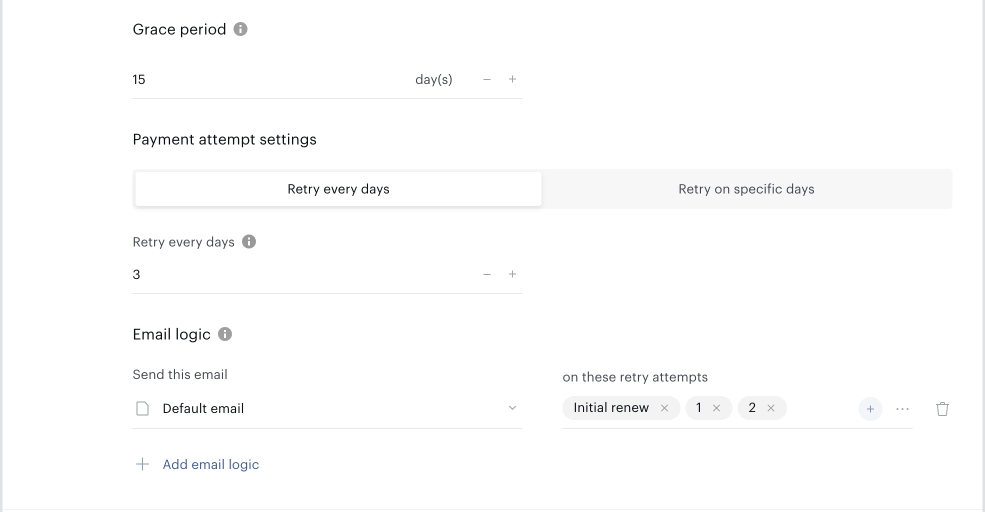
In the configuration where the grace period is 15 days, and the system is configured to make 3 retry attempts every 3 days system behavior is as follows:
-
The system will make an initial renewal attempt and if it fails will send an email configured for an "initial renewal" attempt and initiate a cadence of retry attempts.
-
The system will make retries on days 3, 6, and 9 and send appropriate emails if configured.
-
On day 9 the system will send the final email that is configured for retry attempt 3 (there will be no email if the system is configured not to send an email on attempt 3) and immediately expire the subscription even though the grace period is configured to be 15 days. The user will keep his access until day 15.