This feature is deprecated and should not be used.
CreditGuard Payments
CreditGuard provides sophisticated technology solutions for the payments industry focusing on complex needs of large merchants requiring white-label solutions.
Their services consist of a Payment Gateway, Tokenization, Anti-Fraud, Reconciliation and merchant-based Risk Monitoring.
Merchant Requirements
Potentially, the following template needs to be updated. Check that the Payment Components template contains the following code:
<script type="text/ng-template" id="/frontend/providers/components/creditguard/checkout/component.shtml">
<div class="creditcard-wrapper new-card-form">
  <div class="row">
    <div desktop class="cc_stored_cards" ng-show="!cc.payWithNew && cc.initiated">
      <div class="add-credit-card-wrapper">
        <h4>
          <t>Your credit and debit cards</t>
        </h4>
        <a href="javascript:void(0)" class="complete-purchase-button"
           ng-click="gotoNewPaymentScreen()"
           ng-show="cc.stored.length > 0">
          +
          <t>Add a card</t>
        </a>
      </div>
      <table class="payment-method-card" ng-show="cc.stored.length > 0">
        <tr class="payment-method-card-row" ng-repeat="method in cc.stored"
            ng-class="{'selected' : $parent.cc.selectedUpiId == method.id}">
          <td class="payment-method-card-cell">
            <input type="radio" name="stored_method" value="{{method.id}}"
                   ng-model="$parent.cc.selectedUpiId"/>
          </td>
          <td class="payment-method-card-cell">
            <div class="credit-card-{{method.identifier}}"></div>
          </td>
          <td class="payment-method-card-cell">
            <div>{{method.type | tc:"checkout.platform"}} *{{method.ending_in}}</div>
          </td>
          <td class="payment-method-card-cell">
            <t>Expires in</t>
            {{method.expire_month}}/{{method.expire_year}}
          </td>
        </tr>
      </table>
    </div>

    <div mobile class="cc_stored_cards" ng-show="!cc.payWithNew && cc.initiated">
      <table class="payment-method-card" ng-show="cc.stored.length > 0">
        <tr class="payment-method-card-row" ng-repeat="method in cc.stored"
            ng-class="{'selected' : $parent.cc.selectedUpiId == method.id && $parent.cc.payWithNew != true}">
          <td class="payment-method-card-cell">
            <input type="radio" name="stored_method" value="{{method.id}}"
                   ng-model="$parent.cc.selectedUpiId"
                   ng-click="$parent.gotoStoredPaymentsScreen()"/>
          </td>
          <td class="payment-method-card-cell">
            <div class="credit-card-{{method.identifier}}"></div>
          </td>
          <td class="payment-method-card-cell">
            <div>*{{method.ending_in}}</div>
          </td>
        </tr>
        <tr class="payment-method-card-row" ng-class="{'selected' : $parent.cc.payWithNew == true}">
          <td class="payment-method-card-cell">
            <input type="radio" name="stored_method" ng-click="$parent.cc.selectedUpiId = null" ng-model="$parent.cc.payWithNew" ng-value="true"/>
          </td>
          <td class="payment-method-card-cell" colspan="2">
            <t>Add a new card</t>
          </td>
        </tr>
      </table>
    </div>

    <div class="cc_new_card" ng-show="cc.payWithNew && cc.initiated">
      <div desktop class="go-back-to-cards-wrapper">
        <a href="javascript:void(0)" class="go-back-to-cards" ng-click="gotoStoredPaymentsScreen()"
           ng-show="cc.stored.length > 0">
          <t>Return to saved cards</t>
        </a>
        <h4>
          <t>Add a new credit or debit card</t>
        </h4>
      </div>

      <div>
        <div ng-show="isIframeLoadedAndNewCard()" class="creditguard-complete-purchase complete-purchase-button" complete-purchase-button
             title="{{'Pay wih CreditGuard' | t}}"></div>
      </div>
    </div>

    <div id="creditguard-add-new-card-iframe" class="creditguard-add-new-card-iframe"></div>

  </div>
  <div class="footer-modal">
    <div>
      <div ng-show="!isConfirmStepEnabled() && !cc.payWithNew" class="complete-purchase-button" complete-purchase-button
           title="{{'Complete Purchase' | t}}"></div>
    </div>
  </div>
</div>

</script>
Limitations
Only available to clients in Israel.
Supported Countries
For this payment provider, Piano supports the following countries:
|
Supported Countries |
|---|
|
Israel |
Please reach out to your Piano Account representative in case a currency supported by this payment provider is not listed in the table above.
Supported Currency
Piano supports the following CreditGuard supported currencies:
|
Supported Currencies |
|---|
|
ILS |
Supported Payment Methods
Piano supports the following payment methods for this payment provider:
|
Payment method name |
Are renewals supported? |
||||||||||||
|---|---|---|---|---|---|---|---|---|---|---|---|---|---|
|
Credit card |
Yes |
Supported Features and Functionality
|
Feature/Functionality |
Supported? |
|
Refunds |
Full / Partial |
|
Apply Terms Wizard |
Yes |
|
My Account - Add payment method |
Yes |
|
My Account - Edit payment method |
No |
|
My Account - Delete payment method |
Yes |
|
Publisher dashboard - Add payment method |
Yes |
|
Publisher dashboard - Edit payment method |
No |
|
Publisher dashboard - Delete payment method |
Yes |
|
Tax Providers and Types |
Not supported |
|
Transaction descriptors |
None |
|
Frictionless |
No |
|
3DS / SCA |
No |
|
Account Updater |
No |
|
Fraud prevention |
No |
|
Passive churn prevention |
Yes - Advanced support |
|
Payment token import support |
Yes* |
*For more information about the payment token import please visit this link.
Passive Churn Prevention
It's crucial to understand how the various error codes that may arise during a payment failure are handled by the Passive Churn Prevention feature. These error codes provide insights into why a renewal attempt may have failed, enabling you to take appropriate actions to prevent churn. This section details the specific error codes encountered during a payment failure and their mapping to a decline reason.
|
Decline reason |
Error codes |
|
|
Suspected fraud |
336337 (The card is in customers black list) 339 |
340 (The card failed the fraud detection test) |
|
Insufficient funds |
1051 (Not sufficient Funds) |
|
|
Expired card |
360
1836 (Expired card) 2009 (Expired card) |
|
|
Card is stolen or lost |
1041 (Lost card pick up) 1043 (Stolen card pick up) |
|
|
Limit exceeded |
352 (Unable to transmit - exceeded a daily quota) 1200 (Unable to transmit - exceeded a daily quota) 1065 (Activity count limit exceeded) 1061 (Exceeds withdrawal amount limit) |
|
|
Network failure |
854 (General network error) |
|
|
3DS failure |
903 (Could not find a matching 3DS Lookup (J107) Transaction) |
|
|
Call issuer |
374 (Cannot do forced transaction with this card) 1803 (Call Issuer) |
|
|
Do not honor |
100 (Do Not Honor) 2005 (Declined) 2006 (Declined - Do Not Honor. Failed Negative Check - Unpaid Items) |
|
|
Everything else |
All error codes not listed above |
|
How to integrate CreditGuard with Piano
You can input your CreditGuard account information into the Piano dashboard by clicking Edit Business→Payment Provider→CreditGuard(Add New).
To integrate CreditGuard with Piano, have the following information ready to enter into the form fields and then click Save:

-
Title: The name of this integration (for your reference only)
-
User: Your CreditGuard account user.
-
Password: Your CreditGuard account password.
-
Terminal: Enter your terminal number. It is used for purchases with a new card.
-
Terminal2: Enter your terminal 2 number. It is used for renewals, upgrades, or purchases with a saved card.
-
Merchant ID: Your CreditGuard Merchant ID.
-
Currencies: Only ILS (Israeli Shekel) is currently supported for this payment provider.
-
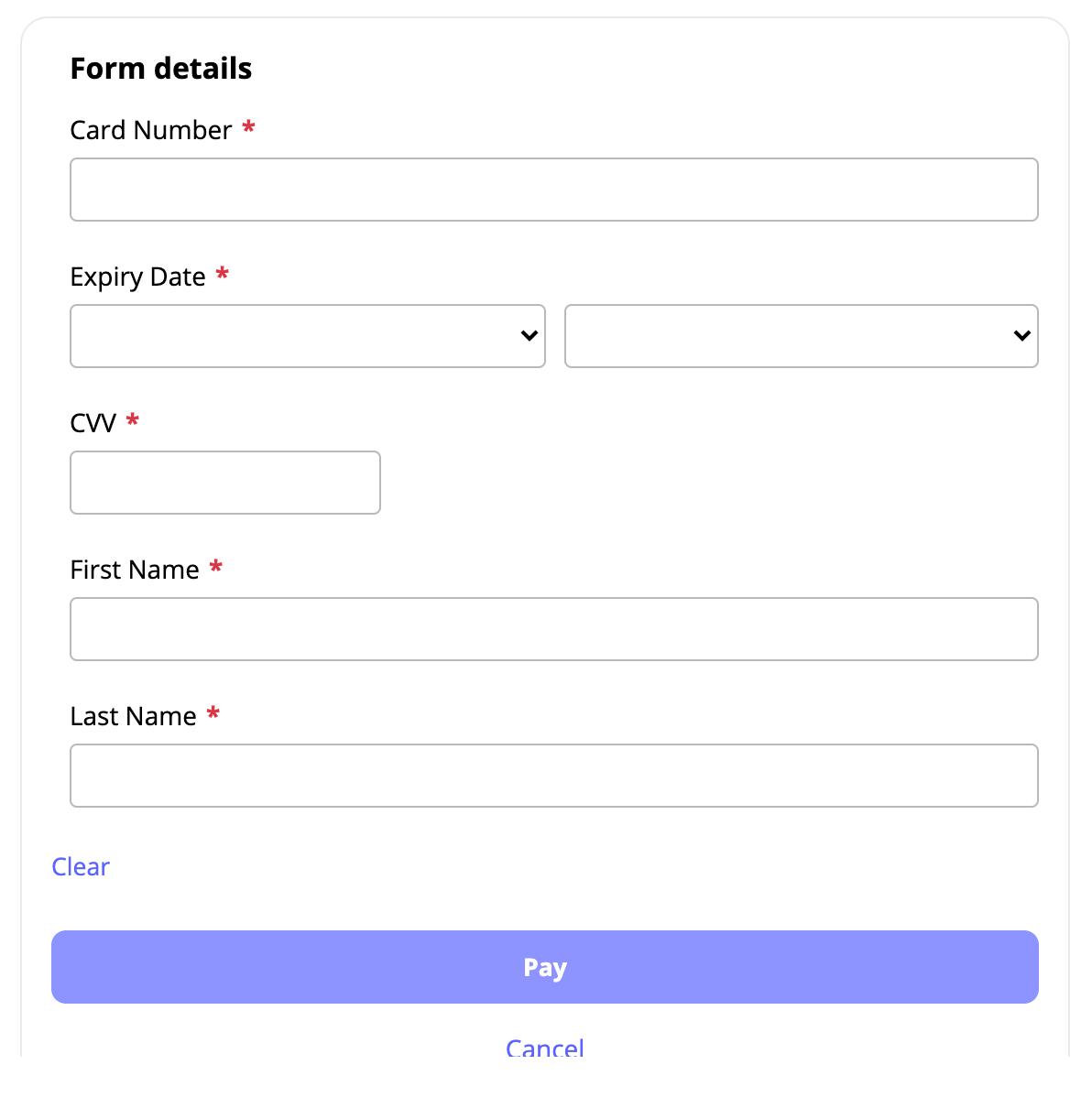
UI custom data: Here you can define UI custom data in JSON format, that will be shown to users in checkout.
For example, adding the below code:
{
    "userData":
    [
        {
            "id": 1,
            "label": "First name",
            "required": true,
            "size": 250
        },
        {
            "id": 2,
            "label": "Last name",
            "required": true,
            "size": 250
        }
    ]
}
Will show the first and last name as mandatory checkout fields in the payment form: