

GMO Payment Gateway, marketed as PG Multi-Payment Service, is a Japanese payment platform. Piano supports it for credit card payments and for carrier billing through au, DoCoMo, and SoftBank, in Japanese yen, for businesses located in Japan. Renewals are supported for all four, and each is a separate configuration in Piano.
Before you start, you need the Shop ID, Shop Password, Site ID, and Site Password from your GMO-PG dashboard.
Merchant Requirements
Transactions can be found by their orderID parameter in the GMO Dashboard. The orderID consists of a cropped trackingId and a random string.
For example, if the trackingId is GMO_MpMQdfJcjqga7tq, the orderID will look like MpMQdfJcjqga7tq-ftbs3v52
For more information about transaction volumes and pricing, please reach out to GMO directly under the following link.
Template Changes
In order to include the cardholder's name (holderName field) in Checkout and My Account, the following template changes are required.
System templates
Go to Manage → Templates → System → Payment Components and find the component <script type="text/ng-template" id="/frontend/providers/components/gmo/checkout/component.shtml">, inside this component find:
<dynamic-base-inputs-component name="providerName"
                                credit-card="credit_card"></dynamic-base-inputs-component>
And replace with the following:
<dynamic-base-inputs-component name="providerName"
                               data="data"
                               credit-card="credit_card"></dynamic-base-inputs-component>
Find the component <script type="text/ng-template" id="/frontend/providers/components/gmo/common/baseTemplate.shtml"> and inside this component replace the whole content with the following:
<div class="cc-fields-layout">
    <div ng-if="data.isThreeDSEnabled" class="cc-fields-layout__flex-row">
      <div class="cc-fields-layout__field cc-fields-layout__card-holder">
        <cc-text-input i18n-placeholder="{{'Cardholder name' | t}}"
                       ng-model="credit_card.holder.value"
                       ng-readonly="credit_card.holder.readonly"
                       ng-required="credit_card.holder.required"
                       ng-disabled="credit_card.holder.disabled"
                       on-change="credit_card.holder.onChangeCallback"
                       on-enter="credit_card.holder.onEnterCallback"
                       maxlength="50"
                       valid="credit_card.holder.valid"
                       icon="'card-holder'"
                       name="card-holder"
                       format-type="'latin'"
                       data-e2e="cc_holder">
        </cc-text-input>
      </div>
    </div>
    <div class="cc-fields-layout__field cc-fields-layout__card-number">
        <credit-card-number ng-model="credit_card.num.value"
                            on-change="credit_card.num.onChangeCallback"
                            ng-disabled="credit_card.num.disabled"
                            ng-required="credit_card.num.required"
                            ng-readonly="credit_card.num.readonly"
                            maxlength="credit_card.num.maxlength"
                            valid="credit_card.num.valid"
                            autocomplete="cc-number"
                            name="'num'">
        </credit-card-number>
    </div>
    <div class="cc-fields-layout__field cc-fields-layout__expire">
        <cc-expire-component ng-model="credit_card.expire.value"
                             on-change="credit_card.expire.onChangeCallback"
                             ng-disabled="credit_card.expire.disabled"
                             ng-required="credit_card.expire.required"
                             ng-readonly="credit_card.expire.readonly"
                             maxlength="credit_card.expire.maxlength"
                             valid="credit_card.expire.valid"
                             name="'expire'"
                             autocomplete="cc-exp"
                             on-change="onChangeCallback">
        </cc-expire-component>
    </div>
    <div class="cc-fields-layout__field cc-fields-layout__cvv">
        <credit-card-cvv ng-model="credit_card.cvv.value"
                         on-change="credit_card.cvv.onChangeCallback"
                         ng-disabled="credit_card.cvv.disabled"
                         ng-required="credit_card.cvv.required"
                         ng-readonly="credit_card.cvv.readonly"
                         maxlength="credit_card.cvv.maxlength"
                         autocomplete="cc-csc"
                         valid="credit_card.cvv.valid"
                         name="'cvv'">
        </credit-card-cvv>
    </div>
</div>
In addition, the Payment Components template needs to contain the following code:
<script type="text/ng-template" id="/frontend/providers/components/gmo/checkout/component.shtml">
<div class="gmo-wrapper new-card-form">
<div class="row">
<div desktop class="cc_stored_cards" ng-show="!cc.payWithNew && cc.initiated">
<div class="add-credit-card-wrapper">
<h4><t>Your credit and debit cards</t></h4>
<a href="javascript:void(0)" class="add-credit-card" ng-click="cc.payWithNew = true" ng-show="cc.stored.length > 0">
+ <t>Add a card</t>
</a>
</div>
<table class="payment-method-card" ng-show="cc.stored.length > 0">
<tr class="payment-method-card-row" ng-repeat="method in cc.stored" ng-class="{'selected' : $parent.cc.selectedUpiId == method.id}">
<td class="payment-method-card-cell">
<input type="radio" name="stored_method" value="{{method.id}}" ng-model="$parent.cc.selectedUpiId"/>
</td>
<td class="payment-method-card-cell">
<div class="credit-card-{{method.identifier}}"></div>
</td>
<td class="payment-method-card-cell">
<div>{{method.type | tc:"checkout.platform"}} *{{method.ending_in}}</div>
</td>
<td class="payment-method-card-cell">
<t>Expires in</t> {{method.expire_month}}/{{method.expire_year}}
</td>
</tr>
</table>
</div>
<div mobile class="cc_stored_cards" ng-show="cc.initiated">
<table class="payment-method-card" ng-show="cc.stored.length > 0">
<tr class="payment-method-card-row"
ng-repeat="method in cc.stored"
ng-class="{'selected' : $parent.cc.selectedUpiId == method.id && $parent.cc.payWithNew != true}">
<td class="payment-method-card-cell">
<input type="radio" name="stored_method" value="{{method.id}}"
ng-model="$parent.cc.selectedUpiId" ng-click="$parent.cc.payWithNew = false"/>
</td>
<td class="payment-method-card-cell">
<div class="credit-card-{{method.identifier}}"></div>
</td>
<td class="payment-method-card-cell">
<div>*{{method.ending_in}}</div>
</td>
</tr>
<tr class="payment-method-card-row" ng-class="{'selected' : $parent.cc.payWithNew == true}">
<td class="payment-method-card-cell">
<input type="radio" name="stored_method" ng-model="$parent.cc.payWithNew" ng-value="true"/>
</td>
<td class="payment-method-card-cell" colspan="2">
<t>Add a new card</t>
</td>
</tr>
</table>
</div>
<div class="cc_new_card" ng-show="cc.payWithNew && cc.initiated">
<div desktop class="go-back-to-cards-wrapper">
<a href="javascript:void(0)" class="go-back-to-cards"
ng-click="cc.payWithNew = false" ng-show="cc.stored.length > 0">
<t>Return to saved cards</t>
</a>
<h4><t>Add a new credit or debit card</t></h4>
</div>
<form class="new-card-form" name="ccForm" role="form">
<dynamic-base-inputs-component name="providerName" data="data" credit-card="credit_card"></dynamic-base-inputs-component>
<div class="payment-system-condition">
<span ng-if="!isSubscription()">
<div class="custom-checkbox">
<input type="checkbox" name="store_in_vault"
ng-model="credit_card.store_in_vault" id="rermber-my-card1-gmo"/>
<label for="rermber-my-card1-gmo">
<t>Remember my card for future payments</t>
</label>
</div>
</span>
<span ng-if="isSubscription()">
<input type="hidden" name="store_in_vault" ng-model="credit_card.store_in_vault"/>
</span>
<div class="custom-checkbox" ng-if="credit_card.store_in_vault">
<input type="checkbox" name="defaultPaymentMethodId"
ng-model="cc.defaultPaymentMethodId" id="default-payment-method-gmo" />
<label for="default-payment-method-gmo">
<t>Apply this payment method to all active subscriptions</t>
</label>
</div>
</div>
</form>
</div>
<div consents-list></div>
<div class="footer-modal">
<div class="auto-renew-purchase" ng-show="isSelectedTermAutoRenewChoiceAvailable()">
<input class="auto-renew-purchase-checkbox" type="checkbox"
ng-model="input.autoRenew" id="auto_renew"/>
<label class="auto-renew-purchase-label" for="auto_renew">
<t>Automatically renew my subscription when the time comes.</t>
</label>
</div>
<div ng-show="isConfirmStepEnabled()" class="complete-purchase-button"
goto-confirmation-button title="{{'Complete Purchase' | t}}"></div>
<div ng-show="!isConfirmStepEnabled()" class="complete-purchase-button"
complete-purchase-button title="{{'Complete Purchase' | t}}"></div>
</div>
</div>
</div>
</script>
My Account templates
Go to Manage → Templates → My Account → My Account Wallet Components and find the component <script type="text/ng-template" id="/frontend/providers/components/gmo/my_account/component.shtml">.
Inside this component find:
<dynamic-base-inputs-component name="providerName" credit-card="credit_card"></dynamic-base-inputs-component>
And replace with the following:
<dynamic-base-inputs-component name="providerName" data="data" credit-card="credit_card"></dynamic-base-inputs-component>
Find the component <script type="text/ng-template" id="/frontend/providers/components/gmo/common/baseTemplate.shtml"> and replace the whole content with the following:
<div class="cc-fields-layout">
    <div ng-if="data.isThreeDSEnabled" class="cc-fields-layout__flex-row">
      <div class="cc-fields-layout__field cc-fields-layout__card-holder">
        <cc-text-input i18n-placeholder="{{'Cardholder name' | t}}"
                       ng-model="credit_card.holder.value"
                       ng-readonly="credit_card.holder.readonly"
                       ng-required="credit_card.holder.required"
                       ng-disabled="credit_card.holder.disabled"
                       on-change="credit_card.holder.onChangeCallback"
                       on-enter="credit_card.holder.onEnterCallback"
                       maxlength="50"
                       valid="credit_card.holder.valid"
                       icon="'card-holder'"
                       name="card-holder"
                       format-type="'latin'"
                       data-e2e="cc_holder">
        </cc-text-input>
      </div>
    </div>
    <div class="cc-fields-layout__field cc-fields-layout__card-number">
        <credit-card-number ng-model="credit_card.num.value"
                            on-change="credit_card.num.onChangeCallback"
                            ng-disabled="credit_card.num.disabled"
                            ng-required="credit_card.num.required"
                            ng-readonly="credit_card.num.readonly"
                            maxlength="credit_card.num.maxlength"
                            valid="credit_card.num.valid"
                            autocomplete="cc-number"
                            name="'num'">
        </credit-card-number>
    </div>
    <div class="cc-fields-layout__field cc-fields-layout__expire">
        <cc-expire-component ng-model="credit_card.expire.value"
                             on-change="credit_card.expire.onChangeCallback"
                             ng-disabled="credit_card.expire.disabled"
                             ng-required="credit_card.expire.required"
                             ng-readonly="credit_card.expire.readonly"
                             maxlength="credit_card.expire.maxlength"
                             valid="credit_card.expire.valid"
                             name="'expire'"
                             autocomplete="cc-exp"
                             on-change="onChangeCallback">
        </cc-expire-component>
    </div>
    <div class="cc-fields-layout__field cc-fields-layout__cvv">
        <credit-card-cvv ng-model="credit_card.cvv.value"
                         on-change="credit_card.cvv.onChangeCallback"
                         ng-disabled="credit_card.cvv.disabled"
                         ng-required="credit_card.cvv.required"
                         ng-readonly="credit_card.cvv.readonly"
                         maxlength="credit_card.cvv.maxlength"
                         autocomplete="cc-csc"
                         valid="credit_card.cvv.valid"
                         name="'cvv'">
        </credit-card-cvv>
    </div>
</div>
In addition, the My Account Wallet Components template needs to contain the following code:
<div ng-show="!bankSecureProcessing">
   <my-account-billing-country></my-account-billing-country>

   <table class="supporting" ng-if="!readonly">
       <tr>
           <td class="support-caption">
               <t context="checkout.platform">We support</t>
           </td>
           <td class="support-images">
               <img src="/images2/Visa.png" style="width: 30px;">
               <img src="/images2/Discover.png" style="width: 49px;">
               <img src="/images2/MasterCard.png" style="width: 29px;">
               <img src="/images2/AmericanExpress.png" style="width: 36px;">
               <img src="/images2/DinCl.png" style="width: 53px;">
               <img src="/images2/JapaneseCreditBank.png" style="width: 25px;">
           </td>
       </tr>
   </table>
   <div class="form">
       <dynamic-base-inputs-component name="providerName" data="data" credit-card="credit_card"></dynamic-base-inputs-component>
       <div error-section
            errors="formErrors"
            heading="{{'Couldn\'t submit issue' | t}}"></div>
   </div>
</div>
<div ng-show="bankSecureProcessing" id="bank-secure-container"
    class="bank-secure-container align-content-center-flex" style="height: 500px; padding-bottom: 20px;">
   <div error-section errors="modalFormErrors"></div>
   <div id="bank-secure-loader" class="bank-secure-loader">
       <div class="loader-overlay"></div>
   </div>
</div>
Supported Countries
For this payment provider, Piano supports the following countries:
|
Supported Countries |
|---|
|
Japan |
Supported Currency
Piano supports the following GMO supported currencies:
|
Supported Currencies |
|---|
|
JPY |
Supported Payment Methods
Piano supports the following payment methods for this payment provider:
|
Payment method name |
Are renewals supported? |
||||||||||||
|---|---|---|---|---|---|---|---|---|---|---|---|---|---|
|
Credit card (Mastercard, Visa, American Express, Discover, JCB, Diner's Club) |
Yes |
||||||||||||
|
au |
Yes |
||||||||||||
|
DoCoMo |
Yes |
||||||||||||
|
SoftBank |
Yes |
Supported Features and Functionality
|
Feature/Functionality |
Supported? |
|---|---|
|
Refunds |
Full |
|
Apply Terms Wizard |
Yes |
|
My Account - Add payment method |
Yes |
|
My Account - Edit payment method |
Yes |
|
My Account - Delete payment method |
Yes |
|
Publisher dashboard - Add payment method |
Yes |
|
Publisher dashboard - Edit payment method |
Yes |
|
Publisher dashboard - Delete payment method |
Yes |
|
Tax Providers and Types |
TaxJar / Avalara |
|
Transaction descriptors |
None |
|
Frictionless |
No |
|
3DS / SCA |
Yes, 3DS v2.0 |
|
Fraud prevention |
Yes (3DS v2.0) |
|
Passive churn prevention |
Yes - Advanced support |
|
Payment token import support |
Yes* |
*For more information about the payment token import please visit this link.
Passive Churn Prevention
It's crucial to understand how the various error codes that may arise during a payment failure are handled by the Passive Churn Prevention feature. These error codes provide insights into why a renewal attempt may have failed, enabling you to take appropriate actions to prevent churn. This section details the specific error codes encountered during a payment failure and their mapping to a decline reason.
|
Decline reason |
Error codes |
|---|---|
|
Suspected fraud |
G12 - Invalid card |
|
Insufficient funds |
G02, G04, G06 - Insufficient card balance G92 - Invalid card |
|
Expired card |
G22, G30, G56, G60, G61 - Invalid card |
|
Card is stolen or lost |
- |
|
Limit exceeded |
G03, G05, G07, G55 - The card limit has been exceeded |
|
Network failure |
Е91 - various timeout and network errors |
|
3DS failure |
Е21 - various 3D Secure errors |
|
Call issuer |
E82 - An error occurred and your request was denied G97 - Invalid card |
|
Do not honor |
E41 - Settlement process failed because the card is not available in our system. There is something wrong with card number E61 - various settlement errors |
|
Everything else |
All error codes not listed above |
How to integrate GMO with Piano
Credit Card
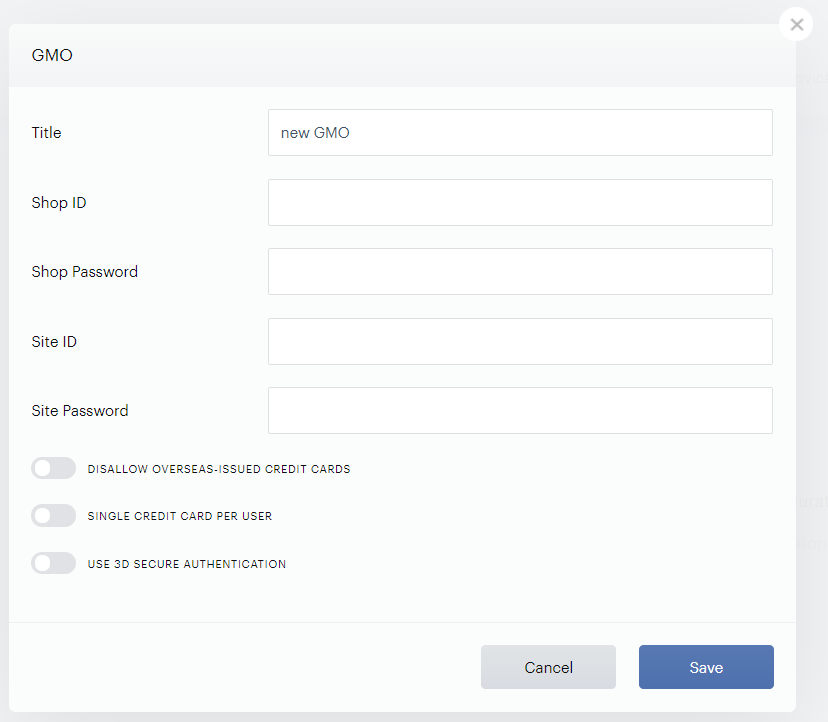
To integrate your GMO Payment Gateway account for credit cards with Piano, simply click Edit Business→Payment Provider→GMO (Add). Enter your payment provider credentials in the available fields, and all the currency options you would like to be available to customers.
-
Title: Enter the title of your configuration.
-
Shop ID: Enter the Shop ID found in your GMO-PG dashboard. For example: tshop00045000
-
Shop Password: Supply the Shop Password.
-
Site ID: Enter the Site ID found in your GMO-PG dashboard. For example: tsite00039999
-
Site Password: Supply the Site Password.
Also, there are three configuration options for GMO-PG:
-
Disallow overseas-issued credit cards. Enable this option if you would like to allow credit cards issued in Japan only. Note that the option requires that you have the BIN check optional service with GMO.
-
Single card per user. Enable this option if you would like users to use only one card.
-
Use 3D Secure authentication. Enable this option if you'd like your users to perform another authorization step before a payment is processed in checkout or a card is added via My Account, using 3DS v2.0. More details about this are available in the following section.
Enabling 3DS for GMO
This documentation explains how to set up 3D Secure (3DS) for integration with the GMO payment provider. 3D Secure is an additional layer of authentication that enhances the security of online payments. Online merchants in Japan are required to implement 3D Secure under updated credit card security guidelines.
Benefits of Using 3D Secure
-
Enhanced Security: 3D Secure adds an extra layer of authentication, reducing the risk of unauthorized credit card use.
-
Reduced Liability for Fraud: With successful authentication, the responsibility for fraudulent transactions shifts from the merchant to the card issuer, which reduces financial risks for the business.
-
Compliance with Regulatory Requirements: Implementing 3D Secure ensures compliance with security regulations in Japan, which helps build trust with customers and partners.
Steps to Activate 3D Secure with GMO
Important! The settings must be followed in the exact sequence.
Please note the following:
-
Settings must be followed in the exact sequence. If step 2 is skipped and step 3 is done first, some transactions may be declined.
-
Do NOT enable the full 3DS redirect setting. This is not required for this GMO integration. Enabling this setting may cause incorrect functionality of 3DS 2.0.
Piano Subscriptions Steps:
-
Update Templates
Ensure that you are using updated templates that support 3D Secure as described here. Detailed instructions are available on the official GMO website. -
Activate 3D Secure on the GMO side
Contact a GMO representative to confirm whether you need to activate 3D Secure in your account. In some cases, it may be enabled by default. -
Enable 3D Secure in Your Piano Application Settings
Under the Edit Business → Payment provider settings, enable the Use 3D Secure Authentication setting for GMO.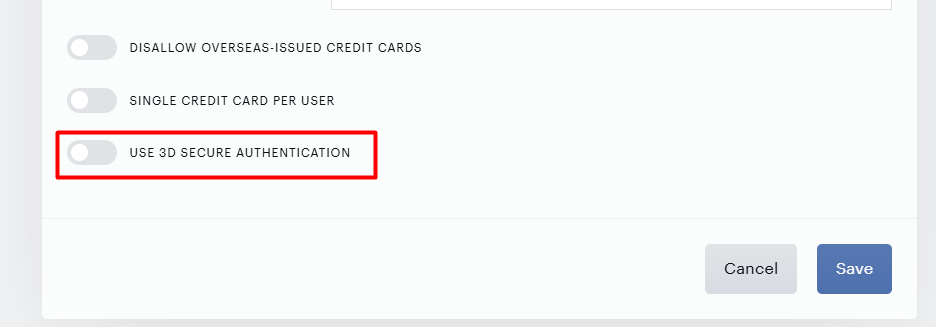
For further information and technical support, we recommend consulting the official GMO documentation or contacting their support team.
Implementing 3D Secure not only improves transaction security but also strengthens customer trust, contributing to the growth of your business in the digital environment.
Frequently Asked Questions (FAQ)
-
How does the 3DS Subscription Reactivation Process work?
-
This process is designed for re-authenticating users when subscription renewal fails due to a 3D Secure error.
-
-
In which cases does the 3DS 2.0 authorization process start, and in which does it not?
-
The 3DS 2.0 authorization process starts in the following cases:
-
When making a payment at checkout with a new card that supports 3DS.
-
When adding a card to the "My Account" section.
-
In the case of suspicious activity from the bank (for example, if the user rarely uses the card or makes a payment from a new device).
-
If the user manually performs a Renewal with a new card at checkout.
-
-
The 3DS 2.0 authorization process does not start in the following cases:
-
In the case of Scheduled Upgrade/Downgrade.
-
For Renewal subscriptions, as these are MIT (Merchant Initiated Transactions).
-
-
au
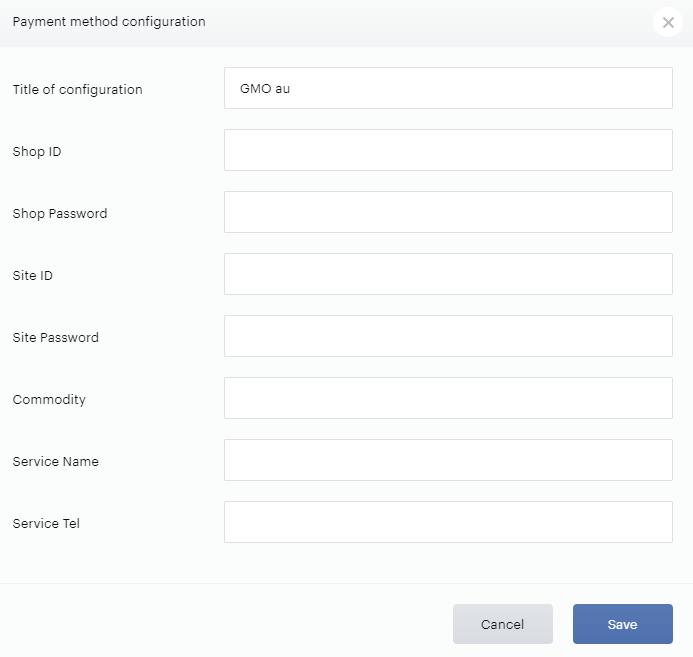
To integrate your GMO au account with Piano, simply click Edit Business→Payment Provider→GMO au (Add). Enter your payment provider credentials in the available fields, and all the currency options you would like to be available to customers.
-
Title: Enter the title of your configuration.
-
Shop ID: Enter the Shop ID found in your GMO-PG dashboard. For example: tshop00045000
-
Shop Password: Supply the Shop Password.
-
Site ID: Enter the Site ID found in your GMO-PG dashboard. For example: tsite00039999
-
Site Password: Supply the Site Password.
-
Commodity: This field must only contain UTF-8 encoded multibyte characters. ASCII characters are not accepted.
-
Service Name: This field must only contain UTF-8 encoded multibyte characters. ASCII characters are not accepted.
-
Service Tel: This field should contain a value that is a combination of numeric characters and a hyphen
-.
DoCoMo
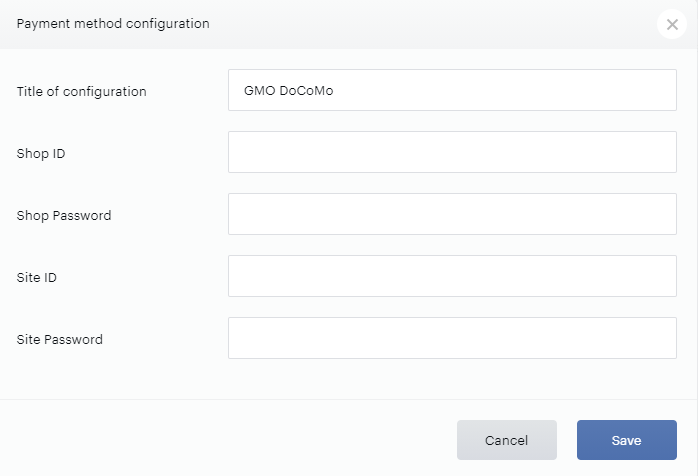
To integrate your GMO DoCoMo account with Piano, simply click Edit Business→Payment Provider→GMO DoCoMo (Add). Enter your payment provider credentials in the available fields, and all the currency options you would like to be available to customers.
-
Title: Enter the title of your configuration.
-
Shop ID: Enter the Shop ID found in your GMO-PG dashboard. For example: tshop00045000
-
Shop Password: Supply the Shop Password.
-
Site ID: Enter the Site ID found in your GMO-PG dashboard. For example: tsite00039999
-
Site Password: Supply the Site Password.
SoftBank
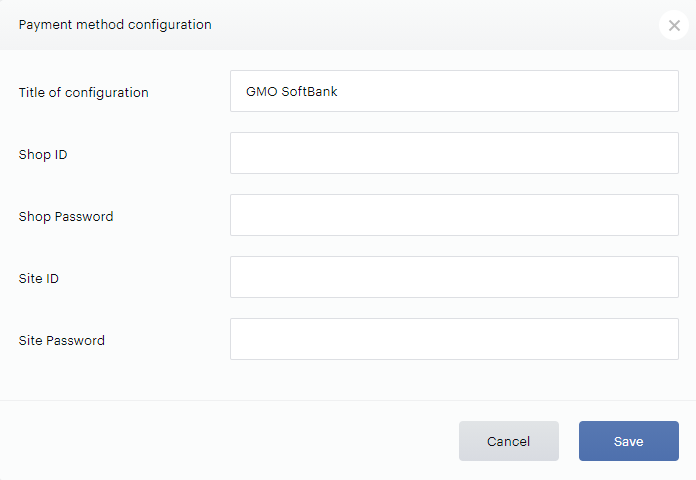
To integrate your GMO SoftBank account with Piano, simply click Edit Business→Payment Provider→GMO SoftBank (Add). Enter your payment provider credentials in the available fields, and all the currency options you would like to be available to customers.
-
Title: Enter the title of your configuration.
-
Shop ID: Enter the Shop ID found in your GMO-PG dashboard. For example: tshop00045000
-
Shop Password: Supply the Shop Password.
-
Site ID: Enter the Site ID found in your GMO-PG dashboard. For example: tsite00039999
-
Site Password: Supply the Site Password.