

Piano supports CyberSource for credit card payments through two separate integrations. Cybersource TMS uses REST API v2 with Flex Microform for tokenization, and Cybersource uses Piano forms with the Flex API. Use Cybersource TMS unless you have a specific reason not to. Each appears under its own name in the payment provider list in your dashboard settings.
Before you start, ask CyberSource to enable Token Management Service on your account, which recurring transactions require, and Payer Authentication if you need 3DS. You then need the merchant ID, shared secret key, and secret key ID from your CyberSource Business Center. CyberSource onboards merchants with an expected volume of at least 10,000 transactions per month and USD 40,000 per year.
CyberSource TMS
This integration uses REST API v2 and Flex Microform v0.11. TMS (Token Management Service) is used for tokenization using tokenInformation.transientToken to submit transactions. The customer tokens are then used for the following recurring transactions. See the following requirements for additional CyberSource TMS version specifics and configuration. It appears as CyberSource TMS in the payment provider list in the dashboard settings.
CyberSource
This version uses REST APIs along with TMS. It appears as CyberSource in the payment provider list in the dashboard settings.
Integration version differences
Piano supports two integrations with this payment provider, see the below table for more details on the differences:
|
Features |
CyberSource TMS |
CyberSource |
|
API version |
Rest |
Rest |
|
Front-end tokenization |
Flex Microform v0.11 |
Piano forms + Flex API |
|
Import support |
Yes |
Yes |
Merchant Requirements
Please note, that in order to be able to process payments in Production you will need to contact the CyberSource team and request them to set up your account with the following services:
-
Token Management service (TMS) - needed to process recurring transactions.
-
Payer Authentication – if you process payments in the EEA 3DS is required under the PSD2 regulation or if you would like to enable 3DS authenticationyour account has to be enrolled for the service
-
AVS settings – it is recommended to request No AVS or Relaxed AVS to be configured, in order to avoid transaction declines due to lack of full billing address if you are not using services to collect and validate the billing address
-
Processor specific parameters - Additionally, depending on your country and processor used specific parameters may be required. If you use a processor other than Visa Platform Connect, please inquire with your account representative about the compatibility of your processor.
If your Piano application is not newly created, you may need to update your system templates. To ensure the latest code is loaded in the Checkout and My Account, system template changes may be required. There are a few ways to update your templates:
-
The easiest is to reset to default if you haven’t stylized the templates.
-
If you did, then you can use the Compare code feature and compare the code between the default version and your current version, and carry over any new code line by line.
Please check the Payment Components, My Account Wallet Components, and My Account Library Components templates under Manage → Templates in the Piano dashboard and ensure you are using the default version code.
Integration Specifics
In requests to CyberSource, Piano always sends the user's current email address, but the rest of the address data will only contain real values if address collection is configured, either by using Avalara or Experian/OneSource tax integrations which provide address collection and validation. We recommend that you ensure that "No AVS" or "Relaxed AVS" is enabled on your account. By default, requests will include dummy data with ignore_avs set to true.
-
Required fields:
firstName,lastName,address1,locality,country,postalCode,administrativeArea -
If at least one of the required address fields is not filled then the flag
isIgnoreAvsResultis set totrueand all empty fields will be filled with dummy data
Transactions in the CyberSource dashboard will show an address based on the postal code.
For free promotions, a verification charge in the amount of 1 AED for transactions in AED or 1 USD for transactions in USD is made. For other currencies, the full subscription price is charged and then refunded on CyberSource's end.
AVS Options
CyberSource features multiple AVS settings, based on which requests made may vary.
AVS Enabled
If your merchant account has AVS enabled, make sure that you use Avalara or Experian services in order to collect and validate the full billing address which will be used in requests made to CyberSource. If you do not want to collect the full billing address, request your account to be set with one of the following options;
Relaxed Address Verification Service (AVS)
You can use Relaxed AVS to make address fields such as billing address, normally required, optional in your transaction request when they are irrelevant to your specific customer scenario. In this case, and if the full billing address information is missing, Piano requests the avsresult to be ignored and sends dummy data.
Caution!, Before relaxing the requirement for any field, verify which fields are required by your processor. It is possible to relax the requirement for a field that your processor requires, resulting in transaction declines.
Ignore AVS
Use Ignore AVS when you want CyberSource to ignore the AVS code returned by the issuing bank, regardless of the fields required. This may result in a Soft Decline. Some merchants use Ignore AVS when a segment of their customers has a higher percentage of keystroke errors and the merchant wants to avoid declines of valid orders. To request the use of Relax AVS or Ignore AVS for your CyberSource Merchant ID, submit a Support Case with CyberSource.
Supported Countries
CyberSource supports a wide range of countries, including but not limited to the following:
|
Supported Countries |
||||
|---|---|---|---|---|
|
Albania |
Andorra |
Anguilla |
Antigua |
Antigua & Barbuda |
|
Argentina |
Aruba |
Australia |
Austria |
Bahamas |
|
Bahrain |
Bangladesh |
Barbados |
Belgium |
Belize |
|
Bermuda |
Benin |
Bolivia |
Bonaire |
Bosna & Herzegovina |
|
Botswana |
Brazil |
British Virgin Islands |
Brunei |
Burkina Faso |
|
Burundi |
Cambodia |
Cameroon |
Canada |
Cape Verde |
|
Cayman |
Central African Republic |
Chad |
Chile |
China |
|
Colombia |
Congo |
Costa Rica |
Cote d'Ivoire |
Croatia |
|
Curacao |
Cyprus |
Czech Republic |
Denmark |
Dominica |
|
Dominican Republic |
Ecuador |
Egypt |
El Salvador |
Equatorial Guinea |
|
Estonia |
Ethiopia |
Finland |
France |
Gabon |
|
Gambia |
Germany |
Ghana |
Gibraltar |
Greece |
|
Greenland |
Grenada |
Guatemala |
Guernsey |
Guinea |
|
Guinea-Bissau |
Guyana |
Haiti |
Honduras |
Hong Kong |
|
Hungary |
Iceland |
India |
Indonesia |
Iraq |
|
Ireland |
Isle of Man |
Israel |
Italy |
Jamaica |
|
Japan |
Jersey |
Jordan |
Kazakhstan |
Kenya |
|
Kiribati |
Kosovo |
Kuwait |
Kyrgyzstan |
Laos |
|
Latvia |
Lebanon |
Lesotho |
Liberia |
Liechtenstein |
|
Lithuania |
Luxembourg |
Macau |
Macedonia |
Madagascar |
|
Malawi |
Maldives |
Mali |
Malta |
Mauritius |
|
Mexico |
Monaco |
Montenegro |
Montserrat |
Mozambique |
|
Myanmar |
Netherlands |
Nicaragua |
Niger |
Nigeria |
|
Norway |
Oman |
Pakistan |
Panama |
Peru |
|
Philippines |
Poland |
Portugal |
Puerto Rico |
Qatar |
|
Reunion |
Romania |
Rwanda |
Saba |
Salvador |
|
San Marino |
Sao Tome and Principe |
Senegal |
Serbia |
Seychelles |
|
Sierra Leone |
Slovakia |
Slovenia |
South Africa |
South Sudan |
|
Sri Lanka |
St. Kitts & Nevis |
St. Lucia |
St. Maarten |
St. Vincent |
|
Spain |
Singapore |
Sweden |
Switzerland |
Taiwan |
|
Tanzania |
Thailand |
Togo |
Trinidad & Tobago |
Turks & Caicos |
|
Uganda |
Ukraine |
United Arab Emirates |
United States |
Uruguay |
|
Vatican City |
Vietnam |
Zambia |
Zimbabwe |
|
*In these countries, additional parameters may need to be required, please inquire about the integration compatibility with your account representative, sharing details about your acquirer, processor(s), and countries of operations.
Supported Currency
Piano supports a wide range of currencies for this payment provider, including but not limited to the following:
|
Supported Currencies |
||||
|---|---|---|---|---|
|
ARS |
AUD |
BRL |
CAD |
CLP |
|
CNY |
COP |
EUR |
HKD |
INR |
|
KWD |
MYR |
MXN |
NZD |
USD |
|
PEN |
QAR |
SAR |
SGD |
ZAR |
|
UAH |
AED |
GBP |
JMD |
GTQ |
|
CRC |
BAM |
RON |
TWD |
UYU |
Note, that Piano may support only selected currencies available in the payment providers dashboard.
Supported Payment Methods
Piano supports the following payment methods for this payment provider:
|
Payment method name |
Are renewals supported? |
||||||||||||
|---|---|---|---|---|---|---|---|---|---|---|---|---|---|
|
Credit card (Mastercard, Visa, American Express, Discover, JCB, Diner's Club) |
Yes |
Supported Features and Functionality
|
Feature/Functionality |
Supported? |
|
Refunds |
Full / Partial |
|
Apply Terms Wizard |
Yes |
|
My Account - Add payment method |
Yes |
|
My Account - Edit payment method |
Yes |
|
My Account - Delete payment method |
Yes |
|
Publisher dashboard - Add payment method |
Yes |
|
Publisher dashboard - Edit payment method |
Yes |
|
Publisher dashboard - Delete payment method |
Yes |
|
Tax Providers and Types |
TaxJar / Avalara / OneSource |
|
Transaction descriptors |
Yes |
|
3DS / SCA |
Yes |
|
Passive churn prevention |
Yes - Advanced support |
|
Payment token import support |
Yes* |
*For more information about the payment token import please visit this link.
Account Updater
Piano supports the CyberSource Selective Account Updating to ensure the continuous accuracy of stored card data. This functionality aids in enhancing authorization success rates by reducing declined payments associated with lost, stolen, or expired cards. CyberSource supports updates for stored card data within Piano, covering expiration dates and credit card numbers.
Please note, that CyberSource provides two types of Account updating services; Harvest updates and Selective updates. While these two are technically compatible, using both services may induce extra costs when the same card gets updated multiple times. In neither case do customer tokens change, as such Harvest updates are compatible for billing purposes, however, the updated card number and expiry dates are not reflected in Piano, thus we recommend using the Selective process supported fully by Piano.
Piano utilizes selective batch processing for this. For more details about the CyberSource Account updater feature, refer to this guide.
Card scheme country coverage:
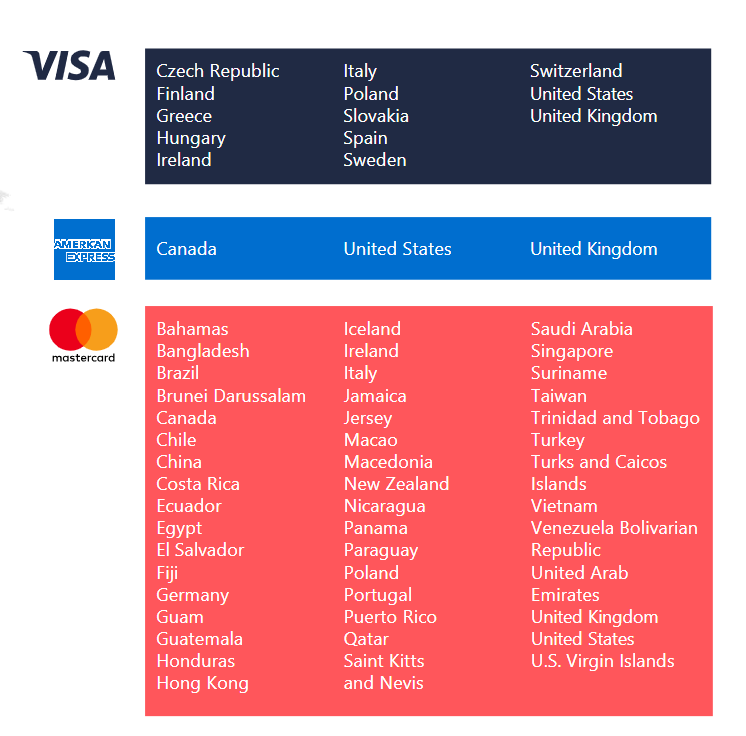
If you wish to enable this option for your CyberSource account, please reach out to your CyberSource representative for assistance.
The General Account Updater process consists of two daily jobs aimed at maintaining accurate payment information:
1. Get CyberSource Payment Methods:
-
This job initiates by selecting payment provider configurations where the account updater feature is enabled.
-
Utilizing these configurations, it identifies payment methods associated with subscriptions set for renewal after a specified time.
-
The identified payment methods are then transmitted to CyberSource.
-
This process exclusively supports MasterCard (MC), Visa, and American Express. It's noteworthy that American Express tokens are sent separately from the batches of MasterCard and Visa.
2. Update CyberSource Payment Methods:
-
The second job operates by selecting the identified batches with a "PROCESSING" status from the previous job.
-
It receives updates for the identified batches.
-
Upon reception, the system applies updates, focusing on essential details such as card numbers and expiration dates.
How to enable this functionality for your Piano application is described in the section here.
Passive Churn Prevention
It's crucial to understand how the various error codes that may arise during a payment failure are handled by the Passive Churn Prevention feature. These error codes provide insights into why a renewal attempt may have failed, enabling you to take appropriate actions to prevent churn. This section details the specific error codes encountered during a payment failure and their mapping to a decline reason.
|
Decline reason |
Error codes |
|---|---|
|
Suspected fraud |
SCORE_EXCEEDS_THRESHOLD CUSTOMER_WATCHLIST_MATCH BLACKLISTED_CUSTOMER |
|
Insufficient funds |
INSUFFICIENT_FUND |
|
Expired card |
EXPIRED_CARD |
|
Card is stolen or lost |
STOLEN_LOST_CARD |
|
Limit exceeded |
EXCEEDS_CREDIT_LIMIT DEBIT_CARD_USAGE_LIMIT_EXCEEDED |
|
Network failure |
PROCESSOR_UNAVAILABLE PROCESSOR_TIMEOUT |
|
3DS failure |
CONSUMER_AUTHENTICATION_REQUIRED CONSUMER_AUTHENTICATION_FAILED CUSTOMER_AUTHENTICATION_REQUIRED UNAUTHORIZED_CARD |
|
Call issuer |
DECLINED_CHECK SUSPENDED_ACCOUNT GENERAL_DECLINE |
|
Do not honor |
PROCESSOR_DECLINED ISSUER_UNAVAILABLE |
|
Everything else |
All error codes not listed above |
How to integrate CyberSource with Piano
Piano supports the collection of credit card payments through CyberSource. To integrate CyberSource, you will need to provide several pieces of information that allow us to call your CyberSource merchant account. Please choose the option CyberSource TMS (Tokenization Management System) when adding a new CyberSource payment provider configuration:
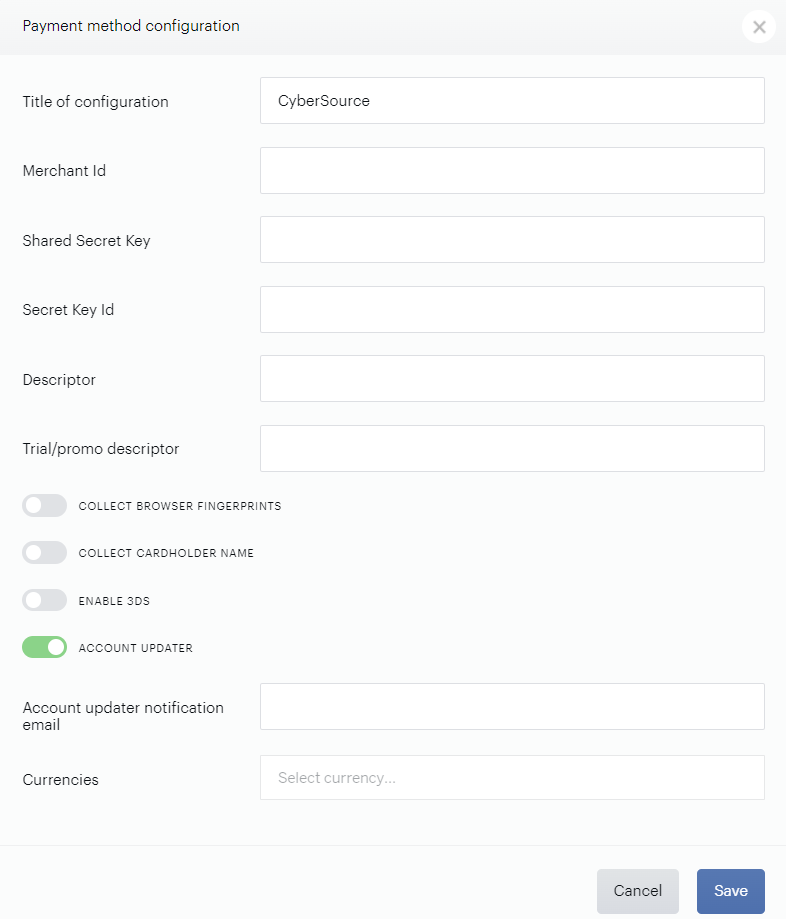
-
Title: The name of this integration (for your reference only).
-
Merchant Id: The merchant ID of your CyberSource account (found in the new CyberSource Business Center dashboard)
-
Shared Secret Key: The shared secret of your CyberSource account (can be generated in your CyberSource Business Center dashboard, under the left navigation panel → Key Management)
-
Secret Key Id: The ID of your shared secret (can be generated in your CyberSource Business Center dashboard, under the left navigation panel → Key Management)
-
Descriptor: The descriptor determines how transaction charges appear on customer financial statements.
-
Trial/promo descriptor: Add a specific descriptor to distinguish trials or promotions from regular subscription payments.
-
Collect browser fingerprints: This feature is optional and enables the collection of browser fingerprints or so-called Device Fingerprints (DF). This injects a specific script provided by CyberSource and passes predefined org_id, merchantId + sessionId(trackingId in Piano's case) as query parameters. When Piano sends a transaction request it includes sessionId(trackingId) as part of a DeviceInformation object. This technology provides dozens of data points that allow merchants to better detect device and network anomalies and improve overall fraud detection capabilities. (Only required in Guatemala)
Please note: Firefox blocks fingerprint collection. During testing we encountered some problems with plain CyberSource integration: transactions were rejected when the authorization amount was 0 (MA and PD) because of some anti-fraud rules. CyberSource(TMS) works as expected, so it's the preferable integration type.
-
Collect cardholder name: This feature is optional and can be enabled to show two extra input fields - first and last names during checkout. When the purchase is processed, Piano uses those names and checks the ones from the CyberSource API to test "Export Compliance". More information about this feature is available here.
Ensure that your templates are updated before enabling the Cardholder name option in the configuration as described here.
-
Enable 3DS: Enable this toggle if you'd like to enable 3D-Secure support.
We utilize the Cardinal Cruise SDK to ensure 3DS support, so you will need to check and configure this in your CyberSource account.
Please review this CyberSource documentation on how to enable 3DS on your account.
-
Account Updater: Enables the CyberSource Account Updater functionality. For more details visit this link.
-
Account updater notification email: Mandatory if Account Updater is enabled. Input an email address that is used to notify you about the batch processing status.
-
Currencies: Enter the currencies that you would like to support.
More information about the setup on CyberSource's end is available here.
Template Changes
Cardholder name
Before enabling the collection of the Cardholder name in the configuration as shown above, ensure that your templates are updated accordingly.
There are numerous ways to update your system template to fetch the latest functionality;
-
Reset to default (easiest but depending on your level of customization you may need to decide if feasible)
-
Use the Compare to default feature in the System template editor, and carry new lines of codes over to your version
-
Follow the below instructions to implement the new lines of code in your system template
Please note depending on the version of the CyberSource integration you use, you will need to update your system templates accordingly:
-
CyberSource TMS
-
CyberSource
1. CyberSource TMS
System template
Go to Manage → Templates → System → Payment Components, find the component <script type="text/ng-template" id="/frontend/providers/components/CyberSourcetms/checkout/component.shtml"> and inside this look for the following code:
<dynamic-base-inputs-component name="providerName"
  credit-card="credit_card"></dynamic-base-inputs-component>
And replace with:
<dynamic-base-inputs-component name="providerName"
    collect-cardholder-name="collectCardholderName"
    credit-card="credit_card"></dynamic-base-inputs-component>
In the same template, find the component <script type="text/ng-template" id="/frontend/providers/components/CyberSourcetms/common/baseTemplate.shtml"> and replace its content with:
<div class="cc-fields-layout" ng-class="{'cc-fields-layout__cardholder-option': collectCardholderName}">
  <div ng-if="collectCardholderName" class="collect-cardholder-name-wrapper">
    <div class="cc-fields-layout__field cc-fields-layout__first-name">
      <cc-text-input id="CyberSourcetms-first-name"
                     i18n-placeholder="{{'First name' | t}}"
                     ng-model="credit_card.first_name.value"
                     ng-readonly="credit_card.first_name.readonly"
                     ng-required="credit_card.first_name.required"
                     ng-disabled="credit_card.first_name.disabled"
                     on-change="credit_card.first_name.onChangeCallback"
                     on-enter="credit_card.first_name.onEnterCallback"
                     valid="credit_card.first_name.valid"
                     icon="'card-holder'"
                     name="first_name"
                     data-e2e="cc_first_name">
      </cc-text-input>
    </div>
    <div class="cc-fields-layout__field cc-fields-layout__last-name">
      <cc-text-input id="CyberSourcetms-last-name"
                     i18n-placeholder="{{'Last name' | t}}"
                     ng-model="credit_card.last_name.value"
                     ng-readonly="credit_card.last_name.readonly"
                     ng-required="credit_card.last_name.required"
                     ng-disabled="credit_card.last_name.disabled"
                     on-change="credit_card.last_name.onChangeCallback"
                     on-enter="credit_card.last_name.onEnterCallback"
                     valid="credit_card.last_name.valid"
                     icon="'card-holder'"
                     name="first_name"
                     data-e2e="cc_last_name">
      </cc-text-input>
    </div>
  </div>
  <div class="cc-fields-layout__field cc-fields-layout__card-number CyberSourcetms-microform-container"
       id="CyberSourcetms-card-number-container">
  </div>
  <div class="cc-fields-layout__field cc-fields-layout__expire">
    <cc-expire-component ng-model="credit_card.expire.value"
                         on-change="credit_card.expire.onChangeCallback"
                         ng-disabled="credit_card.expire.disabled"
                         ng-required="credit_card.expire.required"
                         ng-readonly="credit_card.expire.readonly"
                         maxlength="credit_card.expire.maxlength"
                         valid="credit_card.expire.valid"
                         name="'expire'"
                         on-change="onChangeCallback">
    </cc-expire-component>
  </div>
  <div class="cc-fields-layout__field cc-fields-layout__cvv CyberSourcetms-microform-container"
       id="CyberSourcetms-cvv-container">
  </div>
</div>
My Account template
Go to Manage → Templates → My account → My Account Wallet Components, and find the component <script type="text/ng-template" id="/frontend/providers/components/CyberSourcetms/my_account/component.shtml"> and inside this look for the following code:
<dynamic-base-inputs-component name="providerName" credit-card="credit_card"></dynamic-base-inputs-component>
And replace with:
<dynamic-base-inputs-component name="providerName"
    collect-cardholder-name="collectCardholderName"
    credit-card="credit_card"></dynamic-base-inputs-component>
In the same template, find the component <script type="text/ng-template" id="/frontend/providers/components/CyberSourcetms/common/baseTemplate.shtml"> and replace its content with:
<div class="cc-fields-layout" ng-class="{'cc-fields-layout__cardholder-option': collectCardholderName}">
  <div ng-if="collectCardholderName" class="collect-cardholder-name-wrapper">
    <div class="cc-fields-layout__field cc-fields-layout__first-name">
      <cc-text-input id="CyberSourcetms-first-name"
                     i18n-placeholder="{{'First name' | t}}"
                     ng-model="credit_card.first_name.value"
                     ng-readonly="credit_card.first_name.readonly"
                     ng-required="credit_card.first_name.required"
                     ng-disabled="credit_card.first_name.disabled"
                     on-change="credit_card.first_name.onChangeCallback"
                     on-enter="credit_card.first_name.onEnterCallback"
                     valid="credit_card.first_name.valid"
                     icon="'card-holder'"
                     name="first_name"
                     data-e2e="cc_first_name">
      </cc-text-input>
    </div>
    <div class="cc-fields-layout__field cc-fields-layout__last-name">
      <cc-text-input id="CyberSourcetms-last-name"
                     i18n-placeholder="{{'Last name' | t}}"
                     ng-model="credit_card.last_name.value"
                     ng-readonly="credit_card.last_name.readonly"
                     ng-required="credit_card.last_name.required"
                     ng-disabled="credit_card.last_name.disabled"
                     on-change="credit_card.last_name.onChangeCallback"
                     on-enter="credit_card.last_name.onEnterCallback"
                     valid="credit_card.last_name.valid"
                     icon="'card-holder'"
                     name="first_name"
                     data-e2e="cc_last_name">
      </cc-text-input>
    </div>
  </div>
  <div class="cc-fields-layout__field cc-fields-layout__card-number CyberSourcetms-microform-container"
       id="CyberSourcetms-card-number-container">
  </div>
  <div class="cc-fields-layout__field cc-fields-layout__expire">
    <cc-expire-component ng-model="credit_card.expire.value"
                         on-change="credit_card.expire.onChangeCallback"
                         ng-disabled="credit_card.expire.disabled"
                         ng-required="credit_card.expire.required"
                         ng-readonly="credit_card.expire.readonly"
                         maxlength="credit_card.expire.maxlength"
                         valid="credit_card.expire.valid"
                         name="'expire'"
                         on-change="onChangeCallback">
    </cc-expire-component>
  </div>
  <div class="cc-fields-layout__field cc-fields-layout__cvv CyberSourcetms-microform-container"
       id="CyberSourcetms-cvv-container">
  </div>
</div>
2. CyberSource
System template
Go to Manage → Templates → System → Payment Components, find <script type="text/ng-template" id="/frontend/providers/components/CyberSource/common/baseTemplate.shtml">, inside this component find the string <div class="cc-fields-layout" ng-class="{'cc-fields-layout__cardholder-option': collectCardholderName}"> and replace with the following:
<div class="cc-fields-layout CyberSource-cc-fields-layout" ng-class="{'cc-fields-layout__cardholder-option': collectCardholderName}">
My Account template
Go to Manage → Templates → My Account → My Account Wallet Components, find <script type="text/ng-template" id="/frontend/providers/components/CyberSource/common/baseTemplate.shtml">, inside this component find the string <div class="cc-fields-layout" ng-class="{'cc-fields-layout__cardholder-option': collectCardholderName}"> and replace with the following:
<div class="cc-fields-layout CyberSource-cc-fields-layout" ng-class="{'cc-fields-layout__cardholder-option': collectCardholderName}">