

Piano supports Braintree for credit card, PayPal, and Apple Pay payments, with renewals for all three. Braintree Google Pay runs through a separate integration.
It is important that all billing should take place in Piano, and you shouldn't be charging users directly via Braintree's own subscription options described here.
If your payment term has a grace period set up, the automated payment retries from Braintree (that can be configured directly in your Braintree dashboard) don't intersect with our charge attempts in any way. Since the payment process is being managed on our end, Braintree doesn't do any retries.
Before you start, you need your Braintree merchant ID, public key, private key, and client key, plus a separate Braintree merchant account for each currency you want to support.
Limitations
There are essentially no limitations. The new merchant must be registered to operate and have a bank account out of one of the following countries: US, Canada, Australia, Europe, Singapore, Hong Kong SAR China, Malaysia, or New Zealand.
To style Braintree-hosted fields in Checkout or My Account, please review this guide.
Template Changes
Cardholder name
Before enabling the collection of the Cardholder name for card payments in the configuration, ensure that your system templates are updated accordingly.
There are numerous ways to update your system template to fetch the latest functionality;
-
Reset to default (easiest but depending on your level of customization you may need to decide if feasible)
-
Use the Compare to default feature in the System template editor, and carry new lines of codes over to your version
-
Follow the below instructions to implement the new lines of code in your system template
Go to Manage → Templates → System → Payment Components and find the string ng-show="isBraintreeV3() inside this string replace the table with the following:
<table class="table-form-inline" cellpadding="0" cellspacing="0">
    <tr>
        <td class="field-card-number">
            <div class="field-wrapper" braintree-validate="number">
                <label class="icon card"></label>
                <div class="input">
                    <div id="card-number" class="cc-field__input-wrap-container"></div>
                </div>
            </div>
        </td>
        <td class="field-card-expiry-month">
            <div class="field-wrapper" braintree-validate="expirationDate">
                <label class="icon expiry"></label>
                <div class="input">
                    <div id="expiration-date" class="cc-field__input-wrap-container"></div>
                </div>
            </div>
        </td>
        <td class="field-card-cvv">
            <div class="field-wrapper" braintree-validate="cvv">
                <label class="icon password"></label>
                <div class="input">
                    <div id="cvv" class="cc-field__input-wrap-container"></div>
                </div>
            </div>
        </td>
        <td class="field-card-postal-code">
            <div class="field-wrapper" braintree-validate="postalCode">
                <label class="icon cc-field__icon--zip-code"></label>
                <div class="input">
                  <input type="text"
                          name="postal_code"
                          id="pn-postal-code"
                          class="flat"
                          data-e2e="pn-postal-code"
                          placeholder="{{'Postal code' | t}}" ng-model="input.zipCode"
                          ng-change="onZipCodeChange()"
                          required/>
                </div>
            </div>
        </td>
    </tr>
    <tr ng-show="collectCardholderName">
      <td class="field-cardholder-name" colspan="4">
        <div class="field-wrapper" braintree-validate="cardholderName">
          <label class="icon cardholder"></label>
          <div class="input">
            <div id="cardholder-name" class="cc-field__input-wrap-container"></div>
          </div>
        </div>
      </td>
    </tr>
</table>
Next, go to Manage → Templates → My account → My Account Wallet Components and find the string cardset.isBankSecure === true inside this string replace the table with the following:
<table class="table-view braintree-new-form">
    <tr class="table-row">
        <td class="table-cell card-number-cell">
            <div ng-if="cardset.isEditing === true" class="braintree-new-form--card-field-no-select">
                <div class="card-number">{{cardset.number}}</div>
            </div>
            <div ng-if="cardset.isEditing !== true" id="card-number" class="card-number braintree-new-form--card-field"></div>
        </td>
        <td class="table-cell expiry-cell">
            <div id="expiration-date" class="expiry braintree-new-form--card-field"></div>
        </td>
        <td class="table-cell cvv-cell">
            <div id="cvv" class="cvv braintree-new-form--card-field"></div>
        </td>
        <td class="table-cell postal-code-cell">
          <div class="postal-code-new-form braintree-new-form--card-field">
            <input type="text"
                    ng-model="cardset.zipcode"
                    ng-change="state.onZipCodeChanged()"
                    id="pn-postal-code"
                    data-e2e="pn-postal-code"
                    placeholder="{{'Postal code' | tc:'checkout.platform'}}"
                    name="zipcode"
                    class="postal-code"/>
          </div>
        </td>
    </tr>
    <tr ng-show="cardset.braintreeCollectCardholderName">
      <td class="table-cell field-cardholder-name-cell" colspan="4">
        <div ng-if="cardset.isEditing === true" class="readonly-field-wrapper">
          <div class="cardholder-name cc-field__icon--card-holder">{{cardset.cardholder}}</div>
        </div>
        <div ng-if="cardset.isEditing !== true" id="cardholder-name" class="cardholder-name cc-field__icon--card-holder braintree-new-form--card-field"></div>
      </td>
    </tr>
</table>
Supported Countries
|
Supported Countries |
||||
|---|---|---|---|---|
|
Australia |
Singapore |
Hong Kong |
Malaysia |
New Zealand |
|
Croatia |
Estonia |
Gibraltar |
Iceland |
Jersey |
|
Luxembourg |
Norway |
San Marino |
Sweden |
Austria |
|
Cyprus |
Finland |
Greece |
Ireland |
Latvia |
|
Malta |
Poland |
Slovakia |
Switzerland |
Belgium |
|
Czech Republic |
France |
Guernsey |
Isle of Man |
Liechtenstein |
|
Monaco |
Portugal |
Slovenia |
United Kingdom |
Bulgaria |
|
Denmark |
Germany |
Hungary |
Italy |
Lithuania |
|
Netherlands |
Romania |
Spain |
Canada |
United States |
Please reach out to your Piano Account representative in case a currency supported by this payment provider is not listed in the table above.
Supported Currencies
Customers are able to declare default currency which Piano will prioritize for any payment actions not associated with an offer having a defined term currency. For example, adding a new payment method in the MyAccount would use the default currency to tokenize and store the method.
Piano supports the following Braintree supported currencies:
|
Supported Currencies |
||||
|---|---|---|---|---|
|
AUD |
BGN |
CAD |
CHF |
CZK |
|
DKK |
EUR |
GBP |
HKD |
HRK |
|
HUF |
ISK |
JPY |
KRW |
MYR |
|
NOK |
NZD |
PLN |
RON |
SEK |
|
|
SGD |
USD |
|
|
If your business is in the United States, Braintree supports receiving payments from PayPal, Apple Pay, and most credit and debit cards, including Visa, Mastercard, American Express, Discover, JCB, and Diner’s Club.
To enable multiple currencies, you must manually add new Braintree merchant accounts to your general Braintree account for each currency you would like to enable. Once this is done, you will be given a separate merchant account ID for each currency. Enter these credentials with their respective currencies into your dashboard.
Note, that Piano may support only selected currencies available in the payment providers dashboard. It is highly recommended that you inquire directly with Braintree Payments about the capabilities of their acquiring partners/processors in relation to individual payment methods support and the ability to process recurring transactions (MITs) in the particular country you are looking to operate in.
Supported Payment Methods
Piano supports the following payment methods for this payment provider:
|
Payment method name |
Are renewals supported? |
||||||||||||
|---|---|---|---|---|---|---|---|---|---|---|---|---|---|
|
Credit card (Mastercard, Visa, American Express, Discover, JCB, Diner's Club) |
Yes |
||||||||||||
|
PayPal |
Yes |
||||||||||||
|
Apple Pay |
Yes |
Supported Features and Functionality
|
Feature/Functionality |
Supported? |
|
Refunds |
Full / Partial |
|
Apply Terms Wizard |
Yes |
|
My Account - Add payment method |
Yes |
|
My Account - Edit payment method |
Yes |
|
My Account - Delete payment method |
Yes |
|
Publisher dashboard - Add payment method |
Yes |
|
Publisher dashboard - Edit payment method |
Yes |
|
Publisher dashboard - Delete payment method |
Yes |
|
Tax Providers and Types |
TaxJar / Avalara |
|
Transaction descriptors |
Transaction/Trial/Promo |
|
Frictionless |
Yes* |
|
3DS / SCA |
Yes** |
|
Account Updater |
Yes |
|
Fraud prevention |
Yes (3D Secure) |
|
Passive churn prevention |
Yes Apple Pay - Advanced support
|
|
Payment token import support |
Yes*** |
*Apple Pay as a payment method is currently not supported for frictionless checkout with Dynamic terms that have a first free period.
**Please make sure that your merchant account is enrolled for 3DS before enabling 3DS in Piano. For more information about this topic, please visit this link.
***For more information about the payment token import please visit this link.
Passive Churn Prevention
It's crucial to understand how the various error codes that may arise during a payment failure are handled by the Passive Churn Prevention feature. These error codes provide insights into why a renewal attempt may have failed, enabling you to take appropriate actions to prevent churn. This section details the specific error codes encountered during a payment failure and their mapping to a decline reason.
|
Decline reason |
Error codes |
|
Suspected fraud |
2014 - Processor Declined – Fraud Suspected 2020 - Violation 2021 - Security Violation 2085 - PayPal Payee Blocked Transaction |
|
Insufficient funds |
2001 - Insufficient Funds |
|
Expired card |
2004 - Expired Card 2022 - Declined – Updated Cardholder Available |
|
Card is stolen or lost |
2012 - Processor Declined – Possible Lost Card 2013 - Processor Declined – Possible Stolen Card 2047 - Call Issuer. Pick Up Card 2053 - Card reported as lost or stolen |
|
Limit exceeded |
2002 - Limit Exceeded 2003 - Cardholder's Activity Limit Exceeded 2048 - Invalid Amount 2056 - Transaction amount exceeds the transaction division limit 2086 - PayPal Transaction Limit Exceeded |
|
Network failure |
2025 - Set Up Error – Merchant 2026 - Invalid Merchant ID 2038 - Processor Declined 2040 - Invalid Store 2042 - Invalid Client ID 2046 - Declined 2094 - PayPal payment has already been completed 3000 - Processor Network Unavailable – Try Again |
|
3DS failure |
2099 - Cardholder Authentication Required |
|
Call issuer |
2043 - Error – Do Not Retry, Call Issuer 2044 - Declined – Call Issuer |
|
Do not honor |
2000 - Do not honor |
|
Everything else |
All error codes not listed above |
Risk Threshold Rules
Risk Threshold Rules in Braintree allow you to set limits on certain activities to help manage fraud and reduce risk. There are different configurations depending on the operation type, whether for My Account verifications or checkout transactions.
-
For My Account
-
Operation type: "Verifications"
-
Configuration Steps:
-
Navigate to the Braintree Control Panel.
-
Under Fraud Management set the Risk Threshold Rules for the operation type "Verifications". For example, as illustrated below:
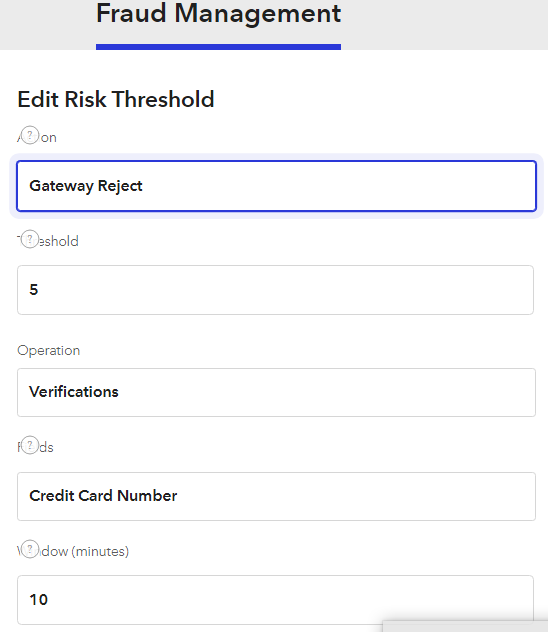
In this example, an error notification "The card information you provided does not seem to be valid. Gateway Rejected: risk_threshold" will be triggered after five successful attempts to add a card with the same number. On the sixth attempt, the risk threshold rule will reject the operation.
-
-
-
For Checkout
-
Operation type: "Transactions"
-
Configuration Steps:
-
Navigate to the Braintree Control Panel.
-
Under Fraud Management set the Risk Threshold Rules for the operation type "Transactions". For example, as illustrated below:
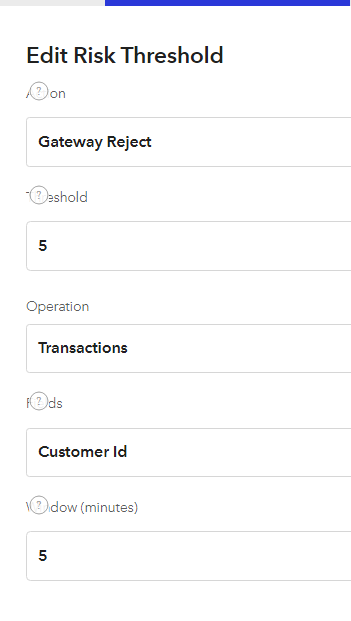
In this example, an error notification "The card information you provided does not seem to be valid. Gateway Rejected: risk_threshold" will be triggered after five successful purchases using the same card. On the sixth transaction, the risk threshold rule will reject the operation.
-
-
You can create and customize any rules that fit your specific needs. For more detailed information on configuring and managing Risk Threshold Rules, please refer to the additional resources provided here.
How to integrate Braintree with Piano
You can input your Braintree account information into the Piano dashboard by clicking Edit Business→Payment Provider→Braintree (Add New).
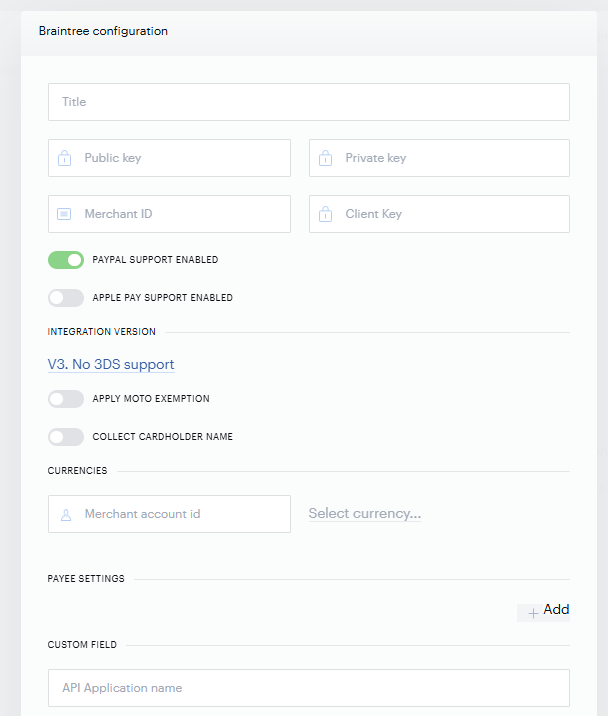
To integrate Braintree with Piano, have the following information ready to enter into the form fields and then click Save:
-
Title: The name of this integration (for your reference only)
-
Public key: your Braintree public key
-
Private key: your Braintree private key
-
Merchant ID: your Merchant ID with Braintree
-
Client Key: your Client Key with Braintree.
-
To locate your Client Key, from the Braintree dashboard click "Account"→"My account" from the top menu, then under "API Keys, Tokenization Keys, Encryption Keys" click on "View Authorizations," and finally copy the "CSE Key" (that's your client key).
-
-
Paypal Support Enabled: slide the selector to enable or disable PayPal
-
Apple Pay Support Enabled: Toggle the selector to enable to disable Apple Pay. For more information on how to enable Apple Pay, please see this article. How to enable Frictionless checkout is described here.
-
Integration Version: Indicate whether you want 3DS support or not. More information about this setting is available here.
-
Apply MOTO exemption: Applicable for 3D-Secure transactions. Please see more information about this exemption in our FAQ article here.
-
Collect cardholder name: Allows you to optionally collect the cardholder's name during payment processing for enhanced 3DS authentication and compliance with Visa’s updated mandatory data requirements. When enabled, a text input field will appear on the payment interface, requiring users to provide their cardholder name (up to 50 alphanumeric characters). Ensure that your system templates are updated before enabling the Cardholder name option in the configuration as described here.
-
Currencies: You will need to select the currencies that are to be supported, along with the corresponding merchant account ID (s). Use the Set as default option to define a default currency. This is necessary for payment operations that don’t have a currency explicitly set, for example, when a user adds a payment method in My Account. Without a default currency, other features like the My Account Wallet tab or auto-renewals may not function correctly. If USD is selected as the currency, it will automatically be marked as the default.
-
Payee Settings: Insert the merchant ID and the Payee email.
-
Custom Field: a Braintree feature that allows the passing of information of fields created in your Braintree dashboard as per these instructions.
-
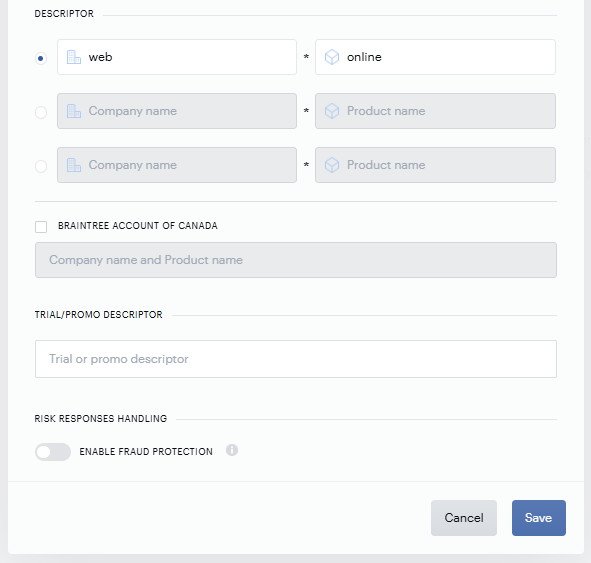
Descriptor: The descriptor determines how transaction charges appear on customer financial statements. The descriptor is pulled from your Braintree configuration on every transaction, so every new payment always reflects the current descriptor. More information about the format is available here. * This is not available for Canadian Braintree accounts.
* Piano also supports dynamic billing descriptors through Braintree, wherein you can adjust the descriptor for individual Terms which will override the value in your configuration. To adjust the Term-specific descriptor, navigate to the Manage → Terms and find the field labeled Braintree billing descriptor. In case you don't see this configuration in your Term settings, please reach out to your Piano Account representative to enable this option.
-
Braintree Account of Canada: If you have a Canadian Braintree account, check this box. It will remove the ability to customize the billing descriptors.
-
Trial/promo descriptor: Enter a descriptor for your trial or promo.
-
Enable Fraud Protection: This feature helps clients detect and prevent fraudulent transactions by leveraging Braintree's fraud detection capabilities.
Before enabling Braintree's Fraud Protection feature in Piano, clients must first license Advanced Fraud Protection from Braintree and enable it in their Braintree control panel.
In addition to the fields above, by clicking on Edit Business from the Piano Dashboard you can add a value for the “Braintree user statement phone.” When entered, this phone number becomes a part of the transaction details descriptor for credit card transactions.
During checkout, the user needs to insert their CVV, so you should be able to configure and enable also "CVV rules" in your Braintree dashboard for added security if needed. "AVS rules" support is not available, as we do not collect addresses (country, city, street, etc.) and are not intentionally sending this data to Braintree. As a result, this may lead to transaction rejections in cases where AVS verification is required.