
PayU Latam Chile Overview
Our integration with PayU Latam via PaymentsOS offers a dedicated payment provider setup for clients in this region. With a dedicated payment provider for Chile, they can offer local payment processing methods relevant to Chilean customers. PayU is one of the most active investors in the fintech space and is always looking for opportunities to further innovation.
Merchant Requirements
Please review this guide on how to set up a PayU Hub account needed for this PayU Latam Chile payment provider integration.
For more information about merchant requirements, please review the frequently asked questions here and reach out to PayU directly in case of any further questions.
Limitations
Debit cards are not supported for recurring payments. Also no support for direct debit payments. In addition, free trials are not supported, but paid trials are.
Restricted to clients from Chile, if needed other options for clients from the Latam region are listed here.
Please review the specific required and non-required checkout and My Account fields here.
Supported Countries
For this payment provider, Piano supports the following currencies.
|
Supported Countries |
|---|
|
Chile |
Please reach out to your Piano Account representative in case a currency supported by this payment provider is not listed in the table above.
Supported Currency
For this payment provider, Piano supports the following currencies:
|
Supported Currencies |
|
|---|---|
|
CLP |
Note, that Piano may support only selected currencies available in the payment providers dashboard.
Supported payment methods
Piano supports the following payment methods for this payment provider:
|
Payment method name |
Are renewals supported? |
||||||||||||
|---|---|---|---|---|---|---|---|---|---|---|---|---|---|
|
Credit card (MasterCard, Visa, Amex, Diners Club) |
Yes* |
*Recurring payments through one-step auth and capture are supported through Transbank.
Supported features and functionality
|
Feature/Functionality |
Supported? |
|---|---|
|
Refunds |
No* |
|
Apply Terms Wizard |
Yes |
|
My Account - Add payment method |
Yes |
|
My Account - Edit payment method |
No |
|
My Account - Delete payment method |
Yes |
|
Publisher dashboard - Add payment method |
Yes |
|
Publisher dashboard - Edit payment method |
No |
|
Publisher dashboard - Delete payment method |
Yes |
|
Tax Providers and Types |
Not supported |
|
Transaction descriptors |
Not supported |
|
Frictionless |
No |
|
3DS / SCA |
No |
|
Fraud prevention |
No |
|
Passive churn prevention |
Yes - Advanced support |
|
Payment token import support |
Yes** |
|
Trials |
Only paid trials are supported. Free trials are not available. |
|
Minimum payment amount |
500 CLP on Production /10 CLP for Sandbox |
|
Country-specific checkout fields |
RUN (Personal ID)*** |
*Currently refunds are not supported.
**For more information about the payment token import please visit this link.
***Below is an example of the fields that are shown during checkout:
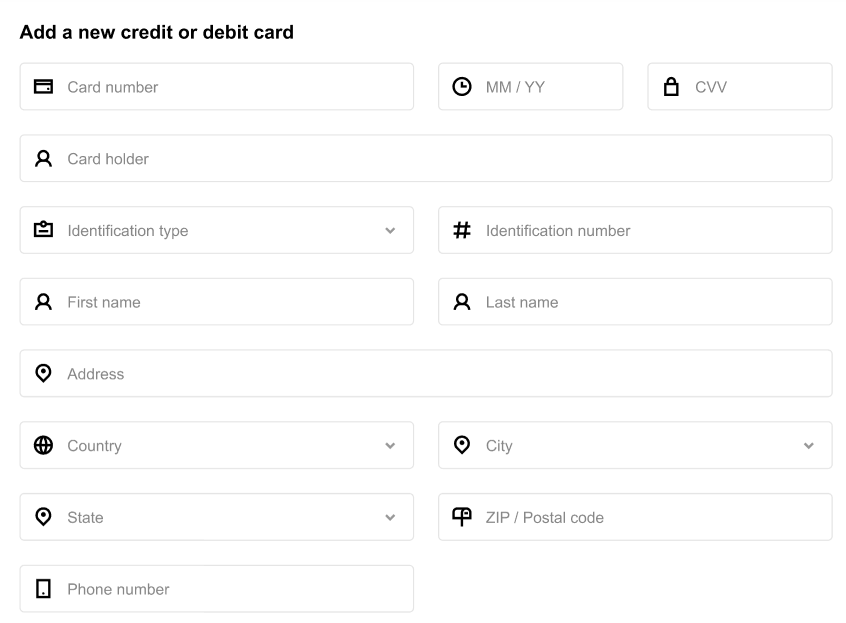
If you'd like to hide some non-required fields from the checkout and My Account, you can do so by following the instructions provided here.
Passive Churn Prevention
It's crucial to understand how the various error codes that may arise during a payment failure are handled by the Passive Churn Prevention feature. These error codes provide insights into why a renewal attempt may have failed, enabling you to take appropriate actions to prevent churn. This section details the specific error codes encountered during a payment failure and their mapping to a decline reason.
|
Decline reason |
Error codes |
|---|---|
|
Suspected fraud |
ANTIFRAUD_REJECTED BANK_FRAUD_REJECTED |
|
Insufficient funds |
INSUFFICIENT_FUNDS |
|
Expired card |
EXPIRED_CARD |
|
Card is stolen or lost |
RESTRICTED_CARD |
|
Limit exceeded |
EXCEEDED_AMOUNT |
|
Network failure |
PAYMENT_NETWORK_REJECTED PAYMENT_NETWORK_NO_CONNECTION PAYMENT_NETWORK_NO_RESPONSE |
|
3DS failure |
- |
|
Call issuer |
CONTACT_THE_ENTITY |
|
Do not honor |
NOT_ACCEPTED_TRANSACTION INVALID_CARD |
|
Everything else |
All error codes not listed above |
How to integrate PayU Latam Chile with Piano
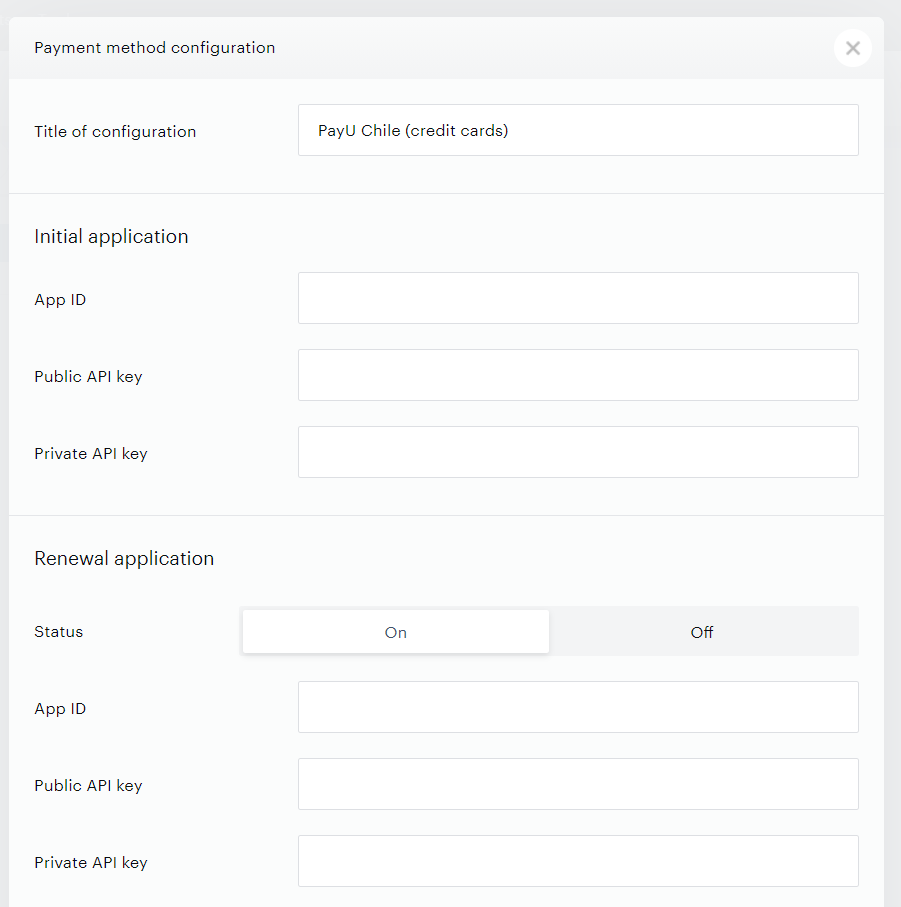
In case you're a merchant from Colombia, please go to Edit Business → Payment Provider → PayU Chile (credit cards) and click on Add New.
Enter your payment provider credentials in the available fields and pick a title for your configuration as shown below. If you would like to offer also renewal support, select On in the Status field and fill in the Renewal application's details. If you don't want to support renewals, select the option Off.
-
Title of configuration: The name of your configuration. This name will not be exposed to your users.
-
App ID: The App ID from your PayU account.
-
Public API key: The Public API key from your PayU account.
-
Private API Key: The Private API key from your PayU account.
-
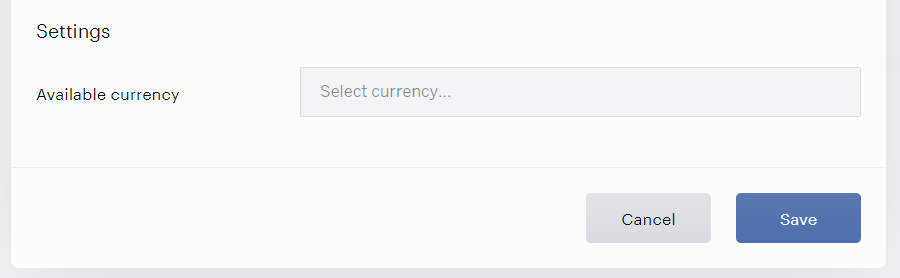
Available currency: The only currency available for this configuration is CLP (Chilean Peso).
Click Save to add this payment provider once you've finished the configuration.
If you need to retrieve additional transaction details that are passed to PayU during checkout, you can do so using the PaymentsOS API. For more details, see this FAQ.