
Piano supports Google Pay via a dedicated Braintree integration, separate from Braintree credit card, PayPal, and Apple Pay. Renewals are supported.
All billing must occur in Piano; do not charge users directly through Braintree's subscription options described here.
Note that Braintree Google Pay is a distinct integration, independent of other Braintree payment methods.
Before you begin, obtain your Braintree merchant ID, public key, and private key; a Google Pay merchant ID from Google; and a Braintree merchant account that supports Google Pay for each currency you will offer.
Merchant Requirements
The new merchant must be registered to operate and have a bank account in one of the following countries: US, Canada, Australia, Europe, Singapore, Hong Kong SAR China, Malaysia, or New Zealand.
Supported Currency
Piano supports the following Braintree-supported currencies:
|
Supported Currencies |
||||
|---|---|---|---|---|
|
AUD |
BGN |
CAD |
CHF |
CZK |
|
DKK |
EUR |
GBP |
HKD |
HRK |
|
HUF |
ISK |
JPY |
KRW |
MYR |
|
NOK |
NZD |
PLN |
RON |
SEK |
|
|
SGD |
USD |
|
|
To enable multiple currencies, you must manually add new Braintree merchant accounts to your general Braintree account for each currency you would like to enable. Once this is done, you will be given a separate merchant account ID for each currency. Enter these credentials with their respective currencies into your dashboard.
Note, that Piano may support only selected currencies available in the payment providers dashboard. It is highly recommended that you inquire directly with Braintree Payments about the capabilities of their acquiring partners/processors in relation to individual payment methods support and the ability to process recurring transactions (MITs) in the particular country you are looking to operate in.
Supported Payment Methods
Piano supports the following payment methods for this payment provider:
|
Payment method name |
Are renewals supported? |
||||||||||||
|---|---|---|---|---|---|---|---|---|---|---|---|---|---|
|
Google Pay |
Yes |
Supported Features and Functionality
Please click on the "Fullscreen" option below to enlarge the table to show all available payment method features.
|
Feature |
Supported? |
|
Import endpoint: Migration support |
N/A* |
|
Grace and Retry |
Yes |
|
Checkout and Billing |
|
|
Purchase with a new payment method |
Yes |
|
Purchase with saved payment method |
Yes |
|
Remember my payment method |
Yes |
|
Tax support (Taxjar, Avalara, OneSource) |
Yes |
|
Promotions (free / discounted) |
Yes |
|
Trials (free / paid) |
Yes |
|
Support 3DS (cards only) |
N/A |
|
Email notifications |
Yes |
|
Auto-renewal / Free renewal |
Yes |
|
Manual renewal flow |
Yes |
|
MyAccount |
|
|
Display UPI in Payment methods section |
Yes |
|
Tax Support (Taxjar, Avalara, OneSource) |
Yes |
|
History events |
Yes |
|
Inquiries support |
Yes |
|
Cancel subscription |
Yes |
|
Vouchers |
Yes |
|
Add payment method |
Yes |
|
Edit payment instrument |
Pending |
|
Delete payment instrument |
Yes |
|
Update renewal payment method with new payment method |
Yes |
|
Update renewal payment method with saved payment method |
Yes |
|
Upgrade |
Yes |
|
Manual renewal flow |
Yes |
|
MyAccount: Cancel and Refund |
Yes |
|
Publisher Dashboard: Reports and logs |
|
|
New Activity Report |
Yes |
|
Revenue Report |
Yes |
|
Transactions Log: Statuses (completed, refunded, pending) |
Yes |
|
Transactions Log: Latest Revenue Recognition List |
Yes |
|
Transactions Log: Latest Revenue Recognition Summary |
Yes |
|
Publisher Dashboard: User Profile |
|
|
Overview (display data) |
Yes |
|
Subscription Details: Cancel |
Yes |
|
Subscription Details: Cancel & Refund |
Yes |
|
Subscription Details: Change Billing date |
Yes |
|
Subscription Details: Update Renewal Method |
Yes |
|
History events |
Yes |
|
Transactions: Refund |
Yes |
|
Inquires support |
Yes |
|
Subscription Details: Upgrade |
Yes |
|
Vouchers: Refund & Revoke |
Yes |
|
Wallet: Add payment instrument |
N/A |
|
Wallet: 3DS for adding cards |
N/A |
|
Wallet: Apply to all active subscriptions |
N/A |
|
Wallet: Edit payment instrument |
N/A |
|
Wallet: Delete payment instrument |
Yes |
|
Wallet: Set as default |
Pending |
|
Publisher Dashboard: Subscribe User |
|
|
Purchase with a new payment method |
N/A |
|
Purchase with saved payment method |
Pending |
|
Tax Support (Taxjar, Avalara, OneSource) |
Yes |
|
Apply this payment method to all active subscriptions |
Pending |
|
Checkout: Frictionless |
N/A |
|
Transactions Log: Status (charged back/disputed) |
N/A |
|
Passive Churn prevention |
Yes - Advanced support |
*For more information about the payment token import please visit this link.
Passive Churn Prevention
It's crucial to understand how the various error codes that may arise during a payment failure are handled by the Passive Churn Prevention feature. These error codes provide insights into why a renewal attempt may have failed, enabling you to take appropriate actions to prevent churn. This section details the specific error codes encountered during a payment failure and their mapping to a decline reason.
|
Decline reason |
Error codes |
|
Suspected fraud |
2014 (Processor Declined – Fraud Suspected) 2021 (Security Violation) |
|
Insufficient funds |
2001 (Insufficient Funds) |
|
Expired card |
2004 (Expired Card) |
|
Card is stolen or lost |
2012 (Processor Declined – Possible Lost Card) 2013 (Processor Declined – Possible Stolen Card) 2047 (Call Issuer. Pick Up Card) 2053 (Card reported as lost or stolen) |
|
Limit exceeded |
2002 (Limit Exceeded) 2003 (Cardholder's Activity Limit Exceeded) |
|
Network failure |
3000 (Processor Network Unavailable – Try Again) |
|
3DS failure |
2041 (Declined – Call For Approval) 2099 (Cardholder Authentication Required) |
|
Call issuer |
2015 (Transaction Not Allowed) 2038 (Processor Declined) 2043 (Error – Do Not Retry, Call Issuer) 2044 (Declined – Call Issuer) 2046 (Declined) 2057 (Issuer or Cardholder has put a restriction on the card) 2109-2999 (Processor Declined) |
|
Do not honor |
2000 (Do Not Honor) |
|
Everything else |
All error codes not listed above |
How to integrate Braintree Google Pay with Piano
To integrate Braintree Google Pay with Piano, you will need the following:
-
Obtain Merchant ID, Public Key, Private Key, and a set of Merchants/Currencies from your Braintree account.
-
The Google Pay Merchant ID is provided by Google.
-
For Business setup on Google Pay, refer to Google Pay for Online Business Help.
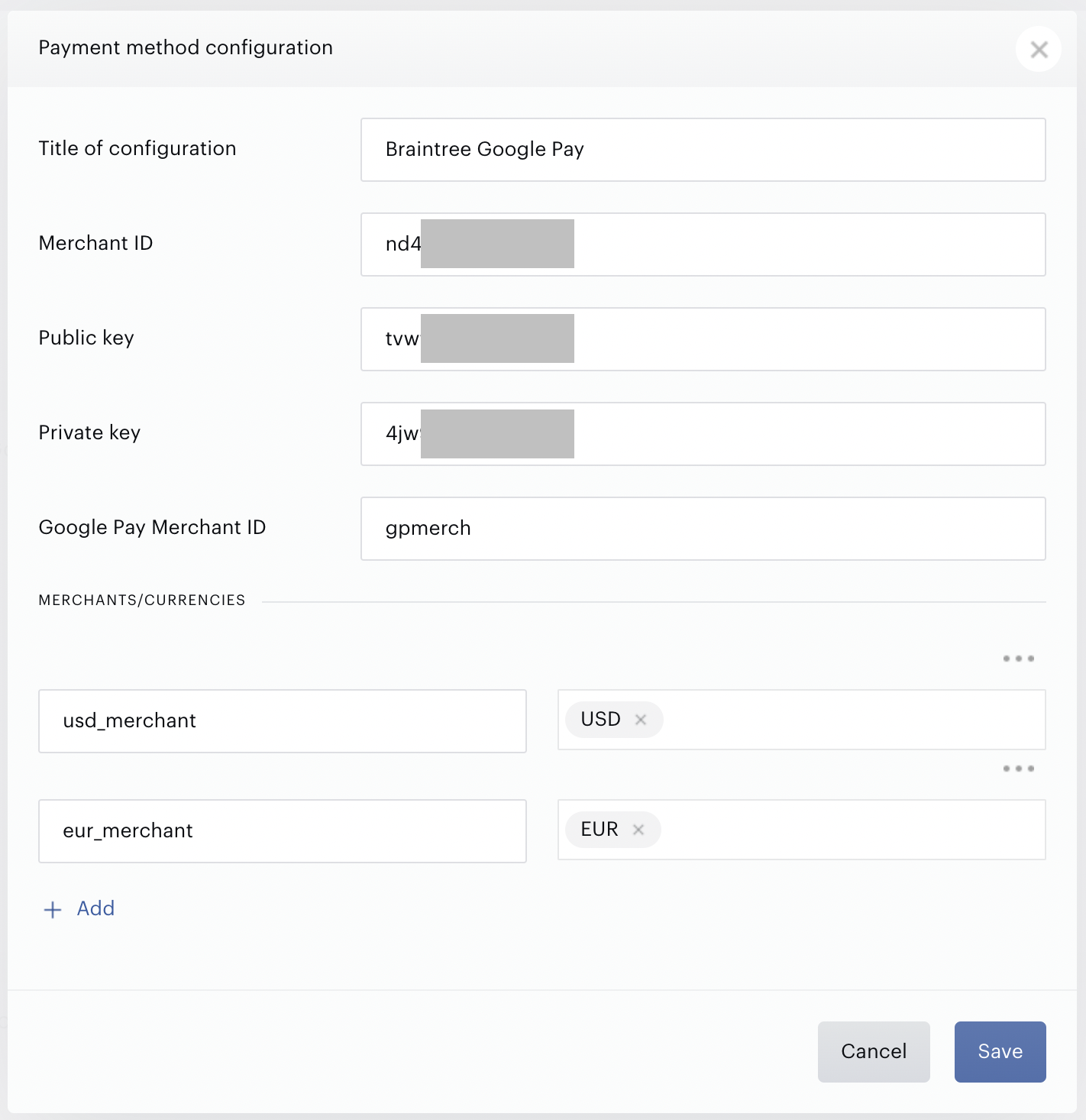
Once you have obtained the above information, you can input it into the Piano dashboard by clicking Edit Business→Payment Provider→Braintree Google Pay (Add New).
Enter the information into the form fields and then click Save:
-
Title: The name of this integration (for your reference only)
-
Merchant ID: your Merchant ID with Braintree
-
Public key: your Braintree public key
-
Private key: your Braintree private key
-
Google Pay Merchant ID: your Google Pay Merchant ID is provided by Google.
-
Currencies: you will need to select the currencies that are to be supported along with the corresponding Braintree merchant account ID(s).
In addition to the configuration on Piano's end, you will also need to configure Google Pay in your Braintree dashboard as follows:
-
Login to Braintree Dashboard
-
Access the Braintree Dashboard and navigate to Settings (located in the upper-right-hand corner of the screen).
-
-
Configuration of Merchant Accounts and Currencies
-
In the Braintree Dashboard, under Settings → Business, locate your Braintree Merchant ID.
-
Review or add merchant accounts and supported currencies, and ensure that the merchant account supports Google Pay as a payment method.
-
Refer to the Braintree - Google Pay website for more information about implementing the Google Pay payment method.
For Piano's Braintree credit card and PayPal integration see the article here.
Template changes
For Braintree Google Pay, to ensure the latest code is loaded in the Checkout and My Account, system template changes are required. There are a few ways to update your templates;
-
The easiest is to reset to default if you haven’t stylized the templates.
-
If you did, then you can use the Compare code feature and compare the code between the default version and your current version, and carry over any new code line by line.
Check that the Payment Components template contains the following components, incl. the relevant code:
<script type="text/ng-template" id="/frontend/providers/components/braintreegooglepay/checkout/component.shtml">
<div class="braintreegooglepay-wrapper new-card-form">
<div class="row">
<div ng-if="isStoredPaymentsScreenShown()" class="braintreegooglepay-checkout-payment-form">
<div class="add-credit-card-wrapper">
<h4>
<t context="checkout.platform">Your payment methods</t>
</h4>
<a href="javascript:void(0)" class="add-credit-card" ng-click="gotoNewPaymentScreen()"
ng-show="stored.length > 0">
+
<t>Add a new payment method</t>
</a>
</div>
<table ng-if="stored.length" class="payment-method-card">
<tr class="payment-method-card-row" ng-repeat="method in stored">
<td class="payment-method-card-cell">
<input type="radio"
id="radio-{{method.id}}"
name="stored_method"
ng-model="data.selectedUpi"
ng-value="method"
ng-change="onUpiChange(method)"
radio-track-by="id"
/>
</td>
<td class="payment-method-card-cell">
<div class="payment-method-icon payment-method-icon--googlepay"></div>
</td>
<td class="payment-method-card-cell">
<div>{{method.type | tc:"checkout.platform"}} *{{method.ending_in}}</div>
</td>
<td class="payment-method-card-cell payment-method-card-cell-expiration">
<t>Expires in</t>
{{method.expire_month}}/{{method.expire_year}}
</td>
<td class="payment-method-card-cell payment-method-card-cell-default-payment">
<div class="payment-method-card-default-payment" ng-show="method.id === cc.defaultPaymentMethodId"><t>Default</t></div>
<button ng-hide="method.id === cc.defaultPaymentMethodId"
ng-click="setAsDefaultPaymentMethod(method)"
type="button"
class="set-as-default-button"
>
<t>Set as default</t>
</button>
</td>
</tr>
</table>
</div>
<div ng-show="isNewPaymentScreenShown()" class="manage-payment-method-wrapper">
<div ng-show="isReturnToStoredPaymentsShown()" class="add-credit-card-wrapper">
<h4>
<t context="checkout.platform"> </t>
</h4>
<a href="javascript:void(0)" class="add-credit-card" ng-click="gotoStoredPaymentsScreen()">
<t>< Return to saved cards</t>
</a>
</div>
<div ng-if="isStoreInVaultAvailable()">
<div class="custom-checkbox">
<input type="checkbox" name="store_in_vault" ng-model="data.store_in_vault"
id="remember-my-account-braintreegooglepay"/>
<label for="remember-my-account-braintreegooglepay">
<t>Remember my account for future payments</t>
</label>
</div>
</div>
<div ng-if="isSubscription()">
<input type="hidden" name="store_in_vault" ng-model="data.store_in_vault"/>
</div>
<div class="custom-checkbox" ng-if="isApplyPaymentMethodAvailable()">
<input type="checkbox" name="shouldMakeDefaultPaymentMethod" ng-model="data.shouldMakeDefaultPaymentMethod"
id="default-payment-method-braintreegooglepay"/>
<label for="default-payment-method-braintreegooglepay">
<t>Apply this payment method to all active subscriptions</t>
</label>
</div>
</div>
<div consents-list></div>
<div class="footer-modal">
<div class="auto-renew-purchase" ng-show="isSelectedTermAutoRenewChoiceAvailable()">
<input class="auto-renew-purchase-checkbox" type="checkbox" ng-model="input.autoRenew"
id="auto_renew"/>
<label class="auto-renew-purchase-label" for="auto_renew">
<t>Automatically renew my subscription when the time comes.</t>
</label>
</div>
<div ng-show="isStoredPaymentsScreenShown()" class="complete-purchase-button" complete-purchase-button
title="{{'Complete Purchase' | t}}"></div>
<div ng-show="isNewPaymentScreenShown()">
<div ng-show="isBtGpayLoading"
id="bt-gp-spinner-wrapper"
class="bt-gp-spinner-wrapper">
<div pn-spinner size="small"></div>
</div>
<div ng-show="!isBtGpayLoading"
id="bt-gp-button-container"
class="bt-gp-button-container"
data-e2e="bt-gp-button-complete-purchase">
</div>
</div>
</div>
</div>
</div>
</script>
If your application was created a long time ago, please check the Checkout template is also using the latest version.
Please check that you are using the latest version of the My Account Wallet Components, you can either reset to default or use the compare versions feature to make updates to your template. Please make sure that the template contains the following components, incl. the relevant code:
<script type="text/ng-template" id="/frontend/providers/components/braintreegooglepay/my_account/component.shtml">
<div class="braintreegooglepay-ma-container">
  <div>
    <my-account-billing-country></my-account-billing-country>

    <div ng-if="data.paymentInstrument">
      <div class="braintreegooglepay-pm-title">
        <t context="checkout.platform">Your credit or debit card</t>
      </div>
      <div class="cc-fields-layout__flex-row">
        <div class="cc-fields-layout__field cc-fields-layout__card-number">
          <credit-card-number ng-model="data.paymentInstrument.num.value"
                              ng-disabled="true"
                              ng-required="false"
                              ng-readonly="false"
                              valid="true"
                              name="'num'">
          </credit-card-number>
        </div>

        <div class="cc-fields-layout__field cc-fields-layout__expire">
          <cc-expire-component ng-model="data.paymentInstrument.expire.value"
                               ng-disabled="true"
                               ng-required="false"
                               ng-readonly="false"
                               valid="true"
                               name="'expire'">
          </cc-expire-component>
        </div>
        <div ng-show="data.paymentInstrument.cvv.value" class="cc-fields-layout__field cc-fields-layout__expire">
          <credit-card-cvv ng-model="data.paymentInstrument.cvv.value"
                           ng-disabled="true"
                           ng-required="false"
                           ng-readonly="false"
                           valid="true"
                           name="'cvv'">
          </credit-card-cvv>
        </div>
      </div>

    </div>
    <div ng-if="!data.paymentInstrument">
      <div ng-show="isBtGpayLoading"
           id="bt-gp-spinner-wrapper"
           class="bt-gp-spinner-wrapper">
        <div pn-spinner size="small"></div>
      </div>
      <div ng-show="!isBtGpayLoading"
           id="bt-gp-button-container"
           class="bt-gp-button-container"
           data-e2e="bt-gp-button-complete-purchase"></div>
    </div>
  </div>
</div>

</script>
To ensure compliance with Google’s brand guidelines, Piano has updated templates to correctly display the Google Pay logo. To reflect these changes on your application, please make sure your templates contain the relevant code as described below.
Go to Manage → Templates → System → Upgrade components and find these strings:
<span ng-show="upgradeInformation.creditCard">
<t arg0="{{upgradeInformation.paymentType}}" arg1="{{upgradeInformation.accountNumber.slice(-4)}}"><b>{0} *{1}</b></t>
</span>
<span ng-hide="upgradeInformation.creditCard">
<t arg0="{{upgradeInformation.paymentMethodName}}"><b>{0}</b></t>
</span>
<span ng-if="upgradeInformation.expireMonth && upgradeInformation.expireYear">
<t arg0="{{upgradeInformation.expireMonth}}" arg1="{{upgradeInformation.expireYear}}"> expires in <b>{0}/{1}</b></t>
</span>
And replace them with the following:
<span ng-bind-html="getUpgradePaymentInfoText(upgradeInformation)"></span>
The final piece of code after the change should look like this:
<li class="list-item">
    <span class="item-text">
        <t>Payment method: </t>
        <span ng-bind-html="getUpgradePaymentInfoText(upgradeInformation)"></span>
    </span>
</li>
Go to Manage → Templates → System → Upgrade authentication components and find these strings:
<span ng-show="upgradeInformation.creditCard">
<t arg0="{{upgradeInformation.paymentType}}" arg1="{{upgradeInformation.accountNumber.slice(-4)}}"><b>{0} *{1}</b></t>
</span>
<span ng-hide="upgradeInformation.creditCard">
<t arg0="{{upgradeInformation.paymentMethodName}}"><b>{0}</b></t>
</span>
<span ng-if="upgradeInformation.expireMonth && upgradeInformation.expireYear">
<t arg0="{{upgradeInformation.expireMonth}}" arg1="{{upgradeInformation.expireYear}}"> expires in <b>{0}/{1}</b></t>
</span>
And replace them with the following:
<span ng-bind-html="getUpgradePaymentInfoText(upgradeInformation)"></span>
The final piece of code after the change should look like this:
<li class="list-item"
    data-e2e="payment-method"
>
  <span class="item-text">
    <t>Payment method: </t>
    <span ng-bind-html="getUpgradePaymentInfoText(upgradeInformation)"></span>
  </span>
</li>
Go to Manage → Templates → My Account → My Account Library Components and find these strings:
<span ng-show="upgradeFrom.card">
  <t context="checkout.platform" arg0="{{upgradeFrom.card.paymentType}}" arg1="{{upgradeFrom.card.lastFour}}"><b>{0} *{1}</b></t>
</span>
<span ng-if="upgradeFrom.card.expiration">
  <t context="checkout.platform" arg0="{{upgradeFrom.card.expiration}}"> expires in <b>{0}</b></t>
</span>
And replace them with the following:
<span ng-bind-html="getUpgradePaymentInfoText(upgradeFrom)"></span>
The final piece of code after the change should look like this:
<li class="simple-list__item">
  <span>
    <t context="checkout.platform">Payment method: </t>
    <span ng-bind-html="getUpgradePaymentInfoText(upgradeFrom)"></span>
  </span>
</li>